You’re scrolling through the For You feed when a creator you follow appears mid-LIVE. The chat is moving quickly, guests are appearing beside the host, and watching suddenly feels incomplete. You want to react, ask a question, or get on screen, but the button you need seems to change from one broadcast to another.
That confusion is normal. How to join Lives on TikTok isn’t one action. You can join as a viewer, request to appear through Multi-guest, or connect through TikTok LIVE Studio on desktop. Each route has different controls, eligibility checks, and signals that hosts use when deciding whom to approve.
Table of Contents
- What Joining a TikTok Live Actually Means in 2026
- Meeting the Eligibility Gates Before You Join
- Joining From the Mobile App Step by Step
- Joining a Live From Desktop or LIVE Studio
- Troubleshooting the Join Flow When It Breaks
- Live Etiquette That Gets You Invited Back
- Quick Checklist and Where TikTok Live Is Headed Next
What Joining a TikTok Live Actually Means in 2026
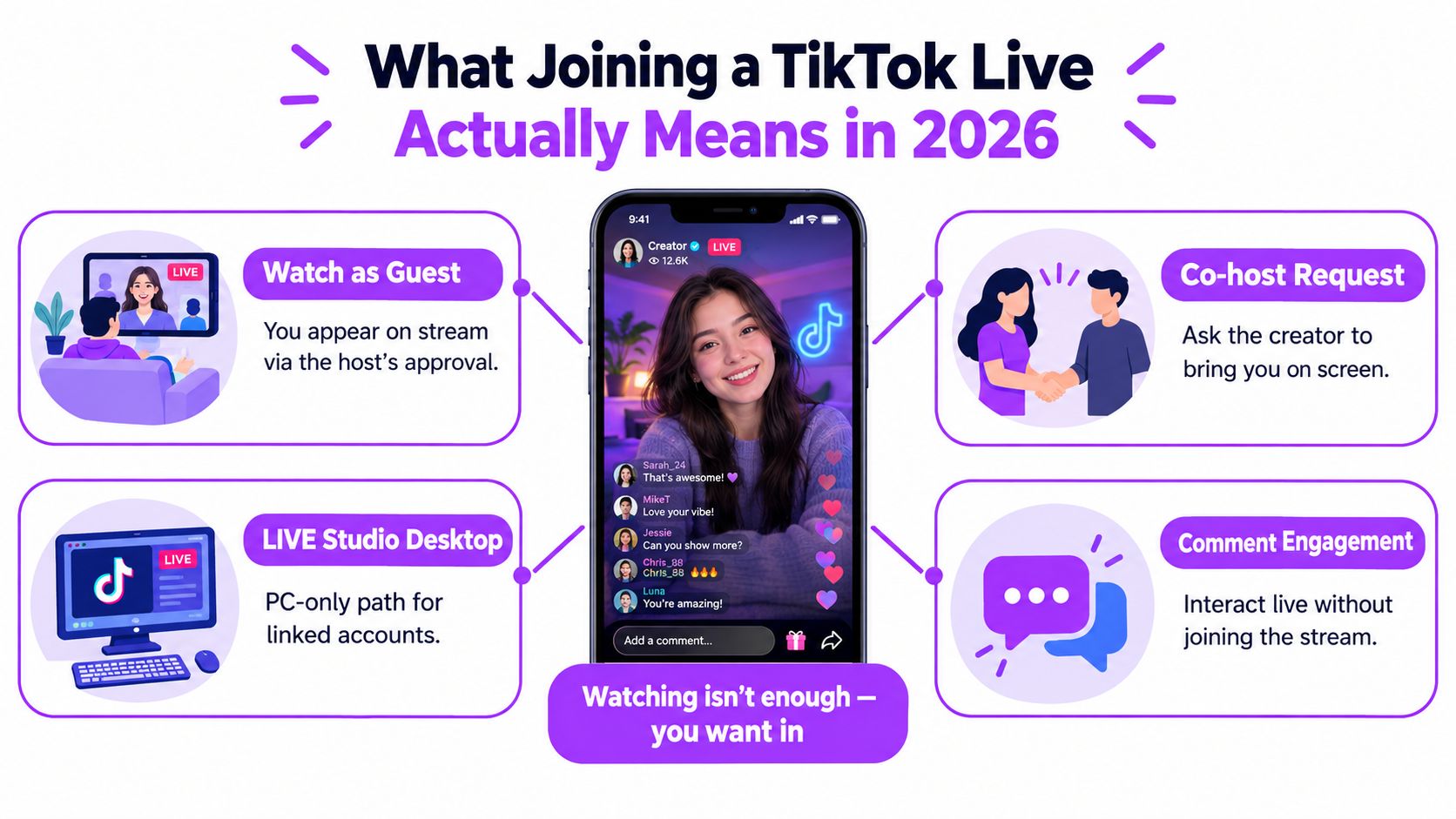
A viewer joining a LIVE doesn’t automatically become a participant. The first path is passive or conversational: you open the stream, watch, react, and comment. Your profile stays in the audience, but a thoughtful comment can put you on the host’s radar faster than repeatedly tapping emojis.
The second path is a co-host request. If the broadcast supports guest invitations, you open the Multi-guest panel, tap Request, and wait for the creator to approve you. Approval brings you onto the shared screen, where the host controls the pace, guest layout, and whether your camera and microphone remain active.
The third path uses LIVE Studio from a connected computer. It isn’t a larger version of the mobile interface. Desktop participation depends on account access, software availability, connected equipment, and the host’s guest workflow. It makes more sense for gaming, interviews, tutorials, or broadcasts where camera, microphone, and screen composition matter.
Practical rule: Decide whether you want attention from the host, a place on screen, or a desktop production workflow before you tap anything.
TikTok has layered LIVE features over time, so available icons can depend on your account, region, age, and the host’s settings. A missing button doesn’t necessarily mean the app is broken. It may mean the host hasn’t enabled guesting, your account doesn’t meet the relevant gate, or that feature isn’t available in your market.
If your wider goal is turning live moments into discoverable short-form content, TikTok Zero Views covers a separate distribution problem. For this guide, the practical distinction is simple: viewer, mobile guest, and desktop participant are three different workflows.
Meeting the Eligibility Gates Before You Join
TikTok applies account-level checks before it exposes every LIVE control. In most markets, creators typically need at least 1,000 followers for LIVE access, while age requirements vary by action and region. Guidance commonly distinguishes between being 16 or older to host a LIVE and being 18 or older to receive gifts, while some regional rules require an older age to go LIVE. Check TikTok’s current account status rather than relying on a guide written for another market, as Buffer’s TikTok LIVE eligibility guide explains.
A guest doesn’t always need to build a public audience first. In practice, invitation-based participation can be available once the account meets the relevant LIVE requirements and remains in good standing. That doesn’t guarantee access to every guest feature, because TikTok can apply regional or account-level restrictions and hosts can reject requests.
| Requirement | Join as Viewer | Request as Multi-guest | Connect via LIVE Studio |
|---|---|---|---|
| TikTok account | Required | Required | Required |
| Minimum age | Viewer access may vary by content and region | LIVE participation rules apply | LIVE participation rules apply |
| Follower threshold | Usually not the deciding gate for watching | Often tied to LIVE eligibility, with regional variation | LIVE access and Studio eligibility may both apply |
| Account standing | Safety restrictions can limit interaction | Good standing matters | Good standing and Studio access matter |
| Host approval | Not required | Required | Required for a guest connection |
| Device setup | App and network | Camera, microphone, permissions, network | Computer, LIVE Studio, camera, microphone, network |
Check the account before opening the stream
Start with TikTok’s account status and age information. Update the app, confirm that TikTok can use your microphone and camera, and make sure the email or phone attached to the account is accessible. If SMS verification is the obstacle, a resource on a virtual number for TikTok SMS can help you understand the verification workflow, but use only a number and account setup that comply with TikTok’s rules.
TikTok’s operational gates commonly include age, follower eligibility, and good standing with no recent Community Guidelines or Terms of Service violations. Adobe’s TikTok LIVE walkthrough also notes that LIVE access can vary by region and that LIVE Studio may involve additional account-level approval.
The host controls the final two gates. Multi-guest must be enabled, and the creator must approve your request during that session. You can satisfy every visible requirement and still remain a viewer if the host has closed requests or doesn’t recognize your profile.
Joining From the Mobile App Step by Step
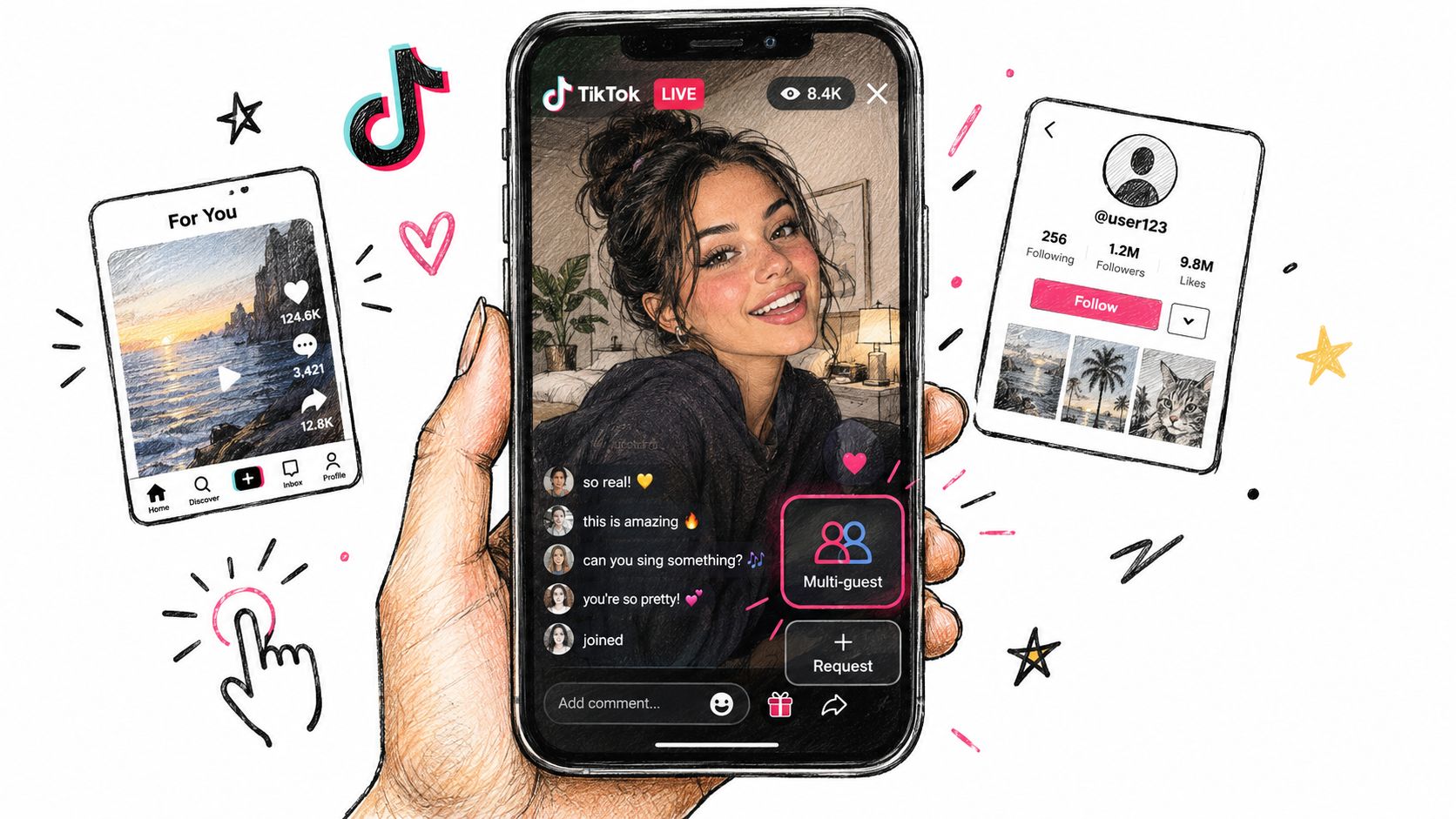
Open the LIVE from the For You feed, search results, or the creator’s profile. Once inside, identify the host’s video tile, any guest tiles, the scrolling chat, reaction controls, and the comment field. TikTok’s layout can shift, but the functions stay familiar: watch, interact, and look for the guest control only when the host has enabled it.
Start as a useful viewer
The viewer route is more than a waiting room. Tap the available reaction icons, then add a relevant comment through the chat field. Ask about the topic on screen, answer a question the host has posed, or contribute a concise observation. A streamer’s attention is limited, and repeated requests without context are easy to ignore.
After you’ve participated naturally, look for the Multi-guest control near the chat area. Depending on the version and layout, it may appear as a two-person or multi-person icon, sometimes described as the guest or four-square control. Tap it to open the guest tray.
Send the request without becoming noise
If requests are open, you’ll see a Request option. Tap it, add the short message TikTok provides if prompted, and submit. The host can see your profile and decide whether to approve you. If the control is unavailable, greyed out, or absent, don’t keep tapping. The host may have disabled requests, the account may not qualify, or the broadcast may have reached its guest capacity.
A successful approval produces an invitation or acceptance prompt. Follow it promptly, confirm the camera and microphone preview, and join only when you’re ready. Your camera may activate as part of the connection, so check your background, lighting, and visible notifications before accepting.
Good guest behavior: Join muted, wait for the host to introduce you, and keep your first answer short enough for the host to establish the conversation.
Once you’re on screen, stay in your tile rather than moving into the host’s frame or reaching for anything in their setup. Let the creator lead the handoff. If the host asks you to mute, adjust your camera, or leave, act immediately.
Here’s a visual walkthrough of the mobile interaction:
Joining a Live From Desktop or LIVE Studio
Desktop participation starts before the broadcast. Install TikTok LIVE Studio through TikTok’s official access route, sign in with the same account connected to your TikTok profile, and complete the camera and microphone setup before the host invites you. LIVE Studio’s interface doesn’t mirror the mobile Multi-guest button, so searching the phone layout on your computer can send you in the wrong direction.
Prepare the connection
Open LIVE Studio and confirm that the correct webcam, microphone, and speakers are selected. A USB webcam is usually more dependable than a laptop camera, while a light placed in front of you prevents the face from appearing dim or washed out. Use headphones when possible, because desktop speakers can send the host’s audio back into your microphone and create an echo.
TikTok’s published LIVE Studio benchmarks show that 720p at 30 FPS can run on an Intel Core i5-10400 with 8 GB RAM and a GTX 1650 Super. The 1080p at 60 FPS profile calls for an Intel Core i9-10900K, 32 GB RAM, and an RTX 3080, according to TikTok’s LIVE Studio hardware guidance. Those are useful reference points, not a reason to force a high-resolution stream onto a computer that can’t maintain it.
Use the Producer view
Wait for the host to start the broadcast, then open the Live Guests panel within the Producer view. Depending on the session, you may send a co-host request or accept an invitation from the host. The host still decides whether you appear, so desktop software doesn’t bypass approval.
A desktop guest is useful when the conversation involves gameplay, a tutorial, a podcast-style exchange, or a composed camera scene. It isn’t automatically better for a casual chat. More equipment creates more failure points, and a clean mobile connection is preferable to an impressive setup that drops audio.
For layout ideas, TikTok’s split-screen formats show why framing matters when two speakers share one broadcast. OBS can offer a more customizable production environment, but LIVE Studio is the more direct TikTok workflow when your account has access. A frequent blocker is a disabled camera or microphone permission, so check both the operating system and LIVE Studio before blaming the host’s invite.
Troubleshooting the Join Flow When It Breaks
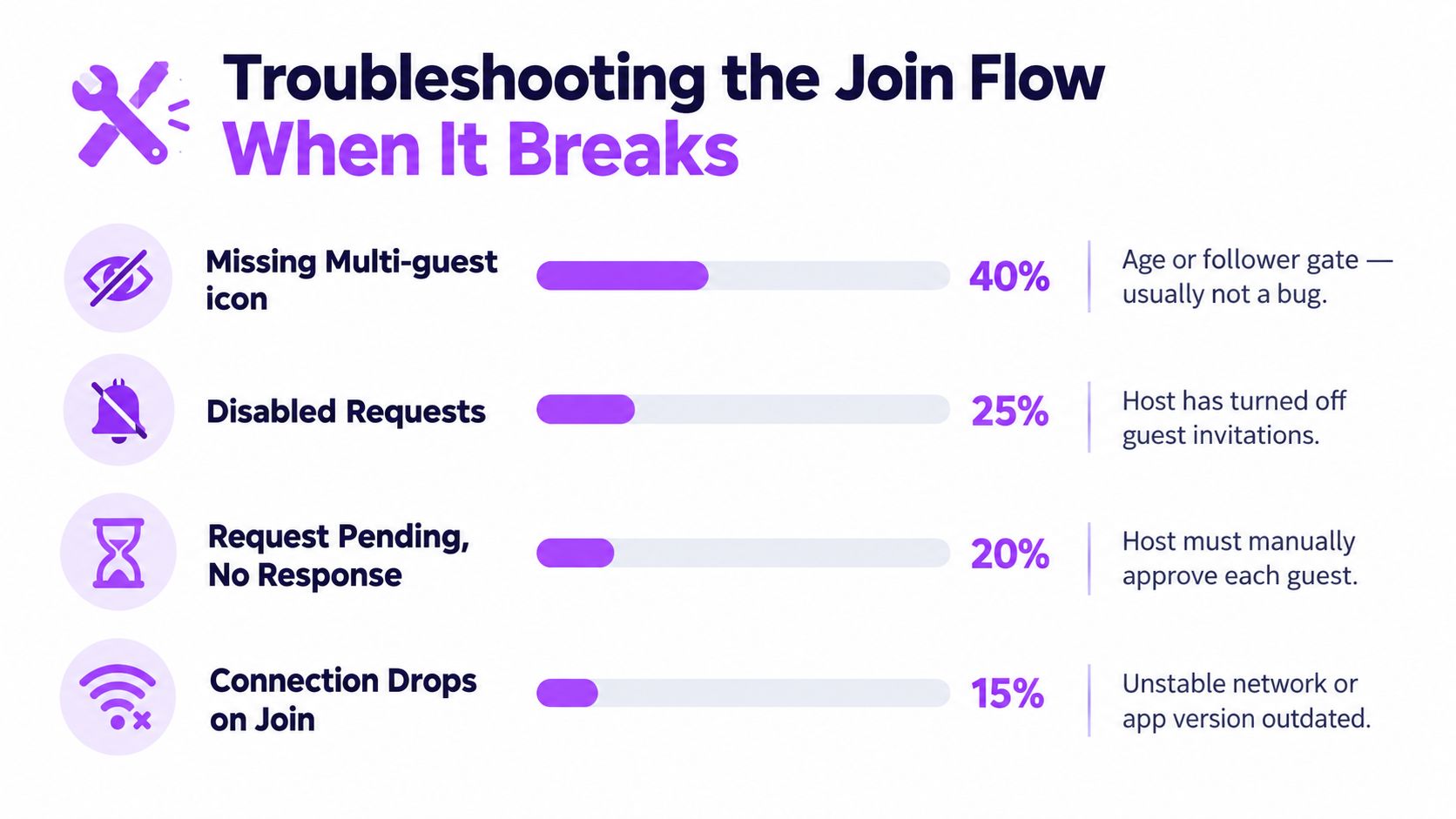
Most failed join attempts fit a small set of symptoms. Treat the visible button state as evidence about which gate is failing, rather than repeatedly closing and reopening the app.
The Multi-guest icon is missing
A missing icon usually points to eligibility, account status, region, or host configuration. Confirm your date of birth and account status, update TikTok, and test another LIVE where guest participation is visibly active. If the icon appears elsewhere, the first host probably hasn’t enabled requests.
Requests are disabled
A visible guest panel may still show Requests off. The host might have switched off invitations, limited the session, or filled the available guest layout. Ask the host in chat whether guest requests are open, then retry after they change the setting or restart the LIVE. Your account can’t override that control.
Your request stays pending
Pending means the host hasn’t approved it. Hosts may be reading comments, screening profiles, or choosing someone else, so sending repeated requests makes your profile less attractive. Continue watching and commenting constructively, or leave the request alone and try again during a broadcast that matches your expertise.
You connect, then drop
First check the app version, camera and microphone permissions, and network stability. Close other bandwidth-heavy apps, switch to a stronger connection, and re-enter only after the host confirms the guest slot is available. If desktop access fails, test the mobile route instead, because the two paths use different interfaces and account checks.
Regional restrictions can also affect invitations, especially when a host wants guests from a particular market. Age rules vary by action and region, and monetization has a higher age gate in many markets. If the controls remain inconsistent, stop troubleshooting in public chat and use viewer participation until TikTok displays the required access for your account.
Live Etiquette That Gets You Invited Back
Hosts don’t approve guests because the request button exists. They approve people who make the broadcast easier to run and more interesting to watch. Etiquette is therefore practical value, not decoration.
Arrive early enough to understand the topic and warm up through relevant comments. Don’t enter with a sales pitch, a link, or a demand for attention. A creator who sees you helping the chat has a reason to believe you’ll help the conversation on screen.
The useful question isn’t “What do I want from this LIVE?” It’s “What can I add without making the host manage me?”
Keep your first contribution compact. Answer the host’s question directly, avoid talking over them, and follow visible prompts such as introducing yourself or muting while another guest speaks. Hosts often remove guests who ignore those cues, interrupt repeatedly, or remain on screen after the conversation has clearly ended.
A request that gives the host a reason
A direct message works better when it describes audience value instead of personal ambition. Try:
“I enjoyed your LIVE on [topic]. I work on [specific subject], and I can add a practical example or answer audience questions about [specific angle]. If you’re planning another guest session, I’d be glad to join and keep the conversation focused.”
That message gives the host a topic, a reason to remember you, and confidence that you won’t hijack the stream. If they don’t respond, don’t follow up with repeated requests during the LIVE. Build recognition through useful comments first.
Quick Checklist and Where TikTok Live Is Headed Next
Run this pre-flight before you request a guest slot:
- Account access: Check age, account status, and the LIVE eligibility shown for your region.
- Follower requirement: Confirm whether your account meets the applicable LIVE threshold.
- App version: Update TikTok before the broadcast starts.
- Guest control: Look for the Multi-guest icon in a LIVE where requests are enabled.
- Permissions: Test your microphone and camera, including desktop permissions for LIVE Studio.
- Comment quality: Add a relevant contribution before requesting to appear.
- Host message: Send a short DM that explains what you bring to the audience.
- Fallback plan: Keep viewer participation or a second device available if the guest connection fails.
TikTok LIVE is likely to keep adding richer shared layouts, scheduling tools, commerce features, and moderation assistance, but those additions won’t remove the basic decision. You still enter as a viewer, request a mobile guest slot, or connect through a desktop workflow. Tools such as an AI content repurposing tool can help turn a successful broadcast into follow-up content, but they don’t replace the relationship and timing that get you approved in the first place.
Tonight, join one LIVE as a thoughtful viewer and observe how the host handles guests. Add one useful comment, send one concise request only when the control is open, and accept the invitation only after your camera, microphone, and background are ready.
StreamGen converts Twitch VODs into vertical clips with AI highlight detection, captions, reframing, editing, and direct scheduling to TikTok, YouTube Shorts, and Instagram Reels. If you want to turn strong live conversations or gaming moments into a consistent short-form queue, visit StreamGen and explore the workflow.
More blog posts