You’re already a regular in chat. You welcome newcomers, notice spam before the streamer does, and wince when an argument keeps running because nobody steps in. Then the broadcaster asks whether you’d like to mod, and suddenly being helpful comes with buttons that can remove people from the conversation.
Learning how to be a Twitch mod means learning when to use those buttons, when to leave them alone, and when to ask for backup. Streamers trust moderators who make predictable decisions without turning every incident into a public performance.
Table of Contents
- What a Twitch Moderator Actually Does
- Staffing Math for Modding a Live Channel
- Setting Up Mod View and AutoMod the Right Way
- Commands and Bot Integration That Save Time
- Moderation Etiquette and the Escalation Ladder
- Personal Safety, Boundaries, and When to Walk Away
- The First Day Checklist for a New Twitch Mod
What a Twitch Moderator Actually Does
A moderator helps protect the conversation the broadcaster wants to host. That might mean keeping a quiet Just Chatting stream welcoming or stopping harassment while a gaming chat moves too quickly for the streamer to read.
The broadcaster appoints moderators. It isn’t a platform-wide certification or a general application you submit to Twitch. Twitch describes moderators as people who help enforce the broadcaster’s behavior and content standards, including removing offensive posts and spam, in its chat moderation documentation.
Earn trust before asking for permissions
Start by becoming a reliable member of a particular channel. Learn what the streamer welcomes, what they prohibit, and how their existing moderators handle awkward situations.
Don’t confuse frequent posting with suitability. Someone who dominates chat, argues with every newcomer, or treats disagreement as disrespect may be highly visible without being helpful.
Before asking for the role, demonstrate that you can:
- Respect the channel’s tone. Join conversations without trying to become the unofficial co-host.
- Recognize boundaries. Notice the difference between friendly teasing and a viewer becoming the target of repeated unwanted attention.
- Stay calm. Don’t escalate an argument just because you know the regulars.
- Accept correction. A broadcaster needs someone who can change a decision without defending their ego.
Ask privately whether the channel needs help, explain when you’re available, and accept a refusal. A moderator badge isn’t a reward for loyalty.
Enforce the channel’s rules, not your preferences
Twitch’s global Community Guidelines and the streamer’s published chat rules both matter. Channel-specific rules give moderators a shared standard rather than leaving every decision to whoever happens to be online.
A sports community can welcome fierce disagreement while prohibiting personal abuse. For another community context to consider alongside live chat, Fair Play Feed’s soccer forum community guide offers a useful adjacent reading resource. Don’t assume the rules of any outside community automatically belong in your channel.
Agree with the broadcaster about spoilers, backseating, self-promotion, sensitive topics, and how viewers should challenge a moderation decision.
Practical rule: If you can’t explain an action by pointing to a rule or a clear safety concern, pause before taking it.
The job includes removing violations, reviewing questionable messages, communicating with teammates, and identifying policy gaps. Commands are the controls. Judgment determines whether you use them well.
Staffing Math for Modding a Live Channel
A long moderator list doesn’t tell you whether anyone is watching chat. Active coverage matters more than the number of badges assigned.
Twitch’s guide to building a moderation team recommends 2–3 active moderators for smaller channels averaging fewer than 1 text line per second, roughly 1 active moderator per 200 viewers for medium channels producing fewer than 5 lines per second, and an average benchmark of 1 active moderator per 600 viewers for large channels using automated moderation.
Moderator staffing benchmarks by chat volume
The table summarizes those published benchmarks, not guaranteed staffing requirements.
| Channel Size | Chat Volume | Active Mods Recommended | Automation Role |
|---|---|---|---|
| Smaller | Slow-moving conversation | Several active people sharing coverage | Support routine filtering |
| Medium | Steady conversation with overlapping discussions | Scale coverage against audience size and actual activity | Reduce repetitive queue work |
| Large | Fast-moving chat requiring layered controls | Human coverage alongside automated filtering | Handle predictable volume while people review context |
The smaller-channel recommendation is useful because even quiet streams need redundancy. Someone may step away, lose connection, or need another moderator’s judgment. A calm chat isn’t a reason to make a volunteer permanently responsible for everything.
Plan for the busiest part of the broadcast
For a channel attracting thousands of viewers, start with the medium-channel benchmark only if its chat activity fits that category. For a channel attracting tens of thousands, don’t multiply the smaller-channel model and expect people to manually inspect every message.
The practical question is what moderators must do, not just how many viewers are present. A raid, competitive match, or emotionally charged discussion can require extra attention even when the usual staffing arrangement works.
Before going live, identify:
- Expected pressure points. Guest appearances, raids, contentious topics, and competitive results deserve an explicit coverage plan.
- Available people. Confirm who’s watching actively, who’s backup, and who’s leaving before the stream ends.
- Unfinished work. A growing held-message queue or missed repeat offenders suggests that the team’s workload exceeds its capacity.
Adding a person helps when judgment-heavy work is piling up. Improving filters helps when moderators spend the broadcast deleting identical spam.
Neither fix substitutes for the other. Don’t volunteer blindly for a channel that expects you to cover an unpredictable broadcast alone. Ask what backup exists and what the broadcaster wants you to do when coverage becomes inadequate.
Setting Up Mod View and AutoMod the Right Way
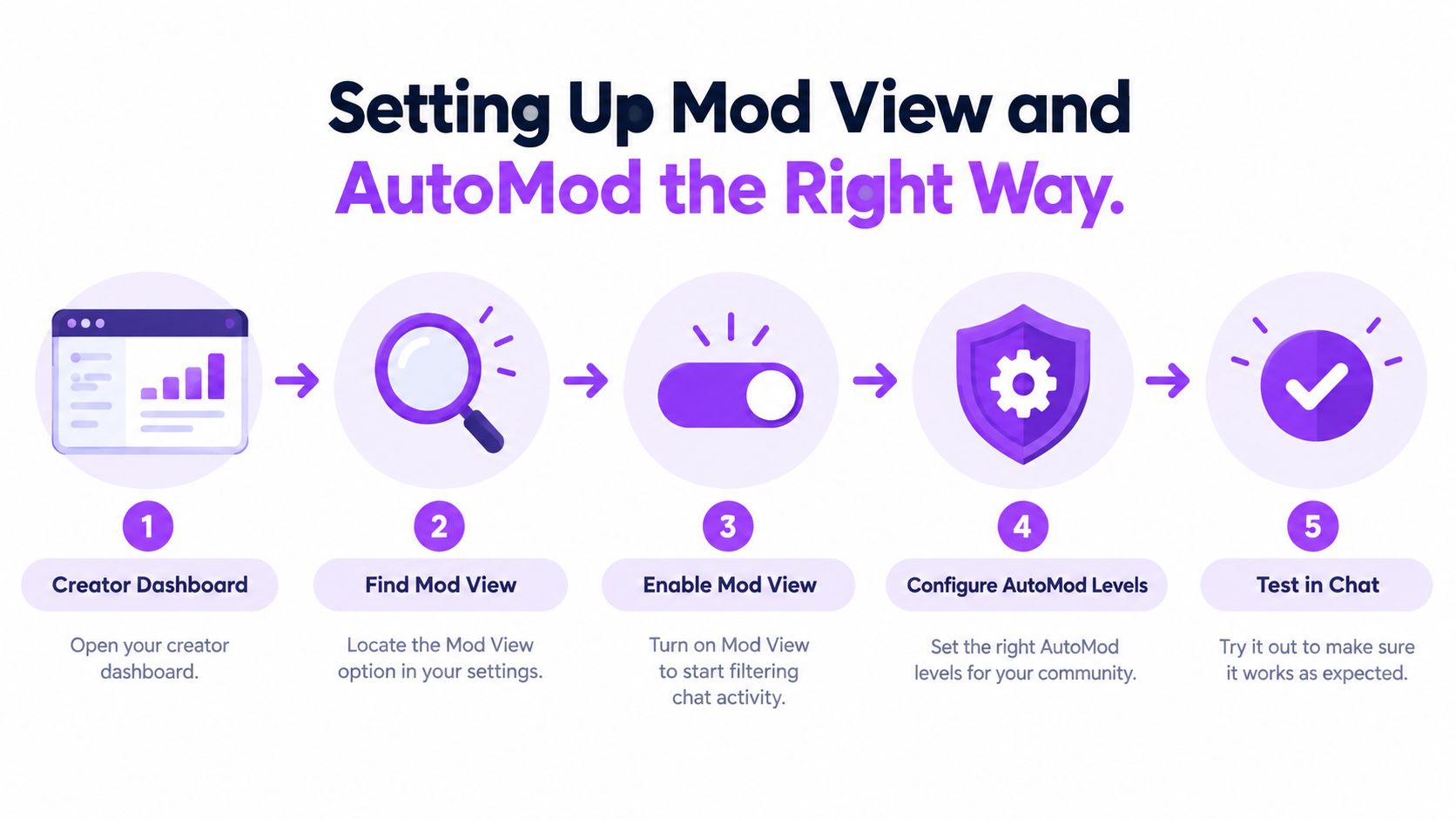
Set up your workspace before chat becomes difficult to follow. You shouldn’t be discovering where held messages live while viewers are posting scam links.
Mod View is Twitch’s dedicated moderation workspace. Open it for the channel you moderate, then identify the visible chat, held-message queue, user context, and moderation activity before making changes.
Use this setup flow as a preparation reminder, with the broadcaster handling settings you don’t have permission to change.
Learn the action before touching the control
Keep the consequences distinct:
- Delete a message when the content needs removing. Then decide separately whether the person needs a further action.
- Timeout a user when temporary removal fits the channel’s policy.
- Ban a user when continued participation is no longer appropriate.
- Review context before deciding whether a held message or reported exchange violates a rule.
The broadcaster’s Creator Dashboard also supports moderation configuration and review. Coordinate there rather than assuming every moderator has identical administrative access.
For broader broadcast preparation, the Twitch streaming setup guide is a companion resource. Keep production troubleshooting separate from your moderation checklist so you don’t lose track of chat while helping with unrelated stream problems.
Tune filters around actual channel language
Twitch provides four configurable AutoMod levels covering discrimination, sexual content, hostility, and profanity; flagged messages are held for moderator approval or denial rather than immediately displayed, as described in Twitch’s chat safety tools guidance.
Start with settings the broadcaster approves. Review what gets held, then adjust based on recurring patterns rather than reacting to an isolated annoying message.
For Blocked Terms, consider recurring scam wording such as “claim your prize,” but only after checking whether that phrase also appears legitimately in the channel. A giveaway discussion could make that filter overbroad.
For Permitted Terms, consider established game vocabulary such as “kill streak” or “boss kill” if it’s being held unnecessarily. Those are illustrative tuning candidates, not a universal allowlist.
Enable hyperlink blocking when unsolicited links become a recurring risk, while agreeing on how legitimate viewer submissions will be handled. Otherwise, you can accidentally obstruct the very activity the streamer invited.
A held message is a request for review, not proof that its author deserves punishment.
Reclaimed language, multilingual slang, game terminology, and channel-specific jokes can require context. Don’t loosen an entire filter category just to accommodate a narrow legitimate phrase, and don’t treat AutoMod as permission to stop reading.
Commands and Bot Integration That Save Time
Memorize the controls you’ll use under pressure, but don’t turn moderation into a command-speed contest. A fast mistake still removes the wrong viewer.
The useful division is between repetitive filtering and decisions that need a person. Keep that distinction in mind when assembling your toolset.
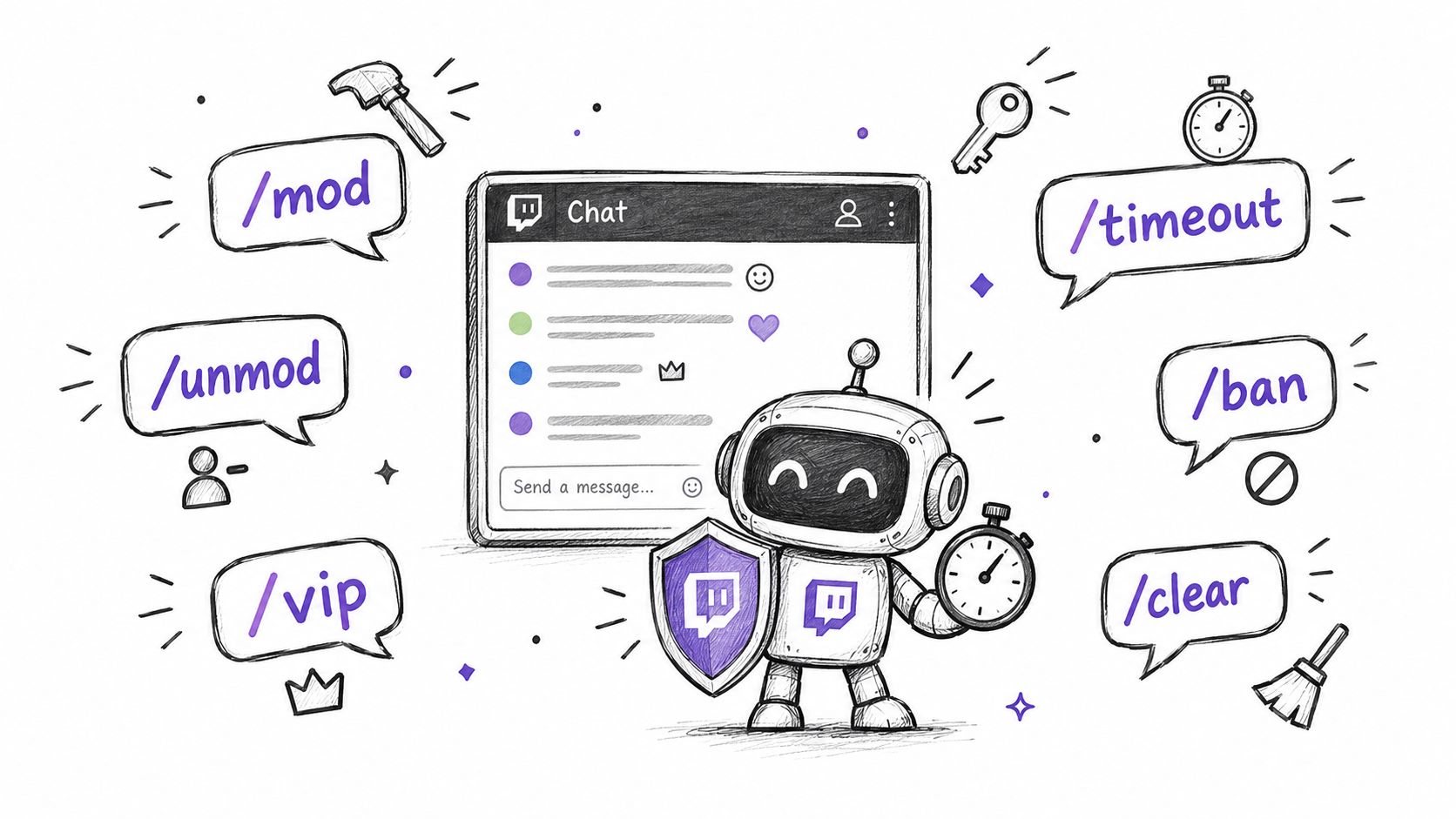
Keep a small command reference
Use placeholders in your notes, then substitute the intended username and the duration authorized by your channel’s policy.
| Command | Appropriate use |
|---|---|
/mod username | Broadcaster appointment of a trusted moderator |
/unmod username | Removal of moderator permissions by an authorized channel administrator |
/vip username | Channel role administration, not a moderation punishment |
/timeout username duration | Temporary restriction under the agreed escalation policy |
/ban username | Removal of a user from channel participation |
/unban username | Reversal of a ban after an authorized review |
/clear | Clearing visible chat when that action is genuinely necessary |
/uniquechat | Restricting repetitive messages when repetition is the problem |
Role-management commands aren’t ordinary moderator shortcuts. Don’t assume your badge grants every permission listed above. Confirm access with the broadcaster, and prefer the relevant interface when it makes the action easier to verify.
Treat /clear cautiously. Clearing visible chat doesn’t resolve the underlying offender or replace an incident record. Likewise, restrictive chat controls can interrupt harmless audience participation.
Give bots narrow jobs
Twitch recommends automated moderation alongside human interaction for larger channels in its moderation team operating guidance. A workable assignment is to have someone review AutoMod holds, another person watch visible conversation, and a lead handle escalation and broadcaster communication.
If you’re considering Nightbot, StreamElements, or Moobot, review the chosen bot’s current controls for links, caps, symbols, and repeated messages. Don’t assume their commands or permissions are interchangeable, and don’t paste settings from another streamer’s setup without testing them.
A dedicated Twitch chat workflow guide can help keep chat handling separate from the rest of your broadcast setup.
Use the video below as supplementary viewing, then verify any demonstrated controls against your own permissions and channel policy.
Keep punishment explanations brief and rule-focused. Use an agreed private team channel for sensitive coordination, not whispers to harassers or public arguments about who has authority.
Moderation Etiquette and the Escalation Ladder
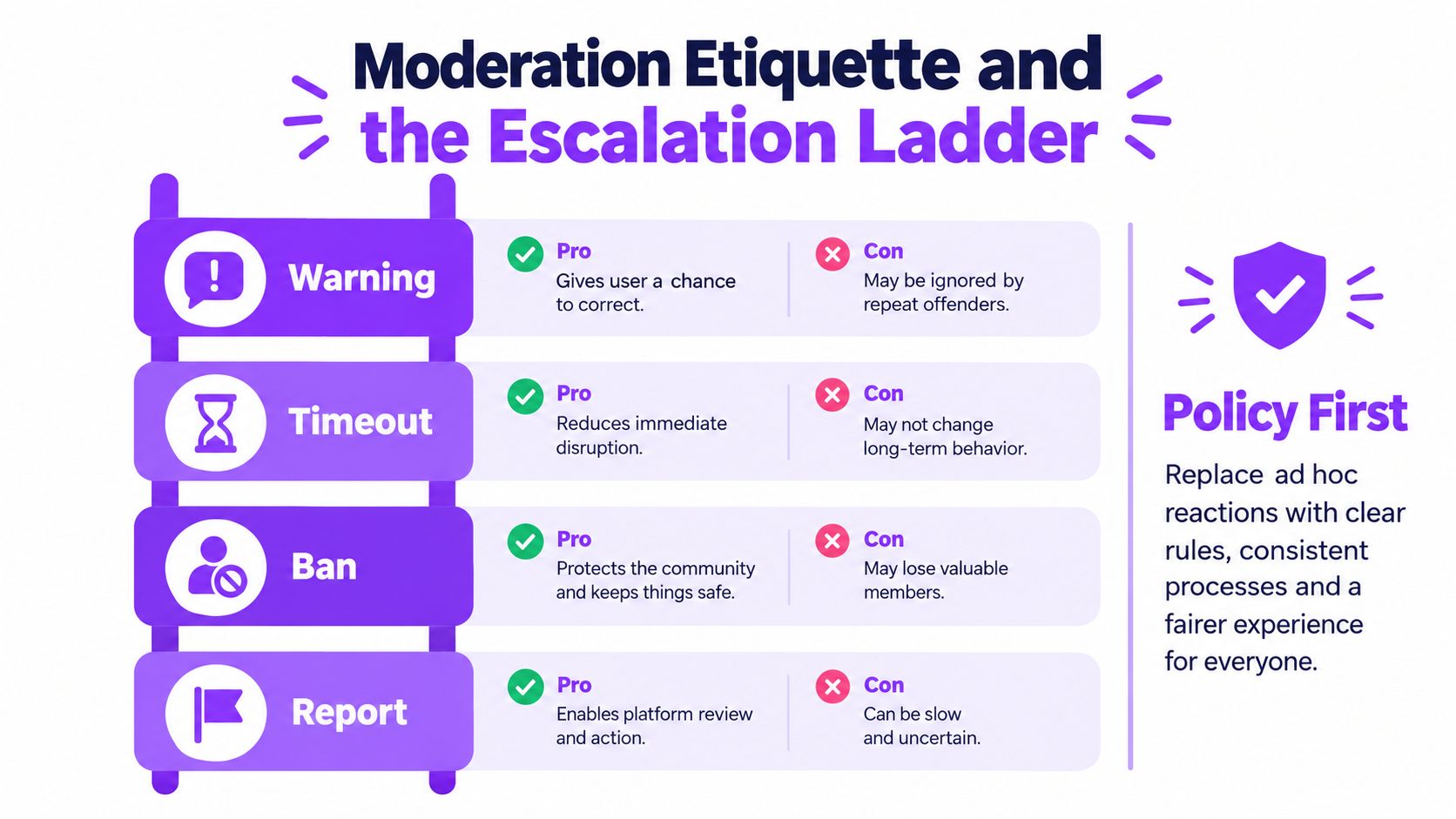
A channel needs a policy-first escalation workflow, not a collection of moderators with different tolerances. Agree on thresholds before going live, including what permits immediate removal without a warning.
The ladder below is a decision aid. It isn’t a requirement to give dangerous behavior repeated chances.
Match the response to the behavior
For borderline conduct, a clear warning can give the viewer a chance to change course. State the prohibited behavior and the expected correction without inviting a debate.
Repeated disruption can justify a timeout. Its length should come from the broadcaster’s policy, not how irritated the moderator feels.
| Response | What it accomplishes | Main limitation |
|---|---|---|
| Warning | Clarifies a boundary | A bad-faith viewer may ignore it |
| Timeout | Interrupts disruption temporarily | The person may return unchanged |
| Ban | Ends continued participation | An incorrect decision requires review |
| Report | Escalates suspected platform violations | It doesn’t replace immediate channel protection |
Threats, hateful conduct, or targeted harassment can justify skipping lower rungs. Reporting is a separate escalation decision, not merely a harsher ban.
Avoid both punishment extremes
Consider a hypothetical gaming chat where viewers repeat an emote after a winning play. Banning everyone for spam without considering the streamer’s invitation would be over-moderation.
Now consider viewers repeatedly posting scam links during a raid. Treating every account as deserving a gentle reminder leaves the team cleaning up predictable abuse while other messages go unread.
The distinction is not strict versus friendly. It’s whether the action protects the intended conversation with the least unnecessary disruption.
Gamerplug’s resource on building healthier gaming spaces is useful adjacent reading for thinking about community culture. Your own broadcaster still needs to turn that intent into enforceable expectations; the guide to building a Twitch community offers another relevant planning resource.
Decision check: Would you take the same action if this message came from a regular you liked?
Log ambiguous incidents with the relevant message, context, action, and unresolved question. Discuss policy gaps after the broadcast rather than improvising new rules in front of viewers.
If you make a mistake, acknowledge it and correct the action through the agreed process. Streamers don’t need infallible moderators. They need moderators who remain accountable when their judgment misses.
Personal Safety, Boundaries, and When to Walk Away
Being a good moderator doesn’t mean being constantly available. A channel that depends on your willingness to absorb unlimited abuse needs a better operating arrangement.
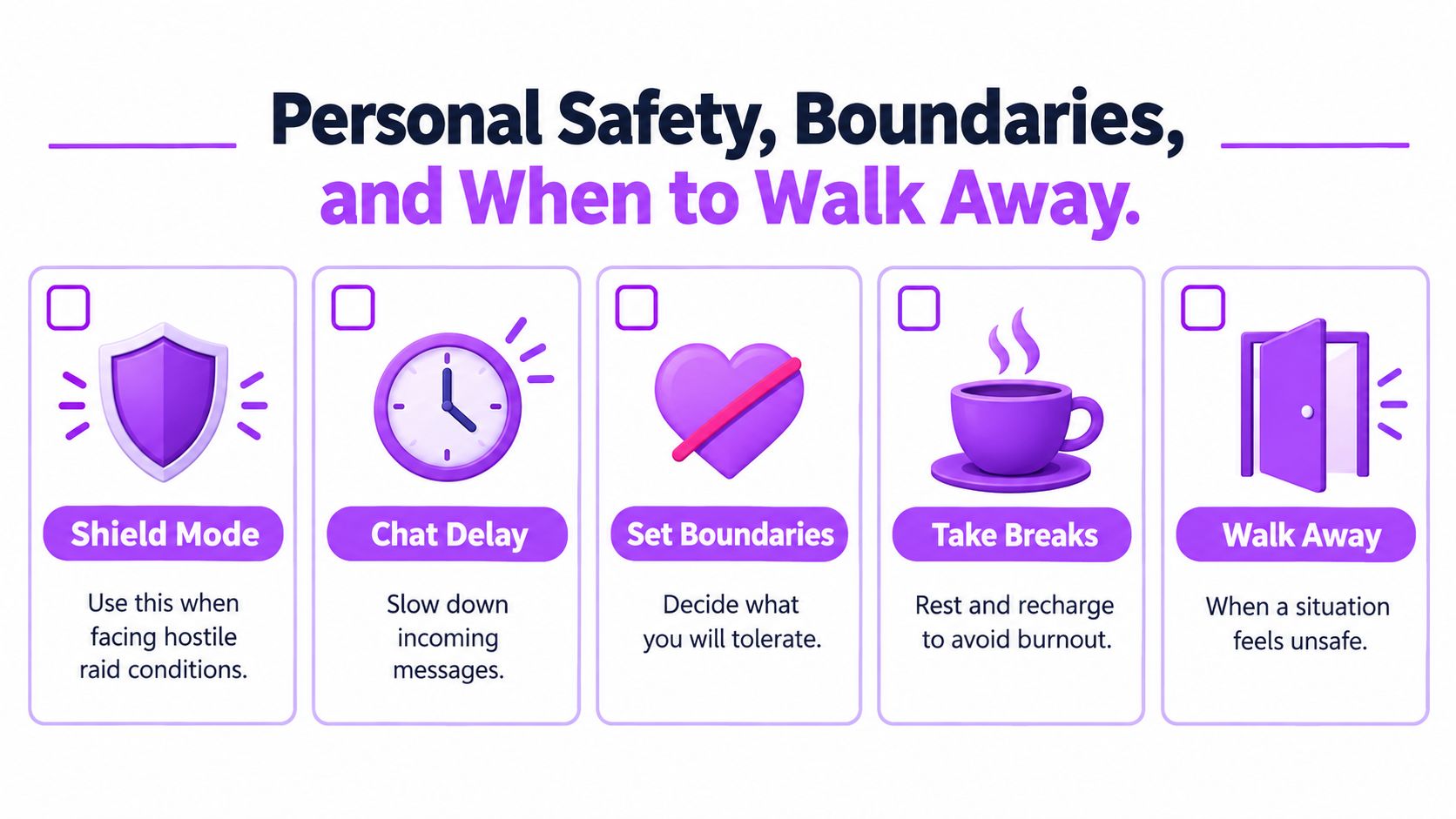
Twitch provides channel protections such as Shield Mode, chat delays, verification requirements, AutoMod, and blocked terms. Its transparency report covering moderation administration and safety provides context for treating moderation as a responsibility that needs tools and clear authority.
Those controls protect the channel more directly than they protect your personal life. Build a separate safety routine.
Prepare for hostile contact
Agree in advance who can activate emergency controls and who contacts the broadcaster. Shield Mode and tighter chat controls shouldn’t become a debate while the team is already dealing with coordinated abuse.
Use this personal-safety checklist:
- Keep identifying details separate. Avoid exposing personal accounts, your location, workplace, routine, or contact information through the account you use to moderate.
- Don’t privately confront harassers. You don’t owe them a conversation, an explanation of your life, or an opportunity to keep contacting you.
- Preserve relevant evidence. Capture usernames, message text, screenshots, and timestamps when safe. Store them privately rather than reposting abusive content.
- Limit access to sensitive records. Share incident evidence only with people who need it for moderation or reporting.
- Escalate credible threats. Notify the broadcaster and use Twitch’s reporting tools. If someone may be in immediate danger, contact local emergency services rather than trying to investigate alone.
If a message exposes personal information, prioritize removing it and containing further sharing. Don’t repeat the details publicly while explaining why you removed them.
Write down your availability
An on-call agreement can be simple: when you’re available, how teammates request help, what situations warrant contacting you, and when you’re unavailable. Being online elsewhere doesn’t mean you’ve agreed to moderate.
Assign a handoff contact so you can leave without wondering whether anybody noticed. Take breaks during long broadcasts, and tell the team when reviewing abusive material is affecting your judgment or wellbeing.
You can stop engaging when someone targets you personally. You can also leave a moderation role if the broadcaster repeatedly undermines agreed boundaries, tolerates harassment against the team, or expects you to manage threats alone.
Emotional fatigue isn’t evidence that you lack commitment. Sustainable moderation requires a channel owner who supports the people doing the work.
The First Day Checklist for a New Twitch Mod
Your first shift should be deliberately ordinary. Don’t overhaul filters, rewrite rules, or prove your value by issuing punishments the established team wouldn’t recognize.
Pin a short checklist beside chat and use it to keep attention on the work that matters.
Before the broadcast
- Confirm the rules. Read the published channel standards and ask about any recurring issue they don’t address.
- Clarify authority. Establish which decisions you can make independently and which need a lead moderator or broadcaster.
- Review the workspace. Locate visible chat, AutoMod holds, user context, and the activity record.
- Check the configuration. Understand existing filters and blocked terms before proposing changes.
- Agree on coverage. Know who’s active, who’s backup, and how to announce that you’re stepping away.
Ask the broadcaster what a successful shift looks like. Their answer should describe a manageable conversation and dependable teamwork, not a punishment count.
During the broadcast
- Watch both surfaces. Keep track of visible conversation and the held-message queue.
- Apply the agreed thresholds. Don’t invent a new penalty because the current situation annoys you.
- Record uncertainty. Save enough context for later review without turning the incident into a public discussion.
- Coordinate. Avoid competing actions or contradictory explanations from different moderators.
- Hand off clearly. Tell the team what remains unresolved before leaving.
A moderator can miss something without being careless. The useful response is to improve the handoff or workspace, not promise impossible vigilance.
After the broadcast
Review questionable actions with the broadcaster or lead. Propose narrow filter changes, identify gaps in the written rules, and check whether coverage matched the busiest moments.
Use channel-specific measures such as removal delay, unresolved holds, repeat offenders, and false positives. Establish a baseline across broadcasts rather than claiming a universal success target.
Finally, confirm your next shift only if you can realistically cover it. Trust comes from clear commitments, consistent decisions, and honest limits, not from always saying yes.
StreamGen converts Twitch streams into short-form clips and lets creators edit and schedule them for TikTok, YouTube Shorts, and Instagram Reels. Keep moderation coverage focused on chat instead of adding clip production to the team’s duties. Visit StreamGen to explore a separate clipping and publishing workflow for your channel.
More blog posts