The best Twitch streaming setup isn’t the one with the most features. It’s the one that lets you produce a stable live show, preserve your computer’s resources, manage overlays without panic, and turn strong moments into more content after the broadcast ends. That matters in a platform where viewers watched more than 8.6 billion hours of gaming content between January 1 and September 1, 2026, according to Twitch’s State of Gaming report. You’re competing for attention during the stream and after it.
This roundup evaluates seven tools by real workflows: content repurposing, production control, integrated overlays, console streaming, mobile and VTuber production, and supported commercial broadcasting. The practical tests are setup effort, flexibility, automation, resource demands, and the trade-offs you’ll notice after several broadcasts.
A reliable workflow beats a complicated one. Every extra tool should remove work, not create another failure point.
StreamGen handles the post-stream bottleneck, while the other tools focus primarily on live production. The right choice depends on where your workflow breaks first.
Table of Contents
- 1. StreamGen
- 2. OBS Studio
- 3. Streamlabs Desktop
- 4. StreamElements SE.Live
- 5. Lightstream
- 6. PRISM Live Studio
- 7. XSplit Broadcaster
- Top 7 Twitch Streaming Software Comparison
- Choose the Workflow You Can Sustain
1. StreamGen
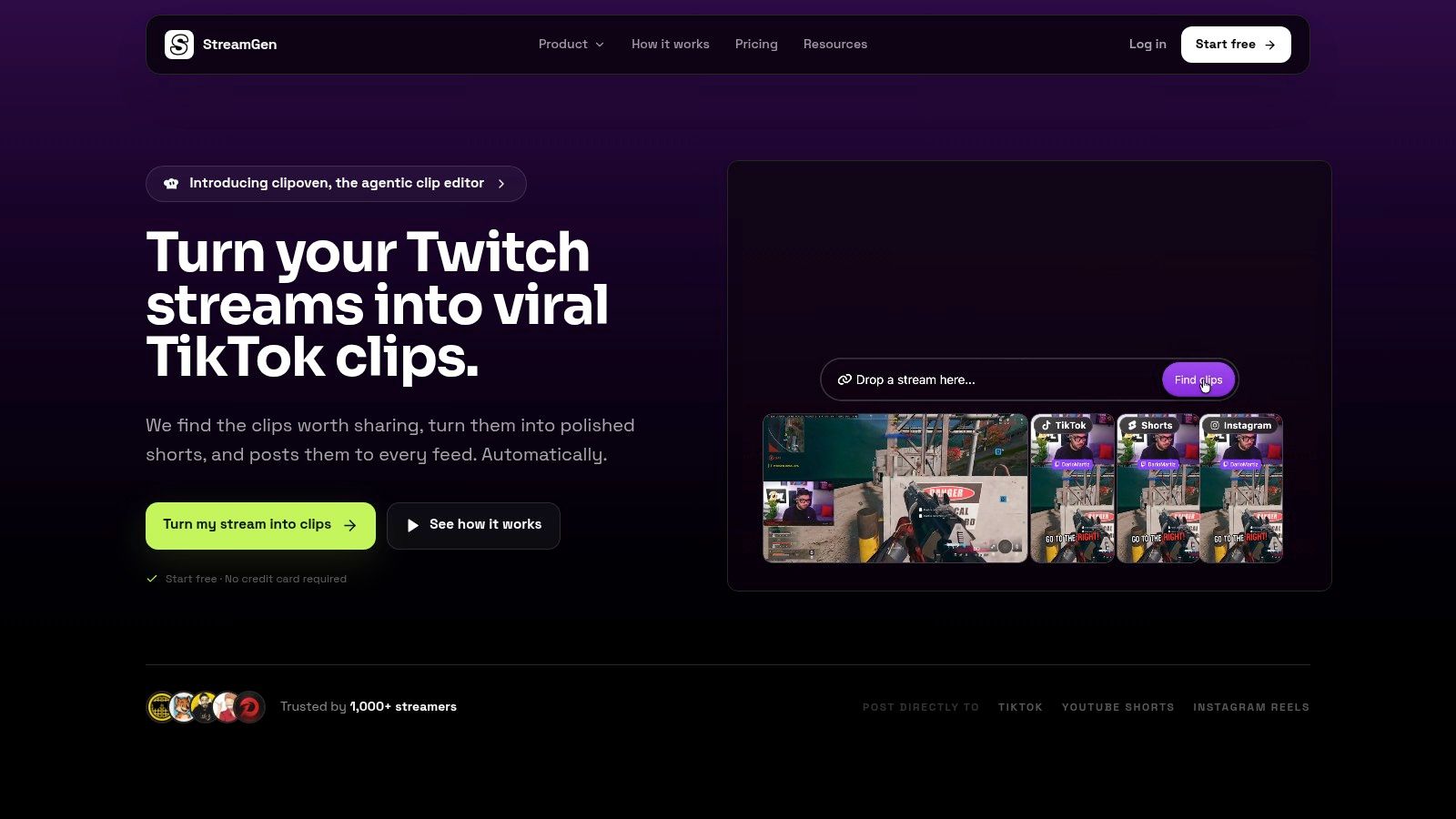
A Twitch broadcast can succeed live and still create little growth afterward. StreamGen addresses that post-stream workflow by turning full Twitch VODs into vertical videos for TikTok, YouTube Shorts, and Instagram Reels. Clip discovery, editing, scheduling, and publishing sit in one workspace.
Best for turning long broadcasts into distribution
The AI Clip Finder scans long VODs and uses gameplay, audio, reactions, and chat signals to surface moments for review. That reduces manual scrubbing, particularly when one broadcast contains several storylines or extended gameplay sections. It still works best as a review queue, not as an automatic guarantee that every selected moment deserves publication.
The browser-based Clip Editor handles much of the work that slows short-form repurposing. It reframes footage vertically, keeps gameplay and facecam context visible through smart layouts, adds animated captions in multiple languages, removes silence, censors words, creates title hooks, and applies reusable brand presets. Reviewers can adjust the AI’s choices before publishing, which matters when a joke relies on timing, chat context, or a specific reaction.
What works and what doesn’t
StreamGen’s practical advantage is the connected workflow. AI discovery, editing, scheduling, and direct posting happen without repeated downloads or separate applications. Auto Posting connects to TikTok, YouTube Shorts, and Instagram Reels. Autopilot can find, edit, and queue clips while the stream is still live.
- Best fit: Streamers with long VODs who need a consistent short-form publishing queue.
- Best control option: The VOD Editor beta exports pre-edited projects for DaVinci Resolve and Premiere Pro.
- Main limitation: AI selections and edits require review when context, pacing, or comedic timing matters.
- Pricing consideration: StreamGen offers free and paid access. Check current limits and pricing on the StreamGen website.
StreamGen does not replace a live broadcaster such as OBS Studio or Streamlabs Desktop. It suits creators who can produce a live show but need a faster process for turning that footage into regular social distribution.
2. OBS Studio
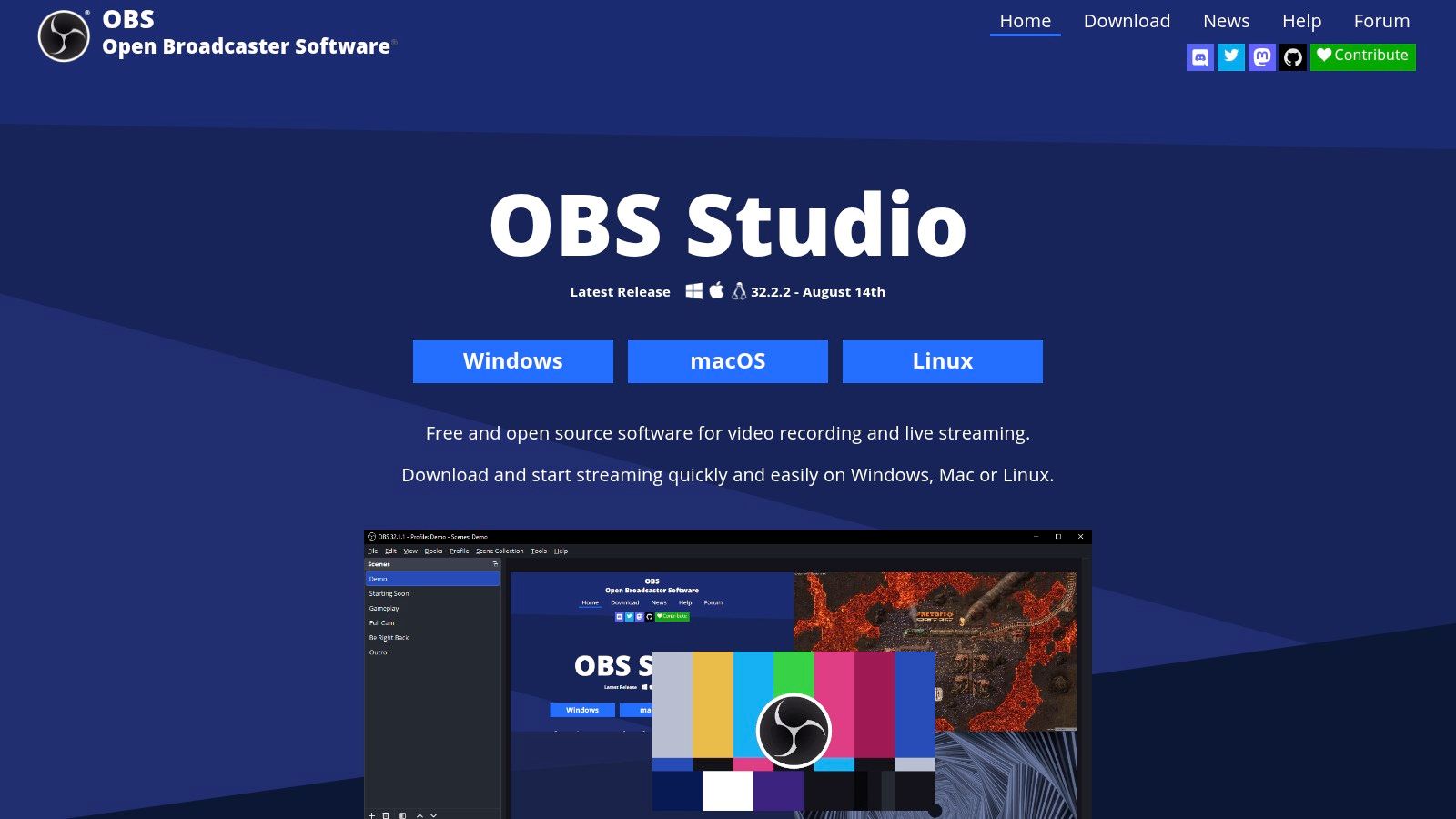
Fast setup is not OBS Studio’s strength. Precise control is. Choose it when your Twitch broadcast needs a custom production system and you are prepared to assemble and maintain that system yourself. It is free, open source, and available on Windows, macOS, and Linux through the official OBS Studio site.
Build the show around your workflow
OBS puts scenes, sources, audio mixing, filters, capture methods, and encoding under direct control. Hardware encoders from NVIDIA, AMD, and Intel are supported, as is AV1 when compatible hardware and services support it. Studio Mode lets you prepare a scene before sending it live, while Multiview helps an operator watch several sources at once.
That control suits more than a standard gaming layout. A creator repurposing streams can separate gameplay, camera, and audio sources cleanly. A VTuber or multi-camera operator can build dedicated scenes and hotkeys, while a console streamer can combine capture hardware with custom browser sources. These workflows require testing, but they avoid forcing every show into a fixed template.
OBS’s plugin and API ecosystem adds effects, automation, VST audio processing, custom docks, and integrations without replacing the broadcaster. Support for SRT, RIST, and WebRTC also makes OBS useful for advanced contribution workflows, not only direct Twitch gaming.
Flexibility creates maintenance work
The core installation does not include a finished alert library, cloud overlay service, tipping system, or chatbot. You must configure those components through StreamElements, custom browser sources, plugins, or other services. Each added dependency creates another point to test before a live show.
- Choose OBS when: You want fine-grained scene and encoder control.
- Avoid it when: You need a ready-made branded setup with minimal configuration.
- Resource advantage: A carefully configured installation can stay lean, particularly with hardware encoding.
- Workflow warning: Document your scene collection, audio routing, and hotkeys before changing plugins.
For chat integration, follow this guide to adding Twitch chat in OBS. OBS demands more preparation than an all-in-one broadcaster, but gives experienced creators room to build a precise production system.
3. Streamlabs Desktop
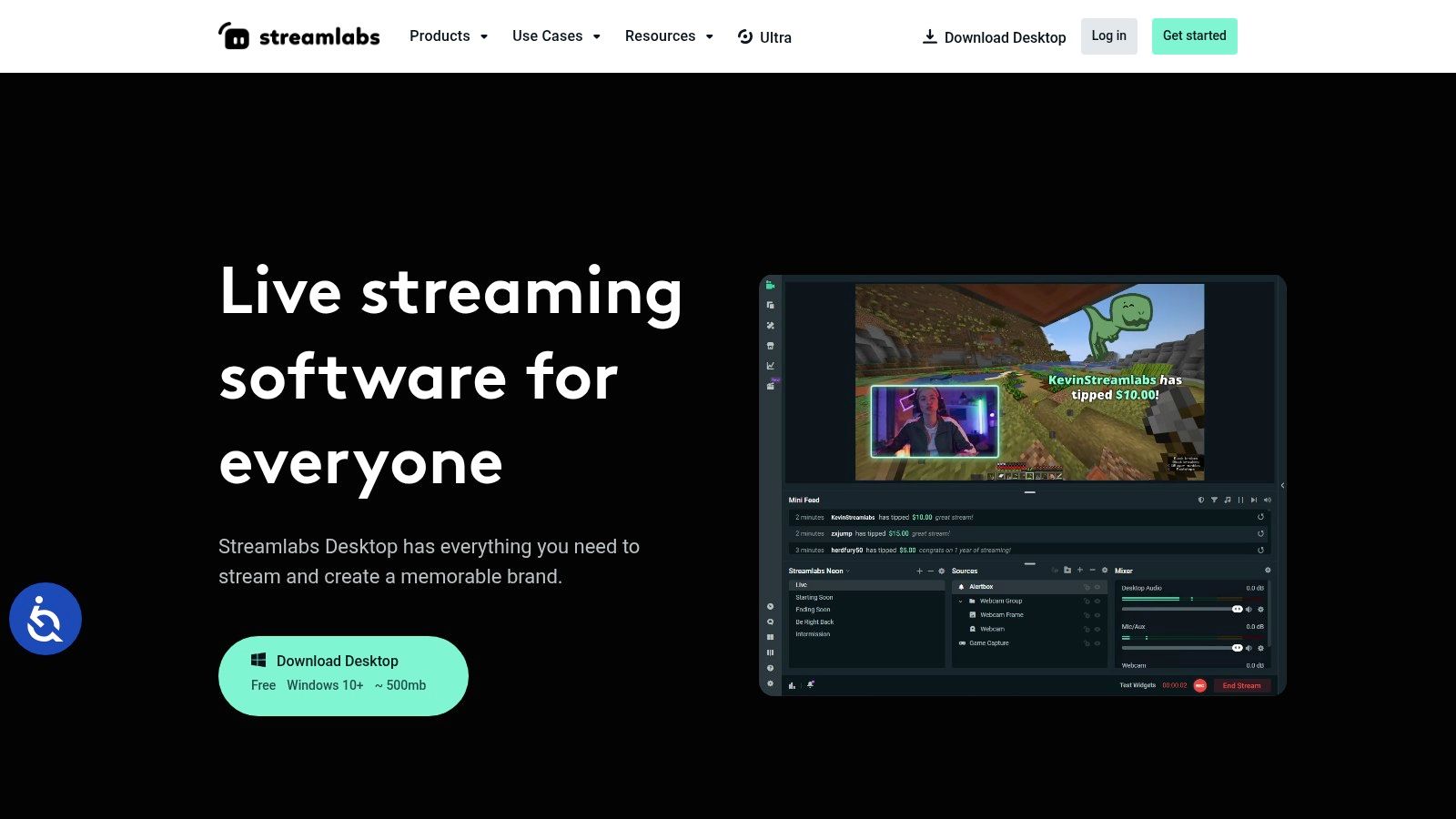
Streamlabs Desktop suits creators who need a presentable broadcast before they want to build a production system from scratch. Its OBS-based foundation supports familiar scene and source workflows, while templates, alerts, widgets, and themes are organized inside the application. Download details and the current feature set are available through Streamlabs Desktop.
A practical fit for fast channel launches
Choose a theme, configure alerts, add widgets, and assemble scenes without collecting each service separately. That approach works well for a new Twitch channel, a variety streamer testing formats, or a creator repurposing clips and recordings across platforms. The catalog provides visual consistency quickly, although custom branding may require more adjustment than a fully manual setup.
Streamlabs also connects desktop broadcasting with mobile and console applications, recording tools, tipping, merchandise, Talk Studio, and editing features. A creator working across gameplay, mobile content, and short-form clips can manage more of that workflow through one ecosystem. The benefit is fewer separate dashboards. The trade-off is greater dependence on integrated services.
Decide based on your production constraints
Streamlabs Desktop can use more system resources than a minimal OBS installation, particularly after adding browser sources, widgets, and background services. Test the intended scene collection with your game, capture hardware, and encoder before building a busy layout. Start with only the scenes required for your current format, then add visual elements after performance remains stable.
Some capabilities, including multistreaming, premium themes, and watermark-free clip editing, require the optional Streamlabs Ultra subscription. Compare that recurring cost with the features your workflow uses.
- Best fit: New creators and variety streamers who value quick setup.
- Useful strength: Integrated alerts and widgets reduce initial configuration.
- Main trade-off: Convenience can increase resource use and software costs.
- Practical approach: Keep gameplay and chat readable, then refine the design using these Twitch streaming layout ideas.
Streamlabs Desktop is a sensible starting point for creators who prioritize speed and bundled tools. Creators who need the leanest installation or highly specialized production control may prefer a more modular setup.
4. StreamElements SE.Live
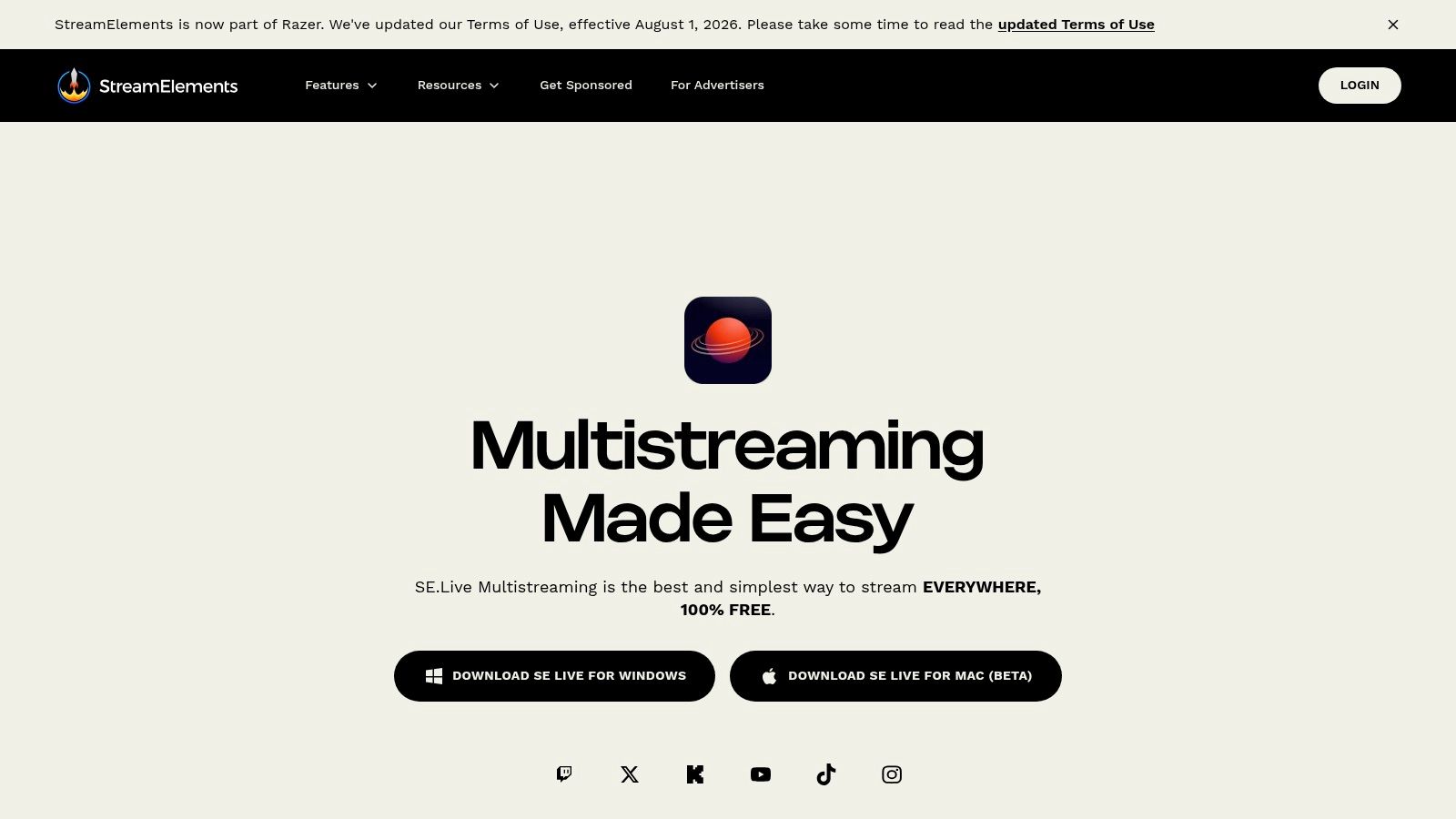
SE.Live is a strong middle ground for creators who like OBS performance but want cloud-managed overlays, alerts, chat tools, and monetization features. It combines a free OBS plugin with the StreamElements cloud platform, available through SE.Live.
Best for cloud overlays with OBS
The important distinction is where your overlays live. SE.Live can render cloud overlays through a browser source, so you can change layouts and widgets without rebuilding every local scene element. Its OBS docks bring chat, events, and moderation tools into the broadcasting interface instead of forcing you to keep several dashboards open.
The platform also includes chatbot tools, tipping pages, sponsorship features, and analytics. For a Twitch-first creator who already understands OBS, that combination can preserve local production control while reducing the amount of overlay infrastructure maintained on the computer.
Cloud tools reduce local setup, but they don’t remove the need to test alerts before you go live.
SE.Live is particularly effective when your priority is a lightweight local broadcaster with a flexible online layer. Core features are available without turning the setup into a large paid software stack, which makes it a sensible option for creators who don’t need Streamlabs’ broader bundle.
The compromise is dependency. If a cloud overlay provider experiences an outage or connection issue, alerts and widgets may stop appearing even though the OBS broadcast itself continues. Keep a simple fallback scene with essential camera, gameplay, and audio sources so the show can continue without decorative elements.
Choose SE.Live if you’re comfortable with OBS but want hosted overlays, integrated Twitch tools, and less local widget management. It isn’t the simplest first broadcaster, but it’s efficient once your scene structure is established.
5. Lightstream
Console creators often do not need a streaming PC. They need a way to combine gameplay, camera footage, alerts, and guests without buying a capture card or assembling a local production system. Lightstream addresses that workflow with its cloud-based studio, available through Lightstream.
A console-first production workflow
Lightstream captures the Xbox or PlayStation broadcast in the cloud. Its web editor lets you build scenes, add overlays, and bring in guests through the Green Room feature. That makes collaborative broadcasts practical without configuring OBS sources or routing console video through a capture card.
The setup removes several physical failure points. You can keep the console as the center of production rather than placing a streaming computer beside it. This suits a creator who wants branded scenes and occasional guests but does not want to maintain a technical workstation.
The trade-off appears in motion quality and local control. Lightstream’s 1080p output is capped at 30 frames per second, so fast games can look less fluid than they would through a well-configured capture-card and PC workflow. Competitive players and channels where motion clarity affects viewing quality should test that limitation before committing.
Cost and fit
A subscription is part of the model. Occasional streamers may prefer paying for cloud access instead of buying more hardware, while frequent broadcasters should compare recurring access costs with a capture card and local software.
Lightstream fits console creators who want guests, branded scenes, and a shorter path to broadcast. It is a weaker choice for high-frame-rate output or detailed local production, where a PC-based setup gives you more control.
Before promoting a broadcast, test controller audio, party chat, camera routing, and overlay behavior. Confirm that the scene still works under the network conditions used for live shows. Lightstream is not a universal replacement for OBS. It is a direct solution to the no-capture-card constraint.
6. PRISM Live Studio
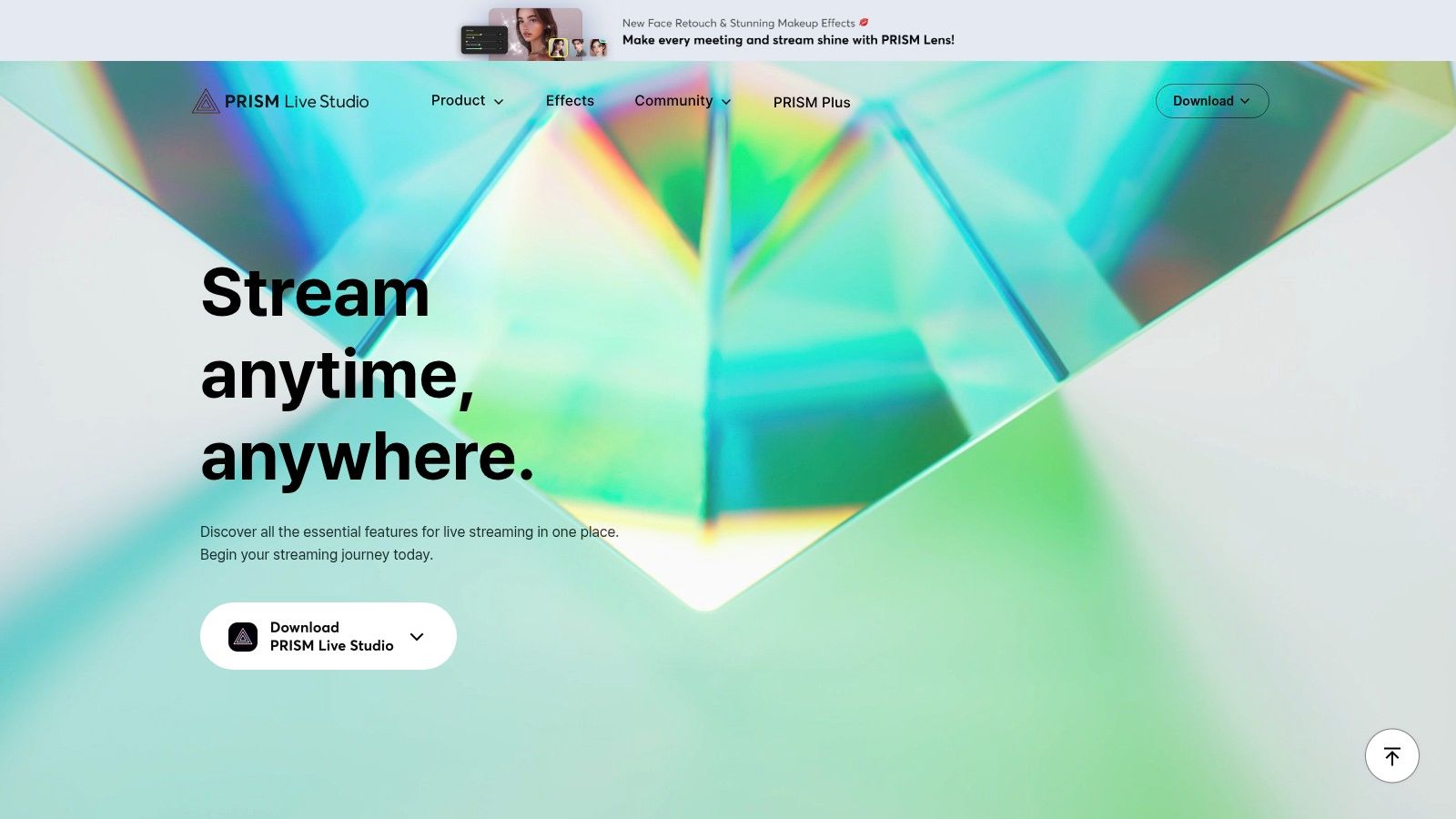
PRISM Live Studio suits creators whose production starts on a phone, includes VTuber elements, or needs graphics and effects without a heavily customized desktop setup. The desktop and mobile suite comes from NAVER and is available through PRISM Live Studio.
Best for mobile and VTuber workflows
PRISM supports RTMP, Twitch WHIP, SRT, and RIST, giving it flexibility beyond a basic phone broadcast. Its mobile camera controls, chroma key, built-in graphics, and face tracking help creators produce a recognizable show without connecting several specialist tools.
VTubers can use face tracking and integrated effects, while mobile creators can work with a similar visual toolkit across phone and desktop. Dual-output streaming can support horizontal and vertical formats, and PRISM Plus adds multistreaming for creators who want to distribute beyond Twitch.
A practical mobile workflow often has tighter constraints than a desktop production system. Battery, heat, camera position, network stability, and audio routing matter more, so avoid building a scene that depends on many live effects unless you’ve tested it under real conditions. The fewer points of failure you carry outside the studio, the easier the broadcast is to sustain.
- Best fit: Mobile streamers, VTubers, and creators who want graphics without extensive setup.
- Useful feature: Chroma key and face tracking are available in the same ecosystem.
- Free-tier limitation: Ads, watermarks, and outros may appear without the appropriate paid access.
- Paid-access consideration: Advanced features and multistreaming are connected to PRISM Plus, with some purchases handled through app stores.
For a setup that starts with a phone rather than a gaming PC, use this practical guide to mobile gaming on Twitch without a gaming PC. PRISM is a better fit for visual variety than for creators who want the deepest possible scene and audio engineering control.
7. XSplit Broadcaster
XSplit Broadcaster suits Windows creators who want production control without building every part of the workflow themselves. The commercial application combines a polished interface, integrated production tools, support, and documentation. Review its current licensing options and packages on XSplit Broadcaster.
Best for supported commercial broadcasting
For a creator or agency running repeatable Windows broadcasts, XSplit brings multistreaming, virtual camera functionality, scene tools, AI voice clarity, and background options into one application. That reduces the setup work involved in combining OBS plugins with separate services, although it also means accepting a more closed commercial ecosystem.
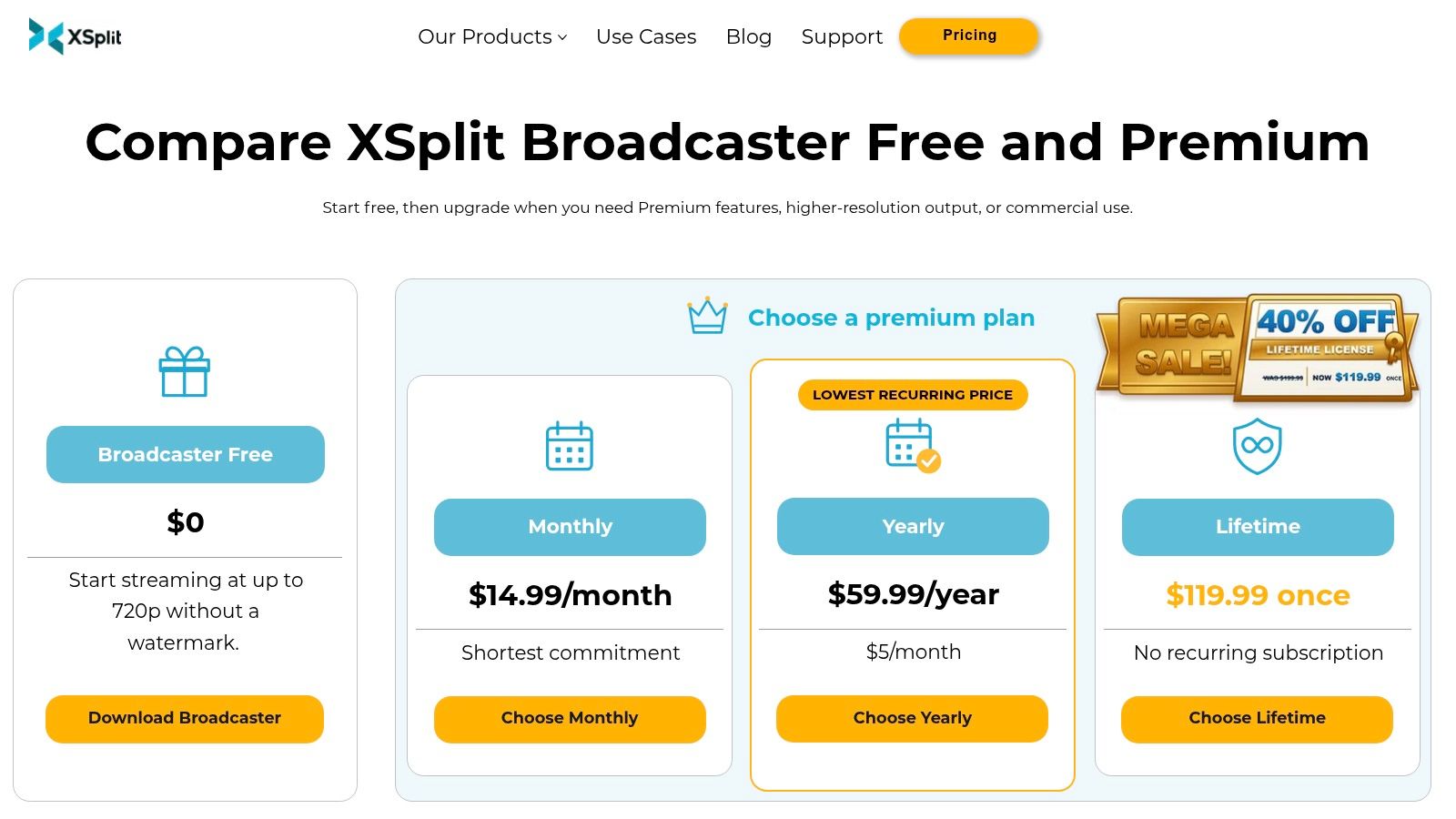
The licensing model supports monthly, yearly, or lifetime access, depending on the package. Lifetime access may suit a Windows streamer who expects consistent use and prefers predictable ownership instead of an ongoing subscription. Agencies and commercial teams should still confirm that the selected license covers their intended features and destinations.
The trade-offs in a real setup
XSplit is Windows-centric. A production team that switches between Windows, Mac, and Linux will have less flexibility than with OBS Studio. The free tier is also mainly useful for testing. It supports output up to 720p without a watermark, while higher-resolution output can introduce one unless you choose a paid plan.
Paying makes sense when interface quality, support, defined licensing, and built-in tools save enough configuration time. OBS remains the stronger option for creators who value an open foundation and extensive customization.
Choose XSplit for a supported, polished Windows broadcaster. It fits commercial creators, agencies, and teams that want clear licensing terms. Before buying, check the resolution, features, and multistream destinations required for your broadcasts. XSplit’s advantage is reduced configuration burden, especially when production time matters more than assembling each component independently.
Top 7 Twitch Streaming Software Comparison
| Product | Implementation complexity 🔄 | Resource requirements ⚡ | Expected outcomes ⭐📊 | Ideal use cases 💡 | Key advantages ⭐ |
|---|---|---|---|---|---|
| StreamGen | Low–Medium, browser-first Autopilot; review recommended 🔄 | Low, cloud processing, minimal local CPU ⚡ | High, ⭐⭐⭐⭐ fast, platform-ready shorts; saves editing time 📊 | Automated short-format clip production and scheduled posting | End-to-end AI clip finding, vertical reframing, auto-posting |
| OBS Studio | High, manual setup, plugin/config heavy 🔄 | Medium–High, local PC/GPU required for best performance ⚡ | Very High, ⭐⭐⭐⭐⭐ maximum control and latency/performance 📊 | Power users needing fine-grained control and custom workflows | Free, open-source, extensible plugin ecosystem |
| Streamlabs Desktop | Medium, ready-made templates but some setup 🔄 | Medium–High, heavier than vanilla OBS on some systems ⚡ | High, ⭐⭐⭐⭐ quick professional results with integrated tools 📊 | Creators who want fast onboarding with alerts/widgets | All-in-one ecosystem (themes, tipping, mobile tools) |
| StreamElements SE.Live | Medium, OBS plugin plus cloud dashboard 🔄 | Low, cloud-rendered overlays reduce local CPU ⚡ | High, ⭐⭐⭐⭐ reliable overlays, chat and analytics 📊 | OBS users wanting hosted overlays and Twitch-first tools | Lightweight cloud overlays, deep OBS integration |
| Lightstream | Low, web-based, no capture card/PC required 🔄 | Low, cloud studio geared to consoles (subscription-based) ⚡ | Good, ⭐⭐⭐ professional-looking console streams; some quality caps 📊 | Console streamers without capture cards or streaming PCs | No-PC setup, Green Room guests, easy console capture |
| PRISM Live Studio | Medium, unified desktop/mobile with effects 🔄 | Medium, runs on PC and mobile; some paid tiers ⚡ | High, ⭐⭐⭐⭐ versatile effects, dual-output options 📊 | Mobile-first creators, VTubers, cross-platform streaming | Built-in graphics/VTubing, dual horizontal/vertical output |
| XSplit Broadcaster | Medium, polished UI, simpler than OBS 🔄 | Medium, Windows-centric; paid tiers for advanced use ⚡ | High, ⭐⭐⭐⭐ approachable pro results with support 📊 | Windows creators who prefer paid, supported software | Commercial support, multistream, flexible licensing |
Choose the Workflow You Can Sustain
There isn’t one best Twitch streaming tool for every creator because the bottleneck changes from setup to setup. If you want maximum control over scenes, audio, encoding, and plugins, choose OBS Studio. It asks more from you at the beginning, but it gives you the broadest control over a long-term production system.
Choose Streamlabs Desktop if you want alerts, widgets, themes, and related creator services working quickly in one ecosystem. It’s a practical starting point for streamers who value onboarding more than a minimal local installation. If you already prefer OBS and mainly need hosted overlays, chatbot features, and Twitch-focused tools, StreamElements SE.Live is the cleaner companion.
Your device should make the decision easier. Lightstream is the logical choice for console creators who don’t want a capture card or streaming PC, although its 1080p output limit of 30 frames per second creates a visible trade-off for fast gameplay. PRISM Live Studio fits mobile creators, VTubers, and broadcasters who want built-in graphics, face tracking, chroma key, or a workflow that works across phone and desktop. XSplit Broadcaster is suited to Windows users who want paid support, integrated production features, and flexible licensing.
StreamGen belongs beside these broadcasters rather than replacing them. The platform is most useful when your live production works but your VODs remain untouched. Its AI Clip Finder, vertical editor, animated captions, direct publishing, scheduler, Autopilot, and optional exports for DaVinci Resolve or Premiere Pro address the gap between finishing a stream and distributing its strongest moments. Twitch remains a major live platform, but broader market reporting shows that creators increasingly need a distribution strategy beyond the live directory, as described in recent live-streaming market coverage.
Start with one exercise. Write down the live-production bottleneck, select the simplest tool that addresses it, run a test broadcast, and document the exact repeatable steps for your next stream. Then review the post-stream workload separately. If finding, editing, and publishing clips is the part you keep postponing, add a dedicated repurposing layer instead of forcing your broadcaster to solve a problem it wasn’t designed to handle.
StreamGen finds high-energy moments in long Twitch VODs, reframes them for vertical feeds, adds captions, and schedules publishing to TikTok, YouTube Shorts, and Instagram Reels. If your live setup is stable but your best moments stop at the VOD, visit StreamGen and build a repeatable stream-to-shorts workflow.
More blog posts