You’re halfway through a broadcast when everything starts competing for attention. The game needs a decision, alerts are firing, moderators are whispering, and the chat box has become a fast-moving stack of messages, emotes, bot replies, and overlays. Then someone asks why their message appeared twice on stream.
A reliable Twitch chat stream isn’t created by adding every widget you can find. It works because each component has a clear job, the tools don’t collide, and the setup matches the way viewers participate. Viewers watch silently, while a small group creates much of the visible activity, so your priorities should be moderation, context, readability, and recovery when the room suddenly changes.
Table of Contents
- What a Modern Twitch Chat Stream Actually Looks Like
- The Real Numbers Behind Your Chat Room
- Setting Up Chat on Stream the Right Way
- Building a Chatbot Stack That Fits Your Style
- Moderation That Survives Raids and Real Spikes
- Privacy, Safety, and Brand-Savvy Chat Practices
- Troubleshooting and a Pre-Stream Chat Checklist
What a Modern Twitch Chat Stream Actually Looks Like
A streamer doesn’t experience chat as one clean window. During a busy moment, the Twitch-native chat sits beside the game, the on-screen chat overlay appears in OBS, a bot sends automated replies, and moderator messages arrive through a separate channel. Each surface shows only part of the conversation, which makes a minor configuration mistake feel like a system failure.
The Twitch-native chat is the operational source. It’s where you and your moderators read messages, apply timeouts, manage slow mode, and watch for changes in the room. The on-screen overlay is a broadcast layer. Viewers see it inside the video, but it shouldn’t become your primary moderation interface.
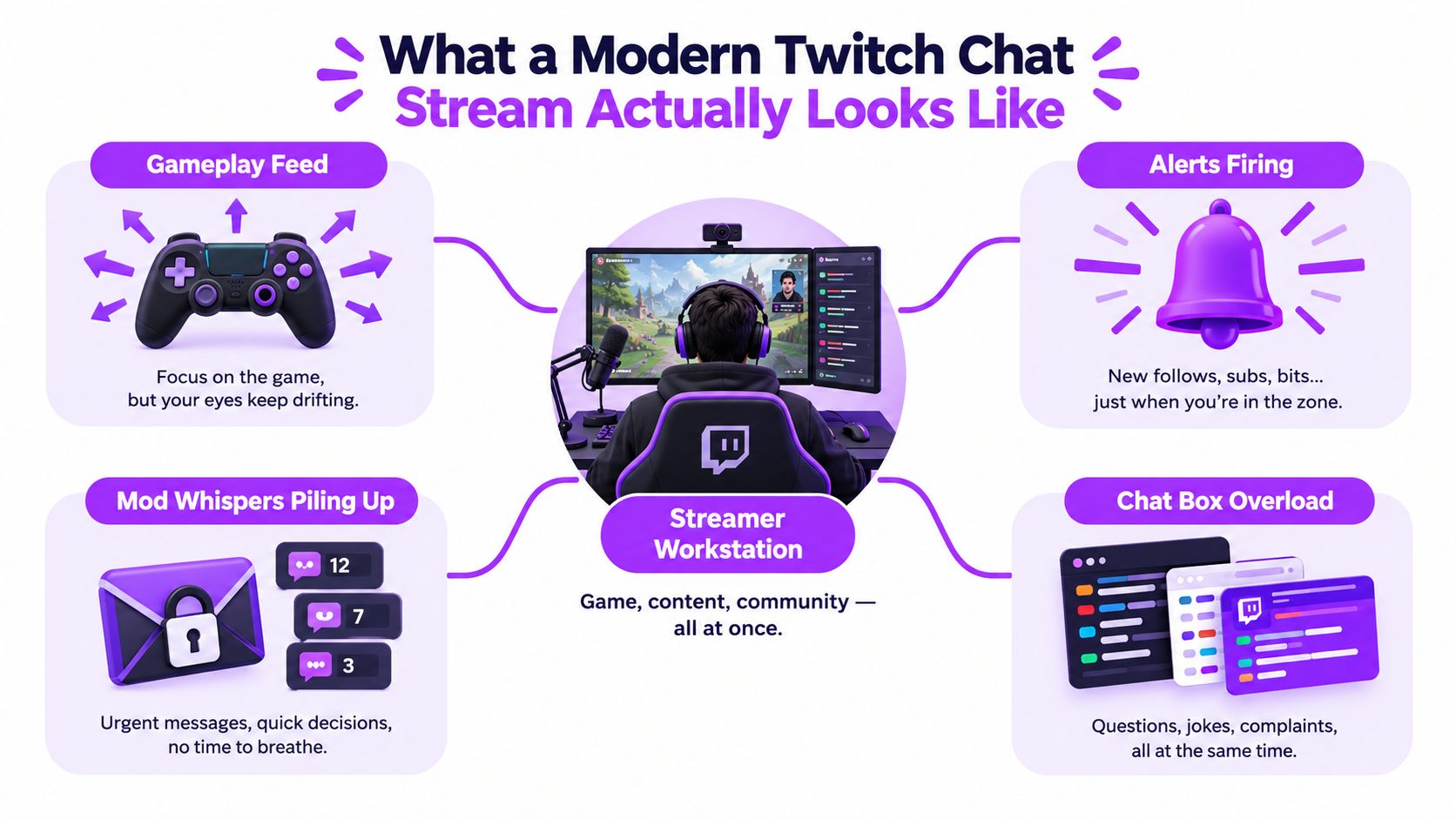
The five parts of the system
- Native chat: This lives in Twitch and handles live reading, replies, moderation actions, and channel controls.
- Broadcast overlay: OBS, Streamlabs, or another production tool renders a selected view of chat over your video.
- Bot relay: Nightbot, StreamElements, or another bot handles commands, timers, filters, and repeatable responses.
- Moderation layer: AutoMod settings, banned terms, slow mode, follower-only chat, and human moderators work together here.
- Analytics feed: Later review helps you understand which moments generated conversation, confusion, or moderation pressure.
The distinction matters because these layers don’t share the same purpose. A clean overlay can still hide a moderation problem. A powerful bot can still make chat feel robotic. A well-staffed moderation team can still struggle if every alert and command appears in the same visual area.
Creators often focus on overlays before they define the community experience. Resources such as build authentic community with Gainsty are useful for the human side, but the technical layer still needs deliberate design. Your Twitch streaming layouts guide should support that experience rather than cover gameplay with decoration.
Practical rule: If a tool doesn’t have a named job, remove it until you can explain why it belongs.
A healthy chat on stream is engineered, not configured once and forgotten. You need a readable presentation for quiet sessions, controls that absorb sudden activity, and a fallback when a bot, browser source, or authentication token fails.
The Real Numbers Behind Your Chat Room
The biggest mistake in chat strategy is treating every viewer as a chatter. Twitch documentation distinguishes Users in Chat from the viewer count. The former counts logged-in users connected to the chat room, not only people actively watching the video player, as summarized alongside Twitch’s product documentation in this Twitch chat scale and counting overview.
Independent measurement shows why the visible chat window can mislead you. Streamrise analyzed 719,270,000 public chat messages across 535,426 channels over 30 days in 2026. The dataset contained 9,310,000 unique posting accounts, yet the median channel recorded only 46 messages for the month. The busiest channel reached 40.7 million messages, and 20.1% of chatters posted exactly once during the measurement window, according to Streamrise’s Twitch chat statistics.
That distribution changes what you should build. A silent viewer still matters, but you can’t design the room around an expectation that everyone will type. Your overlay should make occasional comments easy to notice, while your bot should avoid filling the room with messages that compete with human contributions.
| Stream size | Average viewers | Active typers | Messages per minute | Bot share |
|---|---|---|---|---|
| Small room | Not established in the cited data | Usually a small visible core | Varies by topic and moment | No reliable share provided |
| Growing room | Not established in the cited data | Participation becomes more uneven | Can change quickly during raids | No reliable share provided |
| Large raid-driven room | Not established in the cited data | A minority can drive most visible activity | Can exceed the room’s readable capacity | No reliable share provided |
The table is intentionally conservative. The available verified data doesn’t establish a universal viewer-to-typer ratio, a standard message rate for each stream size, or a dependable percentage of bot traffic. Advice that supplies those numbers without a source is pretending that every category behaves the same way.
Why scale changes participation
A study of more than 7,000 Twitch playbacks found that larger raid-driven audience influxes reduced commenting among existing viewers. The researchers associated that drop with topic incoherence and stronger emotional intensity, while bot moderators helped preserve topic coherence during large raids and human moderators were better at calming emotional spikes during smaller-group joins, as described in this study of group size and moderation in live streaming.
Your setup should therefore do three things: keep regulars visible, stop automation from drowning them out, and give moderators controls that match the intensity of the moment. A room with a few active typers needs warmth and fast recognition. A raid needs topic control, filtering, and a way to slow the flood without punishing everyone who arrived in good faith.
Setting Up Chat on Stream the Right Way
Start in the Twitch Creator Dashboard, not in an overlay marketplace. Open the chat controls, confirm the room is connected to the correct channel, and choose a theme that keeps text readable beside your production software. Dark and light themes are preference choices, but contrast matters more than aesthetics, especially when you’re scanning names, emotes, replies, and moderation notices quickly.
Set slow mode and follower-only chat as controls you can activate, not as permanent walls. Slow mode can protect a conversation when messages arrive faster than anyone can process them. Follower-only chat can reduce drive-by disruption, but it also creates friction for first-time visitors. Use the least restrictive setting that solves the immediate problem.
Read the counters correctly
The Users in Chat number isn’t your viewer count. Twitch describes it as a separate count of logged-in users connected to the chat room, while viewer count measures the video audience through a different mechanism. If the two numbers diverge, that isn’t automatically a bug. Treat Users in Chat as a rough indicator of chat-room presence, not proof that everyone is watching or participating.
For the broadcast layer, choose one chat widget. OBS’s native Chat Box is a sensible baseline because it keeps the setup small. Streamlabs offers more customization for fonts, opacity, emote rendering, message animation, and layout, but every additional customization introduces another place for caching or authentication to fail.
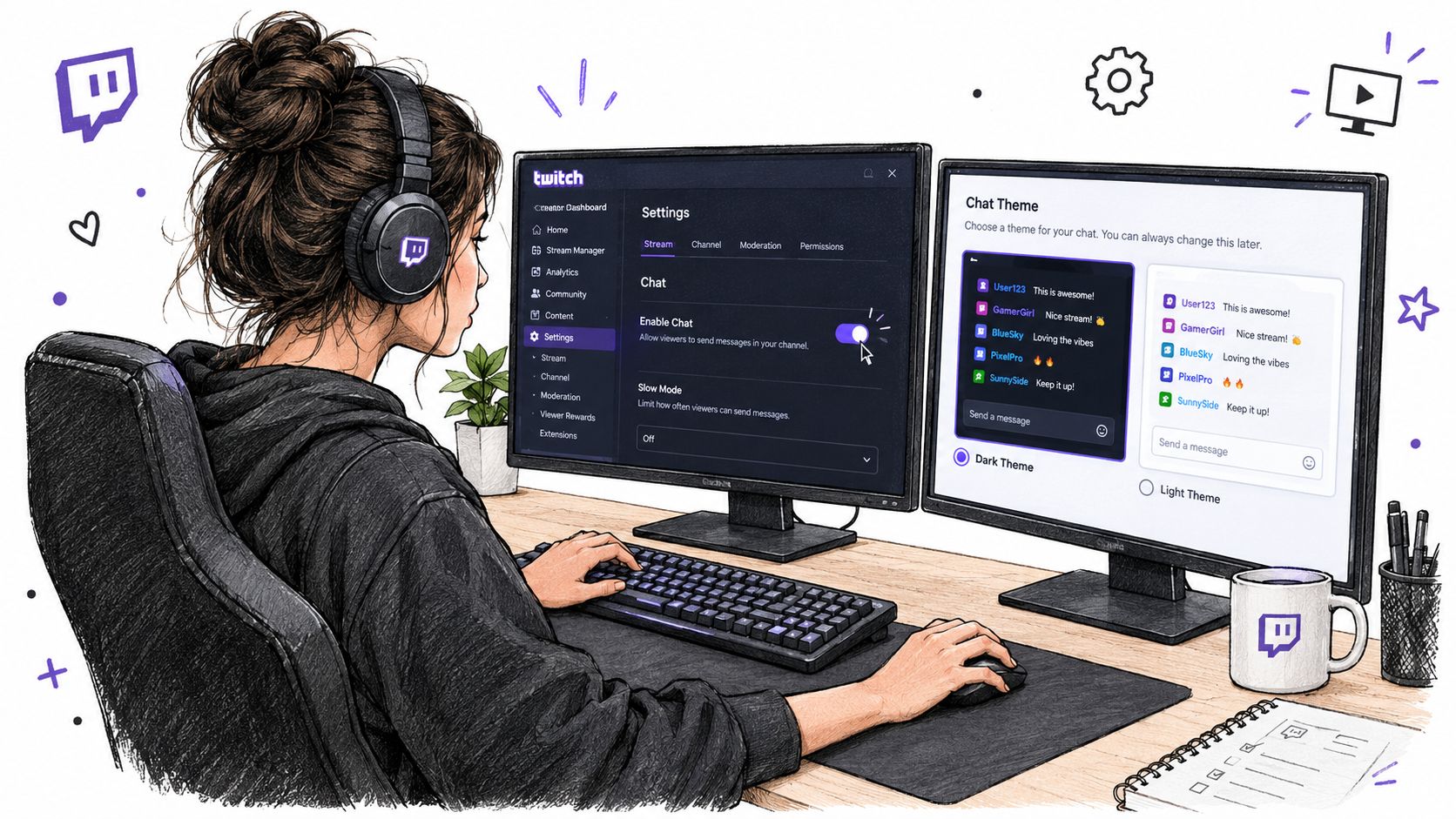
Place chat where it supports the broadcast. For a gameplay stream, keep it away from health bars, minimaps, subtitles, and the main action. Use enough opacity to separate text from the game, but don’t make a giant translucent panel compete with the content. Test reply and quote-reply rendering before going live, because nested messages can consume more vertical space than ordinary chat.
A practical guide to adding Twitch chat to OBS can help with the browser-source mechanics, but the design decision remains yours.
A baseline for a small channel
For a channel with a quiet or developing room, use one native chat window for moderation and one simple on-screen widget for viewers. Keep the font readable, disable decorative animations until you know they help, and avoid placing the dashboard chat, an overlay, and a StreamElements popup in the same corner. That stack creates duplicate messages and makes it difficult to tell which layer is broken.
A chat overlay should show the conversation, not become another conversation competing with it.
Building a Chatbot Stack That Fits Your Style
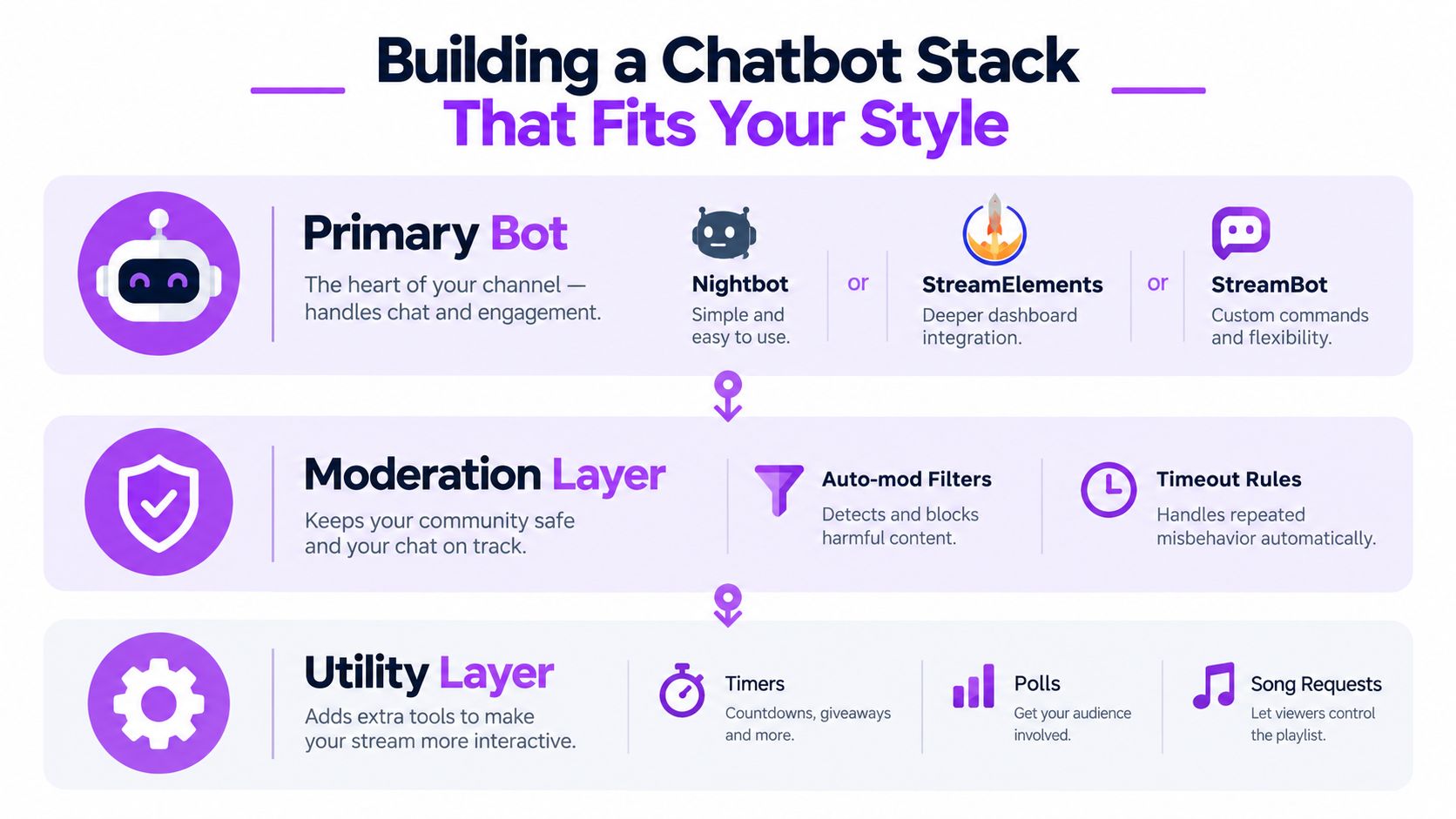
A chatbot works best as a small control system, not as a pile of commands. Pick one primary bot, give it ownership of routine work, and add specialized tools only when a real problem appears.
Nightbot is a straightforward choice for basic commands, spam filters, and timers. StreamElements makes more sense when you already use its dashboard and want deeper integration with alerts or channel features. StreamBot can suit creators who value open-source customization and are prepared to maintain more of the system themselves.
Give each layer one owner
The primary bot should own commands such as !schedule, !socials, !discord, and !rules. Keep responses short and useful. A timer that posts the same promotion while real viewers are trying to talk is not engagement, it’s noise.
The moderation layer handles banned terms, link filtering, repeated messages, and escalation rules. AutoMod can catch patterns before a human sees them, but it doesn’t understand every joke, context shift, or dispute. Human moderators still need a clear way to override, explain, or escalate an action.
The utility layer can include polls, song requests through a tool such as Songoda or a Moobot request module, a Discord bridge, or a follow and lurk announcer. Add these only after testing whether they improve the room. A second bot that repeats commands, welcomes every account, and announces every event can turn a small room into a notification console.
If you’re comparing conversational systems with ordinary command bots, this comparison of AI tools and chatbots from Busylike provides useful framing. For a Twitch room, the key question isn’t whether a tool sounds intelligent. It’s whether it responds consistently, stays within scope, and leaves human conversation room to breathe.
Use a simple ownership map:
- Primary bot: Commands, basic spam controls, and essential timers.
- Moderation layer: AutoMod, banned phrases, link rules, and timeout actions.
- Utility layer: Polls, song requests, Discord bridging, or specialized announcements.
- Human layer: Context, appeals, raid decisions, and tone.
Test the stack like software
Create a private test routine before each broadcast. Trigger one command, test a banned term without using a real harmful phrase, verify a moderator action, and confirm that each bot answers only the commands it owns. Retest after changing OAuth permissions, switching overlays, or adding a new integration.
Your decision tree can stay simple. Stream occasionally and want low maintenance? Start with Nightbot. Use several StreamElements features already? Keep the primary workflow there. Need deep customization and can maintain code or hosting? Consider an open-source option. Don’t add an AI assistant just because the label sounds modern. The bot still needs a narrow, testable job.
Moderation That Survives Raids and Real Spikes
Moderation fails when creators write rules for ordinary conditions and improvise during a raid. A large influx can make the topic incoherent and raise emotional intensity, which is why the evidence discussed earlier separates bot strengths from human strengths. Bots react quickly and consistently. Humans interpret context, calm conflict, and recognize when a harmless burst has become targeted harassment.
Write policies as actions, not slogans. “Be respectful” is a value. “Timeout repeated personal insults, remove doxxing attempts immediately, and escalate evasion to a ban” is something a moderator can apply.
Build a raid runbook
Before a scheduled raid, brief moderators on the channel’s topic, known risks, permitted links, and who has authority to activate stronger controls. Decide in advance when to use slow mode, follower-only chat, or emote-only chat. Don’t base every trigger on an arbitrary viewer count. Use observable conditions such as repeated copy-paste messages, a sudden wave of unverified links, or moderators losing the ability to read the room.
AutoMod is a first filter, not a replacement for judgment. Adjust its level to the tolerance of your community, then test how it treats ordinary slang, game terminology, and contentious topics. Create a whitelist for trusted resources, but don’t allow a familiar username to bypass rules that protect personal information or external links.
| Moderation method | Typical response | Best use |
|---|---|---|
| Automated filters | Immediate and consistent | Repeated terms, obvious spam, link patterns |
| Bot moderation | Immediate when authenticated and connected | High-volume repetition, routine timeouts, raid pressure |
| Human moderator | Variable, depending on attention and context | Harassment, ambiguity, appeals, emotional escalation |
| Streamer decision | Variable and situational | Policy exceptions, serious safety issues, final escalation |
The available research supports this division of labor, but it doesn’t establish universal latency averages for each method. Don’t promise moderators that a human action will happen within a fixed number of seconds. Build enough redundancy that the room remains safe while someone reviews the context.
Copyable policy language
Use wording your team can apply without debating every case:
- Personal attacks: Remove the message and issue a timeout. Escalate repeated targeting after the timeout ends.
- Doxxing or location hunting: Remove the message immediately, ban the account, preserve relevant moderation information, and do not repeat the content aloud.
- Unapproved links: Remove the link, ask the user to use an approved channel, and escalate repeated posting.
- Raid flood: Activate the least restrictive control that restores readability, then return to normal settings once the room stabilizes.
- Moderator disagreement: Pause public debate, move the discussion to a private moderator channel, and let the designated lead decide.
After the raid, review what slipped through, which controls created unnecessary friction, and whether the bot’s responses helped or added noise. A runbook becomes useful only when you revise it from actual failures.
Privacy, Safety, and Brand-Savvy Chat Practices
A friendly community doesn’t give you permission to expose people. Streamers often rationalize risky behavior because it seems entertaining in the moment, then discover that a clipped screenshot has removed all context.
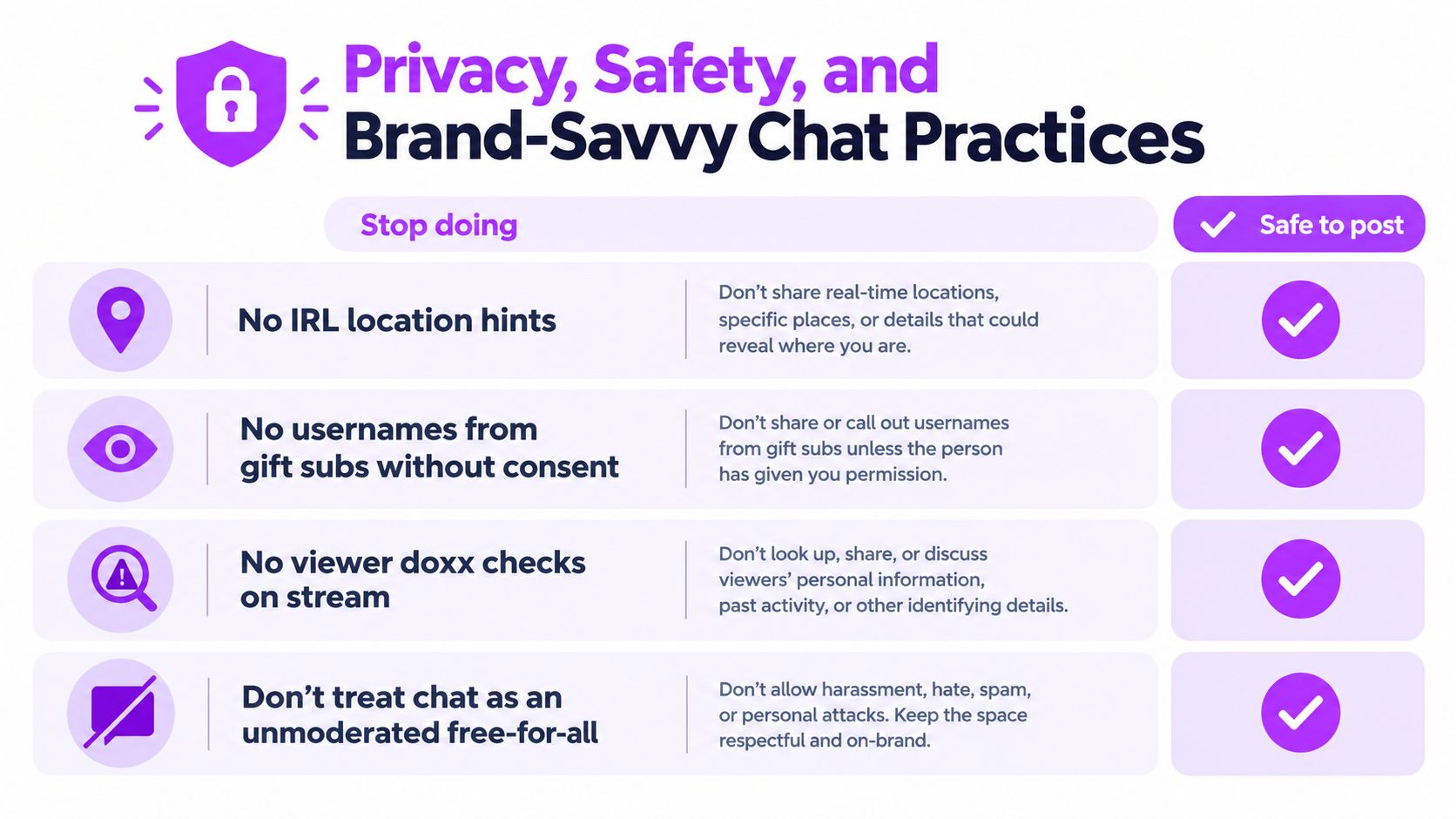
Don’t hint at your live location through windows, travel details, delivery labels, schedules, or background landmarks. Don’t display gift-sub usernames automatically if the person hasn’t consented to public recognition. Don’t run viewer doxx checks on stream, even as a joke. You can model safe behavior by refusing to investigate personal information in front of an audience.
Replace risky habits with explicit choices
| Risky habit | Safer alternative |
|---|---|
| Revealing location clues for atmosphere | Use a generic scene, controlled background, and delayed travel discussion |
| Showing every gift-sub name automatically | Ask for shoutout preferences and provide a quiet recognition option |
| Investigating a viewer’s identity live | Stop the discussion and direct serious concerns through private moderation |
| Treating chat as a personal CRM | Explain what information you retain and limit collection to a real purpose |
| Posting screenshots of chat without context | Remove usernames or obtain consent before publishing |
EU viewers may have rights concerning personal data, but the exact obligations depend on what you collect, why you collect it, where you operate, and which services process it. Configure chatbot retention conservatively, avoid storing information you don’t need, and review the privacy terms of connected tools. If your channel uses chat history for audience management, disclose that practice clearly and obtain professional advice when the setup becomes substantial.
Banter also needs boundaries. Targeting one viewer repeatedly can become harassment even if the streamer thinks the exchange is funny. Shoutouts should be welcomed, not forced, and moderators should know when to move a joke off stream.
Before your next broadcast, remove location clues, disable automatic public name displays that lack consent, delete unnecessary data exports, audit chat screenshots, and check the current Twitch Community Guidelines before using AI-generated media. Platform rules change, and a confident assumption is not a compliance process.
For community language and meme context, a resource such as this explanation of “Pogger” can help you understand a term without turning unfamiliar slang into a moderation violation. Context still belongs with a human moderator.
Troubleshooting and a Pre-Stream Chat Checklist
Most chat failures are symptoms, not tool categories. Diagnose what viewers see first, then trace the layer responsible.
Chat doesn’t appear on stream. The OBS browser source may have a stale cache, the widget URL may be wrong, or the source may be hidden in the scene. Refresh the browser source, confirm its visibility, and test the live scene.
The overlay lags or freezes. Browser sources can retain an old session or struggle with a widget that loads too many effects. Reload the source, remove decorative animations, and keep a fallback scene without the overlay.
Bot commands time out. An OAuth token may have expired, permissions may have changed, or the bot may be disconnected. Reauthorize the bot through its official dashboard, then run a harmless command before going live.
Messages appear twice. Two bots may own the same command, or the native chat and an overlay relay may both be rendering the same event. Disable one owner, reload the source, and test with a single message.
Emote spam overwhelms a raid. The room may need a temporary mode change, a tighter repetition filter, or more human attention. Don’t respond by permanently making the channel hostile to first-time visitors.
Moderator actions don’t sync. One interface may be using a delayed API path while another uses IRC events, or a moderator may be authenticated in one account but not the other. Verify permissions in the actual channel and test a timeout from the interface your team will use.
Users in Chat disappears. Treat the counter as a Twitch interface signal, not a perfect audience measurement. Refresh the dashboard, check account connectivity, and avoid rebuilding your overlay around that number.
A printable pre-stream check
- Confirm the correct Twitch channel is connected.
- Check bot authentication and permissions.
- Run one essential command.
- Test a moderation action with a moderator.
- Review banned terms and link filters.
- Confirm slow mode and follower-only controls are ready.
- Reload the OBS browser source.
- Refresh emotes and verify they render correctly.
- Check that only one widget displays chat.
- Inspect the overlay against gameplay, alerts, and captions.
- Open the moderation view and confirm whispers are visible.
- Spend sixty seconds asking whether the chat looks right before going live.
That last check catches problems that technical tests miss. If the overlay is too bright, messages are clipped, names are unreadable, or alerts occupy the same space as chat, fix the presentation before the audience has to work around it.
StreamGen turns Twitch VODs into short-form clips by using gameplay, reactions, chat, and audio signals to surface moments worth editing, then provides vertical reframing, captions, and scheduling for TikTok, YouTube Shorts, and Instagram Reels. If your chat produces memorable reactions but you don’t have time to find them manually, visit StreamGen and review how its workflow fits your post-stream routine.
More blog posts