Most advice about free clipping software is lazy. It ranks tools by how many buttons they have, how many captions they promise, or whether they export vertical video. That’s not how you should judge them.
Judge them by cost per finished clip.
A free tool that gives you endless auto-generated highlights is a bad deal if you still spend your night fixing crops, muting copyrighted music, redoing captions, and manually posting to three platforms. A cheap paid plan can be cheaper than “free” the minute it removes even a small pile of repetitive cleanup.
That matters because clipping is no longer a niche workflow. A 2025 market estimate put global video-editing software revenue at about $635 million, projected to reach about $1.38 billion by 2034, with a 9.0% CAGR, and the same analysis said consumer-grade editors account for 64% of usage while more than 410 million active editors and over 3.2 billion smartphone users creating video content now shape the market (video editing software market analysis). Free clipping software sits inside that broader shift from specialist editing to mass participation.
The open-source side matters too. A 2024 open-source survey covering more than 2,000 respondents worldwide found 95% of organizations increased or maintained open-source usage, 33% reported a significant increase, and Ubuntu reached 46% workplace usage, up from 26% the previous year (2024 open-source survey). That tells you why creators keep looking for no-cost tools first. Accessibility and low licensing friction matter.
But “free first” is not the same as “free forever.”
Table of Contents
- Why Free Clipping Software Quietly Costs More Than You Think
- What Free Clipping Software Actually Does and Where It Fits
- Comparing the Best Free Clipping Software Tiers Side by Side
- How Capture and Codec Choices Make or Break a Free Workflow
- Which Free Tool Fits Your Creator Situation
- The Hidden Risks of Free Clipping Automation
- When It Is Finally Time to Upgrade From Free
Why Free Clipping Software Quietly Costs More Than You Think
Free clipping software is often a bargain only on paper.
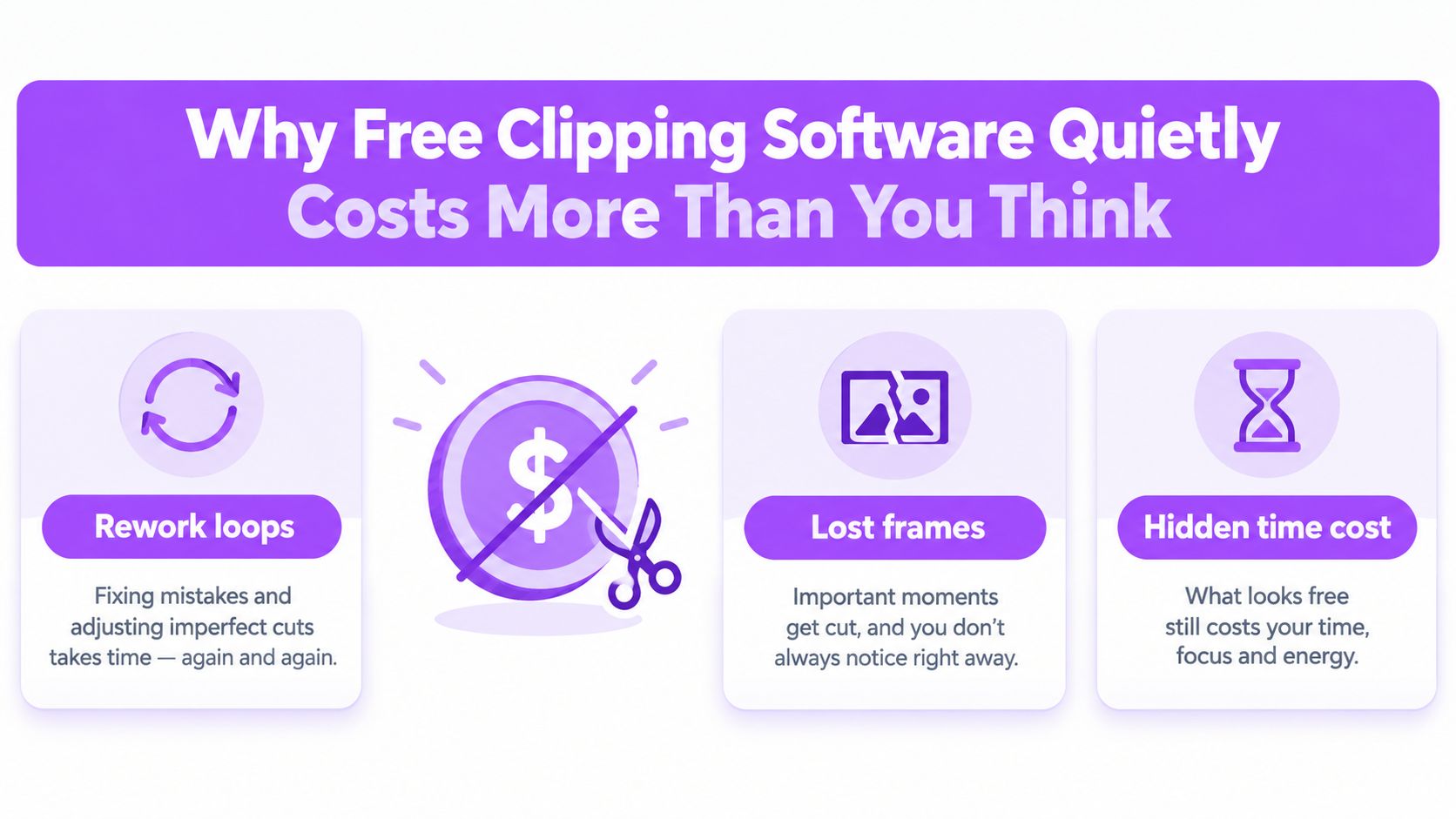
What matters is not how many clips a tool spits out. What matters is cost per finished clip. If the app gives you 80 auto-selected moments and only 4 survive trimming, caption fixes, crop repair, rights checks, and a final platform pass, the software did not save you time. It created a review queue.
Here is the math creators should use. A free tool generates 80 clips from a long stream. You spend 3 hours reviewing and fixing them. You publish 4. That is 45 minutes of labor per finished clip. A cheap $5 monthly plan that helps you get 4 publishable clips in 30 minutes total costs $1.25 and 7.5 minutes per clip. Free loses fast when your time has any value at all.
Review labor is the expense feature pages hide. They count exports, not cleanup.
A candidate clip still needs an editor to judge the opening second, cut dead air, fix speaker switches in captions, keep text inside safe zones, and make sure the joke or point lands without extra context. If you have to do that work on nearly every export, automation did not remove the job. It moved it to the end of the pipeline, where mistakes are easier to miss and harder to batch-fix.
Three costs decide whether a free workflow is usable:
- Rework: the clip exists, but it still needs hands-on editing before it is worth posting.
- Copyright exposure: auto-detected highlights can pull in background music, guest audio, sports footage, or reaction material you should not republish blindly.
- Safe-zone failure: one vertical export can look acceptable in a preview and still cover captions, faces, or on-screen context once TikTok, Shorts, and Reels add their own interface layers.
That last point gets ignored too often. A clip that is technically exported is not a finished clip. If platform UI blocks the subtitle line or your speaker’s face sits under the caption stack, you are back in the editor.
Free clipping software gets risky when it pushes volume before judgment. The faster it surfaces moments, the easier it is to publish something with messy rights, weak framing, or captions that break on mobile. That is why feature checklists miss the point. More automation only helps when it reduces review time and lowers failure rate across all three platforms.
Ask one question before you commit to any free tool: How much time and cleanup does it take to produce one clip you can post with confidence?
What Free Clipping Software Actually Does and Where It Fits
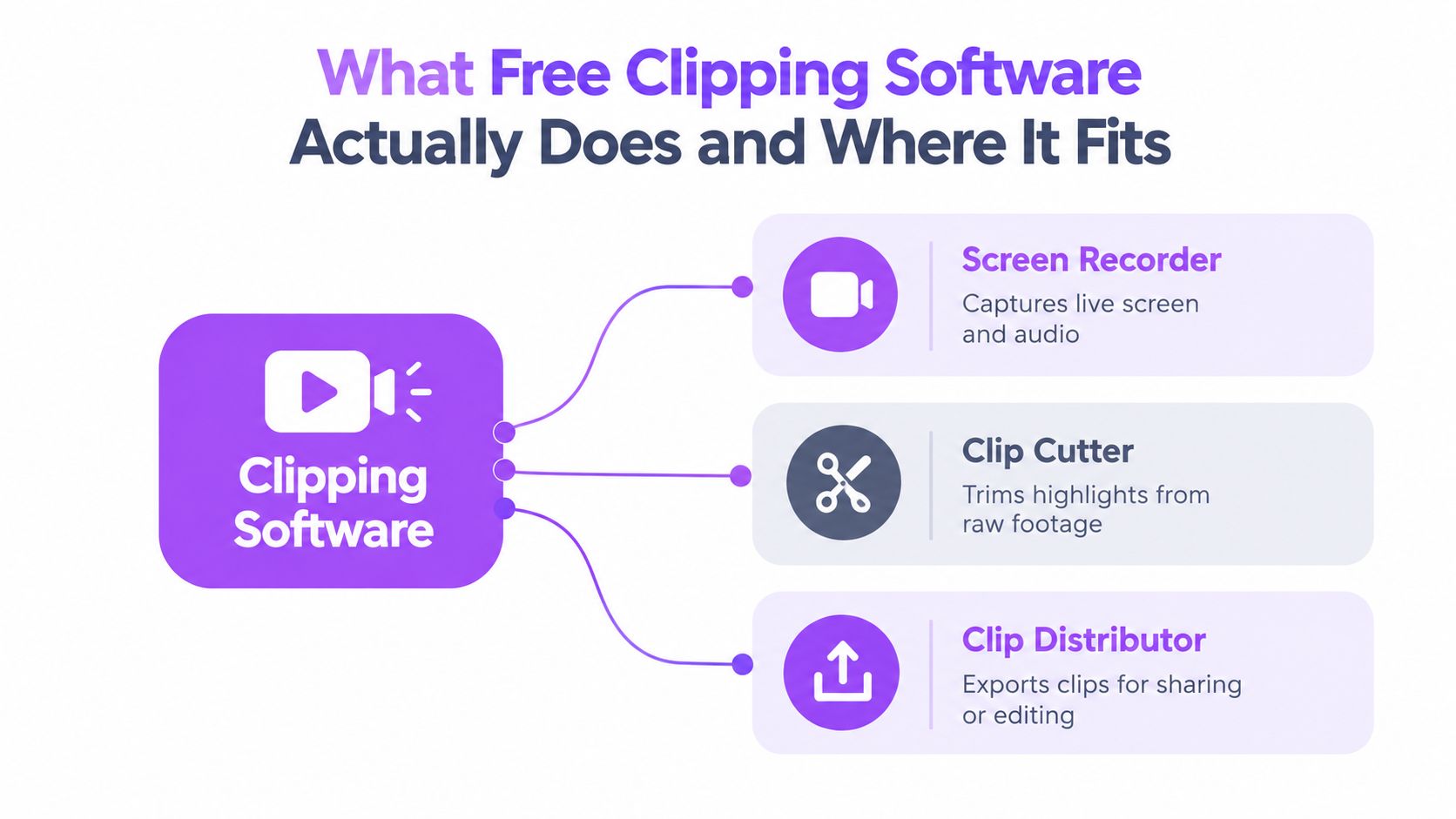
People use “clipping software” as if it means one thing. It doesn’t. It usually means three separate jobs.
Three jobs hiding under one label
First, there’s capture. That’s OBS Studio, replay buffers, local recording, and gameplay preservation.
Second, there’s highlight extraction. That means finding the moment worth keeping, whether manually or through AI suggestions.
Third, there’s vertical finishing and publishing. That’s reframing, captions, safe-zone checks, and posting to TikTok, Shorts, or Reels.
Most creators don’t need one magic app. They need the right combination.
If you need a plain-language walkthrough of the creative side of clipping videos for social media, that PostSyncer guide is useful because it treats clipping as a publishing workflow, not just an edit.
The fast self-check
Use this before you compare any tool:
-
You miss moments live Your problem is capture. Look at OBS and replay-style tools first.
-
You have long VODs but no time to scrub Your problem is extraction. Look at AI-assisted clip finders.
-
Your clips look messy after export Your problem is finishing. Look at captions, reframing, and platform preview controls.
-
Your clips are ready but still don’t get posted Your problem is distribution. Look at scheduling and direct publishing.
That last category matters more than people admit. A clip sitting in a download folder is not content. It’s unfinished admin work.
The columns that actually matter
Don’t compare free clipping software by “supports vertical video.” That’s table-stakes now. Compare it by these six things:
- Free tier limit
- How highlights are found
- Caption quality and editability
- Vertical reframing control
- Publishing options
- Review controls before posting
If you want a product-side view of how AI clipping systems are framed, this AI video clipper overview is worth reading because it separates detection from editing and posting.
Good free clipping software solves one bottleneck cleanly. Bad free clipping software pretends to solve all of them and leaves you to finish the work by hand.
Comparing the Best Free Clipping Software Tiers Side by Side
Here’s the quick scan first.
| Tool | Best for | Free tier headline limit | AI highlight detection | Direct publishing |
|---|---|---|---|---|
| OBS Studio | Gameplay capture and replay buffer | Free, open-source desktop software | No | No |
| DaVinci Resolve Free | Manual finishing and serious editing | Free editor with codec caveats | No | No |
| Eklipse | Automated highlight discovery for streamers | Free tier with usage limits | Yes | Limited or workflow-dependent |
| StreamLadder Free | Fast social clip formatting | Free tier with platform and export limits | Limited or workflow-dependent | Limited |
| StreamGen Free | Unified find, edit, and post workflow | Free tier with lower limits for individuals | Yes | Yes |
What each tool is really good at
OBS Studio is still the cleanest answer for capture. It’s free, flexible, and serious. But people keep recommending it as if it’s a full clipping solution. It isn’t. OBS records and buffers gameplay well. It does not find highlights for you, it does not package your clips for social by itself, and it does not remove your publishing backlog.
DaVinci Resolve Free is the right choice if you want manual control and already think like an editor. It’s far more powerful than most “clip maker” tools. But it’s not built to discover moments, and the free version has codec caveats on Linux that can wreck a supposedly simple workflow if you don’t test your exports first.
Eklipse fits creators who care more about AI-discovered moments than manual precision. It can reduce scrubbing. The catch is familiar: auto-selected moments still need human judgment, especially when the clip starts late, misses context, or grabs a noisy segment that isn’t usable outside the stream.
The social-first free tiers
StreamLadder Free makes sense for creators who already know which moments they want and mainly need quick vertical formatting. That’s useful. It’s also narrower than people admit. Formatting a chosen moment is not the same as solving discovery, review, and publishing.
StreamGen Free is one of the few options that treats clipping as a chain instead of a single action. It combines AI clip finding, browser editing, and direct posting in one workspace, which matters if your actual problem is getting clips out the door instead of just generating them.
My blunt recommendations
Use this as your shortlist:
- Pick OBS Studio if your main pain is reliable capture.
- Pick DaVinci Resolve Free if your main pain is finishing quality and you don’t mind manual editing.
- Pick Eklipse if you want AI help surfacing moments from streams.
- Pick StreamLadder Free if you mostly need quick vertical repackaging.
- Pick StreamGen Free if you want fewer handoffs between finding, editing, and posting.
The wrong tool isn’t the one missing a feature. It’s the one that leaves your bottleneck untouched.
How Capture and Codec Choices Make or Break a Free Workflow
Most free clipping software discussions skip the technical part that decides whether the workflow survives contact with an actual gaming PC.
Encoder choice affects gameplay immediately
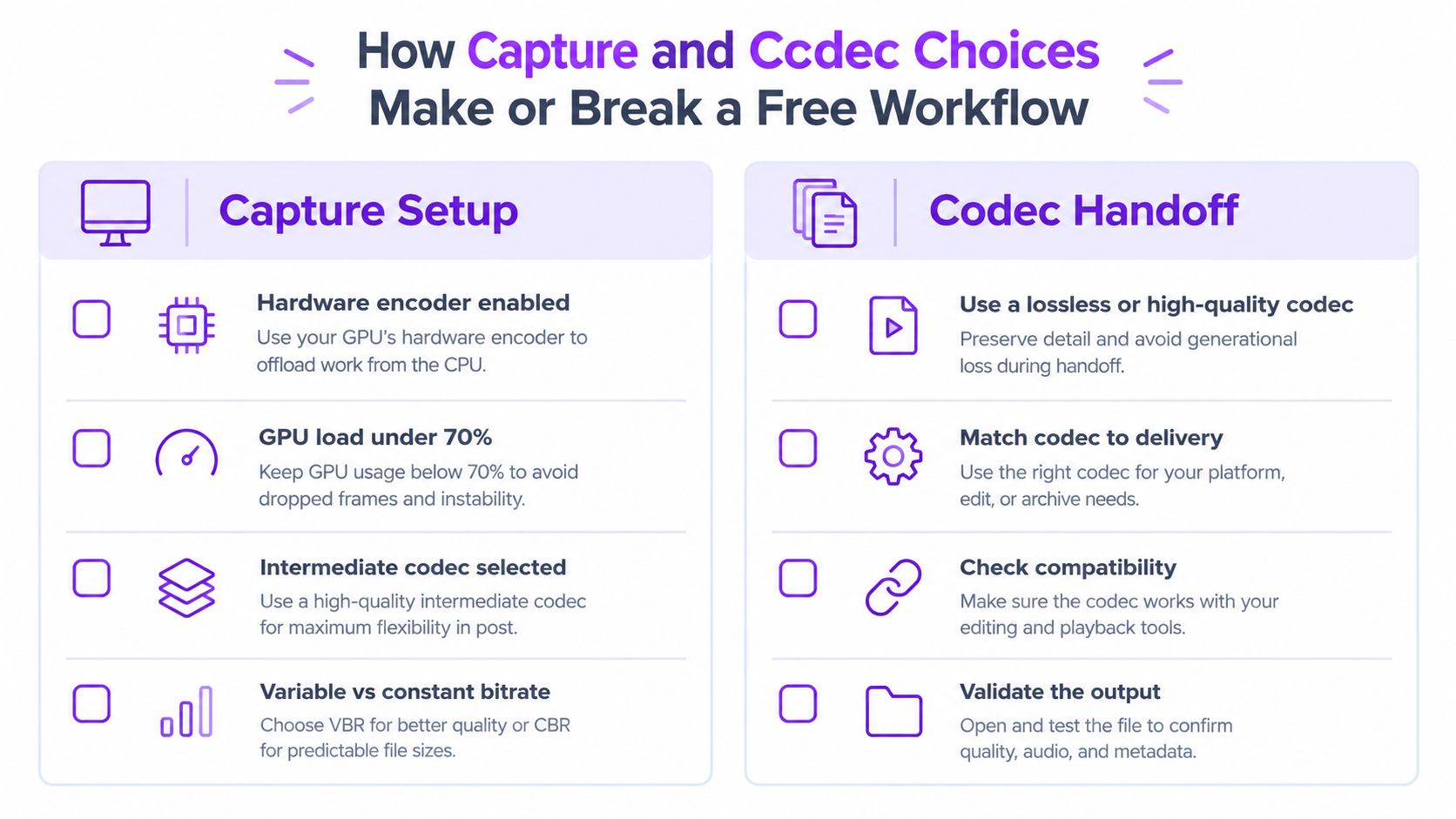
In a 1080p60 CS2 test on a Ryzen 7 7700X, OBS Studio showed about 7.2% CPU overhead with NVIDIA NVENC versus 14.8% with x264, and the same testing reported a 3-fps reduction for GPU-encoded capture in Cyberpunk 2077 compared with an 11-fps reduction using x264 (OBS versus hardware capture testing).
That’s enough to make the practical recommendation easy. If you’re streaming or gaming on a system that already works hard, use hardware encoding first. Don’t chase software encoding purity while your frame-time stability collapses.
Those figures are configuration-specific. Still, the logic holds. Free clipping software that depends on shaky capture settings is a false economy.
Codec handoff can ruin the editor stage
A lot of creators think “exports MP4” means “works everywhere.” Wrong.
The Arch Linux DaVinci Resolve notes make the important point: the free edition is reported to support the MP4 container itself, but not general H.264 or H.265 decoding or encoding in the tested Linux package. An MP4 with AV1 video and supported audio may work, while an H.264 or H.265 MP4 may need transcoding first.
That means you should test codec, profile, bit depth, audio, and operating system, not just file extension.
For creators doing speech-heavy work, clean source audio matters just as much as video compatibility. If you’re trying to tighten dialogue before clipping, this short guide to Dialogue Editing is a useful refresher on what to clean before captions and exports compound the mess.
A simple validation routine
Run this test before you commit to any free workflow:
- Record a short real session: Use your actual game, overlays, browser sources, and mic setup.
- Watch performance, not just FPS: Check dropped frames, frame-time variance, CPU load, and encoder lag.
- Export one vertical sample: Include captions and audio.
- Open it in your finishing editor: Resolve or Premiere should accept it without surprises.
- Transcode only if necessary: Extra conversion steps eat time and storage.
For bitrate context on stream-side recording setups, this YouTube stream bitrate guide is useful because it helps creators avoid capture settings that look fine live but become awkward in post.
Which Free Tool Fits Your Creator Situation
Tool rankings are nice. Real situations are better.
Small Twitch streamer with limited time
You stream a few times a week, your audience is still small, and you want a couple of Shorts without turning every Sunday into post-production. Don’t overcomplicate it.
Use OBS Studio for capture. Pair it with a free AI clipping tier that can surface likely moments, then be ruthless about what gets published. You don’t need endless exports. You need a small batch you can actually review.
Your trigger to pay is simple: when your review queue starts feeling like a second job.
VTuber or Just Chatting creator posting often
This creator has a different problem. The issue isn’t just finding hype moments. It’s keeping an avatar, gameplay window, subtitles, and sometimes chat readable in a vertical frame.
For this setup, I’d favor a free tool with stronger caption editing and reframing controls over a tool that just spits out lots of auto-clips. Face placement, subtitle timing, and layout discipline matter more than raw clip volume. The backup option is a manual editor that gives you total control when the AI framing misses your on-screen composition.
If you’re also comparing internet-side video tooling for delivery and platform packaging, the products page for Pixify is worth a look because it shows how some providers position media handling around creator workflows, even if it isn’t a direct replacement for a dedicated clip pipeline.
Esports social manager or agency editor
Most free plans stop making sense here.
If you manage several channels, your bottleneck isn’t finding one cool play. It’s review, approval, consistency, and scheduling. A free tool may still help with first-pass discovery, but it won’t solve the operational mess if assets bounce between folders, editors, and login handoffs.
For this scenario, your primary free tool should be whichever one reduces handoffs the most. Your backup should be a stronger manual editor for exceptions. The moment to upgrade arrives when missed posts, inconsistent branding, and manual queue management start hurting your publishing cadence.
Agencies don’t outgrow free tools because they want fancier software. They outgrow them because unmanaged review work breaks the calendar.
The Hidden Risks of Free Clipping Automation
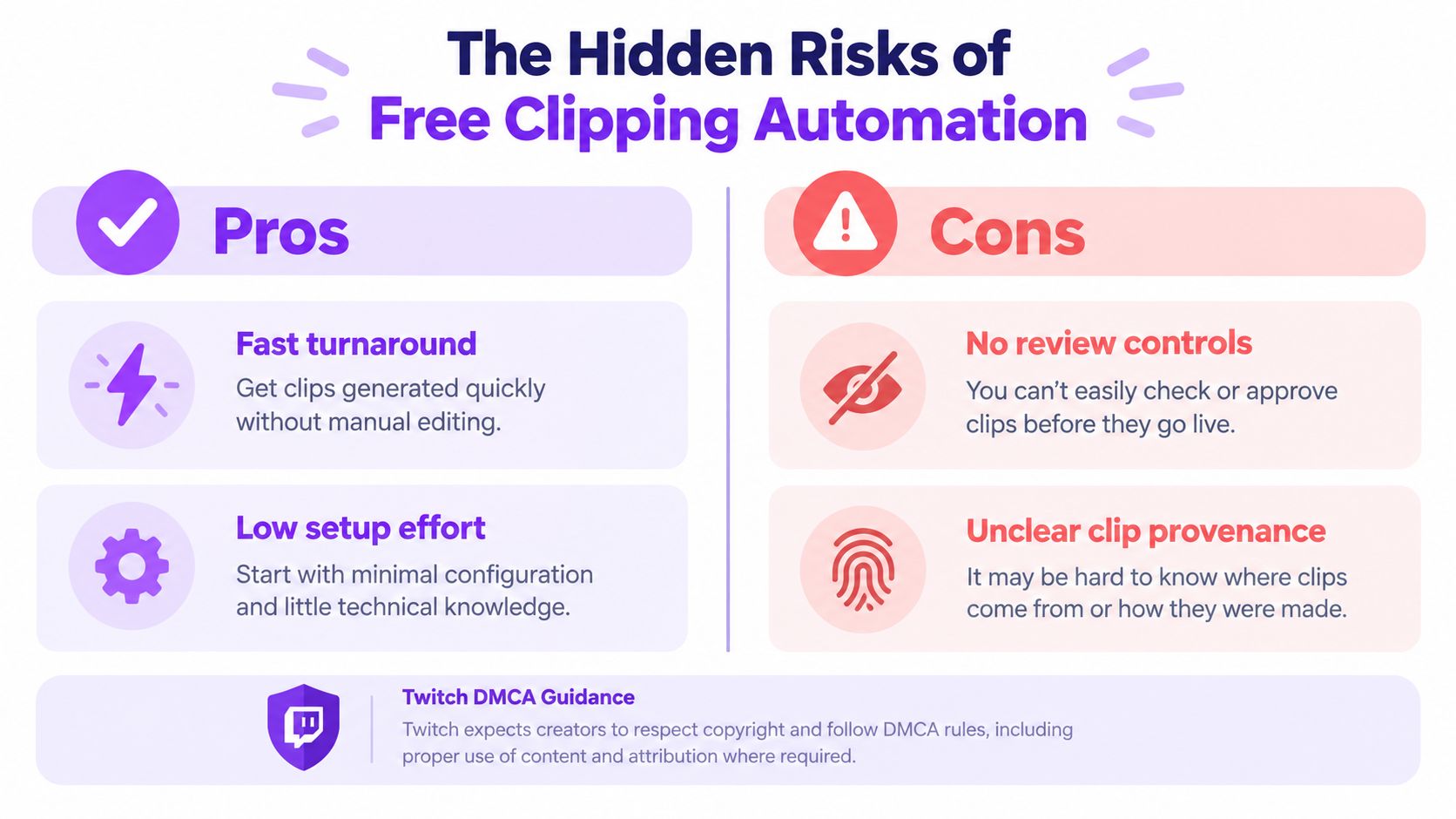
The usual free clipping software comparison asks how many clips a tool can generate. That’s the wrong question. Ask how many clips you can safely approve.
Copyright risk grows with output
Twitch’s DMCA guidance is blunt. Using another person’s copyrighted work can trigger a takedown, even if it appears incidentally in a stream, and clips created by others can persist even after the original broadcast is deleted (Twitch DMCA and copyright FAQs).
That matters because automation increases throughput. If your tool surfaces more moments than you can properly review, it can also multiply your exposure to background music, event footage, guest appearances, or viewer-submitted media that shouldn’t be republished casually.
This is why review controls matter more than clip quotas.
Safe-zone failure is an operational failure
Publishing one 9:16 file everywhere sounds efficient until platform overlays crush your captions or hide the actual payoff. The short-form production standards reference is useful here because it stresses safe zones, readable text, and platform-specific constraints rather than pretending vertical export alone solves the problem.
A free tool with “unlimited exports” is still weak if you must manually repair crops for every network.
What to evaluate instead
Use this filter when testing automation:
- Review flags: Can you spot risky clips before posting?
- Audio control: Can you mute, swap, or trim problematic sound?
- Per-platform previews: Can you check overlays and caption placement?
- Provenance notes: Can your team track what footage and permissions a clip depends on?
If you’re trying to understand what hands-off clip pipelines should include operationally, this Autopilot setup article is a useful example of the review-and-publishing side people usually ignore.
When It Is Finally Time to Upgrade From Free
Free stops making sense the moment it raises your cost per finished clip.
That is the metric that matters. Not export count. Not AI features. Not whether the tool says “unlimited” on the pricing page. If you spend more time fixing crops, redoing captions, checking rights, and republishing broken versions than it would cost to pay for a cleaner workflow, you are already paying. You are just paying in labor and inconsistency instead of cash.
The threshold that matters
Use a simple weekly check:
- Time spent repairing clips that should have been publish-ready
- Time spent re-exporting or reposting failed versions
- Time spent reviewing clips for music, guest, or footage issues
- Time lost because you do not trust the output enough to publish fast
Add that up. Then ask one direct question: would a low monthly fee cost less than this friction?
If the answer is yes, free is no longer the cheap option.
Three common upgrade moments
The first shows up earlier than creators admit. You may not be making money from clips yet, but if clipping keeps stealing hours from recording, scripting, or publishing, the free tool is dragging the channel backward. Consistency is worth more than clinging to a zero-dollar plan.
The second point is the affiliate or part-time business stage. At that level, a clipping setup needs to produce finished assets, not half-finished drafts. If every post still requires manual downloads, platform-specific recrops, and one more export because the first file broke somewhere, your workflow is underpowered.
The third is team use. Agencies, podcast networks, and operators running several channels hit the wall fastest because the true cost is coordination. Free tools create handoff problems, duplicate reviews, version confusion, and missed posting windows. That is where “free” gets expensive in a hurry.
My recommendation on when to stop being cheap
Upgrade when any of these are true:
- You keep putting off clipping because the process is irritating.
- You generate more drafts than you can review safely.
- You fix the same framing, caption, or safe-zone mistakes every week.
- Your publishing schedule depends on remembering manual steps.
At that point, the issue is not software price. The issue is throughput and reliability.
For context, paid plans on the market can start as low as €5.49 per month. Price points like that are easier to justify than another month spent cleaning up a broken free workflow.
A final check before you decide
Ask yourself:
- Do I trust a clip before watching the whole thing back?
- Do my captions and framing hold up across TikTok, Shorts, and Reels?
- Can I pass files to an editor without codec or export surprises?
- Can I keep track of what is safe to publish?
- Am I finishing clips consistently, or just producing more drafts?
More than one “no” is your answer.
Free is useful for proving a workflow. It is a bad excuse for keeping a broken one.
More blog posts