You’re watching your own YouTube broadcast while chat starts filling with the same complaint: the picture looks soft, fast movement breaks into blocks, or the stream keeps buffering. You check the camera, the lighting, and the game capture, but the problem may be the amount of video data your encoder is sending every second.
That number is your YouTube stream bitrate. Set it too low for the resolution and frame rate, and detail disappears. Set it too high for your sustained upload connection, and dropped frames or buffering can make a sharp source unpleasant to watch. The right setting is a bandwidth budget, not a quality slider you should push to its maximum.
By the end, you’ll be able to read YouTube’s official bitrate ladder, choose a practical preset for your upload speed, configure CBR and keyframes in OBS Studio, and leave enough network headroom for a stable broadcast. Your camera may still need better light, and your encoder may still need tuning, but bitrate will stop being a guess.
Table of Contents
- Why Your Live Stream Looks Worse Than It Should
- What Bitrate Really Means for a Live Stream
- YouTube’s Recommended Bitrate Ladder Explained
- How Codec Choice Changes the Numbers You Need
- Ready-Made Bitrate Presets for Common Upload Speeds
- Keyframes, Headroom, and Other Settings People Skip
- When Pushing Bitrate Higher Actually Hurts
- Your Stream Settings Checklist and Next Steps
Why Your Live Stream Looks Worse Than It Should
A stream can look poor even when the original camera feed is clean. The first suspect is a mismatch between resolution, frame rate, and video bitrate. A 1080p60 source asks the encoder to preserve more pixels and more motion than a lower-resolution or lower-frame-rate stream, so a setting copied from an old 720p preset may not provide enough data.
Upload capacity creates a second failure point. Your speed-test result is only useful if the connection can sustain the stream while other devices, cloud backups, software updates, and Wi-Fi interference compete for the same upstream path. A bitrate that works in a quiet test can still cause network drops during a busy broadcast.
Codec choice matters too. H.264 remains the familiar compatibility option, while AV1 and H.265 can represent similar visual information more efficiently when the platform and encoder support them. An inherited preset may also use variable rate control, an unsuitable keyframe interval, or an output resolution that your connection can’t carry.
Practical rule: Choose the highest-quality preset that survives your weakest link, not the setting that looks most impressive in the encoder menu.
Start with the symptoms
Use the viewer complaint as a clue:
- Soft or blocky detail: The bitrate may be too low for the selected resolution, frame rate, or scene complexity.
- Stuttering with dropped network frames: Your upload path may not sustain the configured bitrate.
- Encoder overload: Your computer or hardware encoder may be struggling, even if the internet connection is adequate.
- Inconsistent delivery: Rate control or keyframe settings may not match YouTube’s live-ingestion guidance.
Your webcam is only one part of the chain. If you’re upgrading the capture side, compare the camera’s low-light performance, frame-rate options, and USB behavior in this guide to the best webcam for streamers, then tune the delivery settings separately.
The fix is methodical. Confirm the output resolution and frame rate, choose a codec, set a constant bitrate inside your tested upload capacity, apply YouTube’s keyframe guidance, and run an unlisted test. You don’t need to understand every encoder option before going live. You need a reliable starting point and a way to identify which link in the chain is failing.
What Bitrate Really Means for a Live Stream
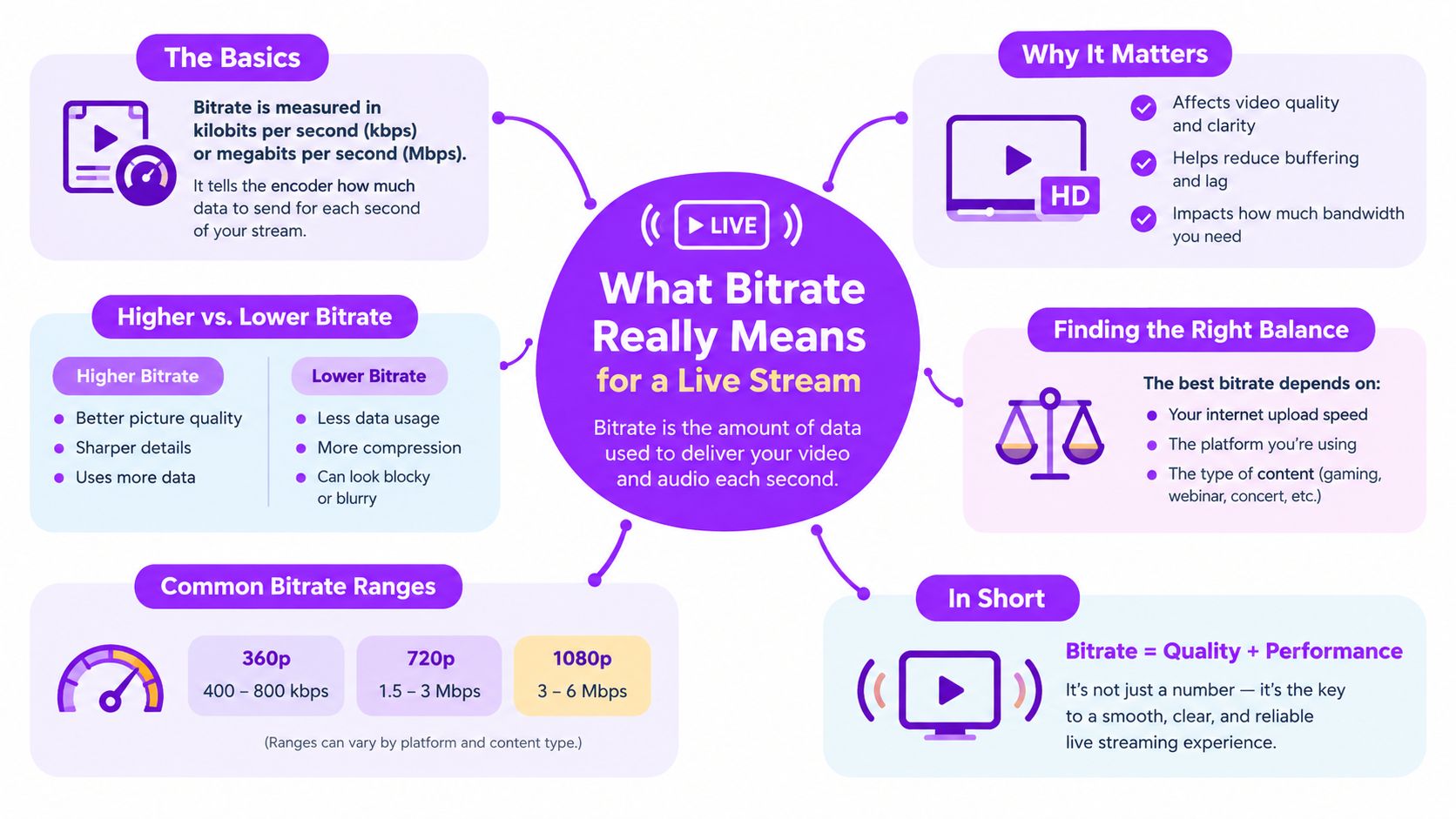
Bitrate is the amount of video data your encoder sends upstream every second, measured in megabits per second. Think of it as a delivery budget. The encoder has a limited allowance, and it must spend that allowance describing every frame clearly enough for YouTube to process and deliver.
Three inputs determine whether the budget is sufficient:
- Resolution controls how many pixels appear in each frame. More pixels create more visual detail to encode.
- Frame rate controls how many frames arrive each second. A 60 fps stream sends more motion information than a 30 fps stream.
- Codec efficiency determines how effectively the encoder compresses that information. A more efficient codec can preserve comparable detail with less data, provided the receiving platform and playback devices support it.
Why the settings interact
Resolution and frame rate don’t increase the data requirement in exactly the same way for every scene or codec, but the direction is predictable. A larger image gives the encoder more pixels to describe, while a higher frame rate gives it more frames to deliver. If you raise both at once, the bitrate demand rises sharply.
That’s why a static talking-head broadcast and a fast game stream can need different treatment even at the same resolution. Grass, smoke, camera pans, foliage, confetti, and rapid gameplay create more changing detail than a mostly still presenter shot.
Codec efficiency changes the budget again. YouTube’s guidance lists 12 Mbps for H.264 at 1080p60, while its guidance for AV1 or H.265 ingestion gives a 4 to 10 Mbps range for the same 1080p60 input (YouTube’s live encoder recommendations). The codec doesn’t make upload capacity irrelevant, but it changes how much visual information fits inside the allowance.
Every bitrate number in YouTube’s recommendations is therefore a balancing decision. It reflects the selected resolution, frame rate, codec path, and the need to deliver a predictable live feed rather than an offline file whose bitrate can vary freely.
YouTube’s Recommended Bitrate Ladder Explained
YouTube’s published live-ingestion guidance gives creators a ladder instead of one universal number. Lower rungs suit limited connections and smaller viewing screens, while higher rungs preserve more detail for larger images and faster motion.
The following table uses the H.264 recommendations in YouTube’s official live encoder settings. The guidance also lists a broader historical ladder from 300 Kbps at 240p to 51 Mbps at 4K60, with 1080p60 at 12 Mbps (YouTube’s live streaming settings).
| Resolution | Frame Rate | Recommended Bitrate (CBR) | Best Use Case |
|---|---|---|---|
| 240p | Lower motion | 300 Kbps | Emergency low-bandwidth broadcast |
| 360p | Lower motion | Use the matching YouTube ladder value | Small screens and very limited connections |
| 720p | 30 fps | 4 Mbps | Mobile-friendly general streaming |
| 720p | 60 fps | 6 Mbps | Smoother gameplay with moderate detail |
| 1080p | 30 fps | 10 Mbps | Detailed talking-head, presentation, or moderate-motion streams |
| 1080p | 60 fps | 12 Mbps | Desktop viewing, gameplay, and fast movement |
| 1440p | 60 fps | 24 Mbps | High-detail content with a strong upload connection |
| 4K | 60 fps | 35 Mbps | Capable production systems and very strong connections |
The exact low-resolution options should come from the current YouTube settings page rather than from a generic preset. The practical decision is simpler: match bitrate to the output you’re sending, not to the maximum resolution your camera can capture.
Why CBR belongs in the live path
CBR, or constant bitrate, keeps the outgoing data flow predictable. YouTube’s live guidance is built around that predictable ingest behavior, so CBR is the safer choice for a broadcast than a mode that creates large short-term peaks.
For many creators, 1080p60 at 12 Mbps in H.264 is the modern reference point. It isn’t mandatory. If your connection or audience favors a lighter stream, 720p30 or 720p60 can provide a better viewing experience than unstable 1080p.
Your aspect ratio also needs to match the content and destination. If the image is stretched, cropped, or surrounded by unwanted bars, resolve that before you chase bitrate with this guide to changing video aspect ratio.
Sending more than YouTube’s recommended range doesn’t guarantee that viewers will see more detail. YouTube processes the incoming feed for playback, so an excessive input can consume your upload budget without producing a visible benefit.
How Codec Choice Changes the Numbers You Need
A codec is the compression engine behind the stream. Two streams with the same resolution, frame rate, and nominal bitrate can look different because their codecs make different decisions about motion, texture, and repeated information.
H.264 is the compatibility workhorse. It’s widely supported by streaming software, hardware encoders, platforms, and playback devices. If you’re unsure which path your setup supports, H.264 is usually the least complicated starting point.
AV1 is more efficient, but the benefit depends on encoder support and the receiving workflow. HEVC, also called H.265, can also reduce the data needed for a given visual result, although compatibility varies between devices and services.
YouTube’s official guidance illustrates the difference directly. For 1080p60, it recommends 12 Mbps for H.264, while its AV1 and H.265 ingestion range is 4 to 10 Mbps (YouTube’s codec-specific live guidance).
| Codec | Typical Bitrate Range | Hardware Encoder Support | YouTube Transcoding |
|---|---|---|---|
| H.264 | Use YouTube’s H.264 ladder, including 12 Mbps at 1080p60 | Broad support across common hardware and software paths | YouTube processes the feed for viewer playback |
| HEVC/H.265 | YouTube lists 4 to 10 Mbps for 1080p60 ingestion | Available on newer hardware, depending on encoder and workflow | Supported ingestion path, with playback handled by YouTube |
| AV1 | YouTube lists 4 to 10 Mbps for 1080p60 ingestion | Requires a capable encoder and compatible workflow | Supported ingestion path, with YouTube creating playback versions |
What you’ll see in OBS
OBS Studio may expose hardware options such as NVIDIA NVENC, Intel Quick Sync, or AMD AMF. The available codec depends on your graphics hardware, driver, OBS version, and selected service. A hardware encoder can reduce CPU work, but it doesn’t automatically give you AV1 or HEVC.
Codec efficiency also doesn’t remove the need for headroom. A lower AV1 bitrate still needs a stable route to YouTube, and the stream still needs correct rate control and keyframe settings. Treat the codec as a way to spend the same bandwidth more effectively, not as permission to ignore the connection.
For a new creator, the decision is straightforward: choose H.264 when compatibility and predictability matter most, then consider AV1 or HEVC only after confirming that your encoder and intended playback path support them reliably.
Ready-Made Bitrate Presets for Common Upload Speeds
Theory is useful until the settings window is open and the broadcast is about to start. The presets below assume a single YouTube feed, a measured sustained upload result, CBR video, and a 2-second keyframe interval. YouTube recommends leaving about 20% of upload bandwidth unused, so the video values stay below the full tested connection rather than consuming every available megabit (YouTube’s network guidance).
| Upload Speed | Resolution | Frame Rate | Codec | Video Bitrate | Audio Bitrate | Keyframe Interval |
|---|---|---|---|---|---|---|
| 5 Mbps | 720p | 30 fps | H.264 | 3.5 Mbps | 160 Kbps AAC | 2 seconds |
| 10 Mbps | 720p | 60 fps | H.264 | 6 Mbps | 160 Kbps AAC | 2 seconds |
| 15 Mbps | 1080p | 30 fps | H.264 | 10 Mbps | 160 Kbps AAC | 2 seconds |
| 20 Mbps | 1080p | 60 fps | H.264 | 12 Mbps | 160 Kbps AAC | 2 seconds |
| 30+ Mbps | 1440p | 60 fps | H.264 | 24 Mbps | 384 Kbps AAC | 2 seconds |
These are starting points, not guarantees. A speed-test result can fluctuate, and a shared Wi-Fi network can become congested without warning. If your connection is twitchy, use the 5 Mbps row as a stability-first preset, or choose 720p60 rather than forcing 1080p and sacrificing a smooth picture when the upload line wobbles.
Put the values in OBS
Open Settings, then Output, and select the Streaming tab. Enter the video value in Video Bitrate, select CBR for Rate Control, and set the audio value in the audio bitrate field. In Settings, then Video, select the matching output resolution and frame rate.
The table’s 20 Mbps row gives you the clearest example. A tested 20 Mbps upload leaves room around a 12 Mbps video feed, its audio, and normal network variation. That is safer than treating the entire speed-test number as available video capacity.
Use the embedded walkthrough as a visual reference while you locate the fields:
If you send separate feeds to multiple destinations from your own connection, these rows no longer describe the whole upload requirement. Each additional output adds traffic, so test the complete arrangement rather than testing only one YouTube feed.
Keyframes, Headroom, and Other Settings People Skip
A creator starts a broadcast with a clean preview. A few minutes later, the upload line wobbles, the encoder tries to maintain its target, and viewers see stutters even though the average bitrate looked acceptable. The average hides short bursts, packet loss, and competing traffic.
YouTube recommends a 2-second keyframe interval and warns that keyframes shouldn’t be sent less frequently than every 4 seconds (YouTube’s keyframe guidance). A keyframe is a complete reference image. The frames between keyframes describe changes, which is more efficient, but the player needs regular reference points for recovery and seeking.
Leave the connection breathing room
YouTube also advises streamers to leave about 20% of upload bandwidth unused. In practical terms, a 12 Mbps video feed needs roughly 15 Mbps of upstream headroom to reduce the chance that ordinary fluctuations push the connection beyond its limit, based on the same guidance.
That space absorbs network jitter, background traffic, and temporary retransmission needs. A speed test measures a moment. A live broadcast has to remain healthy for its entire duration.
Network habit: Test at the location and time where you’ll stream, preferably over Ethernet, then watch OBS’s dropped-network-frame counter during an unlisted broadcast.
The small encoder choices
- Rate control: Choose CBR for live delivery. CQP is useful for local recordings because it prioritizes quality, but its bitrate can vary beyond what your upload path can safely carry.
- Profile: Use a mainstream H.264 profile supported by your hardware and platform. High can preserve more encoding features, while Main is a safer fallback for older systems.
- Audio: AAC stereo at a modest bitrate is usually sufficient for a spoken stream. Keep the audio sample rate at 48 kHz when that matches your production chain.
- Keyframes: Enter 2 seconds, rather than leaving the field on an inherited or automatic value.
These settings work together. A correct bitrate can’t rescue an encoder that overloads, and a powerful encoder can’t compensate for an upload path with no spare capacity.
When Pushing Bitrate Higher Actually Hurts
More bitrate can preserve more detail, but it can also make the broadcast less reliable. If the stream already sits near the connection’s sustained limit, raising the target leaves no room for jitter or other traffic.
Consider two otherwise identical 1080p60 streams. The one at 6 Mbps may remain watchable when the network becomes unstable, while a 20 Mbps feed can lose frames or stall because its delivery budget is too large for the route. Those values are a thought experiment, not a universal quality comparison. The point is that stability determines what viewers receive.
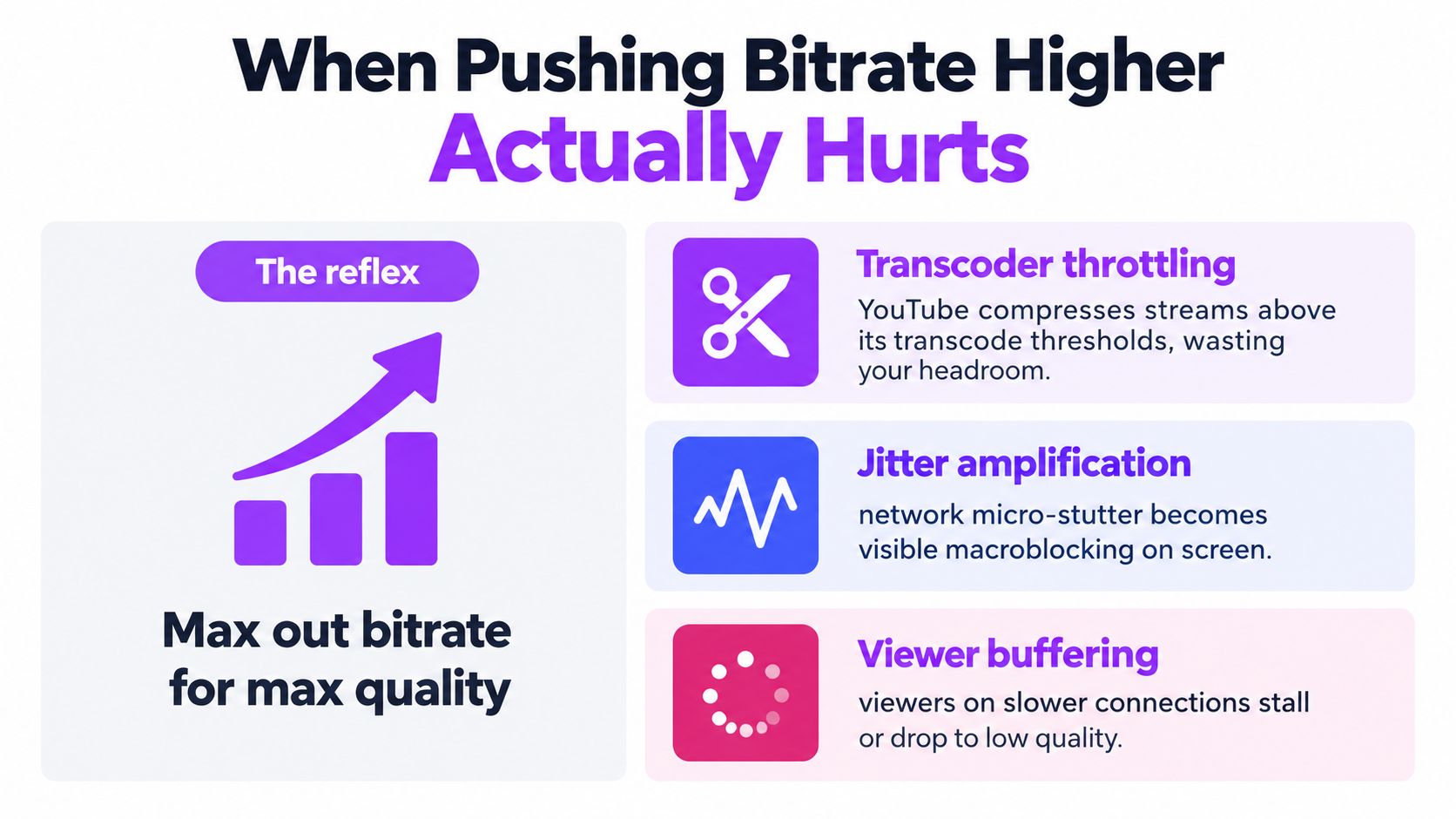
Three penalties appear when creators chase the largest number:
- Transcoding waste: YouTube may process the feed into its own playback versions, so extra input bitrate can consume upload capacity without giving viewers a proportional improvement.
- Jitter amplification: Small network fluctuations become visible macroblocking or dropped frames when the stream has no spare capacity.
- Viewer friction: A heavy feed can be harder for viewers on constrained connections to sustain, even when the platform offers alternate playback qualities.
The common trap is confusing a short speed-test peak with a sustainable upload rate. CBR expects a predictable flow, and if the connection can’t maintain it, the encoder and network path can’t provide the clean delivery your viewers need.
Producer’s choice: Pick the bitrate your weakest network condition can carry. Improve the picture further with lighting, composition, and a more efficient codec, not by exhausting the upload line.
Your Stream Settings Checklist and Next Steps
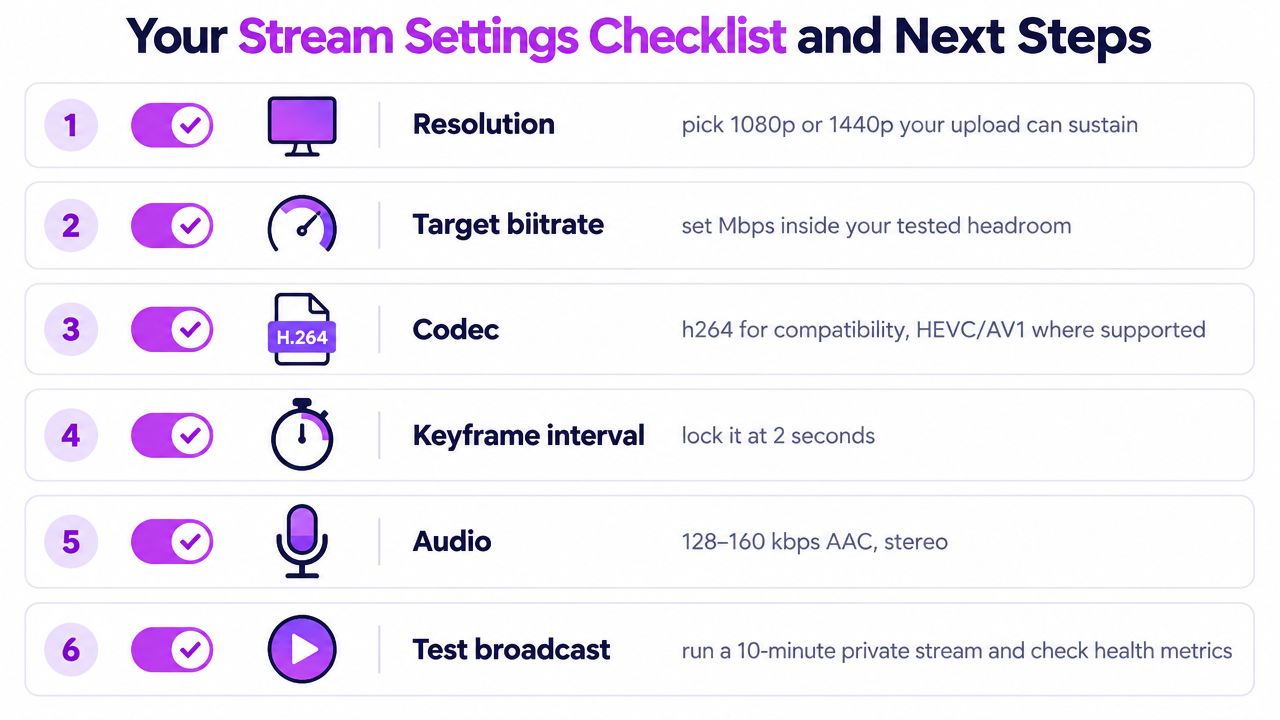
Before the next broadcast, make six decisions:
- Resolution: Choose 1080p, 1440p, or a lower output that your upload can sustain.
- Target bitrate: Select a CBR value inside your tested headroom.
- Codec: Use H.264 for broad compatibility, or choose HEVC or AV1 only when your workflow supports it.
- Keyframe interval: Set it to 2 seconds.
- Audio: Use a clear AAC stereo configuration and confirm that the sample rate matches your production setup.
- Test broadcast: Run a private or unlisted test with the same motion, scenes, and audio you’ll use live.
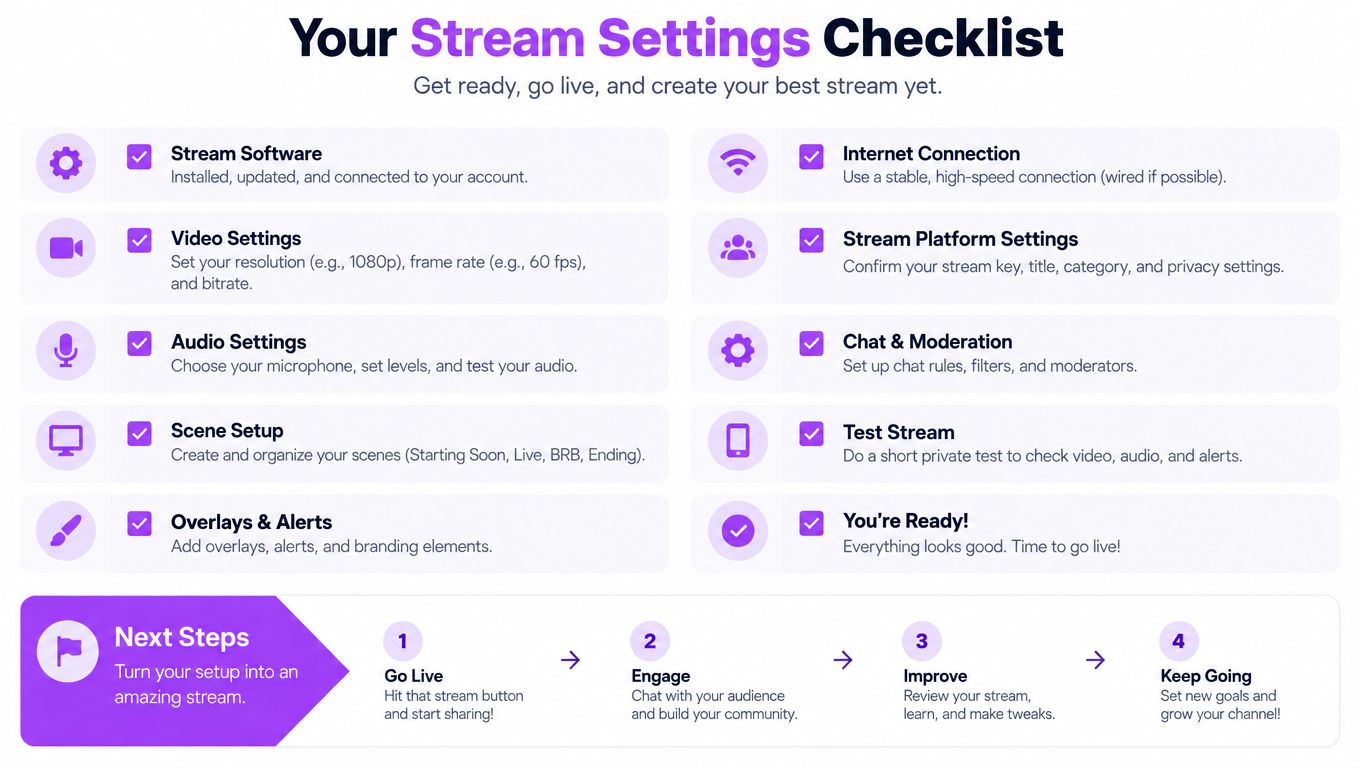
After the test, review dropped frames, encoder overload, stream health, audio sync, and playback on the device your audience commonly uses. If you also want to go live on TikTok from your PC, keep that destination’s workflow separate from your YouTube preset instead of assuming one output fits every platform.
Save the broadcast afterward and use a workflow for downloading a live YouTube video when you need an offline copy for review, editing, or archiving. Then adjust one setting at a time, so you know which change improved the result.
StreamGen helps turn finished broadcasts into short-form clips by finding strong moments, reframing them for vertical feeds, adding captions, and scheduling posts to TikTok, YouTube Shorts, and Instagram Reels. Once your StreamGen bitrate setup produces a clean VOD, use it to build a repeatable clip workflow instead of letting the best moments disappear in the archive.
More blog posts