A safe Autopilot setup is supervised, not fully hands-off. The 95%+ first-attempt enrollment benchmark belongs to cloud-only Windows setups, while a creator workflow should automate clip discovery, editing, and queuing, then keep hooks, captions, and final edits under human review.
The popular advice says to switch on Autopilot, walk away, and let a publishing machine handle the rest. That sounds efficient until a weak hook reaches your audience, a caption misrepresents the moment, or a clip publishes without the context that made the stream entertaining in the first place.
StreamGen’s Autopilot is more useful when you treat it as a graduated workflow rather than an on or off switch. It can coordinate the repetitive work of finding moments, preparing vertical edits, and moving clips into a publishing queue. It shouldn’t replace your judgment about what represents your channel.
The dependable loop is audit, automate, review, and iterate. That model saves time without asking you to gamble your reputation on an unattended publisher.
Table of Contents
- The Reality of Hands-Off Clipping
- Connecting Your Accounts and Queue
- Tuning AI Clipping Preferences
- Choosing Automation vs. Manual Review
- Testing Before You Go Live
- Best Practices for Safe Automation
The Reality of Hands-Off Clipping
Fully hands-off clipping is an attractive promise, but it confuses mechanical work with creative judgment. An automated system can detect an energetic reaction, identify a sudden gameplay change, remove silence, reframe a vertical composition, and prepare a caption. It can’t reliably understand whether the joke lands for your community, whether a guest would object to the framing, or whether a clip makes you look careless.
That distinction matters most at the publishing stage. A clip can be technically clean and still fail because the opening line is weak, the caption gives away the punchline, or the selected moment needs several seconds of context. The system has done its job if it surfaces a candidate. Your job is deciding whether that candidate deserves to represent the channel.

What Autopilot should handle
Use automation for tasks where consistency matters more than taste:
- Highlight discovery: Scan the VOD and rank moments using signals such as gameplay action, audio energy, reactions, and chat activity.
- Repetitive editing: Apply a vertical layout, remove obvious dead air, generate captions, and use a saved brand preset.
- Queue management: Hold finished candidates until they’re approved or scheduled for distribution.
- Routine publishing: Send approved clips to your connected short-form accounts without making you download and re-upload every file.
Recent 2026 guidance for short-form workflows supports this division of labor. It recommends automating repetitive steps while manually reviewing hooks, captions, and final edits, rather than treating content automation as unattended publishing. The practical lesson is clear: a workflow such as create a 60 second AI video can accelerate production, but the creator still owns the editorial decision.
Where human review stays mandatory
The risk rises as the system moves closer to public distribution. Review the opening frame first, because viewers decide quickly whether a clip deserves attention. Then check the caption against the spoken audio, scan for missing context, and watch the final edit with sound on and off.
A useful place to start is this Twitch clip finder guide, especially if your current problem is finding moments rather than polishing them. Discovery automation can reduce the time spent scrubbing a long VOD, but it doesn’t remove the need to judge the moment.
Practical rule: Automate selection and preparation aggressively. Require approval whenever a decision affects your voice, reputation, guests, sponsors, or community standards.
The right question isn’t “Can Autopilot publish without me?” It’s “Which decisions can happen without me, and which decisions become expensive if the system gets them wrong?” That question gives you a safer setup and a more realistic expectation of the tool.
Connecting Your Accounts and Queue
A reliable queue begins with clean account connections. If the source channel or destination platform loses authorization, the automation may continue preparing clips while the publishing step silently waits for attention. Your first task is to make the path from Twitch VOD to social account easy to inspect.
Open StreamGen and connect the Twitch account that owns the broadcasts you want to process. Confirm that the intended channel and VOD source are selected before you configure any posting rules. If you manage several channels, label the workspace or account connections clearly so a clip from one creator can’t enter another creator’s queue.
Build the distribution path
Connect TikTok, YouTube Shorts, and Instagram Reels individually. Each platform should be treated as a separate destination with its own caption style, account permissions, and publishing expectations. Don’t assume that authorizing one destination authorizes the others.
Use this order:
- Connect the source: Confirm that StreamGen can access the relevant Twitch broadcasts and imported video files.
- Authorize destinations: Connect each social account you plan to use, then verify the visible account name before saving.
- Set Auto Posting deliberately: Choose whether clips enter a review queue, a scheduled queue, or an approved publishing flow.
- Create a destination-specific preset: Keep captions, hashtags, formatting, and posting times appropriate to each platform.
- Inspect the queue: Verify that a test clip appears with the right destination, status, and scheduled action.
The queue is your safety net. It separates production from publication, which means you can keep preparing content while retaining a pause point before anything becomes public. A queue that shows the clip, destination, status, and approval state is much safer than an invisible background process.
Treat tokens as operational dependencies
Platform authorization can expire, permissions can change, and a connected account can be switched by someone with access to the workspace. Check the connection immediately if clips stop appearing on a destination, remain stuck in a pending state, or publish to an unexpected account.
Don’t respond by repeatedly reconnecting everything. First identify which destination failed, then reauthorize only that account and confirm the queue hasn’t duplicated an item. A small test publication or private destination can reveal whether the connection is working before you release a full batch.
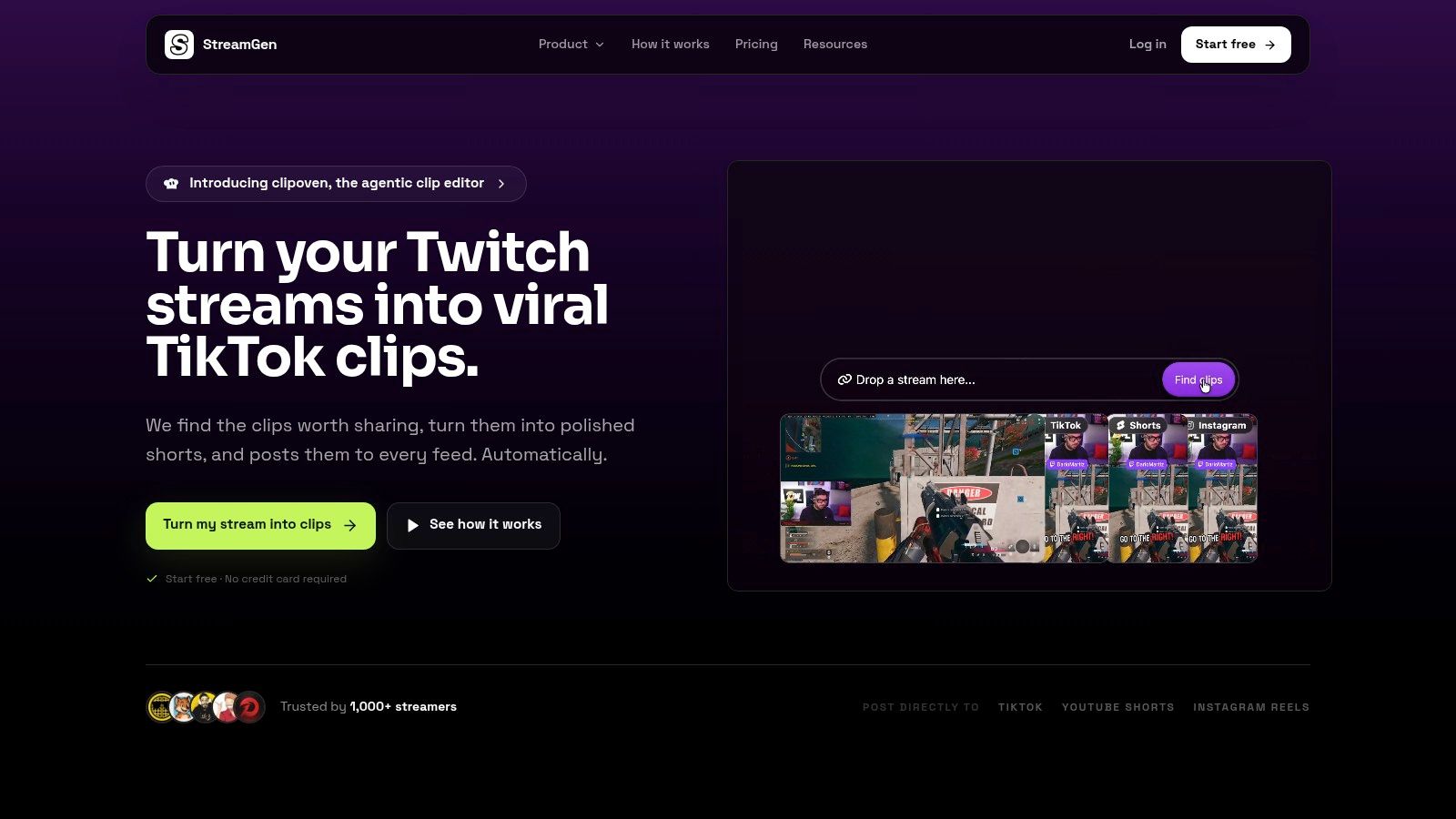
The auto-posting workflow for social media is most dependable when you can see every handoff. The VOD should become a candidate, the candidate should become an edited clip, and the edited clip should become a visible queue item. If one of those states is unclear, pause publication until you know where the handoff failed.
Tuning AI Clipping Preferences
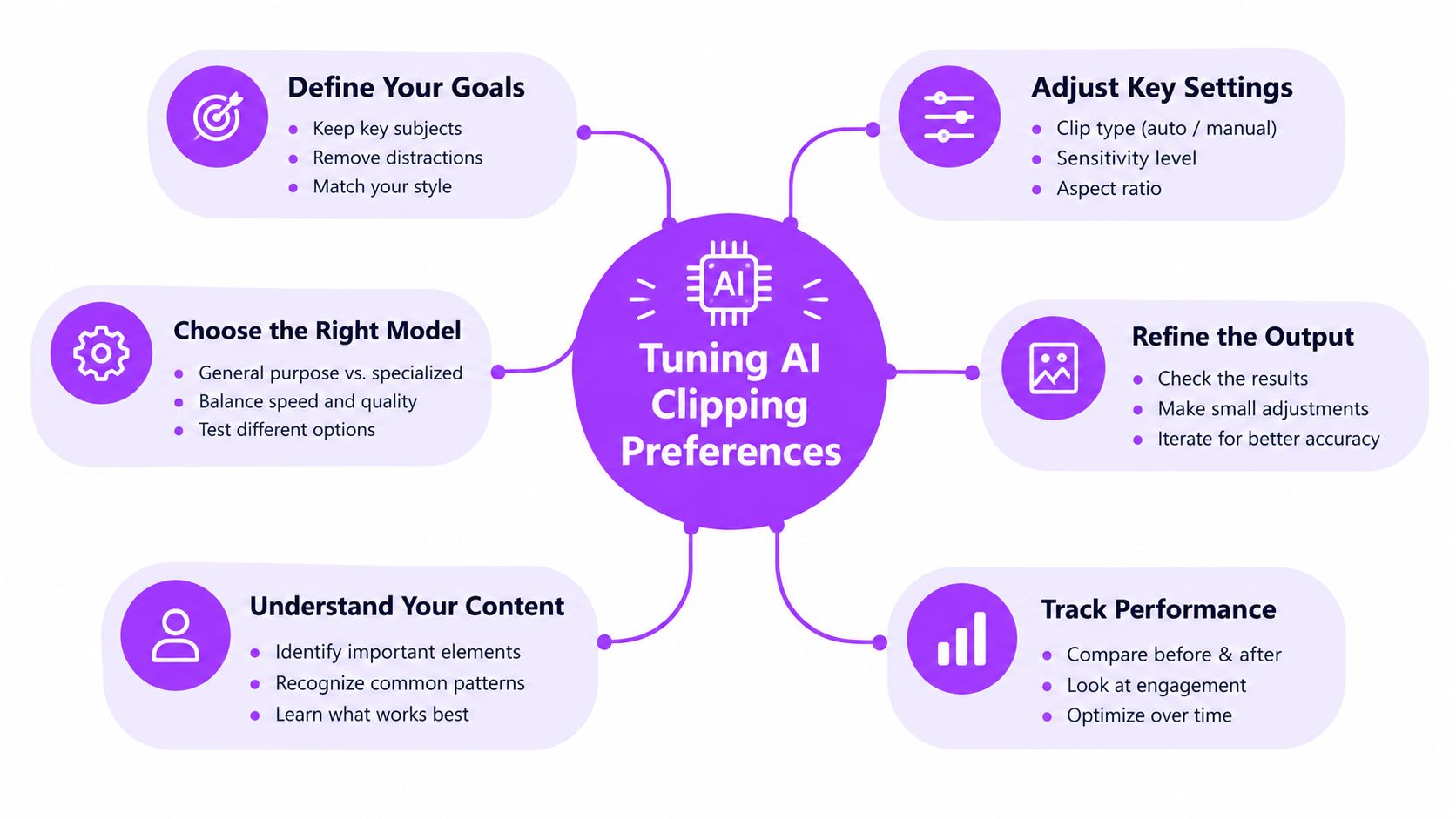
Default clipping preferences rarely understand the difference between a good moment and a good moment for your channel. A competitive player may want decisive plays and clean reactions. A Just Chatting creator may care more about a surprising exchange, an escalating story, or a chat-driven punchline. A VTuber may need the system to preserve a facial reaction, an avatar performance, or a particular audio beat.
StreamGen’s AI Clip Finder evaluates signals such as gameplay action, audio cues, reactions, and chat activity. Those signals help rank candidates, but they don’t have equal value in every stream category. Your settings should tell the system which signals deserve more attention and which recurring patterns should be ignored.
Calibrate for the content you actually make
Start with a small set of known good clips from your own channel. Ask why each one works. Was it the reaction, the line immediately before the reaction, a sudden change in gameplay, or the chat response? Then adjust the preferences around that answer rather than chasing generic “high energy.”
For a competitive gaming stream, prioritize:
- Action clarity: Keep the lead-up to the play when the outcome needs context.
- Reaction timing: Include the vocal or facecam response that confirms why the moment matters.
- Chat confirmation: Use chat activity as supporting evidence, not the sole reason to select a clip.
For Just Chatting, reduce the importance of gameplay signals and pay closer attention to sustained speech, laughter, interruptions, and audience response. For a VTuber, protect the framing that keeps the avatar readable and make sure animated captions don’t compete with the character.
The Ultimate plan controls are useful when your channel has a recognizable definition of “engaging.” Describe the moments you want in practical language. “Prioritize sudden reversals, clear reactions, and chat-driven jokes” is more useful than “find viral clips.” Likewise, exclusions should name recurring low-value material, such as menu navigation, loading screens, long setup explanations, or private conversations.
Tune for precision before volume
Don’t increase sensitivity just because the system returns too few candidates. A larger candidate list creates more review work and can make the queue harder to trust. First examine whether the clips it does find contain the complete setup and payoff. If the candidates are technically exciting but emotionally flat, adjust the preference description and review the framing.
The AI video clipper workflow should support an editorial standard you can explain to another editor. Write down what counts as a publishable moment, then use that standard when you accept or reject candidates. This creates a useful feedback loop even if the system doesn’t learn directly from every decision.
A good preference set should also protect negative signals. Add word censoring rules for terms that don’t fit your brand, watch for captions that misread slang, and keep a human check on clips involving collaborators. Automation becomes personal when the creator defines its boundaries, not when the creator accepts the defaults.
Choosing Automation vs. Manual Review
The safest automation level depends on the cost of a mistake. A quiet gameplay channel with a consistent format can let the system handle more of the workflow. A variety streamer, sponsor-led broadcast, or channel built around sensitive conversations needs stronger review gates.
The table below separates operational convenience from editorial risk.
| Streamer Type | Recommended Automation Level | Key Manual Checks |
|---|---|---|
| Competitive gaming creator | Automated discovery and first-pass editing, with approval before posting | Confirm the full play is understandable, preserve the decisive reaction, check the hook |
| Just Chatting broadcaster | Automated discovery and queue preparation, manual approval for every public clip | Check context, names, claims, private details, captions, and tone |
| VTuber | Automated discovery with saved layout presets, manual review before scheduling | Confirm avatar visibility, caption timing, reframing, and community-specific language |
| Variety streamer | Partial automation with destination-specific review | Check that the clip matches the right game, audience, account, and brand voice |
| Esports or team channel | Automated candidate generation, editor approval before publication | Verify player identity, match context, sponsor obligations, and final title |
| Agency managing several creators | Automated processing with separate approval queues | Confirm workspace, destination account, preset, rights, and publishing status |
Use gates instead of vague trust
An approval gate should answer a specific question. The first gate asks whether the selected moment is worth editing. The second asks whether the edit is technically sound. The final gate asks whether the clip is safe and appropriate to publish.
Silence removal and auto-cut features can usually operate without intervention when they don’t remove necessary context. Smart vertical layouts can do the first pass, but facecam placement still needs inspection when the action moves around the frame. Captions can be generated automatically, but names, slang, profanity, and punchlines deserve a human read.
Human review isn’t a failure of automation. It’s the control that lets you automate the repetitive parts without outsourcing your identity.
A scale with human in the loop approach works well here because it treats review as part of the system, not as an emergency correction after publication. Set Autopilot to prepare more candidates than you can publish, then use your review gate to protect the queue from becoming a conveyor belt for mediocre clips.
Testing Before You Go Live
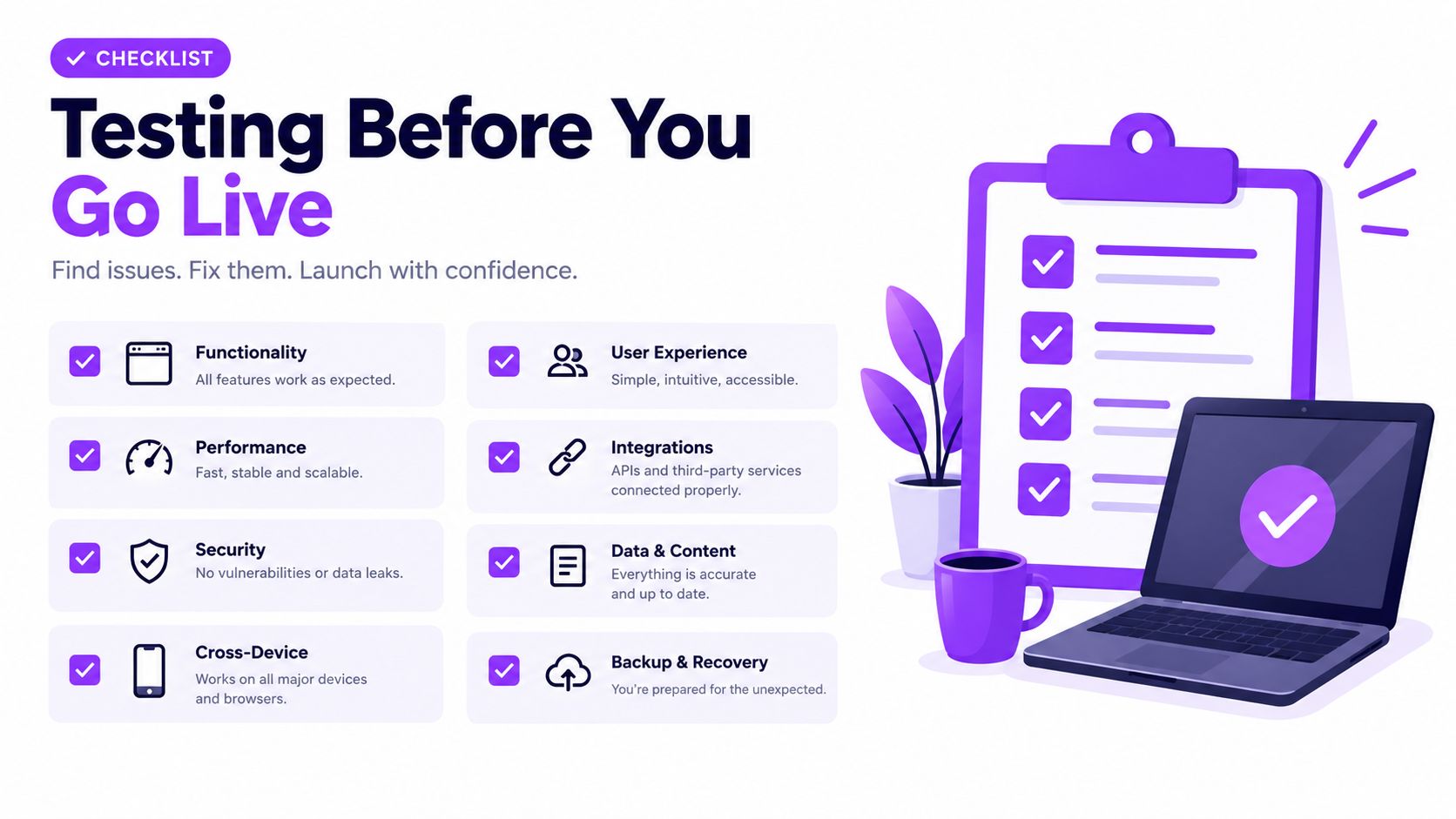
Don’t test Autopilot on the stream that matters most. Use a private or test broadcast with the same camera layout, audio chain, alerts, and scene changes you use during normal production. The purpose is to expose failures while the audience isn’t watching.
Start by creating one manual clip from the test material. Edit it in the browser-based clip editor and note the decisions you made: where the clip begins, how much setup it needs, how the frame is positioned, which words require censoring, and what makes the title compelling. This manual version gives you a baseline for judging the automated result.
Run a controlled comparison
Use the same source material for an Autopilot pass. Then compare the outputs in a fixed order:
- Selection: Did the automated candidate identify the moment you would have chosen?
- Context: Does the clip begin early enough for the payoff to make sense?
- Reframing: Are the gameplay area, facecam, and important overlays visible?
- Pacing: Did silence removal improve the rhythm, or did it remove a meaningful pause?
- Captions: Are names, slang, timing, and censored words accurate?
- Hook: Does the title or opening caption create interest without making a claim the clip can’t support?
- Queue state: Did the finished item enter the intended review or scheduling state?
Test failure recovery, not just success
A setup isn’t ready because one clip published correctly. Disconnect a destination account in the test environment, inspect how the queue reports the failure, and confirm that a failed post doesn’t disappear. Check whether you can pause or cancel pending items before they reach the public feed.
Review the automated version on a phone as well as a desktop. Vertical compositions can look acceptable in an editor while hiding a facecam, cutting off an important game element, or placing captions where platform controls will cover them. Watch once with sound and once without it, because many viewers encounter short-form clips in both conditions.
Keep the first live run conservative. Approve each item, watch the queue while it processes, and record recurring problems rather than fixing each clip in isolation. If the same issue appears repeatedly, change the preset or preference instead of adding more manual labor to every future clip.
Best Practices for Safe Automation
A durable autopilot setup is a feedback system, not a configuration screen. You audit the source material, automate the repeatable operations, review the output, and iterate based on what reaches the audience. Skipping the audit produces poor candidates, skipping review produces avoidable brand damage, and skipping iteration leaves the same errors in place.
Start each stream with a clear editorial boundary. Decide which topics, guests, jokes, and private moments should never enter the public queue. Then encode what you can through word censoring, caption presets, layouts, and exclusions. Leave anything that depends on context for manual approval.
Make the workflow observable
You should be able to answer these questions without searching through several tools:
- What was found: Which VOD produced the candidate, and why was the moment selected?
- What changed: Which layout, caption, censoring, and title settings were applied?
- What is waiting: Which clips need approval, and which are already scheduled?
- What failed: Did a platform connection, upload, edit, or authorization step stop the workflow?
- What was published: Which account received the clip, and can the final version be reviewed?
A centralized workflow that combines discovery, browser editing, and direct posting can reduce context switching. StreamGen provides those functions in one workspace, including a clip finder, vertical editor, queue, and distribution connections for TikTok, YouTube Shorts, and Instagram Reels. The value comes from keeping the handoffs visible, not from pretending that every decision can happen unattended.
Review performance as an editor
Use platform analytics as editorial evidence, not as a reason to chase every spike. Compare clips that earned attention with clips that failed to hold it, then look for specific differences in the opening, context, caption accuracy, pacing, and payoff. A weak result may indicate a bad moment, but it may also indicate that the best moment begins too late or that the hook promises something the edit doesn’t deliver.
Review the queue after each publishing session. Remove stale candidates, update captions that no longer match your voice, and pause any preset that repeatedly creates bad framing. Your community changes over time, so your censoring lists and caption rules need regular maintenance as well.
The safest automation is narrow at first, visible throughout, and expanded only after the output earns your trust.
Creators often try to solve inconsistency by increasing automation. The better solution is to automate the parts that consume attention while protecting the decisions that define the channel. Let the system search, prepare, and organize. Keep the final say over what your audience sees.
StreamGen turns Twitch VODs into short-form candidates, applies browser-based editing and vertical layouts, and keeps approved clips moving through a publishing queue for TikTok, YouTube Shorts, and Instagram Reels. Start with a private test stream, set your review gates, and visit StreamGen to build an Autopilot workflow that saves editing time without surrendering your channel’s voice.
More blog posts