You finish a long Twitch session, close the dashboard, and then face the grind, finding the three or four moments worth shipping before the rest of the stream fades into a backlog. A best clipping app cuts that review time, reframes the footage for vertical feeds, and gets clips moving toward TikTok, YouTube Shorts, and Instagram Reels without turning your night into an editing shift. The tools below handle that workflow differently, some are better at finding moments, some at polishing vertical layouts, and some at posting on schedule. The trade-off is simple, pick the one that matches the step where your process breaks down, then keep the rest of the stack as lean as possible.
Table of Contents
- 1. StreamGen
- 2. Eklipse
- 3. StreamLadder
- 4. Streamlabs Cross Clip
- 5. Powder
- 6. Sizzle.gg
- 7. Opus Clip
- Top 7 Clipping Apps Comparison
- Matching the Right Clipping App to Your Workflow
1. StreamGen
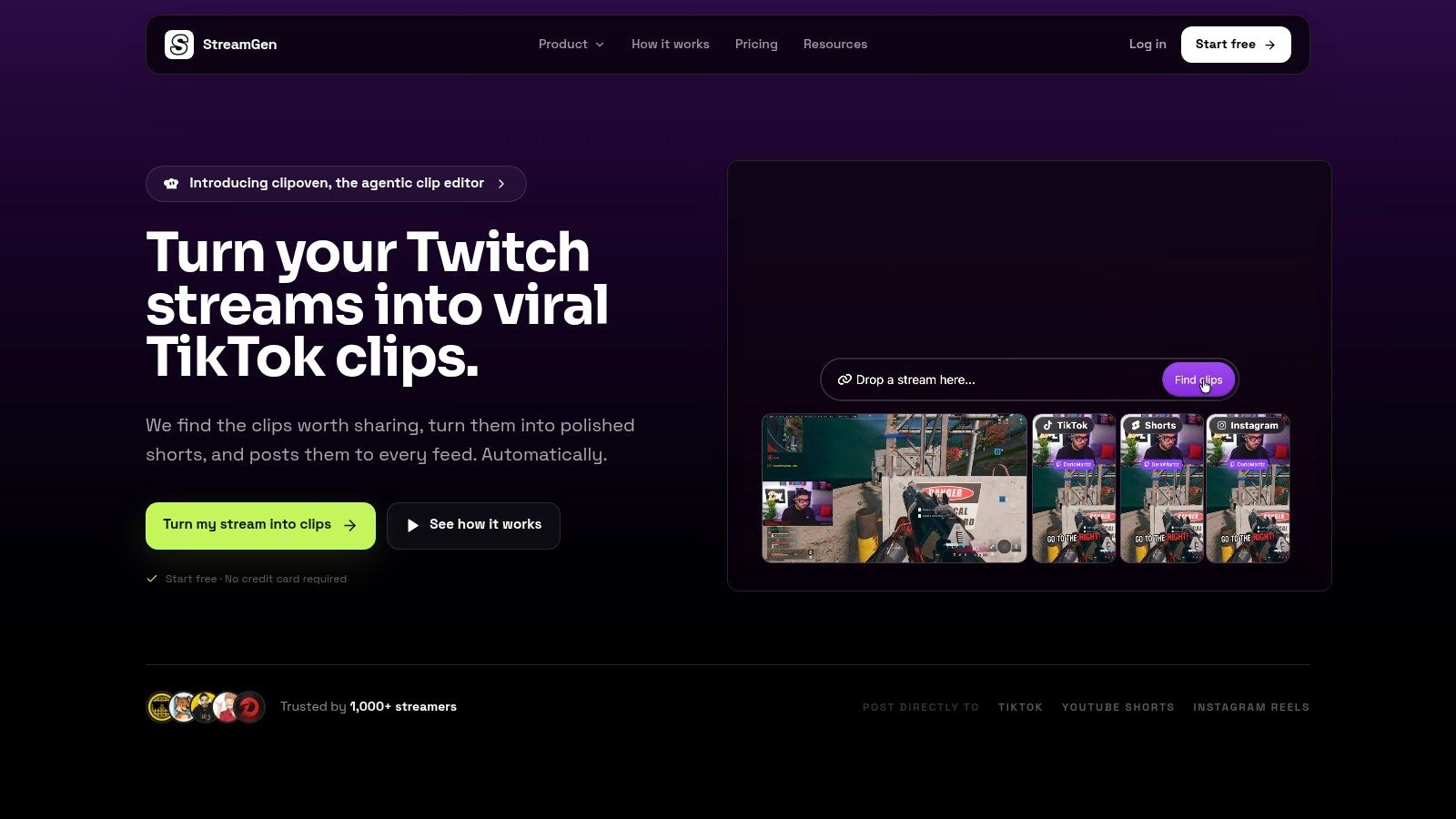
StreamGen fits best when the main bottleneck is finding moments in long VODs. It is aimed at Twitch creators who do not want to scrub through an entire session just to find the sharpest reaction, the biggest gameplay spike, or the line that works in short-form. The browser workflow keeps scan, edit, and publish in one place, which matters when clips are part of a regular output, not a one-off export.
Practical rule: if a clip still needs a second tool before it can post, the time savings are already shrinking.
The strongest part is the handoff from AI Clip Finder to a vertical editor built for stream content. StreamGen combines highlight detection, vertical reframing, animated captions, word censoring, title hooks, and direct posting in one flow instead of splitting those steps across separate apps. That matters when you are clipping facecam plus gameplay, because the layout has to keep both readable instead of shrinking one into a corner.
For teams that want more than short clips, StreamGen also includes a companion AI VOD Editor in beta. It removes dead air and loading screens, then exports pre-edited projects for DaVinci Resolve and Premiere Pro. That gives editors a handoff path when a clip needs human cleanup before publishing. If the source stream needs to feed both short-form output and deeper edits, that extra flexibility is useful.
A few points deserve a careful read before you commit:
- Pricing needs a current check: product materials cite plans starting from €5.49/month, while the site FAQ references plans from €8/month, so verify the live pricing page before you buy.
- Best for a full workflow: it works best when you want find, edit, and post in one browser workspace.
- Better than a raw clipper: its value is the reduced tool count. Find, edit, and publish happen in one browser workspace instead of three apps.
If your main pain is review time, not just editing speed, StreamGen is the most complete pick in this list.
2. Eklipse
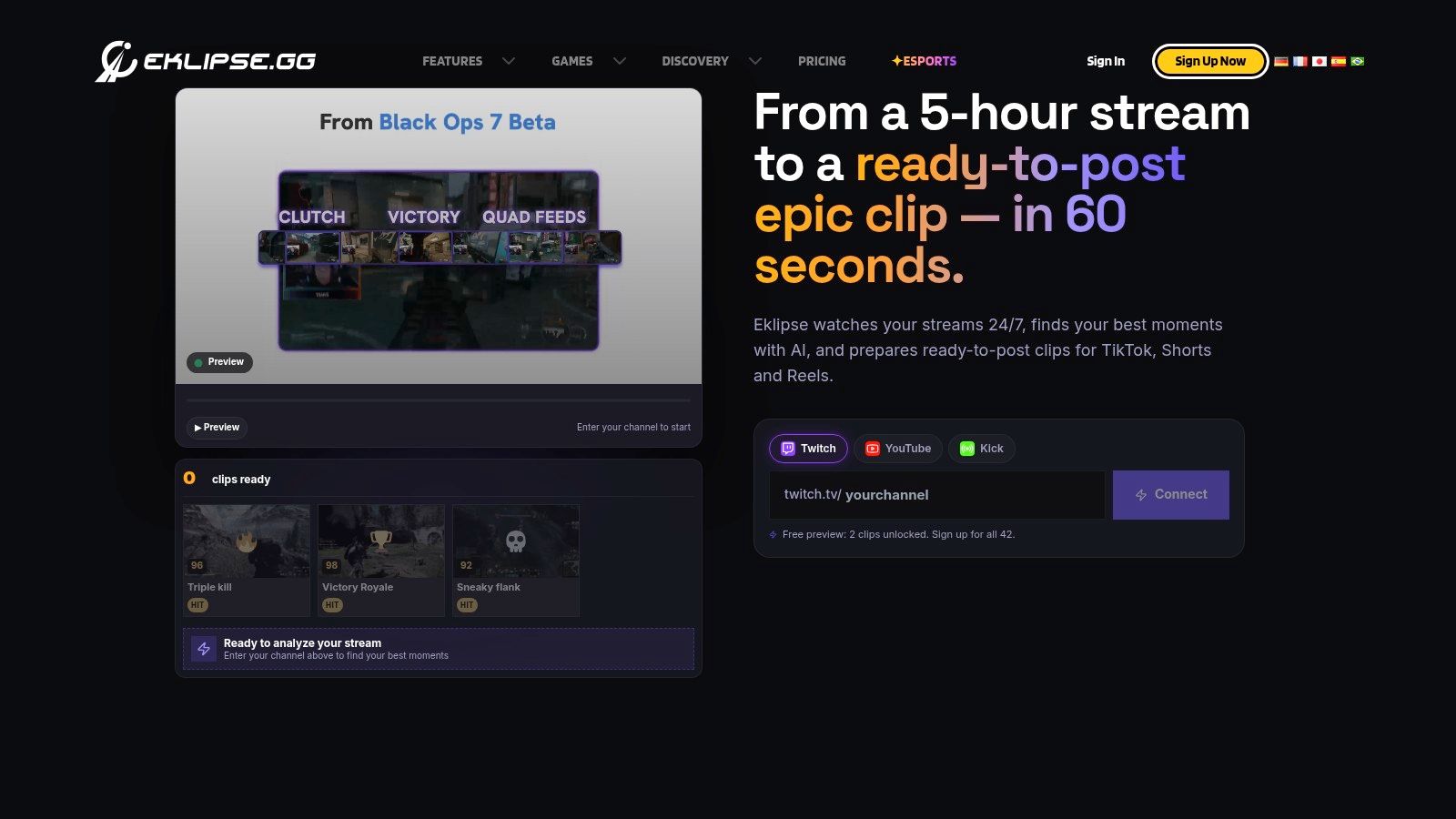
Eklipse makes sense when you already know your stream is full of potential highlights, and you want the app to find, format, and queue them with minimal effort. The appeal is straightforward, it’s built for streamers who want an end-to-end path from long VOD to short-form publish queue, including mobile approval when you’re away from the desktop. That’s useful if you review clips between sessions instead of at a desk.
Its value sits in the workflow decision around posting. Eklipse doesn’t just detect a moment and stop there, it pushes toward direct publishing to TikTok, YouTube Shorts, and Instagram Reels with scheduling built in. That means less time bouncing between export folders, upload tabs, and caption fields. For creators who post often, that consistency matters more than a flashy editor.
The practical downside is pricing visibility. The plan details are spread across help and blog materials, so you shouldn’t treat old screenshots or third-party summaries as final. If you’re comparing it against other best clipping app options, confirm what’s behind the free tier before you assume the automation layer is included.
Where Eklipse fits best
- Approval on mobile: good if you want to review clips away from the main setup.
- Queue-based posting: helpful for maintaining cadence without manual uploads.
- Paid-plan dependency: the AI side is gated, so free users should expect limits.
For streamers who care more about automation than deep manual control, Eklipse is a practical middle ground. The official site is here, Eklipse, and the current pricing discussion is worth cross-checking before you commit.
StreamGen’s pricing comparison with Eklipse is useful if you’re weighing how much hands-off automation you need.
3. StreamLadder
StreamLadder is the right answer when your bottleneck is reframing and packaging, not discovery. It’s template-first, which is a strength if your clips already exist and you just want them turned into vertical videos quickly with captions, layouts, and repeatable styling. That’s especially helpful for creators who don’t need an all-day editor, they need a reliable way to make the same type of clip look good every time.
The hidden benefit of this approach is speed. Template-driven editing reduces decision fatigue, because you’re not rebuilding the same vertical composition from scratch on each clip. For a creator who posts similar gameplay reactions, that can be the difference between shipping consistently and putting clips off until “later,” which usually means never. The browser and iOS options also make it easier to touch up content without opening a full production stack.
The trade-off with template editors is simple, they’re fast when your format is stable, and awkward when every clip needs a custom solution.
ClipGPT adds an AI layer that can scan VODs for highlight candidates, but I’d treat StreamLadder first as a vertical repurposing tool. If your source material is already narrowed down, it’s a clean way to get from clip to social-ready version. If you need heavy moment discovery, another tool may save you more time upstream.
Because pricing and tier details can shift, especially around the AI features, verify the current plan inside the app or blog before you buy. For a direct comparison path, see StreamGen’s StreamLadder alternative pricing breakdown. Website: StreamLadder
4. Streamlabs Cross Clip
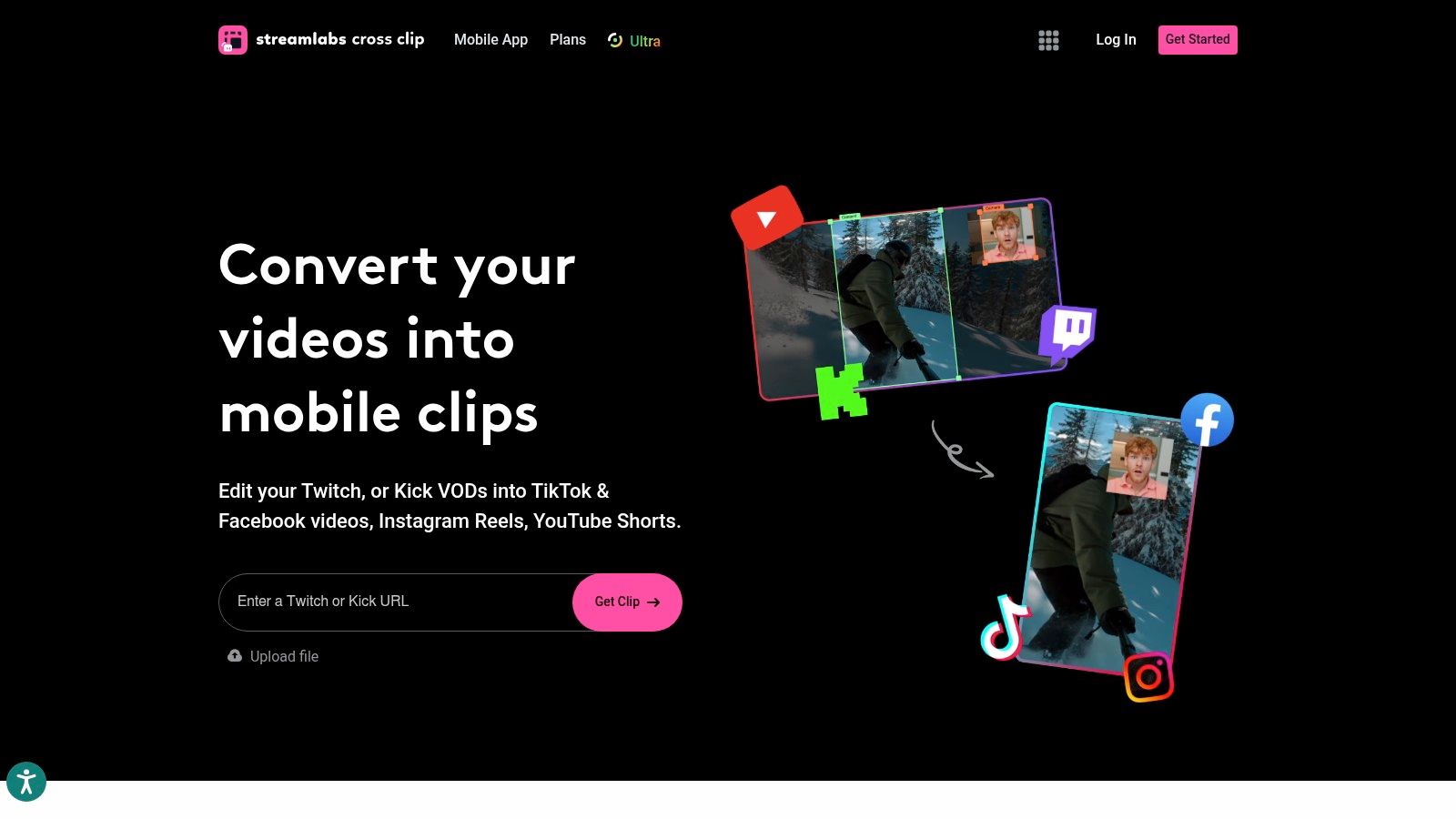
Streamlabs Cross Clip is the blunt, practical choice for creators who already have the clip and just need it converted into portrait format fast. That makes it less of an AI discovery tool and more of a layout converter for Shorts, Reels, and TikTok. If your workflow starts with a timestamp from your own stream notes, this can be enough.
The main advantage is simplicity. You import from Twitch, YouTube, Kick, or upload a file, then adjust the portrait layout without wading through a complicated editor. For creators who care about removing watermarks and getting cleaner exports, the Pro upgrade is the thing to watch. Streamlabs also brings the benefit of a mature support ecosystem, which matters when you’re using a tool repeatedly.
What it does not do is find the moment for you. That’s the key limitation, and it’s why Cross Clip works best as part of a broader pipeline rather than the whole pipeline. If you need a best clipping app that mines a long stream for the strongest segment, Cross Clip is probably too manual on its own.
If you’re deciding whether to pair it with a separate finder, check the pricing notes carefully and verify the current Pro terms before relying on old summaries. For a broader free-tool comparison, StreamGen’s guide to free clipping software is a useful reference. Website: Streamlabs Cross Clip
5. Powder
Powder is built for creators who prefer a desktop-first, gaming-aware clipping workflow. The local Windows app is attractive if you archive long gameplay sessions and want the software to read more than just speech. It looks at multiple signals, including gameplay events, audio spikes, and chat/community hype, which is closer to how a real stream highlight feels.
That multi-signal approach is the main reason to use it. A loud moment isn’t always a good clip, and a quiet moment can still be a great one if the game state changes sharply or the chat blows up. Powder’s strength is that it doesn’t rely on one signal alone, so it’s better suited to game-heavy streams than a generic transcript-first editor. For creators who store a lot of local recordings, that desktop orientation is a natural fit.
The trade-off is platform focus. If you’re on macOS or iPhone, this isn’t the obvious first choice. It’s also the kind of tool where pricing details may require in-app confirmation, which means you should verify before planning a budget around it.
Best fit scenarios
- Local archive workflows: good when you process long recordings after the stream ends.
- Gaming-specific detection: useful when kills, assists, goals, and hype moments matter.
- Windows users: easiest if your main editing machine is already on Windows.
Website: Powder
6. Sizzle.gg
Sizzle.gg is for creators who want the app to handle highlights as a service. You connect the account, request processing, and download the resulting clips. That workflow is less hands-on than most tools in this category, which makes it a good fit for esports titles and highlight reels where the goal is compilation more than fine-grained editing.
The strongest use case is action-heavy games. Sizzle.gg leans into video, audio, and chat signals to identify reactions and funny moments, and it supports a wide range of esports titles. If you’re running a team account or an esports social feed, that genre focus is useful because the clips need to feel timely and game-specific rather than generic.
The downside is control. It’s more of a finding and compiling tool than a full editor, so if you want to rebuild layouts, refine pacing, or hand the project to a timeline-based workflow, you’ll still need another step. It can also slow down during busy periods, which matters if you need fast turnaround after a live event.
Use Sizzle.gg when the job is “extract the matches that mattered,” not “build the final edit from scratch.”
If you’re comparing it against other clipping apps for a team account, the official site is Sizzle.gg. Its value is strongest when hands-off highlight compilation beats deep editing.
7. Opus Clip
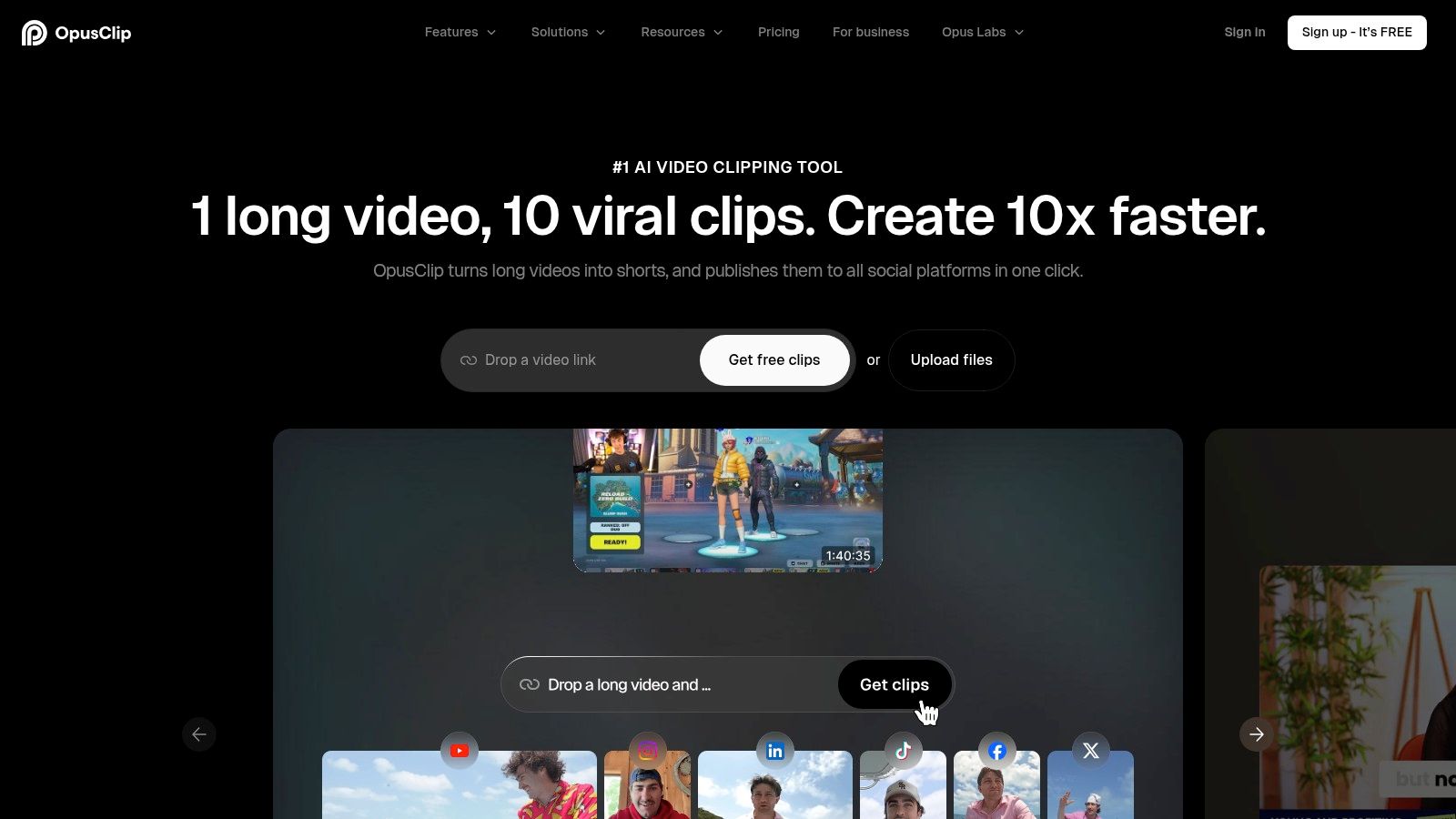
Opus Clip is the broadest AI shorts platform in the group, and it’s a strong choice when you want a single tool for clipping, polishing, and scheduling. It’s less streamer-native than the gaming-focused options, but it covers a lot of ground: virality scoring, animated captions, AI B-roll, transcription, and a social scheduler. If your workflow needs more than one social format, it’s easy to see why teams keep it on the shortlist.
The practical advantage is flexibility. You can point it at a long video, generate short options, and then move straight into export or scheduling without rebuilding the process somewhere else. That matters if you repurpose content across multiple channels and want a tool that can handle the distribution side too. It also has a clear public pricing model, which makes it easier to compare with less transparent tools.
The downside is the credit model. For heavy users, credits can disappear quickly, especially on longer source videos, so it’s smart to test one real VOD before assuming the plan will scale cleanly. It’s a strong tool, but it’s not the cheapest path if your queue is long and your source files are long too.
For creators who want a more complete AI shorts stack and don’t mind a broader, less Twitch-specific workflow, the official site is Opus Clip. The best clipping app for you may still be the one that saves the most review time, not the one with the longest feature list.
Top 7 Clipping Apps Comparison
| Product | Implementation Complexity (🔄) | Resource Requirements (⚡) | Expected Outcomes (⭐ / 📊) | Ideal Use Cases (💡) | Key Advantages (⭐) |
|---|---|---|---|---|---|
| StreamGen | 🔄🔄, browser-based unified workflow; some setup for posting | ⚡⚡, cloud processing; paid tiers for high volume | ⭐⭐⭐⭐, fast find→edit→post; large time savings 📊 | Twitch streamers, VTubers, esports teams, editors | End-to-end automation; multilingual captions; autoposting; pro exports |
| Eklipse | 🔄🔄, end-to-end with optional agents; mobile/desktop flows | ⚡⚡, mobile app + cloud; key features behind paid plans | ⭐⭐⭐, automated clipping + scheduling; solid throughput 📊 | Multi-platform streamers, creators who approve on mobile | Mobile approval app; scheduler; Content Agent automation |
| StreamLadder | 🔄, template-driven, quick to adopt | ⚡⚡, web/iOS with reusable templates | ⭐⭐⭐, very fast template-to-vertical turnaround 📊 | Creators needing rapid, consistent vertical edits | Reusable templates; ClipGPT highlights; quick edits |
| Streamlabs Cross Clip | 🔄, very simple layout editor | ⚡, low resource; optional Pro for higher exports | ⭐⭐, fast portrait edits but no auto-highlight 📊 | Users who already have clips; Streamlabs ecosystem users | Low-cost Pro for watermark-free 1080p; strong support/docs |
| Powder | 🔄🔄, desktop-first setup and local workflow | ⚡⚡, Windows-based local processing; handles large files | ⭐⭐⭐, game-aware multi-signal detection; accurate clips 📊 | Creators who archive/process local recordings; gamers | Multi-signal detection (kills/assists/chat); desktop/offline workflow |
| Sizzle.gg | 🔄🔄, connect-and-request service; minimal user setup | ⚡, cloud processing; download-ready reels | ⭐⭐⭐, dependable esports highlights; good compilations 📊 | Esports highlight reels; hands-off processing | Genre-aware models; easy request flow; longstanding in esports |
| Opus Clip | 🔄🔄🔄, feature-rich AI pipeline with many options | ⚡⚡, cloud credits model; scheduler and team workspaces | ⭐⭐⭐⭐, high-polish shorts (B-roll, dubbing, captions) 📊 | Creators/teams wanting full AI shorts workflow | Virality scoring; AI B-roll/dubbing; clear pricing and exports |
Matching the Right Clipping App to Your Workflow
Start by naming your bottleneck. If you lose time finding moments, choose the tool with the strongest highlight detection. If you already know the moments and just need them reframed, pick the fastest vertical editor. If posting cadence is the problem, prioritize scheduling and direct publishing over extra effects.
That’s why StreamGen stands out for Twitch streamers who want one browser workspace that goes from VOD scanning to vertical edit to direct posting. Eklipse and Opus Clip are better fits if you want more automation around queueing and publishing, while StreamLadder and Streamlabs Cross Clip are better when the clip is already chosen and the main job is formatting it for vertical feeds. Powder and Sizzle.gg lean more toward gaming-aware detection, and they’re worth a look if your content depends on the match state or team moment rather than pure commentary.
Before you commit, test your shortlist on one real VOD. Use the same recording across the tools, check how many useful clips each one surfaces, and confirm the current pricing on the vendor page because some sources conflict. That one test will show you whether you need a finder, a formatter, or a full find-to-post workflow. Then stick with a single process long enough to measure how many clips you publish each week.
If you manage launches or creator programs in parallel, this AdEspresso alternative for bulk launches is a useful next read for workflow planning across channels.
If you want a single place to find moments, edit vertical clips, and post to TikTok, YouTube Shorts, and Instagram Reels, StreamGen gives you that workflow without forcing you to stitch tools together. It’s built for Twitch streamers who care about speed, consistency, and clips that feel native on every platform. Visit StreamGen and see how much of your VOD process you can remove from the manual queue.
More blog posts