Most guides start with the wrong assumption: that a live YouTube stream is just a regular video with a different status label. It isn’t. A finished replay is a processed video asset that may be downloadable through an authorized path. An active broadcast is a moving stream of media segments that may not yet exist as one completed file.
That distinction determines which workflow works, when you should start it, and whether the result will preserve the beginning of the event. If you need to download a live YouTube video, first decide whether you’re saving a replay or capturing a broadcast that’s still in progress.
Table of Contents
- Why Downloading a Live Stream Is Not Like Saving a Regular Video
- Official and Authorized Ways to Save YouTube Live Content
- Capturing an Active Live Broadcast in Real Time
- Technical Requirements for High-Quality Stream Archival
- Copyright Rules and Platform Policies You Cannot Ignore
- Choosing the Right Method for Your Situation
Why Downloading a Live Stream Is Not Like Saving a Regular Video
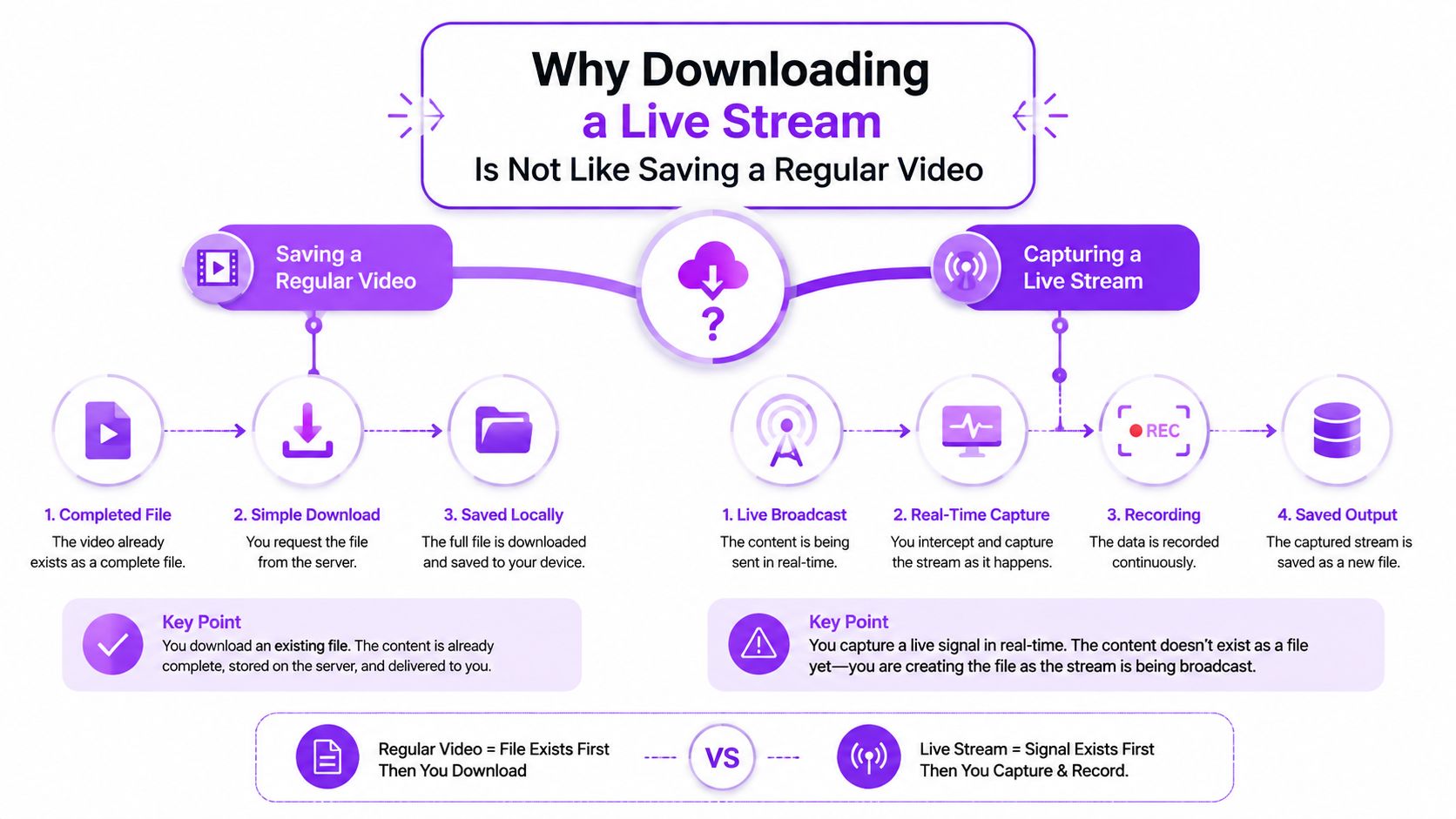
A regular YouTube video has already passed through the platform’s processing pipeline. The file is available as a finished asset, and compatible tools can request the available formats after YouTube exposes the video’s playback information. A live broadcast works differently. While the event is running, YouTube is publishing a changing playlist or manifest, and the final replay may not be available until processing finishes after the broadcast ends.
That’s why a downloader that handles ordinary videos perfectly can fail on a live URL. It may look for a completed file, while the live page is exposing only an active sequence of media segments. The failure isn’t always a bad URL or broken software. Often, the tool is being asked to solve the wrong problem.
The two workflows
There are two distinct jobs:
- Capturing an active broadcast: You connect to the live manifest while the event is happening and save incoming media as it arrives. This is the right approach when you need the opening minutes, want a source-quality archive, or can’t wait for replay processing.
- Downloading a processed replay: You wait until YouTube changes the stream into a replay, then request the completed VOD. This is usually simpler because the platform has assembled and processed the asset.
Current coverage gives inconsistent advice because it often combines these workflows. Some guides describe waiting for replay processing, while others recommend browser capture or server-side recording during the broadcast. The more useful conclusion is that “download live YouTube video” is often the wrong mental model for an active event. You’re recording a live source before the archive exists, not downloading a finished file. Coverage of live stream recording makes this distinction especially clear.
Timing changes the result
If you start a capture halfway through a broadcast, you may get only the portion available from that point onward. A stream-aware workflow can request the beginning of the live segment when the manifest supports it, but no method can recover content that was never exposed to the capture process.
The end of the event creates another timing problem. YouTube may need time to transition the live playlist into a processed replay. A downloader started at the exact moment the broadcast ends can encounter an incomplete or temporarily unavailable manifest. For dependable archiving, treat “the stream has ended” and “the replay is ready” as separate states.
Practical rule: Decide before the broadcast whether you need a live capture or a post-live VOD. That single decision prevents most wasted attempts.
Official and Authorized Ways to Save YouTube Live Content
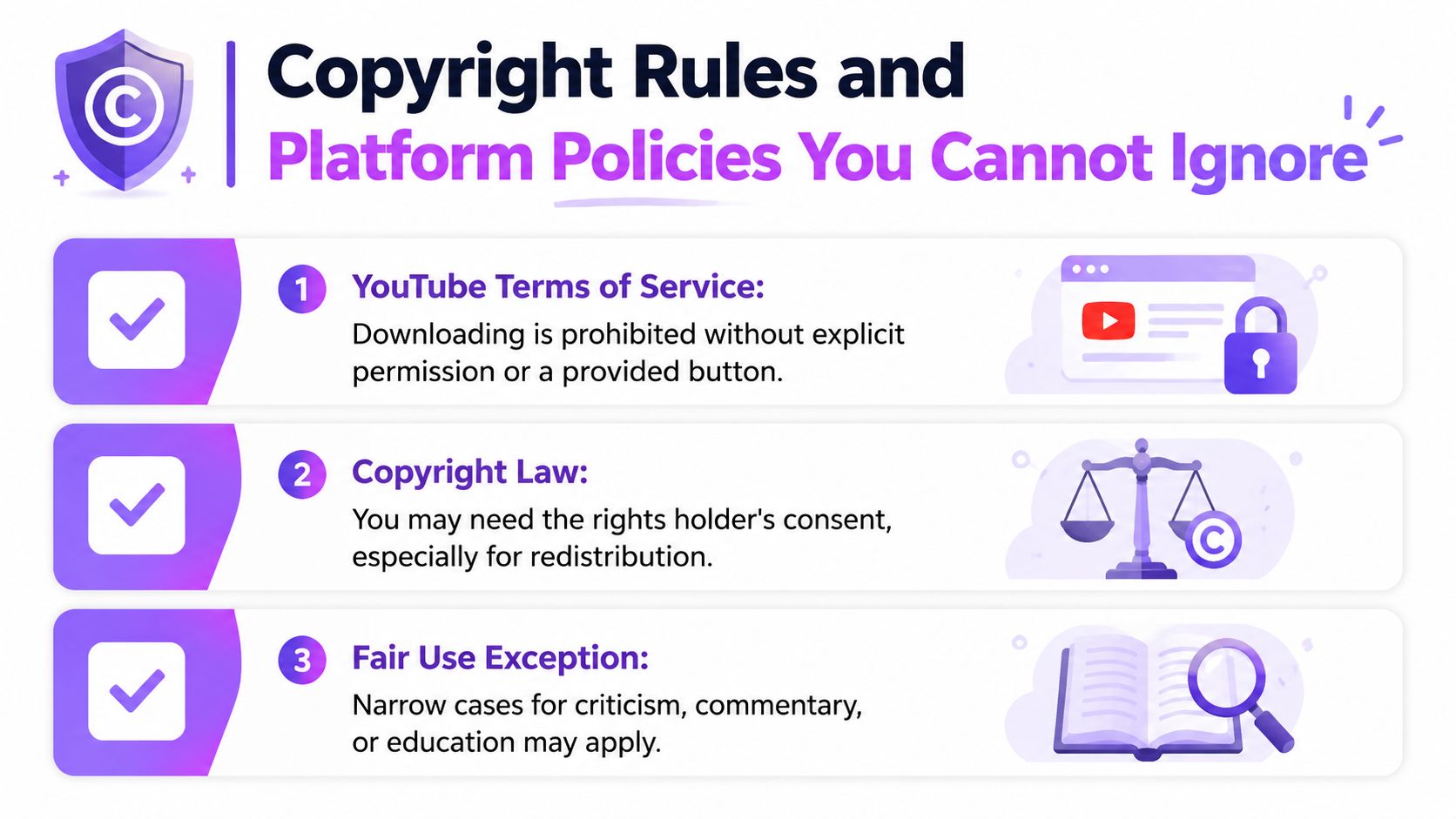
The safest method depends on who owns the broadcast and whether YouTube has finished processing it. YouTube’s Terms of Service generally prohibit downloading videos through third-party tools unless YouTube explicitly provides or authorizes that route. Permitted options include YouTube Premium offline viewing and videos with a YouTube-provided download button, as summarized in this guide to authorized YouTube downloads.
Use YouTube’s own download controls
If a video or replay displays a download option inside YouTube, use that control instead of looking for a workaround. The feature remains tied to your account and YouTube’s playback rules. It provides offline access within the platform, not an unrestricted media file that can be stored or reused for any purpose.
YouTube Premium offline viewing also has a defined limit. Offline downloads can play for up to 29 days before the app requires an internet connection to verify the subscription, as described in YouTube’s Premium Help documentation. Premium therefore suits temporary offline viewing. A creator who needs a permanent master archive needs a different authorized workflow.
Check your own live archive settings
Channel owners should confirm that live broadcasts are saved as replays and that visibility settings match the intended audience. A replay may still have membership, age, regional, or privacy restrictions. Native archiving is preferable when available because YouTube creates the replay inside the account that owns the broadcast.
For viewers, the authorized path is narrower. The technical ability to access a stream does not prove that a third-party downloader is permitted. Private, member-only, age-restricted, or region-limited content must remain within the permissions granted by the channel and platform.
Once an authorized replay exists, post-production may be more useful than retaining the full broadcast as a viewing file. You can use YouTube’s clipping workflow to turn selected moments into shareable segments, but clipping access does not change the underlying rights, download conditions, or ownership of the content.
Capturing an Active Live Broadcast in Real Time
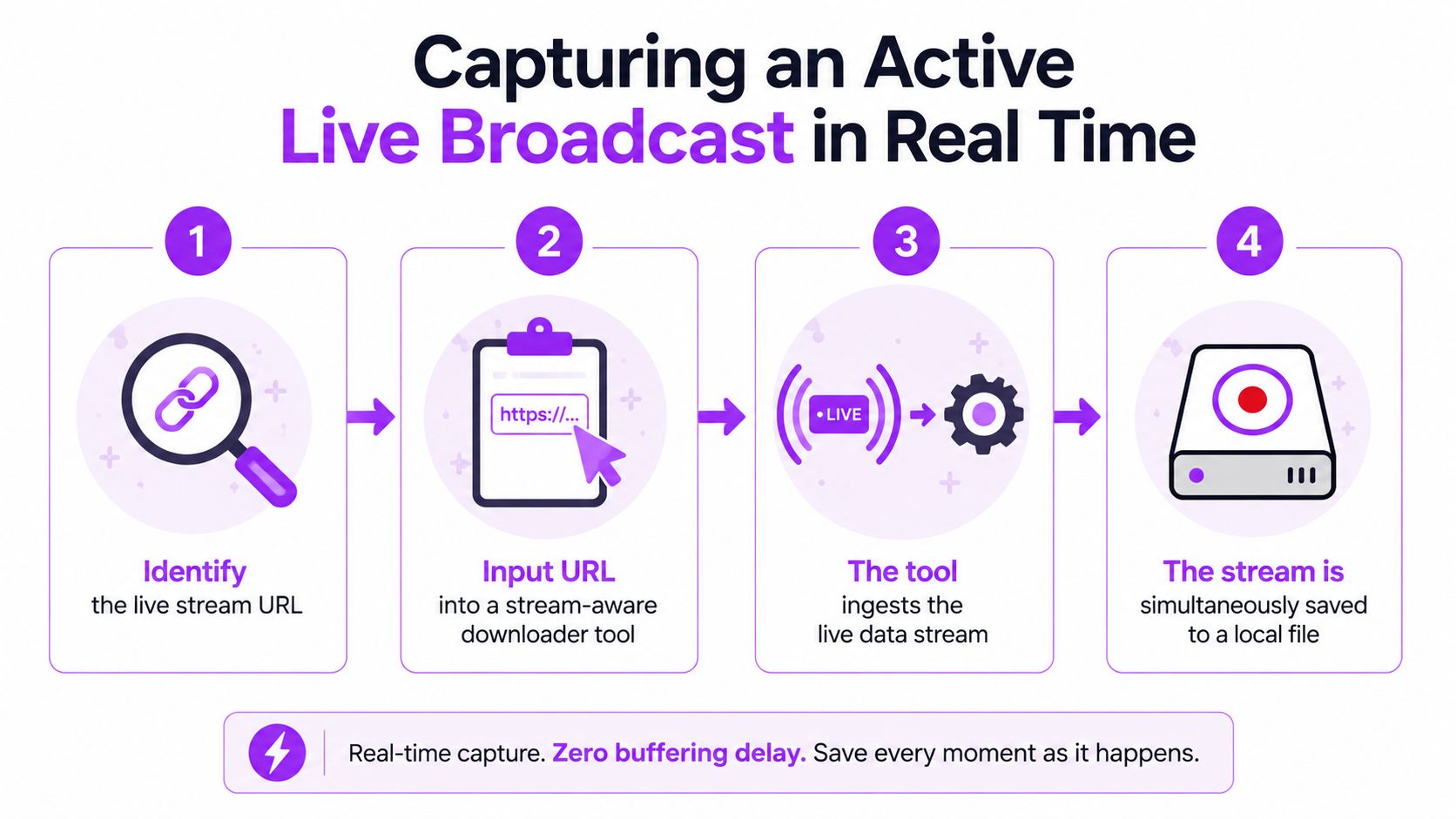
When the event is still live, the dependable technical approach is manifest-based capture. Instead of recording whatever appears on your screen, a stream-aware downloader reads the live playlist directly and writes the incoming media to a local file. That preserves the source stream more accurately and avoids browser interface elements, display scaling, and screen-recording timing problems.
A practical capture sequence
- Identify the live stream URL. Open the broadcast page and confirm that the event is actively live, not merely scheduled or already converted into a replay.
- Use a stream-aware downloader. A documented
yt-dlpworkflow isyt-dlp --live-from-start LIVE_STREAM_URL. The--live-from-startoption tells the tool to begin with the available start of the live segment instead of recording only the current point in the buffer. Refer to this live capture workflow before using command-line tools, and make sure your use is authorized. - Monitor the output. Check that the file is growing, the audio track is present, and the capture process remains connected. Long broadcasts expose failures that a short test may never reveal.
- Stop only at the desired endpoint. Let the tool finish naturally when the broadcast ends, or stop it after the segment you’re permitted to retain has been captured.
The workflow depends on the live playlist remaining available. If YouTube stops exposing the live manifest, the capture can’t continue, and you’ll need to wait for the processed replay. That transition is especially important at the end of an event, when the live endpoint may disappear before the VOD endpoint becomes ready.
Why browser recording often disappoints
Screen recording is easy to start, but it captures the rendered player rather than the source media. A browser tab can pause, change quality, lose focus, display notifications, or fall behind while the recorder keeps writing. If the capture method can’t keep up with the source bitrate, you may end up with dropped frames, missing audio, or a truncated file.
Direct manifest capture has its own trade-offs. It requires a compatible tool, a stable connection, enough local storage, and permission to access the stream. It also won’t bypass a private, blocked, deleted, or otherwise restricted broadcast. Technical access and legitimate authorization are separate questions.
Here’s a useful visual walkthrough of the four-stage process:
Technical Requirements for High-Quality Stream Archival
A capture can complete without being a good archive. The local machine must write data fast enough, maintain the process for the full session, and leave room for decoding, remuxing, or other overhead. The broadcaster’s upload conditions also affect the stream you receive, especially at high resolution and frame rates.
YouTube’s live encoding guidance lists 35 Mbps as the recommended H.264 upload bitrate for 4K/60. For AV1 or H.265 at that format, the stated range runs from 10 Mbps minimum to 40 Mbps maximum. YouTube lists 30 Mbps recommended for 4K/30 in the same guidance. These are source-side encoding references, not a promise that every viewer will receive an identical stream.
| Resolution and frame rate | H.264 recommended | AV1/H.265 range |
|---|---|---|
| 4K/60 | 35 Mbps | 10 Mbps minimum to 40 Mbps maximum |
| 4K/30 | 30 Mbps | Not specified in the cited reference |
The figures come from YouTube’s live encoder guidance. A local archive should have comfortable storage throughput and CPU headroom above the incoming workload, rather than operating at the edge of capacity. If the disk stalls or the machine spends its resources re-encoding, the output can develop gaps even when the internet connection looks healthy.
Live capture versus replay retrieval
Live capture gives you immediacy. It can preserve the broadcast before YouTube has produced a replay, and it can capture the beginning when you start early with a supported live-from-start workflow. The cost is operational attention. You’re responsible for the connection, process health, available disk space, and the integrity of the final file.
Replay downloading is less immediate but usually easier to validate. Once YouTube transitions the broadcast to replay status, the processed VOD gives the downloader a stable target. Engineers commonly wait for that status change instead of launching a post-live download at the exact stopping point, because the replay manifest may not be ready yet.
Network stability still matters during both workflows. If playback or capture keeps stalling, review practical guidance on how to reduce buffering and stream smoothly before blaming the downloader. After the VOD is available, an editor designed for long-form replay cleanup can be useful, including a workflow such as the Twitch VOD editor, even though the original source here is YouTube.
Copyright Rules and Platform Policies You Cannot Ignore
A tool’s ability to save a stream doesn’t grant permission to use it. The cleanest dividing line is ownership or explicit permission. If you’re archiving your own broadcast, retain the source and music rights needed for your intended use. If you’re saving somebody else’s event, check the creator’s permission and YouTube’s access controls before you capture or redistribute anything.
Music creates a separate problem
Live music licensing doesn’t automatically carry over into an edited upload. Coverage of YouTube’s Creator Music rules notes that the program excludes live streams and Shorts, so a track that appears usable for an edited upload may still create problems during a live broadcast. Archived streams can receive muted audio or copyright claims when the music rights don’t cover the live use or later reuse. See this discussion of copyright restrictions on YouTube Live for the relevant distinction.
Before repurposing a broadcast, audit more than the spoken content. Check background music, guest appearances, gameplay assets, event footage, logos, and any third-party clips. A clean archive for internal review can still require additional permission before public clipping or commercial redistribution.
Access restrictions are not technical invitations
Do not use standard download methods to work around private, member-only, geo-blocked, deleted, or age-restricted replays. Those statuses communicate that access is limited, removed, or conditioned. Circumventing them can violate platform rules and the rights of the channel owner, even if a tool claims it can retrieve the media.
Fair use may apply in narrow contexts such as criticism, commentary, or education, but it isn’t a blanket license to copy a full broadcast. The intended purpose, amount used, transformation, and market effect all matter, and platform enforcement can still occur while a legal analysis remains unsettled.
Rights check: Before you capture, answer two questions. Are you authorized to access the stream, and are you authorized to reuse the resulting media for this purpose?
Choosing the Right Method for Your Situation
Start with the outcome, not the software. The right method changes depending on whether you own the broadcast, whether it’s still live, and whether you need a temporary viewing copy, a production master, or a short highlight.
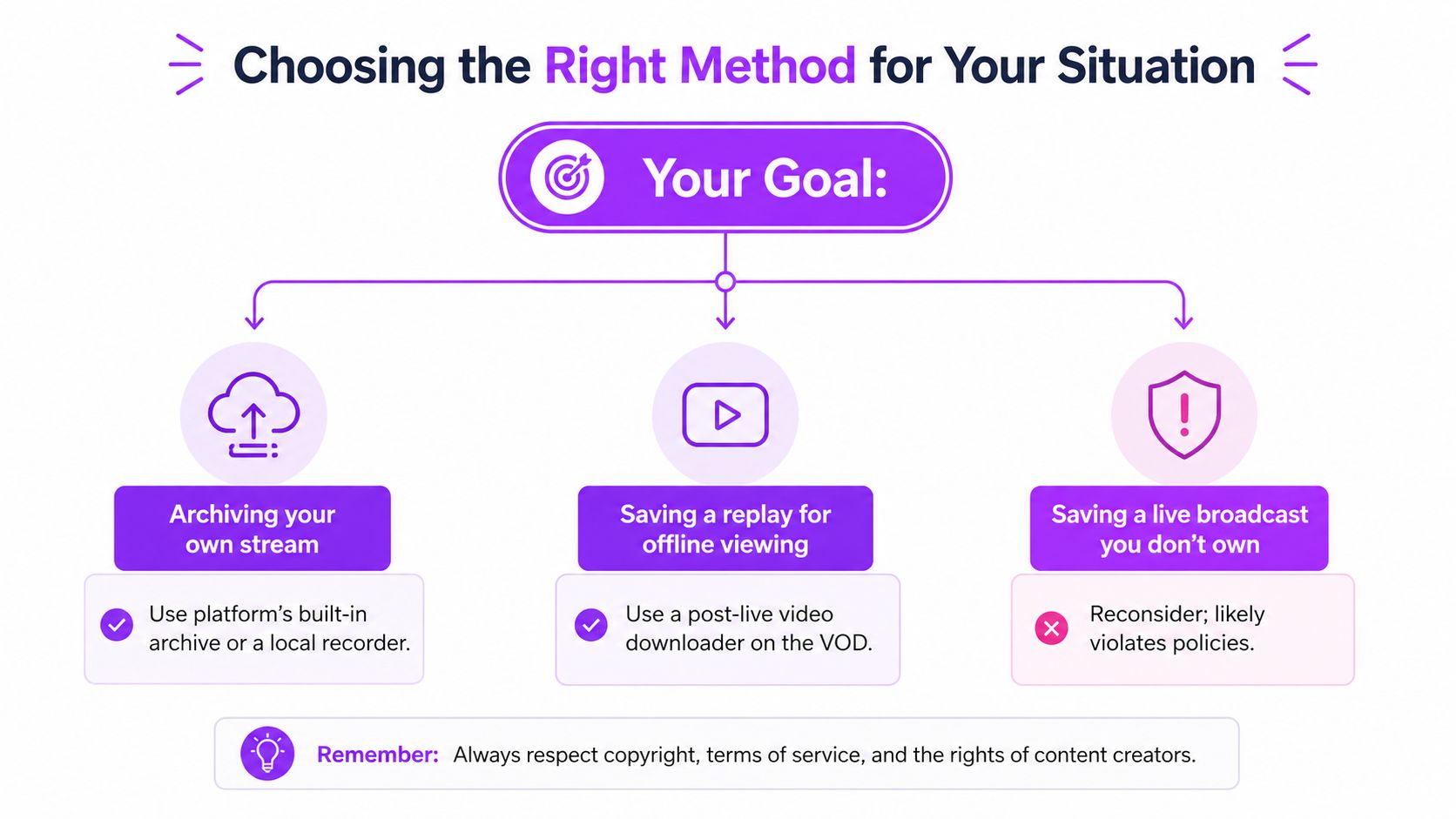
Use this decision path:
- Your own stream is active: Start an authorized local capture if preserving the entire event matters. A manifest-aware workflow is better suited to source capture than a browser recorder.
- Your own stream has ended: Wait until YouTube exposes the processed replay, then download or manage it through the available authorized channel tools.
- You need offline viewing: Use YouTube’s own download control or Premium offline viewing where available. Treat that as platform-managed access, not a permanent master file.
- You want highlights from a finished VOD: Keep the original archive intact, then identify moments for editing. An AI video clipper can help surface candidate moments, but you still need to review context, rights, captions, and framing before publishing.
- You don’t own the broadcast: Get explicit permission before saving or republishing it. If the stream is restricted, don’t attempt to bypass that restriction.
YouTube said that, on average, over 30% of daily logged-in viewers watched live content in Q2 2025, which shows why a broadcast can have value beyond its original airtime, as reported in YouTube Live coverage and analytics guidance. The platform also provides post-stream metrics such as total playbacks, average watch time, peak times, and new subscribers gained. Those signals can guide which sections deserve a clean edit, a short clip, or a later replay promotion.
The practical workflow is simple: capture early when the event is active, wait for replay processing when it has ended, and never confuse technical capability with permission. Preserve the master first. Edit copies second. Publish only the material you’re entitled to use.
If you’re turning archived broadcasts into clips, StreamGen can help identify highlights, reframe them for vertical feeds, add captions, and schedule posts across major short-form platforms. Visit StreamGen to see how its AI clipping and editing workflow can fit after your YouTube live capture process.
More blog posts