You’ve just finished a six-hour stream. The VOD contains a clutch play, a ridiculous chat reaction, and a moment that would make a strong Short. You also know what happens next: you open the recording, start scrubbing, lose the moment’s timestamp, and eventually decide that tomorrow’s stream matters more.
That isn’t mainly an editing problem. It’s a pipeline problem. A useful YouTube Short editor must help you move from long VOD discovery to vertical reframing, caption QA, pacing, export, and publishing without turning every clip into a separate production project. YouTube’s native tools are capable once you’ve found the footage, but streamers need help before the timeline even opens.
Table of Contents
- Why Streamers Need a Dedicated Shorts Workflow
- Finding the Right Moment Before You Edit
- Reframing Horizontal Streams for Vertical Feeds
- Trimming and Pacing for Retention
- Exporting and Publishing Your Short
- Measuring Whether Your Edits Worked
- Your Repeatable Shorts Editing Routine
Why Streamers Need a Dedicated Shorts Workflow
YouTube Shorts grew into a serious discovery channel quickly. In July 2022, YouTube reported 30 billion Shorts views per day, a 400% increase from one year earlier, alongside 1.5 billion logged-in monthly viewers. YouTube also reported that sampled material from long-form videos generated more than 100 billion views in April 2022. Those historical figures show why a good stream moment shouldn’t stay buried inside a VOD. (YouTube’s Shorts distribution update)
The native YouTube editor handles capture and lightweight post-production. Its multi-segment camera can combine clips into a Short of up to three minutes, while the editing workflow includes trimming, timeline text, filters, music, voiceover, and speed controls from 0.3x to 3x. You can also import videos or photos, align a new recording with an earlier segment, use Green Screen, and adjust lighting or retouching. (YouTube’s official Shorts editing guidance)
That’s useful when you already have the exact footage. It doesn’t solve the streamer’s first bottleneck: locating one clean, self-contained moment inside an eight-hour broadcast.
Practical rule: Treat the native editor as the final shaping tool, not the entire stream-to-Short system.
A dedicated workflow separates the job into decisions:
- Source the moment: Find a payoff, reaction, reveal, or exchange worth stopping for.
- Shape the frame: Convert horizontal gameplay and facecam into a vertical composition.
- Make it readable: Correct captions, protect the HUD, and check the clip on a phone.
- Tighten the cut: Remove setup that delays the point, but preserve pauses that carry tension.
- Publish and learn: Schedule the finished asset, then use retention data to improve the next cut.
That sequence matters because a polished clip built around a weak moment is still weak. The strongest productivity gain comes from reducing the distance between “there’s probably something good in this VOD” and “this finished Short is ready for review.”
Finding the Right Moment Before You Edit
Editing starts with selection. Before opening a timeline, identify the moment that gives a viewer a reason to stay: a visible outcome, a sharp reaction, a surprising line, a rapid change in game state, or a piece of chat-driven context that makes sense without the full stream.
YouTube’s native workflow can record multiple segments and import existing media, but it assumes you already know which segments belong in the Short. That’s a major difference between recording a Short directly and extracting one from a long broadcast. A streamer’s editor has to search first, then decide whether the surrounding seconds provide enough context.
Use signals, not only timestamps
For a long VOD, scan for several signals together:
- Gameplay density: Look for a decisive elimination, missed opportunity, unusual mechanic, or sudden change in the match.
- Reaction intensity: A raised voice, laugh, silence before an outburst, or facecam movement can mark the payoff.
- Chat activity: A sudden burst of messages often points to a moment worth reviewing, though chat alone doesn’t prove the clip works.
- Audio changes: Shouts, impacts, alarms, laughter, and abrupt silence are useful search cues.
- Context completeness: A viewer should understand what happened without needing several minutes of setup.
The best candidate usually has a clear “before” and “after.” If the punchline only works because of a long private conversation with regular viewers, either add a concise visual setup or choose another moment.
A VOD analysis workflow such as AI video clipping for stream highlights can rank moments using gameplay, reactions, chat, and audio signals. That’s where an AI Clip Finder earns its place. It narrows the search; it doesn’t replace editorial judgment.
Here’s a practical review pass once candidates surface:
- Watch the opening without context. If the first seconds feel confusing, the clip needs a cold open or a short setup card.
- Watch only the audio. If the reaction sounds energetic but the visual evidence is missing, the crop may be difficult.
- Watch only the picture. If the important event happens off-screen or behind an overlay, reject or reframe it.
- Check the ending. A clip needs a clean landing, not an abrupt stop immediately after the reaction.
- Ask what the viewer gets. The answer might be surprise, skill, humor, tension, or useful information.
Manual selection remains better when the moment depends on subtle context, sarcasm, a slow tactical decision, or a story beat that automated signals may undervalue. Use automation to reduce the search surface, then make the final call yourself.
Reframing Horizontal Streams for Vertical Feeds
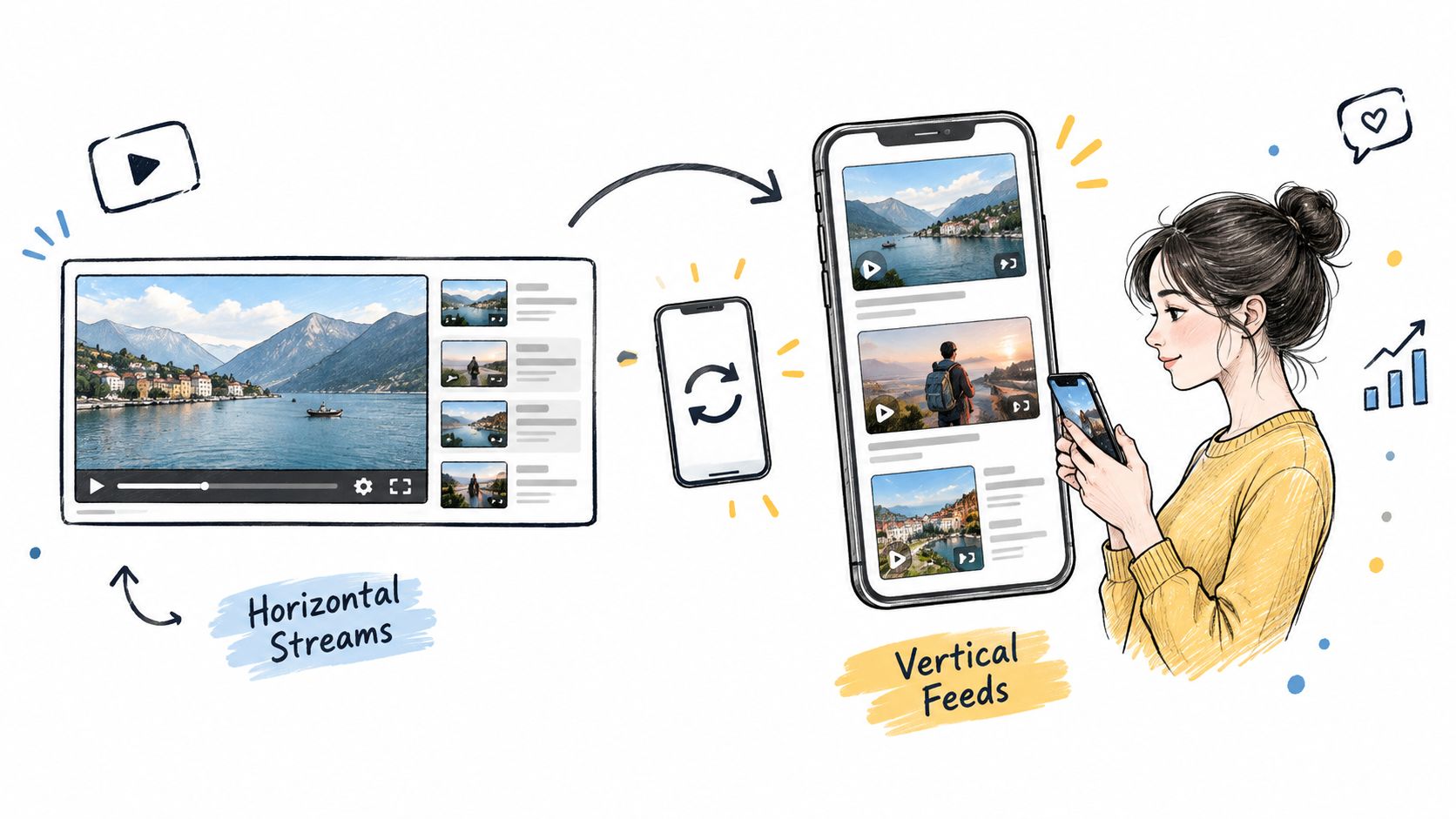
A horizontal stream doesn’t become a good Short because you select 9:16 from an export menu. The frame has to preserve the visual relationship between gameplay, facecam, captions, and interface elements.
Set the project to a vertical canvas at 1080×1920. Start by locating the action’s visual center, then decide whether the crop should prioritize the game, the facecam, or both. A fixed center crop is quick, but it often cuts off the player character, minimap, damage indicator, or streamer’s reaction. Smart layouts and subject tracking usually produce a more useful result because they can shift attention as the speaker or gameplay changes.
Build the frame around evidence
A reaction clip needs the reaction and the event that caused it. If the facecam fills the frame while the gameplay contains the joke, viewers see emotion without proof. If gameplay takes everything, the streamer’s response loses its force.
Use a few framing checks:
- Track the active subject: Let the crop follow the speaker or player rather than locking to the source center.
- Protect the HUD: Keep health, score, minimap, subtitles, and objective markers visible when they explain the moment.
- Use split layouts selectively: A facecam and gameplay stack can work for reactions, but it can also shrink both elements until neither is readable.
- Review transitions: A crop that jumps between face and gameplay should follow the action, not move merely because the software detected motion.
- Leave interface space: YouTube controls occupy the lower area of the vertical feed, so don’t put essential captions or visual evidence there.
Captioning deserves the same attention as framing. Transcribe the clip, then manually correct names, game terminology, slang, and profanity. Break captions into short phrases of roughly 2–4 words per frame, use large high-contrast text, and place it in the central safe area. Captions should appear with enough lead-in and tail that they don’t pop in abruptly at a cut.
StreamGen’s Clip Editor supports smart vertical layouts, animated captions in 90+ languages, silence removal, word censoring, AI title hooks, and reusable brand presets. Those tools cover production mechanics, but the final caption review still belongs to an editor. Dense word-by-word animation can obscure gameplay, and literal translation can flatten a joke or slang-heavy reaction.
For broader principles on adapting social video to different audiences, these video format tips for B2B are useful because they treat format as a communication decision rather than a simple resize.
A browser workflow such as changing video aspect ratio for vertical platforms is most effective when you use it as a reviewable layout, not an automatic verdict. Render a preview, shrink it to a phone-sized window, and check whether the face, gameplay, captions, and key UI remain understandable at once.
Trimming and Pacing for Retention
You pull a great moment from an 8-hour VOD, drop it into the timeline, and the first version still drags. That usually happens because the clip starts where the stream started, not where the viewer gets hooked. For Shorts, the opening has one job: make the point clear immediately. Put the payoff, reaction, or highest-information frame inside the first 1–2 seconds, then cut greetings, queue time, menu clicks, loading screens, and any setup that delays understanding. Piktochart’s guidance on Shorts retention also recommends cutting the first two seconds when those seconds contain setup instead of action (Shorts retention guidance from Piktochart).
Good pacing is tighter than a stream, but it still needs shape. I leave in a half-second breath before a clutch shot or a punchline if that pause creates tension. I remove the same pause after the action if it only feels empty. Auto silence removal helps with rambling commentary and repeated callouts. It hurts when it flattens a joke, clips the inhale before a scream, or cuts the tiny beat that makes a reveal land.
A longer Short can outperform a shorter one on retention. A 45-second Short averaging 40 seconds watched produces 89% retention, while a 15-second Short averaging 8 seconds watched produces 53% retention. That is why I do not judge an auto-cut by how much runtime it shaved off. I judge it by whether the viewer gets to the payoff faster and still has enough context to care.
My trim pass is usually simple:
- Open on consequence: lead with the reaction, kill, fail, reveal, or threat if it reads on its own.
- Add back context sparingly: restore only the line or action that makes the opening understandable.
- Cut loops and repeats: remove repeated explanations, dead menu movement, and filler responses.
- Leave room for the ending: hold the laugh, win screen, or final line long enough to register.
- Test the first drop: if viewers leave early, change the first seconds before adding effects.
Tools can speed up the rough cut. StreamGen can remove silence and generate title hooks for a first pass. An editor still has to check whether the streamer sounds human, whether the reaction still matches the visual proof, and whether the clip finishes cleanly instead of feeling chopped off.
Then measure the cut properly. Look at average percentage viewed, the first three-second drop, rewatches, and shares across versions. Runtime matters less than whether people keep watching.
Exporting and Publishing Your Short
Before exporting, watch the rendered preview from beginning to end. Check the first frame, the final caption, the audio transition, and the bottom area where platform controls may cover text. Preserve enough frame lead-in and tail so captions don’t appear abruptly at the cut.
For a manual export, use the vertical project at 1080×1920, then open YouTube Studio, upload the rendered file, add the title and description, select the audience settings, and schedule or publish. Keep the original project or source clip available if the upload reveals a caption error or a crop that needs revision.
A direct scheduler removes some of that file handling. StreamGen can connect YouTube Shorts, TikTok, and Instagram Reels, then place finished clips in a publishing queue without requiring a separate download for each network. Its auto-posting workflow for social media is useful when the same approved clip needs coordinated distribution.
| Aspect | Manual Export and Upload | Direct Scheduling (StreamGen) |
|---|---|---|
| Effort | Render, download, open each platform, upload, and configure | Review the finished clip, choose platforms, and schedule from one workspace |
| File handling | Local files must be named, stored, and uploaded separately | Clips stay in the workflow until they’re queued for publishing |
| Cross-platform reach | Repeat the upload process for each network | Schedule to YouTube Shorts, TikTok, and Instagram Reels from the connected workspace |
For creators comparing automated workflows, AI-powered YouTube Shorts creation provides useful context on how AI can assist production while editorial review remains necessary.
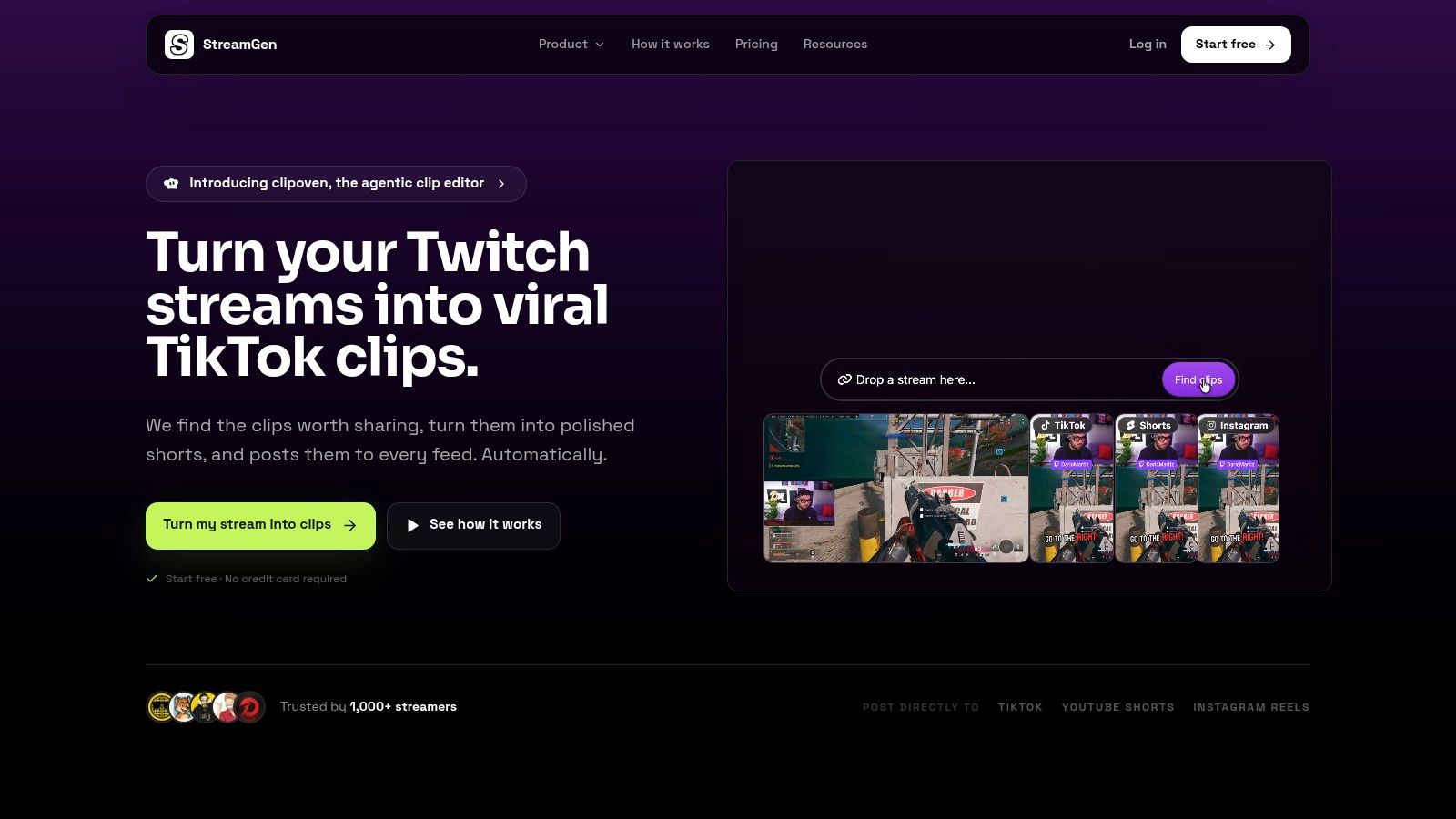
A browser editor shouldn’t block professional finishing. StreamGen’s AI VOD Editor beta can prepare timeline-ready projects for DaVinci Resolve and Premiere Pro, which gives you a handoff when the clip needs detailed audio work, complex keyframes, or frame-level compositing.
Measuring Whether Your Edits Worked
Publishing is where the feedback starts, not where the work ends. Open the retention curve after the Short has enough viewing data to reveal where people leave, then inspect the biggest early drop. If viewers leave before the payoff, the opening or context is wrong. If they leave after the payoff, the ending may be too long or the clip may have already delivered its value.
Track more than views:
- Average percentage viewed: Shows how much of the clip people consume.
- Three-second retention: Exposes whether the opening earns attention.
- Rewatches: Helps identify moments viewers replay to understand or enjoy.
- Shares and comments: Indicate whether the clip gives viewers a reason to pass it on or respond.
- Subscribers per 1,000 views: Connects reach to channel growth rather than treating every view as equally valuable.
- Downstream actions: Check whether viewers continue to a long-form upload, VOD, stream, or product page when that path matters.
The measurement problem is also an economics problem. A more elaborate cut takes more time, and views alone won’t tell you whether that time improved the channel’s outcome. Recent reporting citing a Precise TV survey of 1,000 U.S. teens and parents found that 66% of teens regularly watch YouTube Shorts and 18% watch for more than 1.5 hours daily. The survey also reported purchase influence from Shorts ads among 51% of teen boys and 43% of teen girls. Those figures support commercial relevance, but they don’t prove that aggressive editing causes better performance. (Reporting on the Precise TV survey)
Test one editing decision at a time
Run controlled comparisons instead of changing everything at once:
- Raw highlight versus captioned version.
- Aggressive silence removal versus natural pauses.
- Gameplay-first framing versus facecam-first framing.
- Immediate payoff versus a short context line before the payoff.
Keep the audience, topic, and publishing conditions as comparable as possible. You’re not searching for a universal formula. You’re learning which choices suit your viewers and your footage.
Autopilot can keep a queue supplied while the measurement loop runs. The important safeguard is a review gate. Automation should increase the number of candidates and maintain consistency, not prevent you from rejecting a clip with a bad crop, incorrect caption, or weak opening.
Your Repeatable Shorts Editing Routine
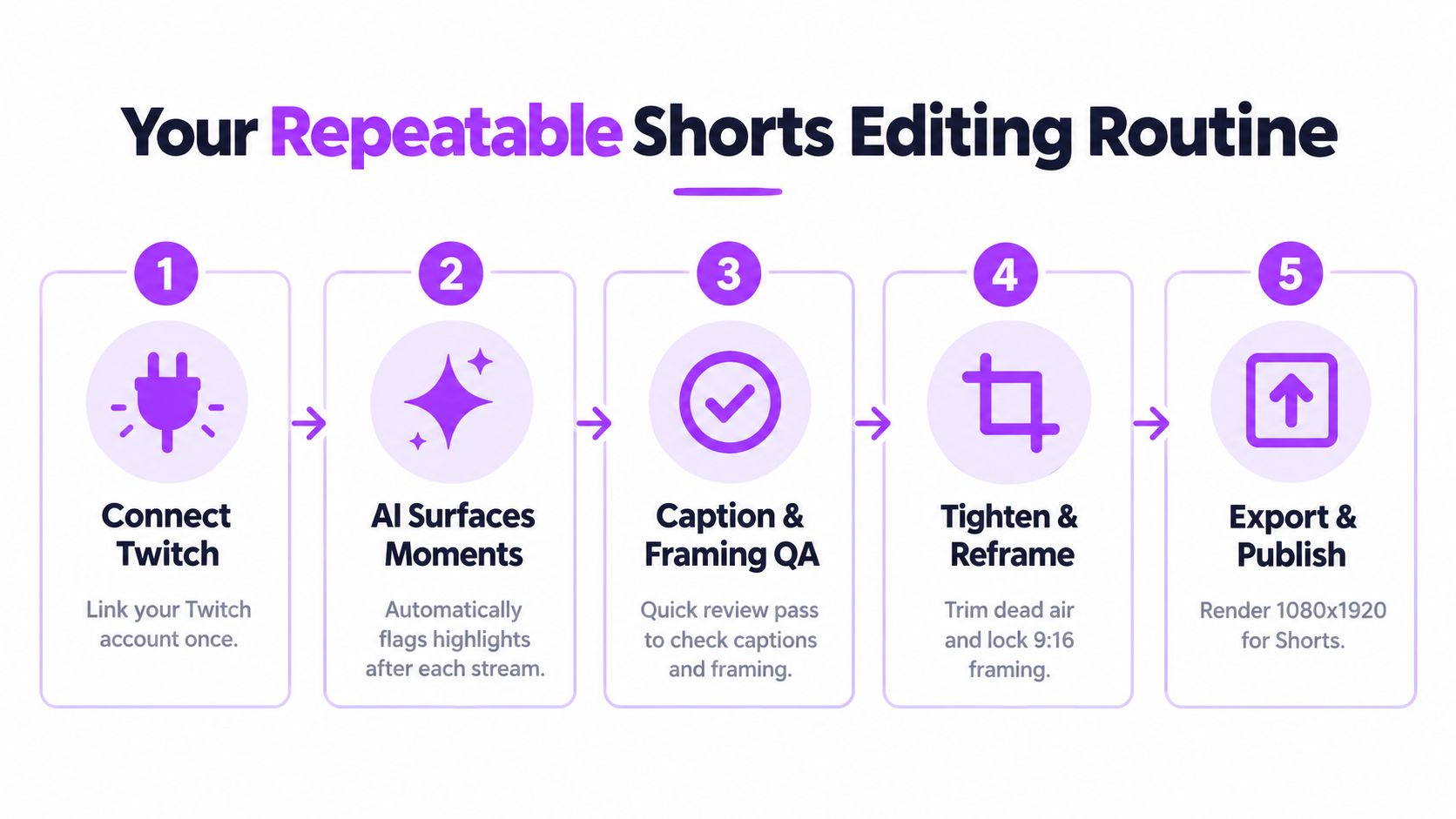
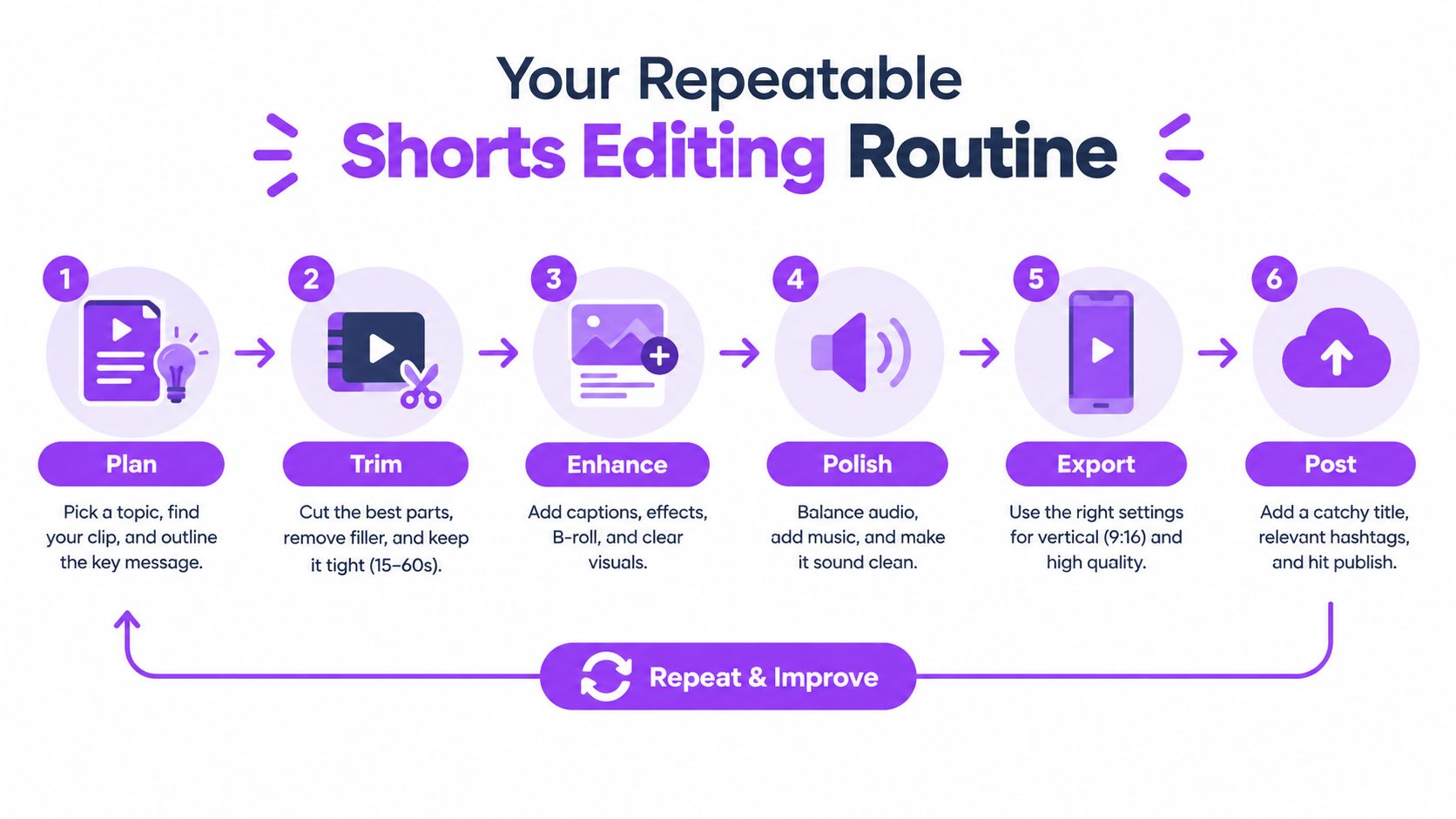
An 8-hour VOD turns into dead backlog fast if clipping feels like a second stream day. The routine that holds up is the one you can run right after broadcast, with the same checkpoints every time: find the likely moment, verify the crop, fix the captions, tighten the beats, queue the post, then review what held attention.
A practical pass looks like this:
- Connect Twitch and confirm the source. Check that the VOD finished processing and that the track carrying your voice, game sound, and alerts is the one the editor pulled in.
- Review surfaced moments. Prioritize clips with one obvious event, a readable reaction, and just enough setup that a viewer who never saw the stream still gets the payoff.
- Run caption and framing QA. Fix names, slang, and game terms. Make sure subtitles stay clear of the lower UI. Confirm the vertical crop keeps both facecam and the piece of gameplay that proves why the reaction matters.
- Tighten the timeline. Pull the payoff closer to the first seconds. Cut queue time, loading screens, and any line that explains too much. Leave in the short pause that builds tension or sells the reaction.
- Export and schedule. Render the vertical version, watch it once on a phone-sized preview, and add only approved cuts to the publishing queue.
- Review performance and update the next cut. Track the early drop, average percentage viewed, rewatches, shares, and subscriber conversion, then change one editing choice on the next batch.
That last part matters. If you change the hook, captions, pacing, and framing all at once, you learn nothing useful.
A browser-based YouTube Short editor works well for repeated jobs close to the source footage: clipping from the VOD, reframing gameplay plus facecam, cleaning up captions, and posting without bouncing files between tools. I still move a clip into a full NLE when it needs real audio repair, layered graphics, or a more deliberate story build than a Shorts editor handles comfortably.
Cost should match the amount of testing you are doing. StreamGen offers a free tier with lower limits, while paid plans start at €5.49 per month.
Use the first published Short as a test, not a verdict. If viewers drop in the opening seconds, recut the first line or move the reaction earlier. If captions cover the evidence, fix the safe zone. If a clip gets views but does not drive meaningful channel action, choose moments that qualify people for the longer content instead of chasing reach by itself.
More blog posts