If you’re shopping for the best webcam for streamers, don’t start with the biggest resolution number on the box. A 4K camera can produce a superb source image and still look no better than a well-lit 1080p model once your face is reduced to a small overlay and compressed by a streaming platform. The better question is simpler: how much of your face will viewers see, where will they see it, and will you reuse the footage vertically later?
The practical baseline has moved from 720p to 1080p, and 1080p means 1920 × 1080 pixels. YouTube Live can support up to 4K at 60 fps, while Twitch-style broadcasts commonly treat 1080p at 60 fps as the ceiling or default target. Facebook Gaming commonly recommends 720p or 1080p. A 4K image contains about four times as many pixels as 1080p, but that extra detail also increases processing, bandwidth, and lighting demands. (StreamHub’s webcam resolution guide)
Here’s the straight answer. Buy the Elgato Facecam Pro if you need 4K capture and frequent vertical reframing. Choose the Insta360 Link if tracking and flexible framing matter more than a fixed desk setup. Pick the Logitech C922 or a similar 1080p model if your facecam sits in a small corner and you’d rather spend the difference on lighting and audio.
Table of Contents
- Why the Best Webcam for Streamers Is Not Always the Sharpest One
- The Five Specs That Actually Matter for Streaming Webcams
- Head-to-Head Comparison of the Top Streaming Webcams
- How Resolution, Facecam Size, and Platform Compression Connect
- Best Webcam Picks by Streamer Type and Workflow
- Recommended Webcams at Every Budget Tier
- Quick Setup Tips to Make Any Streaming Webcam Look Better
Why the Best Webcam for Streamers Is Not Always the Sharpest One
The highest resolution doesn’t automatically win. Viewers notice stable exposure, natural skin tones, clean motion, and reliable focus before they notice fine texture in a small facecam tile. A camera that produces a sharp but noisy image in a monitor-lit room is a worse streaming camera than a softer model that keeps your face evenly exposed.
That’s why the best webcam for streamers is a workflow decision, not a specification contest. A Twitch gamer using a compact corner overlay has different needs from a creator who turns every broadcast into TikTok, Reels, and Shorts. The first creator may benefit more from clean 1080p60 and dependable autofocus. The second may need 4K capture so a horizontal recording can survive a vertical crop.
Where premium resolution earns its keep
4K is useful when you’ll crop, reframe, or edit the camera feed after recording. A larger source gives an editor more room to create a 9:16 composition, move the crop during a reaction, or apply a digital zoom without immediately destroying facial detail. The benefit is especially clear when the webcam feed becomes part of a standalone short rather than staying as a small overlay beside gameplay.
The Elgato Facecam Pro fits that use case well. Expert roundups position it as a top overall streaming webcam because it records in 4K and gives creators extra detail for overlays, reframing, and post-production. (Laptop Mag’s streaming webcam roundup)
4K is wasted when your face occupies a small portion of a compressed broadcast and you never edit the source afterward. In that setup, better light and a consistent frame rate usually produce a more visible improvement than additional pixels.
Practical rule: Buy resolution for the crop you’ll publish, not the resolution you’ll admire in a camera utility window.
The five trade-offs that shape the image
Every webcam decision comes down to a handful of visible behaviors:
- Sharpness: True sensor output matters more than an upscaled label.
- Motion: 60 fps helps active broadcasts feel smoother, especially during reactions or movement.
- Low-light behavior: A camera must handle monitor glow and dim rooms without turning your face muddy or noisy.
- Field of view: A tight lens flatters a head-and-shoulders shot, while a wide lens accommodates desks, props, or multiple people.
- Autofocus: Fast face lock helps mobile creators, while fixed focus can be more stable for a seated broadcaster.
The rest of the buying decision should follow those behaviors. Resolution is only one part of the image viewers receive.
The Five Specs That Actually Matter for Streaming Webcams
A webcam spec sheet tells you what a camera can do. Your stream layout determines what matters. Judge each model through these five lenses before you pay for a premium feature.
Resolution and frame rate
1080p60 remains the sensible streaming baseline for most Twitch and YouTube Live facecams. Expert guidance specifically recommends a webcam that can output live video at 1080p60 for those platforms. (Popular Science’s streaming webcam recommendations)
Resolution controls detail. Frame rate controls how cleanly movement renders. If you lean into the camera, gesture during Just Chatting, or react physically while gaming, 60 fps gives those movements a smoother appearance. If your scene is mostly a static head-and-shoulders shot with overlays, 30 fps may be adequate, and paying for a higher frame rate won’t fix poor lighting.
Don’t confuse native output with software upscaling. A camera that captures a clean 1080p image can outperform a nominally higher-resolution model if the latter relies on aggressive processing or produces noisy footage.
Low-light performance
Your room matters more than the showroom. Monitor light, RGB strips, windows, and overhead fixtures create mixed illumination that exposes weak sensors quickly. Look for a webcam that holds exposure without constantly brightening and darkening your face, keeps colors believable, and avoids excessive noise in the shadows.
Premium models distinguish themselves here. The Logitech MX Brio is highlighted for 4K detail, AI-enhanced image quality, and strong low-light handling, a useful combination for creators working with small key lights or uneven indoor illumination. (Popular Science’s webcam testing guide)
Field of view
A tight field of view keeps attention on your face and avoids showing unnecessary room clutter. A wider view makes sense if you need to include a drawing surface, a second person, a product, or a larger green-screen area.
Choose the lens around your final composition. A wide camera mounted close to your face can look distorted and force you to show more background. A narrower lens placed farther away usually creates a cleaner headshot.
Autofocus
Autofocus is valuable when you move between the camera and objects. It’s less important for a stationary creator who keeps a consistent distance. Poor autofocus can hunt visibly, especially in dim light or when a hand, microphone, or prop crosses the frame.
Face-priority focusing is useful for reaction content and demonstrations. Fixed focus remains a legitimate choice for a seated gaming setup because it avoids focus hunting altogether, provided you position the camera carefully.
Head-to-Head Comparison of the Top Streaming Webcams
The table below is a workflow comparison, not a claim that every listed specification behaves identically in every application. Some manufacturers and retailers vary in how they describe sensor dimensions, frame-rate modes, or field of view, so verify the current technical sheet before buying.
| Model | Max Resolution & Frame Rate | Sensor Size | Field of View | Autofocus | Low-Light Performance | USB Requirement | Approx. Price |
|---|---|---|---|---|---|---|---|
| Logitech Brio 4K | Up to 4K, common 1080p60 use | Not specified here | Adjustable, setup dependent | Autofocus | Good with controlled light | USB connection, higher modes may need more bandwidth | Varies by retailer |
| Elgato Facecam Pro | 4K capture, 1080p60 streaming target | Not specified here | Streaming-oriented fixed view | Fixed focus | Strong with proper lighting | USB 3 recommended | Premium |
| Insta360 Link | 4K capture, lower-output streaming modes | Not specified here | Wide, flexible framing | AI tracking autofocus | Strong in mixed indoor light | USB-C connection | Mid to premium |
| Razer Kiyo Pro Ultra | High-resolution capture, streaming modes vary | Large sensor class | Adjustable wide view | Autofocus | Strong low-light reputation | USB 3 recommended | Premium |
| Logitech C922 | 1080p capture, streaming-oriented output | Small webcam sensor class | Standard desk framing | Autofocus | Acceptable with a key light | USB connection | Budget to mid-range |
The Brio 4K is a practical all-rounder when you want 4K available but expect to stream mostly at 1080p. It works well in a conventional OBS facecam scene, though its advantages shrink if the camera occupies only a small corner.
The Facecam Pro is the specialist for creators who record locally, crop aggressively, and publish clips. Its fixed-focus design favors a controlled desk position. It won’t give you the same tracking behavior as a gimbal camera, but it can deliver a consistent studio-style shot when you sit in the right place.
The Insta360 Link earns its place through flexibility. AI tracking and repositioning help when you move, demonstrate objects, or create vertical material. It’s a stronger fit for a creator whose camera is part of the performance rather than a passive overlay.
The Razer Kiyo Pro Ultra targets creators who care about sensor performance and low-light image quality. It’s a compelling style of camera for a dim room, but its size and software approach may be excessive for a simple gaming overlay.
The C922 remains the sensible baseline for a new streamer. It won’t provide the crop headroom or premium low-light handling of the more expensive choices, but it can produce a useful image when paired with decent light. None of these webcams replaces a dedicated microphone, and some premium models omit built-in audio entirely. That’s a benefit if you already own a proper mic, not a problem to solve with camera software.
How Resolution, Facecam Size, and Platform Compression Connect
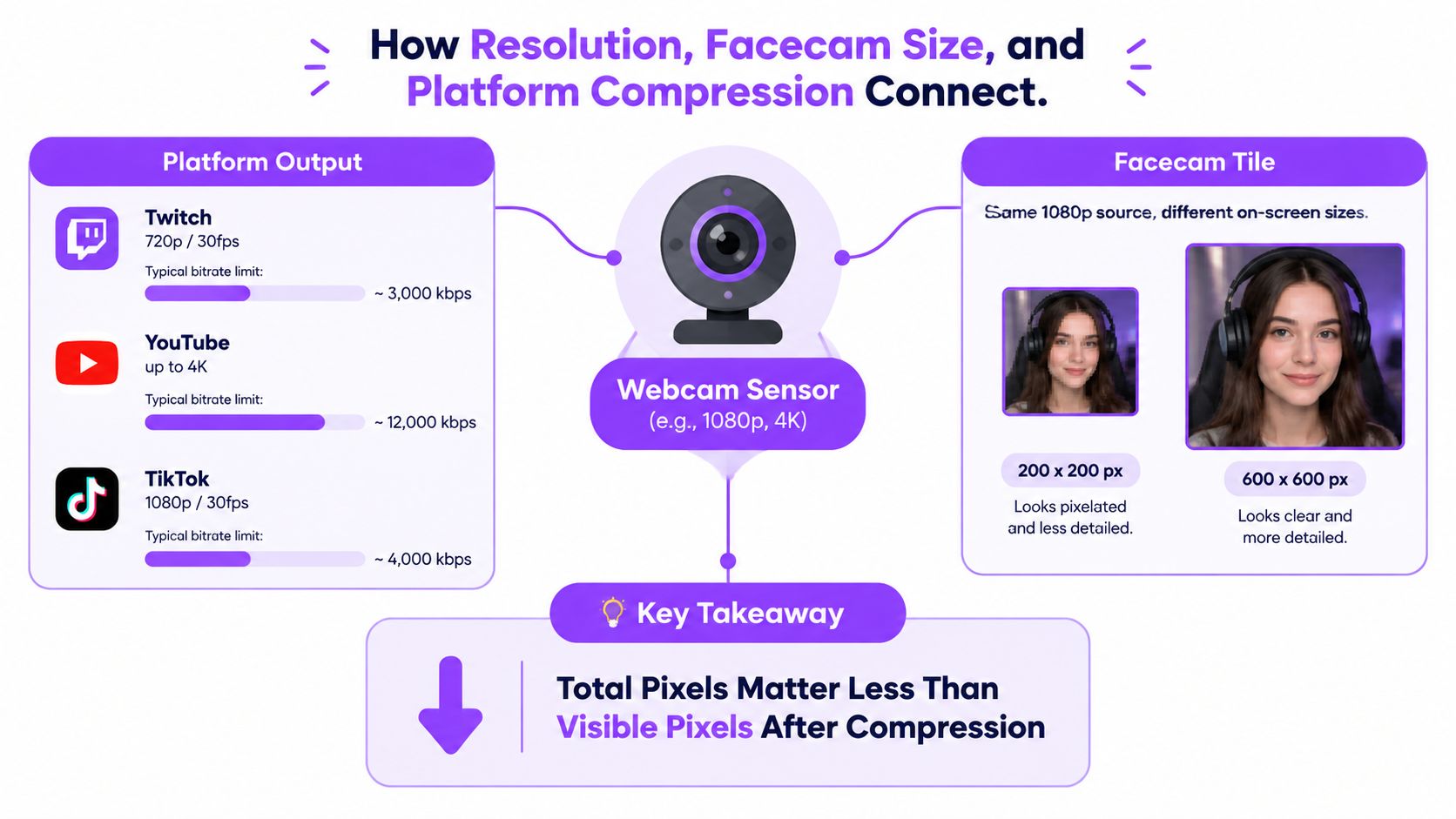
A camera records a source image. Your broadcasting software scales it, your layout assigns it a physical size, and the platform compresses the final stream. Viewers see the result of that entire chain, not the untouched 4K feed coming out of the webcam.
A small facecam tile can erase much of the difference between cameras. Fine skin texture and hair detail may disappear after scaling and compression, while unstable exposure remains obvious because the whole face changes brightness. The same principle applies to vertical clips. A horizontal source can lose much of its side-to-side composition when reframed into 9:16, so a sharp, well-composed 1080p crop may be more useful than a poorly lit 4K image.
Judge the smallest final frame
Twitch layouts often make the facecam secondary to gameplay. YouTube Live supports higher delivery ceilings, but your actual scene may still use the webcam as a compact picture-in-picture element. TikTok and other vertical feeds give the face more visual importance, yet reframing demands careful control of eye line, headroom, and background.
That creates a useful buying rule:
Choose the webcam for the smallest real estate your face will occupy in the final output, not the largest source resolution you can select.
A creator who uses one fixed corner overlay should prioritize clean exposure and smooth motion. A creator who turns broadcasts into vertical clips should prioritize capture headroom, an accommodating lens, and a reliable way to keep the face inside the crop.
For a practical explanation of how aspect-ratio changes affect composition, use this guide to changing video aspect ratio. It helps clarify why the camera’s original framing matters before you start editing.
Your broader production chain matters too. If you’re building a multi-source setup with gameplay, cameras, and capture hardware, LesFM’s streaming gear guide is a useful companion resource for understanding how the camera fits into the rest of the signal path.
Best Webcam Picks by Streamer Type and Workflow
The right model depends on what you do for hours at a time. A gamer who barely moves needs stability. A short-form creator needs reframing flexibility. A broadcaster who leans into the camera needs focus that doesn’t fall apart during reactions.
| Streamer Type | Recommended Webcam | Why It Fits |
|---|---|---|
| Twitch-only PC gamer | Logitech Brio 100 or Insta360 Link | Clean facecam output, straightforward OBS use, and a sensible fit for a fixed gameplay layout |
| Multi-platform short-form creator | Insta360 Link or OBSBOT Tail 2 | Tracking and flexible framing help keep the face usable in vertical edits |
| VTuber or Just Chatting broadcaster | Elgato Facecam Pro or Sony alpha with Cam Link | Higher-detail capture and a more deliberate studio look suit close, expressive presentation |
| Budget-constrained newcomer | Logitech C920s or Razer Kiyo X | Proven 1080p-class image quality without pushing the entire setup into premium pricing |
Twitch-only gaming
For a conventional PC gaming scene, the Logitech Brio 100 is enough for many new creators, particularly when the facecam remains compact. The Insta360 Link is the better pick if you move around, switch between talking and showing objects, or want more flexibility than a fixed webcam mount provides.
Don’t spend on 4K because the game capture is sharp. Put the money into a key light and microphone first if viewers currently struggle to see or hear you.
Short-form creators
The Insta360 Link is the most natural match for creators who publish across Twitch, Shorts, TikTok, and Reels. Its tracking and framing features can reduce the manual work required to keep your face composed while you gesture or shift position. The OBSBOT Tail 2 belongs in the same conversation for creators who value AI-assisted movement and 4K reframing headroom.
Vertical publishing also exposes poor audio quickly. Use this audio guide for streamers alongside your camera setup, and review DigiDevice’s guide to flattering lighting and clean audio for a broader presentation checklist.
VTubers and Just Chatting broadcasters
The Elgato Facecam Pro suits a controlled desk studio where you want a detailed, polished feed and can keep your position reasonably consistent. If you want natural background separation and a more cinematic image, a Sony alpha paired with Cam Link is the more serious route, though it adds cost, setup complexity, and another device to manage.
Recommended Webcams at Every Budget Tier
A useful budget decision starts with the final output, not the product category. Spend less when the camera will remain small and static. Spend more when you’ll crop, track, record locally, or work in difficult light.
| Budget Tier | Webcam | Verdict |
|---|---|---|
| Under $80 | Logitech Brio 100 | Best simple entry point for a clean, uncomplicated facecam |
| Under $80 | Razer Kiyo X | Good choice for a first gaming setup with basic lighting |
| Under $80 | Microsoft Modern Webcam | Sensible for straightforward 1080p-class broadcasts |
| $80 to $200 | Logitech C922 Pro Stream | Reliable workhorse for Twitch layouts and new channels |
| $80 to $200 | Elgato Facecam | Strong fixed-position option for creators with controlled lighting |
| $80 to $200 | Insta360 Link | Best mid-range choice for movement, tracking, and flexible framing |
| Above $200 | Elgato Facecam Pro | Premium pick for 4K capture and vertical post-production |
| Above $200 | Insta360 Link 2 | Advanced tracking option for creators who move on camera |
| Above $200 | Sony alpha with Cam Link 4K | Best for a camera-first studio look and interchangeable-lens flexibility |
The budget models make sense when your room is reasonably bright and your facecam isn’t the main visual event. The mid-range choices offer a better balance of 1080p60 capability, framing control, and mixed-light handling. Premium cameras earn their price only when the workflow uses their extra capture detail or tracking.
My single pick for most streamers is the Insta360 Link. It handles fixed desk broadcasts, active presentation, and short-form reframing without forcing you into a specialized setup. If you never create clips and sit still in a controlled room, buy the Logitech C922 or Elgato Facecam instead. If you edit aggressively, go straight to the Facecam Pro.
Quick Setup Tips to Make Any Streaming Webcam Look Better
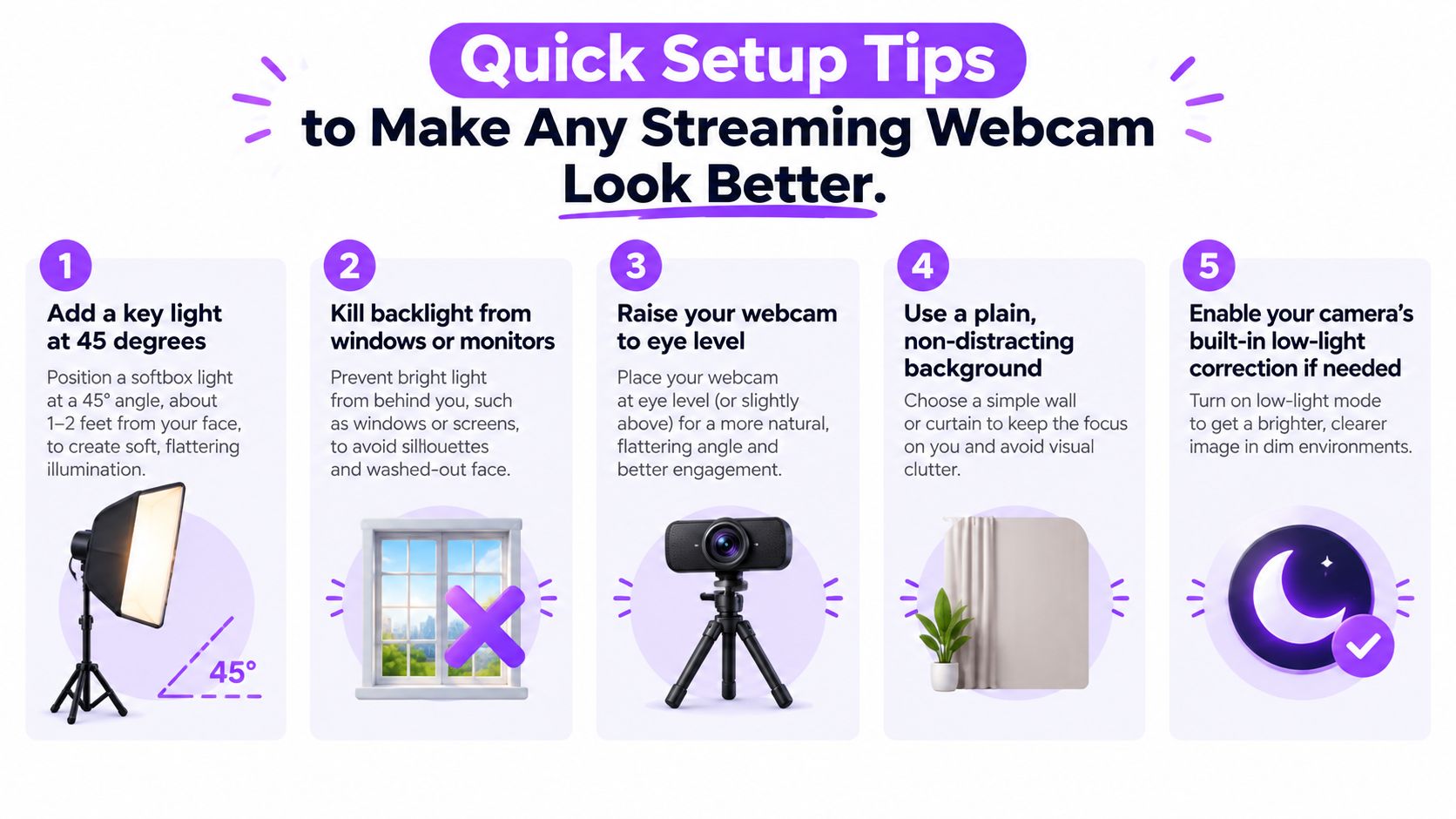
A better room can beat a more expensive camera. Make these changes in order, then judge whether you still need new hardware.
- Add a key light at 45 degrees. Place it roughly one to two feet from your face when possible. This gives the sensor a clean subject and reduces muddy shadows.
- Remove competing backlight. Close bright windows or move monitors that shine directly behind you. Backlight forces the webcam to choose between a visible face and a correctly exposed background.
- Raise the camera to eye level. A separate mount usually looks more natural than a camera sitting low on a laptop or monitor. Your eye line improves immediately.
- Keep the background quiet. A plain wall, curtain, or controlled shelf makes facial expressions easier to read and gives vertical crops fewer distractions.
- Connect directly to the computer. Use a USB 3.0 port or a direct motherboard connection for cameras that require higher bandwidth. Avoid an overloaded hub if the feed drops, freezes, or falls back to a lower mode.
- Lock exposure and white balance. Auto settings can shift when a game flashes, a browser window opens, or monitor colors change. Manual settings keep your face consistent.
- Lock focus for a stationary shot. If you rarely move toward the camera, fixed focus removes unnecessary hunting. Use face-priority autofocus when your format involves movement.
- Match capture settings to delivery. Don’t run a needlessly large source if your final scene is small and heavily compressed. Reserve higher capture modes for recording and reframing.
- Clean the lens. A fingerprint creates a soft, hazy image that no sharpening slider can properly repair.
For a deeper room-by-room setup, use this lighting guide for streaming. Once the camera looks consistent, record a short test and watch it at the size viewers will see, not full-screen in your camera software.
StreamGen helps you turn long Twitch broadcasts into usable vertical clips with AI highlight detection, smart facecam-preserving layouts, captions, and direct scheduling to TikTok, YouTube Shorts, and Instagram Reels. Visit StreamGen if you want your new webcam footage to keep working after the livestream ends.
More blog posts