You’ve just watched chat erupt during a raid. The streamer lands the play, viewers start spamming reactions, and the new animated emote appears to catch the moment in a way its static version never could. Then the upload stalls, the preview looks soft at chat size, or Twitch rejects the file because the motion changes what the emote seems to mean.
That’s the challenge with Twitch animated emotes. Export settings matter, but they aren’t the only gate. A successful emote must remain legible at tiny dimensions, survive GIF compression, loop cleanly, respect Twitch’s technical limits, and communicate a safe intent when a reviewer watches the complete animation. The workflow below focuses on those decisions, especially the moderation problems that most file-size guides leave until the end.
Table of Contents
- Why Twitch Animated Emotes Matter in 2026
- Sizing, Files, and the Hard Upload Rules
- Designing Motion That Reads at 28 Pixels
- From Layered Art to Three Clean GIFs
- What Actually Gets Emotes Rejected
- Uploading, Previewing, and Fixing Rejections
- A Pre-Flight Checklist and Where to Find Artists
Why Twitch Animated Emotes Matter in 2026
Animated emotes became an official part of Twitch’s channel ecosystem during the platform’s major emote update on June 4, 2021, when Twitch introduced animation templates for existing emotes. Twitch made the feature available to all Partners on June 17, 2021, and said Affiliates would receive access by the end of that year in its official announcement about the animated emote rollout.
That timing changed the job of an emote designer. A static reaction can communicate approval, shock, laughter, or frustration instantly. Animation adds timing and emphasis. A blink can turn a deadpan face into disbelief. A short bounce can make a celebration feel more immediate. A controlled shake can make panic readable without adding extra text or detail.
The feature also sits inside an established emote economy rather than a separate novelty category. A 2024 analysis of Twitch emote usage recorded 371 million messages for LUL, 140 million for Kappa, and 98 million for DinoDance in its dataset. The same reporting discussed a Forsen custom emote used more than 8.5 billion times, with homyLol at 6.9 billion and triHard at 3.79 billion. Those figures describe historical usage in particular datasets, not a guarantee that animation will make a channel more visible, but they show the scale of the chat language an emote enters.
Practical rule: Motion should strengthen the reaction viewers already understand. It shouldn’t ask them to decode a miniature scene.
That’s why the surrounding visual system matters too. A moving emote works better when its outline, colors, and expression belong to a recognizable channel identity. Creators building that identity can also review this guide to a professional Twitch overlay setup, while anyone unsure what “Pogger” communicates in chat can consult this explanation of Pogger.
Twitch later expanded animated emote support to up to 60 Tier 1 slots, plus 5 slots each for Tier 2 and Tier 3, as described in its subscriber emote guide. That makes animation part of channel monetization and subscriber identity. The hard part isn’t adding movement for its own sake. It’s choosing motion that survives the smallest display, the upload validator, and the moderation queue.
Sizing, Files, and the Hard Upload Rules
Start with a square master composition. The most practical working canvas is the largest square size you’ll use for the upload, because it gives you room to draw clean contours before producing smaller versions. For manual upload, Twitch accepts three separate animated GIFs at 28x28px, 56x56px, and 112x112px. For auto-resize, Twitch accepts one square GIF from 112x112px to 4096x4096px, according to the official animated emote upload guidance.
Don’t confuse a large master with a finished chat asset. A design that looks elegant at 112px can collapse at 28px when the eyes, fingers, highlights, or text become indistinguishable. Build the expression at the large size, then repeatedly inspect the smallest output while you’re still able to change the silhouette.
The limits that affect your export
Twitch’s current technical rules give you two upload paths. Auto-resize is simpler because Twitch generates the size variants from one GIF. Manual mode takes more preparation, but it lets you redraw or simplify each resolution rather than asking a resizer to preserve details that don’t belong at tiny scale.
| Slot | Dimensions | Max File Size | Max Frames | Format | Notes |
|---|---|---|---|---|---|
| Auto-resize | 112x112px to 4096x4096px, square | 1MB | 60 | GIF | Upload one GIF and let Twitch create the size variants |
| Manual small | 28x28px | 512KB | 60 | GIF | Upload as the smallest resolution-specific file |
| Manual medium | 56x56px | 512KB | 60 | GIF | Upload as the middle resolution-specific file |
| Manual large | 112x112px | 512KB | 60 | GIF | Upload as the largest manual file |
The 60-frame ceiling applies to each GIF, and the file-size limit depends on the route you choose. A common mistake is to export one large GIF and assume that it gives you the same control as three manual files. It doesn’t. Auto-resize is convenient, while manual upload gives you more control over edge thickness, palette reduction, crop, and timing at each size.
Twitch also requires that the animation doesn’t flash more than 3 times per second. That rule covers more than obvious strobe effects. Repeated high-contrast jumps, especially between very dark and very bright frames, can create a similar problem.
GIF remains the relevant animated upload format in Twitch’s guidance. If you’re checking how different static and animated image formats behave in browsers before preparing companion assets, this browser support comparison for image types can help with that broader file-format decision. It doesn’t replace Twitch’s validator, so use the dashboard as the final authority.
Designing Motion That Reads at 28 Pixels
A 28px emote doesn’t have enough room for choreography. It has room for one strong change. The viewer might see only one frame while chat scrolls, so every pose must preserve the same basic silhouette and expression.
Single-axis movement is usually dependable. A short vertical bounce makes a mascot feel excited. A lateral shake communicates refusal or panic. A head squash and stretch can sell impact, provided the face doesn’t lose its recognizable outline. A blink works when the eyes are large enough to remain distinct. A particle pop can add punctuation, but it shouldn’t become the subject of the emote.
Motion vocabulary that survives chat size
Use the main shape as your anchor. If the body, face, or prop changes position too dramatically, the viewer may read the animation as a sequence of unrelated stickers. The most useful loops tend to have a resting pose, one emphasized action, and a return to that pose.
- Bounce: Move the entire silhouette along one axis, then settle it back into place.
- Squash and stretch: Compress the head or body briefly at the moment of impact, while preserving the key facial features.
- Blink: Close and reopen bold eye shapes instead of animating delicate lashes or reflections.
- Particle pop: Add a small burst only when the base expression already reads without it.
- Shake: Shift the silhouette by a controlled amount rather than introducing motion blur that muddies the outline.
Short loops are easier to read than cinematic sequences because viewers don’t need to wait for a plot to resolve. Remove any transition that doesn’t change the expression, gesture, or emphasis. If you can’t describe what a frame adds at native size, it probably doesn’t deserve space in the GIF.
The best test is not the enlarged preview. It’s whether a viewer recognizes the reaction while chat is moving.
Keep edges deliberate
Motion blur, soft glows, and anti-aliased hairlines often look polished on a large artboard and turn dirty after GIF palette reduction. A hard silhouette with controlled contrast usually beats fine detail. Use flat color blocks where possible, protect the outline, and avoid tiny gradients that can shimmer between frames.
In Photoshop, zoom the document out until the artwork approximates its actual chat display instead of judging only at a magnified view. Check the 28px version against both dark and light backgrounds. Transparent edges that look clean on white may produce a distracting halo on a dark chat window.
For the loop, make the final pose return naturally to the first. The opening and closing frames should match when a hard cut is unavoidable. A loop doesn’t require a long animation. It requires a clear resting state and timing that doesn’t expose the seam.
From Layered Art to Three Clean GIFs
Keep a master file that remains editable. In Photoshop, name groups for the body, face, accent, outline, and motion elements. In After Effects, separate the same logic into clearly labeled layers or precomps. This organization makes it possible to remove a flashing accent or simplify a moving prop without rebuilding the illustration.
Start by locking the static foundation. The body and outline should remain stable unless the motion itself depends on squash, stretch, or rotation. Animate only the element that carries the reaction. A bouncing mascot, for example, might need movement in the body and shadow, while the eyes stay fixed enough to preserve recognition.
Export from the timeline
Photoshop can render a timeline to GIF through Save for Web (Legacy). Before export, inspect the frame disposal behavior, transparency edges, dithering, and palette. Dithering can help some color transitions, but it can also introduce noisy pixels around a clean outline. Test the result at native size rather than assuming the smoother-looking large preview is better.
After Effects gives you stronger control over easing and interpolated motion. A GIF export route such as GIFGun or GifBrewery can produce a cleaner timeline render, but the plug-in doesn’t solve an overcomplicated design. If the source animation contains unnecessary in-between frames, compression still has to process them.
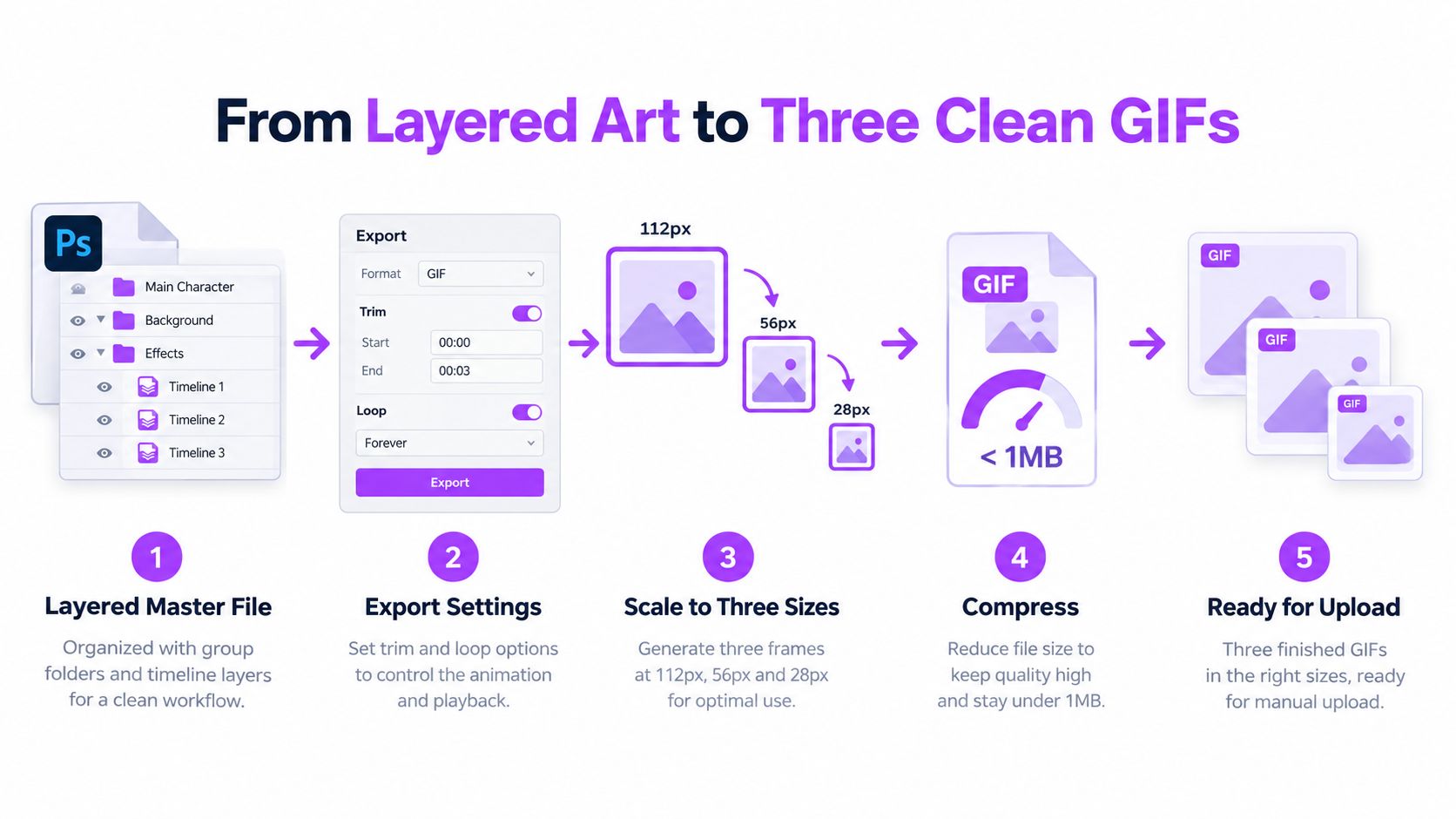
Export the manual set as three separate files:
- 112px master output: Preserve the strongest facial details and the full intended silhouette.
- 56px middle output: Remove details that merge together and reinforce the main accent.
- 28px chat output: Simplify aggressively, keeping only the features that communicate the reaction.
Manual exports take more time, but they prevent a single resize pass from making every version share the same compromises. Auto-resize remains useful when the design is already bold and readable at each size. Choose manual mode when the small version needs a different crop, fewer details, or a simpler motion path.
Reduce colors before you start destroying the design. GIF compression has less work to do when the image uses deliberate flat fills instead of many nearly identical shades. Remove duplicate frames, shorten pauses that don’t add meaning, and preserve the cleanest key pose. Then verify that the first and last frames meet cleanly.
If you’re building a wider stream package around the emote, a Twitch “Be Right Back” screen guide can help keep the surrounding visuals consistent with the same channel language.
What Actually Gets Emotes Rejected
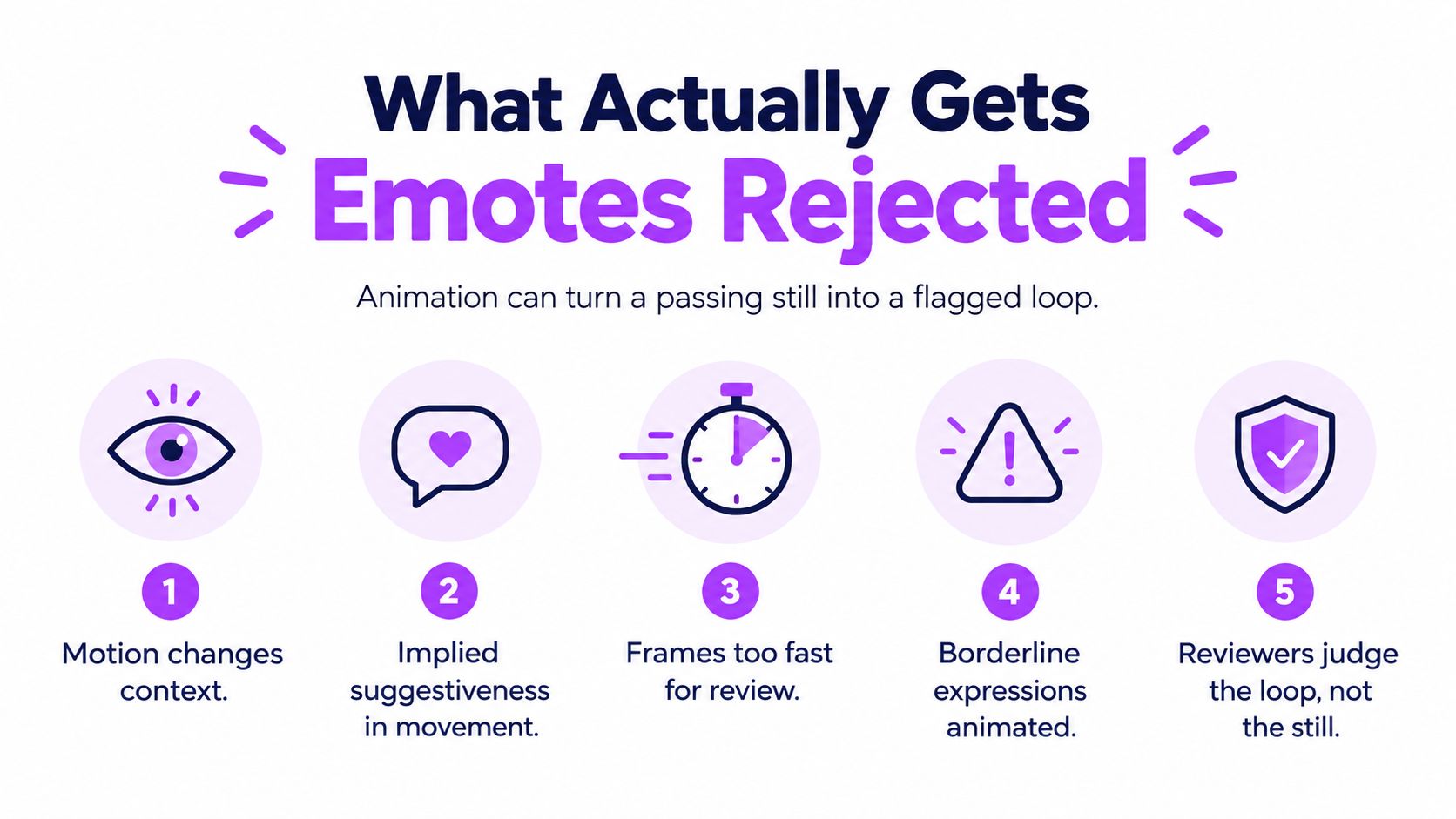
A static emote can look harmless while its animated version creates a different reading. A neutral face that blinks slowly may remain neutral. The same face with rapid eye movement, an exaggerated open mouth, or repeated body motion can appear suggestive, threatening, or deliberately spammy. Twitch’s Emote Policy specifically explains that an emote acceptable as a static image may not remain acceptable once animation changes its perception.
Twitch also requires manual review before an animated emote becomes visible. That means technical compliance isn’t approval. Dimensions, file size, slot eligibility, and frame count get the file through one part of the process, while the complete motion is judged for meaning and policy risk.
Motion changes the reviewer’s context
Review the loop without the original stream context. Ask what a stranger sees when they encounter the emote in another channel. A pointed prop, an exaggerated thrust, a repeated facial expression, or a sudden impact can carry a stronger implication once it moves.
Common risk areas include:
- Suggestive movement: Repeated body motion or gestures can imply sexual content even when the still illustration doesn’t.
- Aggressive framing: A weapon or object directed toward the viewer can read as a threat once the animation emphasizes the action.
- Copyright and branding: Logos, recognizable copyrighted characters, and third-party visual assets can create rights concerns independent of animation quality.
- Visual overload: High-saturation loops, including styles sometimes described as “Nordic Neon,” can become difficult to evaluate when every frame pulses or changes sharply.
- Borderline expressions: A scream, leer, or exaggerated mouth shape may cross a policy boundary when the loop repeatedly returns to it.
The official rule is specific. An animation must not flash more than 3 times per second, so don’t rely on a loose visual impression when checking luminance or color changes. A rapid dark-to-bright transition can be risky even when the animation doesn’t resemble a traditional strobe.
Moderation test: Pause on random frames, then watch the full loop without sound. If the animation adds an interpretation you wouldn’t accept in the still, redraw the motion before submitting.
The most reliable corrective action is often subtraction. Remove the flagged frame, soften the contrast jump, slow the movement, or replace a suggestive gesture with a bounce or blink. If motion doesn’t improve the reaction at chat speed, it adds creative risk without adding useful communication.
Uploading, Previewing, and Fixing Rejections
Open the emote upload area in the Twitch dashboard and decide between auto-resize and manual mode before preparing the final files. Auto-resize accepts one square GIF within its supported dimensions and creates the smaller versions. Manual mode accepts separate GIFs at 28px, 56px, and 112px, with each file checked against its own size limit.
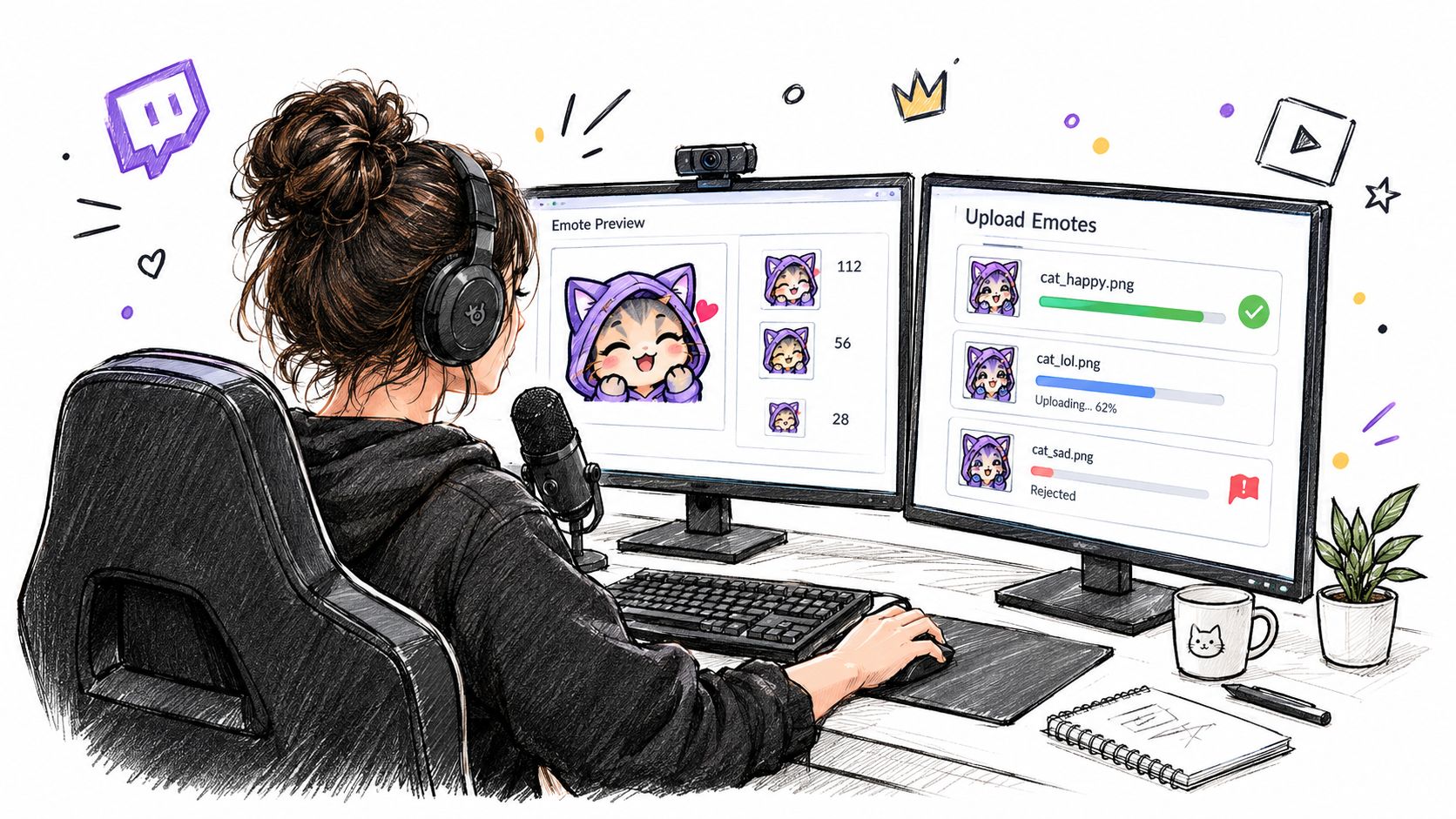
Use auto-resize when the design is bold, the crop stays clear, and the motion doesn’t need resolution-specific edits. Use manual mode when the 28px version needs a simplified face, a tighter crop, or fewer moving parts. Uploading one large GIF doesn’t give you the same control as supplying three purpose-built files.
The dashboard preview is useful for catching obvious upload errors, but it isn’t a substitute for chat testing. Open the emote in an incognito browser, place it against the backgrounds your viewers use, and inspect it at native display size. Watch the complete loop several times. Check the first frame too, because a poor opening pose can make the emote look broken before the motion begins.
If Twitch rejects or holds the submission, read the reason shown in the dashboard before exporting again. Don’t resubmit the same file unchanged. A useful revision isolates one variable at a time:
- Technical issue: Reduce frame count, file weight, or flashing before changing the artwork.
- Visual issue: Lower saturation, remove a high-contrast transition, or simplify a moving detail.
- Meaning issue: Replace the gesture or expression that changes the emote’s interpretation.
- Rights issue: Remove logos, copyrighted characters, or assets you can’t document permission to use.
The review queue doesn’t give you a reason to discard the master file. Save versions such as emote_name_112_v01.gif, emote_name_112_v02.gif, and matching files for the smaller sizes. Keep the layered source, the pre-GIF frame sequence, and the approved export separate so a moderation fix doesn’t overwrite the design you may need later.
For a visual walkthrough of the broader creator workflow, use the video below after checking the written upload settings.
A Pre-Flight Checklist and Where to Find Artists
The final check should happen before the file enters Twitch’s review queue, not after a rejection. Confirm the dimensions and file-size path you chose, verify the frame ceiling, and watch the animation at its smallest intended resolution. Twitch’s official guidance permits up to 60 frames per GIF, caps auto-resize files at 1MB, caps manual files at 512KB each, and prohibits flashing more than 3 times per second.
A practical pre-flight pass
- Resolution: Confirm that an auto-resize file is square and within Twitch’s supported range, or that manual files exist at 28px, 56px, and 112px.
- File weight: Check the 1MB auto-resize ceiling or the 512KB manual ceiling before upload.
- Frame count: Keep every GIF at or below 60 frames. Treat the limit as a maximum, not a target.
- Loop quality: Watch the complete animation and make sure the return to the first frame doesn’t jump.
- Native readability: Inspect the 28px version without zooming. The face, silhouette, and main action should remain identifiable.
- Flash safety: Look for repeated high-contrast changes and verify that the loop stays within Twitch’s flashing rule.
- Moderation context: Review the animation as a stranger would, without the stream’s inside joke or surrounding chat.
- Rights: Remove copyrighted characters, logos, or borrowed stream footage that you’re not authorized to use.
- Static fallback: Keep a clean static version of the emote available for channel branding and situations where motion isn’t appropriate.
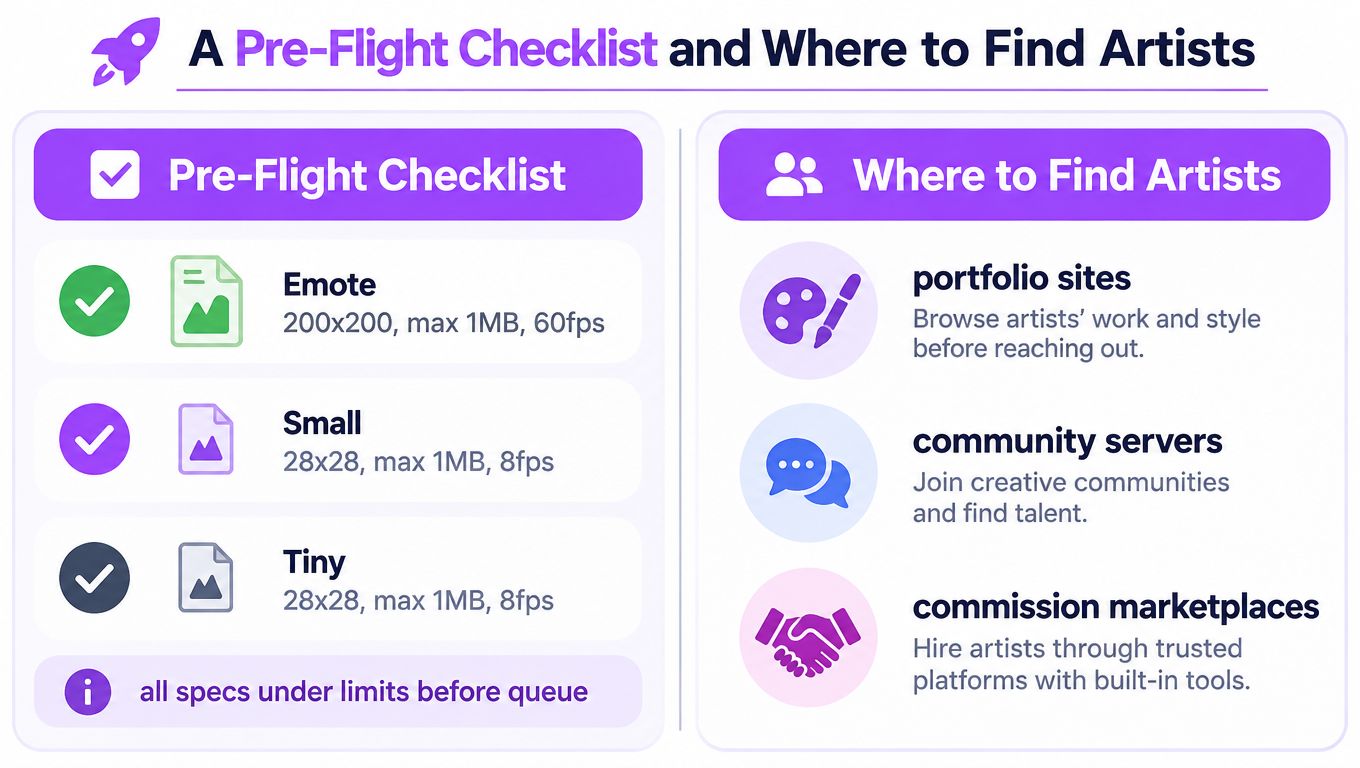
If you commission an artist, search portfolio sites, Fiverr, X or Twitter commission posts, and dedicated emote Discord servers. Don’t judge a portfolio only by large PNGs. Ask to see looping GIF samples, native-size previews, and examples of work delivered to Partners or Affiliates. A designer who can explain what they remove at 28px is more useful than one who only shows polished art at a large canvas size.
Ask how the artist handles source files, revision rounds, manual exports, and moderation changes. You want an editable master and a clear versioning system, not a single compressed GIF that can’t be adjusted when Twitch flags one frame.
Visual directions such as chubby mascot linework, glitch-inspired motion, and pixel loops can all work, but the trend should serve the reaction. A fashionable effect that obscures the face or creates aggressive flicker is weaker than a simple blink that viewers recognize instantly.
Creators who want to turn stream moments into reusable visual assets can use free Twitch emotes as a starting point, then apply the same native-size and moderation checks before adding motion.
StreamGen turns Twitch streams into short-form clips with AI highlight detection, a browser editor, animated captions, vertical reframing, and scheduling for TikTok, YouTube Shorts, and Instagram Reels. Visit StreamGen to find stream moments you can develop into clear reaction concepts, then build each animated emote around one readable beat and test it before upload.
More blog posts