A Twitch layout can look polished on a desktop and still fail the moment someone watches on a phone or clips the stream into vertical video. The popular advice to “protect the gameplay” is incomplete. Effective Twitch streaming layouts must direct attention during the live broadcast, preserve faces and gameplay during a 9:16 crop, and keep chat or alerts understandable without letting them compete with the moment.
That matters more now because Twitch’s Dual Format setup treats portrait and horizontal as separate viewing contexts. Twitch documents a 1080×1920 vertical canvas alongside the regular 16:9 horizontal stream, with the vertical output configured separately in broadcast software or a plugin (Twitch’s Dual Format documentation). The best design is no longer one universal scene. It’s a visual system that can survive two canvases.
The eight layouts below are compared through four lenses: focal hierarchy, interaction visibility, production complexity, and mobile clipping readiness. StreamGen can support the workflow with smart reframing, animated captions, editing, and scheduled distribution. Creators producing music, podcasts, gaming sessions, or conversational broadcasts can also adapt the broader use cases for musicians and podcasters to a live-to-short-form strategy.
Table of Contents
- 1. Classic Facecam and Gameplay Split Layout
- 2. Vertical Split and Side-by-Side Dual Camera Layout
- 3. Chat-Integrated Overlay Layout
- 4. Multi-Source and Picture-in-Picture Layout
- 5. Minimalist and Clean UI Layout
- 6. Reactive and Emote-Focused Layout
- 7. Studio and Multi-Camera Professional Broadcast Layout
- 8. Vertical-First and Mobile-Optimized Layout
- Twitch Streaming Layouts: 8-Point Comparison
- Choose the Layout That Survives the Crop
1. Classic Facecam and Gameplay Split Layout
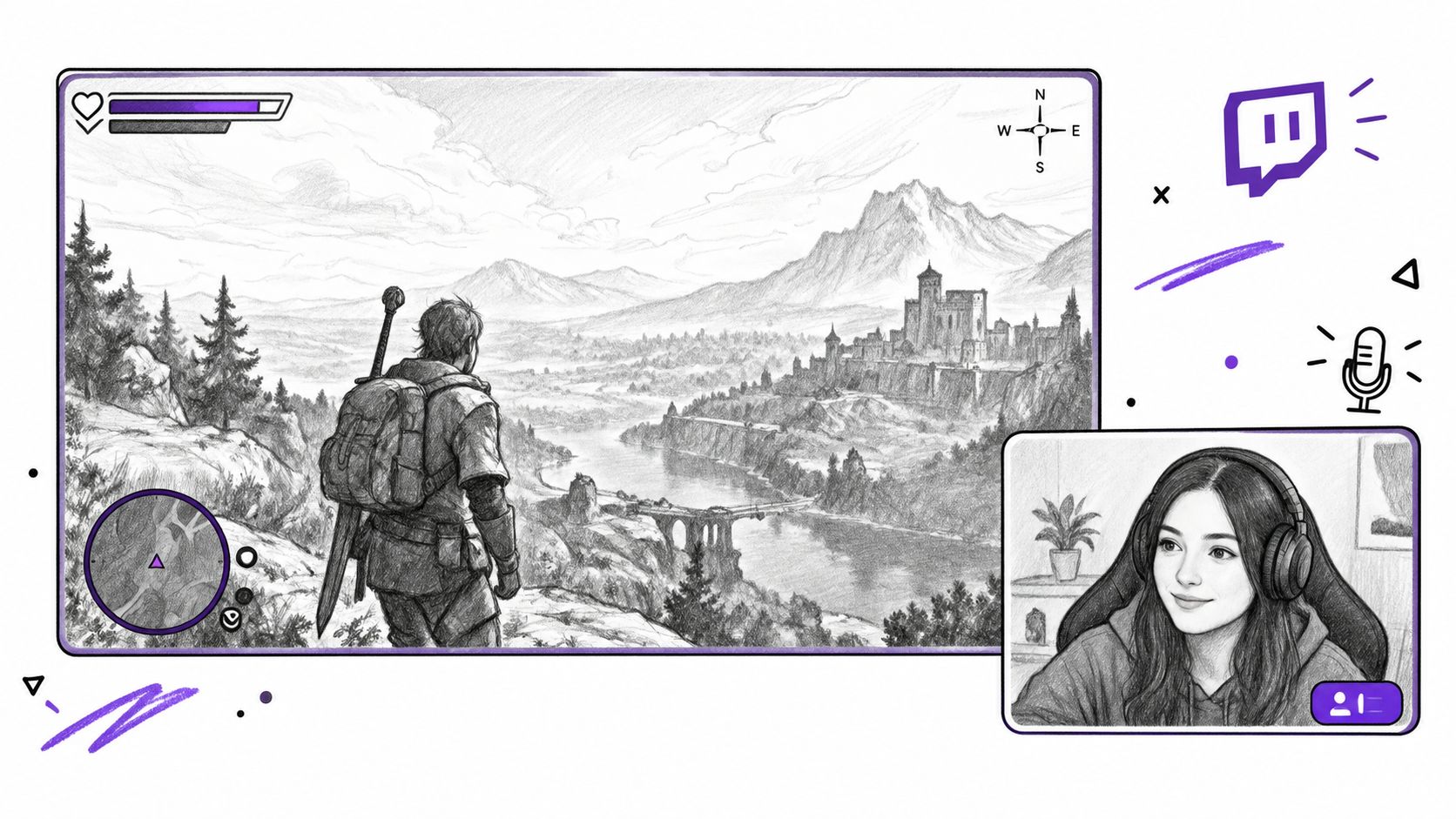
The classic facecam and gameplay split remains dependable because it answers the viewer’s two basic questions immediately: what’s happening on screen, and who’s reacting to it? Gameplay occupies the dominant visual area, while the streamer’s face provides expression, context, and a reason to keep watching after a match, quest, or challenge changes pace.
Pokimane’s variety broadcasts, Sykkuno’s cozy gaming sessions, and Valkyrae’s esports or story-driven streams illustrate the format’s broad usefulness. The layout works for competitive play, but it also supports slower games where the streamer’s commentary carries as much value as the action.
Protect the gameplay without shrinking the personality
Independent Twitch layout guidance commonly uses a 1920×1080 canvas and recommends a webcam width of 15–20% of the canvas, or roughly 288–384 pixels on that base scene (Streamlint’s overlay size and placement guide). That range gives the facecam enough presence to remain readable while leaving the game as the primary focal point.
Placement still depends on the game. A webcam covering a minimap, health bar, inventory panel, or objective marker can damage the broadcast’s meaning. Test the scene in the specific title you stream, then review the same moment as a vertical crop. A facecam that works in the upper corner on desktop may need to move above or below gameplay for a short-form clip.
Practical rule: Treat the facecam as a movable editorial element, not a permanent decoration.
StreamGen’s smart layouts can help center facecam and gameplay when you extract clips for TikTok or YouTube Shorts. Its clip editor can also apply animated borders in a consistent brand color, but the border should reinforce separation, not compete with the reaction. For equipment decisions, use this webcam guide for streamers as part of the production setup rather than trying to solve weak facial visibility with oversized graphics.
2. Vertical Split and Side-by-Side Dual Camera Layout
Two-camera layouts earn their space when viewers must compare perspectives. A coach can review a player’s Valorant decisions, two creators can react to the same event, or a chess commentator can explain a position while the board stays visible. The benefit is simultaneous context. The cost is reduced size for every source, which becomes more severe when the broadcast is reframed for mobile clips.
Stacked video usually identifies each participant clearly in a portrait crop because the feeds already follow a vertical hierarchy. Side-by-side columns suit desktop viewing when both speakers require similar prominence, but they often produce narrow faces and unreadable gameplay after reframing. Preview both versions on an actual phone before committing to the live scene. Facial expressions, captions, and interface details compete for the same limited area.
Give both participants equal visual weight
Consistent camera sizing prevents accidental signals about who leads the conversation. Keep backgrounds restrained, match lighting where possible, and reserve a fixed caption zone that avoids both faces. Chat and alerts should sit outside the comparison area, or appear only when they explain the exchange. Otherwise, a notification can become the most prominent element in a clip.
A coaching stream shows the trade-off clearly. The player’s face, the coach’s face, and the gameplay all carry information, yet a vertical clip cannot display each region at full size. Promote the active speaker, keep the other participant in a smaller support window, and preserve enough gameplay to verify the decision being discussed. This hierarchy communicates more effectively than keeping both cameras equally large throughout.
Synchronized captions across both feeds support viewers watching without sound. StreamGen can detect high-energy moments across sources, select angles for short-form edits, and test a vertical export before publication. Review that export manually. Automated reframing may preserve both faces while making the board, game interface, or shared document too small to read.
Two equal windows are balanced for production. They aren’t always balanced for comprehension.
Production demands remain moderate. The layout needs clean camera inputs, reliable synchronization, and deliberate caption placement, without the switching logic of a studio broadcast. It works best when collaboration is the content and the clip must explain the relationship quickly. Its weakness is predictable: equal source treatment helps live fairness, while selective cropping usually produces clearer mobile storytelling.
3. Chat-Integrated Overlay Layout
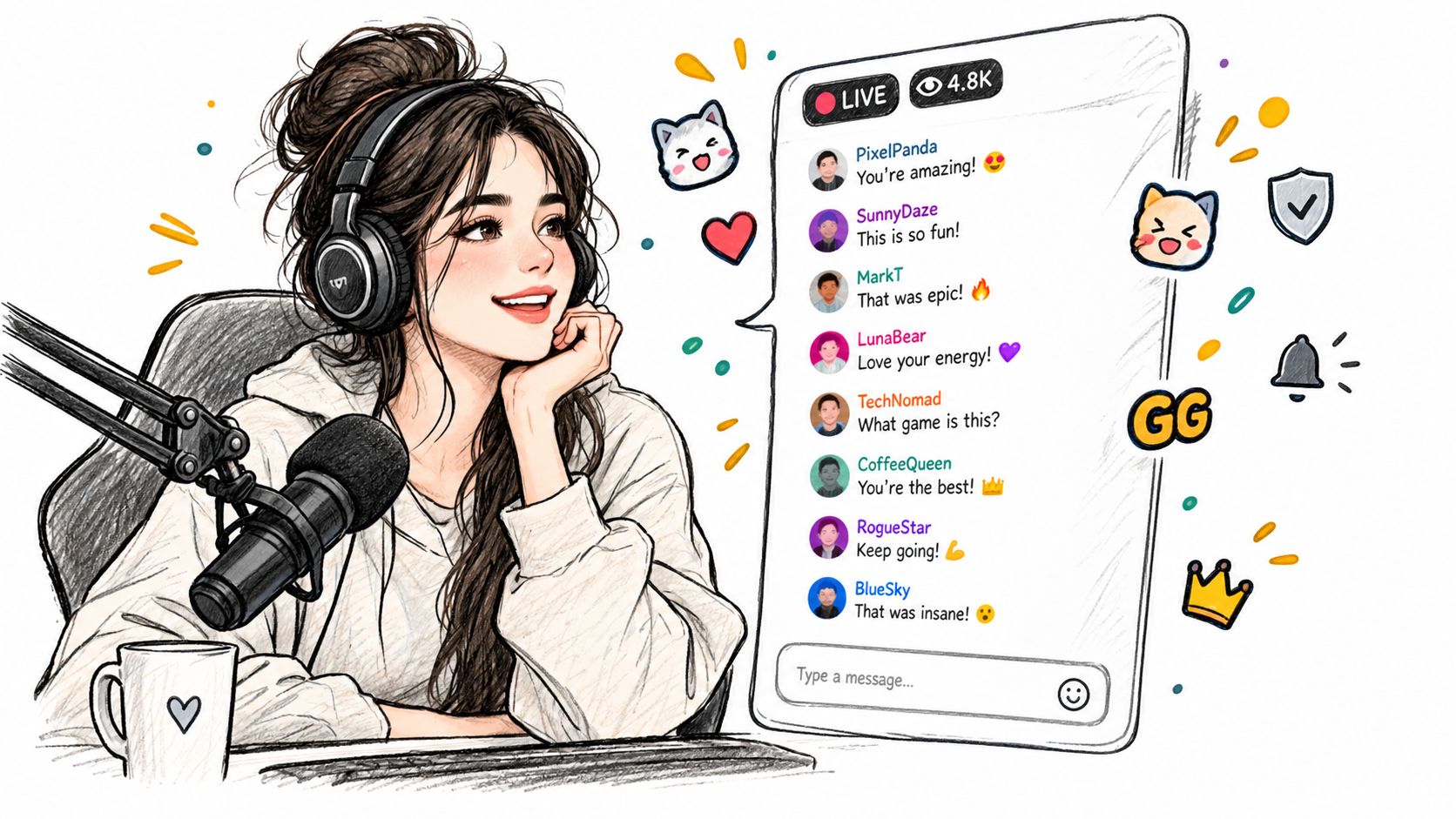
A chat-integrated layout makes audience participation part of the show rather than hiding it in a separate panel. It suits Just Chatting streams, community votes, reaction broadcasts, and speedrun events where viewer messages influence the next decision. The design can make a clip feel socially alive, but it also introduces a serious risk: chat becomes visual noise when every message receives equal importance.
Pokimane and Valkyrae’s reaction-oriented broadcasts show why this format is appealing. The streamer’s face supplies the emotional anchor, while selected messages explain what the community is responding to. Speedrun events use the same principle differently, turning chat reactions into evidence that a mistake, record attempt, or unexpected turn matters.
Show reaction, not a wall of messages
Choose chat messages that establish context or sharpen the joke. A vertical clip needs fewer, larger, more legible messages than a desktop scene. Keep critical content away from the lower 15% of the frame, where captions and app interface elements commonly create collisions, according to independent layout guidance (Streamlint’s first-impression layout advice).
Moderation also becomes part of editing. A message that is acceptable in a live community context may be confusing, offensive, or unsafe when shown to a new audience without surrounding chat. StreamGen’s word censoring can blur or remove flagged words before export, while animated captions can restate the relevant reaction for viewers who don’t have enough time to read a fast-moving chat panel.
The UC Santa Cruz live Twitch study offers a useful reason to preserve reactive information. In a stream using a biometric and emotion overlay, chat participation rose from 1.08 comments per minute to 2.08 comments per minute, and the report says spectator count doubled during the stream with the overlay (UC Santa Cruz study). The finding came from a stream with a female streamer and 25 spectators, so it shouldn’t be treated as a universal prediction. It does support a narrower conclusion: visible, informative reactions can give viewers a clearer reason to participate than decorative widgets do.
4. Multi-Source and Picture-in-Picture Layout
Picture-in-picture becomes useful when one source explains another. A coding stream might show the application, a facecam, and a reference window. An esports production might combine gameplay, analyst commentary, and a secondary participant. A talk-show-style broadcast may need several cameras, but each extra source increases the viewer’s decision burden.
The key question isn’t whether the scene can display three or more inputs. It’s whether viewers can identify the primary source within a second. If the answer changes constantly, the layout needs stronger hierarchy through size, contrast, motion, or switching.
Let the clip choose the dominant window
In a live educational broadcast, the screen share usually carries the instruction while the facecam confirms that a person is teaching. In a reaction segment, the hierarchy reverses. A fixed PiP arrangement may work live, but it can produce a poor vertical clip when the most important window occupies only a small corner.
StreamGen’s smart layouts can prioritize the most engaging PiP window during vertical reframing. Its AI VOD Editor beta can remove silence, loading screens, and menu navigation, then export timeline-ready projects for DaVinci Resolve or Premiere Pro. That pre-edit stage matters when the original production contains many transitions and windows that need human review before a clip is generated. The Twitch VOD editor workflow is especially relevant for broadcasts where the strongest moment depends on a sequence rather than one isolated reaction.
Use silence removal carefully. Cutting every pause can make a tutorial feel rushed or remove the moment when a commentator lets an important visual land. For fast esports commentary, tighter pacing may help. For instruction, preserve pauses that separate steps.
If a PiP window doesn’t clarify the moment, it isn’t supporting the story. It’s charging attention.
PiP is therefore more production-heavy than the classic split, but it offers greater editorial flexibility. It can produce excellent clips when the editor promotes the correct source. It performs poorly when creators export the entire composite unchanged and expect a mobile viewer to decode every window at once.
5. Minimalist and Clean UI Layout
Minimalism isn’t the same as removing personality. It means every visible element has to justify its space. The scene might contain gameplay, subtitles, and a small logo, with alerts, decorative frames, and secondary widgets hidden until they serve a specific purpose.
Competitive esports streamers, speedrunners, and technical educators benefit from this approach because the underlying content already contains a strong focal point. A ranked grind needs readable gameplay. A coding lesson needs a legible interface. A cozy Just Chatting scene may use restraint as part of its identity, as seen in the calm visual language associated with creators such as Sykkuno.
Use performance evidence, not aesthetic preference
An independent 2025 overlay comparison kept the streamer, game, and audience consistent while testing minimal and maximal layouts. The minimal layout produced an 18% longer average view duration and 23% higher new-viewer retention past five minutes (KoalaVOD’s overlay retention analysis). That result doesn’t prove that minimalism always wins. It does challenge the assumption that more information automatically creates a richer broadcast.
The same analysis recommends testing layouts in one-week A/B periods and watching average view duration, new-viewer retention, peak concurrent viewers, and follower conversion rate. Those metrics help separate a design problem from a content problem. If a decorative alert appears often but doesn’t improve interaction or conversion, it may be consuming valuable screen space without contributing to the show.
Minimal layouts also convert cleanly into vertical clips because automatic reframing has fewer elements to preserve. StreamGen can add animated captions and remove dead air during post-production, giving the clip context without rebuilding the live scene. The trade-off is that the live broadcast must rely more heavily on pacing, audio quality, and the streamer’s delivery.
A clean UI is the best choice when clarity is the product. It’s less suitable when visual spectacle, branded transitions, or audience widgets are central to the channel’s identity.
6. Reactive and Emote-Focused Layout
Reactive layouts make the streamer’s response the primary event. They use a larger facecam or avatar, visible emotes, chat reactions, and visual feedback that rewards audience participation. This format fits personality-driven variety streams, VTubers, and reaction content because the emotional response often matters more than the original video or game.
Ironmouse and Zentreya demonstrate how avatar-led broadcasts can turn expression, timing, and community language into the content itself. A Just Chatting reaction stream may use a large facecam, while a channel built around emotes may treat those symbols as recurring characters in the visual system.
Make the reaction understandable outside the community
A regular viewer may know exactly what a particular emote means. A new viewer on TikTok or YouTube Shorts won’t. That makes context essential during clipping. Keep the face or avatar large enough to read, but use captions to explain the trigger, the punchline, or the shift in mood rather than reproducing every chat message.
StreamGen can combine facial-expression detection with audio analysis to identify strong reaction moments for clip extraction. Its animated captions can supply context for viewers unfamiliar with the channel’s emote culture, and Autopilot can coordinate finding, editing, and posting while the creator remains live.
The facecam is the focal source, so the rest of the layout should support it. A giant emote animation may be entertaining in a live alert but destructive in a vertical crop if it covers the streamer’s eyes or the triggering content. Place emotes in a predictable secondary zone, and reserve the lower frame for captions and mobile interface safety.
A reaction clip needs the trigger and the response. If the crop preserves only the response, viewers may read confusion instead of comedy.
This layout has relatively low scene complexity but high editorial sensitivity. The live design is easy to understand, yet clip selection must capture the setup, reaction, and payoff. StreamGen can find candidate moments, but creators should still reject clips where the emotional response lacks enough context to stand alone.
7. Studio and Multi-Camera Professional Broadcast Layout
A studio broadcast layout borrows the language of television. It may include multiple camera angles, lower thirds, scoreboards, animated transitions, analyst windows, and planned switching. Esports leagues such as LCS, LEC, and VCT use this production model because viewers need a clear relationship between gameplay, talent, match state, and supporting analysis. Large gaming organizations such as 100 Thieves and FaZe Clan also use studio-style formats for premium shows.
The advantage is control. Producers can give the analyst the frame when analysis matters, expand gameplay during action, and use graphics to explain a score or segment. The cost is complexity. Each layer creates another possibility for a transition to interrupt the exact moment a short-form editor needs.
Build clips from the timeline, not only the final composite
A studio stream often contains longer gaps between segments, camera changes, or prepared graphics. StreamGen’s VOD Editor beta can remove silence and navigation sequences, while its pre-edit export supports further timeline work in DaVinci Resolve or Premiere Pro. That matters when the final clip needs a new camera choice rather than a simple crop.
Use AI detection to surface high-intensity moments across camera feeds and angles, then review which angle communicates the event. A secondary graphic may explain the match, but the talent’s face may carry the emotional payoff. Rebuild graphics in the clip editor with animated captions when the original lower third becomes too small for portrait viewing.
The embedded broadcast example below shows the kind of visual density that may need editorial simplification before distribution.
Keep the broadcast identity, remove the broadcast burden
Silence removal can tighten transitions, but don’t strip away every pause between analysts. A short-form viewer needs speed, yet the clip still needs a coherent argument or reaction. Studio layouts are ideal when a team has production support and can export source material for manual refinement. They’re excessive for a solo creator whose main value comes from direct gameplay and commentary.
8. Vertical-First and Mobile-Optimized Layout
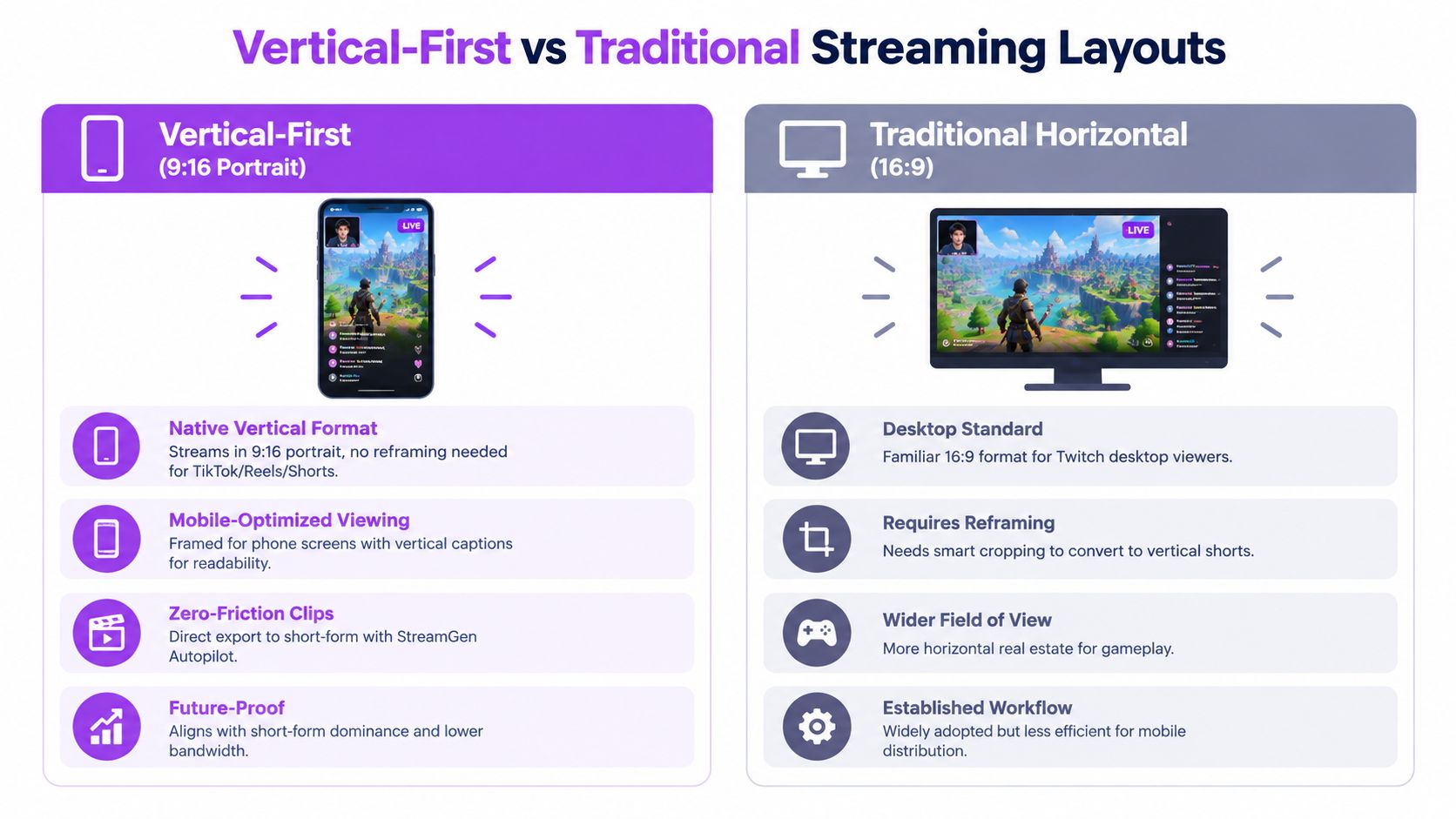
A vertical-first layout treats portrait viewing as the primary composition, not a crop applied after the broadcast. Twitch’s Dual Format documentation identifies 1080×1920 as the vertical target and describes a feed configured separately from the horizontal broadcast. Creators can therefore assign facecam, gameplay, captions, alerts, and chat their own mobile hierarchy instead of making one desktop scene serve every screen.
Twitch’s Dual Format announcement describes a full-screen vertical experience for mobile viewers while desktop viewers retain the horizontal view (Twitch’s Dual Format announcement). The design choice affects distribution and clipping. A face placed near the upper third, gameplay kept central, and captions above the bottom interface zone gives a vertical clip clear focal order without hiding the speaker or key action.
Design the portrait hierarchy first
A vertical Just Chatting scene can keep the face or avatar high, reserve the center for active content, and move captions above the lower interface area. An IRL stream may use a full-frame camera with restrained alerts. A VTuber layout can give the avatar more height while placing chat in a controlled side or lower region. Each choice determines whether a clipped moment still explains who is speaking and what viewers should watch.
The trade-off is horizontal legibility. Wide game interfaces and peripheral action may become difficult to read in portrait, while a desktop crop can leave the subject too small. Separate Dual Format canvases reduce that compromise, but require creators to maintain two scenes, coordinate alerts, and test chat placement independently.
StreamGen can export vertical clips from a portrait source. Smart layouts remain useful when the same broadcast also produces horizontal footage. Use this guide to changing video aspect ratio for platform-specific versions, then check dimensions against this vertical video sizing guide for social.
Test the scene on a real phone before going live. Check face size, gameplay detail, alert collisions, caption contrast, and whether chat adds context rather than occupying empty space. Vertical-first is the stronger format when mobile discovery and short-form clips matter more than preserving a wide desktop composition.
Twitch Streaming Layouts: 8-Point Comparison
| Layout | Implementation Complexity 🔄 | Resource Requirements ⚡ | Expected Outcomes 📊 | Ideal Use Cases 💡 | Key Advantages ⭐ |
|---|---|---|---|---|---|
| Classic Facecam + Gameplay Split Layout | 🔄 Low, single gameplay + webcam scene, minimal switching | ⚡ Low–Moderate, standard PC, stable upload for dual feeds | 📊 Reliable engagement; ⭐ High familiarity with viewers | 💡 Variety gaming, long-form Twitch streams | ⭐ Familiar layout, clear focal hierarchy |
| Vertical Split / Side-by-Side Dual Camera Layout | 🔄 Moderate, sync two full feeds and audio balance | ⚡ Moderate, higher bandwidth, dual capture devices | 📊 Good for interaction and comparative analysis | 💡 Co-streams, coaching, competitive duos | ⭐ Equal prominence for participants; strong engagement |
| Chat-Integrated Overlay Layout | 🔄 Moderate, real-time chat rendering and moderation | ⚡ Moderate, overlay engine + moderation tools | 📊 Amplified community signals; ⚠️ visible toxicity risk | 💡 Just Chatting, community events, reaction streams | ⭐ Encourages participation; creates clip-worthy moments |
| Multi-Source / Picture-in-Picture (PiP) Layout | 🔄 High, multiple sources, transitions, layered graphics | ⚡ High, powerful PC, multistream encoding, bandwidth | 📊 Professional, information-dense presentations | 💡 Esports studios, educational tutorials, multi-guest shows | ⭐ Rich multi-perspective storytelling; broadcast feel |
| Minimalist / Clean UI Layout | 🔄 Low, simplified scenes with few overlays | ⚡ Low, reduced rendering overhead, efficient encoding | 📊 High content clarity and immersion; ⭐ professional aesthetic | 💡 Competitive play, technical tutorials, speedruns | ⭐ Maximizes content visibility; reduces distraction |
| Reactive / Emote-Focused Layout | 🔄 Moderate, facial tracking and emote integrations | ⚡ Moderate, high-res facecam and interactive widgets | 📊 Exceptional shareability; ⭐ strong parasocial engagement | 💡 VTubers, reaction streamers, personality-driven shows | ⭐ Drives emote use and viral reaction clips |
| Studio / Multi-Camera Professional Broadcast Layout | 🔄 Very High, live switching, graphics suite, crew workflows | ⚡ Very High, multiple cameras, mixers, broadcast equipment | 📊 Premium production value; ⚠️ expensive and complex | 💡 League broadcasts, premium studio shows, tournaments | ⭐ Highest production quality; sponsorship-ready |
| Vertical-First / Mobile-Optimized Layout | 🔄 Moderate, rethink framing and UI for portrait | ⚡ Low, smaller frame size, optimized bandwidth | 📊 Ideal short-form distribution; ⭐ perfect for mobile clips | 💡 TikTok-first creators, mobile-native IRL streams | ⭐ Zero-friction export to Shorts/Reels; mobile-first UX |
Choose the Layout That Survives the Crop
Choose the classic facecam and gameplay split when dependable gameplay coverage matters most. It gives viewers a familiar hierarchy and works across games, but you’ll need to review facecam placement title by title. If the stream depends on two people sharing attention, use the dual-camera layout. Keep both sources visually balanced live, then let the clip edit promote the active speaker when the portrait frame demands a clearer focal point.
Use a chat-integrated layout when community participation is part of the entertainment. Select messages rather than displaying an uncontrolled feed, and moderate anything that could become confusing or unsafe when a clip reaches people outside the live channel. Choose the reactive or emote-focused format when facial expression, avatar performance, or audience language creates the payoff. Those clips need enough setup for viewers to understand why the reaction happened.
The minimalist layout is the right test for creators who suspect their overlays are competing with the content. The controlled comparison cited earlier supports testing that hypothesis with retention and conversion metrics rather than personal taste. A PiP layout works when several sources explain the same moment, while a studio format makes sense for esports, talk shows, and teams with the production resources to refine camera choices and transitions.
Choose vertical-first when mobile viewing and direct short-form distribution are the priority. Twitch’s separate portrait workflow means you can preserve a wide desktop presentation while giving mobile viewers a composition designed for their screen. The cost is additional scene design, monitoring, and testing, but that cost may be justified when a large share of new viewers arrives through mobile.
Before your next stream, run one short scene test. Identify the focal point, inspect chat and alert placement, preview a 9:16 crop on a phone, and verify that captions won’t collide with the lower interface area. Then watch a recording without sound. If the action, speaker, and context aren’t clear, adjust the layout before adding more graphics.
StreamGen fits naturally after that test. Its smart reframing can preserve facecam and gameplay, animated captions can restore context, the VOD Editor can remove dead air and prepare projects for professional editing, and Auto Posting can schedule finished clips for TikTok, YouTube Shorts, and Instagram Reels. Use platform-specific export settings for TikTok and Reels as a final publishing check rather than assuming one export works everywhere.
StreamGen helps Twitch creators find highlight moments, reframe them for vertical feeds, add animated captions, clean up VODs, and schedule posts across TikTok, YouTube Shorts, and Instagram Reels. Visit StreamGen to turn your next layout test into a repeatable stream-to-shorts workflow.
More blog posts
