You’ve just ended a long stream, chat clipped two decent moments, and the rest is sitting in an eight hour VOD you’ll never scrub through before tomorrow’s session. That’s where most stream to short workflows stall. You don’t need another crop tool. You need a short form video editor that finds the few minutes worth posting, keeps your facecam and gameplay visible in 9:16, cuts dead air, and helps you engage viewers from the first line before anyone swipes away.
I’ve judged these ten tools on vertical first readiness for stream content, not generic feature counts. Can it find highlights in a long VOD, reframe without losing the action, handle captions and silence, and post to TikTok, YouTube Shorts, and Instagram Reels without a download step? Demand is real enough to justify that bar. The Mark Studios summary of HubSpot data reports that more than 60% of companies use short-form video, so repeatable batch production matters more than one off manual edits.
Table of Contents
- 1. StreamGen
- 2. StreamLadder
- 3. Eklipse
- 4. Streamlabs Cross Clip
- 5. OpusClip
- 6. Klap
- 7. Vizard
- 8. CapCut
- 9. VEED
- 10. Descript
- How the 10 short form video editors compare on vertical-first features
- Choosing a Short Form Video Editor That Fits Your Stream Workflow
1. StreamGen
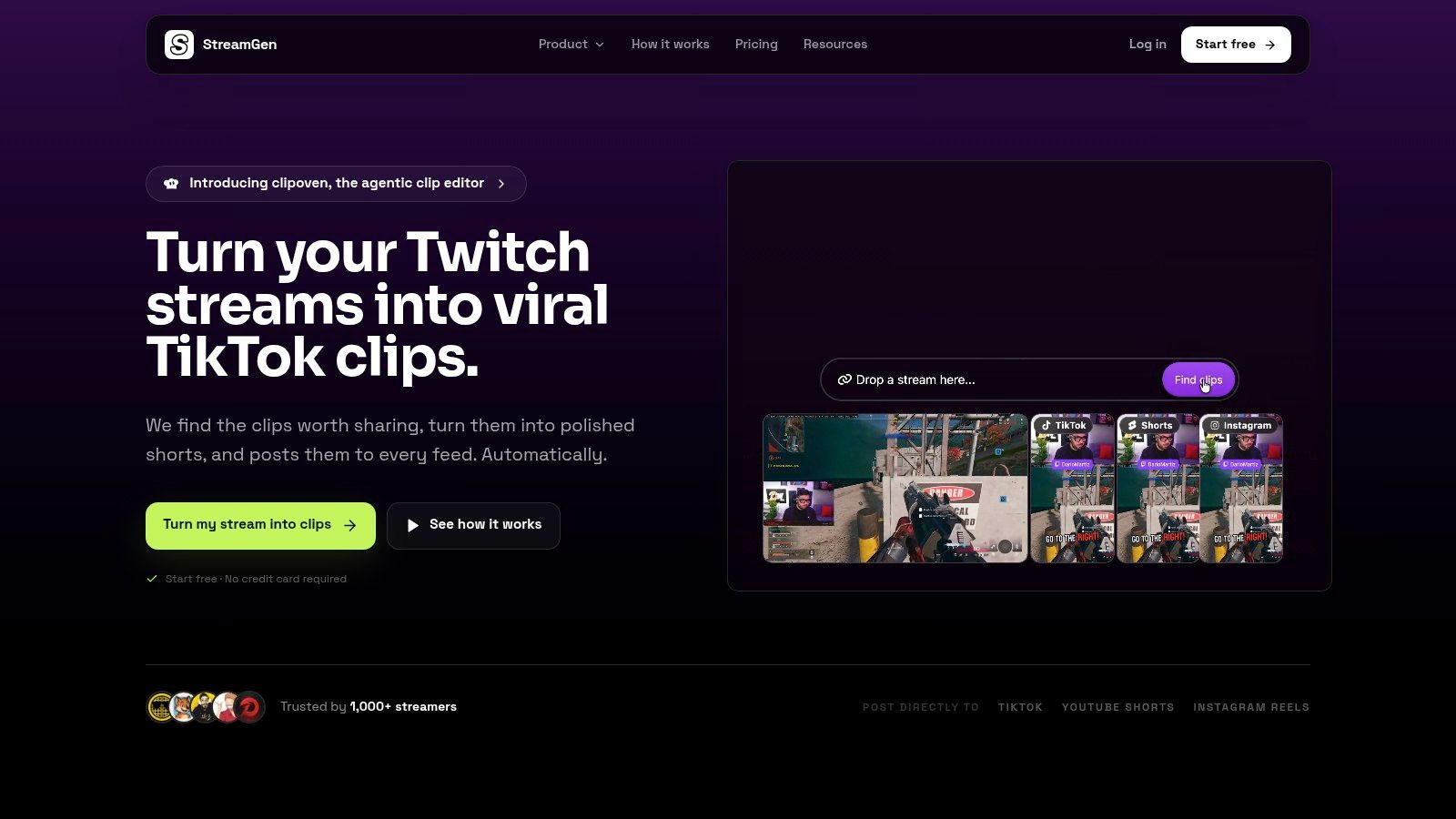
StreamGen is the Twitch first option in this list: paste a clip URL or connect a Twitch account, and it turns highlights into vertical shorts rather than making you rebuild every crop by hand. I would put it first when the bottleneck is finding moments in a long VOD, because its AI Clip Finder ranks high energy candidates using gameplay, reactions, chat, and audio signals, including streams over eight hours. LcomeLele on Twitch calls it “super handy” for having shorts ready to publish in minutes.
The Clip Editor is built for the part general tools fudge. Smart layouts keep facecam and gameplay in frame after the 9:16 crop, animated captions cover 90+ languages with editable styles, and silence removal, AI title hooks, word censoring, and brand presets handle the repeat work. For a gaming stream that means the clutch play and your reaction survive together. For Just Chatting or VTuber content, readable captions and dead air cuts matter more than flashy effects.
What Autopilot and the VOD Editor Add
Auto Posting schedules clips to TikTok, YouTube Shorts, and Instagram Reels from the same workspace, and Autopilot can run find, edit, and post as a queue while you are live. The beta AI VOD Editor removes silence, loading screens, and menu navigation, then exports a project ready for Premiere Pro or DaVinci Resolve, from €4 per edited VOD.
- Strengths: discovery, vertical reframing, captions, and scheduling in one place, with Ultimate plan tuning that lets you describe what makes your clips funny or engaging. A free version covers almost all features with lower limits.
- Limitations: paid plans for AI clipping, clip editing, and post scheduling start at €8 per month, the VOD Editor is still in beta, and AI picks still need a quick review before posting.
2. StreamLadder
Say you stream on Twitch but your best clips also live on YouTube and Kick. StreamLadder is designed for exactly that split. It imports from Twitch, YouTube, and Kick, then combines clip editing, AI clipping for longer VODs, and social publishing in one service.
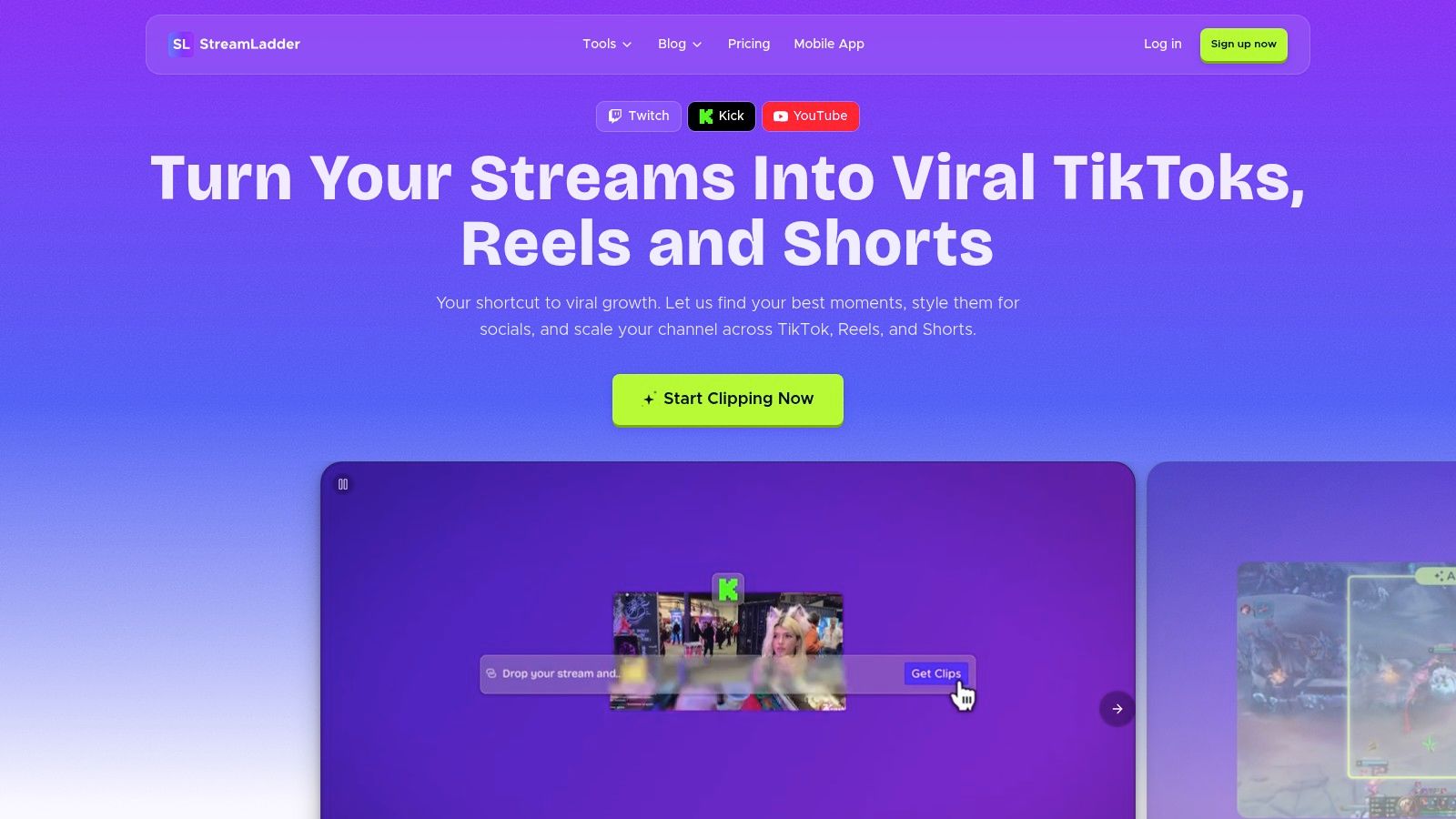
The editor covers the practical vertical toolkit. You get layouts, captions, stickers, effects, and sounds, plus direct posting and scheduling to TikTok, Instagram, and YouTube. For a streamer who already knows their moments but hates reformatting, that’s a clean pipeline.
Where It Fits and Where It Pinches
- Best for: Streamers who want a purpose built clip editor rather than a general video app, with publishing built in.
- Free access: A free plan offers basic clip editor, converter, and downloader access, enough to test your layout.
- Watch out for: Higher tier AI and publishing features cost more, and plans have changed recently, so check exactly what your tier includes before committing a whole month of content to it.
3. Eklipse
Eklipse leads with automated highlight discovery, and for pure gaming streams that’s the right priority. It connects to Twitch, YouTube, and Kick, scans for highlights, and turns selected moments into vertical clips with templates for Shorts, Reels, and TikTok.
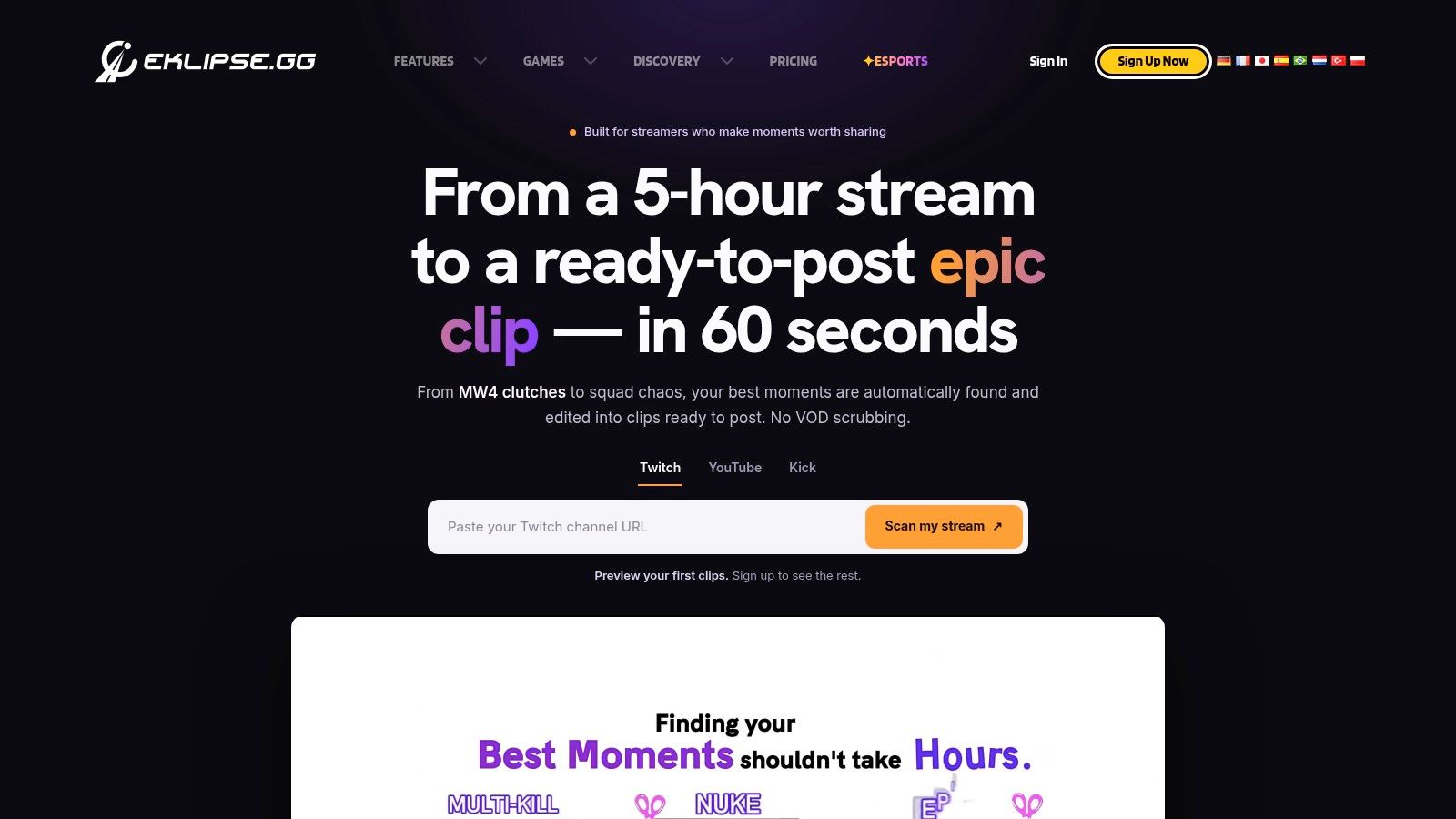
That focus helps if your bottleneck is finding plays, not polishing them. You can preview detected clips before subscribing, work in a browser, and use its mobile app and publishing tools. Before you budget for it, read the breakdown of Eklipse plans and export limits so you’re not surprised at checkout.
Practical rule: Preview detection on a messy VOD, not your cleanest tournament game. If it finds usable moments in ranked grind footage, it’ll handle your good days.
The trade off is payment gating. Exporting clips requires Premium, and regular creation needs paid access. Pricing and limits vary across pages, so confirm them directly. I’d choose Eklipse when gaming highlight detection matters more than having a deep general editor.
4. Streamlabs Cross Clip
Streamlabs Cross Clip does one job well, and it’s not highlight hunting. You bring a Twitch, YouTube, or Kick clip URL or upload a file, then customize that already selected clip for vertical sharing. If chat or your mods already clip your best moments live, you may not need more.
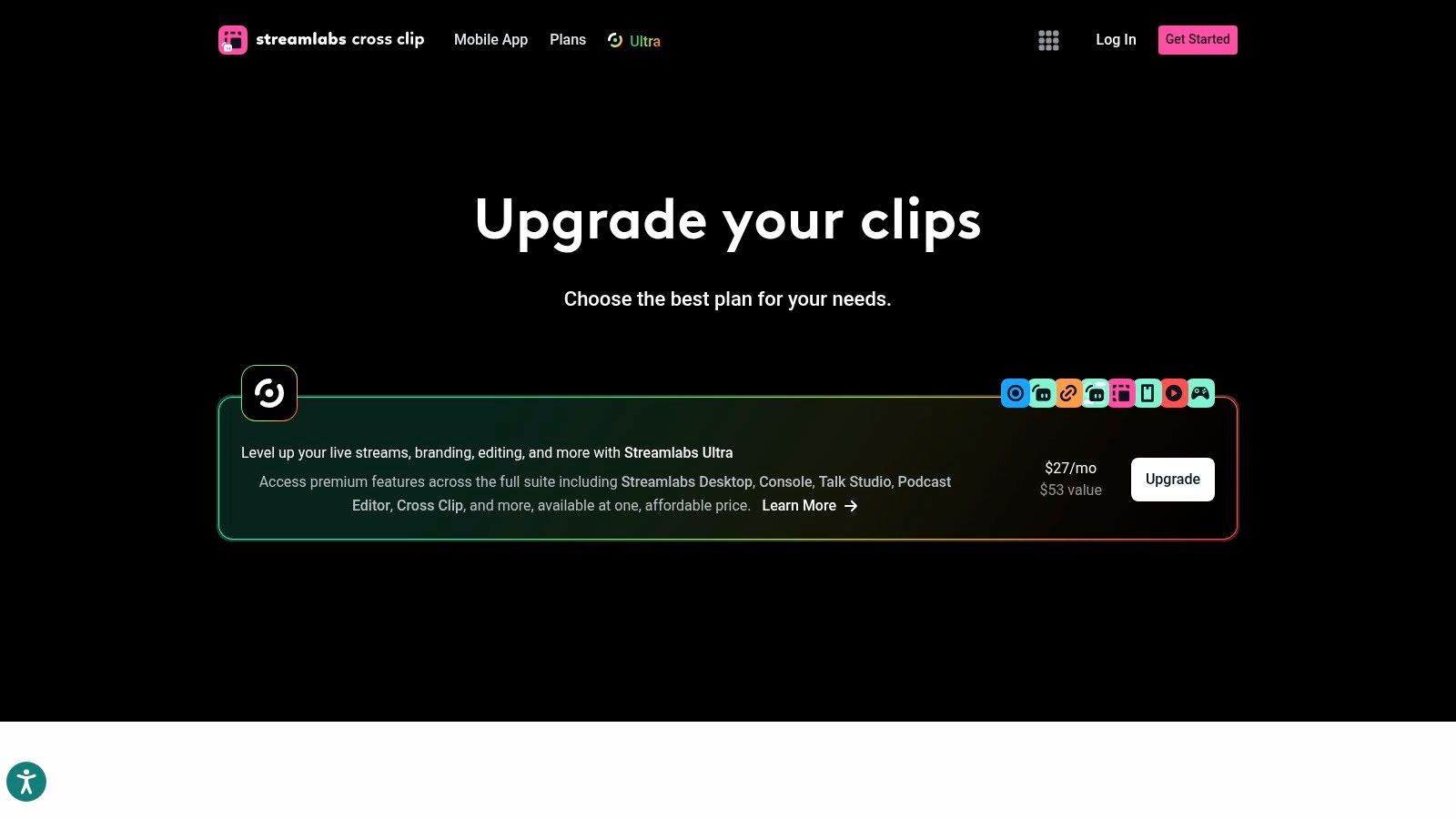
It’s lightweight by design, with editing tools and mobile app sharing. The free plan works for quick tests, while Pro removes the watermark, adds layers, and supports 1080p/60fps exports. For a small streamer posting a few clips a week, that simplicity beats a complex dashboard you’ll never open.
The Clear Limits
- No VOD discovery focus: It doesn’t specialize in finding highlights inside full broadcasts.
- Upload ceiling: Free uploads are limited to 100 MB, which rules out long source files.
- Shallow depth: It has fewer capabilities than a full stream to shorts platform.
Pick it for fast formatting. Skip it if scrubbing is your problem.
5. OpusClip
Podcast style streams, commentary, and Just Chatting segments are where OpusClip earns its place. It’s a browser based repurposing tool that turns longer videos into shorts with AI clipping and a virality score, animated captions, automatic reframing, and filler and silence removal. The score is a sorting aid, not a promise. Treat it that way.
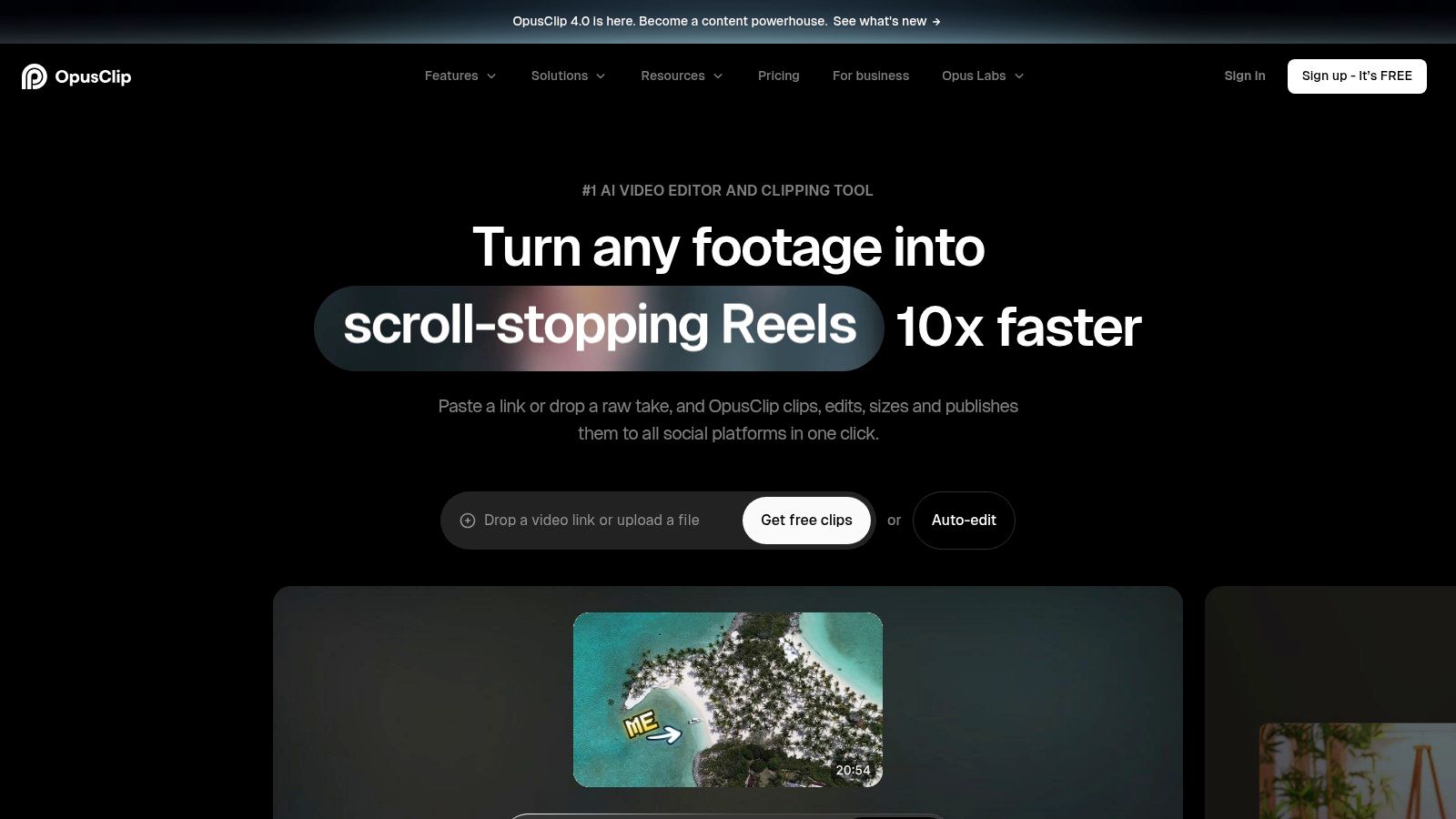
Paid plans add auto posting to YouTube Shorts, TikTok, and Instagram Reels, social scheduling, and exports to Premiere Pro and DaVinci Resolve on higher tiers. A free tier lets you test the workflow before you pay. That NLE export matters if a freelance editor finishes your clips.
The weakness shows up in gameplay. It isn’t built around Twitch chat signals or game specific moments, so a quiet clutch play can rank below a loud but empty reaction. Free exports carry a watermark with limited availability, and credits vary a lot by plan. I recommend it for spoken content first, gaming second.
6. Klap
Klap takes a similar repurposing approach but leans harder on speaker framing. Its active speaker reframing and animated captions suit VTuber and talking head streams where the person, not the game, carries the clip. It supports more than 99 languages and includes a virality score for its AI picks.
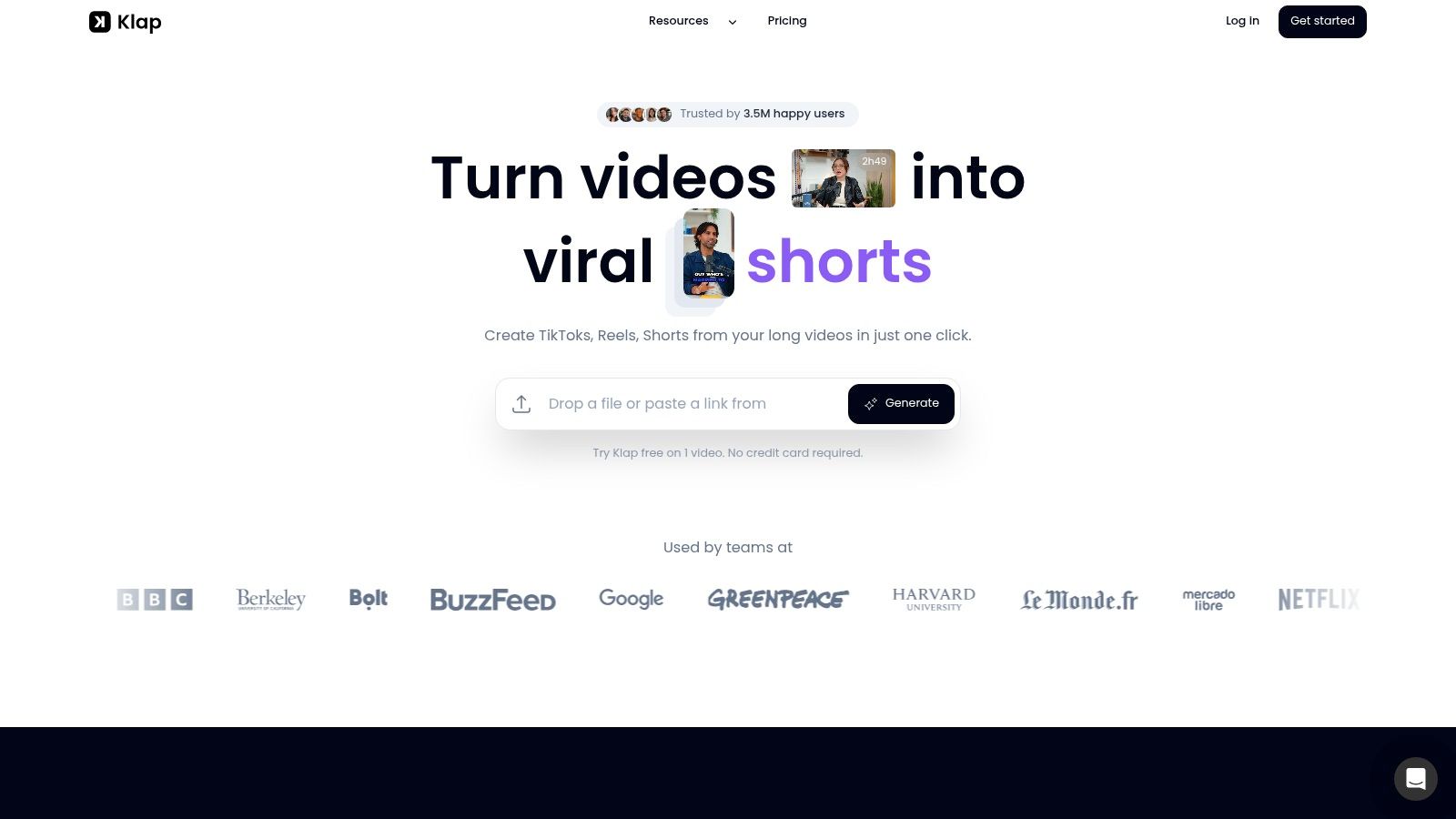
Paid plans include an editor for generated clips with scheduling, publishing, and analytics, along with support for multiple social networks and unlimited social accounts on its plans. For an agency managing several creators, that account structure is very useful. A free preview lets you run one video through before paying.
Check the Allowances First
That preview isn’t an ongoing free export plan, so budget accordingly. Plans carry monthly clip allowances, and high volume streamers can burn through them fast during a launch week. It also isn’t specialized for gameplay layouts or chat driven discovery. Use Klap for personality led clips, not as your only tool for esports highlights.
7. Vizard
A channel that splits between gameplay and interviews, podcasts, or commentary needs one tool for both formats, and Vizard covers that without desktop software. It generates AI clips from longer videos in the browser and backs them with a full video editor, so a bad cut gets fixed in place instead of exported to another app.
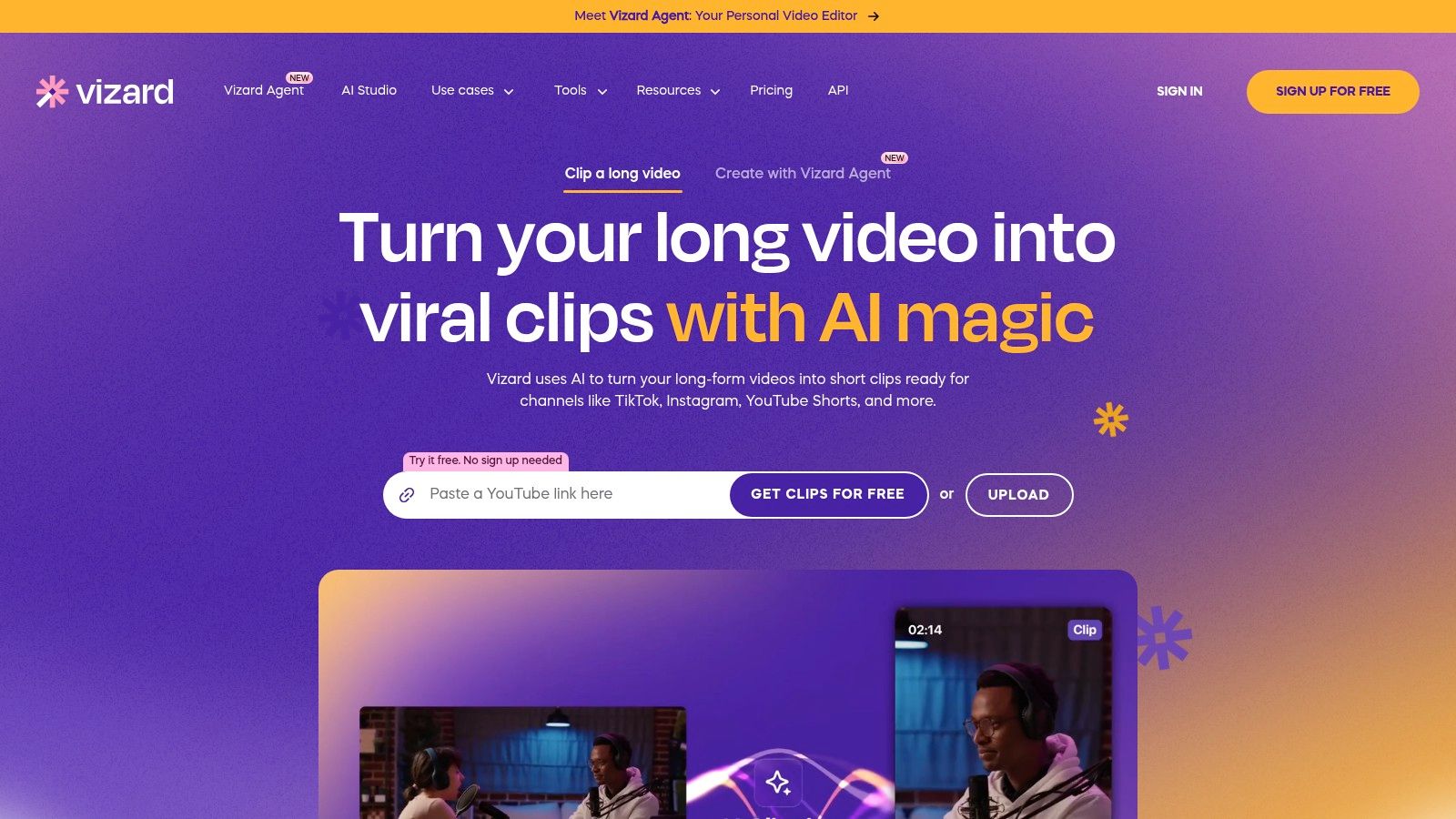
Paid plans add social account management and scheduling, higher export quality, and more storage, which matters if you also cut long form from the same source footage. A free tier lets you test clip generation and the editor before committing.
Don’t judge a repurposing tool by its first three clips. Check clip ten. That’s where weak ranking starts handing you filler.
The free plan limits export quality and how long your files stay stored, so download or post clips promptly and check Vizard’s current plan page for exact limits. Credit based limits are harder to predict than a flat allowance, and heavy weeks can drain them unevenly. It handles spoken formats well. Gameplay layouts and chat driven highlight finding sit outside its focus, so treat it as a generalist for talking segments rather than your esports clipping tool.
8. CapCut
Most creators already know CapCut, and there’s value in that familiarity. Once you’ve selected your footage, its desktop and mobile editors give you text styles, templates, effects, and branding features built for short form social video. A template can get a simple reaction clip posted in minutes.
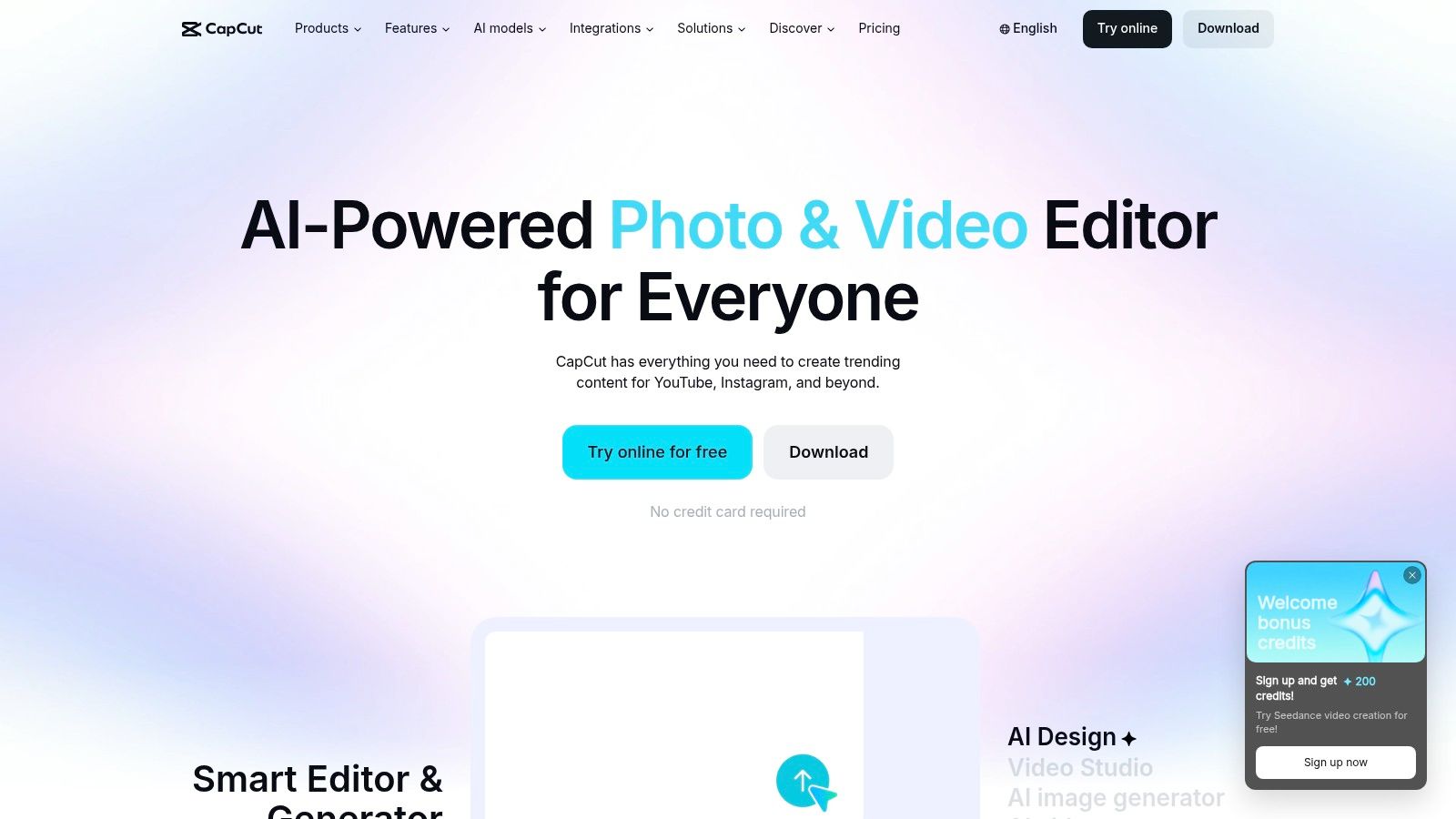
That hands on control suits VTubers and editors who like tweaking timing, zooms, and effects themselves. It offers free and paid access, and if budget is your main filter, compare it against other free clipping software options for streamers before adding another subscription. Basic editing and exports cover simple clips, with more tools on Pro.
The gap is upstream. CapCut doesn’t specialize in Twitch VOD highlight finding or automatic stream clipping, so you’re still scrubbing, still downloading, still reformatting facecam layouts by hand. Pro prices vary by region and device. Pair it with a discovery tool, or accept the manual work.
9. VEED
VEED is the browser editor you pick for polish, not for hunting highlights. It handles trimming, cropping, resizing, text, and music, with auto subtitles and text based editing that make vertical posts easier to finish. A social manager cutting sponsor friendly clips will appreciate that control.
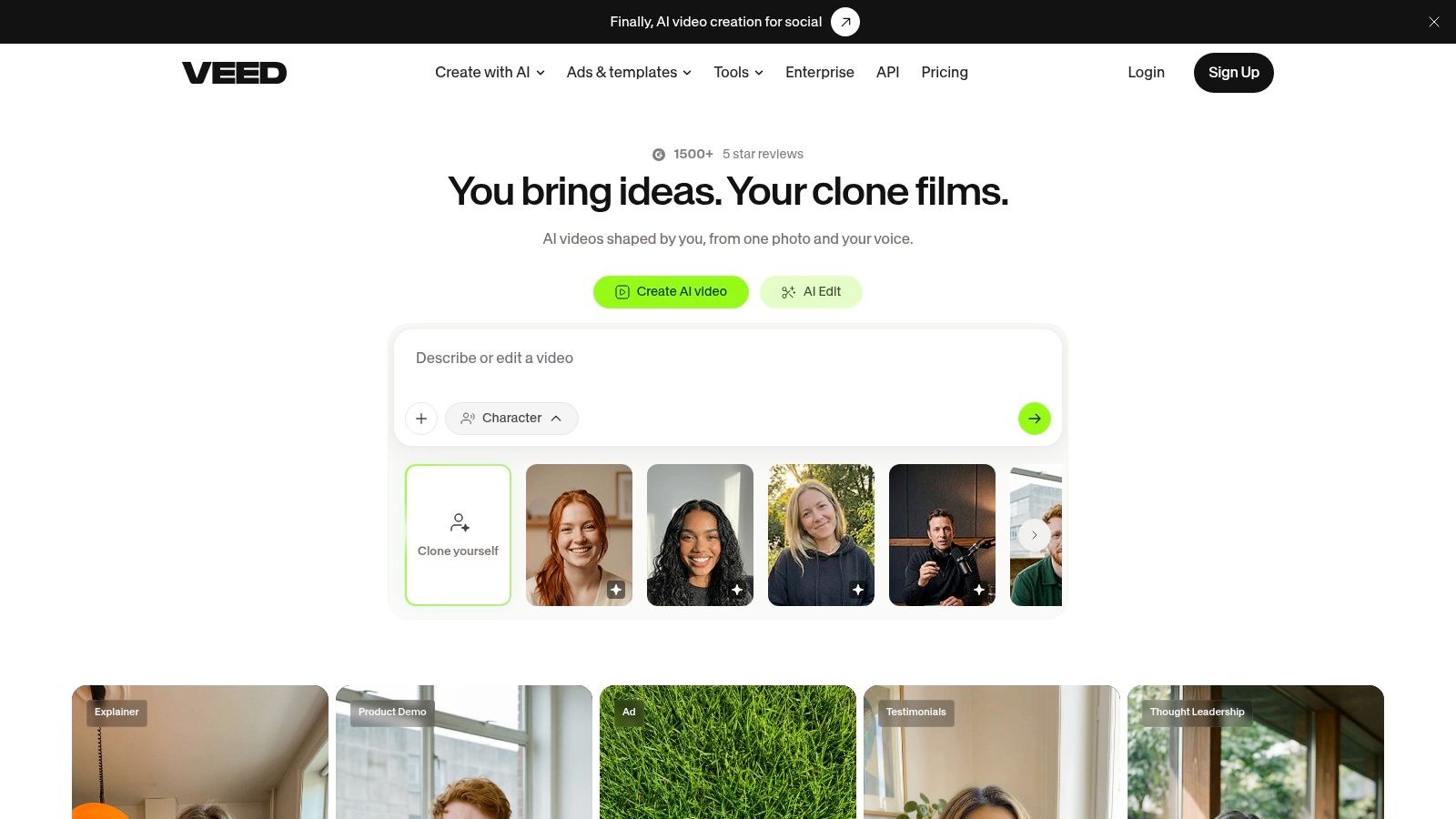
There’s also a stock video and audio library, and paid plans provide higher export resolutions and more AI features. If you’re deciding whether a browser workflow can replace your desktop app, this overview of a browser based video editor for clip work lays out the trade offs. The free plan is enough to test captions and resizing on a real clip.
Where VEED Stops Short
- Free tier limits: Exports include a watermark and cap at 720p.
- No highlight engine: It doesn’t focus on finding moments in long Twitch VODs.
- Variable pricing: Paid prices and features shift with billing choices.
Use it to finish clips. Don’t expect it to find them.
10. Descript
For Just Chatting, commentary, interviews, and podcasts, Descript changes how you cut. You edit the transcript and the video follows, which makes removing a rambling minute as simple as deleting a paragraph. Transcription, captions, and speaker detection come built in, alongside AI tools for filler word removal and clip creation.
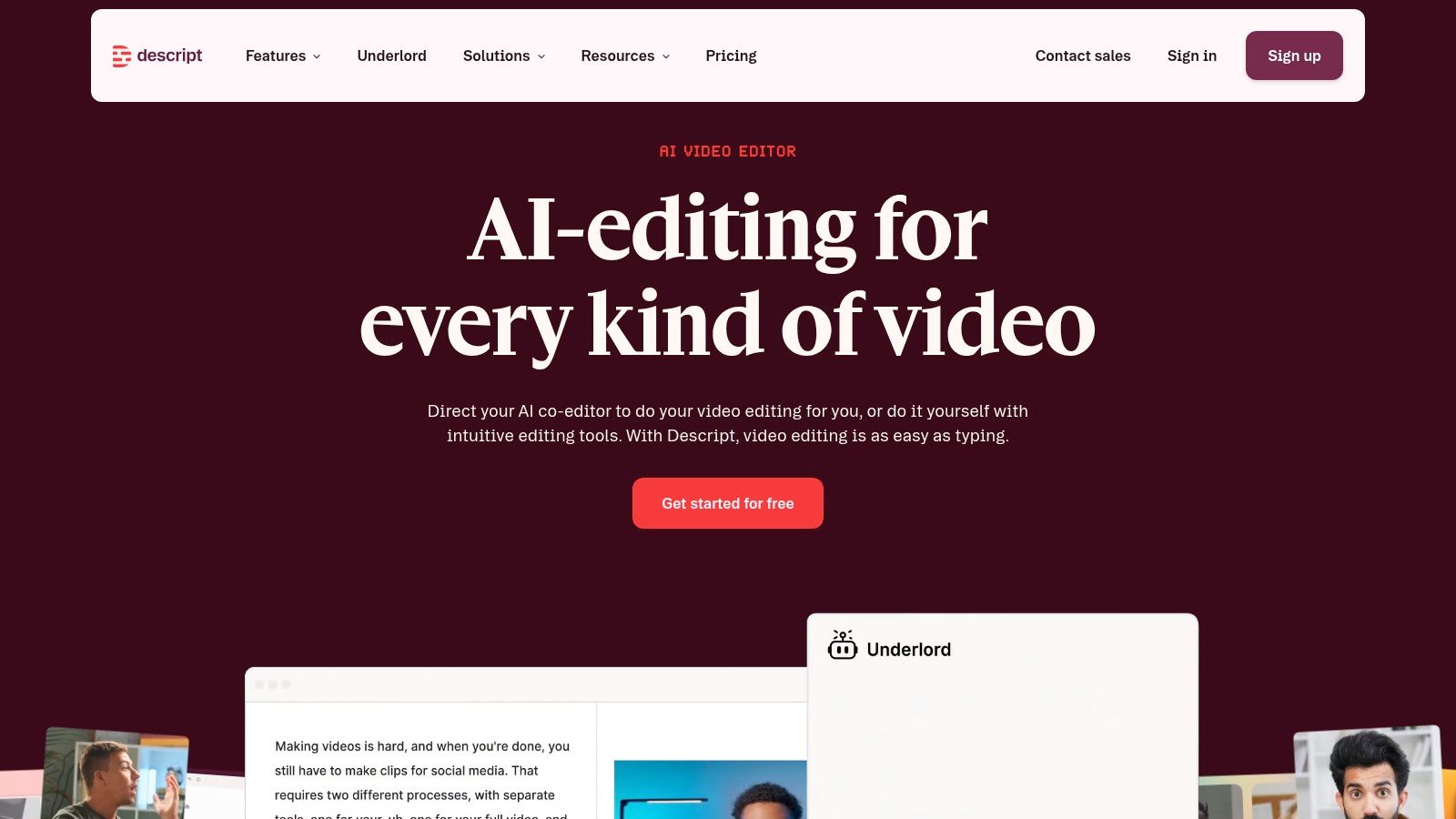
Paid plans add Studio Sound, 4K exports, and collaboration features, and free access is available for testing. Two person commentary streams benefit most, since speaker detection keeps captions and cuts organized when you talk over each other. Agencies editing spoken segments for several channels will feel that speed.
The model breaks down when nothing is said. A silent clutch play, a visual gag, or a chat explosion has no transcript to cut, and text first editing won’t find it. Paid plans also limit media processed per month, and there’s no automated Twitch discovery and publishing workflow. For spoken formats, though, nothing else here is faster.
How the 10 short form video editors compare on vertical-first features
| Item | Finds highlights in long VODs | Vertical reframing and captions | Direct posting to social platforms | Free plan or free preview |
|---|---|---|---|---|
| StreamGen | AI finds and ranks highlights in long VODs using gameplay, reactions, chat, and audio | Smart vertical layouts and animated captions in 90+ languages | Schedules and publishes to TikTok, YouTube Shorts, and Instagram Reels | Free tier available |
| StreamLadder | AI clipping for longer VODs | Layouts and captions in the clip editor | Direct posting and scheduling to TikTok, Instagram, and YouTube | Free plan with basic editing, conversion, and downloads |
| Eklipse | AI detects gaming highlights | Vertical templates and editing tools | Publishing tools available | Preview detected clips before subscribing |
| Streamlabs Cross Clip | Does not focus on finding highlights in full VODs | Clip customization; vertical reframing and captions not specified | Mobile-app sharing; direct posting not specified | Free plan available |
| OpusClip | AI clips longer videos | Automatic reframing and animated captions | Paid plans offer auto-posting to YouTube Shorts, TikTok, and Instagram Reels | Free tier available |
| Klap | AI clips longer videos | Active-speaker reframing and animated captions in 99+ languages | Paid plans include scheduling and publishing | Free preview available |
| Vizard | AI generates clips from longer videos | Full editor; vertical reframing and captions not specified | Paid plans include social scheduling | Free tier available |
| CapCut | Does not specialize in finding highlights in long VODs | Templates and text styles; automatic reframing and captions not specified | Direct posting not specified | Free and paid access |
| VEED | Does not focus on finding highlights in long VODs | Resizing and auto-subtitles for vertical posts | Direct posting not specified | Free plan for basic editing |
| Descript | AI clip creation, but no automated Twitch VOD discovery | Captions and speaker detection; vertical reframing not specified | No automated social publishing workflow | Free access for testing |
Choosing a Short Form Video Editor That Fits Your Stream Workflow
Start with your bottleneck and be honest about it. If your hours disappear scrubbing long VODs, prioritize highlight discovery with StreamGen, Eklipse, or StreamLadder. If your clips are already selected and only need vertical formatting, CapCut or VEED may be enough. For spoken formats like Just Chatting, a transcript-first tool like Descript fits better than any gaming clipper.
Volume alone won’t save a weak selection process. The Metricool 2025 analysis reported by Social Media Today covered more than 5.6 million short-form videos and found Shorts publishing increased 61% while engagement declined 36%. Post fewer, better matched clips. Test alternate hooks, caption treatments, and lengths per platform instead of pushing the same resize everywhere.
Test for Reversible Editing Before You Commit
Run one real stream through any finalist and try to break it. Change only the hook. Swap only the caption style. Lock a reframing you like, then fix a bad cut. A polished one-click demo hides exactly this failure mode: output that looks finished until you ask for one small change and end up rebuilding the clip by hand.
Check the details that decide whether a clip survives a phone feed. Does the facecam stay in frame after reframing? Do captions read at phone size without covering gameplay UI? Does posting work for every platform you use?
- Gaming streams: Prioritize gameplay and chat signals, plus layouts that protect HUD elements.
- VTuber and talking head: Prioritize speaker reframing, caption styling, and hook control.
- Teams and agencies: Prioritize brand presets, human approval, and exports to professional editors.
Disclosure deserves a minute before you automate posting. The TU Delft cross-platform analysis of 12,315 TikTok and YouTube Shorts videos found inconsistent labeling practices across platforms, so keep a human check for synthetic voice or materially altered moments rather than treating automation as fully hands off.
Editor’s check: Ordinary help like silence removal, reframing, and captions is a different question from fabricated scenes. Review each platform’s current rules in your publishing queue, not after a strike.
Adoption isn’t your risk anymore, since the Adobe Max 2025 creators survey found that in 2025, 86% of creators surveyed globally used creative generative AI. Your risk is choosing a tool that doesn’t match your footage. StreamGen offers a free tier with lower limits, and its paid plans start at €5.49 per month according to its FAQ, with the AI VOD Editor beta priced from €4 per edited VOD. Confirm current pricing on the site, since limits and tiers shift often across this category.
Turn your next Twitch VOD into ranked highlights, vertical clips with captions in over 90 languages, and a scheduled queue for TikTok, YouTube Shorts, and Instagram Reels without scrubbing hours of footage by hand. Start on the free tier, run one real stream through the AI Clip Finder, and see how many post ready shorts you get back. Visit StreamGen to try it on your latest broadcast.
More blog posts