A viewer says they want to support your stream. You’ve got a loyal chat, a few subscribers, and maybe a Bits alert that pops up now and then, but no clear answer when someone asks where to send a tip. So you add a button that says “Donate” and hope the payment lands, the alert fires, and nobody mistakes a personal tip for a charitable gift.
That setup can work, but only if the button matches the transaction behind it. Bits, subscriptions, personal tips, and charity fundraisers are different things, with different destinations and expectations. Treat your Twitch donate button like a small product: label it clearly, test the payment flow, and measure completed payments rather than clicks.
Table of Contents
- What a Twitch Donate Button Actually Does
- Bits, Subs, Charity, and Third-Party Tips Compared
- Setting Up a PayPal, Ko-fi, or Streamlabs Tip Link
- Building the Panel, Overlay, and Chatbot Command
- Measuring Whether Your Donate Button Is Working
- When a Tip Is Not a Donation and Why the Label Matters
- Pre-Launch Checklist and Common Payout Pitfalls
What a Twitch Donate Button Actually Does
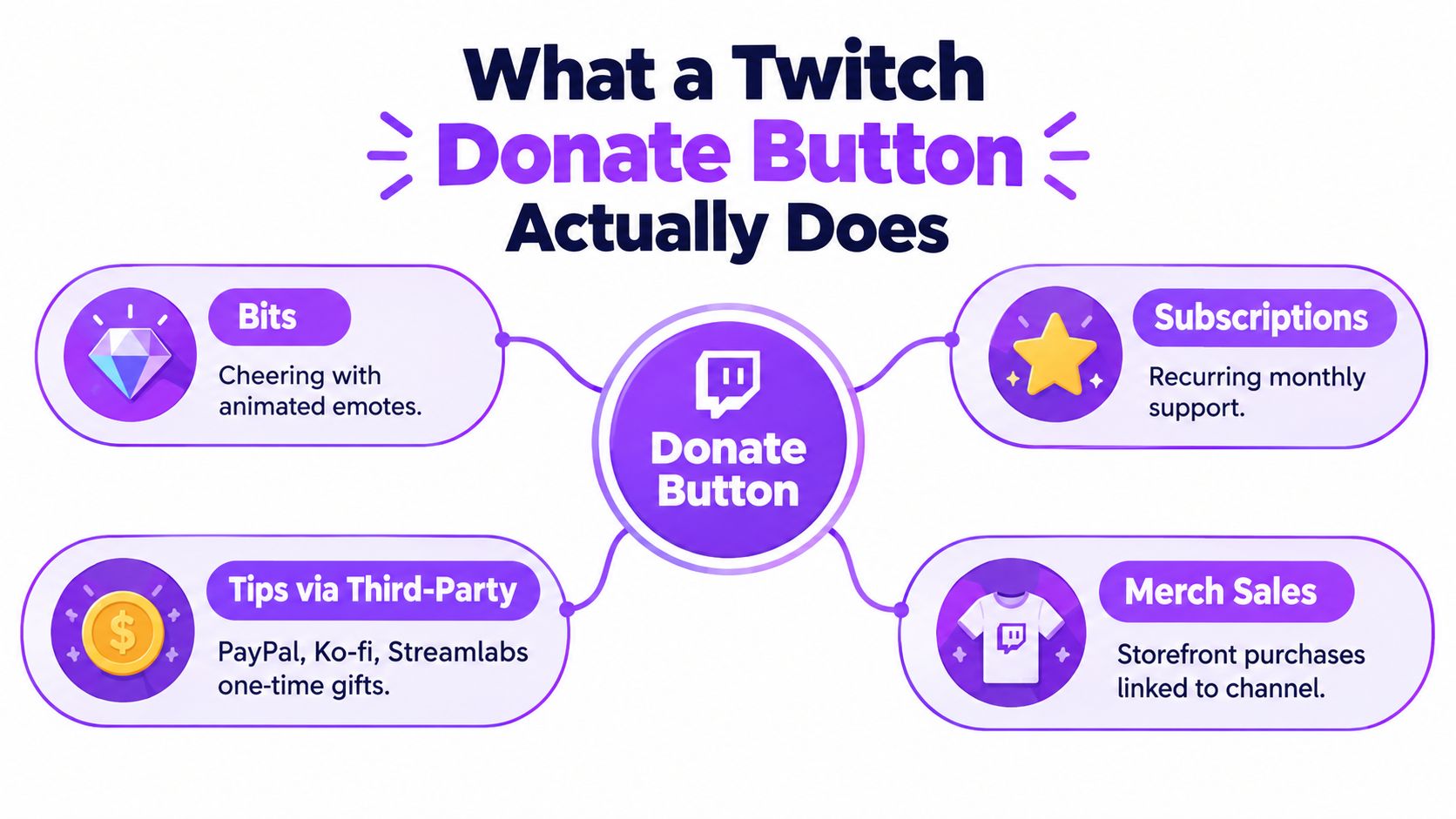
A Twitch donate button isn’t one universal payment feature. It’s a label streamers use for several different ways viewers can offer support. If you’re a new Affiliate trying to make sense of it, start with the outcome you want: money for you, recurring channel support, or funds for a nonprofit.
Here are the four routes to understand before you add anything to your channel:
- Bits: Viewers purchase Twitch’s virtual currency and Cheer in chat. The transaction stays within Twitch, and the Cheer can appear as visible chat activity.
- Subscriptions: Viewers pay for channel access and related perks. This is recurring channel support, not a charitable donation.
- Third-party tips: A payment page run through a processor or tipping service takes viewers outside Twitch. The money goes through that service’s payment flow, not Twitch’s charity tool.
- Twitch Charity: Eligible streamers can set up a fundraiser for a supported organization. The funds are intended for the charity, not the creator.
The distinction matters because each option answers a different question. Bits are built for on-platform cheering. Subscriptions are for an ongoing channel relationship. A third-party tip link is for viewers who want to send the creator a one-time payment. Twitch Charity is for raising money for a nonprofit.
Pick the button label only after you pick the payment route. A personal tip link labeled “Donate to charity” creates a false impression if the money lands in your own account. Likewise, calling a charity fundraiser “Support the streamer” obscures where contributions are meant to go.
Twitch launched Bits and Cheering in June 2016, embedding a virtual-currency transaction directly into channel chat. Twitch’s 2016 year-in-review reported 590 million Bits cheered, implying about $5.9 million paid to participating Partners that year, according to Engadget’s report on Twitch’s Bits milestone. Bits were therefore more than a decorative alert: they created a platform-controlled way to connect viewer support with visible chat activity.
For the layout around your call to action, keep the link easy to find without letting it crowd out the stream. This guide to Twitch streaming layouts can help you think through where panels, overlays, and alerts fit together.
Bits, Subs, Charity, and Third-Party Tips Compared
Don’t choose a payment route because another streamer uses it. Choose based on who should receive the money, what the viewer expects, and what happens when a payment is refunded or disputed.
| Option | Who Takes a Cut | Best For | Key Limitation |
|---|---|---|---|
| Bits and Cheering | Twitch’s purchase flow affects what viewers pay; participating streamers receive one cent per Bit. | Chat-native support with a visible Cheer interaction. | It’s virtual currency, not a direct tip or charitable gift. |
| Subscriptions | Revenue is shared according to the channel’s Twitch arrangement. | Recurring support tied to channel perks. | A subscription is not a donation and doesn’t represent a one-time cash tip. |
| Twitch Charity | Twitch says it takes no cut; payment-processing fees are excluded from the amount donated. | Fundraising for a supported charitable organization. | The funds go to the charity, not your personal payout account. |
| Third-party tip | The payment processor may charge fees; the creator also needs to manage disputes and refunds. | Personal, one-time support from viewers. | It’s not automatically a charitable donation, and the payment may be disputed. |
The historical reach of Bits shows why it helps to separate channel support from charity. Twitch reported that its community raised $25.3 million for charity in 2016, up 48% from the $17 million reported for 2015, in its 2016 year-in-review announcement. That fundraising involved campaigns and organizations, not just tips sent directly to individual streamers.
For personal tips, a third-party page is usually the most straightforward route. Check its account setup, supported payment methods, currency handling, payout process, refund options, and dispute policies before you publish the link. Don’t assume that a service with no platform fee means a tip is free to receive. Payment-processing costs and chargeback exposure can still apply.
For a fundraiser, use Twitch Charity when you’re eligible and the organization is supported. Twitch says its monetization tools aren’t designed to collect donations on behalf of charities, and it recommends keeping charity fundraising distinct from ordinary creator support. The Twitch streamer-benefits guidance explains the difference between its monetization tools and the charity flow.
If you’re comparing personal-support services, Suby’s overview of creator support tools can help you consider the kinds of options creators use. Treat it as a starting point, not a substitute for checking each provider’s current terms and payment settings.
Setting Up a PayPal, Ko-fi, or Streamlabs Tip Link
A working tip link has three parts: a page the viewer can use, a verified account that can receive the payment, and an alert setup that reflects what happened. The panel URL is the easy part. The account and payment checks are where streamers tend to discover a problem mid-broadcast.
PayPal, Ko-fi, and Streamlabs setup
- Verify the receiving account. Complete the provider’s identity and account checks, connect the intended payout method, and confirm that your public-facing details are appropriate. If your service offers a choice between personal and business account types, review the provider’s rules and the implications for displaying your name.
- Create the payment page. In PayPal, set up the payment link you intend to share. In Ko-fi, create your creator page and enable the support option you want. In Streamlabs, configure its tipping page and connect the payment method it asks you to use.
- Set the payment expectations. Review the available currencies, any minimum amount you choose to set, and how the provider handles refunds and disputes. Don’t invent a “minimum” just because another channel uses one. Choose a limit only if you understand why it helps your stream.
- Copy the public link. Use the actual viewer-facing payment-page URL, not a dashboard address or a link to account settings. Open it in a private browser window before placing it in your channel panel.
- Connect alerts and test. Follow the provider’s current instructions to connect its alert widget to your broadcast software. Test a successful payment and a failed attempt, then check the payment dashboard rather than assuming an on-screen alert means the funds are settled.
StreamElements is another option for creators already using its ecosystem. Whatever you choose, make sure the displayed alert and the payment record correspond. An alert is a notification, not proof that a payment can never be reversed.
Operational rule: Don’t read a large payment alert as guaranteed revenue until you’ve checked the processor’s transaction status and understand its dispute process.
Fees vary by provider, payment type, and location, so don’t promise viewers that you receive the full amount. For a practical comparison of how payment processors differ, see Fundl’s Stripe vs. Square vs. PayPal overview. Check the providers’ own current terms before choosing a setup.
Building the Panel, Overlay, and Chatbot Command
Your button needs to be findable when a viewer is ready to support you. Put the same clearly labeled destination in your channel panel, your stream presentation, and a chatbot command. Repeating one consistent link beats scattering different payment pages across your profile and chat.
Make the panel explain the payment
In your channel’s About area, turn on panel editing and add a text or image panel that points to your payment page. Use a title that tells the truth about the destination:
- Personal tip link: “Support the Stream” or “Send a Tip”
- Charity fundraiser: “Donate to [Charity Name]”
- Description for a personal tip: “Tips go to the creator through an external payment service. They aren’t charitable donations.”
- Description for a fundraiser: “Contributions go to the selected charity through the Twitch Charity fundraiser.”
Keep the copy short enough to read. If the payment page belongs to a third-party service, make that clear. Don’t suggest that a personal tip comes with a charitable tax receipt.
Keep alerts useful, not confusing
Connect your chosen service’s alert page to your broadcasting software, such as OBS or Streamlabs Desktop, using that service’s current setup instructions. Make the alert readable and brief. A name and a message can be enough; a long animation can interrupt the stream and make it harder to catch what happened.
A small on-screen label can remind viewers where the button leads, but don’t let it imply that they’re donating to a nonprofit when they’re supporting you. For advice on organizing the chat experience around your scenes and overlays, see this guide to Twitch chat on stream.
Give chat one command to find the link
Set up a chatbot command such as !tip or !support that posts your panel link with a plain-language description. For example:
“Want to support the stream? You can send a personal tip here: [your tip page]. Tips go to the creator, not a charity.”
Replace the example destination with your own link and use the same disclosure everywhere. Then test the command in a live chat or a private test environment. If the link is hard to tap, broken on mobile, or inconsistent with the panel label, fix that before asking viewers to use it.
Measuring Whether Your Donate Button Is Working
A click isn’t a contribution. If you count clicks and call that success, you can miss the problem entirely: the payment page may load slowly, the viewer may not trust the destination, or the checkout may fail before money reaches your account.
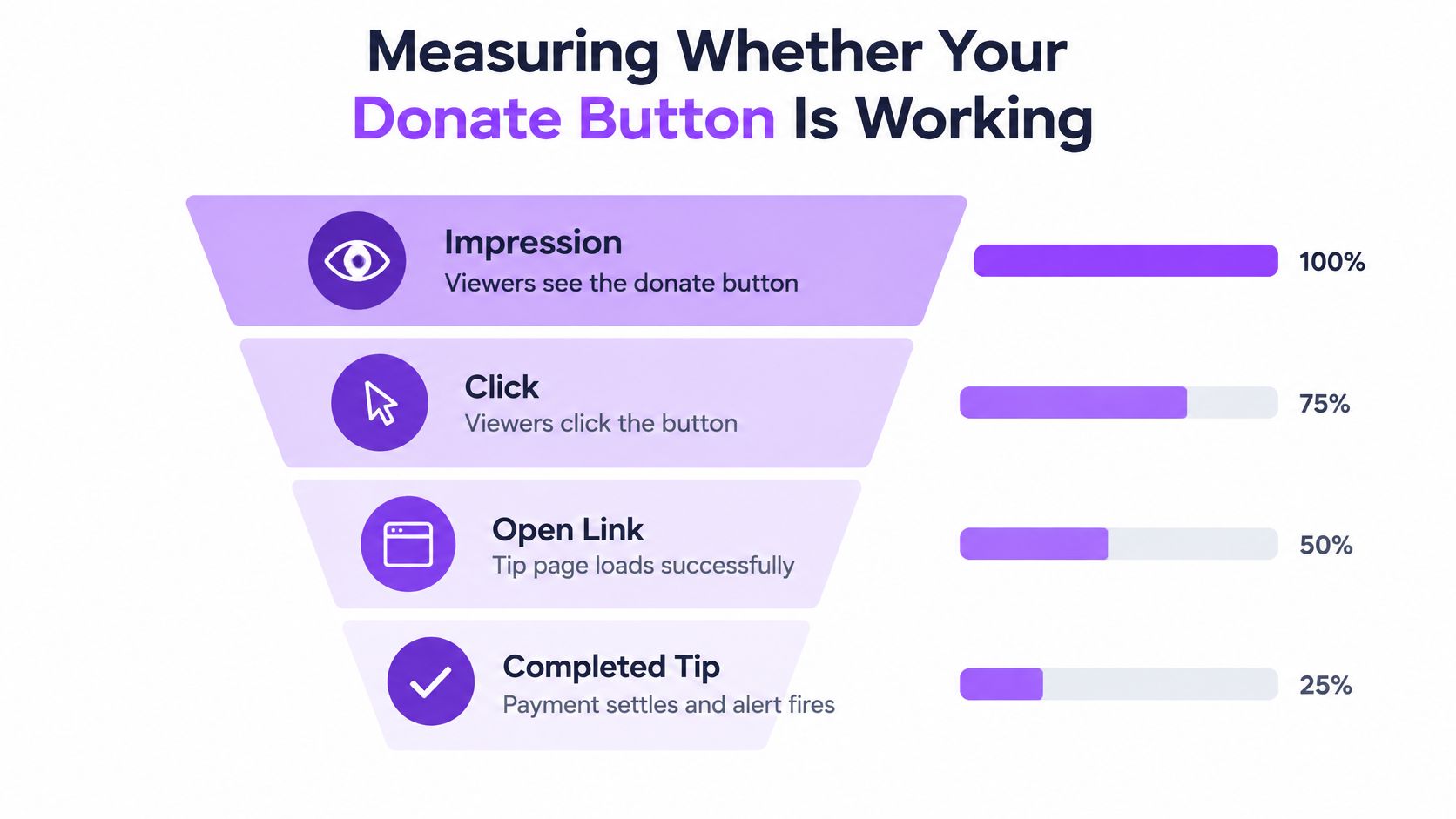
Track the payment path as four separate events: button impression, button click, checkout start, and completed payment. If your provider supports an activity log or webhooks, use it to confirm successful payments. If it doesn’t, keep a simple record of completed transactions and compare them with the traffic sources you can identify.
Tag the placement, not just the page
Give each entry point a distinct campaign parameter or trackable URL: one for the channel panel, one for the chatbot command, one for an overlay, and one for each short-form destination. Keep the underlying payment page and disclosure consistent, but make it possible to tell where a viewer found it.
Segment the results by device, traffic source, currency, and whether the viewer is new or returning, when your tools provide that information. Look for the stage where viewers stop moving forward, then test a specific fix. For example, a high number of clicks followed by few checkout starts points you toward the link or page-load experience. Checkout starts without completed payments point toward the payment form, unexpected fees, unsupported methods, or authentication problems.
Nonprofit donation-page benchmarks offer a rough diagnostic reference, not a Twitch-specific promise. BetterWorld’s donation-page guidance reports approximately 11% conversion for desktop visitors and 8% for mobile visitors. It also reports that 50–70% of people who click a donation link abandon before completing. Those benchmarks concern nonprofit donation pages, so use them to spot questions worth investigating, not as a target your personal tip page is guaranteed to reach.
Review the funnel on a regular schedule
Use a short review routine:
- Impression to click: Is the button visible, clearly labeled, and easy to find?
- Click to checkout start: Does the link open the right page, especially on mobile?
- Checkout start to payment: Are fees visible before payment, and does the viewer have a usable payment option?
- Payment to alert: Does a successful payment create the right alert and appear in the provider’s records?
Don’t optimize for the biggest click count. Optimize for a payment flow that viewers understand and that you can reconcile afterward. If a change doesn’t improve the part of the funnel you’re targeting, roll it back and test something else.
When a Tip Is Not a Donation and Why the Label Matters
Calling every payment “a donation” might sound friendly, but it can mislead viewers. A Bit Cheer, a subscription, and a personal tip all support a creator in different ways. None automatically means that money is going to charity or that the viewer will receive a charitable tax receipt.
Twitch says payments sent directly to a streamer through a donation link, subscription, or Bits aren’t charitable donations and aren’t tax-deductible. For an organized fundraiser, use the Twitch Charity tool when it supports your purpose, or direct viewers to a charity-owned payment system. Twitch’s guidance on charitable donations is the place to check before you describe a payment as charitable.
This matters even more when you stream on behalf of a nonprofit. A personal tip link can send money to an individual’s payment account, making the recipient and eventual beneficiary unclear. Keep personal support separate from campaign funds, explain who receives the money, and confirm with the organization how it handles receipts and records before promoting a fundraiser.
Use wording that matches the destination:
- “Support the streamer” for personal creator support.
- “Send a tip” for a one-time payment to your creator account.
- “Donate to [charity name]” only when the link and fundraiser directly direct the contribution to that organization.
A straightforward disclosure for a personal link is: “Personal tips go to the creator through an external payment service. They aren’t charitable donations, and no charitable tax receipt is provided.” Adapt it to the actual flow and don’t promise a receipt unless the charity or fundraising provider handles it.
A prominent button can hurt trust if it overstates what happens after the click. Accurate labeling is part of the payment experience, not fine print to add later.
Pre-Launch Checklist and Common Payout Pitfalls
Before your next stream, test the entire flow as a viewer. Use an incognito mobile session, open the panel link, check that the payment page loads, and verify that the checkout offers a method your audience can use. Then confirm that a successful payment appears in the processor’s records and triggers the alert you expect.
Refunds and disputes are part of accepting payments. Write down how you’ll handle a refund request, where you’ll keep transaction records, and how you’ll respond if a payment is challenged. Check how currency conversion, payment methods, verification requirements, and payout timing work for your account. Don’t spend money because an alert appeared; notifications and settled, withdrawable funds aren’t necessarily the same thing.
Use this final check before announcing the button:
- Link: It opens the correct page on desktop and mobile.
- Label: It clearly says “tip,” “support,” or “donate to charity” as appropriate.
- Fees: Any relevant processing costs are disclosed before payment.
- Alert: The notification fires after a successful test payment.
- Records: You know how to find the transaction and handle a refund or dispute.
Keep that destination and disclosure consistent wherever you share the link. If you also distribute stream highlights, StreamGen can help turn a Twitch broadcast into short-form clips and schedule them for TikTok, YouTube Shorts, and Instagram Reels. Review your wider stream setup with this guide to the best Twitch streaming tools, then make sure your support link remains clear wherever viewers find you.
Want a faster way to turn your Twitch streams into clips while keeping your channel messaging consistent? StreamGen helps you find highlights, edit vertical videos, and schedule posts across major short-form platforms, so you can spend less time moving files and more time live.
More blog posts