The best clipping software for PC isn’t automatically the tool with the longest feature list. A streamer saving an unexpected play during a ranked match has a different problem from a creator searching an entire Twitch VOD, and both have different needs from an editor preparing a polished vertical post or an editable Premiere Pro project.
This shortlist follows those actual jobs. It covers instant capture and live highlights, AI-assisted VOD discovery, browser-based vertical editing, direct publishing, and professional NLE handoff. Each pick is compared by capture method, VOD support, editing depth, publishing workflow, system fit, and the point where it stops being useful. That distinction matters for anyone comparing streaming gear for merch teams, because reliable content production depends as much on workflow handoffs as on recording quality.
The wider market supports that practical view. Video editing software is already a multibillion-dollar category, with one estimate valuing it at USD 3.54 billion in 2025 and projecting USD 4.99 billion by 2031, while Windows represented 42.3% of the market in 2025, according to Mordor Intelligence’s video editing market overview. Clipping software for PC sits inside that expanding ecosystem, but the right choice still depends on where your workflow begins and where you need it to end.
Table of Contents
- 1. Ai Stream Clipper
- 2. Outplayed by Overwolf
- 3. Medal
- 4. Powder
- 5. Streamlabs Cross Clip
- 6. StreamLadder
- 7. Eklipse
- 8. Sizzle
- 9. NVIDIA ShadowPlay
- 10. Xbox Game Bar
- Top 10 PC Clipping Tools, Feature Comparison
- Choose the Workflow You Will Actually Use
1. Ai Stream Clipper
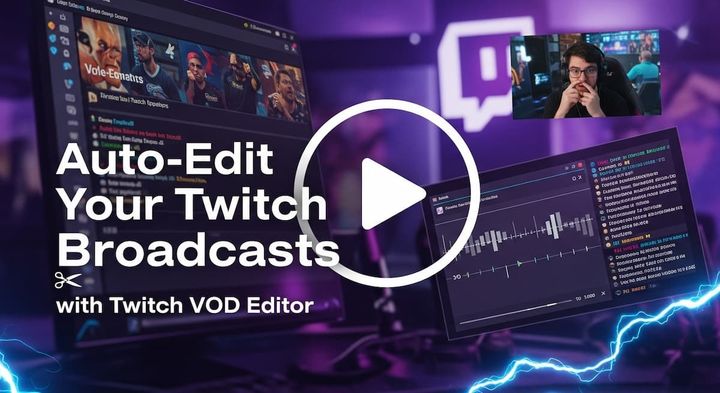
Ai Stream Clipper is the strongest fit when the job is not merely saving gameplay, but turning a long Twitch broadcast into publishable vertical content. Its AI Clip Finder examines gameplay, reactions, chat, and audio to surface moments worth reviewing, including long VODs. That makes it distinct from a replay buffer, which can only preserve moments you notice while playing.
The browser-based Clip Editor then handles vertical reframing and animated captions in 90+ languages, with layouts designed to keep gameplay and facecam visible. Direct posting supports TikTok, YouTube Shorts, and Instagram Reels, so the workflow can move from discovery to scheduling without downloading files and moving between several applications. The platform documents plans starting at €5.49 per month and adoption by 1,000+ streamers on its product materials at Ai Stream Clipper.
Best fit: Streamers who want one workspace for VOD discovery, vertical editing, captions, and social distribution.
Where it saves the most work
Autopilot is the notable differentiator. It can find, edit, and queue posts while you’re still live, which suits creators who care more about a consistent publishing queue than manual control over every step. The workflow also includes title hooks, silence removal, word censoring, and reusable brand presets, according to the publisher’s product information.
For more involved productions, the AI VOD Editor is listed in beta and can prepare timeline-ready projects for DaVinci Resolve and Premiere Pro. That gives professional editors a route beyond browser exports, although beta status means you shouldn’t assume every project will arrive perfectly finished.
Where it stops helping
This tool is less suitable if your only requirement is a low-overhead local replay during a game. Its value begins after a broadcast or inside an AI-assisted repurposing workflow. Advanced automation is also tied to paid plans, and its direct publishing focus is concentrated on TikTok, YouTube Shorts, and Instagram Reels rather than every possible destination.
2. Outplayed by Overwolf
Outplayed is built around event-aware local capture. Running through the Overwolf platform, it can detect supported in-game actions such as kills, wins, and round endings, then save the relevant moments without requiring a hotkey at the instant they happen. That makes it more useful than a basic recorder for players who regularly forget to save a highlight during an intense match.
It also offers manual full-session capture, an in-app trimmer, and Supercut for combining selected moments. Background recording can reach 4K, and automatic storage management helps prevent a capture folder from growing without oversight. The product is available as a free Windows application through Outplayed by Overwolf.
Practical rule: Event detection is only as dependable as the game integration behind it. Treat supported titles and post-patch reliability as buying criteria, not minor details.
Outplayed’s advantage is control over capture modes. A creator can use automatic highlights for supported events, manual recording for unusual moments, or broader session capture when a match doesn’t map neatly to a known event. That flexibility makes it a sensible middle ground between a simple replay tool and a full VOD analysis platform.
Its limitation is equally clear. Outplayed is primarily a local capture system, so it runs while you play and doesn’t replace a cloud tool that searches a completed broadcast for moments you failed to save. Event support can also lag after game updates, and reported reliability issues mean you should test the exact title and patch you care about before making it the only capture layer.
3. Medal
Medal makes fast local clipping the central experience. Its instant replay and custom clip lengths let players save recent gameplay with a hotkey, while multi-track audio editing gives creators more control than a simple video trimmer. The Windows app works with a cloud library, allowing clips to sync across devices rather than remaining tied to the gaming PC.
That combination suits a streamer who wants to capture during play, make quick adjustments, and share without opening a professional editor. Medal also includes community sharing and continues to add product features through regular updates. You can review the current desktop and mobile offering on the Medal clipping platform.
The free tier is useful for basic clipping and sharing, but the limits become more relevant as output expectations rise. Premium adds features such as auto-subtitles and watermark removal, while higher-resolution output and an ad-free experience are also positioned as paid benefits. That split means Medal can be a practical starting point, but creators producing branded vertical content may quickly need more than the free workflow provides.
Best use and hard boundary
Medal is strongest when the moment happens locally and you know you want to save it. It’s less suited to finding missed highlights in a completed VOD, because it doesn’t replace full-stream analysis. Its cloud library is convenient, but cloud access doesn’t automatically provide the same thing as AI discovery, vertical composition, direct scheduling, or an editable professional project.
Choose Medal when instant replay, portability, and quick sharing matter most. Look elsewhere when your main bottleneck is reviewing hours of footage or publishing a coordinated queue across several social platforms.
4. Powder
Powder focuses on what happens after the stream or gaming session. Its Windows application analyzes recordings and imported VODs to create AI-generated AutoEdits, using audio, visual activity, and chat spikes as signals for possible highlights. That post-stream model is useful for creators who want to review footage efficiently instead of remembering every moment during play.
The platform supports real-time highlights on supported hardware and offers a Universal Game Support fallback. Its materials describe AI detection across 40+ popular games, while Pro users can export at 4K and 120fps through Powder. Those capabilities make it more than a manual trimmer, especially for gaming creators whose content depends on action, reactions, or audience response.
Powder is a good match for a creator who already has recordings and wants an automated first pass. It can reduce the need to scrub every minute of a session, but it doesn’t remove editorial judgment. AI signals can identify activity, not guarantee that a moment has the context, pacing, or personality needed for a strong short.
The trade-off
Powder’s center of gravity is post-processing, not a complete live-to-publish system. The free plan makes experimentation accessible, while advanced functions and higher-end export options require Pro. You’ll still need another step for the final vertical design, captions, brand treatment, or publishing queue if Powder’s output doesn’t match your distribution workflow.
That makes it more focused than an all-in-one platform and more automated than a traditional editor. It’s especially useful when highlight discovery is the problem, but less compelling when direct scheduling and platform-native formatting are equally important.
5. Streamlabs Cross Clip
Streamlabs Cross Clip begins with an existing clip rather than an entire broadcast. You can provide a Twitch, YouTube, or Kick clip URL, or upload a video, then use a browser editor to place gameplay and facecam inside a vertical canvas. The interface is designed for fast reframing, so creators can adapt a horizontal highlight for TikTok, Reels, or Shorts without learning a full editing suite.
Platform-specific canvases and draggable layout controls keep the basic operation approachable. A mobile app also supports posting away from the desktop, while Pro adds 1080p/60 export, watermark removal, and outro removal, as documented on Streamlabs Cross Clip.
This is a strong choice when the clip already exists and vertical conversion is the bottleneck. It’s quicker than opening Premiere Pro for a simple reframing task, particularly when the main decisions concern facecam placement, gameplay visibility, and export destination.
Where the browser editor falls short
Cross Clip isn’t a replacement for a full editor. Its feature set is aimed at conversion and layout rather than complex storytelling, audio design, multi-scene structure, or deep finishing. Source-platform changes can also create compilation issues, so a URL-based workflow isn’t completely independent of the platform that hosts the original clip.
The free tier is enough to test the process, but higher-quality output and watermark removal are paid features. Choose it when you need fast repackaging of selected clips. Don’t choose it as your main tool if you still need to discover highlights, manage a large VOD archive, or preserve an editable project for a professional post-production team.
6. StreamLadder
StreamLadder is a browser-based workflow for creators who want to move from a long VOD to scheduled vertical posts. Its ClipGPT feature scans multi-hour footage and surfaces likely highlights, then the vertical editor adds templates and social-oriented formatting. A scheduler can distribute content to TikTok, YouTube, and Instagram from the same environment.
That makes StreamLadder more complete than a simple clip converter. The free plan covers basic use, and basic edits can be created without a watermark, but the AI discovery and publisher are reserved for paid tiers. Mobile apps for iOS and Android extend management beyond the desktop. Current plan comparisons are available in this StreamLadder alternative pricing and AI guide.
The browser is an advantage only if the browser contains the whole handoff you need.
For solo creators, the appeal is obvious. One place can search, edit, and schedule, reducing file handling and app switching. That matters because clipping software has increasingly moved toward full repurposing workflows, rather than simple trimming. A market report on video splicing software estimated that category at USD 608.24 million in 2025, with a projection of USD 1.17 billion by 2032 and a 9.85% CAGR, while cloud-based solutions represented 70.6% of revenue. Those figures reinforce why browser workflows deserve comparison with local recorders.
StreamLadder’s boundary is plan dependency. The most valuable automation sits behind subscriptions, and creators who need detailed professional edits or project-based collaboration may still need an NLE after export. It’s best when the desired endpoint is a scheduled social post, not a layered production file.
7. Eklipse
Eklipse takes the cloud VOD route. It connects with Twitch, YouTube, and Kick, scans full streams for hype moments, and brings the selected clips into an in-browser editor. Vertical reframing, auto-captions, templates, memes, and effects keep the workflow close to the needs of Shorts, Reels, and TikTok creators.
Direct publishing and scheduling are central rather than secondary features. That makes Eklipse useful for streamers who don’t want to run a second local recorder while playing, provided the stream VOD is available afterward. The product’s current workflow and support materials are available at Eklipse.
The key distinction is timing. Eklipse is designed to find moments after the broadcast, not to save a local replay immediately when something happens. That can reduce the local capture burden, but it also means a missed or unavailable VOD can’t be recovered through this workflow.
A practical choice for social-first creators
Eklipse is strongest when the output is a platform-ready vertical post. Its tutorials and documentation help reduce setup friction, and the direct publishing path avoids some of the export and upload steps associated with local software. For current plan details, creators should check the Eklipse pricing guide because pricing and promotions may vary at checkout.
The limitation is not necessarily editing quality. It’s ownership and control. If your team needs extensive multi-editor project management, precise timeline handoff, or a local archive of every intermediate asset, a browser-first tool may not cover the whole process. Eklipse is a good fit for find, format, and publish, but less so for a production department that treats the editable project as the primary deliverable.
8. Sizzle
Sizzle is aimed at gaming creators who want long streams processed into accessible highlight clips. It works from supported streams or VODs, identifies likely moments, and provides finished clips for download or sharing. An in-app editor and compilation builder add some control after discovery, while email notifications alert you when processing is complete.
That set-and-forget approach changes the creator’s workload. Instead of staying beside a timeline during processing, you can return when the system has prepared material for review. The product’s current workflow is described on Sizzle.
Sizzle is particularly attractive when highlight discovery is more important than live capture. It doesn’t ask the creator to remember every hotkey, and it offers a simple route from processed footage to a downloadable asset. One-click sharing helps with quick distribution, although creators seeking a well-developed publishing calendar may find the workflow less complete than a platform built around scheduling.
Know the coverage boundary
Sizzle depends on its supported-games library and creator-account setup. Game coverage and available features can differ from local PC recorders, and pricing may vary according to usage. That means it is sensible to verify compatibility with the titles and accounts you use before treating it as a central part of production.
It also doesn’t solve every editorial problem. An automatically selected highlight can still need tighter pacing, captions, vertical reframing, or brand review. Sizzle works well as a discovery and download layer, but creators who want an integrated find-to-publish pipeline may need another tool after the clip arrives.
9. NVIDIA ShadowPlay
NVIDIA ShadowPlay remains one of the cleanest choices for immediate local capture when the PC uses a compatible NVIDIA GPU. Through the NVIDIA App or GeForce Experience overlay, Instant Replay saves recent gameplay, while manual recording handles longer sessions. NVIDIA Highlights can also capture supported in-game events automatically.
The overlay provides configurable hotkeys, codec options, and recording support up to 4K60, according to the product information on NVIDIA ShadowPlay. Its main advantage is integration with the GPU’s hardware encoding path, which makes it a sensible low-complexity choice for GeForce owners who want a replay safety net.
Capture first, edit second. ShadowPlay is excellent at preserving the source moment, but it doesn’t turn that file into a finished vertical post.
That boundary matters. ShadowPlay doesn’t provide the VOD discovery, captioning, vertical layout, or direct social scheduling that social-first creators may expect from modern clipping platforms. NVIDIA’s own gaming clipping software overview is useful context for comparing capture-focused tools with broader repurposing workflows.
ShadowPlay also depends on NVIDIA hardware, and desktop capture or overlay behavior can vary with driver and application versions. It’s a strong choice for a player who notices the moment and wants a local file quickly. It’s not a complete content pipeline, and creators who miss moments still need either manual capture discipline or a separate VOD analysis tool.
10. Xbox Game Bar
Xbox Game Bar is the practical fallback for Windows users who don’t want another application. The Win+G overlay opens the Capture widget, supports background footage through “Record what happened,” and provides basic trimming and clip management in the Gallery or Captures area. It works across many games and applications without a separate installation.
The attraction is simplicity. There’s no extra ecosystem to learn, no dedicated account requirement for basic capture, and no premium tier standing between the user and a quick recording. Microsoft documents the feature set in its Windows Game Bar guide.
Game Bar is best for the occasional “I wish I’d saved that” moment. It isn’t an automatic highlight detector, doesn’t search a completed VOD, and doesn’t prepare clips for vertical social feeds. It also has capture limitations in some modes, including cases where it records an app window rather than the full desktop or File Explorer.
Why basic can be the right decision
A built-in tool reduces compatibility variables. If your only requirement is to save a short local clip and trim its beginning or end, adding a larger platform may create more setup than value. It can also serve as a fallback when a primary recorder fails or when you’re testing whether clipping belongs in your routine at all.
The trade-off is control. Game Bar has fewer professional recording options than dedicated software, and every discovery, captioning, crop, export, and upload step remains yours. Pick it for zero-install capture, not for a full streamer content operation.
Top 10 PC Clipping Tools, Feature Comparison
| Product | Core features | Quality (★) | Price / Value (💰) | Target (👥) | Unique strengths (✨ / 🏆) |
|---|---|---|---|---|---|
| Ai Stream Clipper | AI clip finder (8h+), vertical Clip Editor, Autopost & Autopilot, VOD→NLE export | ★★★★☆ | 💰 from €5.49/mo + free tier | 👥 Streamers needing end‑to‑end clip→post workflow | 🏆 Unified AI→edit→post, ✨ chat+audio aware models, NLE export |
| Outplayed (Overwolf) | Auto game‑event detection, trimmer/editor, Supercut, 4K background capture | ★★★☆☆ | 💰 Free app | 👥 PC gamers wanting hands‑off capture | ✨ Deep Overwolf game hooks, 🏆 low‑effort automatic capture |
| Medal | Instant replay, multi‑track audio, cloud sync, auto‑sub (premium) | ★★★★☆ | 💰 Freemium (Premium unlocks 1080p/auto‑subs) | 👥 Creators who clip/share across devices | ✨ Cloud library & community, 🏆 mobile+desktop parity |
| Powder | AI auto‑edits from recordings/VODs, real‑time highlights, Pro exports up to 4K/120fps | ★★★☆☆ | 💰 Free / Pro for advanced exports | 👥 Post‑stream editors wanting strong AI detection | ✨ Universal game fallback, 🏆 robust game‑aware AI |
| Streamlabs Cross Clip | Browser/mobile reframing, draggable gameplay/facecam boxes, URL/file inputs | ★★★★☆ | 💰 Free / Pro for 1080p & watermark removal | 👥 Streamlabs users & fast vertical conversion | ✨ Very fast reframing, 🏆 Streamlabs ecosystem integration |
| StreamLadder | ClipGPT VOD scanning, vertical editor, scheduler to TikTok/Shorts/Reels | ★★★★☆ | 💰 Free/basic, paid tiers unlock AI & publishing | 👥 Creators who want browser find→edit→publish | 🏆 Unified browser workflow, ✨ strong multi‑hour VOD scanning |
| Eklipse | Full VOD AI scan, in‑browser editor, auto‑captions, templates, direct publishing | ★★★☆☆ | 💰 Pricing varies / sometimes checkout‑shown | 👥 Creators wanting quick AI→post with minimal setup | ✨ Simple setup & docs, 🏆 fast moment surfacing |
| Sizzle | Auto process streams → ready highlights, editor & compilations, one‑click sharing & notifications | ★★★☆☆ | 💰 Variable / usage‑based | 👥 Gaming creators wanting set‑and‑forget processing | ✨ One‑click sharing & notifications, 🏆 easy access to finished clips |
| NVIDIA ShadowPlay | Instant Replay, manual record, NVIDIA Highlights, 4K/HDR capture | ★★★★☆ | 💰 Free with NVIDIA GPU | 👥 NVIDIA GPU users needing low‑overhead recording | 🏆 GPU‑optimized high‑quality capture, ✨ instant replay reliability |
| Xbox Game Bar | Win+G overlay, background ‘record what happened’, simple trim & gallery | ★★★☆☆ | 💰 Free & preinstalled on Windows 10/11 | 👥 Casual Windows gamers needing quick saves | ✨ Zero‑setup capture, 🏆 always‑available safety net |
Choose the Workflow You Will Actually Use
There isn’t one universal winner because the tools begin at different points. Built-in capture and GPU overlays are designed to preserve a moment while you’re playing. Event-aware tools such as Outplayed and Powder reduce the burden of remembering hotkeys, but their usefulness depends on supported games, detection quality, and whether you want local capture or post-stream processing.
The most important distinction is between capturing live and finding later. Xbox Game Bar and NVIDIA ShadowPlay are sensible when you notice the moment and need a file immediately. Outplayed fits players who want supported game events to trigger highlights. Powder is better when recordings or VODs already exist and AI-assisted review is the main bottleneck.
Browser tools solve a different problem. Streamlabs Cross Clip is practical when you already have a selected clip and need fast vertical reframing. StreamLadder, Eklipse, and Sizzle move further toward VOD discovery, browser editing, and social distribution. Unified AI platforms such as Ai Stream Clipper are the better match when you want one workflow to find moments, create vertical assets, and maintain a publishing queue.
The market direction explains why this separation matters. The global short-form video editing apps market was valued at USD 2.14 billion in 2024 and is projected to reach USD 6.42 billion by 2033, with a 13.7% CAGR, according to DataIntelo’s short-form video editing market report. Asia Pacific was the largest and fastest-growing region at about USD 0.97 billion in 2024, showing that short-form workflows serve broad creator markets rather than a narrowly American audience.
Before committing, run a practical test:
- Confirm system fit: Check Windows compatibility, GPU requirements, supported games, and whether the tool captures locally or processes a VOD remotely.
- Test reliability: Trigger manual clips, automatic events, and a longer capture in the game you play regularly.
- Review AI selections: Treat detected moments as editorial suggestions. Check context, audio, pacing, and whether the clip makes sense without the full stream.
- Verify exports: Inspect resolution, frame rate, captions, audio sync, watermarks, file naming, and storage behavior.
- Choose the handoff: Use direct scheduling when speed and consistency matter most. Choose NLE export when Premiere Pro or DaVinci Resolve needs to control the final edit.
- Check the workload: A tool that creates more files, downloads, uploads, and approvals may be less efficient than a simpler system with fewer features.
Hardware deserves special attention. One recent market guide notes that over 60% of gamers worldwide use mid- or low-end PCs, making lightweight capture and editing especially relevant for creators who play demanding games while running Discord, overlays, browser tabs, and streaming software. You shouldn’t trust a generic promise about frame-rate impact. Test frame pacing, thermals, storage usage, audio sync, and failure recovery on your own setup.
The best clipping software for PC is therefore the one that matches your next action. Choose local capture for immediate moments, event detection for supported gameplay, browser tooling for vertical conversion, cloud analysis for missed VOD highlights, and unified AI automation when the finished goal is a steady stream of publishable shorts.
StreamGen combines AI highlight detection, browser-based vertical editing, captions, direct scheduling, and optional Autopilot for Twitch streamers who want fewer handoffs between VOD and social post. If you want to test a find-to-publish workflow with optional Premiere Pro and DaVinci Resolve handoff, visit StreamGen.
More blog posts