You’ve just finished an eight-hour Twitch stream. Somewhere in that broadcast are the clutch win, the funniest reaction, and the moment your chat exploded, but finding them manually can take almost as long as the stream itself. The best choice depends on when you want to capture the moment: during gameplay, after reviewing a long VOD, or while turning an existing clip into a scheduled short.
This roundup compares the best clipping software for games by workflow, not by a single universal ranking. The key tests are highlight discovery, capture timing, vertical editing, performance impact, platform fit, publishing automation, and how much human review each tool still needs. That distinction matters because Twitch formalized clips as a first-class creator workflow with its centralized clips page in August 2016, including the clipper, channel, and view count in one place (Twitch’s original clips announcement). StreamGen is especially relevant for creators who want AI discovery, editing, and scheduling together, but focused capture and repurposing tools remain better fits for other routines. A strong retention system for gaming edits starts by choosing the right point in that workflow.
Table of Contents
- 1. StreamGen
- 2. Eklipse
- 3. StreamLadder
- 4. Streamlabs Cross Clip
- 5. Medal
- 6. Outplayed
- 7. Twitch Clip Editor and Auto Clips
- Top 7 Game Clipping Tools Comparison
- Match the Clipper to Your Publishing Routine
1. StreamGen
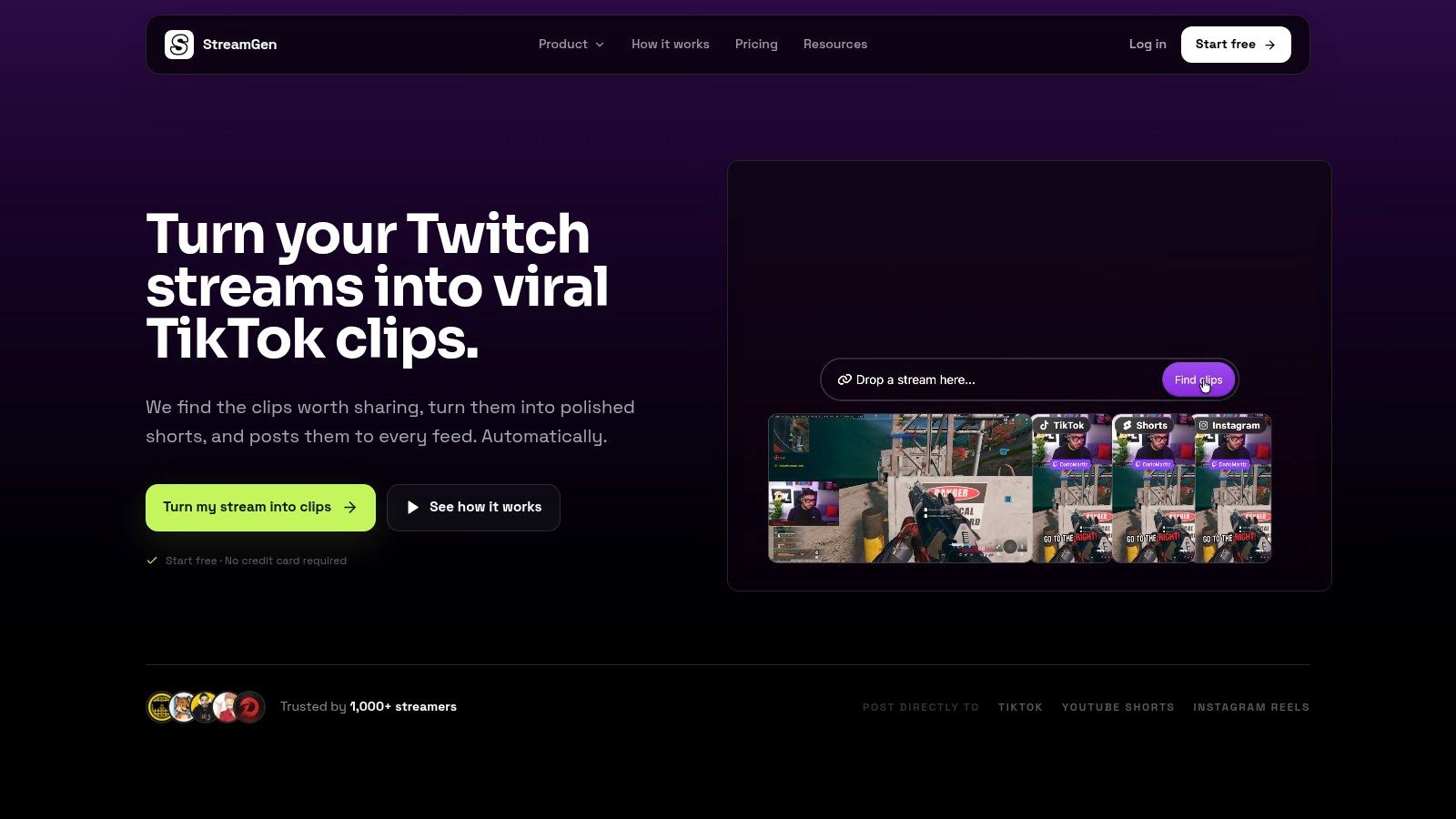
For creators who finish a stream with more footage than time to review, StreamGen focuses on the post-stream clipping workflow. Its AI Clip Finder scans Twitch VODs, including broadcasts lasting 8+ hours, and uses gameplay, audio, and chat signals to surface high-energy moments. The result is a discovery system for turning long sessions into short-form candidates, rather than an in-game recorder built around hotkeys.
Editing and publishing remain in the same workspace. The Clip Editor reframes footage for vertical feeds while keeping the facecam and important gameplay visible, removes silence, applies brand presets, and adds animated captions in 90+ languages. Word censoring can prepare a safer public version of a raw stream. Captions, cuts, and context still need human review, especially when the value of a moment depends on what happened before the highlight.
Practical rule: Choose StreamGen when selecting publishable moments is the bottleneck, not when you only need to save the last event in a game.
Where StreamGen fits best
Auto Posting connects TikTok, YouTube Shorts, and Instagram Reels. Autopilot can coordinate discovery, editing, and post queuing while you continue streaming. That path is useful once a creator has a growing clip library, because finding the right moment becomes a separate task from recording it. Independent Twitch databases index clips in categories such as Just Chatting, and clip search tools provide filters for game, creator, date, title, and view count (ClipsFinder’s indexed clip database). StreamGen takes the workflow further by connecting discovery with preparation for publication.
The VOD Editor, currently in beta, can remove dead air, loading screens, and menu navigation. It can also export timeline-ready projects for DaVinci Resolve and Premiere Pro, giving editors a handoff point for more controlled finishing work. The trade-off is review time saved at the cost of occasional context errors or selections that do not match a creator’s voice. Some advanced capabilities and higher usage limits require paid access, with plans listed from €5.49 per month (StreamGen’s official site).
Pros
- Unified workflow: AI clipping, editing, and scheduling share one workspace.
- Hands-off publishing: Autopilot can maintain a queue while you are live.
- Vertical-ready output: Smart layouts preserve facecam and gameplay.
- Professional handoff: Exports support further work in DaVinci Resolve and Premiere Pro.
Cons
- Human review remains necessary: AI selections, captions, and censoring may need corrections.
- Beta limitation: The VOD Editor is still in beta.
- Plan differences: Advanced usage depends on the selected tier.
2. Eklipse
A streamer who finishes a long broadcast may remember a few strong moments but still face hours of VOD review. Eklipse targets that bottleneck by scanning Twitch, Kick, and YouTube footage for gameplay signals such as kills, wins, audio spikes, and chat activity. Its detection suits gameplay and reaction streams more closely than podcast-style material, where the value may depend on a carefully developed spoken argument.
The workflow starts after the stream. Eklipse identifies possible highlights, then its browser editor supports vertical reframing, captions, and effects. Because processing happens from existing VODs, creators do not need to install a local capture application or compete with the game for resources during play. The trade-off is important: Eklipse can shorten post-stream discovery, but it cannot save an instant replay that was never recorded.
For a creator publishing short-form content from regular broadcasts, the main advantage is the path from VOD discovery to scheduled post. Eklipse supports scheduling and auto-posting to TikTok, YouTube Shorts, and Instagram Reels, reducing the number of separate steps between selection and distribution. Premium access controls options including a priority queue, 1080p60 exports, and watermark removal. Review the Eklipse pricing guide before assuming every export or publishing control is included.
The tool works best when recognizable events and expressive reactions drive the clip. Supported games, templates, and advanced controls can vary by plan, so it is less suitable as a general-purpose editor for footage built around extended conversation. Choose Eklipse when reducing VOD scrubbing matters more than capturing moments in real time, and when browser adjustments are enough before scheduling.
Pros
- Automated discovery: It reduces manual searching through gameplay VODs.
- Integrated publishing: Scheduling connects clip creation with distribution.
- Fast browser edits: Vertical layouts, captions, and effects require no complex desktop setup.
Cons
- Content fit matters: Pure talking-head footage is not its strongest use case.
- Premium gating: Several advanced options require paid access.
- Not an event recorder: It works primarily from existing streams and VODs.
3. StreamLadder
StreamLadder fits the workflow where the highlight has already been captured and the next task is turning it into a scheduled short. Its ClipGPT feature helps identify moments in streams and VODs, while browser and mobile tools support reframing, captions, and publishing to TikTok, Instagram Reels, YouTube Shorts, and X.
The workflow is practical for creators who edit between sessions. A streamer can review an existing clip, adjust its vertical layout, write a caption, and prepare distribution without opening a full desktop editor. Mobile access matters most when source material is already available and the creator values quick repurposing over detailed timeline work.
StreamLadder is a repurposing layer, not a replacement for software that records the game while you play.
That distinction places it later in the clipping path than an in-game recorder. StreamLadder cannot recover a live moment that was never saved. Once a VOD or clip exists, however, it reduces the handoffs between selection, captioning, formatting, and scheduling.
Choose StreamLadder when the publishing queue is the bottleneck. Mobile-first creators, editors handling short social tasks, and streamers distributing one highlight across several platforms get the clearest benefit. Some controls depend on paid tiers, so review the included export and publishing options in this StreamLadder alternative and pricing guide before choosing a plan.
Its limits are equally relevant. The tool is less suited to automated VOD discovery at scale, advanced timeline editing, or event detection during gameplay. Those workflows require a separate discovery, recording, or post-production tool upstream or downstream. StreamLadder works best after the source moment is chosen, with speed and distribution taking priority over elaborate editing.
Pros
- Mobile and web access: Lets creators prepare posts away from a desktop.
- Direct publishing workflow: Connects clipping, captioning, scheduling, and posting in one environment.
- Existing-media focus: Handles clips and VODs already captured from streams.
Cons
- No live PC capture: It cannot save an unrecorded gameplay moment.
- Tier restrictions: Some export and publishing controls require paid access.
- Limited deep editing: Its strengths are vertical repurposing and distribution, not full post-production.
4. Streamlabs Cross Clip
Cross Clip fits the final formatting step in a clipping workflow. Once you have selected a Twitch or Kick highlight, or received footage from another editor, its browser editor converts the source into a 9:16 layout for social platforms. Positioning controls and optional layers help adapt the frame without opening a full desktop editing suite.
The trade-off is clear. Cross Clip does not search a VOD, detect memorable gameplay events, or record a live session. You choose the moment first, then upload it, adjust the composition, export the result, and share it. That narrow path reduces setup for creators who need vertical repurposing rather than automated discovery.
A lightweight final-format editor
The Pro option includes 1080p60 export, watermark and outro removal, and priority rendering. The free tier has upload limits and watermarking, which makes it more suitable for testing the workflow or handling occasional clips than for a high-volume publishing operation. Streamlabs integration and a mobile app add convenience for creators already using that ecosystem through Cross Clip’s official editor.
Cross Clip’s role becomes clearer when compared with VOD-based AI tools and capture-first software. It starts after the source moment has been found, so it does not reduce review time or protect an unrecorded play. It also does not rank highlights, schedule posts across platforms, or replace a local recorder. Its advantage is avoiding those extra layers when a finished highlight only needs a social-ready layout.
Choose Cross Clip for a creator workflow built around selected clips, teammate handoffs, or occasional vertical exports. Choose another tool when discovery, event capture, full-session recording, or scheduled distribution is the main bottleneck.
Pros
- Focused workflow: Converts an existing highlight into vertical content.
- Browser-based processing: Keeps live gameplay capture separate from formatting.
- Simple controls: Lets new users prepare social layouts quickly.
Cons
- No discovery layer: You must provide the source moment.
- Free restrictions: Upload limits and watermarks apply.
- Limited publishing depth: It formats and edits clips, rather than managing a complete social queue.
5. Medal
A creator who remembers a standout play only after closing the game needs capture at the moment of action. Medal targets that workflow on Windows, detecting supported in-game events and recording them automatically. Manual hotkeys and adjustable pre- and post-event buffers cover plays the detector misses. Product information supplied for this comparison lists automatic clipping for 3,000+ games (Medal’s official site).
The workflow starts during gameplay, not after a broadcast becomes a VOD. Local recording preserves the event as it happens, while cloud sync makes clips available across devices for later review or sharing. That makes Medal useful for event capture, but less suited to creators whose process begins with searching a long archive for several publishable moments.
Where Medal fits in a clipping workflow
Medal includes a simple editor and quick-share exports, including formats suited to TikTok-style videos. The path from detected event to shareable short is therefore short, especially for PC gamers who want to post a single play without setting up a full recording and editing system.
Detection remains conditional. Title support and event recognition determine what gets captured, and a patch or unsupported moment can result in an incomplete or irrelevant clip. Manual hotkeys still matter for unusual plays, voice-chat exchanges, and moments without a recognized game event. Auto-clipping is Windows-only, which limits the workflow to PC users.
Choose Medal when the main risk is missing an in-game moment. Choose a VOD-based tool when the priority is reviewing completed streams, finding patterns across a full archive, and preparing a scheduled multi-platform queue.
- Best fit: PC creators who want automatic event capture during play.
- Useful fallback: Manual hotkeys and adjustable buffers for events detection misses.
- Workflow advantage: Cloud access supports review and sharing on other devices.
- Main limitation: Capture and quick exports are stronger than scheduling or social queue management.
6. Outplayed
A creator who records an entire match can revisit the setup, turning point, and result instead of keeping only an instant replay. Outplayed is built for that workflow, using Overwolf game integrations to mark events such as kills, deaths, and wins while recording full sessions with bookmarks. The extra context helps when the payoff depends on what happened before or after the key play.
Its practical advantage is coverage rather than advanced publishing. Outplayed manages storage automatically and offers quick-share outputs, while support for thousands of games comes through Overwolf integrations. Event behavior still varies by title, and a major patch can interrupt detection until the integration is updated.
Where Outplayed fits after the match
Outplayed runs in the background during long gaming sessions. Record a complete match, return to bookmarked moments, then trim or merge the sections worth sharing. This reduces the risk of losing an unusual play that an event detector does not recognize, while keeping more context than a short instant replay.
The trade-off comes later in the workflow. Compared with dedicated social schedulers or lightweight repurposing editors, Outplayed’s cloud and publishing features are basic. A creator preparing recurring posts for TikTok, Shorts, and Reels may still need another tool to format, queue, and schedule those versions. The app is also PC-only and depends on Overwolf.
Choose Outplayed when full-session preservation matters more than moving directly from automated highlight detection to a scheduled short. It suits PC creators who review matches after playing, rather than creators whose priority is finding several moments across a finished VOD (Outplayed’s official website).
Pros
- Full-session recording: Preserves context around important plays.
- Bookmarks: Event markers shorten post-match review.
- Game integrations: Supported esports titles can receive automatic event handling.
- Storage management: Background capture is easier to maintain across sessions.
Cons
- Integration dependence: Unsupported titles and patches can reduce reliability.
- PC-only workflow: It does not cover mobile or non-PC capture.
- Basic distribution: Social scheduling and cross-platform queue management are limited.
7. Twitch Clip Editor and Auto Clips
For creators who discover a highlight while reviewing their Twitch channel, native tools shorten the path from clip to publishable draft. Twitch’s Clip Editor reframes clips vertically in the browser and offers direct sharing, so this workflow does not require a separate capture application.
Auto Clips provides a second route. Its AI and speech-to-text features can suggest or generate clips, while voice trigger phrases can mark moments during a stream. The feature remains in alpha, has limited availability, and is English-first. That makes it useful for testing automated discovery, but less dependable as a replacement for a dedicated VOD-based clipper. Captions and basic download or export options keep the process accessible. Specialized editors still offer more control over branding, effects, and detailed revisions.
Best use: Choose Twitch’s native tools when the stream, clip review, and initial publishing step all happen on Twitch, and advanced cross-platform automation is not the priority.
The Twitch-first boundary
Twitch supports direct integrations for sending drafts or posts to TikTok and YouTube Shorts. That keeps the handoff inside the Creator Dashboard and lets a creator test a simple publishing routine before adding a broader editing or scheduling platform. For a wider comparison of AI clip generation and native clipping, see this AI video clipper overview.
The limitation is the final mile. Twitch supplies fewer branded templates, effects, and detailed editing controls than dedicated repurposing editors, while Auto Clips may not be available for every creator. Select it when Twitch is the source of truth and official platform access matters more than maintaining a multi-network queue (Twitch’s official platform).
Pros
- First-party workflow: No extra capture software is required.
- Simple vertical output: Clip Editor handles browser-based reframing.
- Platform handoff: TikTok and Shorts integrations reduce file handling.
- Low barrier to entry: It suits Twitch-focused creators starting with a direct publishing routine.
Cons
- Alpha availability: Auto Clips may not be accessible to every creator.
- English-first automation: Language support limits some workflows.
- Less creative control: Branding and effects are more limited than in dedicated editors.
Top 7 Game Clipping Tools Comparison
| Tool | Implementation Complexity 🔄 | Resource Requirements ⚡ | Expected Outcomes 📊⭐ | Ideal Use Cases 💡 | Key Advantages ⭐ |
|---|---|---|---|---|---|
| StreamGen | Moderate, AI-driven end-to-end; some setup for presets/integrations | Cloud-first; minimal local CPU; free tier + paid limits | High, fast clip throughput; ready-to-post verticals with multilingual captions | Twitch streamers, VTubers, editors scaling short‑form output | All‑in‑one automation, direct publishing, VOD export for NLEs |
| Eklipse | Low–Moderate, browser AI clipper with simple editor | Cloud/browser; premium for priority/1080p60 | Good, reliable highlight detection for gameplay; quick edits | Gameplay creators who want balance of automation + manual touch | Fast find→edit→post workflow; saves VOD scrubbing |
| StreamLadder | Low, straightforward clip→edit→schedule flow (mobile + web) | Cloud + mobile support; some paid tiers | Good, automated highlights and mobile-ready posts | Creators needing mobile workflows and social scheduling | Mobile support, built-in social publisher, ClipGPT finder |
| Streamlabs Cross Clip | Very Low, simple web/mobile converter; no AI discovery | Browser/mobile; minimal local impact; Pro for higher exports | Fast but basic, quick formatting of provided clips | Creators with existing clips wanting fast repurposing | Affordable, minimal performance impact, simple UI |
| Medal | Moderate, desktop recorder with in-game auto-detection | Windows client; local recording + cloud sync; game integrations | Very good, true in‑moment capture; immediate shareable clips | PC gamers who don’t want to miss plays (hotkey capture) | Auto event detection for 3,000+ games; hotkeys and buffers |
| Outplayed (Overwolf) | Moderate, background recorder reliant on Overwolf integrations | PC/Overwolf required; runs in background with minimal impact | Good, full-session capture with bookmarks; quick share | Creators recording full matches across many titles | Mature Overwolf integrations; smart storage and bookmarks |
| Twitch Clip Editor + Auto Clips | Very Low, built into Twitch; Auto Clips in alpha | No extra software; first‑party integrations (limited availability) | Variable, seamless Twitch handoff; Auto Clips English‑first & limited | Streamers whose workflow is centered on Twitch | Zero cost, native integrations to Shorts/TikTok, simple export |
Match the Clipper to Your Publishing Routine
There isn’t one best clipping software for games because the tools solve different timing problems. StreamGen and Eklipse suit creators who want AI-assisted discovery from long VODs, vertical editing, and a path toward scheduled shorts. StreamGen goes further for users who want one workspace for finding, editing, and publishing, while Eklipse is a strong alternative for gameplay-focused VOD processing.
Choose StreamLadder when mobile access and a quick clip-to-publish routine matter most. Pick Cross Clip when the source moment is already selected and you only need straightforward vertical formatting. Medal is the better answer for in-game event capture, particularly when you want automatic protection against missed plays on Windows. Outplayed fits full-session recording with bookmarks and later review. Twitch’s native tools are the sensible choice for a Twitch-first workflow with minimal setup and official platform handoffs.
Use this checklist before installing anything:
- Capture timing: Do you need a live hotkey, automatic event capture, full-session recording, or post-stream VOD analysis?
- Game support: Confirm that your game and its current patch are supported if event detection is central to the workflow.
- Editing depth: Decide whether simple trimming is enough or whether you need captions, smart vertical layouts, silence removal, censoring, brand presets, or professional exports.
- Publishing destinations: List the platforms you use, then check whether the tool can schedule or publish to TikTok, YouTube Shorts, Instagram Reels, or other destinations directly.
- Automation needs: Separate “finds a highlight” from “finds, edits, queues, and publishes it.” Those are different levels of automation.
- Budget and review time: A lower-cost tool can still be expensive in attention if it leaves discovery, formatting, and posting to you.
Automatically generated clips should always receive a final review. Check the selected context, captions, censoring, facecam placement, and event detection before publishing, especially when a clip represents your brand or goes to several platforms at once.
StreamGen brings AI VOD discovery, vertical editing, captions, silence removal, and direct scheduling for TikTok, YouTube Shorts, and Instagram Reels into one workspace. If your biggest bottleneck is turning long gaming broadcasts into a consistent queue of reviewed shorts, visit StreamGen and test whether its workflow fits the way you publish.
More blog posts