You’re trimming a Just Chatting moment for a vertical clip, and the punchline is a swear. Mute the whole sentence and the joke dies. Beep only the audio and the caption still spells the word. Drop that same file on TikTok with the swear sitting in the title, and the audio treatment barely matters. Censoring curse words in stream clips is one decision that has to cover what people hear, what they read, and what sits in the title or thumbnail.
Table of Contents
- Choose the Right Censoring Treatment Before You Edit
- How to Detect Profanity in a Clip with StreamGen
- How to Apply Audio and Caption Censoring Together
- Tune False Positives and Missed Curse Words
- Platform Rules That Change Your Censoring Choices
- Set Your Review Rule Before You Automate
Choose the Right Censoring Treatment Before You Edit
Muting every swear the same way is the edit that wastes the most time. A one-off reaction, a quoted insult, and a title hook do not carry the same risk, so they should not get the same treatment. Pick the treatment before you touch the timeline. I would start with the option that matches the audience, not the loudest mute.
| Treatment | What viewers hear | What viewers read | Best fit | Watch for |
|---|---|---|---|---|
| Audio mute | Silence over the matched span | Masked caption or [expletive] label | Strict brand or family-adjacent audiences | Dead air if the span is long |
| Beep tone | Short tone over the word | Masked caption matching the beep | Live-style Twitch banter and reaction clips | Tone can feel jarring in quiet moments |
| Volume ducking | Music or chat dips under the word | Masked caption | Gameplay with loud music or sound effects | The word is often still faintly audible |
| No treatment | Original audio unchanged | Original caption unchanged | Audiences that expect authentic language | The word ships in audio and captions to every feed |
| Linked audio and caption edit | Beep or mute on the matched span | Caption token redacted to match | Most publishing setups, especially vertical feeds | Requires both edits to be reviewed together |
Linked audio and caption edits are the default for any clip going to YouTube Shorts, TikTok, or Instagram Reels. A masked caption under an audible swear is the worst pairing on the table, because the feed reads that as a word you flagged and then shipped anyway. Whatever the audio does, the caption has to say the same thing. Leave both untouched only when the audience expects authentic language, and reserve a full-sentence mute for heavy or repeated profanity, because a long mute reads as dead air.
No fixed blacklist settles this. Context, repetition, and channel set how strict the treatment should be. The same word lands differently in a sponsor cut than in a clip for core chat, and a swear sitting in the title or thumbnail carries risk even when the audio underneath is clean.
A swear in the title is a different edit from the same swear in the audio.
Answer three questions before you cut:
- Where will this publish: Shorts, TikTok, Reels, or a sponsor cut.
- Who is watching: core chat, a family-adjacent brand, or a cold audience from a recommendation feed.
- Is the swear the point: if the joke depends on the word, a beep can kill the clip, and you may want a different moment.
How to Detect Profanity in a Clip with StreamGen
Open the clip before you hunt for words. A wrong source file makes every later timestamp useless.
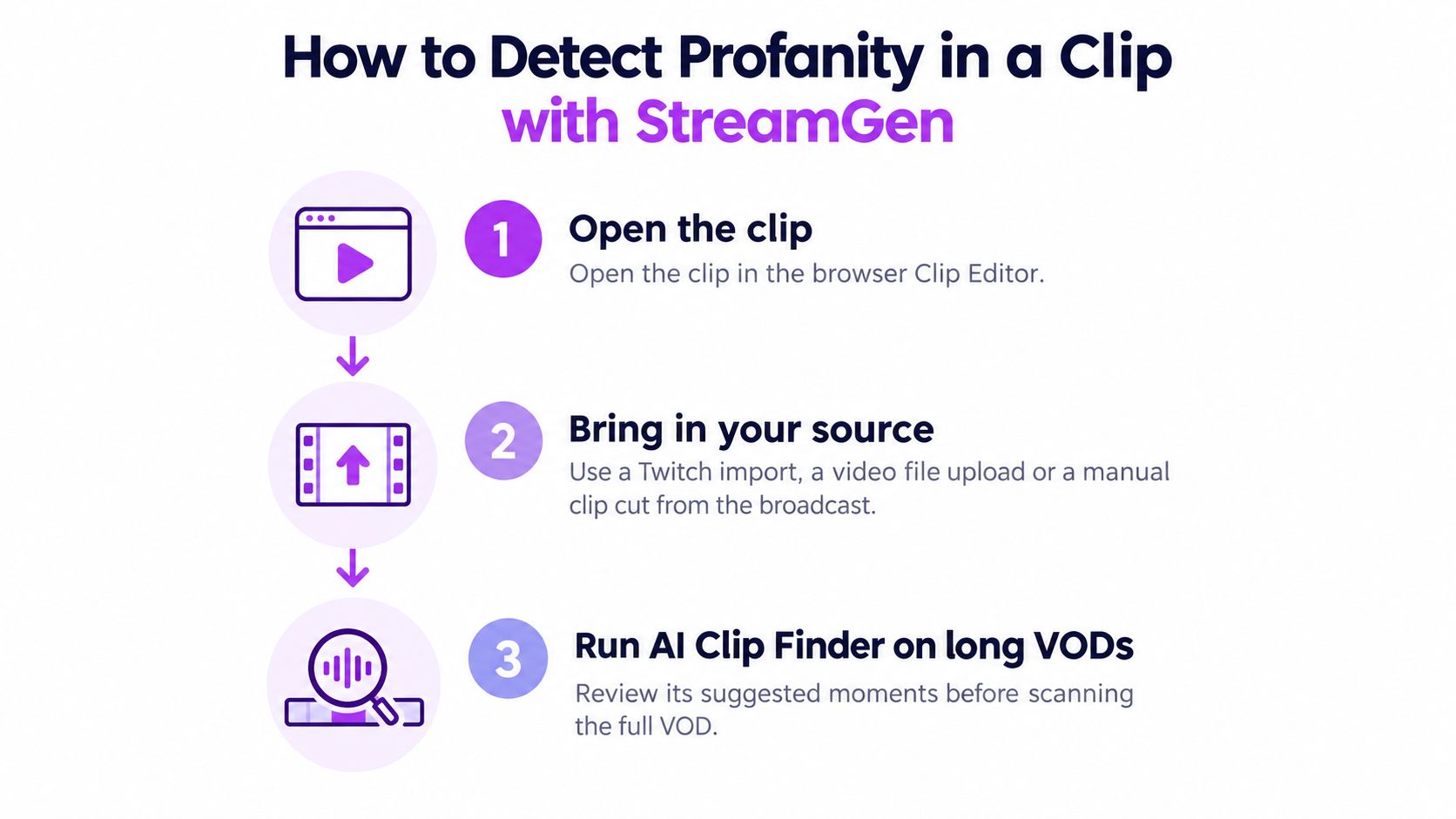
- Open the clip in the browser Clip Editor. Bring it in with a Twitch import, a video file upload, or a manual clip cut from the broadcast. Confirm you are on the take you plan to post.
-
Run AI Clip Finder on a long VOD first. It ranks moments from gameplay, reactions, chat, and audio so you review suggested clips instead of an eight-hour broadcast. Scanning the full VOD first is how quiet mid-stream swears get skipped.
-
Set the caption language before detection. A wrong language setting is the most common reason matches go missing, because the transcript never writes the word you expect. If you want the mechanics of timed text, RenderIO’s guide to video transcription shows how speech becomes time-aligned words you can edit.
-
Run word censoring and open the flagged list with timestamps. You want candidate spans, not a finished mute. Menu labels in the editor can change, so use the control that flags words and shows start times, then confirm the label on the live interface.
-
Play each match with two to three seconds of lead-in. Hear the sentence, not just the word, then mark it as censor, leave uncensored, or allowlist. A match you skip stays in the queue and ships later as an accident.
-
Check overlapping speakers and game audio. If the caption text is clearly wrong, re-run transcription before you trust the flags. Co-host crosstalk and ability callouts are where homophones sneak through.
A finished review has a decision on every flagged item. None are left unmarked.
How to Apply Audio and Caption Censoring Together
Most tutorials drop a beep on the waveform and stop. The most common failure is a beep over a caption that still prints the word, and that mismatch is the edit that fails on a phone.
Library technology guidance from ALA recommends censoring captions when the audio is censored, for example by replacing part of the word or using an “[expletive]” label, and not censoring captions when the spoken audio stays uncensored. A bleep over an unmasked caption undercuts Deaf and hard-of-hearing viewers and sends mixed brand-safety signals. Maximum censorship is not automatically the most responsible approach. Consistency is.
Platform risk follows the same logic. Reviewers and recommendation systems read the caption, the title and the thumbnail alongside the audio, so a muted word that still appears in any of those surfaces counts as explicit. Treating audio and captions as one linked decision means the word is either fully present or fully masked everywhere it can show up.
Apply one treatment to both tracks
-
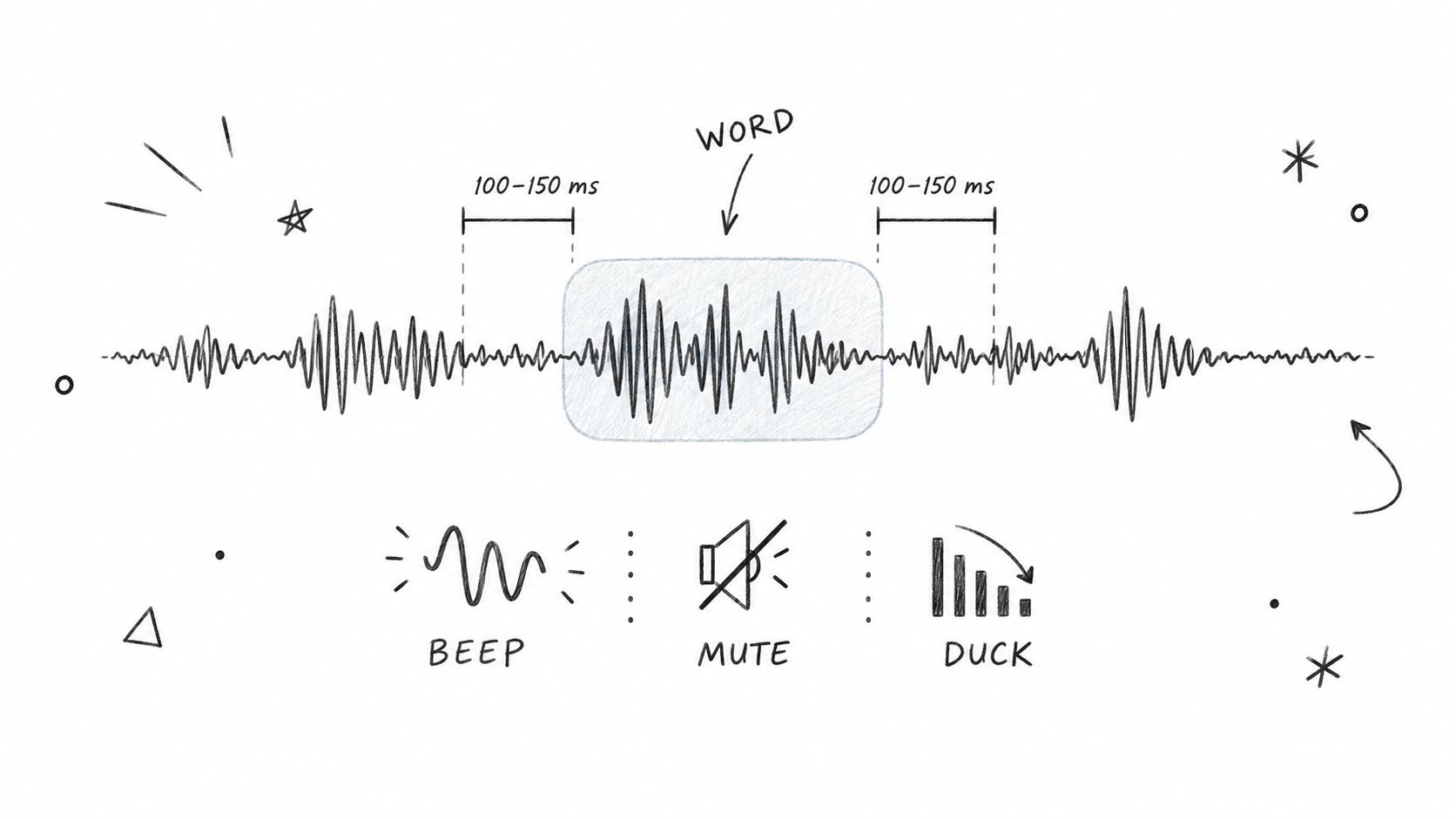
Choose beep, mute, or duck for each match. Set it before you pad the span. Changing the treatment after captions are locked is how the two tracks drift.
-
Pad about 100 to 150 milliseconds before the word, and a little after it. That keeps the first consonant from leaking. Treat the range as a starting point and adjust by ear, because a tight pad on a fast talker still clips the attack.
-
Link caption redaction to the same token. The masked text has to match the audio decision. The same timing habits show up when you generate subtitles for a clip and then censor only one of the two tracks.
-
Preview the waveform and the captions side by side. Confirm the beep and the masked text land on the same moment. If the caption pops a frame early, viewers read the word before they hear the tone.
-
Leave untouched matches uncensored in both places. If you decided the word stays, the caption stays too. Masking only the text on an intentional swear is the mismatch in reverse.
-
Export the vertical clip with captions burned in, then watch the first ten seconds on a phone-sized screen. Phone playback is where a late beep and a leftover caption token show up. Desktop preview hides both.
Run the clip in one of two clean modes: a visible “censored in both” pass, or audio and captions left unchanged when the audience expects authentic language. Pick one mode per clip and hold it to the final frame.
The side-by-side check is easier to see than to describe.
Tune False Positives and Missed Curse Words
The first failure is usually a clean word beeped in the middle of gameplay. A character name or a callout trips the lexicon, the tone fires, and the clip sounds broken.
| Symptom | Likely cause | Fix |
|---|---|---|
| Clean word beeped in gameplay | Broad lexicon matched a game term or homophone | Add the term to the allowlist and raise the confidence threshold |
| Quoted or joking swear censored | No context window applied to the match | Widen the review window to the full sentence and allowlist recurring meme phrases |
| Swear audible with no beep | Transcription missed it due to accent, mic quality or overlap | Lower the threshold, add the slang to the denylist and mark the span by hand |
| Caption shows the word while audio is beeped | Caption redaction not linked to the audio match | Turn on linked redaction and re-check the captions |
| Beep lands a few hundred milliseconds late | Timestamp drift or padding too tight | Widen the padding and re-preview the span |
| Dozens of matches in a short gaming clip | Gameplay vocabulary triggers the lexicon | Switch to a lower sensitivity preset and allowlist recurring game terms |
Keyword presence does not prove harmful intent. In a moderation study, profanity or stereotypes used in non-toxic contexts accounted for 34% of false positives, confusion about who was being targeted accounted for 47%, adding surrounding context corrected 40% of false positives but only 6% of false negatives, and up to 89.8% of false negatives were profanity-free (AlphaXiv moderation research). Context windows mainly stop unnecessary beeps and caption masks. They will not rescue most misses.
Stage the decision
- A broad lexicon finds candidate words.
- A context window expands from the matched word to the full sentence and speaker turn, and to chat when you have it.
- Severity and intent get classified next.
- Low-confidence cases go to review instead of a silent beep.
Sensitivity presets cut gameplay matches. Allowlists hold gaming terms and running jokes. Denylists catch streamer-specific slang. Confidence thresholds route uncertain matches to review. A preview waveform lets you fix a false positive before you publish.
If you are unsure, leave the low-confidence span uncensored and mark it for a second listen, rather than beeping a clean word your regulars will notice.
A profanity filter improves lexical compliance. It does not replace judgement on harassment that never uses a curse word.
Platform Rules That Change Your Censoring Choices
One blanket mute does not travel. The same clip can be fine as spoken banter and risky once the word sits in a title.
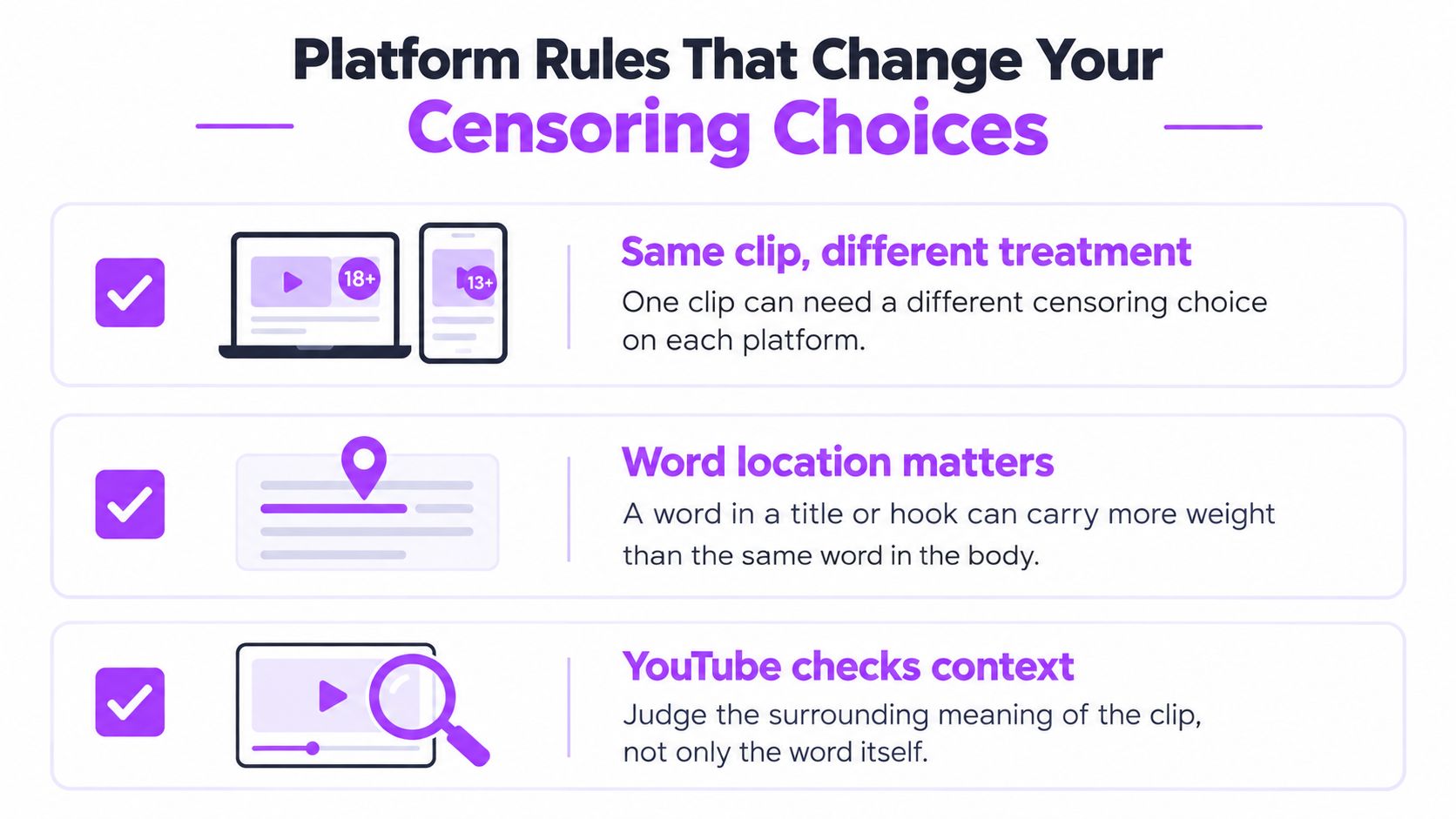
YouTube’s profanity policy evaluates context, frequency, placement, and severity. Excessive profanity can lead to age restriction, removal, or strikes. Heavy profanity in titles, thumbnails, or metadata is treated especially seriously. Educational, documentary, scientific, and artistic contexts may receive exceptions. YouTube says it does not use a simple banned-word list and considers intent and context.
On a Shorts upload, mask the title and the hook text first. Those lines carry more weight than the same word buried in the body audio.
| Location | YouTube Shorts |
|---|---|
| Spoken in audio | Context, frequency and placement judged; excessive profanity can lead to age restriction |
| Title or hook text | Heavy profanity treated especially seriously |
| Thumbnail or metadata | Heavy profanity treated especially seriously |
| Educational or artistic context | May receive exceptions |
TikTok and Instagram Reels publish their own rules, and those pages change, so read each platform’s current guidelines before you copy a Shorts treatment across. The posting path in a stream-to-TikTok workflow is where a title written for one app gets pasted into the next. Cross-posting text has the same trap. People who automate Twitter posts without triggering spam flags already see a line fail in one place and pass in another because of placement, not because the words changed.
Run five checks before you post:
- Title: no heavy profanity in the first line.
- Hook text: on-screen words in the opening seconds match the audio decision.
- Thumbnail: text on the image is as clean as the title.
- Spoken span: beep or mute only the spans you marked.
- Purpose: if the clip is educational or artistic, note that before you over-cut the language.
Set Your Review Rule Before You Automate
Automate the scan and the queue. Keep the sign-off human for any clip with a title, hook text, thumbnail copy, or a flagged span. I would not let Autopilot publish a flagged match while the creator is live.
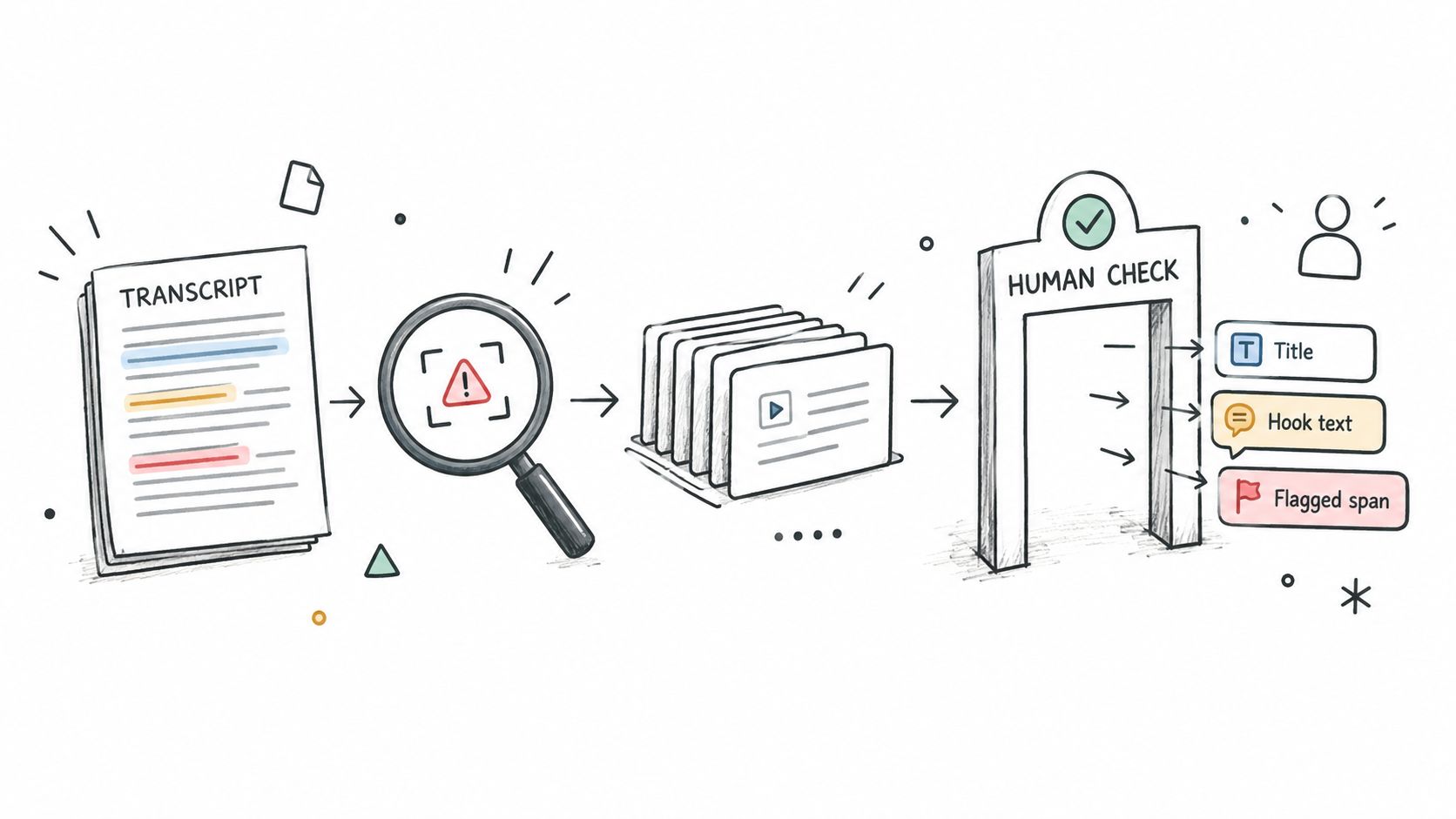
Transcribe the stream and keep each token’s start and end time. Rev’s guide to automatic speech recognition APIs describes monitoring quality with word error rate (WER), calculated as (S + I + D) / N, where substitutions, insertions, and deletions are divided by the number of spoken words. Accuracy reported for profanity detection often comes from narrow datasets, so treat published scores as a reason to test your own VODs rather than a promise for multilingual Twitch audio or noisy gameplay. Match explicit terms and obfuscated variants, then label insults, quoted language, joking use, reclaimed terms, and benign homophones. Censor only the matched span with a beep, duck, mute, or replacement audio, and redact the matching caption token in the same pass so the sound and the words on screen agree.
Keep an undo or audit layer. Irreversible audio edits are hard to correct once the file is exported.
What to measure on your own VODs
Build the QA set from clean speech, profanity, near-homophones, code-switching, names, game terminology, and overlapping speakers. Track precision, recall, F1, false-censor duration per hour, and missed-censor rate on representative streams. Report confusion matrices rather than accuracy alone, because a typical stream may contain very few curse words and accuracy then looks better than the edit is.
Set the gate by location: clean clips can queue; any flagged audio span, caption token, title line, or thumbnail copy waits for review. A spoken beep under a visible uncensored caption is still a miss, and a cleaned caption over raw audio creates the same problem in the other direction.
Automating the queue is fine. Automating the judgement on a flagged span is not.
Autopilot can run find, edit, and post while you are live, so put the review gate on flagged spans and any text that ships with the clip. Start on the free tier, with its lower limits, and measure your own error rates before you widen the queue. The same judgement calls show up in how to be a Twitch mod, where a word list never replaces a person reading the room.
StreamGen’s browser Clip Editor flags curse words on stream clips, then lets you beep or mute the audio and redact the matching caption before a Shorts, TikTok, or Reels post. Set a review gate for titles and flagged spans so the queue does not publish a word you meant to catch. Open StreamGen and run the next clip through that linked check before it hits the schedule.
More blog posts