You’ve finished a long Twitch broadcast, and you remember a brilliant reaction, a disastrous push, and a chat exchange worth saving. They’re somewhere in the VOD. You don’t have another evening to find them, rebuild the layout, and upload each clip from your phone.
A workable stream-to-TikTok workflow starts with finding candidates, not polishing everything. The editing job is to preserve what makes each moment understandable, remove what delays it, and catch anything that shouldn’t leave the original broadcast.
Table of Contents
- How to Turn a Twitch VOD into TikTok Clips
- Pick Moments That Survive Without Their Stream
- Vertical Framing and Captions That Read on a Phone
- Direct Publish, Scheduled Queue or Export for Editing
- Compliance Checks Before Any Clip Goes Live
- Confirm Your Posting Routine Before You Scale
How to Turn a Twitch VOD into TikTok Clips
A Twitch VOD is source material, not a finished TikTok. Treat automated highlights as an assistant editor’s selects: useful places to start, but not decisions you should publish without checking.
TikTok’s development into an international short-video destination helps explain why this repackaging matters. Its merger with Musical.ly transferred existing profiles and content into the platform, as described in Dexerto’s history of TikTok. For an editor, the practical distinction is between a broadcast that viewers join and a standalone moment they encounter without knowing the creator.
Build a reviewable first cut
-
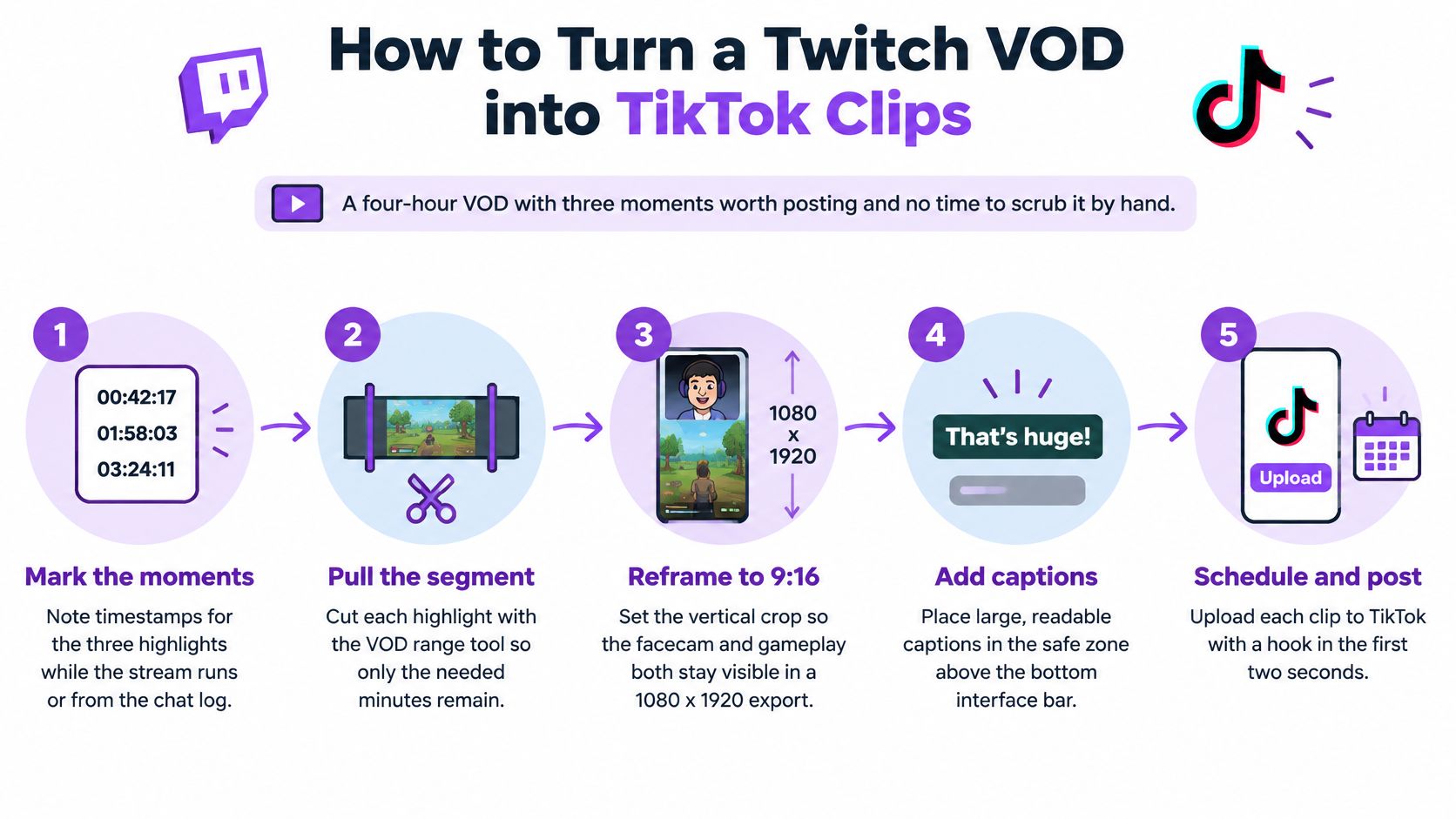
Connect Twitch or import the VOD. Bring the full broadcast into your workspace before selecting excerpts. Detection can only evaluate the footage you provide, and an isolated reaction may leave the necessary setup outside the imported segment.
-
Run highlight detection across the broadcast. Review ranked candidates rather than scrubbing the entire timeline from the beginning. For especially long streams, confirm the tool processed the complete recording rather than assuming the first results cover everything.
-
Keep complete moments. Look for a setup, an action or reaction, and a payoff that belong together. Reject candidates whose meaning depends on missing chat unless you can restore that context without rebuilding the whole conversation.
-
Choose a vertical layout. Decide whether the clip needs gameplay, facecam, chat, or a combination, then check a representative frame. Don’t accept a layout just because the creator’s face is visible if it hides the action they’re reacting to.
-
Make the first editing pass. Add captions, remove unnecessary silence, and write an opening title that accurately describes the moment. Keep this pass functional rather than decorative so you don’t spend time animating a clip you’ll later reject.
-
Choose a publishing destination. Send an approved clip directly, place it in a reviewed queue, or export it for further editing. Record the VOD identifier and source timestamp alongside the finished version so you can locate the original exchange.
Use this visual workflow as a quick reference while moving from the broadcast to a finished clip.
Watch it as a stranger
Close the source timeline and play the draft on its own. Can you tell what’s happening, why the creator reacts, and what makes the ending worth watching?
Practical rule: A loud reaction is a candidate. An understandable reaction with a satisfying cause is a clip.
Don’t rescue every highlight. If explaining the backstory takes longer than enjoying the moment, leave it in the VOD and choose something that travels better.
Pick Moments That Survive Without Their Stream
The difficult cut usually isn’t between action and silence. It’s between necessary context and familiar material that only regular viewers appreciate.
A streamer might spend time explaining a challenge, answering chat, and waiting for a teammate before the decisive play. A new viewer needs the challenge and the consequence, not necessarily that entire conversation.
Research on abandonment of TikTok video advertisements illustrates the risk of losing viewers before a payoff. Advertisement viewing isn’t the same as watching a gaming highlight, though. It’s a reason to examine the opening, not proof that every clip should be shorter or that speech should disappear.
Match the edit to the moment
Use these target lengths as editorial boundaries, not platform rules. Keep enough footage to deliver the promise, then stop when the moment is finished.
| Moment type | What makes it work | Edit structure | Target length |
|---|---|---|---|
| Instant reaction | Visible emotion with an obvious cause | Open on the reaction, then supply brief context | As short as the cause and reaction allow |
| Narrative play | Tension followed by a clear payoff | Orientation caption, then the necessary sequence | Long enough to preserve the buildup |
| Debate or hot take | A position and a meaningful response | Keep both sides; remove pauses and repetition | A complete, concise exchange |
| Fail or mistake | A visible error and its consequence | Establish the attempt, show the fail, retain the reaction | Brief, without cutting off the consequence |
| Tutorial or tip | A useful demonstration | Preview the result, then show the steps in order | Enough to reproduce the technique |
| Community joke | A reference the viewer can understand | Explain the reference on screen or reject the clip | Brief enough that explanation doesn’t dominate |
A Twitch clip finder can help surface candidates, but ranking doesn’t answer whether a stranger understands them. Review the surrounding footage before accepting the suggested start and end points.
Replace waiting, not meaning
For a hypothetical gaming cut, replace a long discussion about attempting a difficult jump with a short on-screen cue explaining that failure loses the run. Keep the actual attempt and the creator’s response. You’ve removed waiting without removing stakes.
VTuber and Just Chatting clips may need the exact wording, hesitation, or change in tone. Gaming footage often offers cleaner cuts through menus and loading screens, unless those screens contain the conversation that makes the payoff work.
Keep the smallest amount of setup that preserves the original meaning, not the smallest amount of footage the editor allows.
If the opening remains confusing, try a factual orientation caption before trimming further. If the caption needs a paragraph, reconsider the selection.
Vertical Framing and Captions That Read on a Phone
Start with what the viewer must see. A centered crop can preserve the crosshair while hiding a teammate, the kill feed, or the creator’s hands, any of which might explain the reaction.
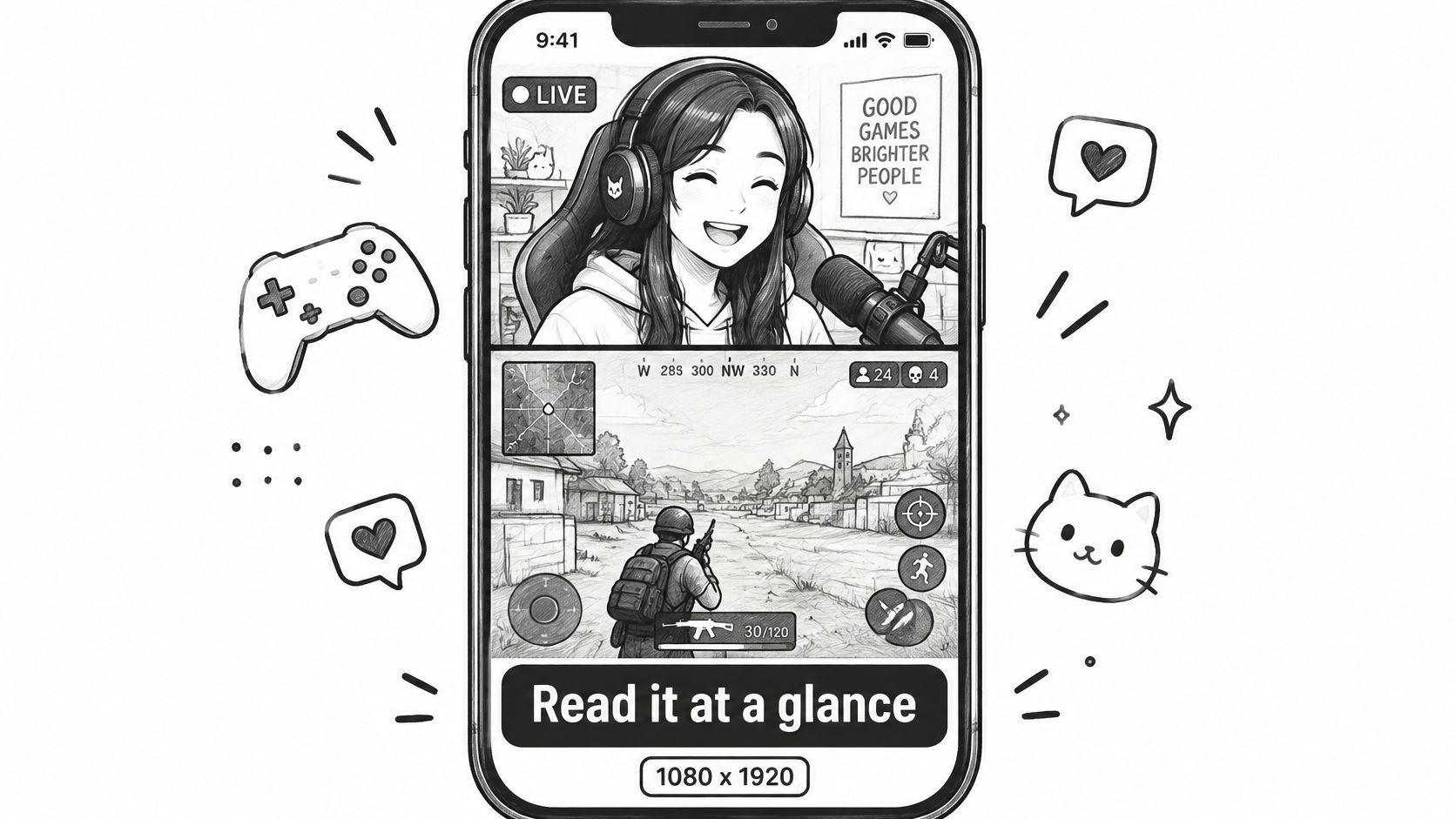
Use a portrait canvas and inspect the footage inside it rather than treating vertical conversion as a single resize operation. A split layout can give gameplay and facecam separate crops, allowing each to remain readable without competing for the same space.
This illustration shows the basic relationship between the creator, gameplay, and the phone frame.
Frame the evidence of the moment
- Preserve decisive information. Keep the objective, opponent, score, or interface detail that proves what happened. A larger facecam isn’t an improvement if it covers the result.
- Leave interface clearance. Keep important text and faces away from the edges and the areas occupied by TikTok’s controls. Preview the uploaded draft because an unobstructed editor canvas isn’t the final viewing environment.
- Check movement. Scrub through the action and the reaction, not just the opening frame. A crop that works while the creator sits still may fail when they lean back or stand up.
- Use deliberate crop changes. Switch emphasis when the story changes, such as moving from the gameplay result to the reaction. Avoid constant movement that makes the viewer work to follow the clip.
The mechanics in this guide to changing a video’s aspect ratio are useful, but the editorial decision comes first: which information cannot be lost?
Make captions useful before making them animated
Keep captions compact, high-contrast, and synchronized with speech. Break phrases where people naturally pause, and reserve word highlighting for emphasis rather than animating every word equally.
Choose the language your intended audience reads. When preparing a translated version, review slang, game terminology, and sarcasm instead of trusting a literal translation. Keep names and technical terms consistent across versions.
Remove dead air last. A pause might be disposable waiting, or it might be the beat that makes a joke land. The opening title should explain the premise without spoiling or exaggerating the result.
Consider a hypothetical Valorant clip where the center crop hides the kill feed. The viewer sees the reaction but can’t verify the play. Restore the relevant gameplay area in its own panel, reduce the facecam if necessary, and reposition captions so they don’t cover the evidence you just recovered.
Direct Publish, Scheduled Queue or Export for Editing
Choose the publishing route according to the work the clip still needs. A clean reaction clip doesn’t need a professional editing timeline just because that option exists. A complicated audio repair shouldn’t be forced through a browser editor to avoid an export.
Approval matters as much as polish. A solo creator may review and publish in the same session, while a team manager needs a clear distinction between a finished draft and an approved post.
Publishing routes compared
| Route | How it works | Best for | Trade-off |
|---|---|---|---|
| Direct publish from the clip tool | Send the approved clip to TikTok without downloading it | Routine clips from a reviewed batch | Check which final posting controls the integration exposes |
| Scheduled queue | Assign approved clips to future publishing slots | Maintaining a cadence while streaming or offline | Requires approval before the queue runs |
| Manual upload from phone | Download the file and finish posting in the TikTok app | A high-stakes post needing hands-on setup | More file handling and repeated upload work |
| Export to DaVinci Resolve or Premiere Pro | Continue with a pre-edited project in a full timeline | Audio repair, branded sequences, or detailed revisions | More editing and version-management work |
Auto Posting connects TikTok, YouTube Shorts, and Instagram Reels for direct scheduling without downloading files. The companion VOD Editor prepares pre-edited projects for DaVinci Resolve and Premiere Pro. These are different routes through the workflow, not reasons to send every clip through every tool.
Keep the approval state visible
Label drafts so another editor can distinguish selected, edited, approved, and scheduled material. Keep the approved title and destination with the final file or project, especially when different versions exist for different platforms.
Don’t assume a shared video needs an identical presentation everywhere. Preview each destination’s framing and caption placement before releasing its version.
Routing rule: Publish routine approved clips directly. Export when a specific editing problem justifies the extra work.
A branded intro is one such choice, not an automatic requirement. If it delays the moment the title promises, remove it or move the branding into the layout. Use the heavier workflow where it improves the clip, not where it merely adds production steps.
Compliance Checks Before Any Clip Goes Live
Fully hands-off posting can turn an overlooked broadcast detail into a public post before anyone notices it. Music, personal information, offensive chat, gambling references, and incomplete sponsor statements all deserve attention before publication.
TikTok’s LIVE guidance describes Community Guidelines obligations, monetization eligibility limits, and safety checks for generated recommendations and clips. Those platform checks aren’t permission to skip your own review, and LIVE monetization guidance shouldn’t be mistaken for a guarantee about an edited upload.
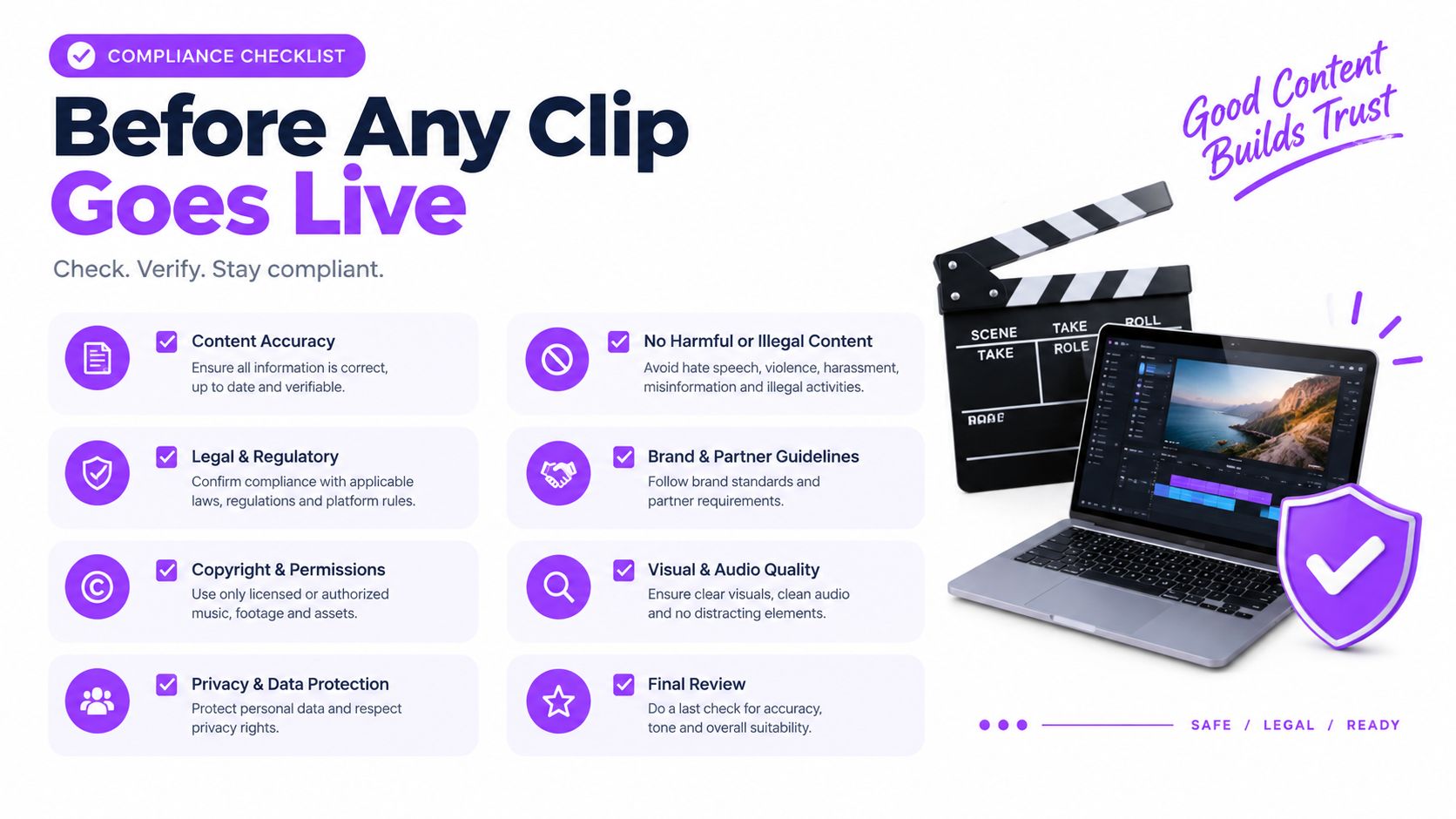
Use a separate release checklist rather than relying on memory after editing.
Check rights before presentation
- Source permission. Confirm the broadcast is yours or that you have the streamer’s permission, and check applicable download and reuse terms. Automated moderation doesn’t establish your rights to another creator’s footage.
- Music and third-party media. Review background tracks, videos, and other borrowed material. When choosing replacements, assess licensing rather than treating a list of songs for gaming videos as reuse permission.
- Audio and captions separately. Listen to the finished audio, then read the rendered captions. If using word censoring, verify both channels, since muting speech doesn’t remove text and hiding text doesn’t mute speech.
- People and private information. Inspect overlays for personal details, exposed usernames, and minors who need closer review. Blur or remove unnecessary identifiers.
- Commercial meaning. Preserve relevant sponsor or affiliate disclosures and confirm the shortened statement doesn’t imply an unsupported claim.
- Traceability. Check that the finished version still maps to its original source record.
Automate according to risk
Block clear violations. Require human approval for uncertain speech, sensitive terms, minors, third-party media, and commercial claims. Don’t use a clean keyword scan as evidence that tone or visual context is safe.
Keep the walkthrough separate from the release decision; the final rendered clip still needs inspection.
The useful automation boundary is approved content moving automatically, not uncertain content publishing automatically.
Confirm Your Posting Routine Before You Scale
Test the workflow over a week before building a large queue. Choose a small batch from the same VOD with different moment types, and set a consistent review time for each post.
Keep the test focused on editorial decisions. Changing the moment type, opening, captions, and layout simultaneously makes it harder to decide what to repeat.
Record what each cut was trying to achieve
- Opening clarity. Note the premise and how you introduced it, such as an orientation caption or a reaction-led opening.
- Viewing behavior. Review completion and rewatch information where available, alongside shares and comments.
- Audience understanding. Look for confusion about the stakes, requests for missing context, or responses that show viewers understood the intended payoff.
- Operational reliability. Record caption errors, framing problems, approval delays, and publishing failures.
Interpret results as clues
Strong early retention with little sharing can justify reviewing the payoff, but it doesn’t prove the ending failed. Likewise, repeated viewing may reflect enjoyment or confusion. Read comments and replay the cut before deciding which explanation fits.
If viewers appear to enjoy the ending but struggle with the opening, test a clearer entrance rather than stripping away more context. If a tutorial prompts questions about an omitted step, restore that step rather than merely enlarging the hook.
Move approved, repeatable edits into a scheduled queue when the workflow holds up. If it doesn’t, change the selection or presentation before increasing volume.
On your next VOD, choose a reaction, a narrative moment, and a useful demonstration. Run that small test before scheduling a larger batch.
StreamGen offers automated Twitch highlight detection, a browser-based clip editor, and scheduling for TikTok, YouTube Shorts, and Instagram Reels. Import your next VOD, prepare a small reviewed batch, and use the queue for clips that pass both the context test and the pre-publish checks.
More blog posts