You’re staring at last night’s VOD while the next stream is already on the calendar. Chat was loud, two moments felt worth keeping, and the overlay still needs a fix before you go live again. Most streamers don’t need every tool on the market. This guide groups ten essential options by the job they do, from broadcast software and chat bots to clip finders and publishing schedulers, so you can match each one to the bottleneck in your own workflow.
Best tools for streamers are easier to choose when you sort them by the job that’s falling behind. Solo creators with limited editing time usually fail in one place. The broadcast is messy, chat runs itself into the ground, or finished streams never become shorts. I recommend you fix that one gap and leave the rest alone until the habit sticks.
A workable stack has six roles. Broadcasting gets you on air. Chat keeps the room usable. Overlays and design assets make the channel look intentional. Automation connects events to scenes. Clipping finds the moments. Publishing puts those moments on TikTok, YouTube Shorts, and Instagram Reels without a second shift.
What works is a short list you can run after a long stream. What doesn’t work is adding an app because a screenshot looked polished. If a tool needs daily babysitting, it loses to the next raid, the day job, or a bad week. Each pick below covers daily use, an honest limit, and who it’s best for.
Table of Contents
- 1. StreamGen
- 2. OBS Studio
- 3. Streamlabs Desktop
- 4. StreamElements
- 5. Nightbot
- 6. Streamer.bot
- 7. OWN3D
- 8. StreamLadder
- 9. Eklipse
- 10. OpusClip
- How the Ten Streamer Tools Compare by Role and Fit
- Build a Stack Around Your Bottleneck, Not the Hype
1. StreamGen
A long Twitch VOD can hold plenty of moments worth sharing, but finding them by scrubbing through the recording takes time. Shane the Gamer’s Twitch statistics roundup reports that viewers watched approximately 19.2 billion hours of Twitch content in 2025, compared with about 36.4 billion hours across major live-streaming platforms. For a solo creator, the practical question is how to turn a stream into clips without adding a second editing shift.
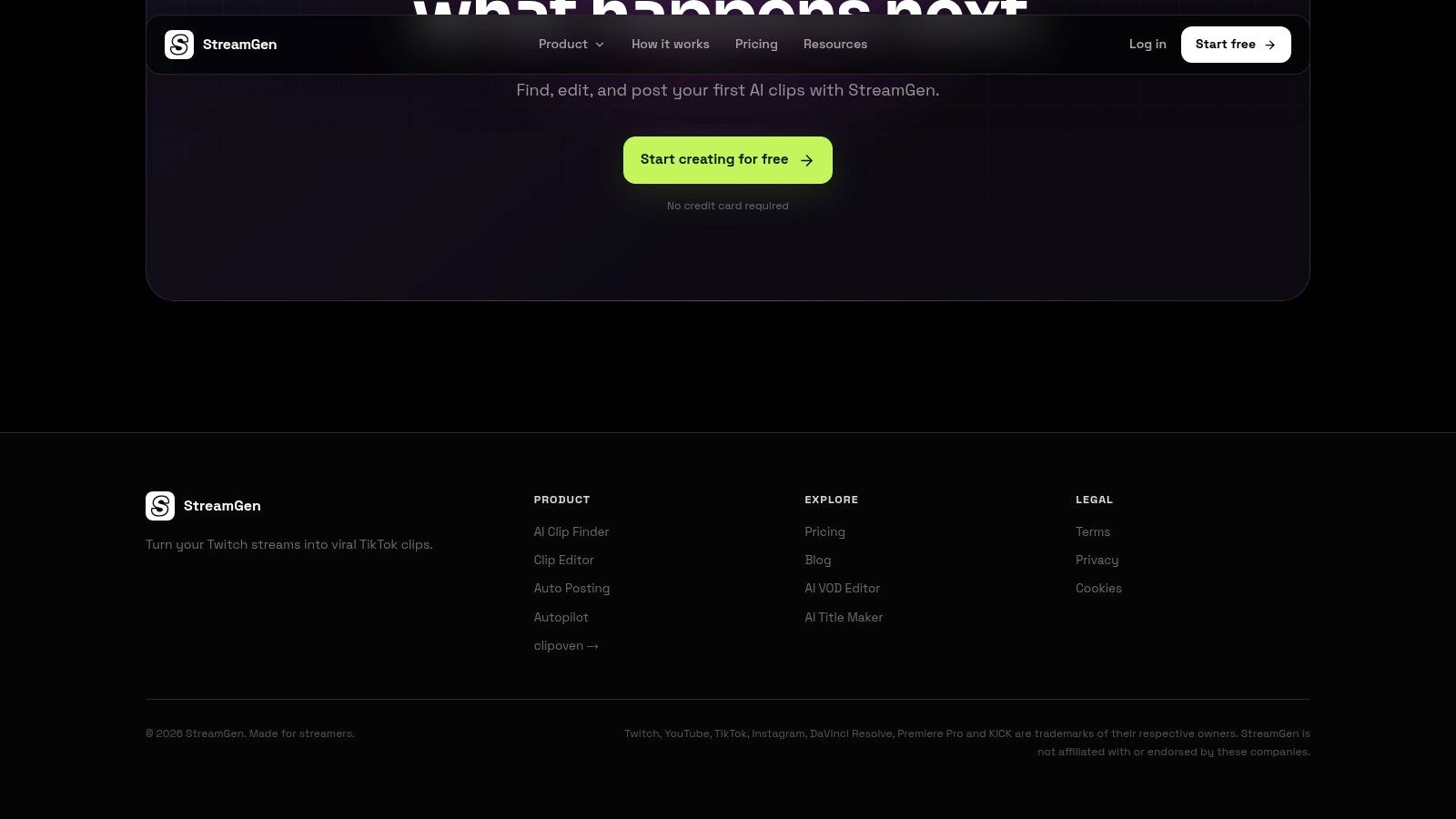
The homepage shows the clip workspace in one place.
What it handles after you hit end stream
StreamGen’s AI Clip Finder analyzes Twitch VODs, including streams longer than eight hours, and surfaces moments viewers may want to watch. Its clipping models consider gameplay, reactions, chat, and audio. You can also import Twitch clips or video files, or make manual clips from broadcasts. Gaming, Just Chatting, roleplay, and playthrough streams are supported.
The browser-based editor reframes clips vertically with layouts that keep facecam and gameplay visible. It can add animated captions in 90+ languages, remove silence, generate title hooks, censor words, and apply reusable brand presets. Auto Posting schedules clips for TikTok, YouTube Shorts, and Instagram Reels. Autopilot can coordinate finding, editing, and posting from one workspace, reducing the file handling between steps. Editing clips into vertical shorts is 10 times faster with StreamGen, but a human review still makes sense before anything goes public.
The VOD Editor is in beta. It removes silence, loading screens, and menu navigation, then prepares projects for DaVinci Resolve or Premiere Pro. That export is useful if you want to refine a timeline in a desktop editor; it is less relevant if you only need quick clips.
“I’ve tried other tools and none of them have performed as well as StreamGen.”, Big_Beans_18, Twitch
Best for: solo Twitch streamers who want clipping, editing, and publishing in one workflow, especially creators fitting content work around a full-time job. StreamGen is trusted by more than 1,000 streamers, and it has a free version with almost all features available at lower limits.
AI clipping, clip editing, and post scheduling are available from €8/month. The Complete Solution plan costs €14.99/month. The Ultimate plan lets you tune the clipping engine by describing what makes moments funny and engaging. Plans and prices can change, so check the StreamGen pricing page before you subscribe. StreamGen handles the post-stream clip workflow, not broadcasting.
2. OBS Studio
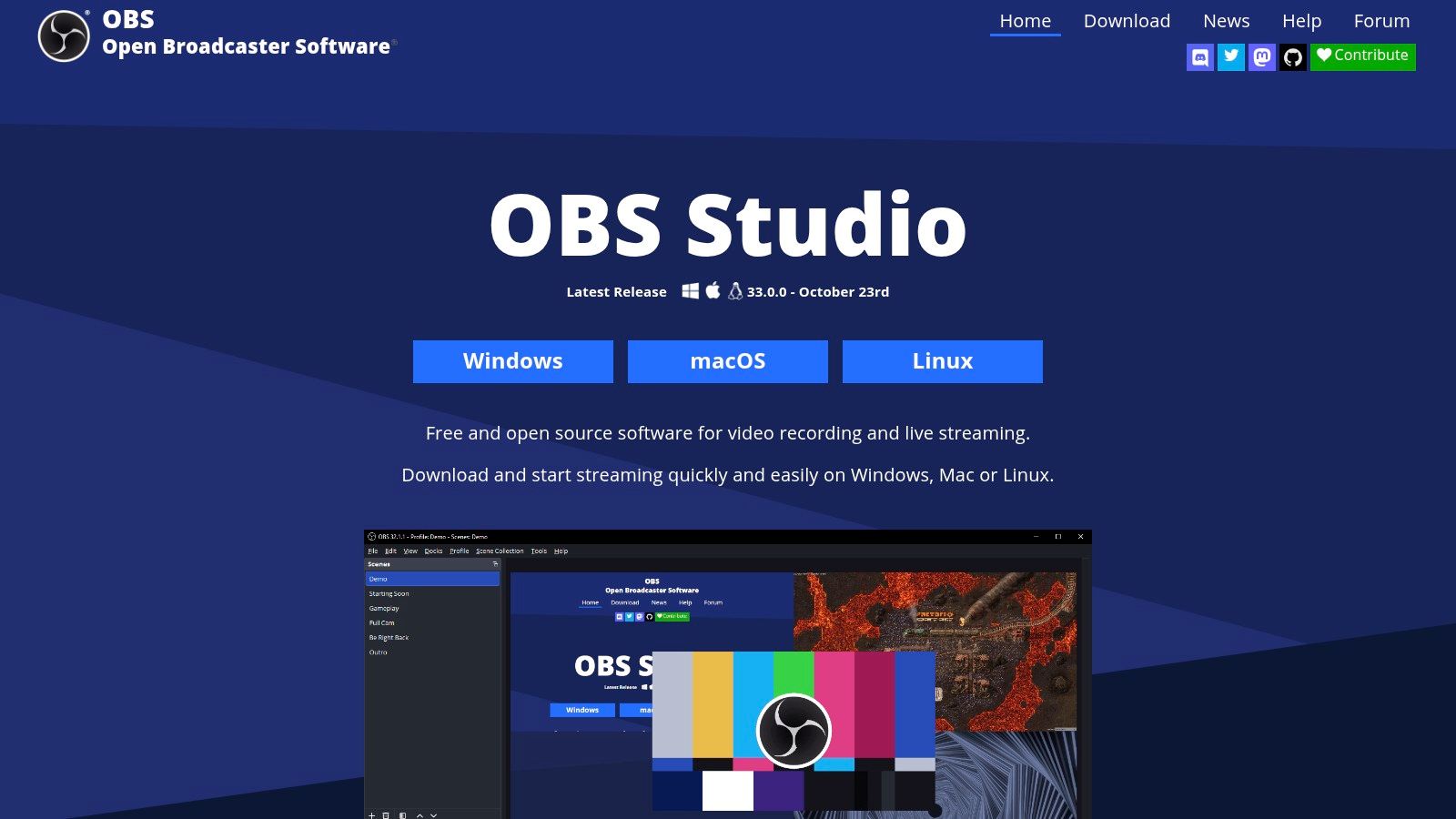
OBS Studio is the production desk. You build scenes, drop in gameplay, camera, and browser sources, mix audio with per-source filters and VST plugins, and record locally while you stream. Studio Mode lets you preview a scene change before viewers see it. Plugins, scripts, and the API cover chat boxes and other extras that the core app leaves to you. A practical OBS Twitch chat setup is the usual first add-on once the game capture is stable.
Industry estimates put OBS as the primary broadcasting app for roughly 60% of streamers, and Vox Booster’s streaming software statistics treats that figure as an estimate, not a census. Use it as a direction, not a market-share audit. Recordings in H.264 video and AAC audio are the combination most OBS-oriented delivery guides expect, which keeps long VODs easy to hand to a clip tool later.
This is the scene layout that many streamers use.
What you gain:
- No paywall: It’s free on Windows, macOS, and Linux, with no watermark.
- Real control: Encoder, scenes, and plugins stay yours.
- Local recordings: You keep a file even if the platform hiccups.
It takes time to learn, and features other apps bundle are often separate plugins. If you want a guided tour of recording itself, the Open Broadcaster recording walkthrough is a sensible companion. Best for: streamers who want a free foundation and will spend one setup weekend so later streams aren’t a puzzle.
3. Streamlabs Desktop
Streamlabs Desktop is the all-in-one broadcast app for people who want scenes, alerts, widgets, and overlays before they’ve learned a plugin list. You set gameplay and camera sources, record as well as stream, and pull in the wider Streamlabs set, including chatbot commands and moderation. The core desktop app is free. Some extras sit behind Streamlabs Ultra.
The desktop app puts alerts next to the scene list.
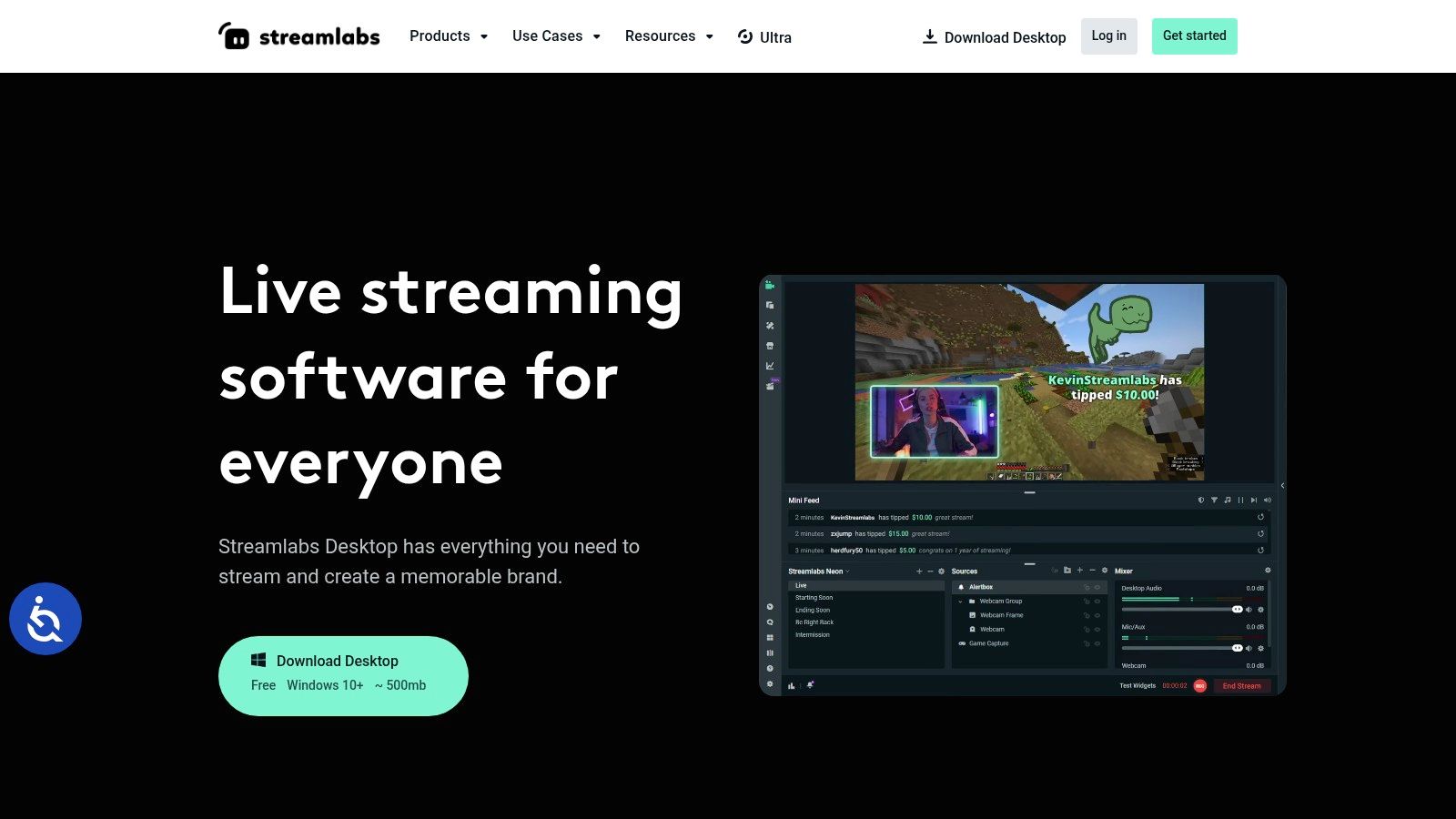
Daily use is simple. You go live from one window instead of wiring five browser sources on night one. That convenience has a cost. Paid membership gates part of the toolkit, and a lighter custom OBS setup will feel cleaner once you know which widgets you use. Music under gameplay is a separate problem from the broadcast app. Read up on understanding royalty-free music licenses before a playlist becomes a takedown.
Practical rule: Start here if setup anxiety is the bottleneck. Move scenes to OBS later if the paid extras aren’t earning their place.
Best for: new streamers who want a free starting point and don’t mind a heavier app.
4. StreamElements
StreamElements stays in the browser. You design alerts, goals, labels, and chat boxes, then drop the overlay into OBS or another broadcaster as a browser source. Chatbot commands, timers, spam filters, and modules such as chat games and viewer queues live in the same account. Custom widgets can be built with HTML, CSS, and JavaScript if a template isn’t enough.
The dashboard is where overlays get edited without rebuilding the whole scene.
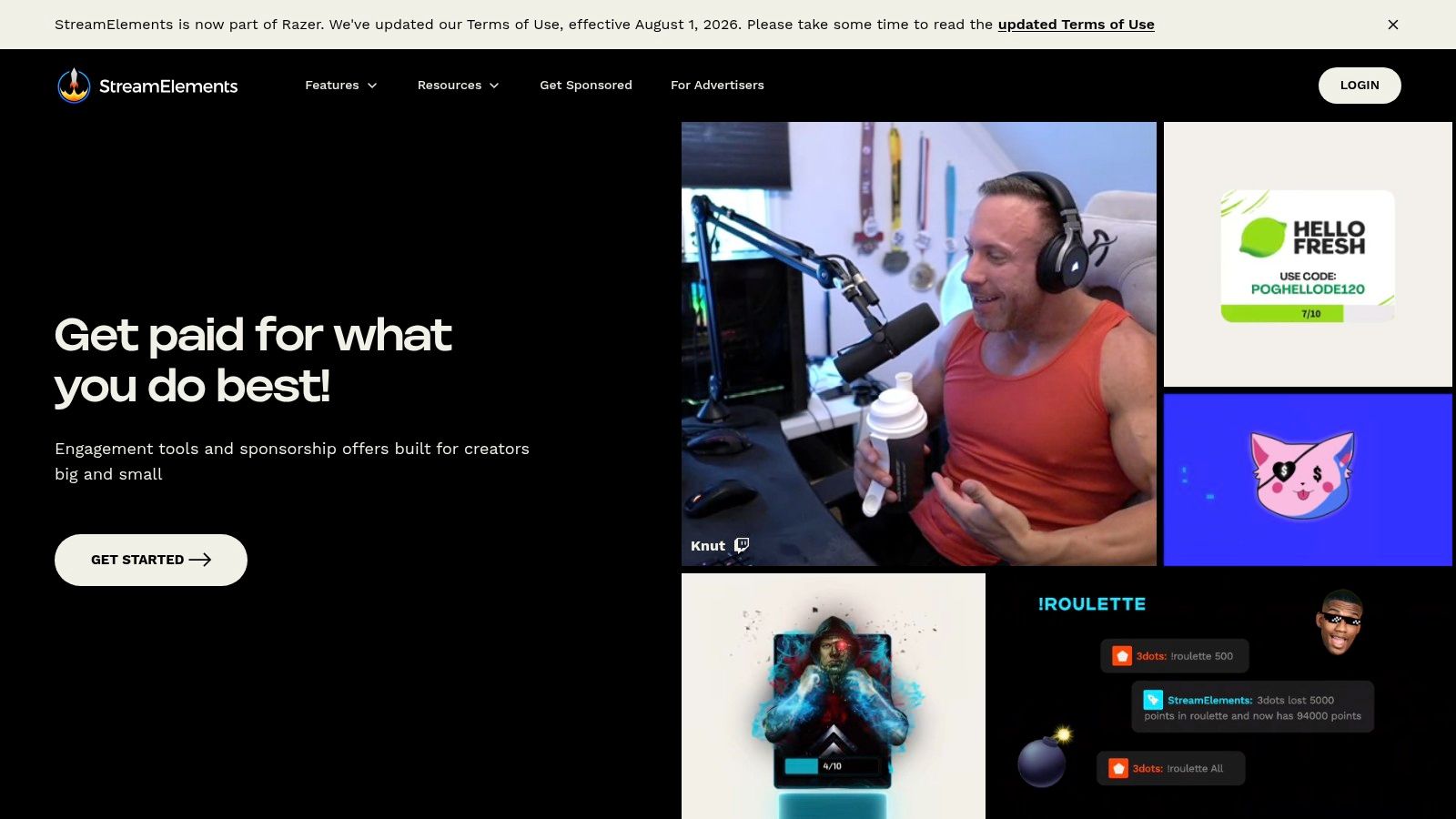
Free overlays and alerts are enough to make a channel look finished without buying a design pack on day one. Editing a browser source is faster than rebuilding a desktop scene every time a goal changes. The trade-off is another login beside the broadcast app, and custom widgets eat an evening you might have spent clipping. Browser sources can also fail mid-stream if the page hangs, so keep a backup scene with the overlay removed.
Best for: creators who already like their broadcast software and only need branding plus light chat engagement on top.
5. Nightbot
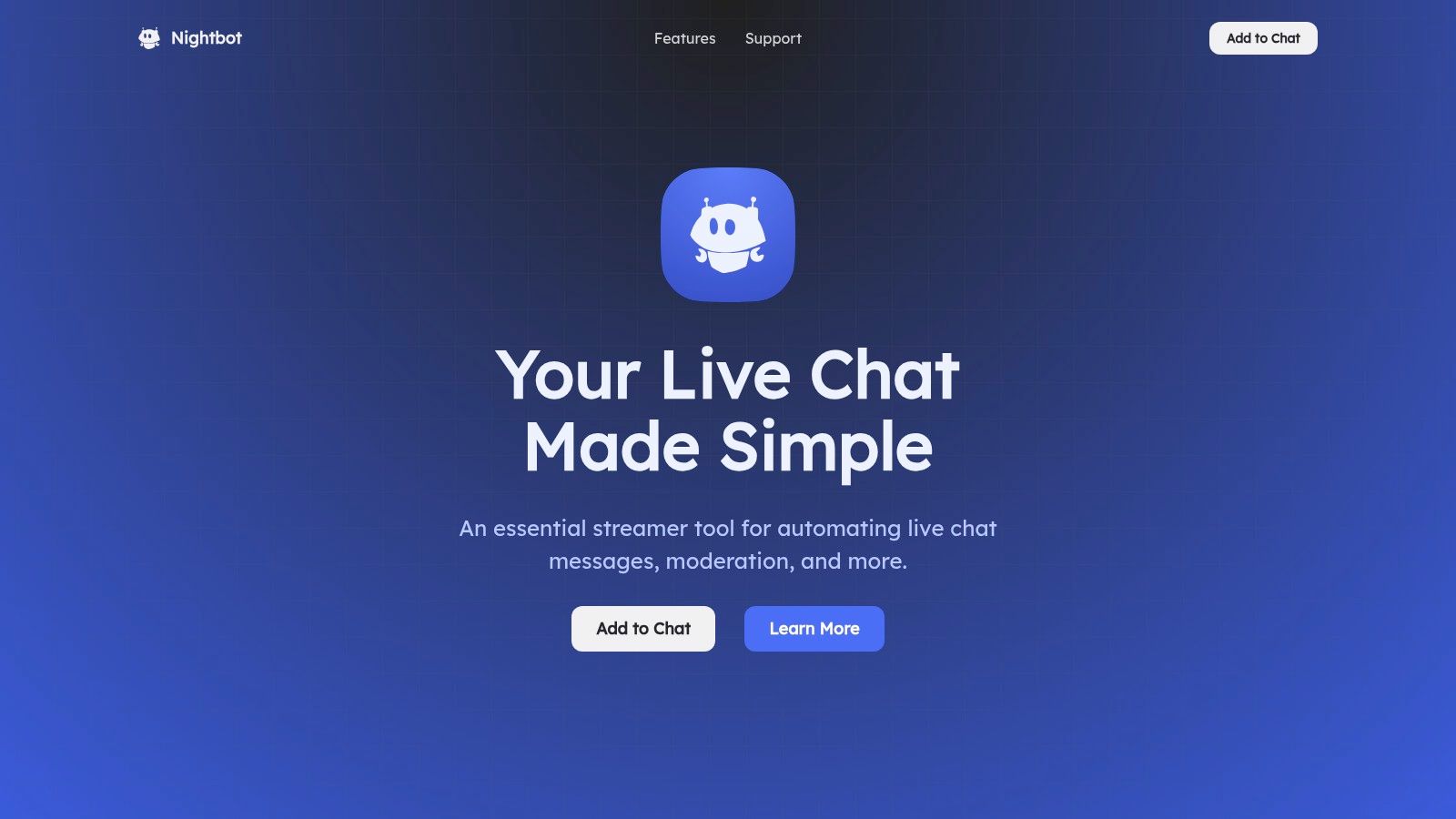
Nightbot is a chatbot for Twitch, YouTube, Trovo, and SOOP. It isn’t a studio and it won’t find clips. Commands answer links and FAQs, timers repeat reminders, and filters handle the routine moderation you shouldn’t type by hand. Setup is connecting the bot to the platform and writing the lines your mods already say every hour.
The landing page is deliberately narrow, which is the point.
Twitch already gives you a moderation record you can use after the stream. The Twitch moderation analytics guide covers warnings, timeouts, bans, deleted messages, and active moderator activity from recent streams. Pair that with bot filters. If a night produces a pile of deleted messages, don’t auto-publish the matching VOD segment until you’ve watched it.
Elaborate scene control and custom scripts are outside its scope. If you need follows to change an OBS source, you’re in the next tool, not this one.
Best for: solo streamers and small mod teams who want commands and filters without a programming project.
6. Streamer.bot
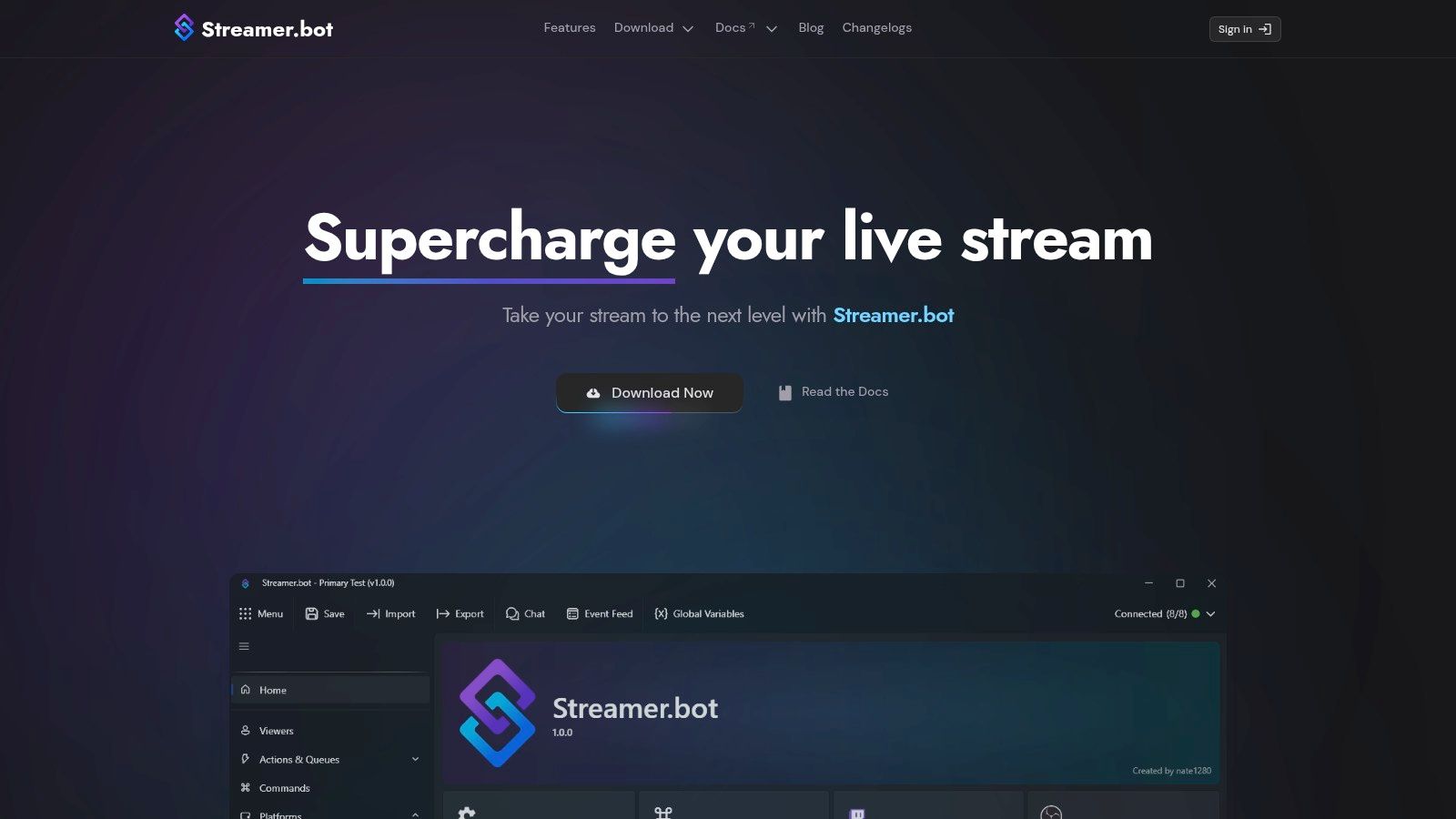
Streamer.bot is event-driven automation for Twitch, YouTube, or Kick. A follow, sub, membership, or chat line can trigger an action. That action can switch an OBS scene, ping Discord, hit a Stream Deck, or drive VTuber software. C# scripting plus WebSocket, HTTP, and UDP interfaces are there when a built-in action isn’t enough.
The interface is a list of triggers, not a pretty overlay shop.
Where it earns its keep:
- On-screen reactions: Subs and raids can change sources without you alt-tabbing.
- Hardware: Stream Deck buttons can fire the same actions as chat.
- Multi-platform: One bot can listen across Twitch, YouTube, and Kick setups.
The limit is the setup itself. A wide trigger list is easy to break, and advanced cases mean scripting or chasing a connection between apps. Don’t build this during a stream. Test it on a private scene first.
Best for: power users, VTubers, and technically minded streamers who want events tied to scenes and hardware.
7. OWN3D
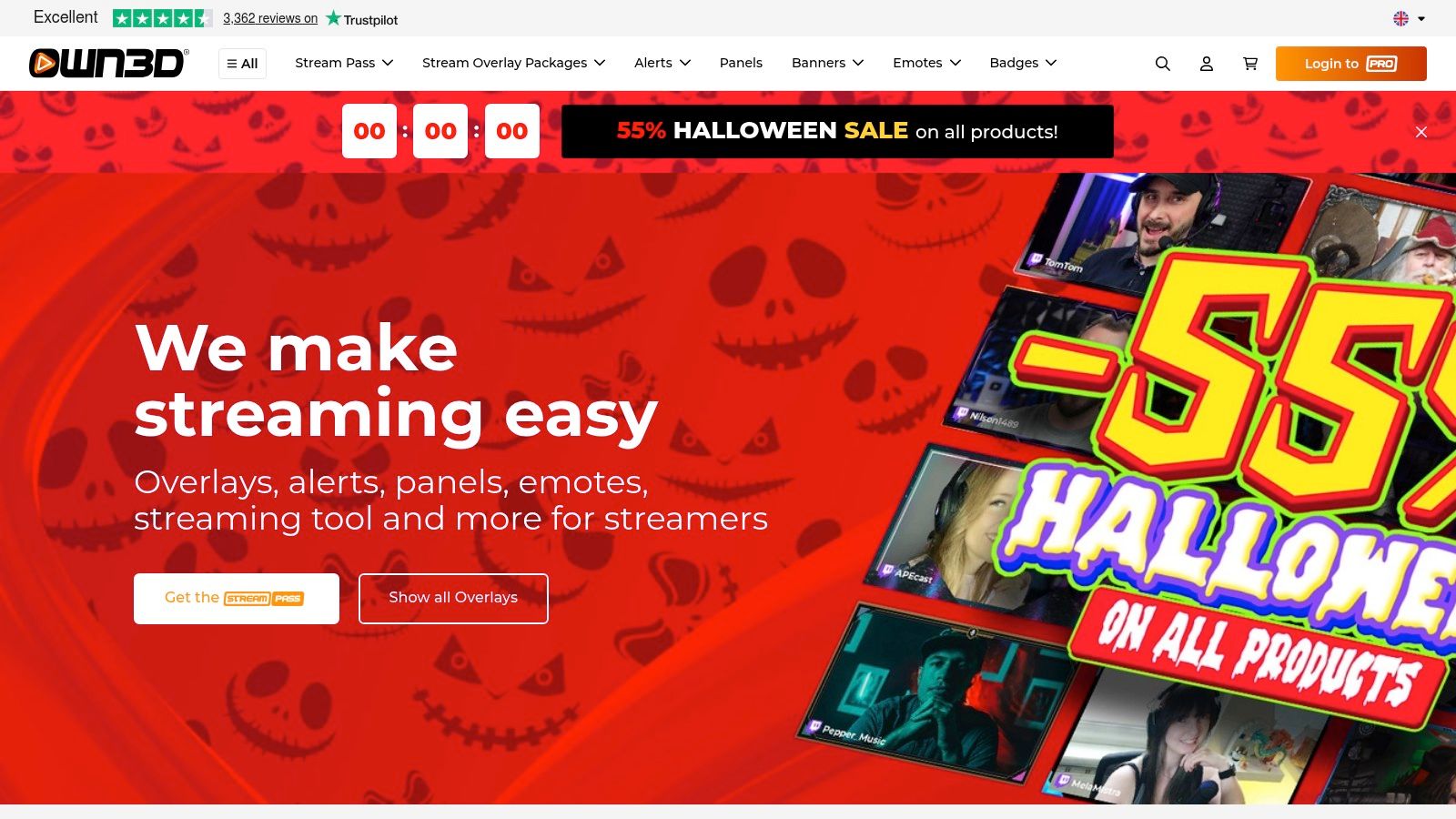
OWN3D is a store, not software you leave running. You buy coordinated overlay packages, alerts, panels, emotes, banners, badges, and VTuber-oriented products, often as multi-scene bundles aimed at common platforms and broadcast apps. The daily job is visual consistency. Starting soon, brb, gameplay, and ending screens should look like one channel.
Packaged scenes are the product, so judge the preview before you pay.
Bundles save the week you’d spend drawing panels from scratch, and a matched set beats five assets from five artists. Many items are paid, prices vary by package, and you still have to drop files into scenes and nudge layouts until the facecam isn’t covering the UI. A pretty overlay doesn’t fix a dead posting queue. Buy the pack once, then stop shopping.
Best for: creators who want a consistent look fast and would rather pay for design than learn it.
8. StreamLadder
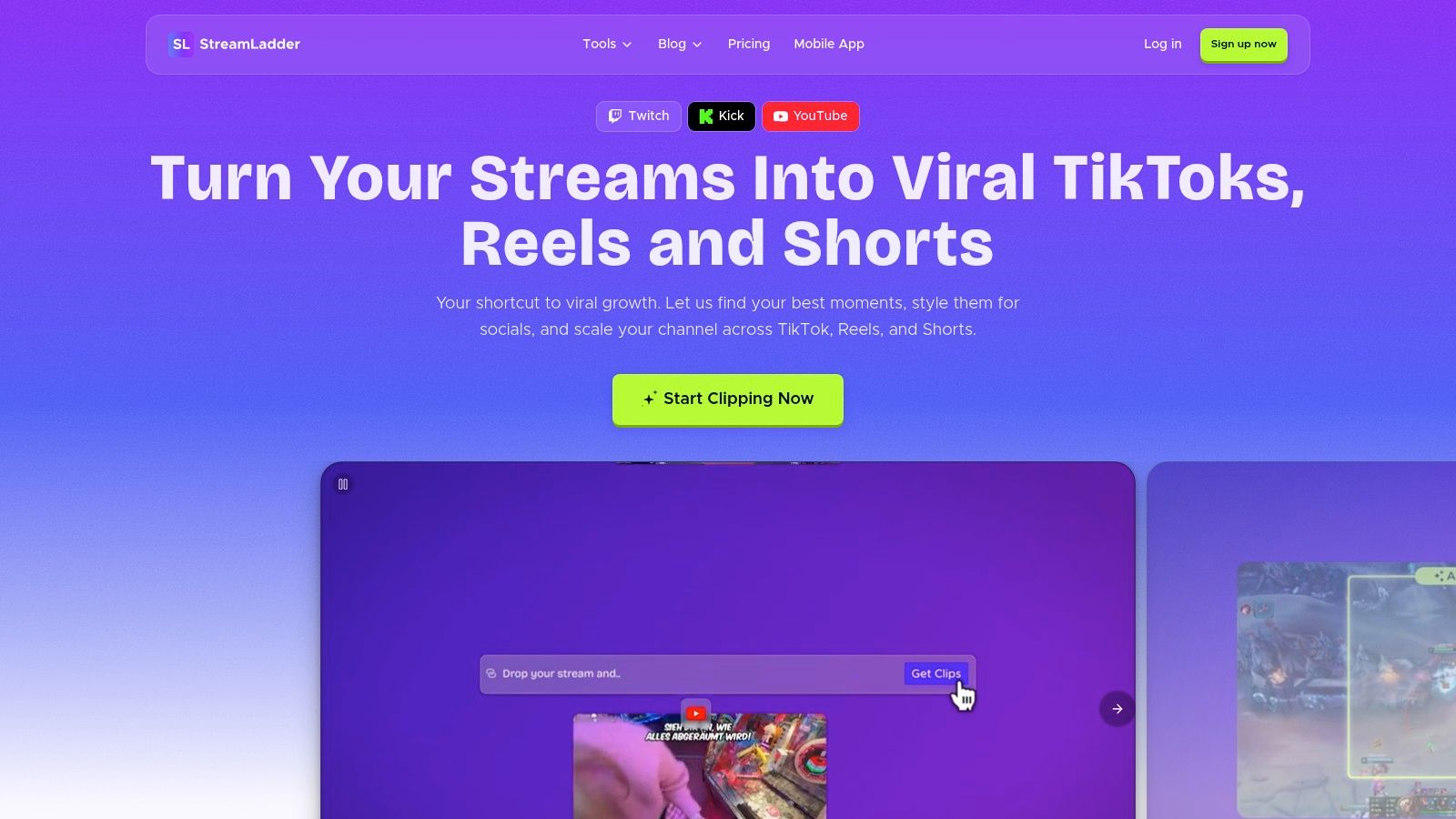
For a solo streamer with clips ready to edit, StreamLadder handles the handoff to social platforms. Import clips from Twitch, YouTube, or Kick, convert them for TikTok, YouTube Shorts, and Instagram Reels, then use ClipGPT for possible reactions, chat spikes, or highlights. The free plan includes basic editing, conversion, and downloads. Publishing and AI discovery sit on paid tiers, so check StreamLadder’s current pricing page for any trial offer before you commit.
TikTok’s scale helps explain the appeal of vertical clips. DataReportal’s TikTok stats report at least 1.59 billion users worldwide in January 2025 and a typical session of 5 minutes and 49 seconds. A raw 16:9 crop often leaves too much empty space; check the framing before scheduling a clip.
The dashboard centers on conversion and publishing, not live production.
AI suggestions still need a human edit, and paid features add cost if you only clip occasionally. Compare the StreamLadder plans with an alternative clipping workspace before choosing a workflow. StreamGen offers the code STREAMLADDER for 10% off its plans. Best for: streamers who already have clips and want conversion with optional AI suggestions.
9. Eklipse
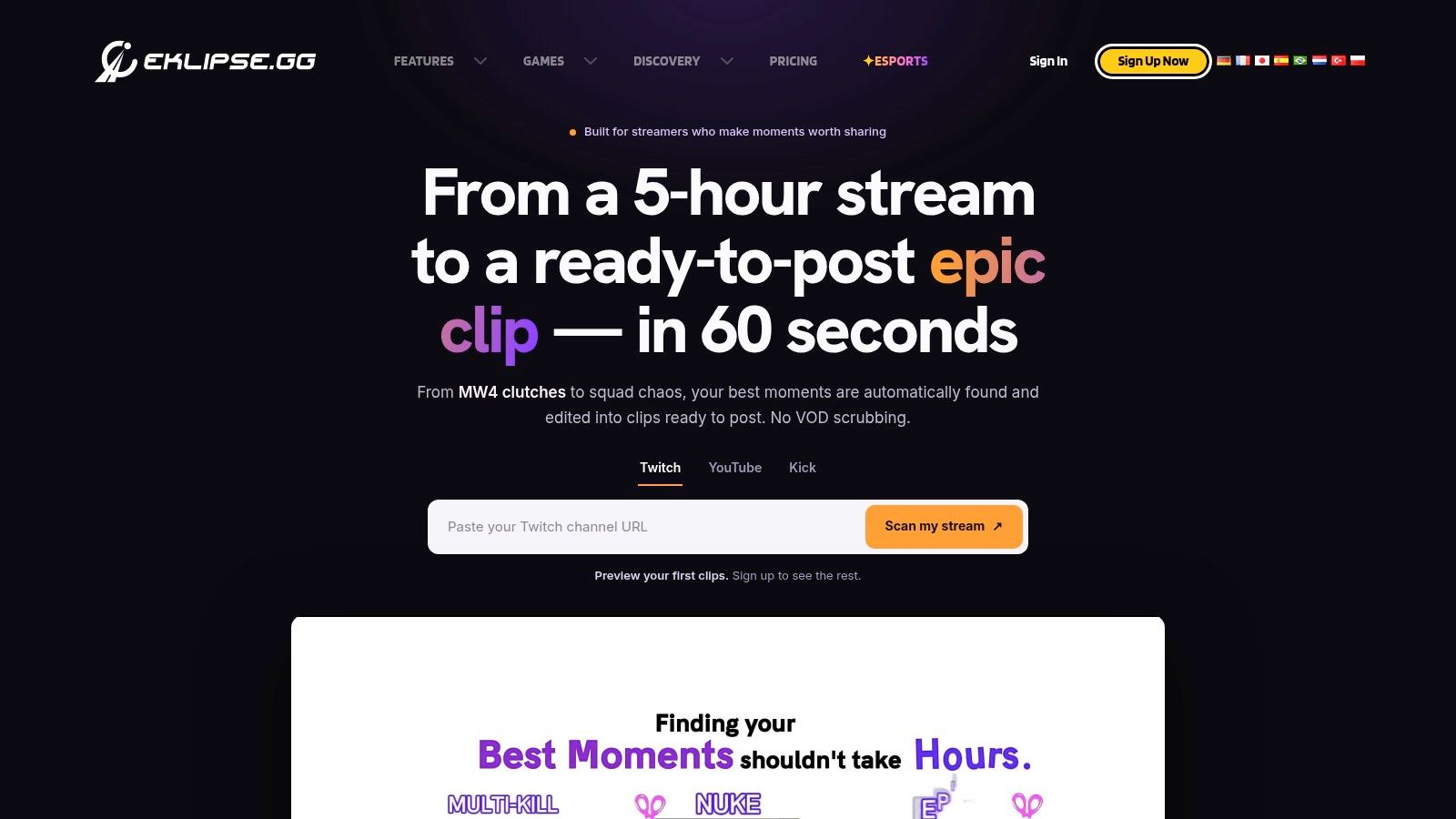
Eklipse is an AI clip maker aimed at gaming streams. Connect Twitch, YouTube, or Kick, and it scans for highlights using gameplay events, audio, and chat, then reframes vertically and applies captions and templates. You can schedule or publish to TikTok, YouTube Shorts, Instagram Reels, and Facebook. A preview scan of your own streams is available before you subscribe, which is the right way to test a detector.
The editor is built around those detected gaming moments.
Gameplay-first detection beats a general repurposer when the peak is a fight, not a sentence. You still watch the shortlist. Automated highlights miss context, spoilers, and bits that only regulars understand. The current help page says creating and exporting clips requires Premium, so occasional clippers can pay for a habit they don’t have. Check the Eklipse pricing notes before you assume a free export path.
Best for: gaming creators who want event-based highlights and will pay once the preview scan looks right.
10. OpusClip
OpusClip is a general video repurposer. It suggests clips, assigns a Virality Score, builds animated captions in multiple languages, and can auto-post to YouTube Shorts, TikTok, or Instagram Reels on supported plans. Higher tiers add team workspaces, scheduling, more input sources, and editing exports. Streamers can run suitable VODs through it, and the same account also handles non-stream long video.
The clipping view is generic on purpose. It isn’t a Twitch dashboard.
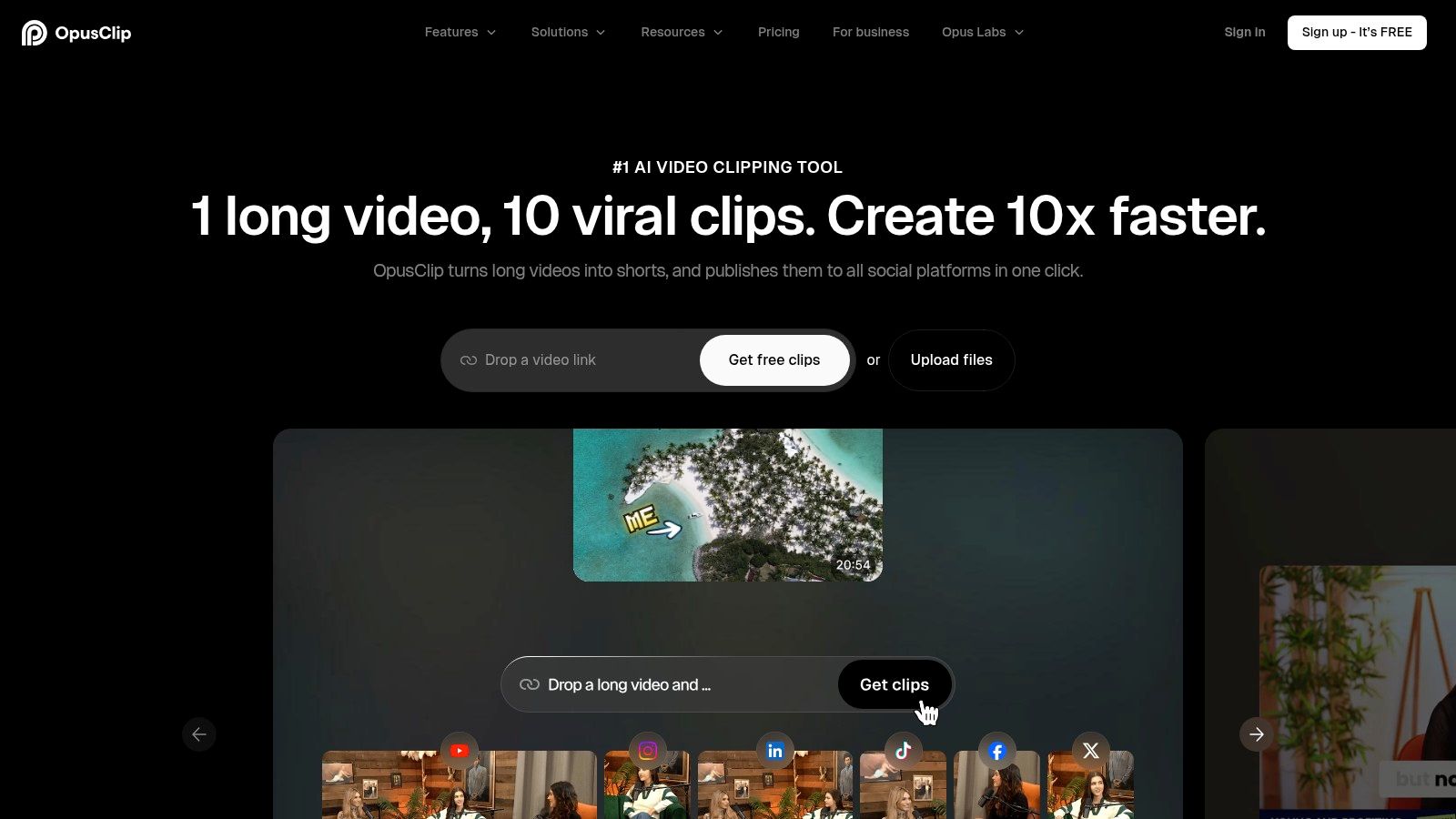
Free and paid plans let you test before you commit. The free plan limits credits and exports, and paid use is credit-based, so a multi-hour VOD can burn a month quickly. Treat the Virality Score as a shortlist, not a verdict. Gaming-first tools are better when the moment is a play or a chat spike rather than a talking-head line.
The volume of this format is huge. Marketing Tech News, covering Metricool’s 2025 short-form report, notes that Metricool analyzed 5,696,685 short-form videos from 582,456 accounts. A general tool can feed that machine. It won’t know your channel’s jokes unless you edit them.
Best for: creators who also cut podcasts, talking-head videos, or team content, and who accept a credit budget.
How the Ten Streamer Tools Compare by Role and Fit
The right tool depends on the job slowing down your stream workflow. Use this table to compare each option by its main role, best fit, and practical limitation.
| Item | Primary Role | Best For | Key Limitation |
|---|---|---|---|
| StreamGen | AI stream clipping, editing, and publishing | Twitch creators turning streams into short-form videos | VOD Editor is in beta; workflow is built around Twitch sources |
| OBS Studio | Video recording and live-stream production | Creators who want free, highly configurable broadcast software | Takes time to learn and configure |
| Streamlabs Desktop | All-in-one streaming and recording app | Beginners who want scenes, alerts, and widgets together | Some features require a paid membership |
| StreamElements | Overlays, alerts, and chatbot tools | Creators adding branding and chat engagement to an existing setup | Customization can take time |
| Nightbot | Live-chat automation and moderation | Streamers automating commands, reminders, and chat filters | Does not provide production or clip-creation tools |
| Streamer.bot | Event-driven creator automation | Power users connecting stream events to software and hardware | Advanced setup may require scripting |
| OWN3D | Streaming design assets and overlay packages | Creators seeking coordinated channel visuals | Many assets are paid and may need adjustment |
| StreamLadder | Stream-to-social clip editing and publishing | Creators converting clips for short-form platforms | Publishing and AI discovery require paid tiers |
| Eklipse | AI gaming highlight discovery and clipping | Gaming streamers creating vertical highlight clips | Creating and exporting clips requires Premium |
| OpusClip | AI video repurposing | Creators turning long-form videos into social clips | General-purpose rather than gaming-focused; free use is limited |
For solo creators with limited editing time, the main distinction is where each tool fits: broadcast production, chat, overlays, automation, clipping, or publishing. Some cover one task well; others combine several steps but still have limits, such as paid features or setup time. Choose by the bottleneck you need to solve, then account for the trade-off in the final column.
Build a Stack Around Your Bottleneck, Not the Hype
Start with the single task that eats the most time. That might be going live cleanly, keeping chat usable, or turning a finished stream into shorts. Add a tool only for that gap. A second clip finder on top of a working one is how stacks get expensive and ignored.
Test free tiers against your real VOD length and your real posting days. A demo on a ten-minute file doesn’t prove an eight-hour archive. Confirm current pricing before you subscribe, because plan pages move. Review every automated clip before it goes out. Silence removal and captions don’t catch a slur, a spoiler, or a sponsor line you weren’t allowed to cut.
Time is the constraint, not a missing feature. Deloitte’s 2025 media and entertainment outlook found that, among 3,000 professional creators in the United States and United Kingdom, time pressure affected 36%, burnout affected 35%, and algorithm complexity and discoverability affected 34%. A tool that creates risky posts you’ll have to babysit doesn’t save that time. Automation should remove repetitive export and upload work, not your veto.
Money makes the same point from the other side. A 2025 creator study summarized by John Rector reported income was unpredictable for 81% of creators on Instagram, 70% on YouTube, and 75% on TikTok, while 75% believed platforms penalize creators who don’t publish constantly. Don’t treat view counts as the same unit across those apps. Keep source-VOD timestamps, note what you posted, and separate organic results from anything you boost. The clip that matters is the one that brings someone back to the live channel, not the one with a spike and no return viewers.
If the VOD is about to expire, download past Twitch streams before you lose the raw file. Then pick one publisher, one broadcaster, and one chat tool, and run that stack for a month before you add anything else.
StreamGen turns Twitch VODs into captioned vertical clips and can schedule them to TikTok, YouTube Shorts, and Instagram Reels from one workspace, including optional Autopilot while you’re live. If clipping and posting are the bottleneck in your week, start on the free tier and run it against a real VOD before you add another app. Visit StreamGen and see whether the queue holds up on your own streams.
More blog posts