Most “best gaming and video editing PC” lists start with the biggest graphics card and work backward. That advice wastes money. A flagship GPU often buys a small gain in Premiere while your codec, VRAM, and RAM are what make the timeline play, the export finish, and the stream stay up. Gaming frame rate is the last constraint, not the first.
Buy for the edit you do on a normal day. A nightly HEVC recording is a different machine from an 8K RAW grade, even if both owners play the same game after the export.
Table of Contents
- Best Hybrid Builds by Budget
- Let the Workload Pick the CPU and GPU
- RAM Storage and Ports for Timelines
- Benchmarks Worth Trusting Before You Buy
- Build or Prebuilt Over Five Years
- Creator Weeks and the Final Buy Rule
Best Hybrid Builds by Budget
The default for 2026 is not a halo card. It is a balanced creator PC: an 8 to 16 core high-clock desktop CPU, 64 GB of RAM, an RTX 5080-class GPU, hardware encoding, and a fast NVMe holding the media you are cutting today. That row lands around $1,800–$2,200 and covers 1440p high-refresh gaming plus daily 4K timelines. If you are pricing a 1440p gaming PC against current shelves, 1440p gaming PC component prices from Steel City IT are a useful check before you lock a GPU.
| Tier | Budget | CPU and GPU | RAM | Best for |
|---|---|---|---|---|
| Entry hybrid | $1,200–$1,500 | 6–8 core Ryzen 5 or Core Ultra 5 class, 12 GB 1440p GPU | 32 GB | 1080p/1440p gaming and light 4K H.264/HEVC |
| Balanced creator | $1,800–$2,200 | 8–16 core high-clock CPU, RTX 5080-class GPU | 64 GB | 1440p high refresh, 4K timelines, daily exports |
| Heavy effects | $3,000–$4,000 | Core Ultra 7 270K Plus class, RTX 5090 or 16 GB+ GPU | 64–128 GB | 4K high refresh, GPU effects, 6K |
| Export workstation | Workstation budget, not a gaming special | Threadripper 9970X 32-core plus a strong discrete GPU | 128 GB | Multicore exports, multicam, 8K |
Entry hybrid is enough when the game target is 1080p or 1440p and the timeline is straightforward 4K H.264 or HEVC on 32 GB. Do not pretend that row is a 6K machine.
Heavy effects steps to an RTX 5090 or another 16 GB-plus card and 64–128 GB when 6K, dense GPU effects, or 4K high-refresh gaming is a weekly job. Export workstation is a Threadripper 9970X class 32-core box with 128 GB. It still needs a strong discrete GPU, because extra cores barely move game frame rate.
Practical rule: Lock the row for the edit you run most days, then stop. A weekend 8K experiment does not justify a workstation you will curse for noise the other six days.
Puget Systems’ Premiere Pro guidance sets Adobe’s floor at an Intel 11th-generation-or-newer CPU with Quick Sync, or an AMD Ryzen 3000 or Threadripper 3000-or-newer processor. Stay above that floor on every row. If the same desk also has to stay live on a tight streaming budget, pair the entry or balanced row with a budget streaming setup instead of starving RAM to fund RGB.
Let the Workload Pick the CPU and GPU
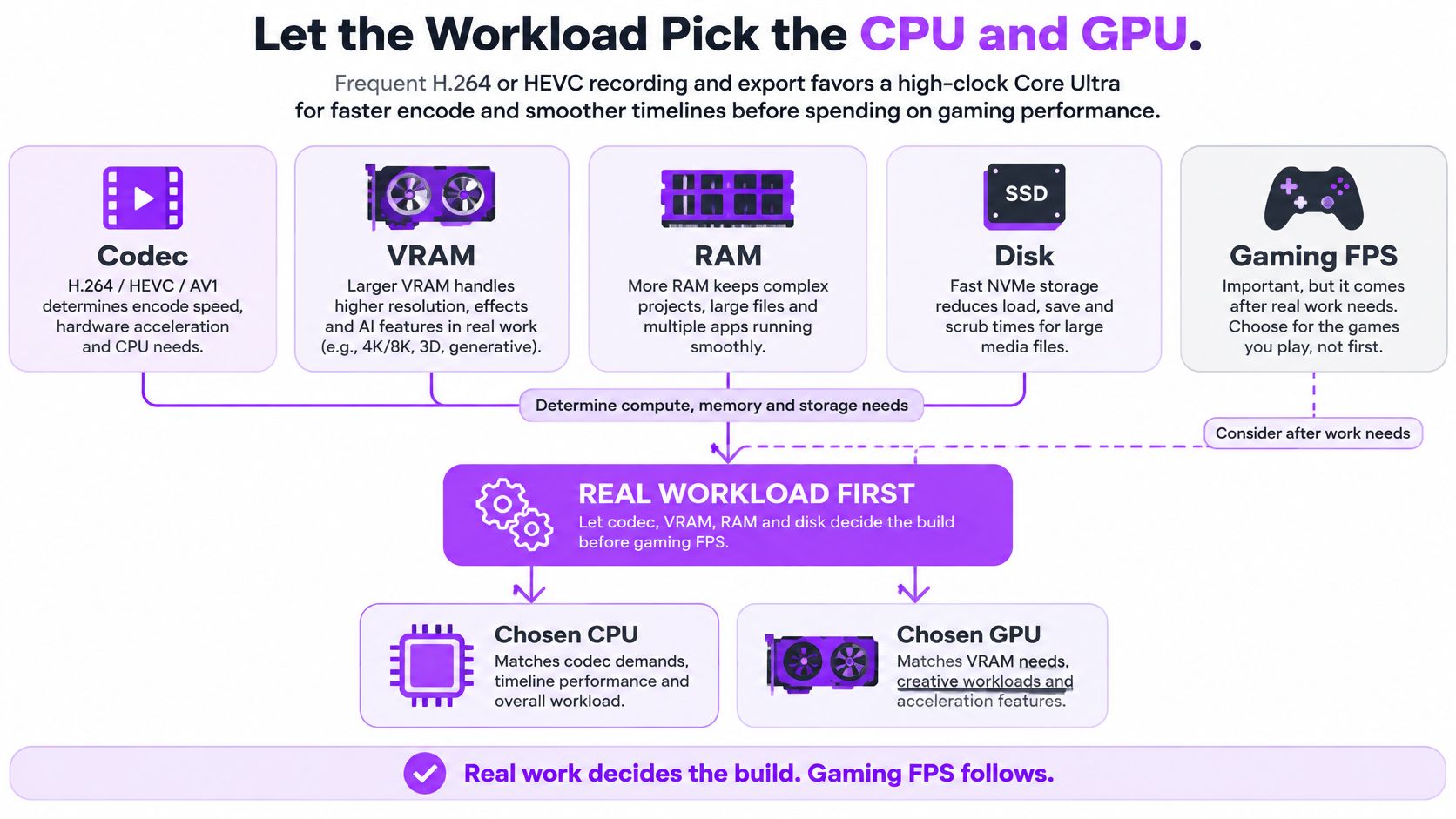
Name the slowest real job before you spend. Codec, VRAM, RAM, and disk decide the best gaming and video editing PC. Gaming FPS comes after those four are solved.
Codec first, cores second
Frequent H.264 or HEVC recording and export favors a high-clock Core Ultra with Quick Sync, not a chase for 32 cores. Puget Systems finds Premiere Pro often more CPU-dependent than GPU-dependent overall. The Core Ultra 7 270K Plus is particularly effective for H.264 and H.265/HEVC because its integrated Quick Sync engine accelerates decode and encode. The Threadripper 9970X leads broader Premiere Pro workloads with its 32 cores.
Skip the Threadripper when the dollars should buy the GPU. High-refresh gaming cares about GPU capability and single-thread response, not a pile of cores you will not saturate on a talking-head export.
Dense effects and high-resolution footage raise the VRAM floor. Puget recommends at least 8 GB for 4K media, 12 GB for 6K, and 16 GB or more for 8K-plus projects. Adobe lists 8 GB of GPU memory as its recommended Premiere specification, with 4 GB as a minimum on supported Windows graphics hardware. Treat 4 GB as a floor you should not build on.
What the flagship actually buys
ProVideo Coalition’s 2026 editing-PC guidance reports that an RTX 5080 can be roughly comparable to the previous-generation RTX 4090 in Premiere, while the RTX 5090’s Premiere advantage over the 4090 is only about 9% overall and around 15% in heavily GPU-accelerated effects. The same guidance treats 64 GB as a modern 4K-editing minimum and 128 GB for 8K timelines and complex scenes.
That is the buying insight most tier lists skip. Paying for the flagship often produces a much smaller editing improvement than the price suggests, unless you live in dense effects, high-resolution RAW, or advanced color. An inexpensive gaming box can still fall over on 8K RAW or heavy Fusion even when the frame rate looks excellent.
Tom’s Hardware measured the GeForce RTX 5090 at approximately 26% faster than the RTX 4090 across its full 4K Ultra gaming test suite. Puget identifies the RTX 5090 as the fastest Premiere option, and notes that GPU gains depend on how many effects are GPU-accelerated and how fast you need H.264/HEVC export. For most creators the RTX 5080-class card is the price/performance target. The 5090 is justified by 4K high-refresh gaming, heavy GPU effects, AI tools, or 6K/8K timelines.
| Pick | Gaming result | Editing result | Skip when |
|---|---|---|---|
| Core Ultra 7 270K Plus | High clocks help frame time | Quick Sync for H.264 and HEVC | Multicore export is the bottleneck |
| Threadripper 9970X | Extra cores barely raise FPS | Leads broad Premiere at 32 cores | The budget should buy GPU instead |
| RTX 5090 | About 26% faster than RTX 4090 at 4K Ultra | Fastest Premiere option; best with heavy effects | Timelines are light H.264 |
| RTX 5080-class | Balanced 1440p and 4K | Near prior 4090 in Premiere | The project needs 8K VRAM headroom |
| RX 9070 XT | Strong gaming price | Possible creation penalty from acceleration support | Daily Premiere or Resolve exports |
Prioritize hardware encoding for long exports, VRAM for RAW and GPU effects, RAM for multicamera and compositing, and the GPU’s gaming performance only after those constraints are named. A practical stack for most hybrid desks is a modern 8–16 core desktop CPU, 32–64 GB of RAM when the timeline stays modest, and fast NVMe for active media. Jump the core count only when multicore rendering is the job that pays the rent.
Before you call a 5090 build finished, confirm the power supply, cooler, and case can feed and exhaust that card. A card that thermal-throttles on a two-hour export is slower than the review chart. Match encode settings to the platform too. A sensible Twitch stream bitrate keeps the live encode inside what Quick Sync or NVENC can hold while the game is running.
The short version of the same decision, walked through on a real parts list:
RAM Storage and Ports for Timelines
Memory and disks are the editing half of the machine. A fast GPU with a full boot drive still drops frames.
Start at 32 GB only for light 1080p and simple 4K H.264. Use 64 GB as the working 4K and multicam capacity so previews do not page to disk. Move to 128 GB for 8K, heavy Fusion or compositing, and several camera angles plus a browser and a game-capture app open together.
Split storage by job, not by whatever was on sale.
- Boot NVMe: Windows and apps only. Do not park 4K media here.
- Active NVMe: Current project, cache, and previews. This drive changes import and scrub behavior.
- Archive: A large SATA SSD, HDD, or NAS. Finished projects leave the fast drive the day you deliver.
A single small boot SSD filled with 4K media is the usual failure. Projects outgrow the launch drive, so leave free M.2 slots and drive bays. For shared projects, 10-gigabit Ethernet beats walking drives between desks.
Desk I/O that matches the cut
Plan the ports for the desk you sit at. You want a high-refresh DisplayPort or HDMI path, a second display for the timeline, and front USB for cards and shuttle drives. Add a capture input only if a console or camera is external. A quiet case with real intake matters more on a sustained export than another RGB strip.
If Task Manager or Activity Monitor shows memory compression on a normal timeline, buy RAM before a faster GPU.
Short social cuts still land in a proper editor after the PC is specced. When the deliverable is a vertical cut rather than a long grade, it helps to find a social media video editor that matches the file you’re posting, so the workstation is not doing layout work a lighter tool should handle.
Benchmarks Worth Trusting Before You Buy
Published charts are a starting point. Your project is the test.
- Match the monitor. Judge gaming at your resolution and refresh rate. A 4K Ultra lead does not matter if the panel cannot show the extra frames.
- Time a real export. Use your codec, your resolution, and your effects. A clean demo timeline flatters every CPU.
- Watch playback with effects on. Dropped frames show a VRAM or GPU limit before the export clock does.
- Stay in one app. Compare Premiere Pro and DaVinci Resolve only in the app you open daily. Acceleration support is not the same across vendors.
- Watch memory during a normal timeline. Visible compression means the next purchase is RAM, not a GPU tier.
- Log watts and fan noise on a long export. A two-minute gaming run hides the noise you will hear every night.
Puget Systems and Tom’s Hardware are the right public baselines. Rerun the decision on your own project before you pay. If the export you care about is a light H.264 recut, a mid GPU that stays quiet beats a chart-topper you will never saturate.
Build or Prebuilt Over Five Years
Price five years of use, not the checkout total. A sensible hybrid already covers a high-core-count CPU, a 1440p-capable GPU, hardware encoding, and enough RAM to avoid paging. It does not include the second SSD, a NAS, or the watt-hours of nightly exports.
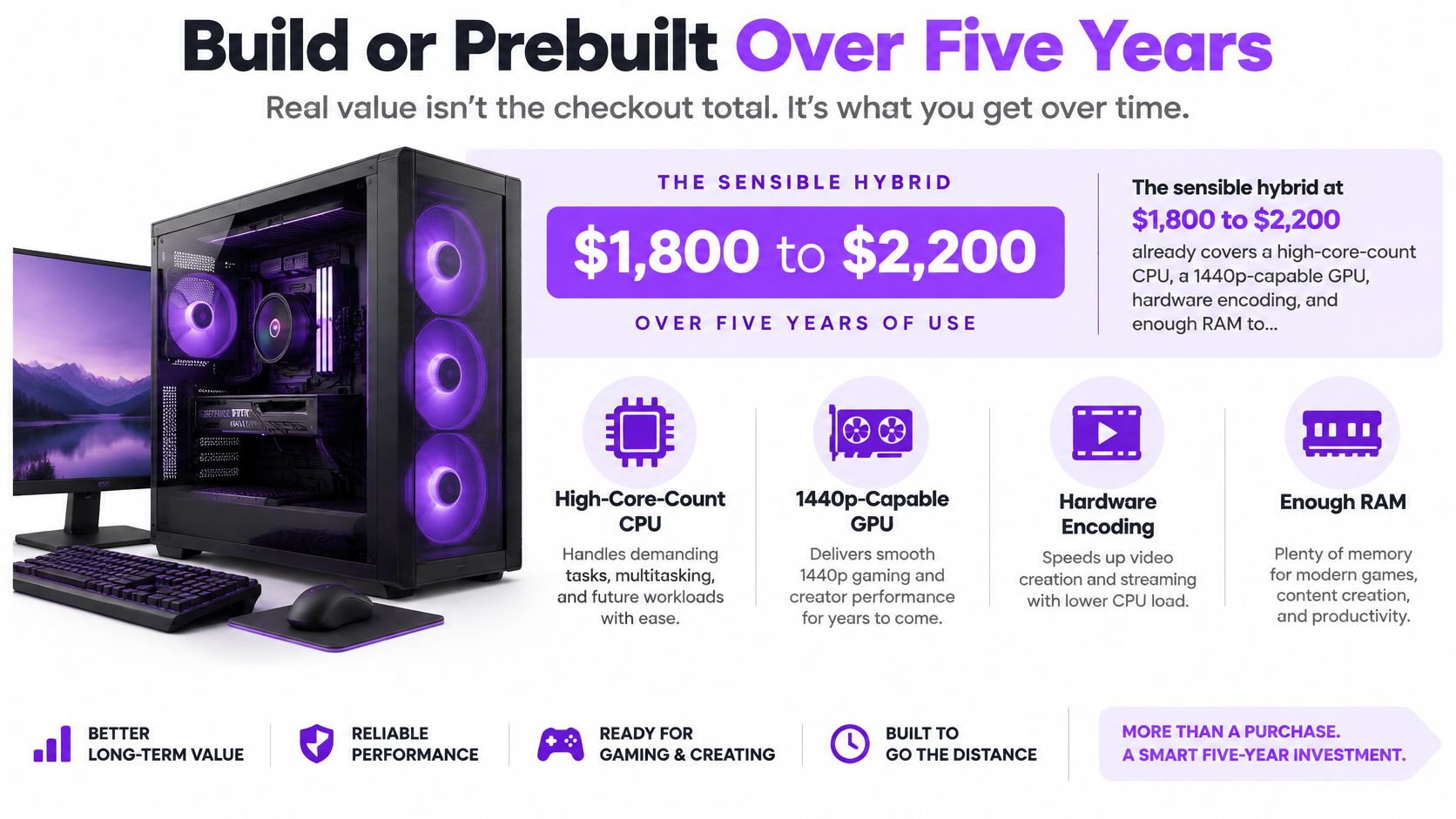
Build My PC Online places that sensible hybrid gaming-and-editing PC around $1,800–$2,200. The same guidance notes that fast NVMe changes media import and cache behavior, that large projects need secondary SSDs or network storage, and that sustained exports make thermals and acoustics more important than a short gaming benchmark. A Radeon RX 9070 XT at about $600 can look like a gaming bargain, and AMD can still carry a content-creation penalty because application support and hardware acceleration differ.
| Choice | Upfront | Later cost | Wins when |
|---|---|---|---|
| Balanced DIY | $1,800–$2,200 | Second SSD, electricity, your build time | You need a specific CPU, 64–128 GB, and free M.2 slots |
| Matched prebuilt | Above the parts total | Warranty instead of tuning | You will not swap parts and the spec matches the balanced row |
| Flagship GPU build | $3,000–$4,000 plus a larger PSU | Watts, heat, and noise on long exports | 4K high-refresh gaming or heavy GPU effects pay the hours back |
| RX 9070 XT gaming save | GPU near $600 | Possible slower exports | Gaming is primary and edits stay light |
Buy prebuilt when you want a warranty, finished cable management, and no BIOS weekend, and when the parts inside match the balanced row. A glowing case with 16 GB of RAM is not that row.
Build when you need a specific Quick Sync CPU, 64 or 128 GB, two NVMe slots, and a power supply with headroom for a later GPU. Flagship cards raise the PSU, the cooler, and the noise budget.
Resale favors standard ATX, a current GPU, and drives you can move to the next case. Compare watts per export with hours saved. If the flagship only shaves a few percent off light H.264, keep the mid GPU and buy storage. Creators who also need a cleaner live show should look at a Twitch streaming PC setup that leaves RAM and encode headroom, rather than spending the whole budget on peak FPS.
Creator Weeks and the Final Buy Rule
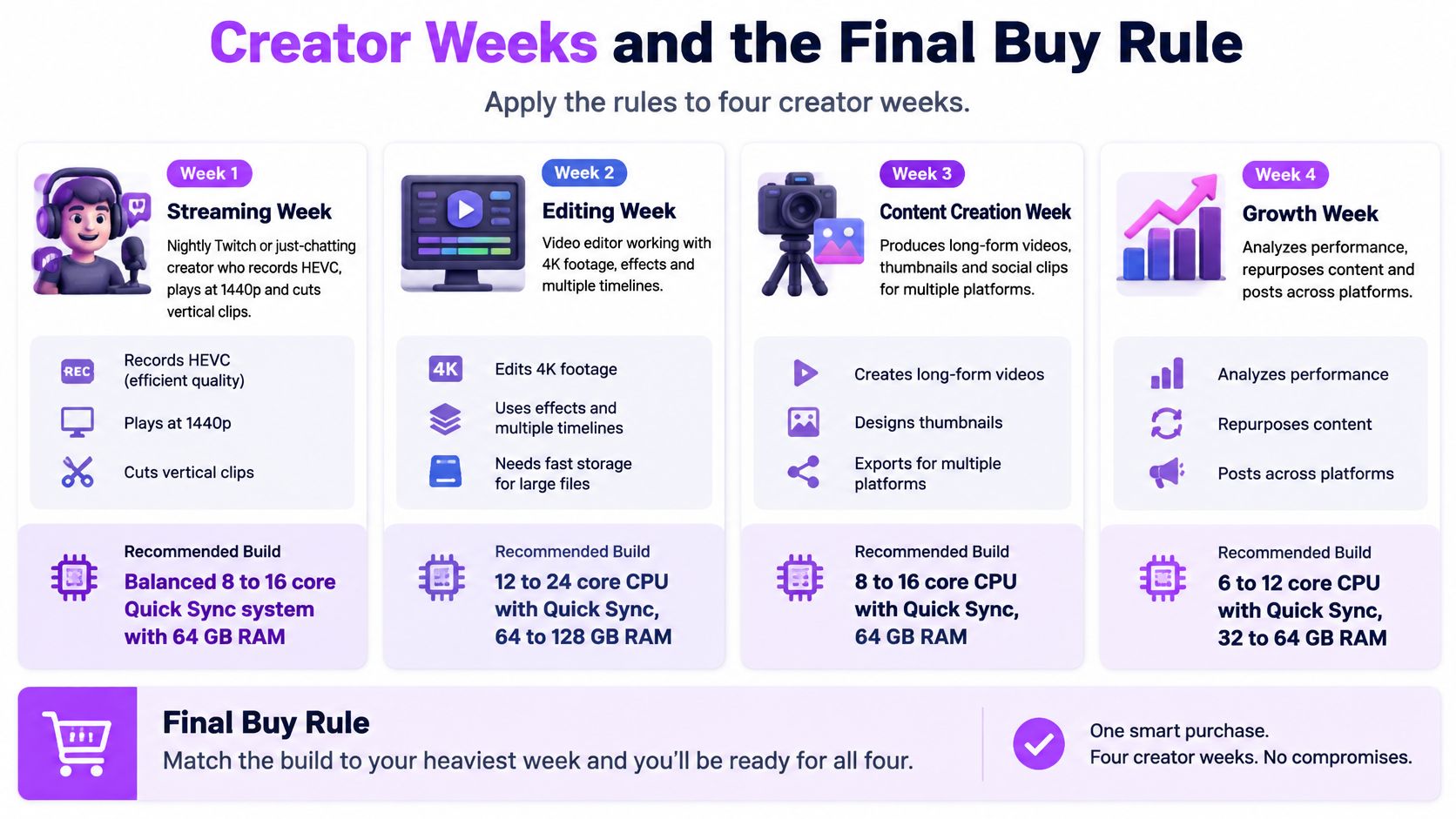
Apply the rules to four real weeks, not a parts tier.
Four weeks, four machines
Nightly Twitch or just chatting. You record HEVC, play at 1440p, and cut vertical clips. Take the balanced 8 to 16 core Quick Sync system with 64 GB and an RTX 5080-class GPU. Put leftover money into a second SSD, not a 5090. Our AI VOD Editor produces a video ready to be edited in Premiere Pro or DaVinci Resolve, offers unlimited VOD length, and automatically removes silence, loading screens, and menu navigation, so the PC is grading a tighter timeline instead of sitting through dead air.
Esports social desk. Several VODs and multicam in one afternoon, with chat and browsers still open. 64 GB is the minimum, and the cooler has to stay quiet because exports run while you are still in the call. A loud 32-core box does not help a social manager who needs the room usable.
BRAW, R3D, or 8K, plus games. Fund 128 GB, 16 GB or more of VRAM, and media drives first. Accept a cheaper gaming card if color and Fusion are the long jobs. Frame rate is the hobby. The grade is the invoice.
4K high-refresh gamer, light cuts. Shift spend toward an RTX 5090 and stay at 32 to 64 GB. You are buying frames your panel can show, not export cores you will not use.
The buy order
- If most days are 1440p gaming plus 4K H.264 or HEVC, order the $1,800–$2,200 balanced build and stop.
- If timelines are 6K, RAW, or effect-heavy, move money into 16 GB or more of VRAM and 128 GB of RAM before you chase refresh rate.
- If exports are multicore and hours long, choose the Threadripper class and pair it with a merely strong GPU.
Buy a prebuilt only when its spec matches the chosen row and the warranty is worth the premium. Confirm the codec you export most, then buy the row that fixes that codec. StreamGen sits beside that PC, not instead of it. Any stream type can be clipped, including gaming, just chatting, roleplaying, and playthroughs, and the VOD Editor is in beta for creators who want a pre-cut project in Resolve or Premiere before they touch color.
StreamGen turns long Twitch VODs into timeline-ready cuts and vertical clips so the PC you just specced spends its time on the grade, not on scrubbing silence. The AI VOD Editor hands you a project for Premiere Pro or DaVinci Resolve, and Autopilot can find, edit, and schedule shorts while you are still live. Visit StreamGen and run one VOD through the editor before you spend another dollar on a GPU you do not need.
More blog posts