You’re mid-fight, your aim is clean, and chat types that your stream looks like it’s filmed through frosted glass. Your game isn’t lagging. Your microphone sounds fine. Yet fast turns turn grass, smoke, and enemy outlines into soft blocks. That’s usually a Twitch stream bitrate problem, but raising one number blindly can trade pixelation for buffering. Understanding what that number buys helps you fix the right thing.
Table of Contents
- What Bitrate Really Means When You Stream on Twitch
- Bitrate Settings by Resolution and Frame Rate
- Choosing the Right Encoder for Your Setup
- Bandwidth, CBR, and the 30 Percent Headroom Rule
- When Higher Bitrate and 2K Actually Pay Off
- Testing Your Settings Before You Go Live
- Common Bitrate Myths That Hold Streamers Back
- Troubleshooting and Tuning for Better Broadcasts
What Bitrate Really Means When You Stream on Twitch
Your encoder can’t send the picture on your monitor exactly as you see it. It compresses each frame into a stream of data, then sends that stream to Twitch in real time. Bitrate is how much data you send each second, measured in kilobits per second, or kbps.
Think of resolution as the size of a canvas. Frame rate is how many fresh canvases you show each second. Bitrate is the paint budget for all of them. A large canvas with too little paint still has the right dimensions, but details get smeared. That is why a broadcast can be labeled high resolution and still look muddy during movement.
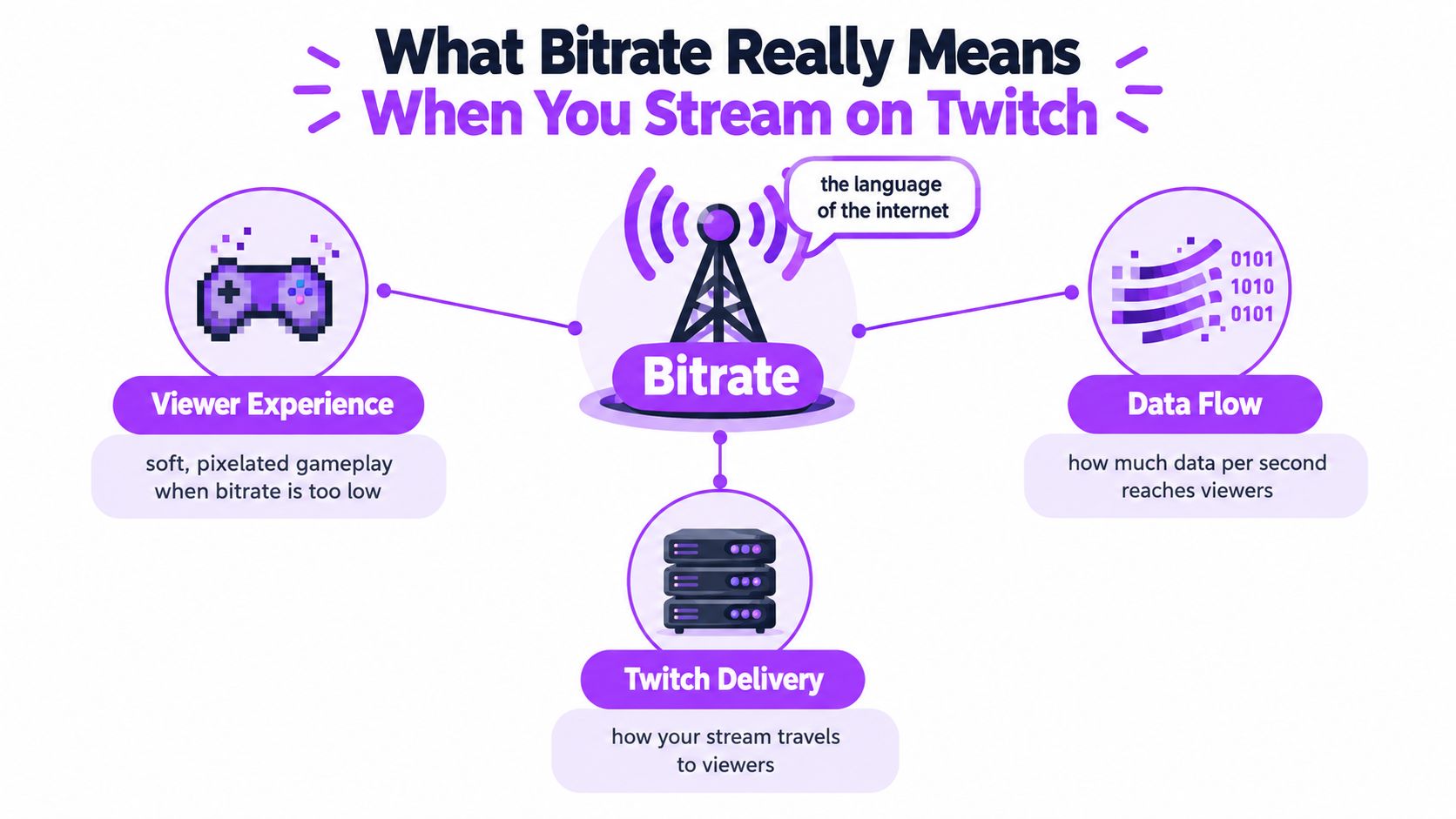
Static scenes are forgiving because large parts of the image barely change. A racing game, shooter, or camera pan is harder. Grass moves, particles burst, text scrolls, and your facecam changes at the same time. The encoder must decide what to preserve with the bits available, and fine detail is usually the first sacrifice.
Bitrate Is a Budget, Not a Quality Guarantee
More bits generally give the encoder more room to preserve edges and textures. They don’t guarantee a better result. A weak encoder setting, overloaded computer, or unstable connection can waste that budget. Conversely, an efficient encoder can make a modest bitrate look surprisingly clean in low-motion content.
Bitrate also affects people beyond your live viewers. Your VOD becomes source material for clips, vertical edits, captions, and highlight detection. Dropped frames and compression artifacts don’t disappear after the broadcast. They carry into every repurposed version, which makes bitrate a pipeline choice, not just a live setting.
Choose bitrate for the busiest moment in your content, not for the calm menu screen where nearly every setting looks good.
The goal isn’t the largest number your software accepts. It’s a stable stream with enough bits for your resolution, frame rate, content, and upload connection. Once you see those pieces as one system, the settings stop feeling like folklore.
Bitrate Settings by Resolution and Frame Rate
Resolution sets how many pixels each frame contains. Frame rate sets how often those pixels are replaced. Raise either one and the encoder has more visual information to describe every second. Raise both, and the demand grows quickly.
Twitch’s foundational guidance centers on a maximum of 6,000 kbps for conventional broadcasting, including 1080p at 60 frames per second, according to Twitch’s broadcasting guidelines. That ceiling is useful context, but it’s not an instruction to run every stream at the maximum. A podcast-style broadcast, turn-based game, or mostly static desktop doesn’t spend bits as aggressively as competitive gameplay.
Past viewing measurements also show that real streams often operated below the ceiling. An academic analysis of Twitch streams reported a mean bitrate of 2,928 kbps for 1920×1080 broadcasts and 1,216 kbps for 1280×720 streams, with a median near 3,000 kbps in the observed material. Treat those figures as historical evidence that streamers balanced quality against upload limits, not as modern targets.
Use the Ceiling as a Reference Point
Recommended Twitch Bitrate by Resolution and Frame Rate (2026)
| Resolution | Frame rate | Standard bitrate | Enhanced Broadcasting bitrate | Suggested upload speed |
|---|---|---|---|---|
| 720p | Lower motion rate | Comfortably below the conventional ceiling | Depends on rendition settings | Configured bitrate plus headroom |
| 720p | Higher motion rate | Higher than lower-rate 720p, still within the conventional ceiling | Depends on rendition settings | Configured bitrate plus headroom |
| 1080p | Lower motion rate | Below or near the conventional ceiling for demanding scenes | Up to the documented 1080p AVC ceiling | Configured bitrate plus headroom |
| 1080p | 60 fps | Up to 6,000 kbps under conventional guidance | Higher documented AVC option | At least about 8 Mbps for a 6 Mbps stream |
| 1440p | High motion | Not the conventional single-stream reference point | Up to the documented 1440p HEVC ceiling | Configured bitrate plus headroom |
The table is intentionally conservative where Twitch does not provide one universal number. Your best setting depends on motion, encoder efficiency, and sustained upload capacity. Copying a larger streamer’s settings without matching their connection and hardware often creates the problem you’re trying to solve.
When Stepping Down Resolution Wins
If 1080p looks blocky during action, you have two levers. You can add bitrate, if your connection and platform path allow it, or reduce the number of pixels competing for the same bits. A cleaner 720p image can look better than a starved 1080p image, especially when viewers watch on phones or small player windows.
Frame rate deserves the same honesty. Fast gameplay benefits from smoother motion, while talk shows, strategy games, and art streams may gain more from allocating bits to detail. Don’t preserve a high frame rate label if it makes every frame too compressed to read.
Choosing the Right Encoder for Your Setup
An encoder decides how intelligently your bitrate is spent. Two streams can use the same Twitch stream bitrate and look noticeably different because one encoder preserves faces, text, and motion more effectively while the other wastes bits or drops frames under load.
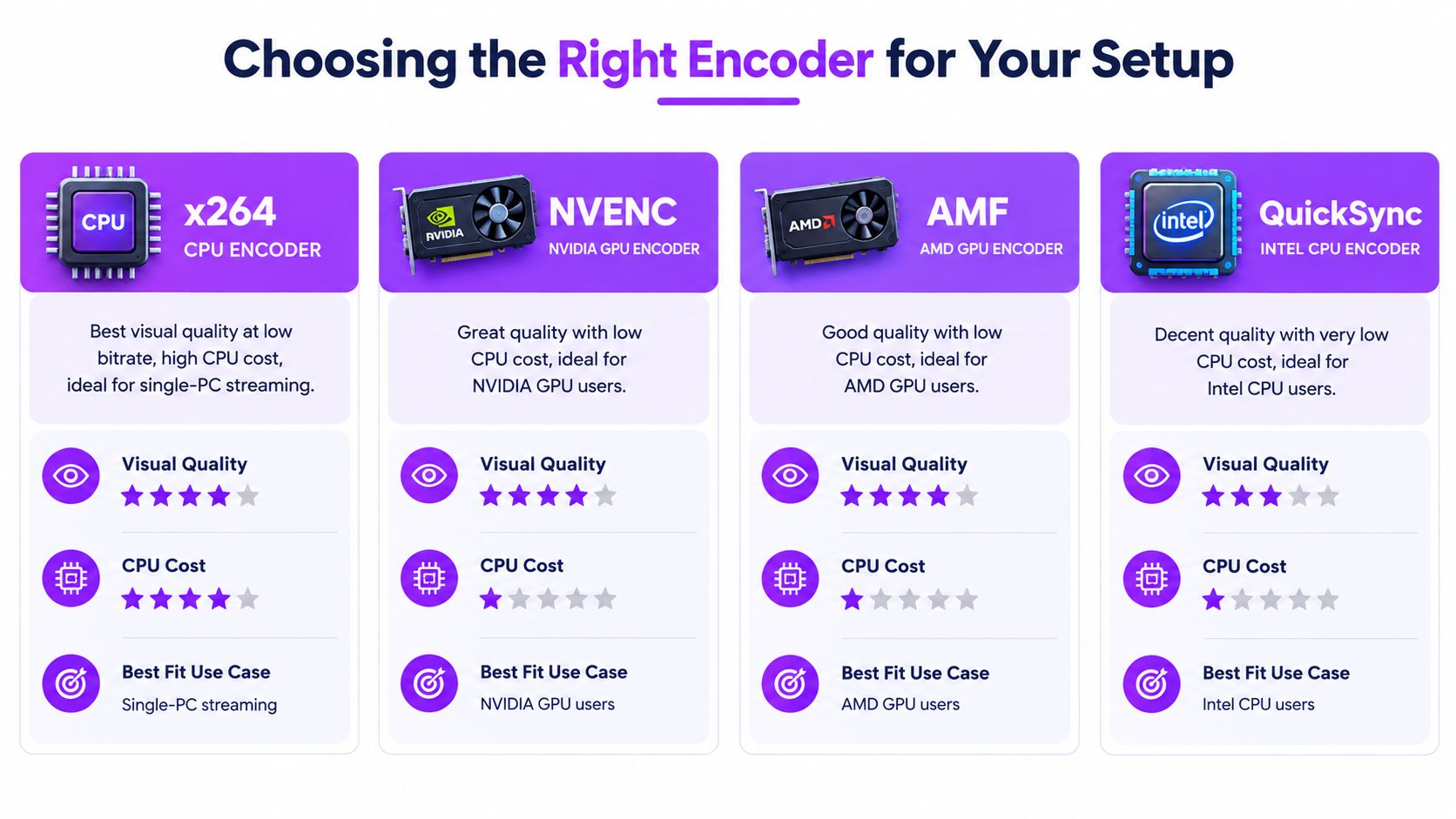
x264 runs on your CPU. With enough processor headroom, slower presets can produce excellent quality per bit. The catch is direct competition with games, browser sources, audio processing, and background apps. If encoding causes game stutter or rendered-frame loss, its theoretical quality advantage won’t reach viewers.
NVENC uses dedicated encoding hardware on compatible NVIDIA graphics cards. For many single-PC gaming setups, it’s the practical sweet spot because it protects CPU capacity while delivering strong live quality. AMF serves a similar purpose for AMD graphics hardware, while QuickSync uses compatible Intel graphics and can be valuable on laptops or systems without a suitable discrete GPU.
Encoder Trade-offs at a Glance
| Encoder | Quality per bit | CPU cost | Best for |
|---|---|---|---|
| x264 | Excellent when the CPU can sustain a demanding preset | High | Powerful CPUs, dedicated streaming PCs, lower-motion content |
| NVENC | Strong and consistent for live gameplay | Low | NVIDIA single-PC gaming setups |
| AMF | Good, with results tied to hardware generation and settings | Low | AMD GPU systems |
| QuickSync | Serviceable to strong depending on Intel hardware | Very low | Intel laptops and compact systems |
Match the Encoder to the Bottleneck
Start by asking which resource fails first. If your CPU is saturated, move work to hardware encoding. If your GPU is already struggling with the game, test whether a CPU encode is steadier, but watch temperatures and frame pacing. There’s no badge for using the most demanding preset while your stream skips.
Hardware choice also belongs in the wider setup, alongside overlays, capture method, audio, and scenes. A broader walkthrough of choosing a Twitch streaming setup that fits your goals can help you place encoder selection in that larger build instead of treating it as an isolated menu choice.
Download your test recording and inspect faces, small interface text, foliage, and dark scenes. The best encoder is the one that produces clean frames at your chosen bitrate without stealing performance from the activity viewers came to watch.
Bandwidth, CBR, and the 30 Percent Headroom Rule
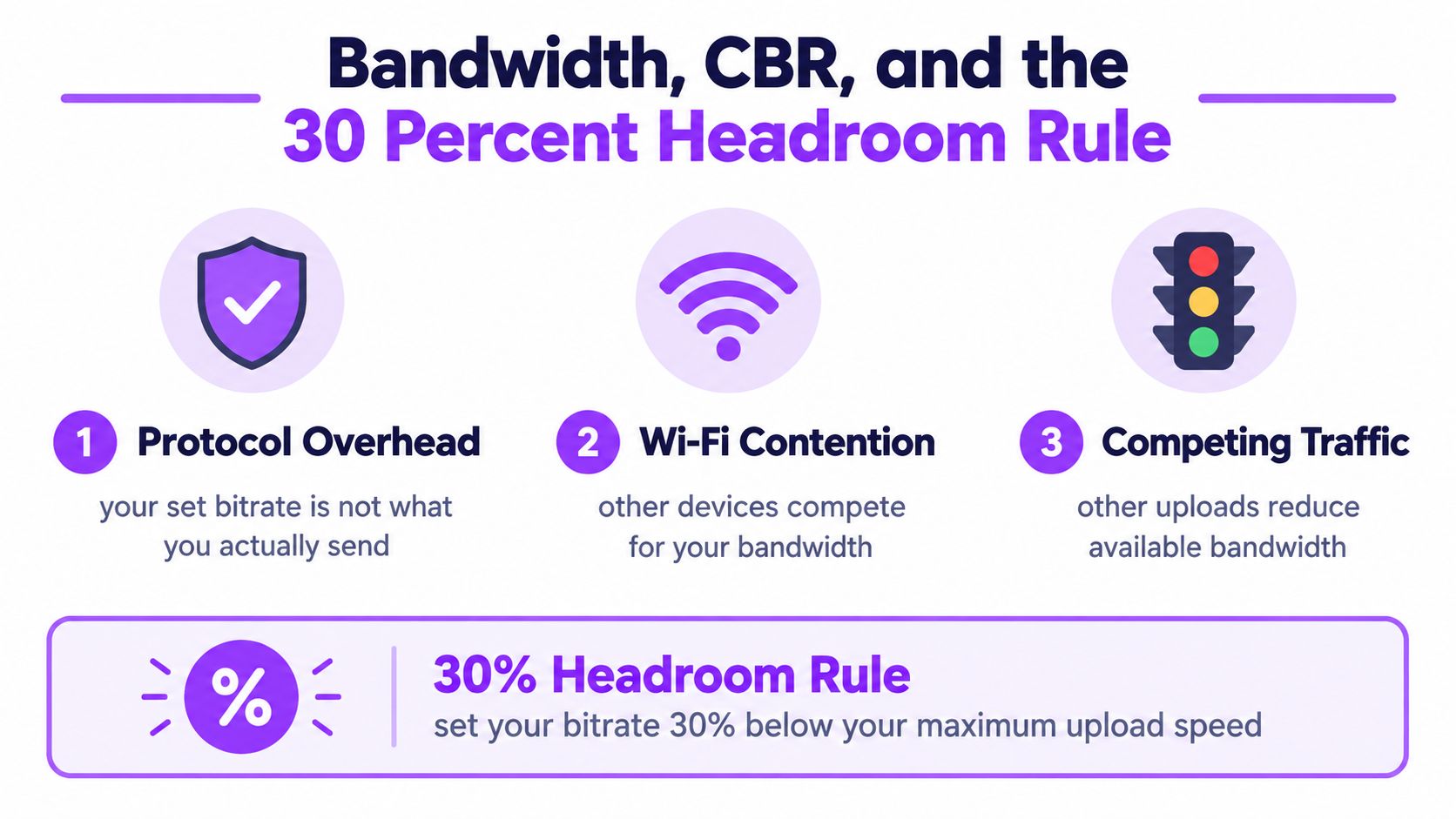
The bitrate in OBS is the stream payload, not the full burden on your network. Protocol overhead, jitter, retransmissions, Wi-Fi contention, and other uploads all compete with it. Game traffic, voice chat, cloud backups, and someone else sending photos can turn a connection that looked sufficient in a quick test into an unstable ingest.
Twitch advises upload capacity equal to the selected stream bitrate plus 30 percent, giving the example that a 6 Mbps stream should have at least 8 Mbps of stable upload, in its Twitch streaming FAQ. That’s why a plan that occasionally measures just above your setting isn’t enough. You need sustained capacity during the worst parts of the broadcast, not a flattering peak result.
Why Twitch Favors CBR for Live Video
Constant bitrate, or CBR, sends data at a steady rate. Twitch recommends CBR because sudden spikes can cause buffering and dropped frames for viewers whose connections can’t absorb rapid changes. Variable bitrate can be useful for local recording, where storage doesn’t care about momentary peaks, but live delivery rewards predictability.
Predictability matters downstream too. A complete, consistently delivered VOD gives clipping tools clean scene changes, stable audio, and reliable timing for captions and vertical reframing. A lower but steady bitrate often produces better source material than an ambitious setting that repeatedly loses chunks of action.
Practical rule: Set bitrate from your sustained upload during busy household hours, not from the highest result a speed test shows once.
Wireless networks deserve extra suspicion. Signal quality, neighboring networks, distance, and device load can all shift during a session, and this explainer on what affects your mobile connection is a useful reminder that bars on a screen don’t describe the whole path. Ethernet removes one major variable, but it doesn’t excuse running without headroom.
A constrained connection doesn’t require an expensive rebuild. Start by lowering bitrate, pausing competing uploads, and testing a lower resolution. Those choices fit the same philosophy behind a budget streaming setup built around stability, where reliability matters more than impressive specifications. If broadcast health degrades, change bitrate, frame rate, resolution, or encoder settings instead of hoping the network recovers on its own.
When Higher Bitrate and 2K Actually Pay Off
The old single-ceiling conversation no longer covers every Twitch workflow. Twitch documents 1440p HEVC at up to 9 Mbps and 1080p AVC at up to 7.5 Mbps when using Enhanced Broadcasting, according to Twitch’s 2K and Enhanced Broadcasting announcement. It also describes multiple locally created encodes, with total streaming bandwidth varying from 1.5 Mbps to 10.5 Mbps and individual renditions from 200 kbps to 6 Mbps.
Those options answer different questions. A higher top-end rendition can preserve sharper detail for viewers with suitable displays and connections. Multiple renditions are about choice, because a viewer doesn’t have to carry the same stream as someone on fast home broadband. Confusing a locally generated ladder with ordinary single-stream ingest leads to bad upload planning.
The visual below shows the kind of polished high-resolution setup many creators imagine, but hardware and network capacity still decide whether it is practical.
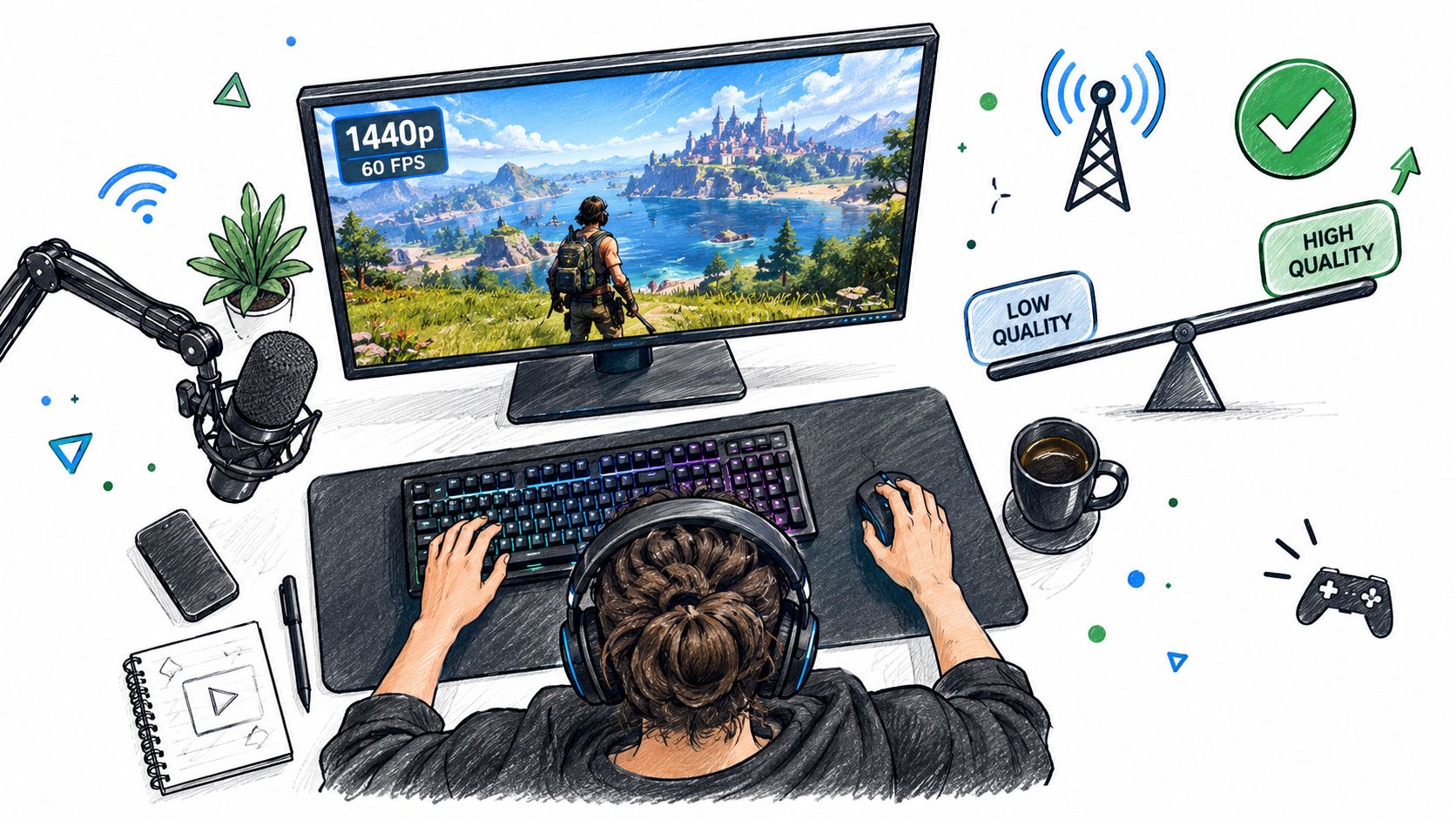
Segment the Decision by Content
Competitive shooters, racing games, and other high-motion content with fine text have the clearest case for more pixels and bits. Small targets, rapid pans, particles, and detailed environments expose compression quickly. Cleaner source frames also give later editing tools more detail for crops, zooms, and vertical layouts.
Facecam-heavy conversation, slower strategy, and low-motion broadcasts may gain little. If viewers mainly read your expressions and listen to discussion, audio clarity, lighting, and stable delivery can matter more than 1440p. Higher resolution also increases encoder load and can introduce compatibility considerations, so test the whole setup instead of admiring a still frame.
Network preparation becomes more important as total bandwidth rises. Before enabling multiple outputs, review router settings for faster WiFi if you must stream wirelessly, then confirm the connection can sustain the combined load. Wired networking remains the calmer base for any multi-rendition experiment.
This walkthrough offers another view of the trade-offs before you commit to a more demanding configuration.
Adopt 2K when it solves a visible problem in your content and your system passes long tests. Skip it when the upgrade only changes a settings label while reducing stability or leaving fewer reliable renditions for viewers.
Testing Your Settings Before You Go Live
A settings screenshot isn’t proof. You need to watch the encoder and network behave during scenes that resemble your real broadcast. Testing is boring for fifteen minutes. Debugging live in front of chat takes much longer.
Build a Repeatable Test Routine
- Measure sustained upload: Test at the time you’ll normally stream, with your usual devices online. Repeat it instead of trusting one result.
- Run a private test stream or local recording: Play the most visually busy part of your game or show, not a quiet menu.
- Review the recording full screen: Look for macroblocking, smeared text, facecam softness, and dark-area banding during movement.
- Check ingest health: Use Twitch Inspector and your encoder statistics to identify dropped, skipped, and lagged frames.
- Change one variable: Adjust bitrate, resolution, frame rate, or encoder preset, then repeat the same scene.
Learn to separate frame problems. Dropped frames usually point toward network delivery. Skipped frames often indicate encoder overload. Lagged frames can mean the computer couldn’t render the scene in time. Each symptom calls for a different fix, so raising bitrate for every problem is poor diagnosis.
Test the Way Viewers Watch
Watch on another device if you can, and don’t evaluate only in a tiny preview. Shrink the player, expand it, and check whether important interface text remains readable. Also listen for audio drift after sustained play, because an overloaded system may look acceptable at first and degrade as temperatures and background tasks build.
If you’re still assembling the broadcast workflow, a step-by-step guide to getting started with streaming on Twitch can help you connect scenes and output settings before you test. Keep notes for each attempt. Record the encoder, preset, resolution, frame rate, bitrate, connection type, and what failed.
A good test is deliberately unflattering. Fast pans, particles, foliage, confetti, and dark scenes reveal what menus hide.
Finish with the exact duration and applications you expect on stream. A configuration that survives your hardest scene without frame loss is a starting point, not a guarantee, but it’s far stronger than copying settings from a forum post.
Common Bitrate Myths That Hold Streamers Back
Myth one says higher bitrate always looks better. It doesn’t. Once the encoder has enough bits for the scene, extra data can produce little visible benefit while increasing pressure on upload and playback. A clean lower resolution may beat a noisy high resolution, and an unstable maximum setting can lose frames entirely.
Myth two says account status magically creates image quality. Status may affect access to platform features or rendition availability, but it can’t repair poor lighting, weak encoder choices, or an overloaded PC. Viewers see the encoded source you send and the rendition they select or receive. They don’t see a badge encoded into the pixels.
Efficiency Depends on the Job
Myth three says variable bitrate is always smarter than CBR. VBR makes sense when a file can be analyzed, stored, and played later. Live Twitch delivery needs a predictable flow. Sudden peaks are exactly what fragile connections struggle to absorb, so efficiency on disk shouldn’t be confused with reliability on a live network.
Myth four says pushing your bitrate helps viewers with slow connections. It can do the opposite if they must receive that heavier stream or if your ingest becomes unstable. Adaptive renditions help when available, but your source still needs to arrive cleanly. Reach comes from giving different viewers a workable option, not from forcing everyone toward your highest number.
Myth five says resolution is the quality. Resolution only describes frame dimensions. Encoder efficiency, motion complexity, frame rate, bitrate, and network stability shape what those pixels contain. Judge the moving image, not the label in the player.
These myths persist because each contains a fragment of truth. More bitrate can help. Better platform options can help. Higher resolution can help. The mistake is treating any one of them as sufficient while ignoring the bottleneck that’s visible on screen.
Troubleshooting and Tuning for Better Broadcasts
Start with the symptom viewers can describe, then make the least disruptive change that addresses its likely cause. Change one setting, run the same test scene, and write down the result. Randomly rebuilding your output page destroys the evidence you need.
Match the Symptom to the First Fix
- Dropped frames rising steadily: Lower bitrate, switch to Ethernet, stop competing uploads, and confirm your upload headroom.
- Viewers report buffering while your encoder looks calm: Reduce the demands of the stream and check whether available renditions suit weaker connections.
- Footage turns blocky during motion: Lower resolution or frame rate, use a stronger encoder path, or raise bitrate only if sustained upload supports it.
- Game stutters when encoding begins: Move from a demanding CPU preset to hardware encoding, reduce overlays, and cap unnecessary background work.
- Audio drifts or scenes hitch late in the session: Check system load, temperatures, device clocks, and whether another application starts competing over time.
Soft footage doesn’t automatically mean your Twitch stream bitrate is too low. Bad focus, poor lighting, scaling, motion blur, and an overloaded encoder can all create the same complaint. Compare a local recording with the live output. If both look soft, inspect capture and encoder settings. If only the live version suffers while dropped frames climb, focus on the network.
Tune in this order. Stabilize ingest first. Remove encoder overload second. Then trade resolution, frame rate, and bitrate for visible detail. That order protects the live audience and preserves a complete VOD for analysis, highlight detection, reframing, and captions later.
A stable broadcast may not win a settings contest, but it gives viewers every moment and gives your future edits usable frames. That’s the standard worth tuning toward. Bitrate is the foundation under the live show, the archive, and every short clip built from it.
Turn those stable Twitch broadcasts into a steady stream of vertical clips with StreamGen, which finds standout moments, reframes and captions them, and schedules posts for TikTok, YouTube Shorts, and Instagram Reels. Visit StreamGen to connect your channel and let cleaner source footage do more work after every live session.
More blog posts