You’ve exported the Reel, watched it locally, checked the captions, and posted it. Then you open Instagram and hear nothing. The same clip may sound fine in your editor, play without sound on your phone, or lose its music only after someone downloads and reposts it.
That’s why Instagram no sound isn’t one bug with one universal fix. It usually belongs to one of four branches: device playback, upload and codec compatibility, licensing restrictions, or cross-platform reposting. Each branch leaves different clues, and each needs a different response.
Instagram’s own creator-facing Reel messaging says 85% of people watch videos with no sound (Instagram’s 2025 Reel promotion). That makes silent readability important even when your audio file is technically healthy. It also means you need to separate two questions: is the audio missing because something failed, or is the viewer just watching muted?
Table of Contents
- The Silent Reel Moment Every Creator Recognizes
- Device and Browser Causes You Should Rule Out First
- Codec and Export Failures That Strip Audio at Upload
- Re-Export Checklist for Reliable Instagram Sound
- Licensing Strips and Post-Download Silence
- Why Generic Fixes Fail Stream-to-Reels Workflows
- A One-Minute Triage Map for Any Silent Instagram Video
The Silent Reel Moment Every Creator Recognizes
The failure usually appears at the worst possible point. Your edit is approved, the hook lands in the opening frame, and the captions are aligned. You upload the file, preview the Reel, and the dialogue, music, or game audio has vanished.
A creator who treats every silent video as a phone-volume problem can waste time changing settings that have nothing to do with the file. The useful first move is to identify which of four situations you’re facing.
Four causes with four different fixes
Device failure means Instagram has audio available, but your phone, browser, Bluetooth connection, or in-player control is routing or suppressing it. Other videos may also be silent on that device.
Upload or codec failure happens before or during Instagram’s ingestion process. The local file may look perfect, yet the uploaded version may contain no usable audio track because the export uses an incompatible codec or container.
Licensing failure affects the soundtrack rather than the device. Instagram may publish the video while muting the detected track, restrict it by region, or mark the audio unavailable.
Cross-platform reposting failure appears after downloading, screen-recording, or moving a clip between platforms. The original may work inside one app but lose licensed music or fail to preserve the audio track in the redistributed file.
Diagnostic rule: If every Instagram video is quiet, start with playback. If one uploaded clip is quiet everywhere, inspect the file and its audio rights.
Reels, Stories, feed posts, and direct-message previews don’t always expose the same failure. A Reel can be muted by an in-player control, a Story can use unavailable music, and a feed upload can inherit a broken export. Generic “restart your phone” advice underperforms because it doesn’t identify which surface and which asset are failing.
The rest of the diagnosis should follow the evidence. Test the cheapest device causes first, then inspect the exported media, then investigate licensing, and finally examine what happened during reposting.
Device and Browser Causes You Should Rule Out First
Start with the output path, not the export settings. Device problems are fast to test and often look like a broken Reel when the file is perfectly valid.
Check the phone before touching the edit
Open the Reel and tap the speaker icon on the video if it appears muted. Instagram can begin playback without audible output, and the in-app toggle is separate from your phone’s general volume state.
Then check the following:
- Silent mode: Disable the phone’s silent setting and any device mode that suppresses media output. A ringtone setting and media playback setting don’t always behave identically.
- Media volume: Raise the media slider while the Reel is actively playing. The volume used for video can differ from the level you checked earlier.
- Bluetooth routing: Turn Bluetooth off briefly or select the phone speaker manually. Audio may be going to earbuds, a car system, a monitor, or another remembered device.
- Instagram state: Force-close and reopen the app if only Instagram is affected. Updating the app or clearing its cache can help when the installation has a playback glitch, but those steps won’t repair a broken upload.
If you’re testing Instagram in a browser, inspect the browser’s own audio state. Chrome can block or restrict autoplay audio, a Safari tab can be muted independently, and an extension may interfere with media playback. Check the tab’s speaker control, browser permissions, operating-system output device, and another browser before concluding that Instagram stripped the sound.
A quick hardware check can prevent a false diagnosis, especially when you’re also recording or narrating content. The microphone and webcam checker from Typist can confirm that your input hardware is producing signal, while audio guidance for streamers helps separate capture issues from playback issues.
Practical rule: Test another Instagram video on the same device. If that video also has no sound, don’t re-export your Reel yet.
If other videos play normally and only your clip is silent, the device is probably not the cause. Move to the file and upload path.
Codec and Export Failures That Strip Audio at Upload
A file can play in a desktop editor and still fail after Instagram processes it. Local playback only proves that your computer can decode the source. It doesn’t prove that Instagram’s ingestion pipeline will preserve the same audio track.
The safest baseline is an MP4 or MOV container with AAC audio. Publishing guidance for Instagram Reels identifies AAC audio as the reliable choice, with a 48 kHz sample-rate ceiling and mono or stereo support (Instagram Reels technical specifications). A file with linear PCM or another unsupported track may upload with a visible picture but no audible audio.
What tends to disappear
PCM and ALAC tracks are common in professional or editing-oriented exports, but they aren’t the conservative choice for a social upload. Depending on the transcode path, Instagram may fail to preserve them rather than converting them cleanly.
MP3-only exports aren’t video deliverables, and WebM files with Vorbis or Opus can create compatibility problems when an editor or uploader expects a different media structure. ProRes exports with PCM can also be a poor direct-upload master when the audio sample rate or channel layout falls outside the platform’s reliable path.
Missing audio tracks are different from muted playback. If your exported file has no track at all, changing Instagram’s speaker icon won’t help. Variable frame rate can complicate processing too, particularly when a screen recording or downloaded clip moves through several editors before upload.
Separate the two failure points
Import the final export into VLC, QuickTime, or your native editor. If the file is silent there, the problem happened during capture or rendering. If it plays correctly locally but becomes silent only after upload, compare the posted result with the original and re-encode to a conservative AAC preset.
Creators building a repeatable production setup can also review Instagram Reels studio gear for the capture and monitoring side of the workflow. Better microphones won’t rescue an audio track that was stripped during export, so monitoring must include the rendered file, not only the timeline.
Re-Export Checklist for Reliable Instagram Sound
Use this workflow before you post a clip that matters. The labels differ across Premiere Pro, Final Cut Pro, DaVinci Resolve, and CapCut, but the underlying choices are similar.
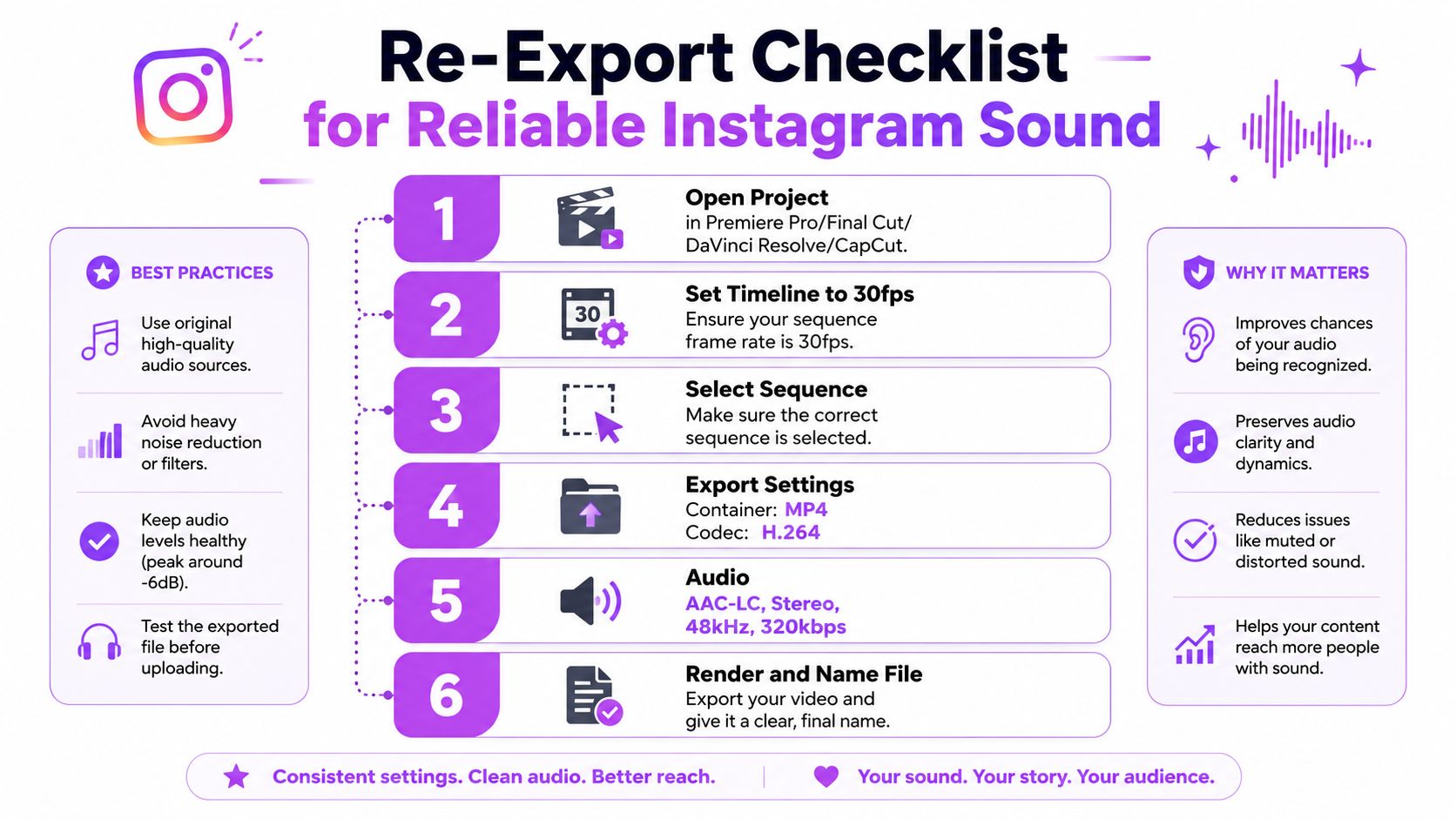
- Open the project: Load the finished timeline in Premiere Pro, Final Cut Pro, DaVinci Resolve, or CapCut. Confirm that the dialogue, music, and effects are enabled rather than bypassed.
- Use a stable timeline: Set the timeline to 30 fps when that matches your source and publishing plan. Don’t rely blindly on “Match Source” if it carries inconsistent frame or sample-rate settings from a screen recording.
- Select the final sequence: Export the complete vertical sequence, not a preview file, proxy, or audio-disabled review copy.
- Choose the container: Use MP4 with H.264 video as the baseline. This is a practical social-delivery master, not necessarily the highest-quality archival master.
- Set audio deliberately: Choose AAC-LC, stereo, 48 kHz, and 320 kbps. Keep peaks normalized between -6 and -3 dB so the mix is audible without clipping.
- Render and name the file: Create a fresh master rather than sending a fragile direct-timeline handoff to Instagram. Use a clear filename that distinguishes the approved export from previews.
After rendering, import the new file back into your editor. Watch the audio meters while the dialogue or music plays, and confirm that both channels register. This catches a missing track or a silent channel before Instagram receives the asset.
A rendered master also gives you one stable file for review, scheduling, and reuse. If you need to remove dead air before export, StreamGen’s video silence remover addresses the edit stage, but you should still validate the final encoded file after the silence pass.
Licensing Strips and Post-Download Silence
A Reel can be technically intact and still lose its soundtrack after publishing. Instagram may identify third-party music, restrict it for a particular account or market, or remove it while leaving the video visible. A post showing “audio unavailable” points more strongly to licensing or per-video availability than to a speaker, browser, or export fault, as described in recent Instagram audio troubleshooting guidance. That distinction separates the licensing failure mode from device and upload failures.
| Audio Source Type | Detection Behavior | Common Result |
|---|---|---|
| Original voice, gameplay, or ambient recording | Usually treated as creator-supplied audio, unless another protected track is detected | Audio remains attached when the file exports correctly |
| Music selected from Instagram’s catalog | Handled inside Instagram’s rights system | Track may be available only within supported contexts |
| Third-party commercial music embedded in an upload | May be detected during processing | Audio can be muted, restricted, or removed |
| Audio taken from a downloaded or reposted clip | May already be stripped before Instagram receives it | Video posts without the source soundtrack |
Match the workaround to the restriction
If Instagram mutes a detected track, replace it with audio you are permitted to use. Import a royalty-free track, record an original voice-over, or rebuild the mix from source elements. Re-exporting the same unavailable song does not resolve a rights restriction.
Keep the spoken message and important sound design independent of the music license. Narration under a catalog track can preserve the explanation when the music changes, but it does not guarantee that the protected track will remain available. For gaming videos, songs for gaming videos can help you select audio with reposting and usage limits in mind.
Downloaded Reels create a separate cross-platform failure mode. A clip may play normally inside Instagram, then become silent after saving because licensed music is removed from the downloaded file or playback routing changes during transfer. Cross-device troubleshooting guidance covers both possibilities (cross-device and post-download audio troubleshooting).
Retain the original project and rendered master. Export from that source instead of screen-recording a playing Reel, then test the saved file in a media player before sending it to another platform. This preserves a known-good audio source and makes it clear whether silence began with Instagram’s rights processing or during download and reposting.
Why Generic Fixes Fail Stream-to-Reels Workflows
Many troubleshooting pages assume a simple path: a person records a video on a phone and uploads that same file to Instagram. Streamers and short-form teams rarely work that way. Their asset may move from a live broadcast to a screen recording, then through a download, a repurposing editor, a caption pass, and a scheduled post.
Each handoff can change the audio.
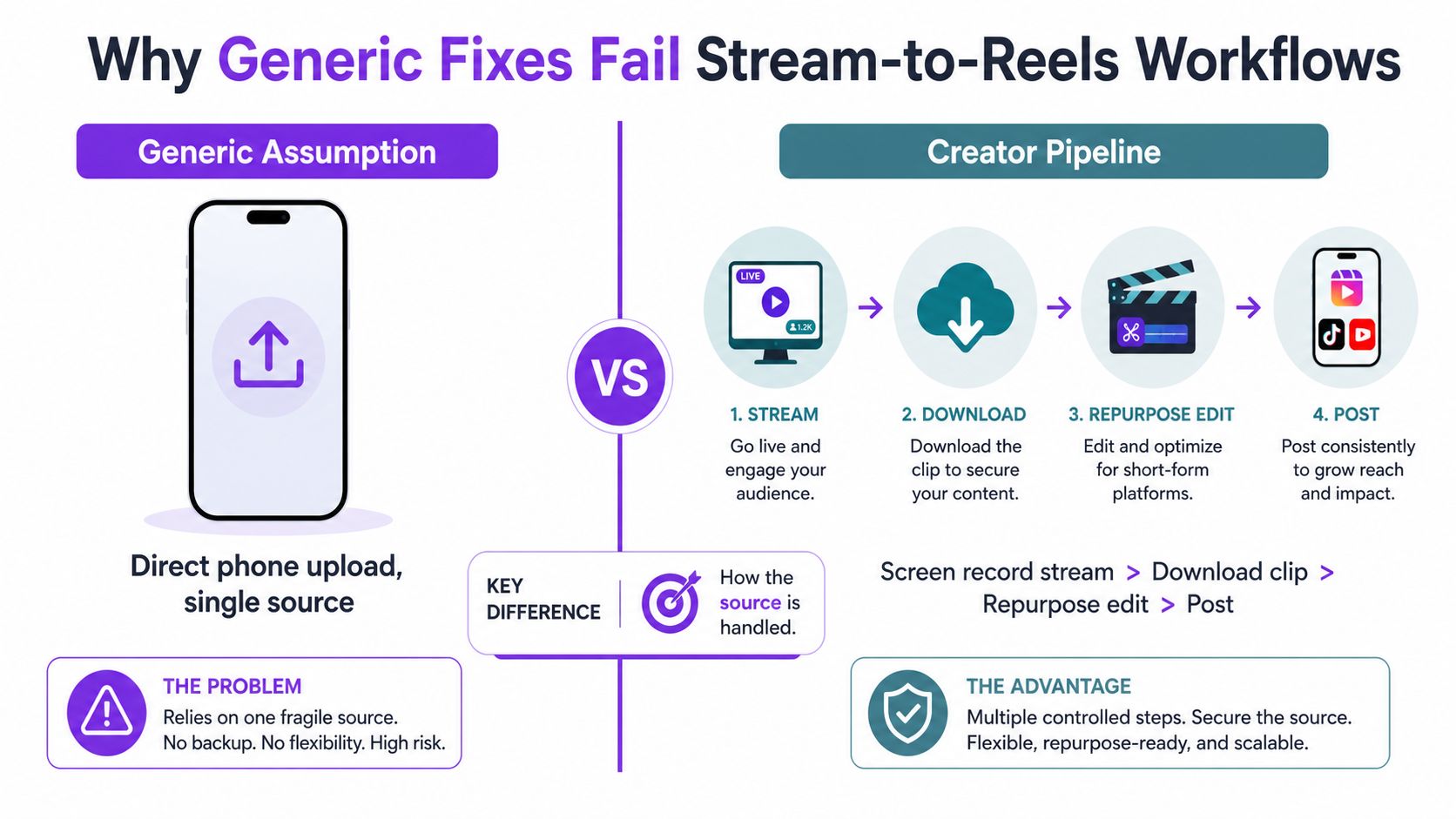
A screen recording can capture system audio but miss sound routed to Bluetooth. A downloaded clip may be re-encoded, and a repurposing editor may drop a track it can’t decode. By the time the file reaches Instagram, restarting the app addresses the wrong layer.
A creator workflow should treat sound as a deliverable, not as an accidental by-product of the video export.
Casual troubleshooting versus production control
| Casual troubleshooting | Creator workflow |
|---|---|
| Check the phone speaker | Verify the rendered master in a media player |
| Reopen Instagram | Inspect the audio track and channel meters |
| Upload the same file again | Re-export with a known AAC preset |
| Assume music is still embedded | Confirm whether the source is licensed and portable |
| Diagnose one post after failure | Run a controlled test before a campaign or queue |
That distinction also affects captions. Instagram says 85% of people watch videos with no sound in its Reel promotion (Instagram’s creator-facing Reel messaging). Captions protect comprehension when viewers mute the video, but they don’t restore a missing audio track for viewers who expect dialogue, music, or gameplay cues.
Teams that process long broadcasts may use automated speech-to-text before captioning, including transcription on serverless GPUs from Beam. The important control is not the vendor. It’s preserving a verified source file, checking the audio after every meaningful handoff, and keeping the original mix available for re-export.
For stream-to-Reels work, direct publishing can remove an unnecessary download step. StreamGen can identify moments from Twitch VODs, edit vertical clips with captions, and schedule or publish them to Instagram Reels, while creators can still export a project for further work in DaVinci Resolve or Premiere Pro. That kind of workflow doesn’t eliminate licensing or device failures, but it reduces the number of file transfers where audio can be lost.
A One-Minute Triage Map for Any Silent Instagram Video
Run this sequence before changing your export settings. It narrows the problem quickly because each answer sends you to one action.
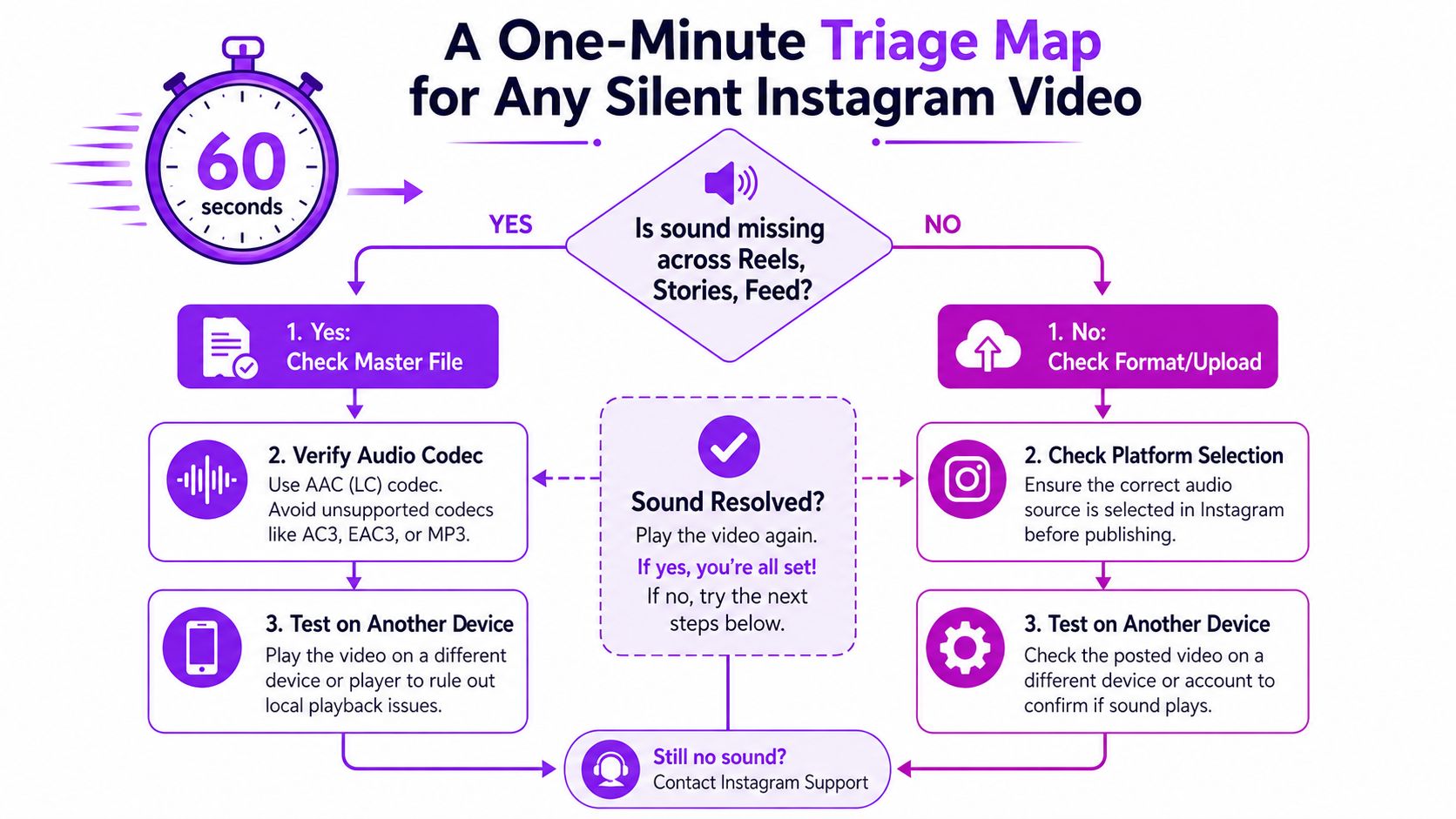
Start with the viewing surface
Does the same clip lack sound in Reels, Stories, feed previews, and DMs?
- Yes: Test the master file outside Instagram. If it’s silent there, re-export or repair the source. If it plays locally, inspect the audio codec and upload result.
- No: The problem is surface-specific. Check the speaker icon, post context, and whether that surface supports the selected audio.
Do other Instagram videos play sound on the same device?
- No: Check media volume, silent mode, Bluetooth output, browser tab audio, and extensions. Test another speaker or browser.
- Yes: Your device is probably fine. Continue with the affected clip.
Validate the source
Open the exported file in QuickTime, VLC, or your editor. If the meters don’t move or the player reports no audio stream, return to the timeline and render a new MP4 with AAC-LC audio. Don’t keep reposting a file that is already silent before upload.
If the local file works, identify the source of the audio. Original narration and gameplay audio point toward an encoding or upload issue. A catalog track or music embedded from another platform points toward rights handling, regional availability, or post-download stripping.
Finish with one controlled test
Upload the verified export to a limited test context before scheduling a broader release. Check it from another device and, if the audio is licensed, confirm that Instagram hasn’t changed the track state after processing. If the test fails, replace the restricted audio or rebuild the file from the original project instead of downloading the failed post.
This decision tree turns “Instagram no sound” from a vague complaint into a short diagnosis: playback state, file encoding, licensing, or transfer history. Keep the source project, rendered master, and audio choice documented, and future silent uploads become easier to isolate.
StreamGen helps creators turn Twitch broadcasts into vertical clips, add captions and silence removal, and schedule distribution to Instagram Reels without unnecessary download and re-upload steps. Visit StreamGen to build a more controlled clip workflow where audio can be checked before publishing.
More blog posts