The perfect headshot lands, your squad wipes the other team, and the victory pose lasts just long enough to become a great screenshot. Your thumb moves quickly, but the certainty disappears just as fast. Did Xbox capture the image, save it locally, upload it to the Xbox network, or leave it waiting somewhere you won’t find until later?
That hesitation isn’t unusual, even after years of playing. Xbox separates capturing, storing, syncing, and sharing across the console interface, the Xbox network, the mobile app, and external storage. This guide covers the complete workflow, including the mistakes that cause screenshots to vanish, appear on the wrong device, or expose private information when you post them.
Table of Contents
- Why Xbox Screenshots Always Feel Harder Than They Should
- Capturing Screenshots on Xbox Series X|S and Xbox One
- Taking Xbox Screenshots on a Windows PC with Game Bar
- Getting Screenshots Off the Console and Onto Your Phone
- Privacy and Content Checks Before You Share
- Preparing Screenshots for Social Platforms
- Quick Reference and Troubleshooting
Why Xbox Screenshots Always Feel Harder Than They Should
A screenshot feels like a single action, but it creates several separate jobs. First, the console or PC must capture the image. Then the file needs to remain available locally or sync to the Xbox network. Finally, you need to export it to a phone, edit it, and check it before sharing.
Xbox’s own capture system supports sharing through the Xbox network, activity feed, messages, and the Xbox mobile app, but those routes aren’t identical. A successful capture can still be unavailable on your phone if it hasn’t uploaded yet. The official Xbox capture and sharing guidance treats capturing and sharing as connected actions, but they remain separate stages in practice.
Practical rule: Never assume that “captured” means “ready to post.”
The confusion gets worse when Windows is involved. A PC screenshot taken with Xbox Game Bar follows a different save path from a normal Windows screenshot. Windows + Alt + Print Screen sends the image through the Game Bar capture pipeline, while ordinary Windows capture commands can use the Pictures > Screenshots location instead. Checking the wrong folder makes the file appear lost even when the capture worked perfectly.
The moment that causes most mistakes
The most common failure happens during a fast match. You react to the play, press a button, return to the game, and continue playing before checking the result. Later, you open the Xbox app and find nothing. The likely problem isn’t that the screenshot never existed. It may still be waiting for synchronization, or the console may have lost its connection before uploading it.
Xbox also warns that on-screen notifications can appear in captures. A notification banner, username, private message, or party overlay can turn a harmless gameplay image into something you shouldn’t publish. Reliable screenshot habits therefore include both technical verification and a privacy check.
The useful mental model is simple:
- Capture the moment on the console or PC.
- Confirm that the image exists where the platform says it should.
- Sync or export it to another device.
- Inspect and edit the image before sharing.
That sequence works better than pressing a button and hoping the cloud, app, and social platform sort out the rest.
Capturing Screenshots on Xbox Series X|S and Xbox One
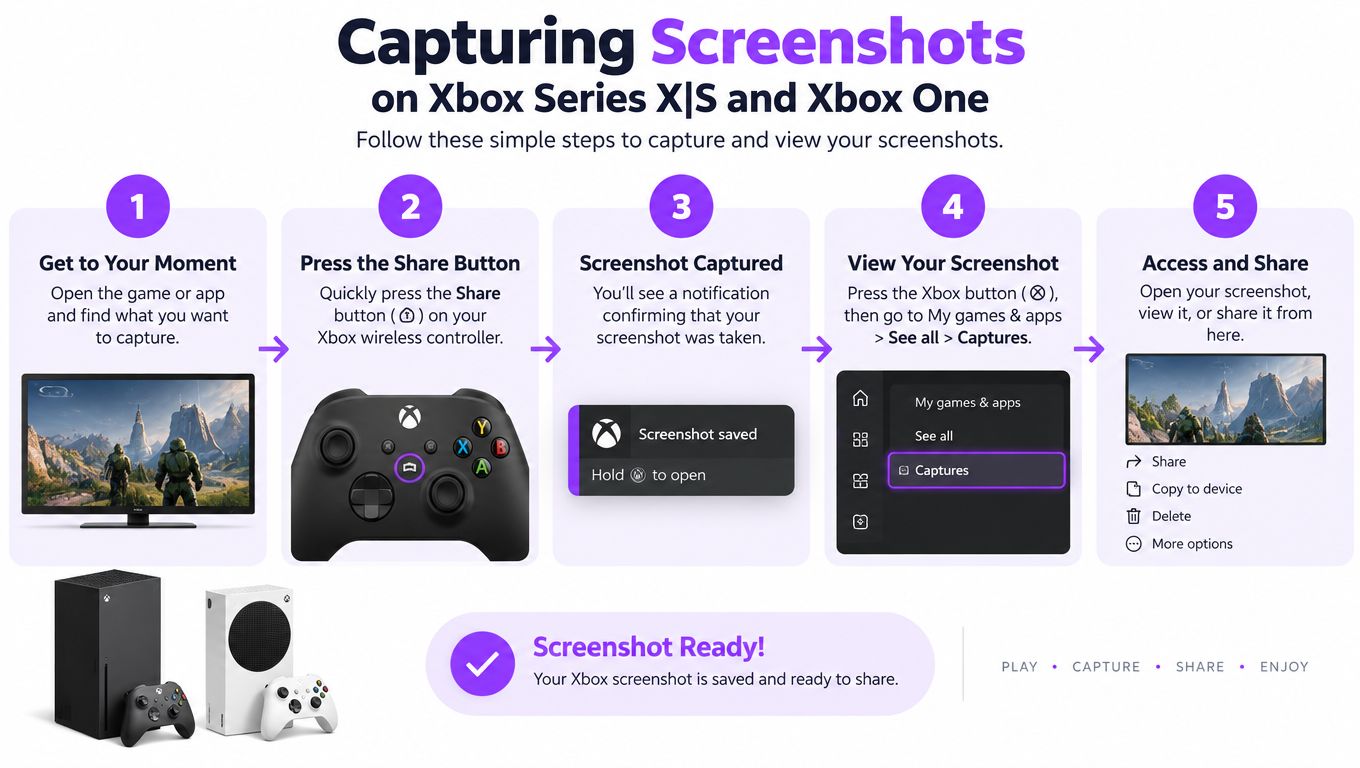
On an Xbox console, start by capturing the moment through the controller or the console’s capture controls. The exact button layout can vary by controller and configuration, so confirm which control is assigned to screenshot capture before a live match. The important distinction is between a single-image screenshot and a video capture. A screenshot freezes one frame, while a clip preserves motion and sound for later editing.
Use the Guide to reach Capture & share, then open Recent captures to verify the result. From there, you can review the image, choose a sharing destination, or dismiss a capture that contains the wrong moment. Don’t leave this check until much later if the image matters. Verification is fastest while you still remember when the capture happened.
Confirm the upload before leaving the console
A console can capture an image successfully while the external copy remains unavailable. Uploading depends on the console being online and the capture service completing its sync. If the screenshot doesn’t appear immediately in the mobile app, check the console’s recent captures first, then confirm the network connection and give the upload time to finish.
The sharing destination also matters. Sending a capture through an Xbox message or activity feed is not the same as downloading a file to your phone. The first action makes the image available through Xbox’s sharing surfaces. The second creates a usable local file for editing or posting elsewhere.
For a creator, this distinction prevents a common mistake: deleting or dismissing the local capture before confirming that the uploaded version is available. Keep the original until the copy appears on the destination device.
Make the capture pipeline predictable
Before a session, open the console’s capture settings and review the available storage and upload preferences. A full capture location can prevent new files from being retained, while an offline connection can leave uploads waiting without making the reason obvious. If a screenshot matters, return to Capture & share > Recent captures and verify it before shutting down.
A clean workflow is faster than recovering a missing screenshot after the match is over.
The same process applies whether you’re preserving a competitive play, a scenic game location, or a frame for a later video edit. Capture first, confirm the image, then treat syncing and sharing as separate tasks.
Taking Xbox Screenshots on a Windows PC with Game Bar
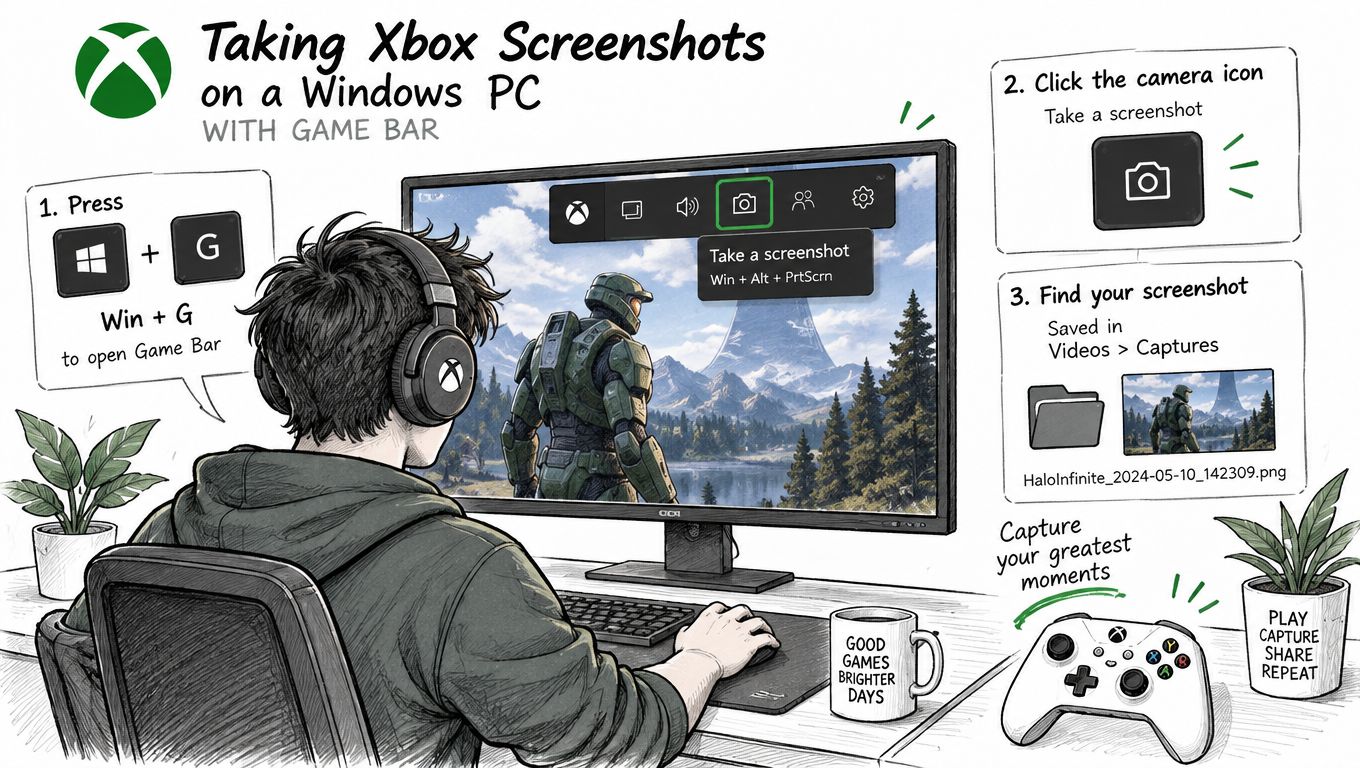
Xbox Game Bar provides the most direct Xbox-related screenshot method on Windows. Launch the game, keep its window focused, and press Windows + G to open the overlay. In the Capture widget, select the camera-shaped Screenshot icon.
For a faster capture, use Windows + Alt + Print Screen. Microsoft documents that shortcut as the direct command for capturing the active game or application through Game Bar. The image is saved as a PNG in the user’s Videos > Captures folder, which preserves a strong original for cropping, OCR, captions, or later layout work. Microsoft’s original explanation of the Game Bar workflow is available in its Windows gaming capture documentation.
Avoid the wrong Windows folder
The most frequent PC mistake is searching in Pictures > Screenshots. That location is associated with ordinary Windows screenshot behavior, not the Xbox Game Bar capture pipeline. Windows + Print Screen and Print Screen alone can follow different Windows-level behavior, and Print Screen may only place an image on the clipboard.
If Game Bar captures correctly but you can’t find the file, check:
- Videos > Captures, the default Game Bar destination.
- Settings > Gaming > Captures, where Windows exposes the capture storage settings.
- Whether the game window had focus when you pressed the shortcut.
- Whether Game Bar is enabled under Settings > Gaming.
Game Bar also includes controls for screenshots, video recording, audio, and background capture. Those settings affect recording behavior, but a screenshot remains a single still image. If an exclusive full-screen title refuses to show the overlay, switch to a windowed or borderless mode where possible, or use the ordinary Windows screenshot route as a fallback.
This distinction becomes useful when arranging gameplay beside other windows. If you need help organizing a Windows desktop while you work, this guide to how to use Snap Layouts in Windows covers the built-in layout controls.
The following walkthrough shows the Game Bar workflow in practice:
For longer gameplay projects, keep the original PNG until you’ve finished reframing or compositing. Converting too early can introduce unnecessary compression before automated captions or vertical layouts are applied. If you also need moving highlights, compare capture tools in this guide to the best clipping software for games.
Getting Screenshots Off the Console and Onto Your Phone
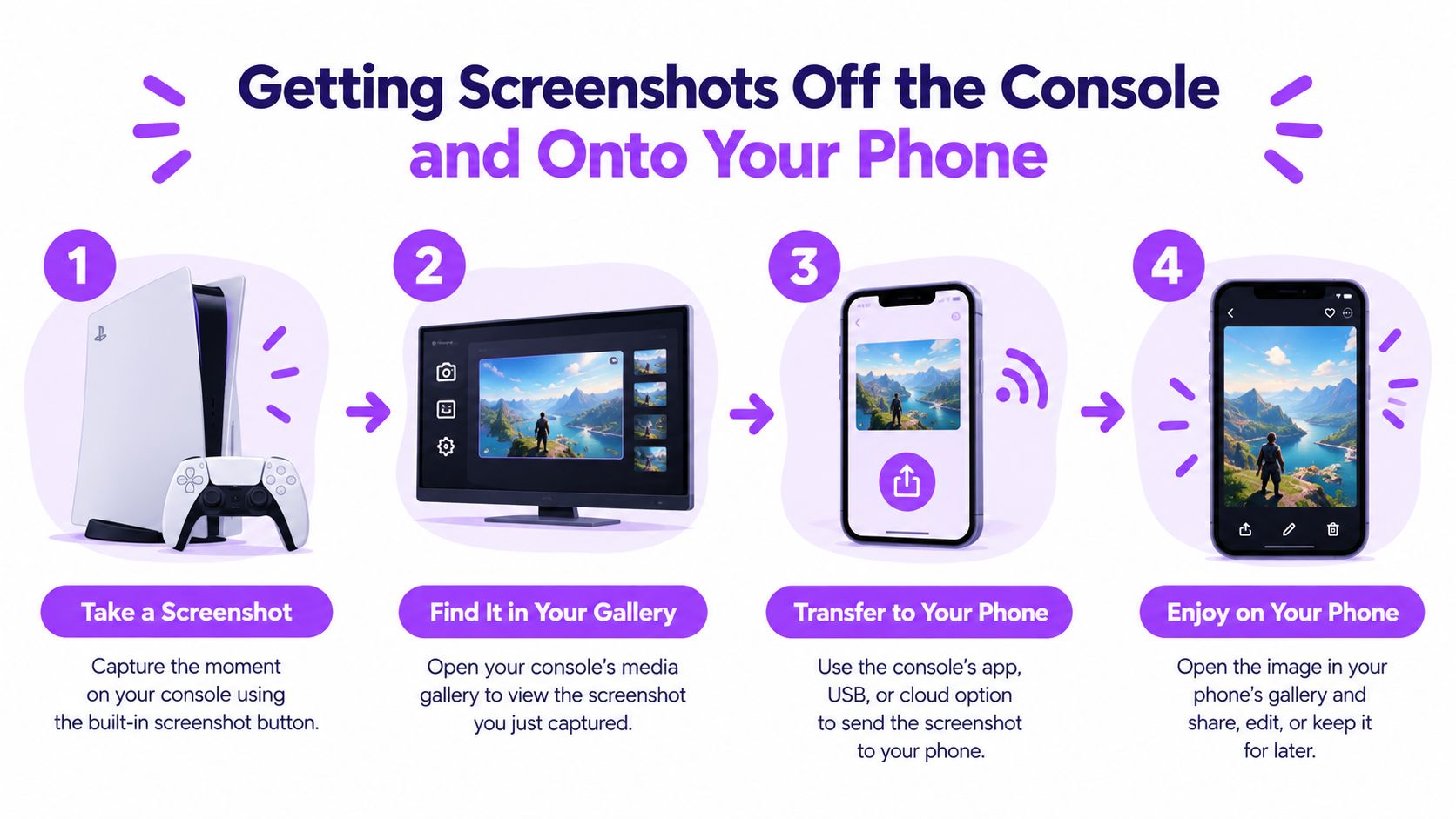
The screenshot is only useful on a phone once Xbox has completed the handoff. Start on the console by opening Guide > Capture & share > Recent captures. Select the image and use the available Xbox sharing options, such as the activity feed, messages, or the Xbox mobile app.
The Xbox app can provide a practical route from a console capture to services such as Instagram, WhatsApp, Messenger, and other phone apps. If the image doesn’t appear, don’t immediately recapture it. First, check whether the console is online and whether the screenshot still appears in Recent captures. A capture can exist on the console while its external copy is still waiting to synchronize.
Choose convenience or control
The mobile-app route is convenient because it avoids moving a physical file. It also keeps the process close to the social app where you plan to publish. The trade-off is that app-based sharing may not preserve every property of the original file, and the image can pass through a sharing workflow before you have a local backup.
For editing, archiving, or maximum control, use a direct export method supported by your console and storage setup. Preserve the original file, transfer it to a computer or phone, and only then create a social-friendly copy. That gives you a clean source if you later need a different crop, a new caption, or a higher-quality version.
Treat syncing as a separate checkpoint
A dependable retrieval routine looks like this:
- Capture the screenshot.
- Open Recent captures and confirm the thumbnail.
- Start the Xbox sharing or synchronization action.
- Open the Xbox app on your phone and look for the capture.
- Save or share the file locally.
- Inspect it before posting.
If step four fails, check the console connection and the phone’s connection, then refresh the app or sign in again. Avoid repeatedly capturing the same scene unless the original is unusable. Multiple copies make it harder to identify which image completed the upload.
The safest approach is to keep the original on the console until the phone copy opens successfully. That small delay protects rare gameplay moments from a failed upload.
Privacy and Content Checks Before You Share
Xbox screenshots can include much more than the game world. Notifications, usernames, private messages, party overlays, and other interface elements may be baked into the image. Xbox specifically warns that on-screen notifications can sometimes appear in captures, so inspect the complete frame before sending it to a public feed.
Open the screenshot full-screen on the television or in the Xbox app. Scan every edge, then look closely at the corners where notification banners and account details often appear. Check the center as well, because a message or party element can overlap the action rather than sit neatly at the border.
| Element | Where it appears | How to remove or avoid |
|---|---|---|
| Notification banner | Along the top or near a screen corner | Dismiss notifications, wait for the banner to disappear, and recapture |
| Gamertag or username | Account areas, party panels, or overlays | Crop only when the crop doesn’t damage the composition, otherwise recapture |
| Private message | Chat or notification overlay | Close the message and capture a quieter frame |
| Party information | Party or communication panels | Hide the panel before capturing |
| In-game HUD | Edges, corners, or center of the game view | Turn off the HUD in the game’s own settings when available |
Recapture instead of trusting a weak edit
Cropping works for a small edge banner, but it can ruin the subject if the notification overlaps the important action. On-console editing also isn’t a substitute for a privacy review. If another player’s name remains visible, recapture a clean moment or edit the file on a separate device before posting.
Notification controls help, but timing is often simpler. Wait for the banner to clear, avoid opening messages during the scene, and take the screenshot during a quiet game moment. For clips with voice communication, review the audio and visible party information before publication as well.
A clean screenshot protects more than your own account. It can prevent accidental exposure of another player’s username, private conversation, or identifying overlay. Treat every capture as publishable media until you’ve checked it manually.
Preparing Screenshots for Social Platforms
Start with the original capture, then create a copy for the platform where you plan to publish. Don’t overwrite the source during cropping or resizing. A social platform may crop the image, recompress it, or display it differently on a phone, so check the final preview rather than trusting the exported file alone.
The right edit depends on the destination. A wide gameplay scene usually needs a horizontal crop, while a feed post may favor a taller composition. Keep the player, objective, or decisive action away from the edges so platform cropping doesn’t remove the subject.
Use a two-pass workflow
The cleanest process is to edit on a computer, export a platform-ready copy, and then send that copy to your phone for native posting. The computer gives you better control over the crop, text, privacy masking, and file naming. The phone then gives you the platform’s normal share sheet and preview tools.
Before exporting, check:
- Composition: Keep the action clear and avoid placing the subject against the crop boundary.
- Privacy: Remove notifications, usernames, party panels, and messages.
- Readability: Add text only when it improves context rather than covering gameplay.
- File choice: Use a broadly compatible image format for social posting, while keeping the original PNG separately.
- Preview: Open the finished version on a phone and inspect the crop at the size viewers will see.
A caption should identify the game and explain why the moment matters. A short context line is usually more useful than repeating visible information. Avoid placing a large gamertag watermark across the action, especially if you may reuse the image in a montage or a vertical edit.
If you regularly turn gameplay moments into scheduled posts, this guide to auto-posting to social media covers the publishing side of the workflow. The principle remains the same: preserve the source, create a deliberate export, and review the exact version that will go live.
Quick Reference and Troubleshooting
The complete routine is short once the stages are separated:
- Capture the screenshot on Xbox or with Xbox Game Bar.
- Confirm it appears in the console’s Recent captures or the PC’s Captures folder.
- Wait for synchronization before looking for it on your phone.
- Save or export a local copy.
- Check every edge for private information.
- Crop and export a version suited to the destination.
- Preview the final file, then publish it.
| Symptom | Most likely cause | Fix to try immediately |
|---|---|---|
| The capture doesn’t appear | The capture wasn’t confirmed, storage is unavailable, or the system task failed | Reopen Recent captures, confirm the game window has focus, and check the available capture location |
| The image isn’t on the phone | Uploading hasn’t finished, or the console and phone aren’t communicating correctly | Confirm the screenshot exists on the console, check the connection, refresh the Xbox app, and try the share action again |
| The image looks blurry or badly cropped | The wrong copy was used, an app altered the file, or the crop removed important detail | Return to the original capture, create a fresh export, and inspect the result on the phone before posting |
PC users should also remember the folder distinction. Game Bar screenshots go to Videos > Captures by default, not the ordinary Pictures > Screenshots location. On console, the equivalent check is Recent captures, followed by confirmation that the image has uploaded before you close the session.
Once the file is safe, you can reuse it in a larger content workflow. For gameplay creators who turn longer recordings into multiple formats, repurposing video content can help organize stills, clips, and follow-up posts around the same moment.
The habit that saves the most frustration is simple: never stop at the button press. Confirm the file, confirm the sync, inspect the frame, and only then share it.
StreamGen can help turn gameplay footage into short-form clips, add captions and vertical layouts, and schedule posts to TikTok, YouTube Shorts, and Instagram Reels. Visit StreamGen to explore a workflow that takes your best captured moments from raw footage to publishable content.
More blog posts