You’re staring at a timeline full of dead air, loading screens, muted reactions, and the same awkward pauses you meant to clean up later. The hard part isn’t finding a video silence remover, it’s choosing one that fits what happens after the cuts are made. Some tools stop at threshold detection and batch trimming, some hand off cleanly to Premiere Pro, DaVinci Resolve, or Final Cut Pro, and others keep going with transcript editing, social publishing, or full browser-based clip workflows.
That’s why the best choice depends on your setup, not just the feature list. If you need a fast first pass, the question is threshold control, padding, and export handoff. If you publish shorts every week, you care more about vertical reframing, captions, and direct posting. If you edit podcasts or talking-head videos, transcript review matters more than flashy automation. This comparison covers the tools that show up in those workflows, from all-in-one browser editors to local desktop trimmers, command-line utilities, and NLE-adjacent apps. The list starts with StreamGen for stream-to-shorts workflows, then moves through dedicated trimmers, browser editors, transcript-first tools, and professional handoff options.
Table of Contents
- 1. StreamGen
- 2. TimeBolt
- 3. Descript
- 4. VEED
- 5. Kapwing Smart Cut
- 6. Microsoft Clipchamp
- 7. Wisecut
- 8. Wondershare Filmora
- 9. Auto-Editor
- 10. Recut
- Top 10 Video Silence Removers Compared
- Choose the Silence Workflow You Can Actually Maintain
1. StreamGen
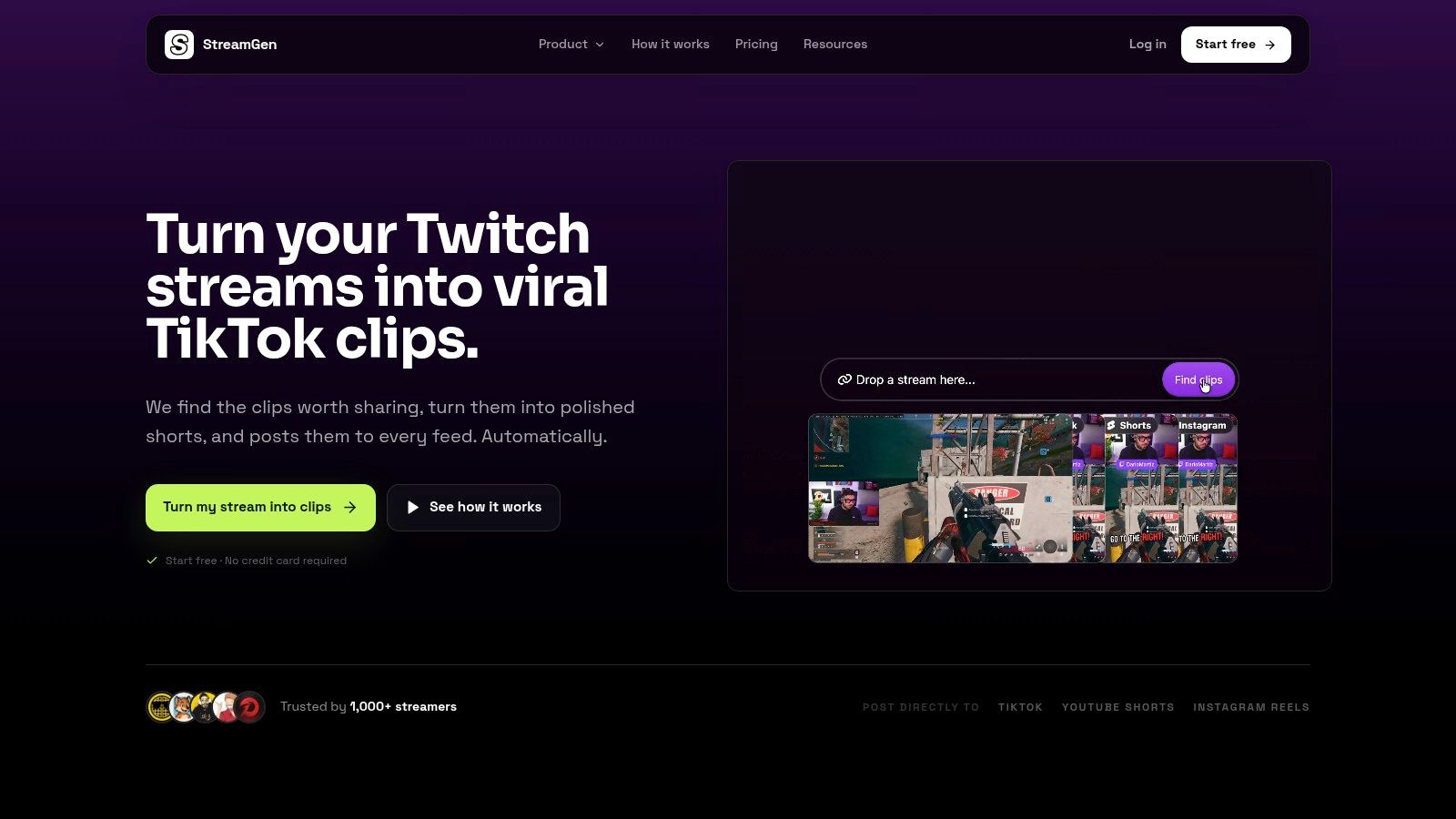
StreamGen fits editors who start with a Twitch VOD and need to end with short-form posts. Its AI Clip Finder scans full recordings, including 8+ hour streams, then ranks moments using gameplay, reactions, chat, and audio signals, so the first pass is about selecting usable segments instead of scrubbing every pause by hand. The site says it is used by 1,000+ streamers, and the plans start at €5.49 per month, with a free tier available. Those figures come from StreamGen’s own site and pricing materials. StreamGen
Why it behaves differently in a real publishing workflow
StreamGen treats silence removal as one stage in a longer edit. Its Clip Editor reframes footage for vertical feeds, keeps facecam and gameplay visible with smart layouts, adds animated captions in 90+ languages, applies AI title hooks, word censoring, and brand presets, then sends output to TikTok, YouTube Shorts, and Instagram Reels through Auto Posting or Autopilot. That matters in a stream workflow because the tool is already organized around distribution, not just trimming.
Practical rule: If the job is turning one long recording into several feed-ready posts, StreamGen fits better than a standalone silence cutter.
The AI VOD Editor beta goes further by removing dead air, loading screens, and menus, then exporting pre-edited projects for DaVinci Resolve and Premiere Pro. That handoff is useful if you want automation for the first pass but still prefer final polish in a desktop NLE. Real users on the site describe shorts ready in minutes and multiple clips across socials, which reads as product-fit evidence rather than proof of performance.
The limit is scope. StreamGen is strongest for the short-form social pipeline, not for general-purpose editing across webinars, interviews, and broader cleanup tasks. If your production starts on Twitch and your publishing stack already includes vertical social, StreamGen covers more of the workflow than a basic silence remover.
2. TimeBolt
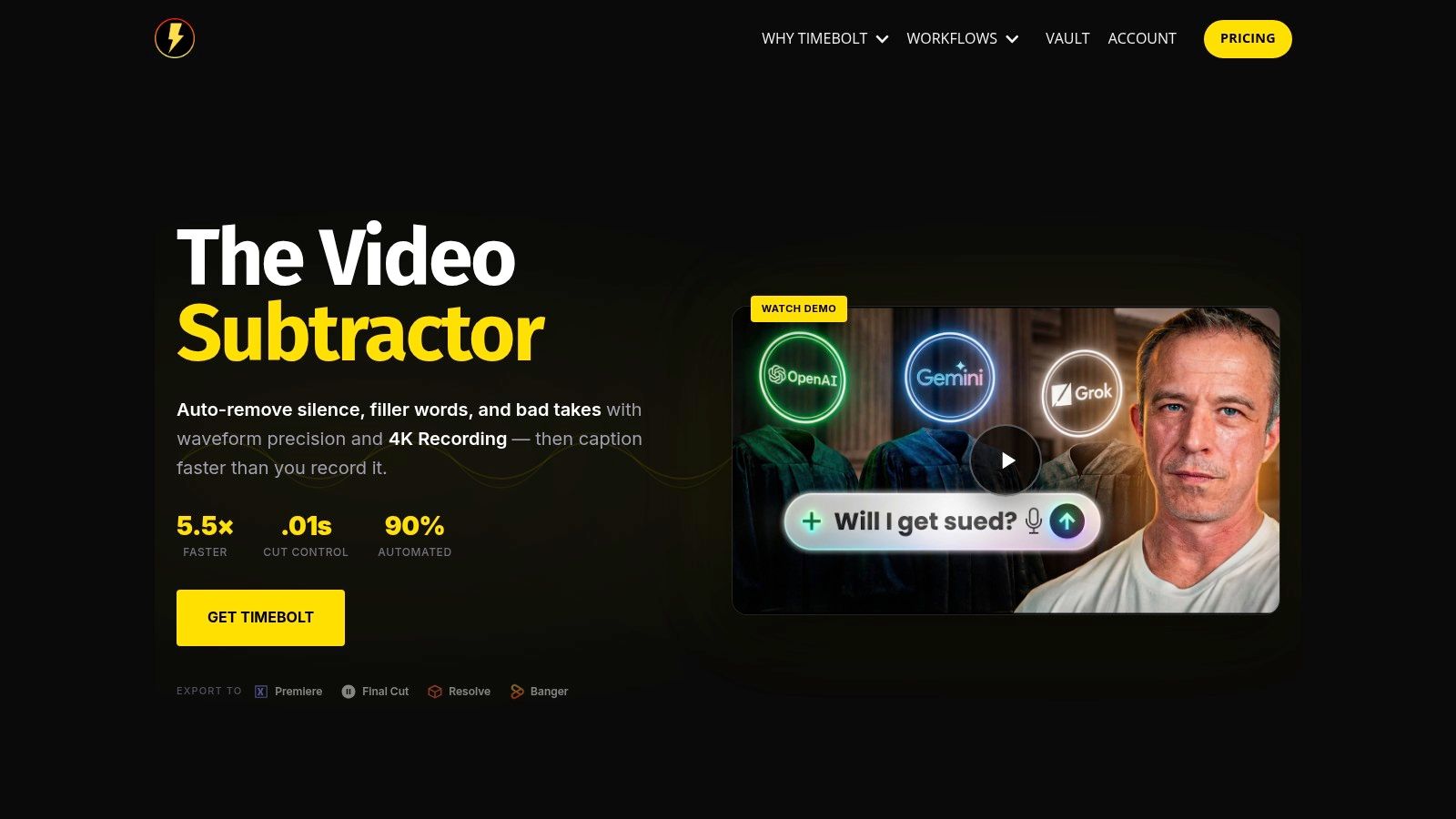
TimeBolt is for editors who want dead air removed locally, then pass the result into a larger post-production workflow. That setup fits long lectures, streams, and podcasts where you want to avoid browser queues or team collaboration while you make the first pass. Its value is speed and NLE-friendly exports, so it suits creators who already know the finishing stage happens elsewhere. TimeBolt
The workflow stays simple. You set thresholds and padding, batch-process long files with saved settings, and export to Premiere, Resolve, or Final Cut Pro through XML or JSON, or render the cut as finished media. That makes TimeBolt a rough-cut engine, not a full editor. It gives you a clean sequence structure, not a polished delivery package.
For editors who want to move from a long recording into a publishable cut, the next decision is often handoff, not trimming. One useful companion read for that workflow is StreamGen’s guide to auto-cutting Twitch VODs: auto-cutting boring parts in Twitch VODs.
There are limits. TimeBolt is desktop-only, so it does not give you the collaboration or social-publishing convenience of browser tools. Its filler-word removal, Umcheck, is also behind a paid tier, so the least manual version of the workflow costs more. For solo editors who want a fast first pass and do not need shared projects, that tradeoff can still make sense.
If your bottleneck is getting through hours of silence-heavy footage before the real edit starts, TimeBolt is built for that job.
3. Descript

Descript fits workflows where the transcript is the edit surface. Silence removal sits inside a text-first process, so you can cut, tighten, and reorder speech by changing words on the page. That suits podcasters, talking-head creators, and teams that work from scripts rather than from timeline fragments. Descript
Its silence controls are practical. Silence Remover and adjustable “Shorten word gaps” let you tighten pacing without rebuilding the episode, and the same project can also remove filler words and run AI cleanup. The useful part is visibility. You can read the transcript, review each change, and keep pauses that still serve tone or emphasis.
The tradeoff is control. Descript can over-trim or shift alignment, so manual review is still needed, especially with overlapping speech or messy recording conditions. Pricing and AI features also vary by tier and credit model, which changes the experience from plan to plan. Teams that collaborate in cloud projects may accept that. Editors who want fine timeline control may find the abstraction less comfortable.
If the workflow includes review, transcript edits, and export handoff, Descript stays relevant after the silence pass. It can support a rough cut, then carry that project into captions, review, and delivery without forcing a separate cleanup tool.
Best fit by workflow
- Podcasts and interview edits when the transcript is the primary working surface.
- Talking-head videos where pause trimming and captions happen in the same project.
- Teams with shared review loops that want cloud-based collaboration instead of file juggling.
4. VEED
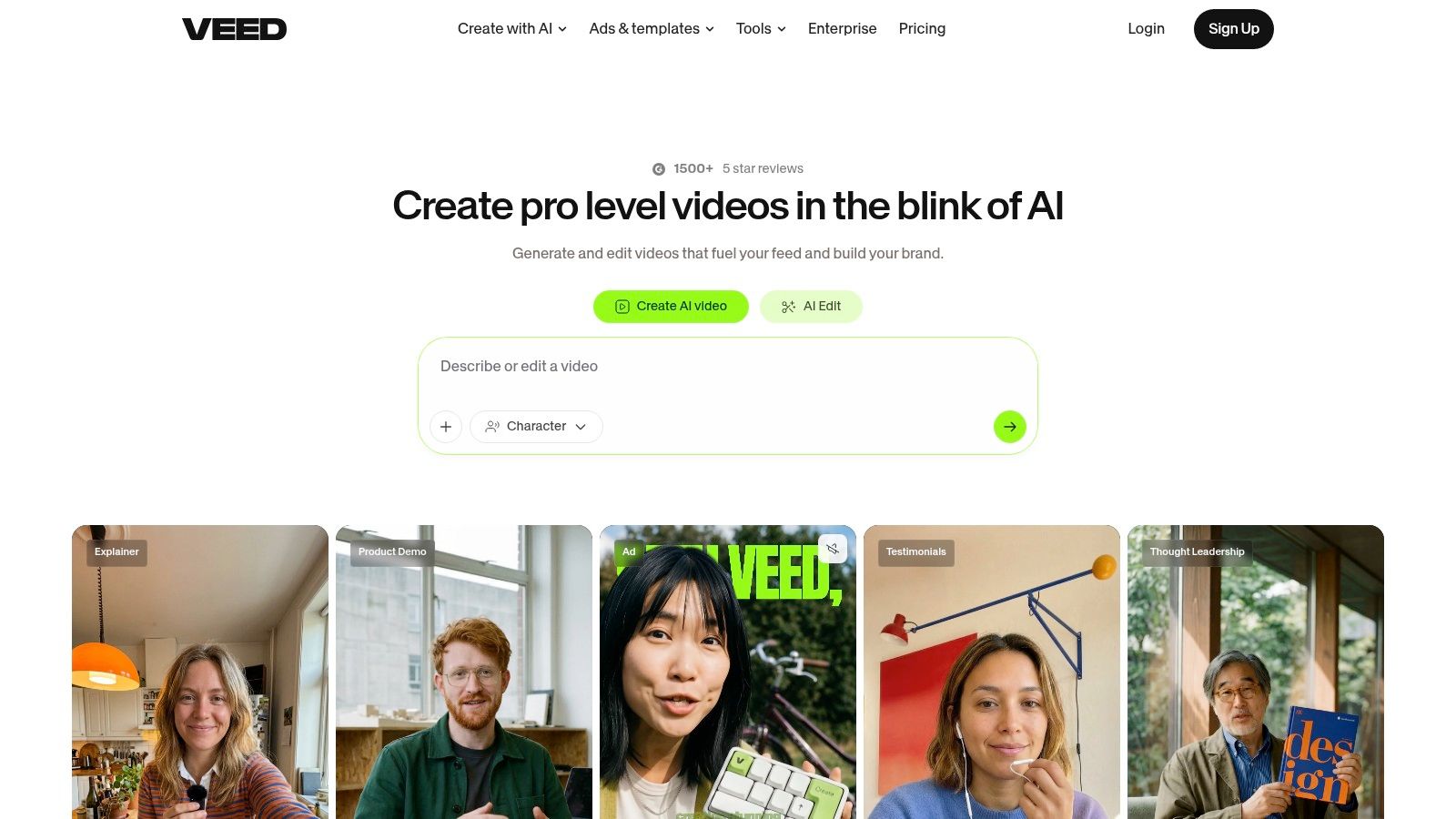
VEED is for creators who want silence trimming inside a browser editor that also handles subtitles, branding, and export. Its appeal is not deep timeline engineering, it’s speed of use. You upload, trim, subtitle, and ship without installing desktop software, which is why it works well for social teams and solo creators who want a cleaner process than jumping between multiple apps. VEED
The silence tools are easy to understand. VEED offers one-click silence removal with pause-length threshold settings, plus Magic Cut to detect speech segments and tighten rough cuts. That combination makes it a practical browser editor for commentary, simple interviews, and social clips where pacing matters more than complex compositing. Team workspaces and brand asset support give it a lightweight collaboration layer too.
The limit is that the more advanced AI capabilities sit behind paid tiers. That’s normal for browser editors, but it means VEED’s free-tier usefulness depends on how much automation you need. If you’re doing one-off trims, it’s convenient. If your workflow depends on heavy batch cleanup, you’ll likely outgrow the free layer quickly.
Practical rule: Use VEED when your deliverable is already social-shaped and you want the silence removal to sit next to subtitles, branding, and export, not in a separate pre-edit step.
5. Kapwing Smart Cut
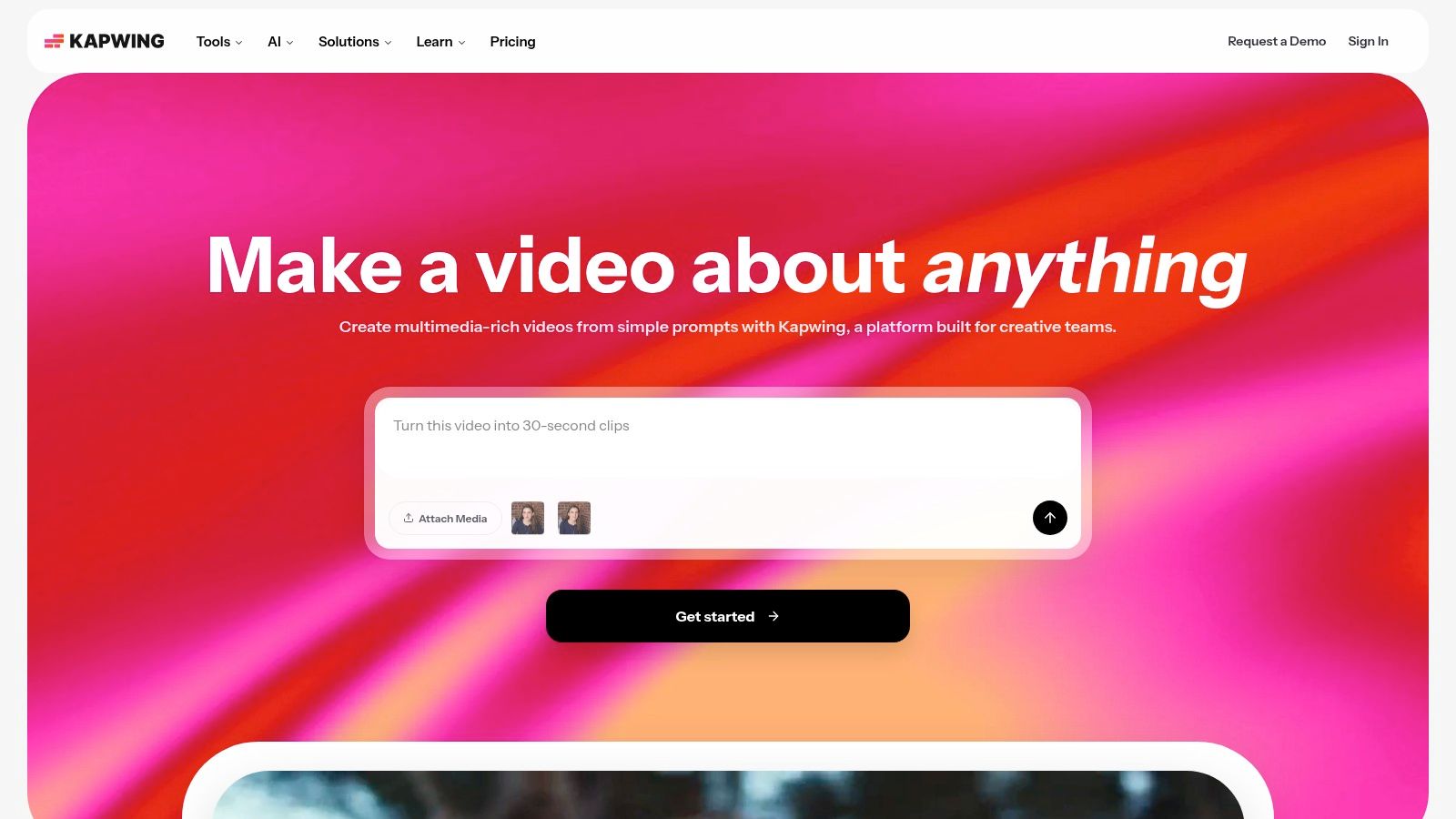
Kapwing’s Smart Cut is a good example of what browser-native silence trimming should feel like. You open a project in the browser, run one-click silence detection, then keep building the piece with captions, B-roll, and templates in the same workspace. That makes it especially appealing for social repurposing, where speed and collaboration matter more than precision timeline gymnastics. Kapwing
The strongest part of the workflow is the low learning curve. Smart Cut gets you from raw recording to tighter pacing fast, and browser-based collaboration means teammates can work on the same project without shuffling files around. Plan-dependent multi-hour file support is helpful for longer recordings, but the feature set still scales around subscription tiers, so larger uploads and advanced capabilities aren’t equally available on every account.
Kapwing is best when your team needs a shared, lightweight editing surface. It is less attractive if you need serious control over cut thresholds, frame-by-frame review, or NLE export handoff. In other words, it’s a social content editor with silence removal, not a specialist first-pass trimmer. That distinction matters when your pipeline starts with a 90-minute recording and ends in a Resolve timeline.
A useful way to judge Kapwing
Ask whether you want to keep the whole edit in the browser. If the answer is yes, Kapwing’s silence removal is part of a broader social package. If the answer is no, a local cutter or NLE-adjacent tool will probably give you more control.
6. Microsoft Clipchamp
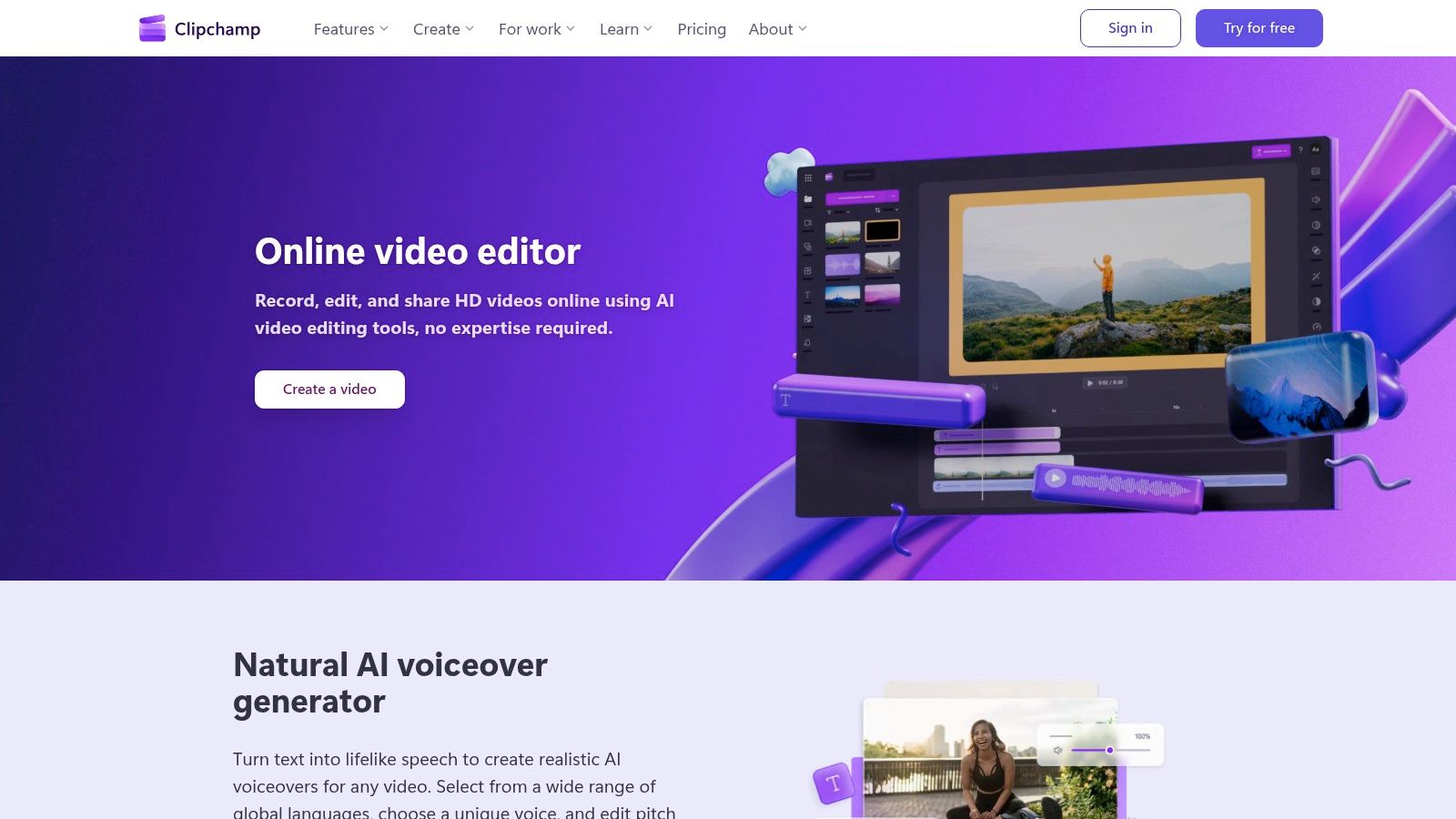
Clipchamp is the most approachable option here if you want a browser editor with built-in silence removal and don’t want to think about setup. Microsoft says its silence removal is available free to all users, and by default it removes pauses longer than 3 seconds. It also runs through an AI suggestions workflow that can transcribe media, filter profanity, and split the timeline into multiple clips, which is useful if you’re doing rough cuts inside a mainstream browser pipeline. Microsoft Clipchamp silence removal
That default threshold is important because it tells you what the tool is optimized for. Clipchamp is aimed at quick cleanup, not precision pacing design. If you’re editing simple creator videos, internal updates, or short talking-head clips, that default can be enough to shave off the obvious dead space without much effort. If you need granular thresholds or more careful review control, you’ll feel the ceiling sooner.
The other strength is ecosystem fit. Clipchamp lives in Microsoft’s broader lineup, so it works well for users already inside that environment. The downside is equally clear, it offers less control than pro NLEs for complex timelines, and it’s not built to replace a dedicated offline editing stack.
A free silence remover is useful only if it doesn’t create more cleanup than it saves. Clipchamp is strongest when the recording is simple and the trim job is simple too.
7. Wisecut
Wisecut is aimed at talking videos that need automatic pacing cleanup without requiring the editor to live on a timeline all day. Its Autocut Silence feature trims pauses, while storyboard-style transcript editing, captions, and translation support help turn a long monologue into a more usable finished piece. That makes it a natural fit for creators who want hands-off cleanup and social-ready output from a web app. Wisecut
The product’s appeal is the combination of automation and accessibility. You don’t need NLE experience to get through the workflow, and the cloud-based setup makes it straightforward to process speech-heavy footage. The tradeoff is the credit model, which means heavier users may need higher tiers or more careful planning around usage. That’s not unusual for AI-first editors, but it affects how sustainable the tool feels if you batch a lot of long recordings.
Wisecut is especially useful when you want silence trimming, captions, and translation in one place. It’s less compelling if you need detailed export handoff into Premiere or Resolve, or if your workflow depends on complex editorial review. For creators who mostly publish talking content and short social clips, though, it’s a clean fit.
One internal resource that pairs well with this style of workflow is StreamGen’s own guide on building clip output around AI-driven editing, especially if your end goal is more social content from each recording. StreamGen’s AI video clipper guide
8. Wondershare Filmora
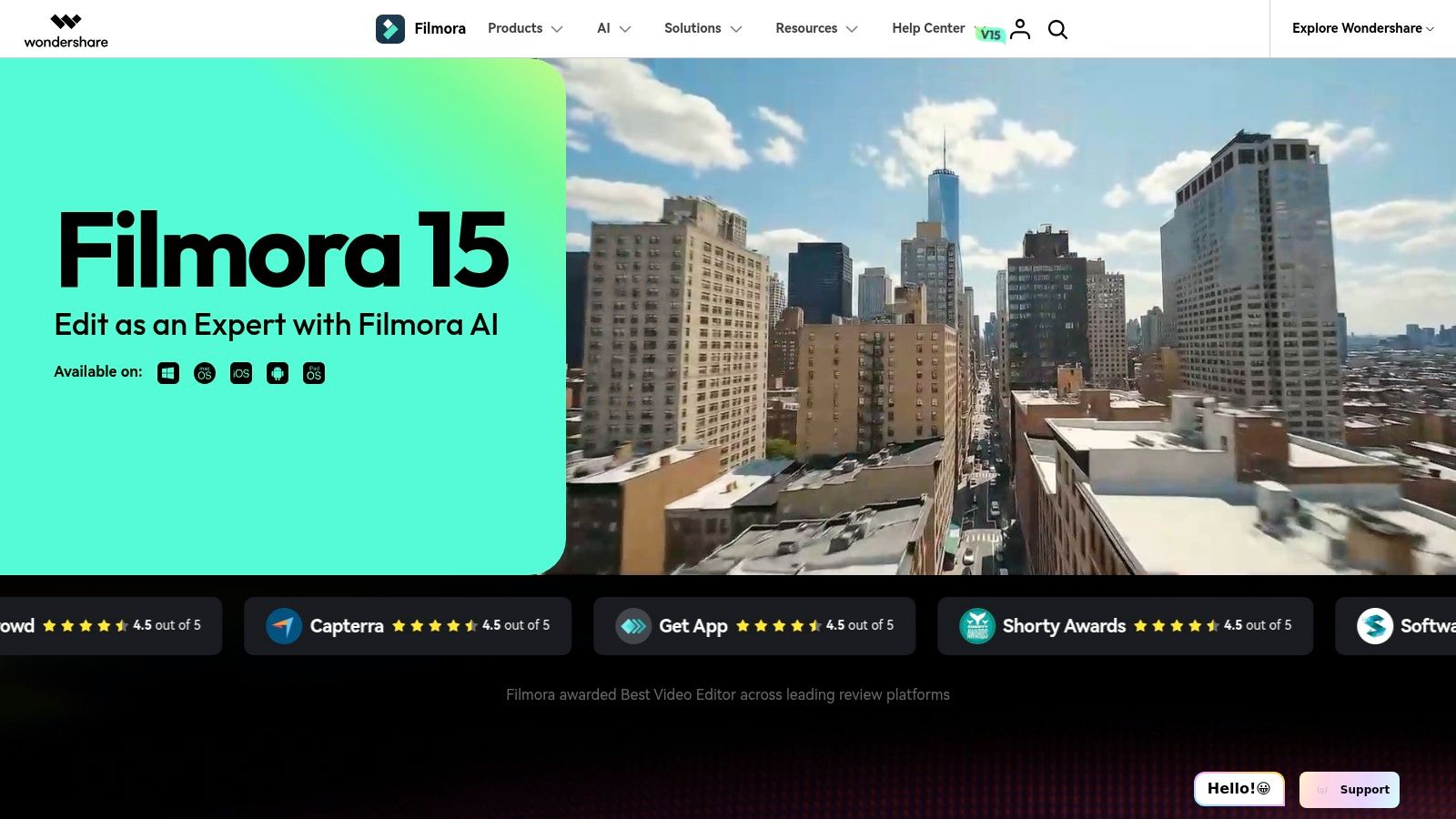
Filmora sits in a different category from the browser-first tools. It’s a consumer-friendly desktop NLE, so the silence removal feature lives alongside the rest of the editing stack rather than acting like a standalone utility. That matters if you want one app for trimming, titles, overlays, and normal timeline work without moving into the complexity of Premiere or Resolve. Wondershare Filmora
Its Silence Detection is straightforward, which is exactly the point. You get an accessible desktop environment with automatic silence controls, and depending on the version, text-based editing and AI tools may also be available. For tutorial videos and commentary edits, that can be enough to clean dead air and keep moving. The broader editing toolset gives it more staying power than a lightweight browser app.
The limitation is finishing depth. Filmora doesn’t compete with pro-grade NLEs on advanced control, and the exact feature set varies by version. That makes it a good middle ground, but not the ideal choice if your output has strict finishing requirements or a professional post team downstream. For many solo creators, though, the balance is right.
When Filmora makes sense
- You want a desktop editor with silence removal built in.
- You’re editing tutorials or commentary and need more than a trim-only app.
- You don’t want pro complexity, but you also don’t want browser constraints.
9. Auto-Editor
Auto-Editor is the most technical option in this list, and that’s exactly why some editors prefer it. It’s open-source under the Unlicense, available as a free CLI, and it also has a paid GUI app for users who want a friendlier interface or unlimited high-resolution exports. Because it can cut silent and still sections in one pass, it’s built for reproducible, scriptable batch work rather than casual one-off cleanup. Auto-Editor
The workflow suits automation-minded creators and teams. If you process similar recordings over and over, Auto-Editor gives you a consistent way to apply the same logic to every file. That makes it useful for technical teams, archival cleanup, and creators who want silence removal to fit inside a larger scripted production pipeline. The open-source development model also appeals to users who prefer transparency over black-box AI behavior.
The downside is obvious. The command line raises the barrier for non-technical users, and the GUI app’s premium features create a split between basic access and the more polished export path. If you want a tool that behaves like a button, this isn’t it. If you want a repeatable batch engine, it can be exactly the right choice.
Best use case: Treat Auto-Editor as a reproducible pre-edit step when you care more about automation and consistency than about visual convenience.
One useful companion read for creators who batch edit Twitch content is StreamGen’s guide to Twitch VOD editing, which sits closer to this same automation-minded mindset. StreamGen’s Twitch VOD editor guide
10. Recut
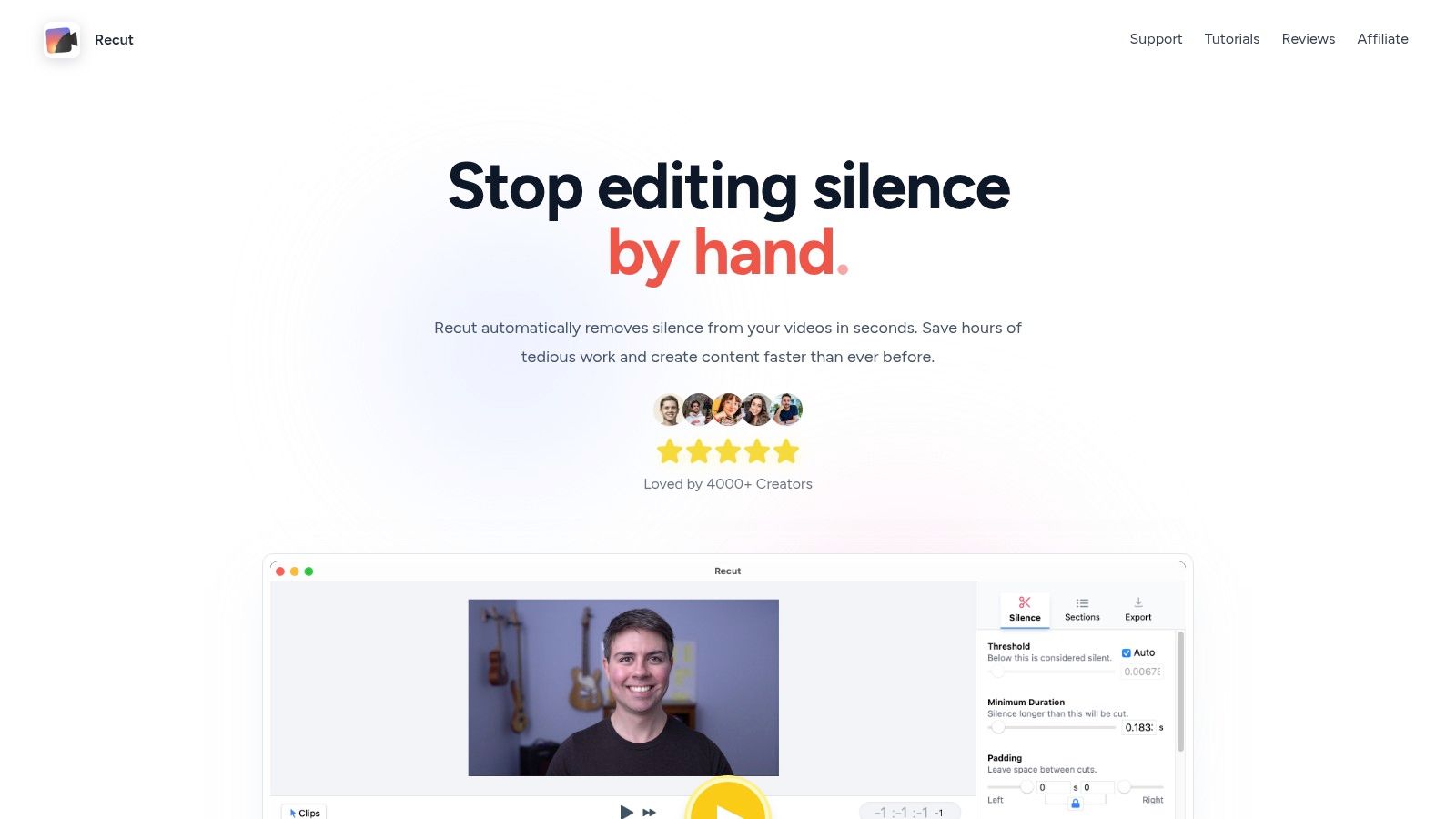
Recut is one of the cleanest examples of a first-pass silence remover that expects to hand work off to a real editor afterward. It analyzes media, builds a cut list for silence, and then exports either a new file or EDL/XML for your NLE. That makes it a natural fit for people who want a lightweight front-end before doing the serious work in Premiere, Resolve, or Final Cut Pro. Recut
The value is simplicity. Recut’s UI is minimal, the setup is low-friction, and the trial lets you test the workflow before buying. For editors who just want to strip dead air quickly and preserve a clean path into the main timeline, that’s a strong combination. It’s especially effective when you want the silence pass to stay separate from the creative edit.
The limitation is equally clear. It’s a focused tool, so complex edits still belong in your NLE. That doesn’t make it weaker, it makes it narrower. If your production chain already includes a finishing app, Recut can save time without asking you to change how you work.
Where Recut lands in the workflow
Recut is best when silence detection is the first edit, not the final one. If you want a quick rough cut, then a careful human pass later, it fits that split nicely.
Top 10 Video Silence Removers Compared
| Tool | Core features ✨ | UX / Quality ★ | Value & Pricing 💰 | Target audience & USP 👥 / ✨ |
|---|---|---|---|---|
| StreamGen 🏆 | AI Clip Finder (8+hr VODs), vertical Clip Editor (90+ langs captions), Auto Posting & Autopilot, VOD export for NLEs | ★★★★☆, unified, fast workflow | 💰 Free tier; paid from €5.49/mo, high ROI for creators | 👥 Streamers wanting end-to-end automation; ✨ chat-aware AI pipeline + direct multi-platform posting |
| TimeBolt | Local silence removal, adjustable thresholds, batch processing, NLE exports | ★★★★☆, very fast local processing | 💰 Paid desktop app, optimized for long VODs | 👥 Creators needing speedy batch trims; ✨ local performance + NLE-friendly exports |
| Descript | Transcript-driven editing, silence remover, filler-word deletion, collaboration | ★★★★☆, excellent for speech-driven edits | 💰 Tiered subscription / AI credits | 👥 Podcasters & talking-head creators; ✨ text-based edits + cloud collaboration |
| VEED | One-click silence removal, “Magic Cut”, subtitles, branding, team workspaces | ★★★★, simple web-based editor | 💰 Freemium; paid for advanced AI & limits | 👥 Social-first creators wanting web simplicity; ✨ social exports & brand tools |
| Kapwing (Smart Cut) | Smart Cut silence removal, captions, templates, real-time collaboration | ★★★★, quick & easy repurposing | 💰 Freemium; paid for larger uploads/features | 👥 Teams & creators repurposing content; ✨ one-click tightening + collaboration |
| Microsoft Clipchamp | AI silence removal, browser editor, MS365 integration, subtitles | ★★★★, accessible, beginner-friendly | 💰 Free tier includes silence removal; paid tiers for advanced tools | 👥 Casual creators / MS365 users; ✨ seamless Microsoft ecosystem links |
| Wisecut | Autocut Silence, storyboard transcript editor, multi-language captions/translation | ★★★★, good auto-pacing for monologues | 💰 Credit model / paid tiers | 👥 Solo creators & tutorial makers; ✨ automated pacing + translation |
| Wondershare Filmora | One-click Silence Detection, desktop NLE features, text-based tools | ★★★★, approachable desktop editor | 💰 Paid license / version-dependent features | 👥 Creators wanting a consumer NLE; ✨ easy-to-learn editing with silence tools |
| Auto-Editor (CLI/App) | Auto cut silent/static sections, open-source CLI, cross-platform exports | ★★★★, powerful & scriptable (CLI learning curve) | 💰 Free CLI (open-source); paid GUI for unlimited exports | 👥 Technical users / automation pipelines; ✨ fully scriptable, reproducible workflows |
| Recut | Auto silence analysis, builds cut lists, exports EDL/XML or finished files | ★★★★, very simple first-pass trimmer | 💰 Trial available; paid license thereafter | 👥 Editors needing fast pre-edits for NLEs; ✨ clean EDL/XML handoff for pros |
Choose the Silence Workflow You Can Actually Maintain
The best video silence remover is the one that matches what happens after the silence is gone. If you’re a Twitch creator turning long streams into social clips, StreamGen makes sense because it combines silence removal with clip finding, vertical reframing, captions, scheduling, and direct publishing in one browser workspace. If your work starts and ends inside a desktop editing pipeline, TimeBolt, Auto-Editor, or Recut are better fits because they give you a fast first pass and a clean handoff into Premiere Pro, DaVinci Resolve, or Final Cut Pro.
If your editing is speech-led, Descript and Wisecut are the strongest transcript-first choices because they let you think in sentences, not just waveforms. If you want browser-based social editing with a silence tool attached, VEED, Kapwing, and Microsoft Clipchamp are easier to adopt and simpler to hand to a team. If you want a broader desktop editor that still handles dead air without forcing you into pro complexity, Filmora is the middle ground.
The safest way to choose is to test real footage, not sample clips. Run the same recording through each serious candidate, ideally one with natural pauses, background noise, loading screens, overlapping speech, and a long runtime. Then compare how often the tool cuts when it shouldn’t, how much padding it leaves around words, and how much review time you still owe after automation. That’s the part marketing pages usually skip, and it’s the part that decides whether a tool stays in your stack.
Use a conservative threshold first, preserve a little breathing room around speech, review every automated cut, confirm the export format before you commit, and verify the final file before publishing. If you’re still deciding where to start, check out free podcast production software alongside your shortlist, especially if your workflow mixes silence removal with broader audio cleanup.
StreamGen brings silence removal into a bigger creator workflow, from finding the right moments to reframing, captioning, and publishing them across major short-form platforms. If you want one place to trim dead air and keep moving toward a finished clip, visit StreamGen and see how its clip finder, editor, and Autopilot workflow fit your production style.
More blog posts