You finish a four-hour stream, open the VOD, and start dragging the playhead through hours of gameplay, chat, menus, greetings, and dead air. A promising reaction appears, but the setup is too long. A brilliant play happens before chat reacts. By the time you’ve marked a few possibilities, the energy has gone and you’re wondering whether manually scrubbing the recording is worth it.
That’s the core challenge behind how to make clips. The edit itself is rarely the only bottleneck. You need a reliable way to find narrative moments, reshape them for vertical feeds, protect the audio from rights problems, and make captions that people can easily understand. Short-form video is now a core distribution format. HubSpot’s 2025 marketing data reports that 29.18% of marketers use short-form video in their roles, while 21% identify it as the format producing the highest return on investment.
Table of Contents
- Why Most Streamers Miss Their Best Moments
- Manual Clipping Workflow for Complete Control
- AI-Powered Clip Detection and Editing
- Caption Quality and Accessibility Standards
- Copyright Risk Management in Clip Publishing
- Building a Consistent Publishing Schedule
Why Most Streamers Miss Their Best Moments
You finish a four-hour broadcast, open the VOD, and search for anything loud enough to become a clip. Shouting, laughter, and a burst of chat activity are easy to spot. The strongest moment may be quieter: a tactical decision, a clean reversal, or a reaction that makes sense only if you keep the setup.
A clip needs a clear sequence. The viewer should understand what was happening, see what changed, and reach a payoff without reconstructing the entire stream. Manual review often fails because it rewards obvious signals. A chat surge can point to a strong moment, while a brilliant play may pass unnoticed before anyone reacts. Cutting too early can also remove the explanation, punchline, or reaction that gives the event meaning.

Downloading a live YouTube video for editing gives you a local working file, but it does not identify the moments worth keeping. Discovery still requires a method, and publishing adds two checks that editors often postpone: whether the footage and audio are safe to use, and whether the captions are accurate enough to follow.
Treat the broadcast as a library
A long stream contains several kinds of short narrative units:
- Decisive gameplay: A winning move, unexpected reversal, or tactical explanation.
- Strong reaction: Fear, disbelief, triumph, frustration, or laughter tied to a specific event.
- Useful teaching: A quick answer, build explanation, strategy breakdown, or mistake viewers can learn from.
- Human exchange: Banter with another player, an absurd chat interaction, or a moment that reveals personality.
Build discovery into the broadcast where possible. Mark timestamps during the stream, then review chat activity, audio peaks, and visual changes afterward. Rank candidates by how quickly an unfamiliar viewer can understand the situation, not by how dramatic the original room felt.
Practical rule: A good clip does more than contain a peak moment. It gives the viewer enough context to care about that peak.
Short-form editing rewards a direct path to the point. Remove pauses, repeated setup, and unrelated stream business, while keeping the context that explains the outcome. Review the game audio, music, and on-screen names before publishing, then check captions against the recording. Rights management and readable captions belong in the clipping workflow from the start, alongside discovery and pacing.
Manual Clipping Workflow for Complete Control
Manual editing remains the best way to learn what makes your content work. Before trusting an automated suggestion, build a few clips yourself and pay attention to where the story begins, where attention drops, and whether the final reaction feels complete.
Start with the source timeline
Load the VOD into DaVinci Resolve or Premiere Pro. Keep the waveform, chat activity, facecam, and gameplay visible where possible. Scrub with a purpose, using audio peaks and chat bursts as navigation aids rather than treating them as proof that a moment belongs in the final cut.
Mark three candidates. Each should have a recognizable beginning, middle, and end. Don’t select a clip just because the middle is exciting. If the viewer can’t tell what changed, the moment won’t carry well outside the stream.
Build the vertical edit
Trim each candidate aggressively, but keep enough setup for the payoff to make sense. Bring the key tension or question close to the opening, then remove greetings, menu navigation, long pauses, and repeated explanations.
Reframe the footage to 9:16. Preserve the gameplay cue that explains the action and keep the facecam when the reaction adds meaning. If one crop can’t show both, use a picture-in-picture or split-screen layout rather than zooming so tightly that the viewer loses the event.
Caption placement matters as much as the words. Keep text away from the lower interface area, the gameplay HUD, and important facecam details. Preview the clip on a phone before publishing. A desktop timeline can make captions look readable when they’re too small or crowded on an actual feed.
For a broader overview of fast repurposing workflows, this guide to making clips fast is useful as a reference point. For Twitch-specific timeline work, the Twitch VOD editor guide can help you think through source preparation before the vertical edit.
| Aspect | Manual Clipping | AI-Assisted Clipping |
|---|---|---|
| Discovery | You review the VOD and choose moments | The system ranks candidate moments |
| Editorial control | Maximum control over context and tone | Human review remains necessary |
| Speed | Slower on long broadcasts | Faster for initial discovery |
| Failure risk | You can overlook quiet or distant moments | The system can miss subtle context |
| Best use | Final judgment and unusual formats | First-pass discovery and repetitive edits |
Export a mobile-first file that plays reliably across your target platforms. Then watch the exported version from beginning to end, because crop shifts, caption timing, audio peaks, and an abrupt ending often become obvious only after rendering.
AI-Powered Clip Detection and Editing
AI is most useful during discovery, not as a replacement for editorial judgment. A system can scan a long VOD consistently, compare signals across the recording, and surface candidates while you’re still streaming. You then decide whether the moment has enough context, personality, and payoff to publish.
The strongest approach combines multimodal evidence. Instead of relying only on loudness, inspect gameplay changes, scene transitions, facecam reactions, on-screen text, speech intensity, laughter, and chat behavior. A published esports study using video, audio, and chat fusion reported an F1 score of 0.722, with performance improvements of approximately 7% to 108% over single-modality comparisons, depending on the method used. The study supports a practical conclusion: chat velocity is helpful, but it shouldn’t be the only detector.
Rank candidates, then edit for retention
A useful AI workflow looks like this:
- Transcribe the VOD. Searchable dialogue makes explanations, jokes, and named moments easier to locate.
- Extract visual and audio signals. Look for scene changes, gameplay events, reaction changes, laughter, speech rate, and meaningful sound cues.
- Compare audience response. Use chat velocity, repeated emotes, sentiment, and response bursts as supporting evidence.
- Preserve pre-trigger context. Keep enough footage before the event to explain why it matters.
- Extend through the resolution. Don’t end at the loudest instant if the reaction or punchline happens afterward.
- Review a labeled sample. Compare suggestions against your own decisions using precision, recall, and F1 rather than raw clip volume.
The browser-based editor should then handle the mechanical work without flattening the moment. Vertical layouts need to preserve the gameplay state and facecam relationship. Captions should stay synchronized, silence removal should tighten pacing without creating unnatural jumps, and word censoring should keep audio and text aligned.
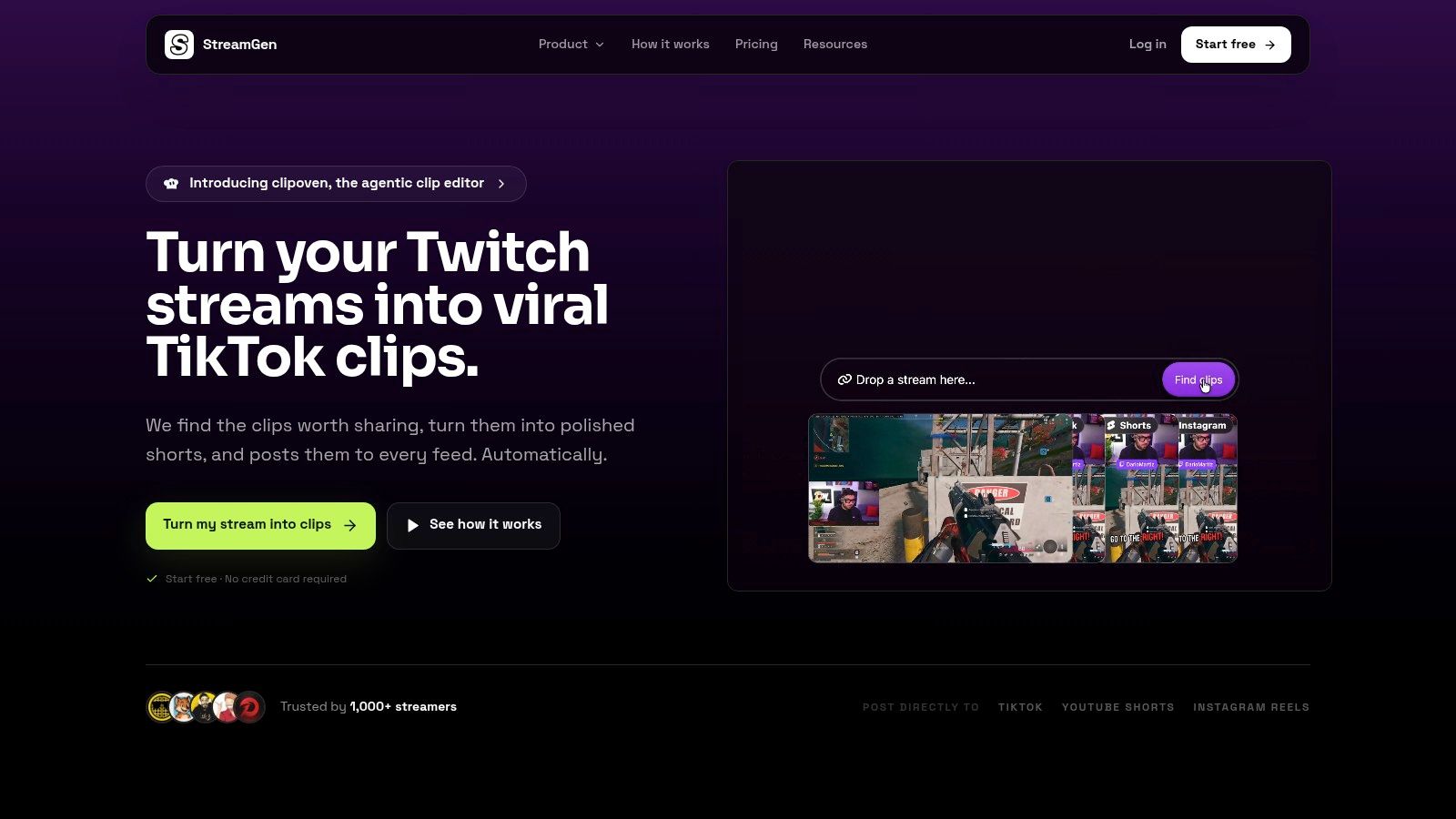
The AI video clipper workflow is one example of how automated discovery and browser editing can sit in the same process. StreamGen’s AI Clip Finder analyzes full Twitch VODs, including streams longer than eight hours, using gameplay, reactions, chat, and audio signals. Its editor supports vertical layouts, captions in 90+ languages, silence removal, title hooks, word censoring, and reusable brand presets.
The tool can accelerate the first pass, but it can’t know whether a quiet moment is central to your community or whether a joke needs an extra beat. Treat every suggestion as a candidate, not a finished post.
Caption Quality and Accessibility Standards
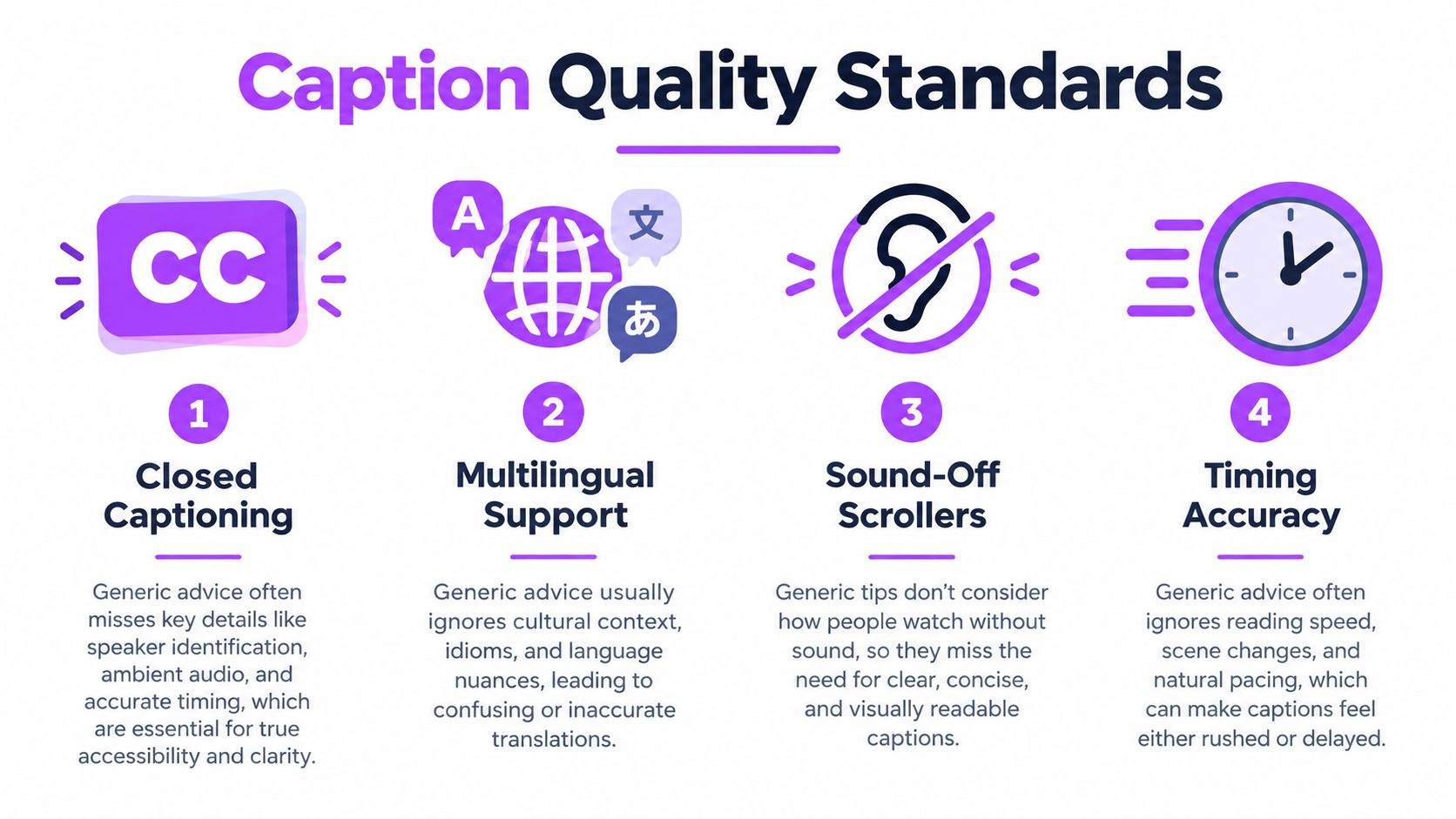
Adding automatic subtitles is easy. Producing captions that serve deaf and hard-of-hearing viewers, multilingual audiences, and sound-off viewers takes more care.
Caption quality starts with accuracy, but it doesn’t end there. Names, slang, game terminology, usernames, and multilingual phrases need human review. Speaker changes need identification. Relevant non-speech sounds, such as a reload click, alarm, door creak, or crowd reaction, may carry the meaning of the scene and should be described when they matter.
Use a review checklist
Run through the edit with the sound low or disabled. Ask whether someone who can’t hear the original audio can still understand the event, the emotional shift, and the payoff.
- Verify the transcript: Correct names, slang, abbreviations, game terms, and translated phrases manually.
- Identify speakers: Add labels when dialogue switches between players or when the speaker isn’t obvious from the frame.
- Describe meaningful sound: Include non-speech cues when they explain the action or reaction.
- Control caption density: Break text into readable phrases instead of filling the screen with a transcript.
- Protect safe areas: Keep captions clear of the HUD, facecam, and platform buttons.
- Check contrast: Test light text on busy gameplay and add a background treatment when necessary.
- Review timing: Captions should appear with the spoken phrase and remain long enough to read.
- Test on a phone: Check the exported file with platform overlays visible, not only inside the desktop editor.
Animated captions can help emphasize a key word, but constant movement often competes with gameplay and facecam reactions. A restrained style usually communicates more effectively than bouncing every word across the screen.
Pair captions with pacing
Remove silence only when it improves comprehension. Cutting every pause can make a streamer sound rushed and can erase the beat that makes a joke land. The better test is whether the pause creates tension, gives the viewer time to process an event, or reflects editing residue.
Platform hooks should also work with the captions rather than fight them. Put the central question, surprise, or consequence into the opening text, then let the visuals prove it. StreamGen includes language-aware transcription, speaker labels, safe-zone validation, caption-density controls, and a review checklist in its accessibility-oriented editing options. Whatever tool you use, human review remains the final quality gate.
Copyright Risk Management in Clip Publishing
A clip can be edited perfectly and still fail at publication if its audio includes music you were not allowed to republish. Twitch says its audio-recognition systems may mute VODs and delete Clips when copyrighted audio is detected. The Twitch music guidelines make rights checks part of the workflow before export, rather than a response to a removed post.
Repurposing more livestream footage creates more chances for a licensed track, radio broadcast, or third-party content to slip into the timeline unnoticed. Review the source before selecting a standout moment, especially when the stream includes music from games, alerts, or browser tabs.
Separate the audio layers
Treat each sound according to its rights status:
- Licensed music: Keep it only when the license covers every intended platform and use.
- In-game audio: Check the publisher’s policy, and determine whether music can be separated from effects.
- Reaction and dialogue: Preserve speech you control when it carries the clip.
- Third-party broadcasts: Do not republish audio or footage you do not control without permission.
- Replacement music: Swap uncertain music for a cleared alternative while retaining dialogue and important effects.
Record the tracks you can use, including license terms and approved platforms. Before publishing, listen for recognizable music beneath speech, inspect isolated stems when available, and check the platform’s rights-management warnings.
Keep the decision practical. Removing every music bed may flatten the mood, while replacing only the risky layer can preserve the streamer’s voice, timing, and gameplay event. A rights-safe clip should remain publishable after it gains attention, not merely sound acceptable until an automated system flags it. When ownership is unclear, cut the material, replace the audio, or obtain permission before posting.
Building a Consistent Publishing Schedule
A clip workflow becomes valuable when it survives busy weeks. The practical system separates creative judgment from repetitive operations: choose the moment carefully, standardize the edit, check rights and accessibility, then queue the finished versions for distribution.
YouTube Shorts shows why cross-platform reuse matters. YouTube announced Shorts in September 2020, expanded it to the United States in March 2021, and made it available in more than 100 countries by July 2021. YouTube reported 6.5 billion daily Shorts views during the March 2021 U.S. expansion, 15 billion daily views by July 2021, approximately 70 billion in March 2024, and more than 200 billion daily views in June 2025. The documented Shorts timeline records the increase from 6.5 billion to more than 200 billion daily views, a rise of over thirtyfold in roughly four years.
That scale doesn’t mean every upload will travel. It does mean one-platform publishing leaves useful distribution opportunities untouched, especially when a stream moment can be adapted for several vertical feeds.
Use a small repeatable queue
Start with a cadence you can maintain. Three clips per week across two platforms is a workable starting point, but the number matters less than whether you can keep the quality checks intact.
A simple queue might look like this:
- During or after the stream: Save timestamps and let AI rank additional candidates.
- Editing session: Review the strongest moments, create vertical versions, and apply a consistent brand preset.
- Quality pass: Check the hook, crop, captions, audio rights, and ending on a phone.
- Distribution: Publish native versions to TikTok, YouTube Shorts, and Instagram Reels.
- Review: Compare retention curves, view-through behavior, and the timestamp where viewers leave.
- Iteration: Test a different opening, crop, caption density, or title while keeping the underlying moment comparable.
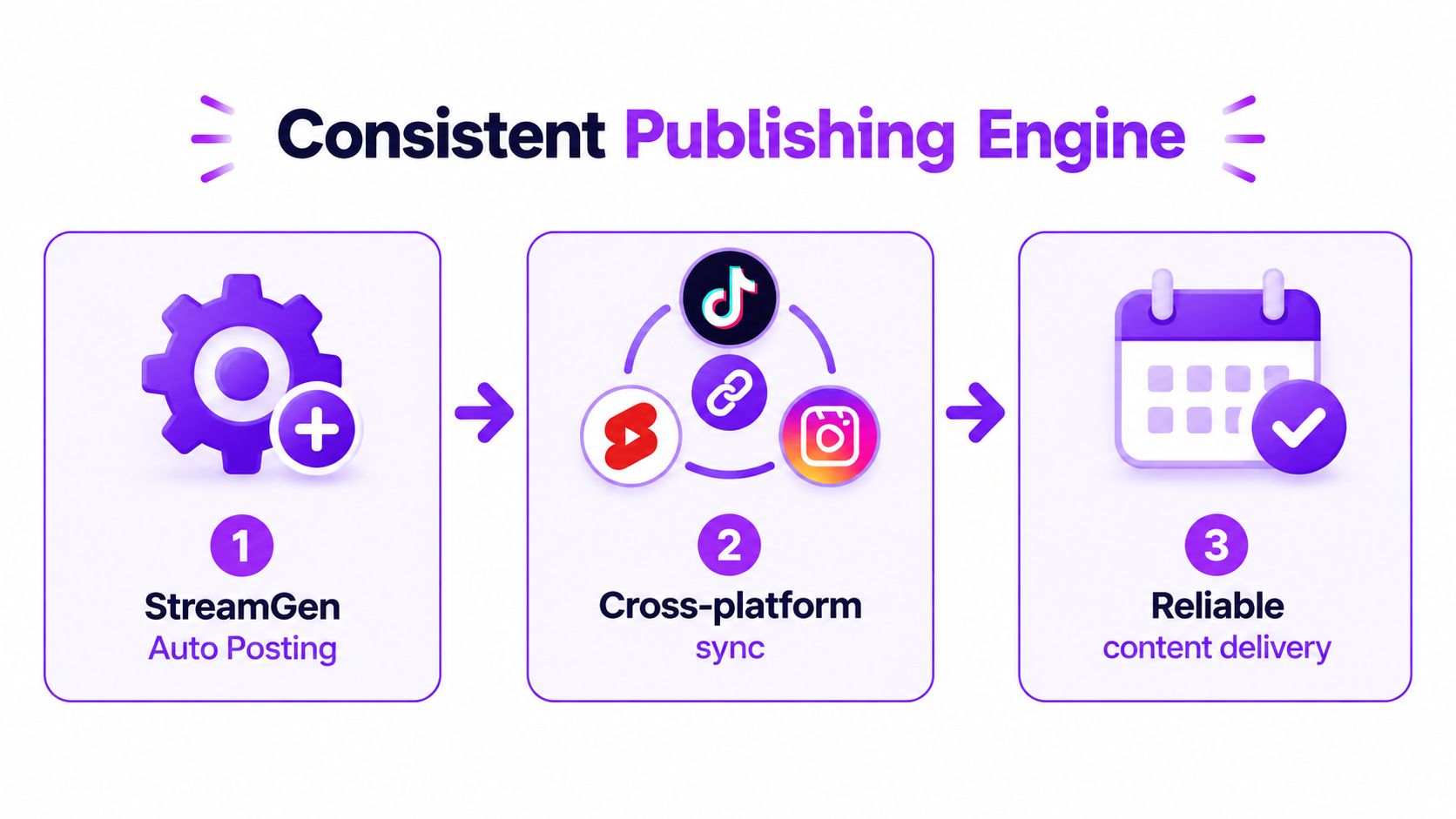
A scheduler can remove the friction of downloading, renaming, and uploading the same file repeatedly. StreamGen’s Auto Posting connects TikTok, YouTube Shorts, and Instagram Reels to a publishing queue, while Autopilot coordinates discovery, editing, and posting from one workspace. For broader planning principles, this guide to a consistent publishing rhythm is a useful complement to a clip-specific workflow.
Keep the editorial decisions human. Automation should handle scanning, formatting, and queue management, while you decide whether a moment represents your channel and whether the final version respects viewers, collaborators, and rights holders.
StreamGen combines AI VOD discovery, vertical editing, caption controls, and direct publishing for streamers who want to turn long broadcasts into a repeatable short-form workflow. Review your next VOD for a few strong moments, run them through StreamGen, and publish the versions that preserve the payoff, protect the audio, and remain readable without sound.
More blog posts