You finish an eight-hour Twitch broadcast, raid another channel, shut down your setup, and promise yourself you’ll find the good moments tomorrow. Tomorrow turns into next week. The VOD stays buried, and the stream that could have produced a queue of discoverable clips becomes one long archive nobody new sees.
That’s the core problem behind learning how to make YouTube Shorts. The hard part usually isn’t recording vertically. It’s building a repeatable system that turns long broadcasts into tight, watchable videos without spending another full workday scrubbing footage. The workflow below treats Shorts as a discovery funnel for your streams, with vertical framing and retention driving every editing decision.
Table of Contents
- Why Shorts Matter for Streamers Right Now
- Shorts Specs Every Creator Should Set Before Recording
- Filming a Short From Scratch Without Wasting Time
- Turning a Twitch VOD Into a Week of Shorts
- Uploading, Captioning, and Optimizing Your Short
- Reading Shorts Analytics and Iterating With Retention
Why Shorts Matter for Streamers Right Now
YouTube Shorts has moved well beyond an experimental format. Independent industry reporting for 2026 puts Shorts at more than 200 billion daily views worldwide and over 2 billion monthly users, with the format scaling from roughly 30 billion daily views in 2021 to 70 billion in 2024 and 200 billion by 2026 (Loopex Digital’s YouTube Shorts statistics). That scale changes the job for a streamer. A strong vertical reaction, clutch play, or argument can reach people who’ve never seen your channel.
Shorts also work as an acquisition layer. A large share of Shorts views comes from non-subscribers, according to the same 2026 reporting, so your clip doesn’t need an established subscriber base to earn initial exposure. The useful question isn’t whether a Short can collect views. It’s whether the clip gives a new viewer a reason to visit your channel, watch a longer VOD, or recognize your name when you go live.
The path back to long-form differs by platform:
| Platform | Format | Path back to long-form |
|---|---|---|
| YouTube | Vertical Shorts | Channel page, related videos, VODs, livestreams |
| TikTok | Vertical short-form | Profile, pinned videos, external community links |
| Reels | Profile, Stories, broadcast updates, external links |
YouTube gives a Short a particularly useful home beside your longer content. A viewer who likes a clipped gaming moment can move from the Short to your channel page, then discover a stream replay or another clip. That doesn’t happen automatically, though. Your title, channel layout, pinned content, and call to action need to make the next step obvious.
Practical rule: Treat every Short as a trailer for your personality and content library, not as a disconnected highlight.
When you’re stuck for angles, a curated list of YouTube Shorts ideas can help you build recurring categories around reactions, challenges, tutorials, and memorable stream moments. For streamers, the most valuable ideas are the ones your broadcast already produces naturally. You shouldn’t need to invent a second content identity just to publish vertical clips.
Shorts Specs Every Creator Should Set Before Recording
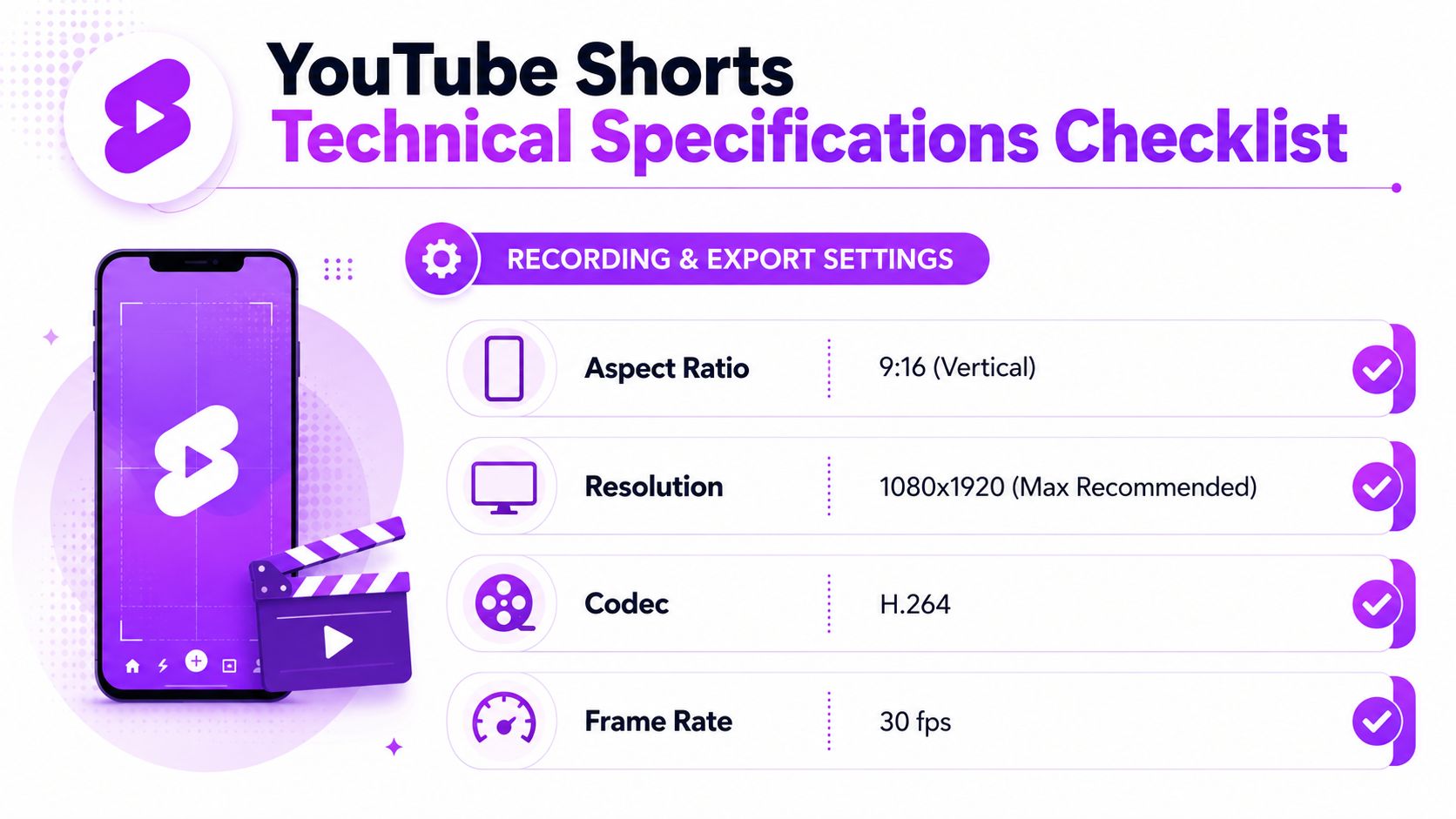
A Twitch VOD can contain a week of usable Shorts, but only if the project is built for mobile before you start cutting. YouTube’s public specifications support vertical 9:16 or square 1:1, recommend a 1080×1920 master, and allow Shorts up to 3 minutes for uploads after 15 October 2024 (YouTube Shorts technical specifications). Uploads wider than 1:1 are treated as standard long-form videos, so exporting a 16:9 stream clip unchanged can remove it from the Shorts workflow.
Set the project before you edit
Create a 1080×1920 vertical sequence before reviewing a long broadcast. Shorts playback effectively tops out at 1080p, so a 4K vertical master adds file size without improving the mobile viewing experience. It also slows uploads, backups, and revisions, which matters when one VOD becomes several clips.
Export H.264 in an MP4 container, and match the frame rate to the source. Talking-head footage can remain at 24 or 30 fps. Gameplay captured at 60 fps should usually stay at 60 fps when fast motion needs to remain clear. The technical guidance supports 24 to 60 fps. Do not force a 60 fps export onto 30 fps footage. It will not create smoother motion, only a larger file with repeated frames.
Protect the vertical safe area
A vertical crop gives gameplay, facecam windows, alerts, subtitles, and chat overlays less room to compete. Reframe the source first, then add graphics and inspect the result at phone size. A kill notification that reads clearly in a desktop editor may become useless after the gameplay crop and caption layer occupy the lower third.
If your editor keeps producing awkward crops, check this video aspect ratio guide before building a reusable template. The key choice goes beyond rotating the frame. Decide which gameplay, face, alert, or chat detail must remain visible after 16:9 footage becomes 9:16.
Keep the export clean without building oversized masters. YouTube will re-encode the upload, and readable framing matters more than a 4K file. For a stream-to-Shorts pipeline, a correctly framed 1080×1920 H.264 file is a practical working master.
Filming a Short From Scratch Without Wasting Time
Filming from scratch makes sense when you have a direct opinion, explanation, or reaction that doesn’t exist in a VOD. It shouldn’t become a half-day production. Set up a repeatable corner, record a single take, and let the edit create the energy.
Mount a phone or webcam at eye level and frame from mid-chest upward. A single diffused key light placed at roughly a 45-degree angle gives your face enough shape without forcing you to build a full lighting rig. More camera resolution won’t rescue muddy lighting or a microphone positioned across the room.
Audio deserves the first equipment upgrade. A lavalier or USB microphone placed within a hand-span of your mouth will usually make speech clearer than replacing a competent camera. Viewers may tolerate a plain background, but they’ll swipe when the first sentence is buried under room noise.
Build the take around one payoff
Write the opening sentence before you press record. The first 3 seconds need to establish the tension, result, or question, and current retention guidance recommends targeting above 70% intro retention as a practical benchmark (OpusClip’s Shorts retention guide). Don’t open with “Hey everyone,” a logo animation, or an explanation of what the viewer is about to watch.
A useful structure is:
- Hook: State the surprising result, mistake, or conflict immediately.
- Development: Add only the context needed to understand the moment.
- Visual shift: Change the crop, insert the gameplay moment, or punch in when the idea needs emphasis.
- Payoff: Deliver the answer or reaction before the clip starts asking for another commitment.
For a fresh talking-head Short, aim for a single idea rather than a compressed podcast. Brief, tightly paced videos perform well because every pause gives the viewer a reason to swipe. One 2026 industry summary reports an average Short length of 33 seconds, while videos in the 50-to-60-second range often receive the most views (Kapwing’s short-form video statistics). Those figures aren’t a command to hit a fixed duration. They’re a reminder to let the payoff determine the runtime.
In the edit, remove breaths and pauses that don’t add character. Use jump cuts or subtle punch-ins when emphasis changes, but skip frantic transitions that distract from the sentence. Burn captions directly onto the frame in a bold sans-serif style, keep them away from the player controls, and check every line for phone-sized readability.
Turning a Twitch VOD Into a Week of Shorts
An eight-hour VOD contains more potential clips than you can realistically find by scrubbing from the beginning. The first pass is where most creators burn out. They watch once, mark a few obvious moments, miss the quieter setup before the reaction, and never return to the file.
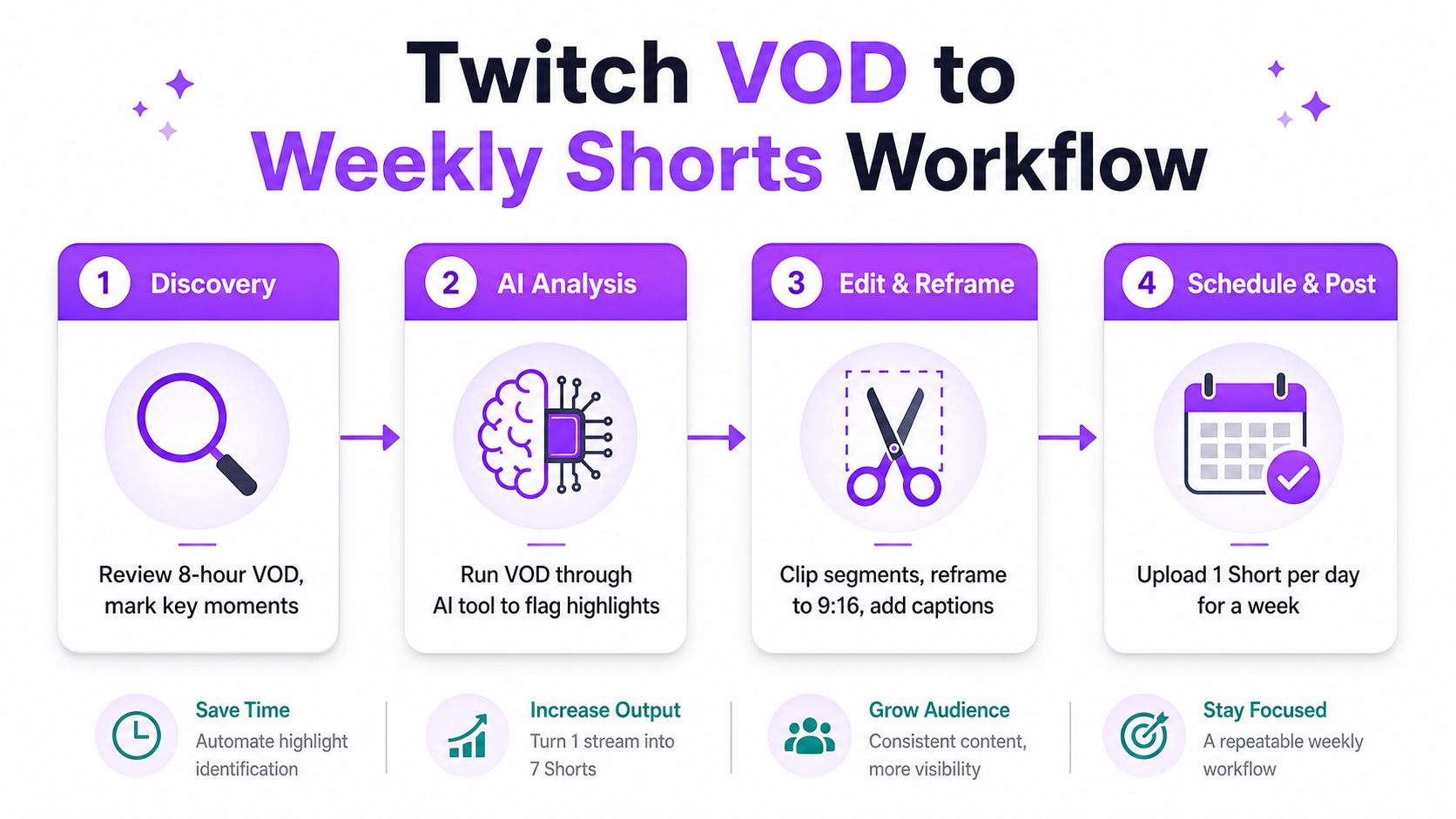
A better stream-to-Shorts workflow separates discovery from editing. Start by running the VOD through an AI clip finder that can inspect gameplay, reactions, chat activity, and audio peaks. The tool should create a candidate list, not make the final creative decision. A chat spike may identify the punchline, but the strongest version might begin several seconds earlier when you made the prediction.
For long broadcasts, a purpose-built Twitch clip finder can reduce the amount of footage you need to review before manual trimming. The value is not that AI understands your channel perfectly. It’s that it narrows a huge timeline into moments worth judging.
A practical VOD pass
Take a sample 8-hour broadcast. The discovery pass produces a shortlist based on visible motion, vocal intensity, and audience response. Open each candidate manually and ask three questions:
- Does the moment make sense to someone who wasn’t in chat?
- Can the setup be understood without dragging the clip into a slow recap?
- Does the ending provide a reaction, result, reversal, or clear reason to replay?
Trim around the answer, not around the software’s suggested timestamps. A raw highlight often starts too early with menu navigation or ends too late after the reaction has finished. For a weekly queue, shape each candidate into a focused 30-to-60-second story when the material supports it. Shorter clips may work better when the payoff is immediate, while a longer cut earns its runtime only when the context creates tension.
Next, reframe the 16:9 footage into 9:16. Premiere, CapCut, and dedicated vertical editors can track a face or gameplay subject, but automatic tracking still needs supervision. A facecam may be centered while the important game action happens at the edge. Use a split layout when both elements matter, and don’t shrink gameplay until every detail becomes decorative noise.
Add styled, burned-in captions for mobile viewing. Caption the words that carry the joke or decision, not every incidental sound. Keep the typography consistent across the batch so viewers recognize the channel before they read the username.
AI should find candidates and handle repetitive framing. You should decide what the audience needs to see, where the clip begins, and whether the payoff earns the final frame.
Finish by exporting a queue of 5 to 7 Shorts from the broadcast, then name files consistently, such as 2026-08-28_stream_topic_hook_v01. The exact naming system doesn’t matter as much as preserving the hook, source stream, and revision status. Once the queue exists, you can schedule across the week instead of making a fresh editing decision every night.
Manual editing still wins when the moment depends on timing, irony, or a specific relationship with your audience. AI saves real time when it searches a long VOD, removes silence, generates a first caption pass, or tracks a subject through a reframing move. It adds steps when you accept every suggested clip, keep generic captions, or spend longer correcting automated edits than you would have spent making a clean cut yourself.
Uploading, Captioning, and Optimizing Your Short
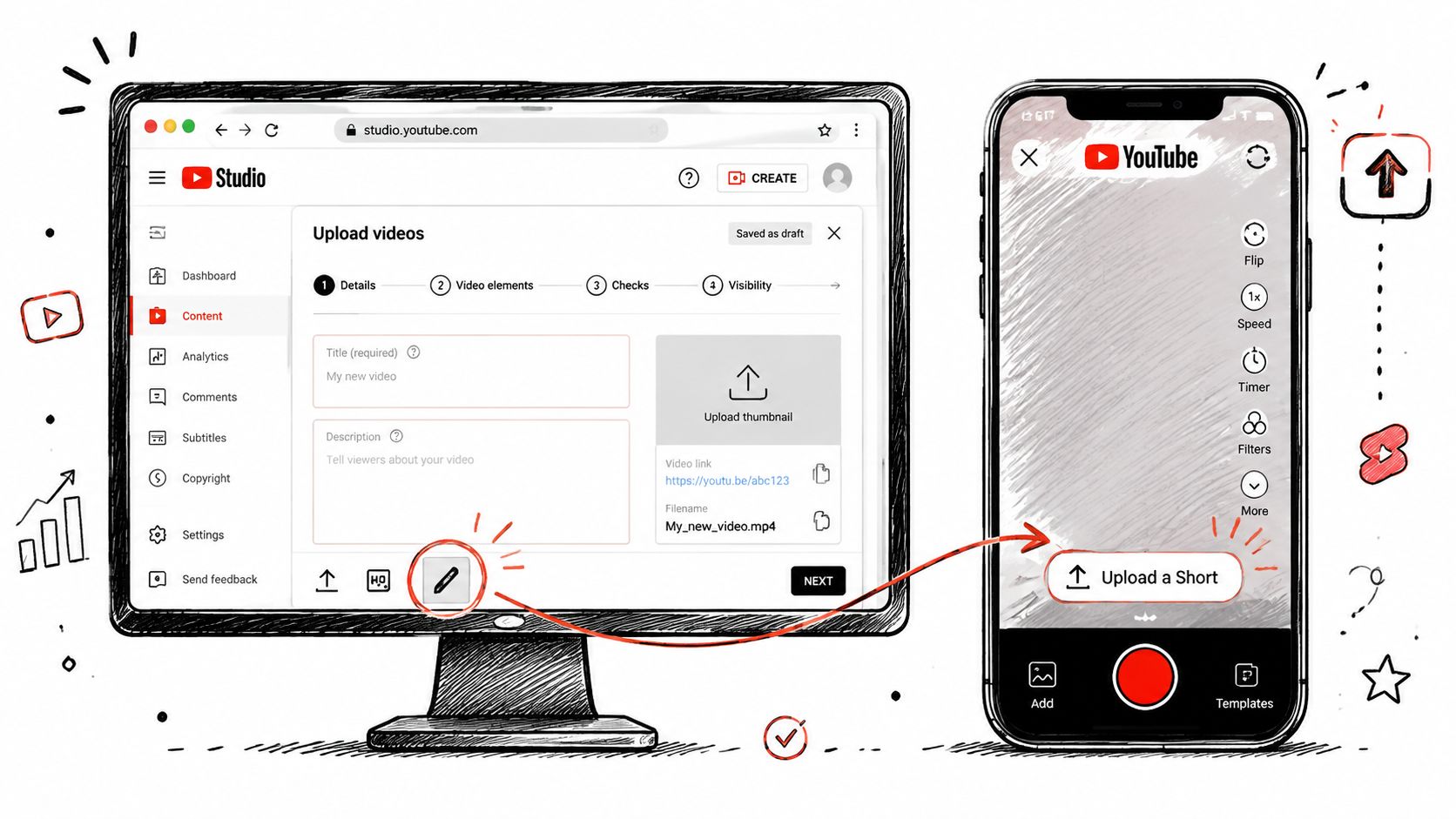
Upload from the YouTube mobile app when you want to record or select a clip directly from your phone. On desktop, use YouTube Studio’s upload flow, confirm that the file meets the vertical Shorts envelope, and review the preview before publishing. Interface labels can change, so a visual YouTube Shorts PC upload tutorial is useful when the desktop menus don’t match your account.
Make the packaging match the moment
Write the title around the conflict or payoff, then place the searchable topic near the front. “I thought the run was over” creates curiosity for a reaction clip, while “The positioning mistake that lost the round” gives a tutorial a clear promise. Don’t summarize the entire ending in the title if the reveal is the reason to watch.
Use a short description with a couple of relevant supporting hashtags. The title and opening seconds do more work than a description stuffed with tags, so avoid turning metadata into a keyword list. Add a clear next step when the clip belongs to a longer stream, such as pointing viewers toward the full VOD or the next live session.
For thumbnails, choose a frame with a readable face, a clear gameplay state, or concise text. A random mid-cut frame can technically represent the video while communicating nothing to someone browsing your channel. The Shorts feed experience is fast, but the channel page still needs visual signals that help a viewer choose another video.
Captions come in two useful forms. Burned-in subtitles remain visible regardless of playback settings and give you full control over timing, color, and emphasis. An uploaded SRT file keeps the text as a caption track, which can help accessibility and translation workflows, but it won’t create the same visual impact in the feed. For a high-energy gaming clip, I’d usually burn in the essential dialogue and keep the design restrained enough that the gameplay remains legible.
If you’re preparing clips directly from a broadcast, learn how to clip on YouTube before building a manual upload routine. The fewer clicks between a finished edit and a scheduled post, the easier it becomes to maintain a queue.
Reading Shorts Analytics and Iterating With Retention
A Short can collect views while losing viewers in its first second. YouTube’s help content refers to the Shorts view metric as “Engaged views,” which focuses on whether viewers stayed involved rather than encountering the video in the feed. Compare engaged views with average view duration, average percentage viewed, and the retention curve before deciding whether a clip worked (YouTube creator partnerships and Shorts measurement guidance).
Open YouTube Studio and inspect the retention graph near the start. A steep early drop usually points to a weak opening, unclear framing, or a first line that takes too long to reach the point. A stable opening followed by a middle decline suggests the setup lost energy. A late fall can mean the payoff arrived slowly, or the edit continued after the interesting moment ended.
Use comparisons, not guesses
Compare two clips cut from the same stream. Keep the topic and source similar, then change one variable:
- Hook framing: Does the first frame show the reaction, danger, or result?
- Caption timing: Do captions hit with the spoken emphasis, or trail behind it?
- Music choice: Does the track support the moment, or compete with voice and game audio?
- Context length: Did the clip explain enough without delaying the payoff?
For Shorts under 30 seconds, one current analysis cites average-view-duration gates around 65%, while longer Shorts are associated with a gate around 50%. The same source reports broad completion benchmarks around 72% for sub-30-second content (Digital Applied’s 2026 Shorts guide). Treat those figures as directional checks, not promises. A niche clip may hold the right viewers without reaching a broad threshold, while a high completion rate cannot rescue an idea that gives your channel no useful audience signal.
Run a three-clip test each week. Identify the weakest repeated pattern, change one element in the next batch, and measure the result. Shorten the setup, move the payoff earlier, change the first caption, or reframe the opening shot. Changing all four together removes the information you need for the next edit.
Revenue introduces a separate trade-off. Independent 2025 to 2026 coverage reports that Shorts represented 77% of global YouTube views in 2025, while separate 2026 reporting places Shorts CPMs 35% to 55% lower than long-form inventory and lists creator revenue share at 45% for Shorts versus 55% for long-form (coverage of Shorts usage and monetization). Shorts are therefore useful for discovery, audience warming, and moving viewers toward streams and VODs. High reach through Shorts can grow the top of the funnel, while long-form content typically generates stronger revenue per view.
StreamGen can turn full Twitch VODs into ranked clip candidates, reframe selected moments for vertical video, add animated captions, and schedule finished clips to YouTube Shorts alongside other short-form platforms. If manual scrubbing is slowing down your weekly queue, visit StreamGen and build clips from broadcasts you have already recorded.
More blog posts