You’ve finished a long Twitch stream, but the editing work is still waiting. Say you’ve got a six-hour VOD and want three moments worth posting. Finding them means scrubbing past loading screens, checking reactions and deciding whether a joke still works without the conversation around it.
Automated video editing can prepare that first cut. The useful question isn’t whether software can publish without you. It’s where software should stop, and which human decision should come next.
Table of Contents
- What Automated Video Editing Covers for Streamers
- Six Automated Steps From Stream to Short
- Where Automation Fails and Where Humans Approve
- Consent and Data Rules Before You Connect Accounts
- Choosing Between Tool Types for Your Setup
- Pick Your First Automated Workflow This Week
What Automated Video Editing Covers for Streamers
Automated video editing is software making first-pass editing decisions on existing footage. For streamers, that includes finding candidate moments, removing dead air, adapting widescreen gameplay to a vertical layout, adding captions and sending approved files to a publishing queue.
Think of it as a rough-cut assistant. The software prepares the ingredients and makes the first plate. You still decide whether it’s ready to serve.
That distinction matters when your stream contains different kinds of entertainment. A loud celebration is easy to flag. A quiet exchange with a regular viewer may need community knowledge that the software doesn’t have.
What the assistant actually handles
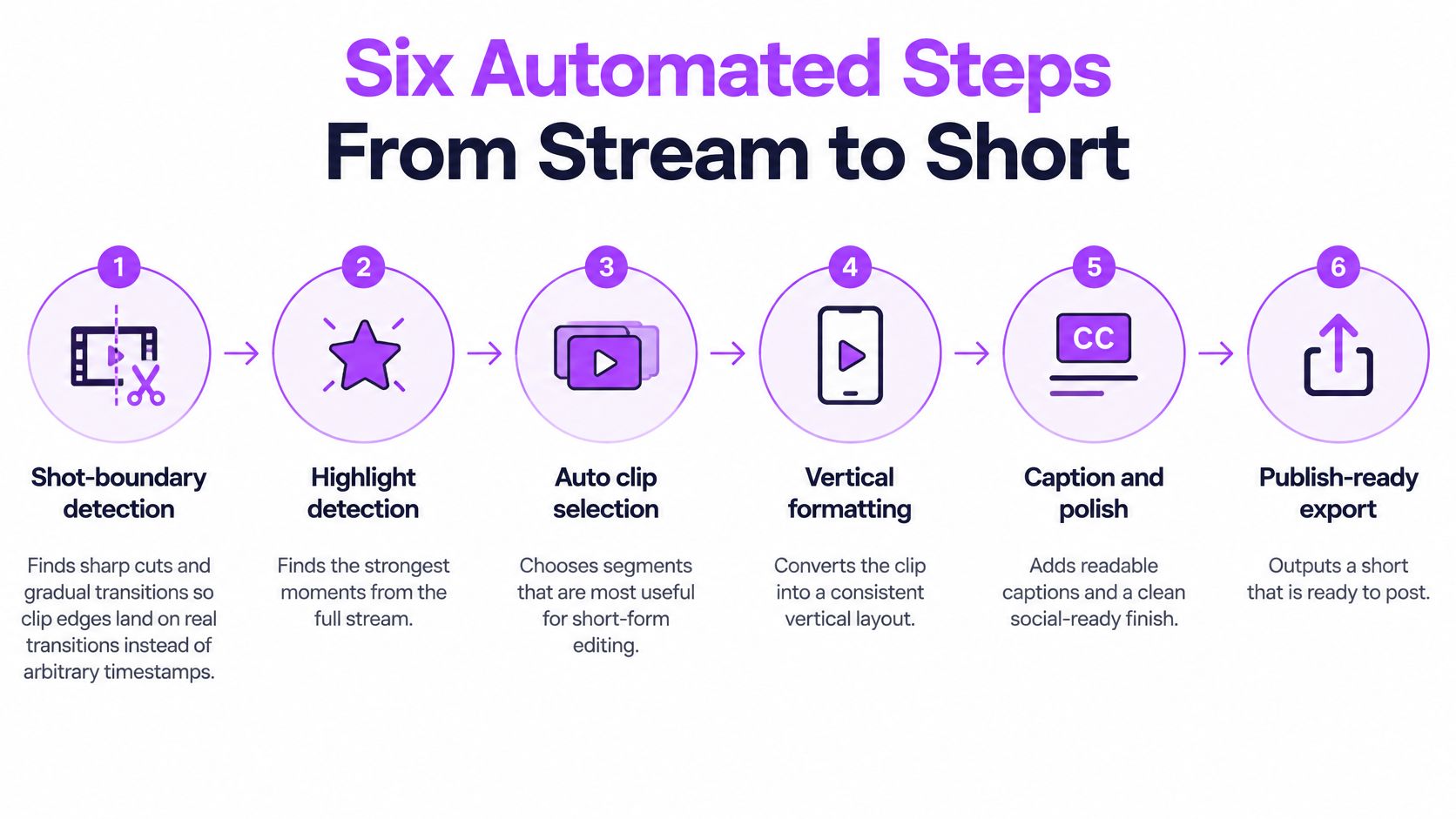
The workflow has six stages:
- Shot-boundary detection identifies visual cuts and transitions.
- Highlight detection ranks moments that might deserve a clip.
- Auto-trimming removes material that appears unnecessary.
- Vertical reframing adapts the image for a portrait feed.
- Captioning turns speech into readable subtitles.
- Auto-posting schedules and publishes the finished file.
Not every stage requires generative AI. A silence detector can follow an audio threshold; a captioning model interprets speech. An editing platform may combine models with straightforward rules.
The underlying field has expanded quickly: a bibliometric study of AI-driven video production found that publications surged beginning in 2021 and reached 796 articles in 2025. That measures research activity, not proof that every clipping tool understands your stream.
Working principle: Give the software a repeatable task, then give a named person responsibility for the decision it can’t reliably make.
What remains yours
Your judgement still governs humour, community norms, sponsor obligations and platform suitability. Software might identify an animated argument as engaging without recognising that publishing it would restart a conflict.
Keep a simple distinction in mind: the input is footage and signals; the output is a proposal. For every proposed cut, you should be able to name what the tool used and the decision you still own.
Six Automated Steps From Stream to Short
A stream becomes a short through several handoffs, each with its own approval point. Treat automation as a rough-cut assistant: it proposes boundaries, moments and edits, while a named person checks whether each result is ready for the next stage.
| Stage | What the software does | Typical input | What you still check |
|---|---|---|---|
| Shot-boundary detection | Finds sharp cuts and gradual transitions | Full VOD frames | Boundary gate: Starts and ends follow meaningful transitions, not arbitrary timestamps |
| Highlight detection | Ranks moments using audio, chat, speech and gameplay signals | VOD, chat log, audio track | Story gate: The selected moment includes its setup and payoff |
| Auto-trimming | Removes silence, dead air, loading screens and menu navigation | Selected clip | Timing gate: Pauses carrying a joke, reaction or suspense remain |
| Vertical reframing | Crops widescreen gameplay into a vertical layout while preserving facecam and HUD | Clip with facecam layout | Visibility gate: Gameplay-critical information and relevant overlays remain visible |
| Captioning | Transcribes speech and renders styled subtitles | Audio track | Language gate: Slang, names and overlapping speakers are correct |
| Auto-posting | Schedules and publishes to each platform | Finished vertical file and post text | Release gate: Hook, title, specifications and any required disclosure are approved |
These gates make it easier to catch errors where they begin, rather than after an inaccurate cut has been captioned and scheduled.
Separate boundaries from highlights
A boundary detector asks whether the picture changed into another shot. It does not judge whether the moment is entertaining. A shot-boundary detection evaluation covering 4,683,552 frames assessed sharp cuts, gradual transitions and non-transitions using precision, recall and F-score.
For a livestream, check boundary timing around overlays, camera changes and game HUDs. An accurate detection can still mark a poor edit point: a transition to a menu may be visually clear but irrelevant to a short. The Boundary gate is whether the proposed cut starts and ends where the story makes sense.
Highlight detection uses different clues. Audio energy may flag excitement, while speech events may catch a declaration or punchline. Chat velocity, facecam reactions and gameplay-state changes can strengthen a candidate when they align. None proves that a moment is worth posting. A loud alert may be distracting, and a busy chat may be reacting to something outside the frame. The Story gate checks that viewers can understand both the setup and payoff.
Run the pipeline in a controlled order
- Ingest the VOD or Twitch clip. Confirm the recording, audio and available chat log. Keep the original so automated edits can be reversed.
- Detect boundaries and rank moments. Keep candidate timestamps tied to the source. For a related look at programmatic clipping, see these developer methods for clipping YouTube videos.
- Trim and reframe. Remove obvious dead air before changing the layout. If a centre crop cannot show both the action and facecam, choose a split layout and check what the viewer can still see.
- Caption and title. Correct the transcript before styling it. This guide to automatic subtitle generation covers the captioning step.
- Review and schedule. Assign an approver, inspect the rendered file and keep unapproved clips out of the publishing queue.
- Publish and log results. Record the destination, source timestamp and approved version to make errors traceable.
Export deliberately
Newer codecs such as AV1 or VP9 may improve compression efficiency, but compatibility and quality depend on the destination. Test each platform’s ingestion requirements and inspect gameplay text and caption edges on a phone. Render destination files from the master rather than repeatedly recompressing downloads.
If a clip underperforms, check its start and end points first. Confirm that the opening is clear and the payoff is complete before adjusting detection settings.
Where Automation Fails and Where Humans Approve
57% of creators find AI-generated outputs require moderate or extensive editing, according to the creator statistics collected by Mark Studios. That’s a useful challenge to the idea that an automatically generated clip is automatically publishable.
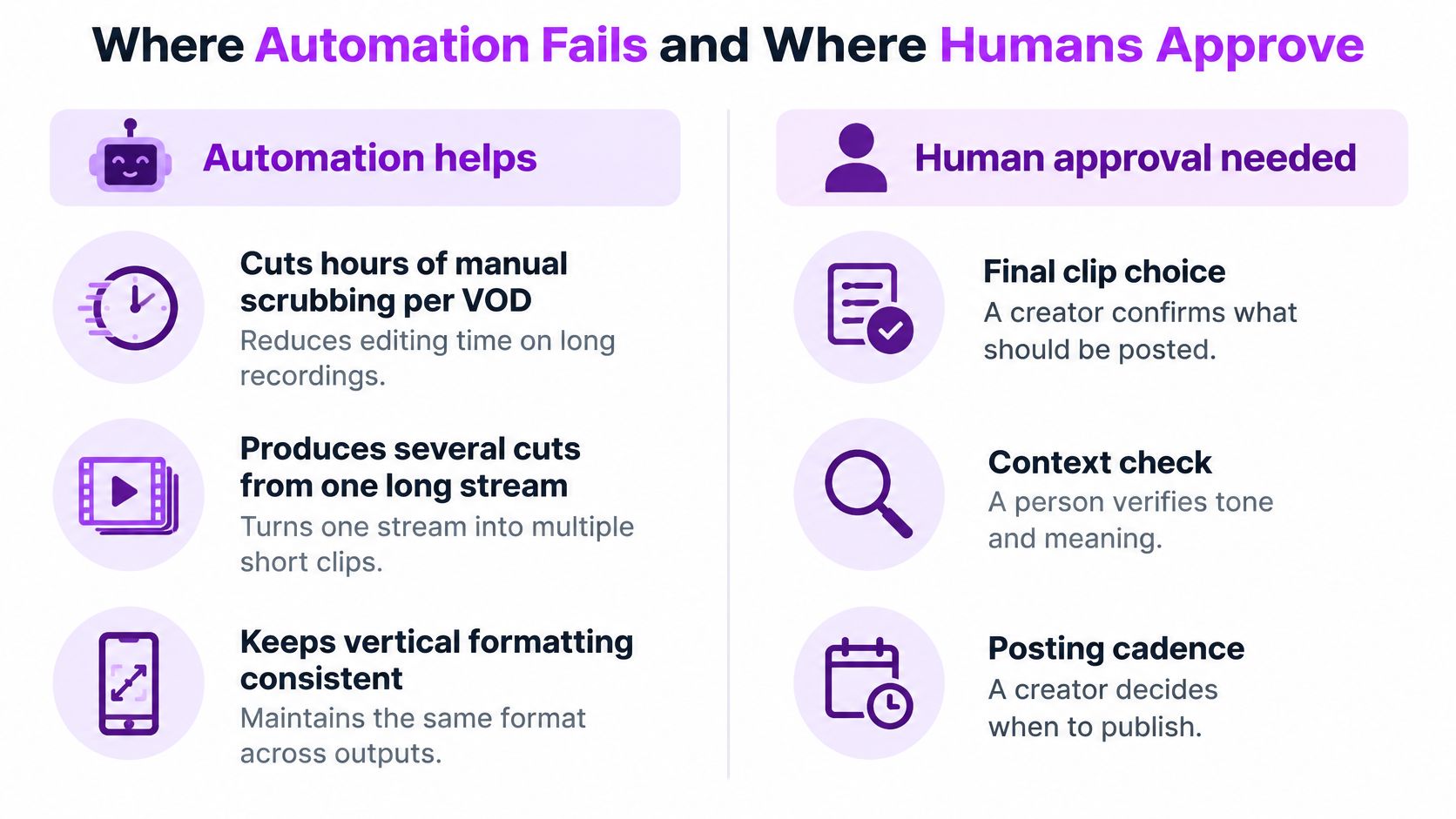
The gains are still practical. You can review a shortlist instead of searching an entire recording, produce alternative cuts from the same source and reuse a consistent vertical layout. A prepared queue can also keep publishing separate from the time you spend live.
But faster production and better audience outcomes are different measures. A 2024 educational-video study involving 129 participants reported significant production-time savings, while the perceived-learning comparison was statistically significant for one tested video and not the other. It supports using automation as a workflow accelerator, not assuming improved audience impact.
Judge the cost of being wrong
Consider a game-winning play followed by a teammate’s delayed reaction. The software might select the action cleanly but end before the reaction that makes the clip memorable. You haven’t received a broken file. You’ve received an incomplete editorial choice.
Other mistakes have higher costs. A caption can turn an unfamiliar username into an insult. A title can present friendly teasing as genuine hostility. A crop can hide the scoreboard that explains why the play mattered.
The following comparison separates useful assistance from decisions that need an accountable person.
Make each approval gate actionable
Attach an owner, pass condition and repair action to every gate. For a solo channel, you can own them all. In a team, write the person’s name rather than assigning responsibility vaguely to editorial.
- Boundary gate, assigned editor: Watch the source around each proposed edge. Move the edge if the cut interrupts speech or enters an unrelated scene.
- Story gate, creator: Explain why the moment works without relying on the original livestream. Extend or reject it when essential context is missing.
- Timing gate, finishing editor: Listen through every removed pause. Restore the beat if the edit makes the speaker sound rushed or changes the joke.
- Visibility gate, layout reviewer: Watch the actual action at phone size. Change the layout if the viewer can’t follow the target, score or reaction.
- Language gate, channel-aware reviewer: Compare captions against the audio. Correct names and speaker attribution instead of guessing.
- Release gate, channel owner: Approve the title, sensitive material and intended destination. Stop publication when permissions or obligations remain unresolved.
A clean render passes a technical check. It doesn’t pass an editorial check until someone accepts responsibility for what it communicates.
Set review intensity by risk
A recurring, low-stakes gameplay format may eventually qualify for unattended release after you’ve tested it and defined exclusions. Keep mandatory human approval for sponsored segments, personal disclosures, guest appearances and community conflict. A regular format doesn’t make an unexpected sensitive moment safe.
Review the hook against the actual clip, not just the generated title. Ask whether an unfamiliar viewer would understand the intended meaning and whether the title promises something the footage delivers.
Track opening retention, full-view rate, correction rate, approval delays and takedowns. Treat these as separate signals: a clip can attract viewers and still require a damaging correction.
Set aside a weekly review of your strongest clips and rejected candidates. Log errors as selection, context, timing, crop, transcription or release failures. Then change the setting or approval rule responsible for that error, rather than broadly increasing automation and hoping the next batch improves.
Consent and Data Rules Before You Connect Accounts
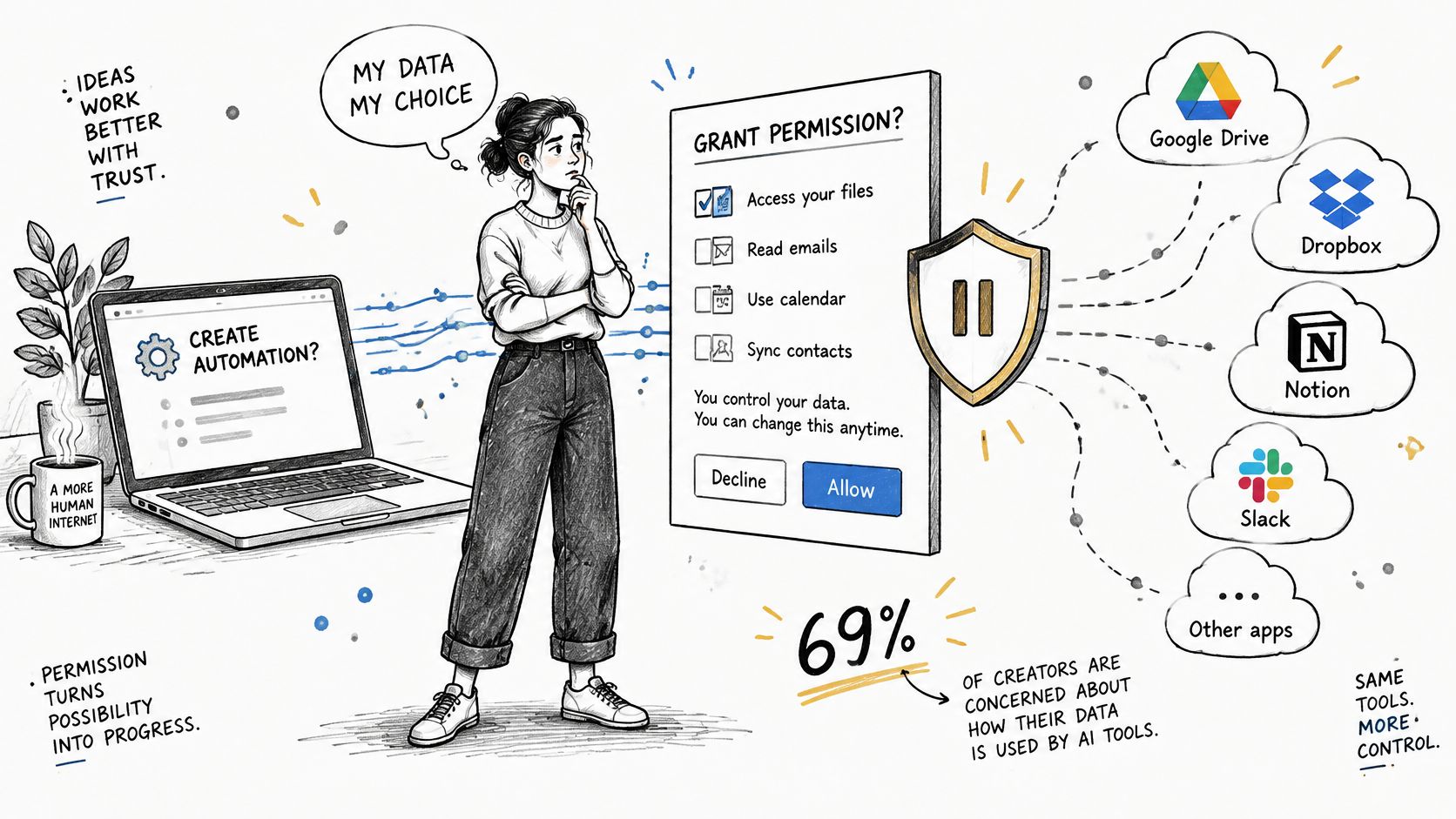
In Adobe’s 2025 global survey of more than 16,000 creators across eight markets, 69% were concerned about their content being used to train AI without permission. Connecting a VOD library deserves the same care as granting someone access to your unpublished footage.
Treat the permission screen as the start of a review, not the end.
Get the data-use answers in writing
Ask the provider for specific answers before uploading private or contract-restricted material.
- Retention: How long are original VODs, audio, chat logs, transcripts and rendered clips retained?
- Model training: Can uploads be used to improve models, and what does an opt-out cover?
- Subcontractors: Which other companies process the footage, and where does processing happen?
- Deletion: What happens after a deletion request or cancellation, including copies and backups?
- Access: Who on your team can view footage, approve edits, connect accounts and publish?
Review OAuth scopes, the permissions granted through a connected account. Separate permissions needed for importing footage from those needed for publishing, and avoid granting unrelated access. Remove former team members and revoke connections you no longer use.
Separate editing from identity manipulation
Ordinary cuts, captions and reframing aren’t the same as generating a guest’s voice or changing someone’s likeness. Make explicit consent a requirement for synthetic voice or likeness manipulation, and document the intended use.
Include guests, moderators, sponsors and clients in your permission checks. Esports teams, agencies and VTubers should also examine contracts for restrictions on reuse, sponsor assets and unpublished conversations. Decide whether an edit needs disclosure by checking the destination’s current rules and considering what the audience might reasonably misunderstand.
Keep those decisions attached to the account setup rather than leaving them in scattered messages.
Create a one-page data-use sheet per channel recording each answer, the responsible owner and the next review date. Centralising footage can reduce duplicated downloads, but it also means a connected provider holds concentrated access. Don’t enable publishing until someone has approved that access.
Choosing Between Tool Types for Your Setup
| Tool type | Best for | Automates | You still handle |
|---|---|---|---|
| All-in-one stream-to-shorts platform | Streamers posting several clips a week to multiple networks | Clip finding, vertical editing, captions, scheduling | Approving hooks, context and sensitive moments |
| VOD pre-editor for NLEs | Editors finishing polished highlight reels or long-form edits | Silence and menu removal, timeline assembly | Creative cut, pacing and final export in Premiere Pro or DaVinci Resolve |
| Traditional NLE with AI features | Editors already working in Premiere Pro or DaVinci Resolve | Transcription, captions and supported scene-detection tasks | Searching the VOD where needed and making the final cut |
| Standalone auto-posting scheduler | Teams with a library of finished clips | Scheduling and publishing across networks | Creating, reviewing and approving each clip |
| Scripted pipeline | Developers and technical agencies with custom rules | Custom detection, rendering and export rules | Maintenance, validation and quality checks |
Choose around the work you already do
Start with three questions: How many clips do you intend to publish each week? How many platforms need them? Does an editor already work in an NLE? Write down your actual publishing target rather than choosing around hypothetical future volume.
If searching recordings is the bottleneck, a scheduler won’t solve it. If you already have approved files waiting in a folder, adding another highlight detector won’t solve the upload backlog. Choose the category that removes the largest manual step.
An editor building a narrative highlight reel may prefer a pre-edited timeline over a finished vertical clip. They need room to rearrange scenes, retain longer conversations and shape the sequence. Conversely, a solo streamer making repeatable gameplay shorts may benefit more from an integrated workspace than from moving projects between applications.
Test the handoffs, not just the demo
Use representative footage during evaluation. Include a quiet conversation, an animated gameplay moment and a scene with a difficult facecam layout. Inspect whether the tool lets you repair a mistake without restarting the entire job.
For layout-specific decisions, use this comparison of vertical video editors to identify the controls you need. Prioritise editable crops, caption placement and reusable layouts over effects you won’t regularly use.
Keep generation tools separate from clipping tools. If you need a moving still for an intro or intermission insert, photo animation with ImagesArt AI addresses that adjacent task. It doesn’t replace finding an authentic moment inside your stream.
Buying rule: Test how easily you can correct the tool, not just how quickly it produces its first result.
Include operating costs in the decision
Compare the subscription or processing bill with the human work left behind. Include review time, re-exports, file transfers and failed uploads. A cheaper tool that repeatedly needs manual repairs may not be the cheaper workflow.
Agencies should test per-channel permissions and approval roles before connecting client accounts. Make sure an editor working on one channel can’t accidentally publish to another, and confirm how approved versions move into the queue.
A scripted pipeline built from speech-to-text, scene detection and FFmpeg makes sense when custom rules justify maintaining it. Someone must manage credentials, retries, platform changes and output validation. Most solo streamers should test an existing tool category before taking on that engineering work.
Pick Your First Automated Workflow This Week
Start with highlight detection on your next VOD. It’s a contained experiment: you can evaluate the shortlist without giving software permission to publish. Keep the rest of your editing process familiar while you judge whether the candidate selection is useful.
Run a bounded pilot
Use a small batch of past streams that represents your normal content. Compare the automated selections with moments you’d post, then count candidates needing rework and group the reasons.
- Record the baseline: Note selection errors, missing context and repair effort.
- Assign approval: Name the person who can accept or reject each output.
- Check access: Complete the channel’s data-use sheet before connecting publishing accounts.
Reserve an uninterrupted review session rather than checking candidates between live tasks. Optimal Native’s discussion of calm focus for demanding workdays offers a useful companion for organising that review time.
Match the pilot to the available workflow
Our AI platform converts Twitch streams into short-form clips and schedules distribution across TikTok, YouTube Shorts and Instagram Reels. The AI VOD Editor produces a video ready to be edited in Premiere Pro or DaVinci Resolve, while Autopilot automates the full content workflow; both are available on the Ultimate plan only, so confirm that your pilot includes the required access.
Use the automatic social posting guide when you’re ready to test distribution. This week, process one VOD, review the proposed clips and record your rework count as the baseline for later changes.
StreamGen brings automated highlight finding, vertical clip editing and social scheduling into one workspace. Visit StreamGen to test a VOD-to-short workflow, keep your approval gates in place and measure how much editing remains before you expand automation.
More blog posts