You’ve just ended a long Just Chatting session or ranked block, and you need the footage tonight. The reaction you want is somewhere in the broadcast, but you’re not sure whether OBS recorded it, Twitch saved it, or a viewer’s Clip is all that remains.
The practical answer to how to capture Twitch stream footage starts with saving the right copy before you edit. Preserve a complete master, check that it plays, and keep the publishable version separate so music or guest permissions don’t become an afterthought.
Table of Contents
- Pick a Capture Method Before the VOD Expires
- Record the Broadcast Locally with OBS
- Download the VOD While Twitch Still Has It
- Set Picture Audio and Rights Before You Post
- Fix a Capture That Is Silent Black or Missing
- Capture a Stream You Do Not Own
- Queue the Capture as Shorts You Can Post
Pick a Capture Method Before the VOD Expires
Twitch capture methods compared
| Method | Best for | Length and lifetime | Where it lives |
|---|---|---|---|
| OBS local recording | Full archive of your own broadcast | Entire stream, limited by available disk space; retained until you delete it | Your PC, OBS output folder |
| Twitch VOD | Platform copy of a past broadcast you streamed | Full saved broadcast, subject to your account’s retention window | Video Producer, then a download |
| Highlight | Longer excerpt you still need after the VOD expires | Longer excerpt that can remain after the source VOD is deleted | Twitch, created from the VOD timeline |
| Clip | One play, reaction, or chat moment | Short excerpt, with different limits for manual and API creation | Twitch clip URL |
| StreamGen import | Turning your own VOD or clip into vertical shorts | Full VODs, including streams 8+ hours long, after connecting Twitch or importing footage | StreamGen workspace |
Follow the OBS procedure for a complete local master, the download procedure for a broadcast that’s already ended, or the final import-to-queue workflow for short-form editing. If an expiring Twitch VOD is your only full copy, download it before doing anything creative.
Choose the file that matches the job
A local recording captures the scene you’re broadcasting directly to your drive. Twitch’s deletion schedule doesn’t govern that file, but you still need enough storage and a recording that contains your picture and sound.
A VOD is Twitch’s saved broadcast. It’s useful when your local recording fails, but it isn’t permanent storage. A Highlight preserves a selected stretch on Twitch rather than keeping the entire raw broadcast automatically.
A Clip serves a narrower purpose. Twitch’s Clips documentation distinguishes between excerpts of up to 90 seconds through the Clips API and up to 60 seconds through the viewer-facing Clip Creator.
That’s enough for a winning play or a surprised reaction. It isn’t enough for the conversation that led to it, the explanation afterward, or an editor’s request for a different angle on the same sequence.
Save the show, then select the moment. A Clip is a shareable excerpt, not a backup of the broadcast.
Decide before you go live
For an editable archive, use local recording and leave Store past broadcasts enabled as a fallback. These are separate saves, so check both rather than assuming that pressing Start Streaming also starts recording.
If all you need is a single reaction, use Twitch’s Clip control when the channel allows clipping. Logged-in viewers and broadcasters can create Clips from eligible live streams or saved broadcasts.
Ownership still matters. Saving your own broadcast isn’t the same as receiving permission to republish someone else’s stream, licensed music, or a guest’s contribution.
Record the Broadcast Locally with OBS
This procedure is for a broadcast you control and send through OBS Studio. It isn’t a checklist for recording a channel you’re watching in a browser.
Build the scene first, then configure recording independently from streaming. That separation lets you troubleshoot the local file without changing what viewers receive.
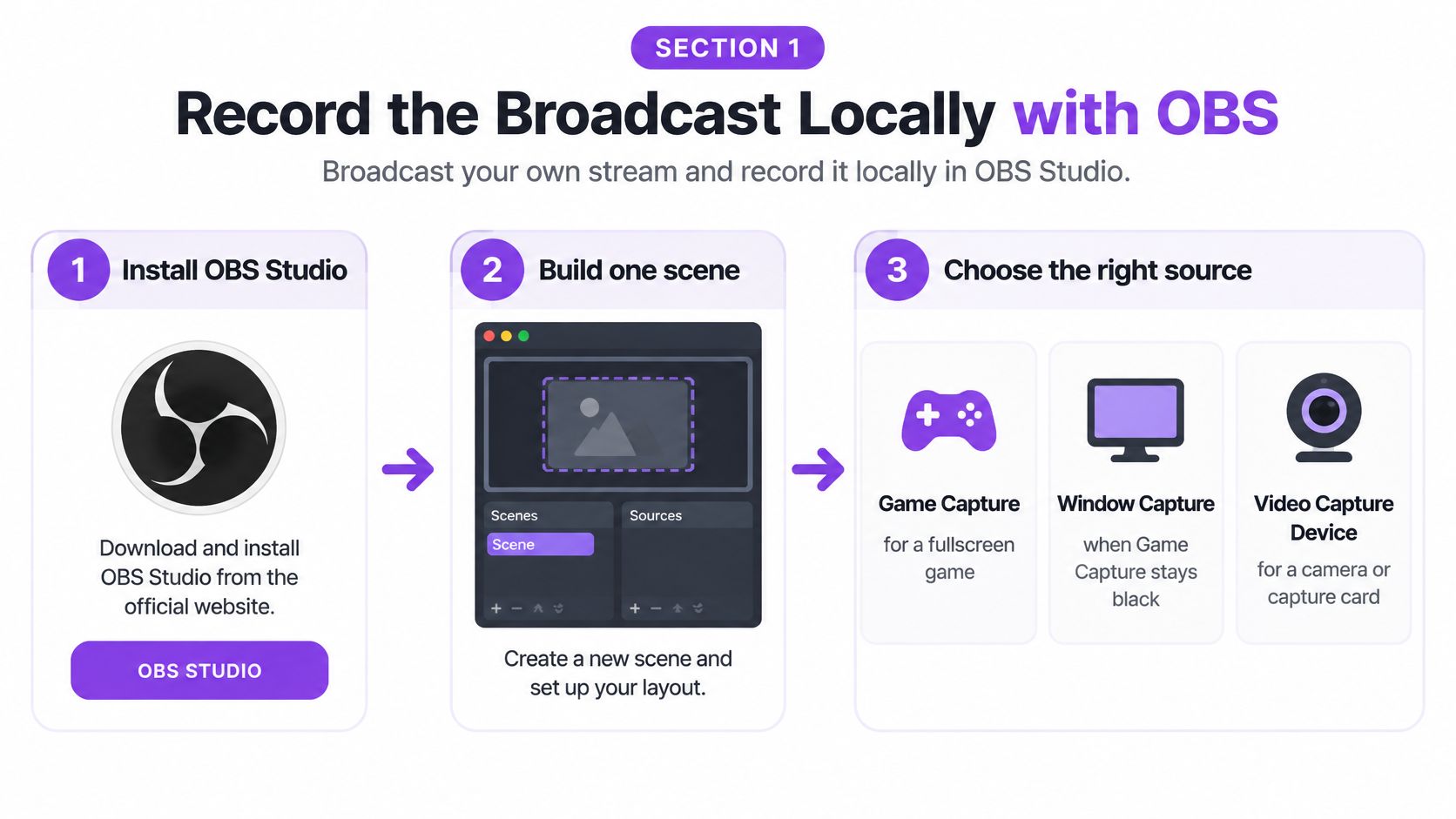
Use this visual to choose the source that belongs in your scene.
Build and test the recording path
-
Install OBS Studio and create a scene. Add Game Capture for a fullscreen game. If that source stays black, test Window Capture with the game window selected. For a camera-led broadcast, add Video Capture Device and select your camera or capture card.
-
Add the facecam as its own source if your layout uses one. Resize it without covering game information you’ll need later, such as subtitles, the scoreboard, or inventory prompts. Lock the source after positioning it so an accidental drag doesn’t move it during the show.
-
Add microphone and desktop sound separately. Select the actual microphone device rather than relying on a default that might change when a headset disconnects. Play game audio and speak while watching the mixer, confirming that each source responds independently.
-
Open Settings → Output → Recording, using Advanced output mode when you need track and encoder controls. Choose a recording folder on a drive with space for the session. Use MKV as the recording format because an interrupted recording is generally more recoverable than an unfinished conventional MP4.
-
Choose the hardware encoder available on your computer: NVENC, AMD’s hardware encoder, or Quick Sync. Use x264 when a suitable hardware encoder isn’t available. A hardware encoder can reduce pressure on the processor, but you still need a test under actual gameplay load.
-
Set recording quality independently from the streaming bitrate where your output configuration permits it. Choose a quality-based recording mode and a high-quality preset, then inspect moving gameplay and small text. Don’t select the largest possible file just because the option exists.
Start both outputs deliberately
-
Check the Video settings. Match the canvas to your scene layout and choose an output resolution and frame rate your computer can sustain while streaming. If OBS reports encoding overload or the recording stutters, reduce recording demands before the broadcast.
-
In Twitch’s Creator Dashboard, open the stream settings and enable Store past broadcasts. Return to OBS, click Start Recording, then Start Streaming. Confirm that both status indicators are active.
-
End the stream, stop recording, and use File → Remux Recordings if your editor needs MP4. Keep the original MKV until the remuxed copy has passed playback checks. Remuxing changes the container without requiring a fresh video encode.
-
Play the beginning and end, then jump into a busy gameplay or conversation segment. Check facecam, game picture, microphone, and desktop sound. A visible filename alone doesn’t prove the recording worked.
For an additional visual walkthrough, use the embedded tutorial while checking your own OBS interface.
If you’re turning the capture into a software demonstration, cursor video effects with Nim can help make pointer movement easier to follow in the edited tutorial. Apply presentation effects to an editing copy, not your only master.
Download the VOD While Twitch Still Has It
Twitch keeps past broadcasts for 7 days for standard broadcasters, 14 days for Affiliates, and 60 days for Partners, Prime users, and Turbo users, according to its Video on Demand guide. Downloading preserves a separate copy; it doesn’t extend the original VOD’s platform retention.
Start the download while you still have a comfortable margin. Exporting a long broadcast, waiting for the transfer, and discovering that the file needs another attempt is a poor last-minute workflow.
Find the saved broadcast
-
Open Creator Dashboard → Content → Video Producer. Locate the past broadcast by its title and broadcast time, and distinguish it from any Highlights already listed.
-
Check that it’s the complete source you need. Open the recording and inspect the beginning, a middle section, and the ending. Make sure you haven’t selected a shorter derivative with a similar title.
-
Open the broadcast’s action menu and choose Download. Leave the browser and destination drive available until the transfer finishes. Don’t start editing from a partial file.
-
Rename the downloaded file with a consistent pattern such as broadcast-date_category_session-length. Keep the same base name for edit folders, permission notes, and exports so you can match them later.
-
Play the downloaded file from your drive. Verify that it opens independently of Twitch and reaches the expected ending before treating it as your archive.
Store past broadcasts must have been enabled during the broadcast. Turning it on afterward won’t reconstruct footage Twitch never saved.
Keep an excerpt on Twitch
If you need a longer passage to remain accessible on your channel, create a Highlight from the VOD timeline before the source disappears. Set the start and end around the complete exchange, including the setup needed to understand it.
A Highlight is useful for an interview, a match, or a tutorial segment. Still download footage you need for independent editing, because keeping something visible on a platform and possessing your own working file solve different problems.
Deadline rule: When deletion is close, preserve the source before trimming captions, choosing hooks, or polishing a thumbnail.
For a long session, keep rough moment notes alongside the archive. Labels such as “rank promotion after overtime” or “guest explains the build” are easier to search than a folder of vaguely named exports.
If Video Producer is empty, check the broadcast filter and whether you’re in the correct account before assuming the file is gone. Then look for a local OBS recording or another independently saved copy. A missing platform archive can’t be recreated merely by changing the storage setting now.
Set Picture Audio and Rights Before You Post
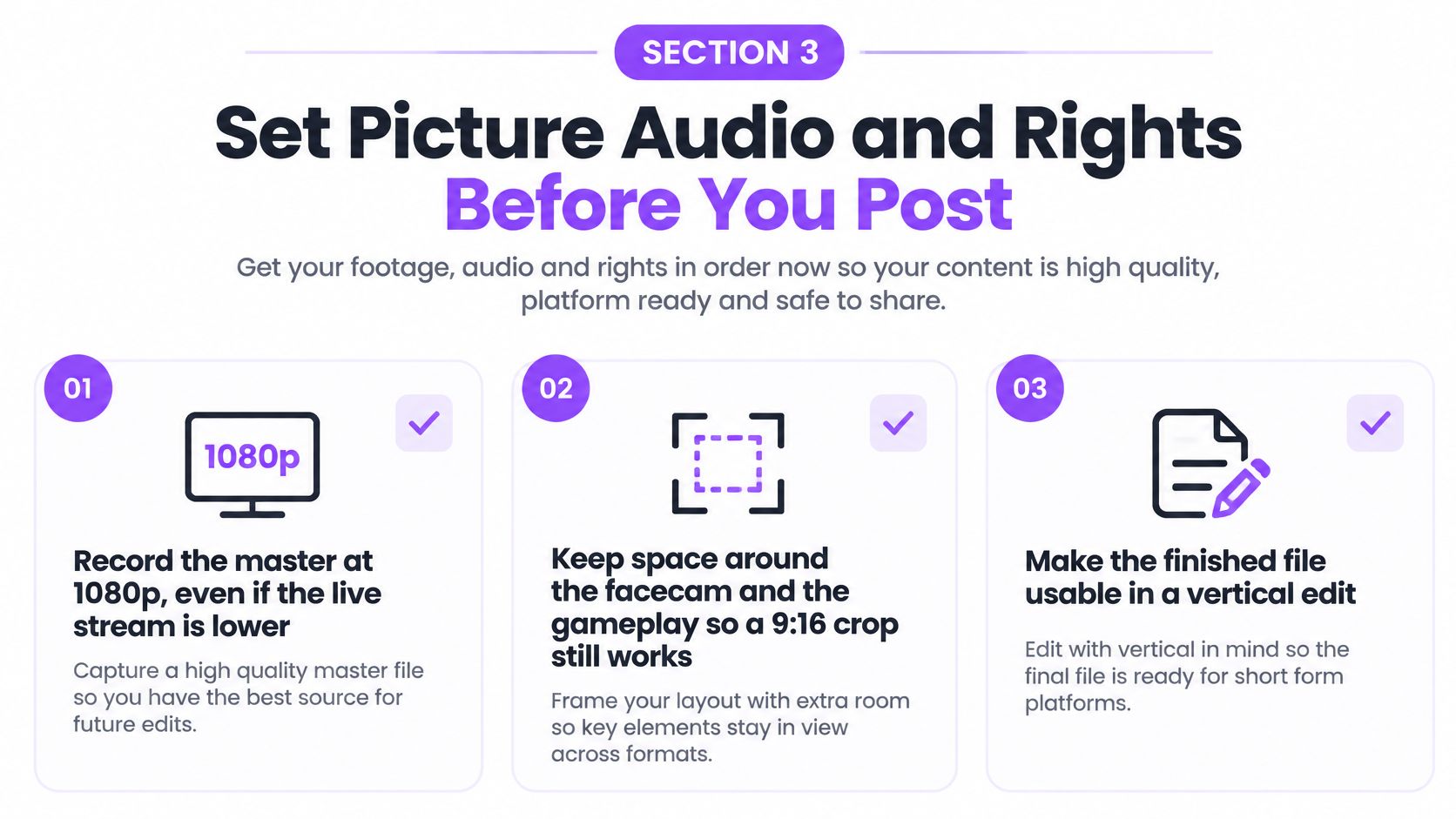
A usable master gives an editor room to work. Keep your camera source clear, avoid covering important gameplay, and leave enough space around the subject for a vertical crop.
Recording at a larger output size won’t restore detail that wasn’t present in the original source. Build the scene from the best available camera and game sources, then choose settings your computer can record reliably.
Use this checklist when arranging a scene for later short-form editing.
Keep the sound editable
In Advanced Audio Properties, assign microphone and desktop audio to separate recording tracks. Include a mixed track for convenient playback, while preserving isolated tracks for editing.
Make sure those tracks are also selected under the recording output settings. Checking a track in the routing panel doesn’t help if OBS isn’t writing that track into the file.
- Match device sample rates. Use the same supported sample rate across OBS and your audio devices to reduce avoidable conversion and troubleshooting.
- Leave headroom for reactions. Speak normally, then test a loud laugh or shout. Lower input gain if the meter reaches clipping.
- Listen to processing. A limiter shouldn’t audibly drag the whole mix down whenever you react. Fix excessive input gain before stacking more filters.
Separating sources only helps when the original signal is separate. If music and game sound arrive through the same desktop source, an editor can’t cleanly remove only the music by choosing another track.
Require a rights checkpoint
Twitch’s music reporting process explains that rights holders can report unauthorized music in VODs, Highlights, uploads, and Clips, that affected material may be muted or removed, and that removed recordings may not be restorable because of elapsed time or storage format.
Keep the archival master and the publishable edit separate. Preserve only material you’re entitled to retain, restrict access where appropriate, and make changes in a working copy rather than overwriting the source.
For each proposed post, review music, guest contributions, third-party visuals, and any license conditions. Save permission records with the project, including what was approved and where the segment may appear. Attribution alone isn’t a substitute for permission.
This is especially important for Just Chatting conversations, VTubers using third-party assets, and esports footage containing licensed tracks. A cleared broadcast doesn’t automatically mean every component is cleared for every later use.
Use the guide to choosing songs for gaming videos while planning replacements, and verify the actual license for the intended destination.
Before the next broadcast, check:
- Resolution: The master remains legible when reframed.
- Audio tracks: Voice and other sound are routed intentionally.
- VOD storage: Store past broadcasts is enabled.
- Clipping: Channel permissions match your capture plan.
- Music: You’ve decided what may appear in later exports.
Fix a Capture That Is Silent Black or Missing
A black game picture and a silent file need different tests. Change the source or playback selection first, rather than rebuilding the entire OBS profile.
Capture problems and the fix to try first
| Symptom | Likely cause | First fix |
|---|---|---|
| Black game picture | Game Capture isn’t hooking the intended game window | Switch that source to Window Capture |
| No voice in the file | The microphone is on a different recorded track | Select the microphone’s track in your player |
| No desktop or game audio | Desktop Audio source is missing or points to the wrong device | Add or correct Desktop Audio and check its meter |
| VOD audio muted in places | Twitch applied music-related muting | Use an available cleared local voice track for the edit |
| File won’t play after a crash | The recording container wasn’t finalized | Use MKV for the next recording |
| File enormous or disk full | Recording quality or resolution exceeded the storage budget | Lower the recording quality preset |
| No past broadcast in Video Producer | Storage was disabled or retention expired | Enable storage before the next broadcast |
| Clip button missing | Channel clipping permissions may block access | Check the broadcaster’s clipping settings |
Recover the picture without changing everything
If Window Capture works, make a test recording with that source before committing to a session. Check that the selected window stays correct when you switch applications or reopen the game.
If capture still fails, test launching OBS as administrator. Use this as a diagnostic step, not a reason to give every application administrator access permanently.
A working preview is necessary, but inspect the recorded file too. The problem may be in the output configuration rather than the source itself.
Distinguish missing audio from hidden audio
A player may open the mixed or default track while your microphone lives elsewhere. Try the player’s audio-track selector or import the file into an editor that displays all recorded tracks.
If the mic meter never moved in OBS, playback controls won’t recover that voice. Select the correct input device, remove an unintended mute, and test again.
A silent section in a Twitch VOD is a different case from a silent local recording. Don’t assume downloading again will restore platform-muted material, and don’t reintroduce uncleared music from a local copy.
Test the saved file, not just the live meters. Meters show that OBS receives a signal; playback shows what you actually kept.
Handle damaged or absent files
Keep a damaged recording untouched while investigating recovery options. Remuxing isn’t a general repair tool: it can repackage readable media, but it can’t recreate footage that was never written.
For storage failures, check free space before the next session and reduce output demands. Moving the destination folder helps only if the new drive has enough capacity and can sustain recording.
When footage opens but needs extensive cleanup, a Twitch VOD editing workflow can help organize the usable material. Editing won’t recover an absent broadcast.
Finish troubleshooting with a private local test that includes speech, game sound, movement, and scene changes. Play it back before starting the stream.
Capture a Stream You Do Not Own
If you’re watching another creator, you don’t have their Video Producer controls. Start with the viewer tools the channel makes available, and treat any saved footage as someone else’s broadcast.
Save only what you need
-
Use the Clip control for a single moment. Open Clip in the player, choose the relevant passage, and give it a useful title. Availability depends on the channel’s settings and your access.
-
For permitted personal reference, select the browser window through Window Capture in OBS and add the appropriate desktop audio device. Confirm that the capture doesn’t include private tabs, notifications, or messages. Local recording doesn’t grant reuse rights.
-
Ask the broadcaster for source footage. Request a VOD, Highlight, or specific excerpt, and explain where you intend to publish it. A creator-provided file may also be cleaner than a browser recording.
Keep permission attached to the file
Save the written reply alongside the footage. Name files with the channel, broadcast date, and category, then use the same identifier for permission records.
Before using a third-party downloader, review Twitch’s current terms and the tool’s access method. Don’t bypass access restrictions or assume that a downloadable file is authorized for redistribution.
- Confirm the scope: Permission to share on one account may not cover a client campaign or another platform.
- Check embedded material: The broadcaster may not control every music track, guest contribution, or visual asset.
- Keep uncertain footage private: Remove or clear questionable material before publication.
If the post only needs a single play, stop with that excerpt. Capturing the entire show creates more material to store and review without necessarily improving the finished post.
Queue the Capture as Shorts You Can Post
Once your saved footage passes playback checks, work from that copy rather than depending on an expiring player page. Keep the master unchanged and create a project for the selected moments.
Our workflow is Find, Edit and Post. Connect your Twitch account, import a video file, or paste a Twitch Clip URL to begin; for a Clip, the AI can turn it into a vertical video with captions in seconds.
Move from source to cleared queue
-
Find candidate moments. Let the clip finder analyze the broadcast, then review the suggestions for context. A loud reaction is useful only if viewers can understand what caused it.
-
Edit the selected passage into a self-contained short. Check the opening, remove unnecessary lead-in, and confirm the vertical layout still shows the facecam and relevant gameplay. Correct captions, especially usernames and game terminology.
-
Apply the rights checkpoint before scheduling. Replace uncertain music and remove uncleared guest material. Don’t treat automated selection as permission to publish.
-
Queue the approved cuts for TikTok, YouTube Shorts, and Instagram Reels. Review the destination account and preview before confirming each post.
If you prefer to choose the original excerpts yourself, our guide to making Clips on Twitch explains the manual capture route.
Tonight’s routine is straightforward: import the preserved broadcast, select the strongest moments, and queue only the cleared edits. Keep the master available until you’ve checked the published results.
StreamGen is not affiliated with or endorsed by Twitch, YouTube, TikTok, Instagram, DaVinci Resolve, Premiere Pro, or KICK.
StreamGen helps turn preserved Twitch footage into captioned vertical clips and a scheduled publishing queue. Visit StreamGen to import your saved broadcast, review the candidate moments, and prepare cleared shorts without scrubbing the entire timeline by hand.
More blog posts
