Your stream ended at midnight. The VOD is eight hours long, your TikTok queue is empty, and you know there’s at least one clip in there worth posting. Finding it by hand means scrubbing a timeline for an hour and hoping you remember roughly when the squad wipe happened. Most channels post three clips after a launch week and then stop, not because the moments dried up, but because nobody wants to spend their off-stream hours hunting timestamps.
An AI video editor for streams does four jobs in sequence: it detects the moment using gameplay events, voice spikes, and chat velocity, reframes it for 9:16 while keeping facecam and gameplay in frame, captions it so it reads on mute, and trims dead air so the first second earns the next one. Those steps run on different tools, and that’s where most roundups go wrong. They rank a full-VOD clipper against a professional NLE as if the two were substitutes.
Adoption isn’t the question. Adobe’s 2025 Creators’ Toolkit Report, a survey of more than 16,000 creators across eight markets, found 86% were actively using creative generative AI, with editing, upscaling, and enhancement the leading application at 55%, ahead of generating new assets at 52%.
The ten tools below are sorted by the stage they serve: detection, polishing, finishing, distribution. Some overlap. None are interchangeable.
Table of Contents
- 1. StreamGen
- 2. Eklipse
- 3. StreamLadder
- 4. OpusClip
- 5. CapCut
- 6. Descript
- 7. VEED
- 8. Wondershare Filmora
- 9. Adobe Premiere
- 10. Canva
- AI Video Editors Compared
- Building Your Stream-to-Shorts Workflow: What to Pick First
1. StreamGen
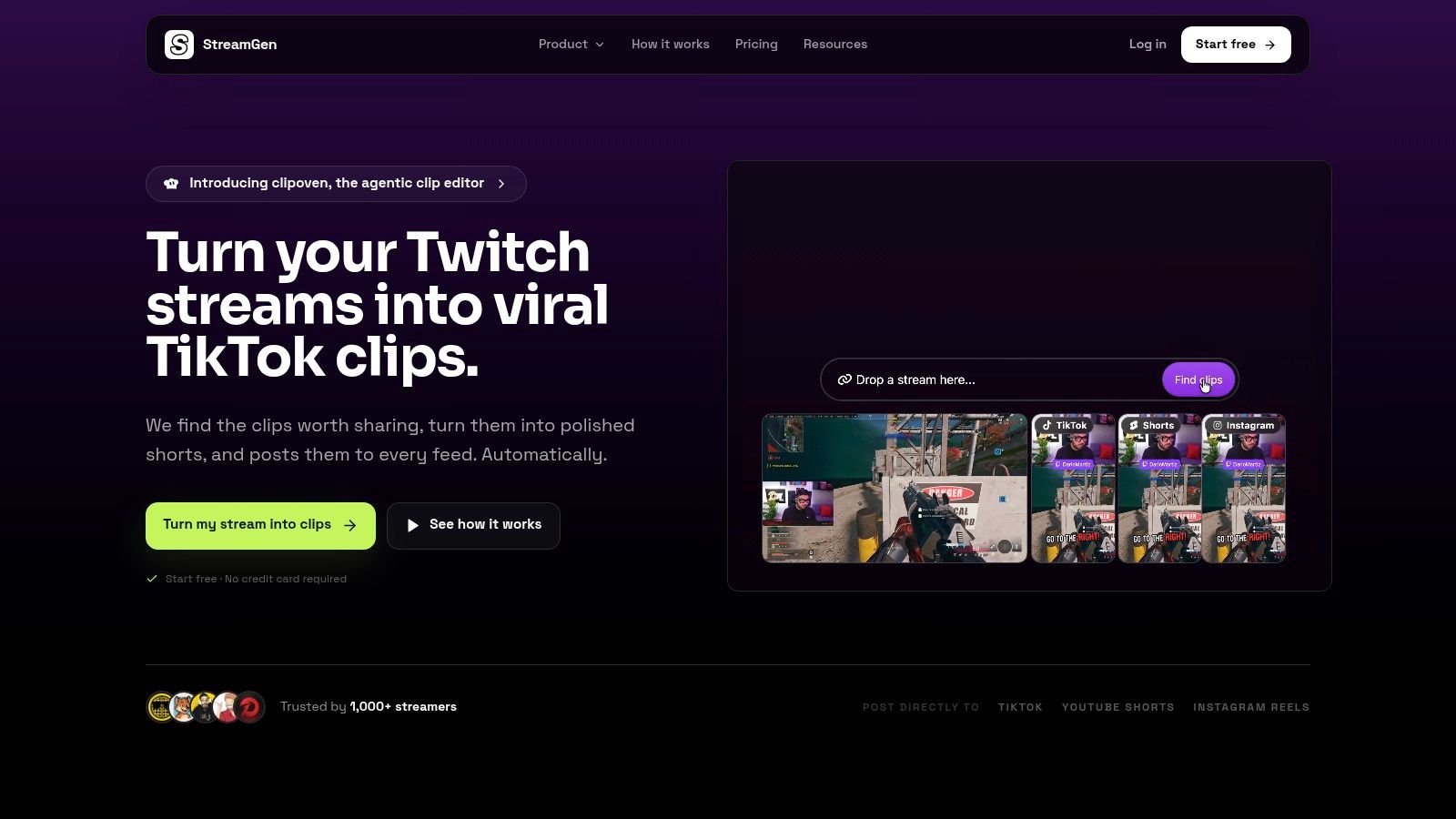
A stream-to-shorts workflow has three distinct stages: finding moments in the full VOD, polishing clips for vertical feeds, and finishing edits in a professional editor. StreamGen combines the first two with scheduling in one workspace, then offers a VOD Editor beta for projects that need further work in DaVinci Resolve or Premiere Pro.
Where it earns its place
The AI Clip Finder analyzes Twitch VODs, including streams over eight hours, and ranks high-energy moments using gameplay, reactions, chat, and audio. That gives you candidates to review instead of a timeline to scrub from start to finish. The ranking still needs human judgment: a loud reaction or busy chat does not guarantee the clip makes sense without context.
The Clip Editor turns highlights into vertical shorts. Smart layouts keep facecam and gameplay in frame, while animated captions support 90+ languages. You can also remove silence, add AI title hooks, censor words, and apply brand presets. Auto Posting schedules clips for TikTok, YouTube Shorts, and Instagram Reels; Autopilot can automate the find, edit, and post workflow.
For professional finishing, the AI VOD Editor beta removes silence, loading screens, and menu navigation, then prepares a project for editing in DaVinci Resolve or Premiere Pro. It offers unlimited VOD length and costs from €4 per edited VOD. Treat it as a pre-edit: review the timeline before publishing or handing the project off.
Pros: VOD discovery, clip editing, and scheduling share one workspace; captions, layouts, and title hooks support clip polishing; the VOD Editor prepares projects for professional editors.
Cons: AI-selected moments need review, and the VOD Editor is in beta. Paid plans start at €5.49 per month; AI clipping, clip editing, and post scheduling are available from €8 per month. Autopilot and the AI VOD Editor are on the Ultimate plan only. A free tier is available with lower limits.
StreamGen says it is used by more than 1,000 streamers. One Twitch streamer said it saves a lot of time while producing dozens of clips ready for social platforms. Another user described the workflow this way: “Super handy, in just a few minutes I have shorts ready to publish. A must have for every content creator!”, LcomeLele, Twitch
Website: streamgen.cc
2. Eklipse
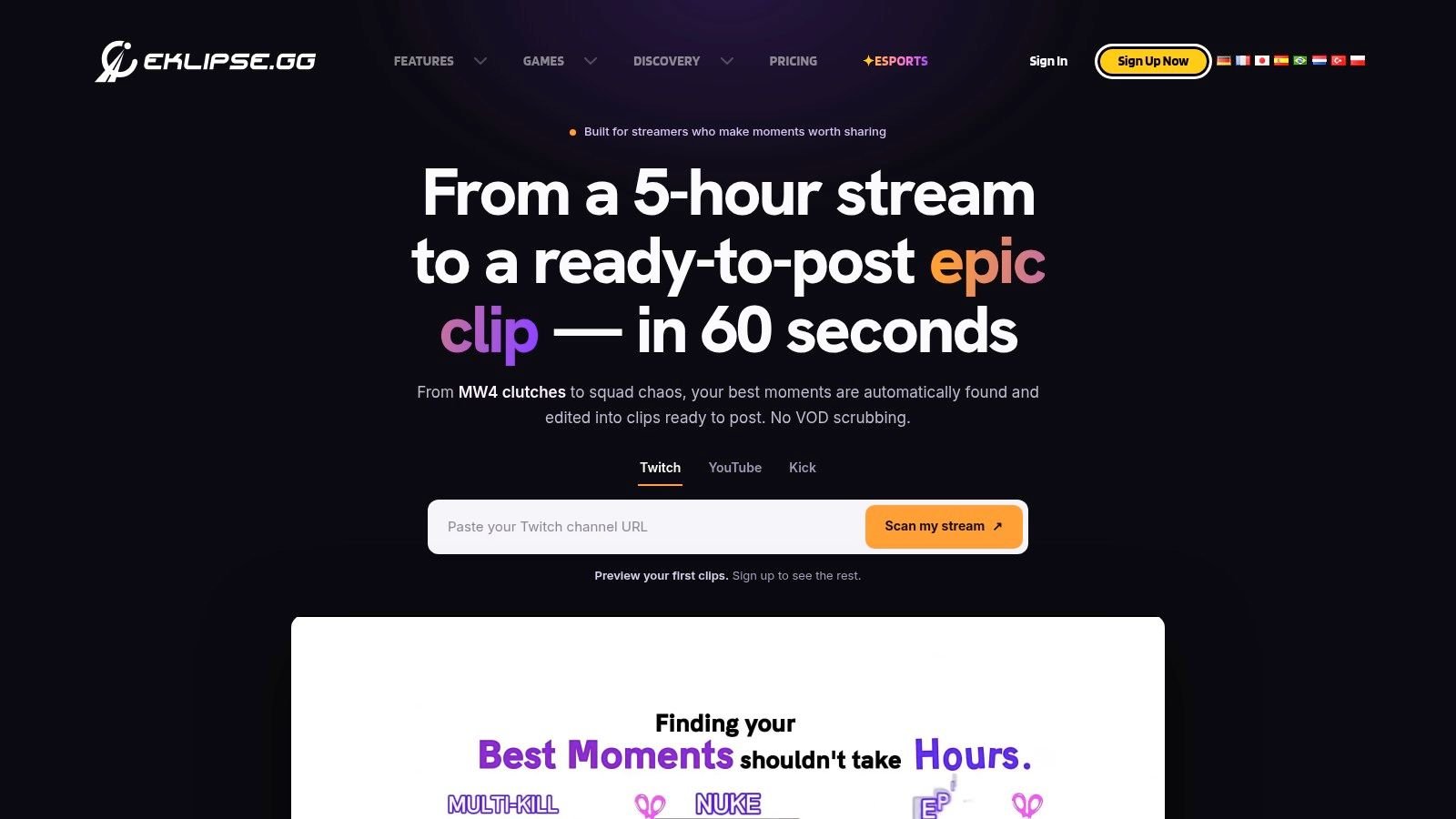
Eklipse is a gaming-first clipper, and the difference shows in what it treats as a signal. It reads gameplay events, voice energy, and chat across Twitch, Kick, and YouTube streams, then hands you candidates to reframe, caption, and trim for TikTok, YouTube Shorts, and Instagram Reels. Processing runs in the cloud, so your PC isn’t rendering while you’re trying to stream.
What works and what doesn’t
Strength: the Content Agent can prepare a batch of clips plus a posting schedule for your approval, which removes the most repetitive part of the job. Weakness: setup and approval run through the mobile app, and exports sit behind a subscription. Premium is listed at $24.99 per month or $179.99 per year.
The failure mode with any gaming clipper is context. A loud reaction mid-fight usually needs three seconds of setup to land out of context, and automation rarely picks the setup. Budget one review pass per batch and you’ll publish more of what it hands you.
Website: eklipse.gg
For a full comparison of plans and tiers, read Eklipse’s pricing and what the subscription unlocks.
3. StreamLadder
StreamLadder assumes you already know which moment you want. You import a clip from Twitch, YouTube, or Kick, or upload a file, then do the polishing in a browser: vertical, horizontal, or square framing, word-synced animated captions, AI-assisted silence removal, word censoring, hook titles, and voiceover. Nothing to install, which matters when you’re editing on a laptop between games.
The manual path with AI assistance
This is the right choice when your highlight is obvious to you and you’d rather spend three minutes captioning it than reviewing ten machine picks. The core editor is free. Paid Starter features cover 1080p exports and additional caption styles, and there’s a 7-day trial for the paid tier.
- Use it when you clip live, while the moment is still fresh and you remember the setup line.
- Skip it when the VOD pile is the actual problem, because it doesn’t scan full VODs for highlights.
- Pair it with a detection tool upstream if you want a find-edit-post loop without manual review.
Where it beats heavier editors is speed on a single known clip. Where it loses is volume. A streamer with four VODs a week needs something that watches the footage first.
Website: streamladder.com
Before committing to a paid tier, see how StreamLadder’s pricing and free tier compare.
4. OpusClip
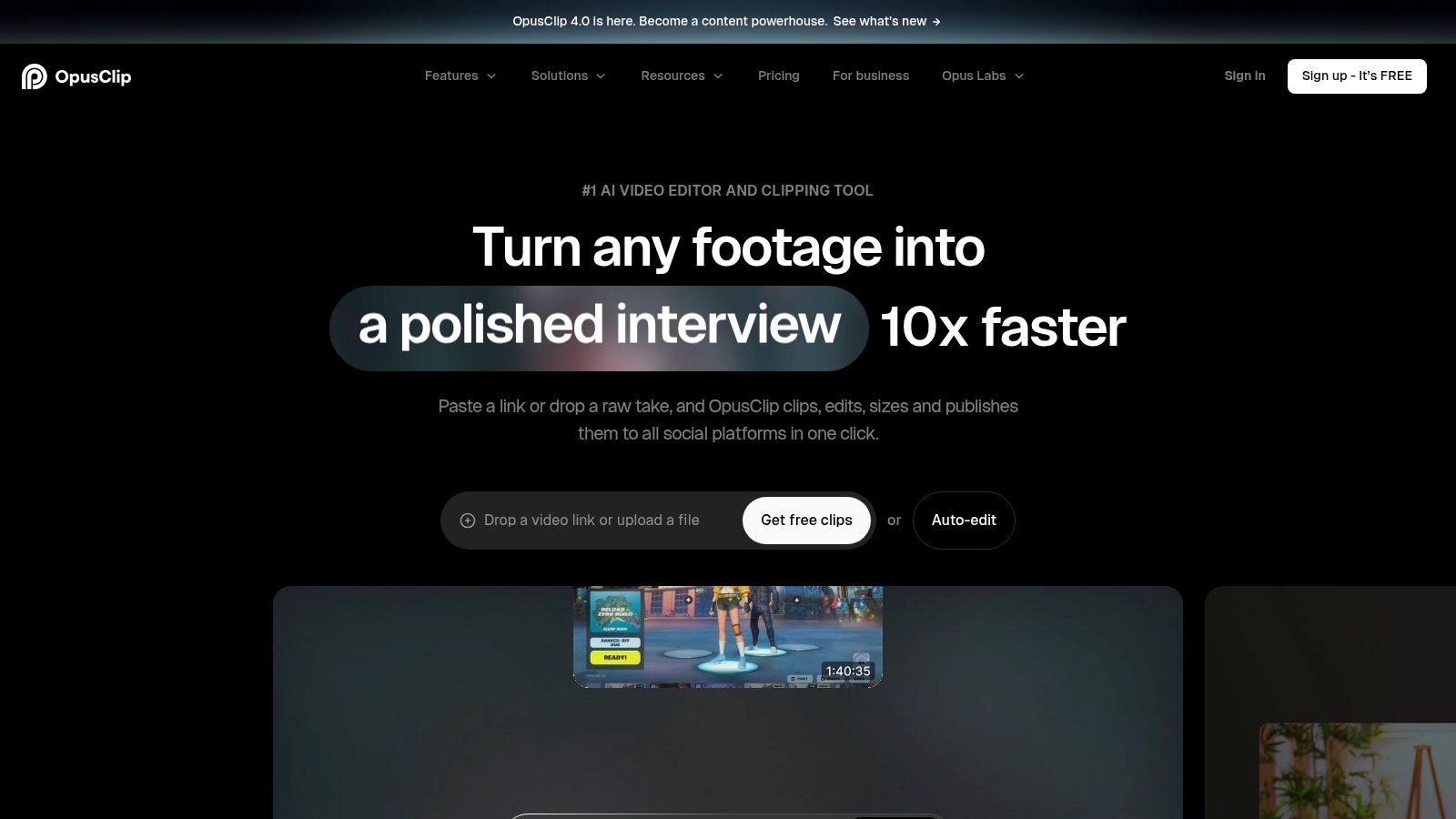
A stream VOD can produce several vertical shorts in one pass with OpusClip, a general-purpose editor built for long videos. It adds automatic reframing and animated captions, and paid plans include publishing workflows. Twitch sources are supported on Pro. Its broader focus suits podcasts, interviews, and lectures, but gaming highlights can be harder to rank: a quiet clutch play may score below a moment driven by speech.
The question to ask before you upload
A full recording going to a cloud service raises practical questions: can you opt out of model training, delete footage afterward, and inspect what the tool changed? Many creators worry about their footage being used to train AI without permission. Check the service’s controls and deletion process before uploading, then review the generated clips yourself. Automatic picks still need human judgment, especially when the moment depends on gameplay context rather than dialogue.
Pros: multiple shorts from one recording, support for sources beyond livestreams, an editor for refining selected clips, and a free plan for trying the workflow.
Cons: highlight detection is less game-aware than gaming-first tools, clips can need substantial review, and processing capacity depends on plan credits.
Website: opus.pro
5. CapCut
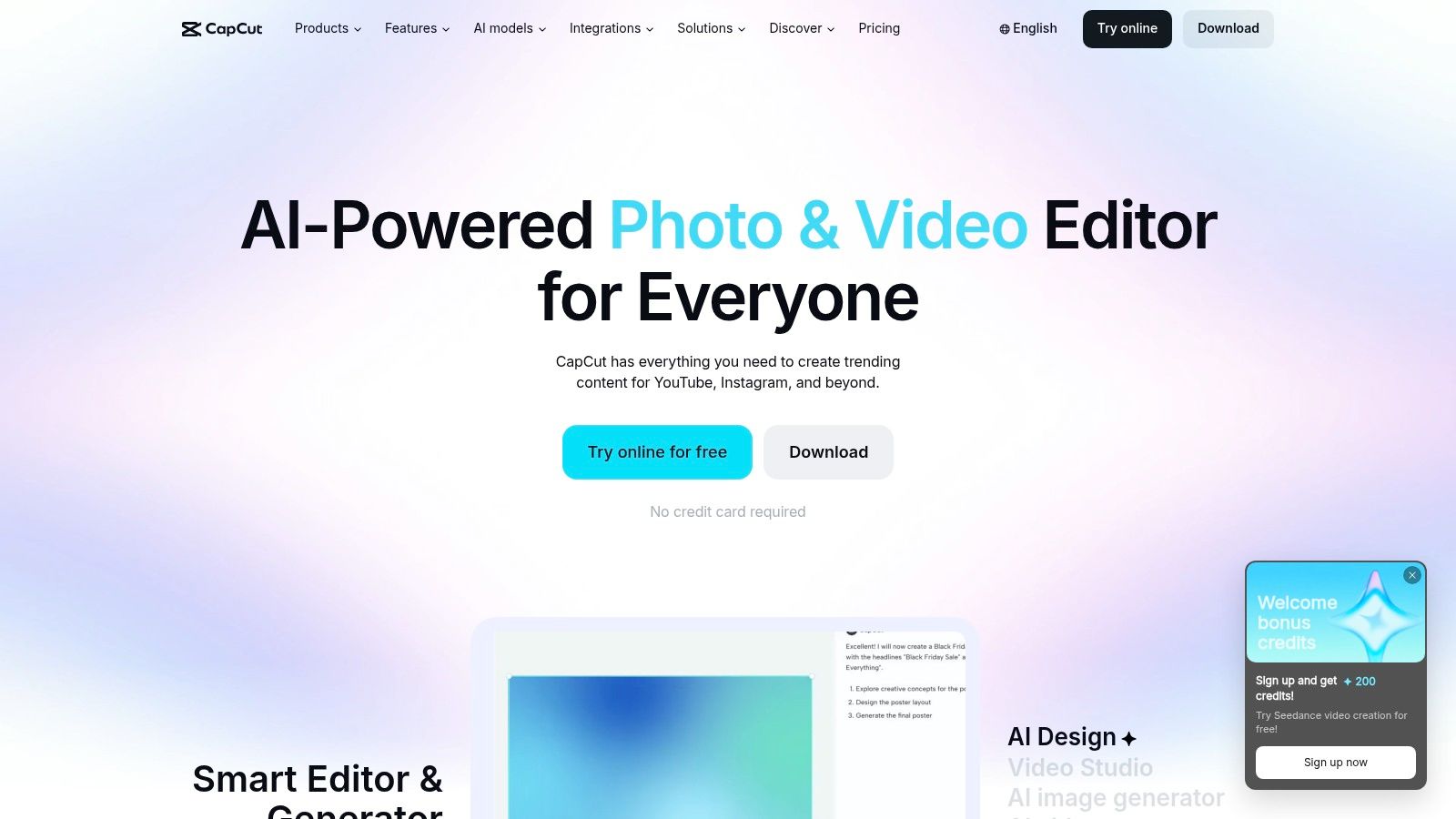
A highlight is already picked, and the job now is to turn it into a clean vertical clip. CapCut provides a timeline editor across web, desktop, and mobile, with templates and AI features alongside manual cuts. It suits clip finishing rather than scanning a full VOD for moments. CapCut has a free tier and paid plans with more storage and AI features; pricing varies by platform and region, so check its current plan page before subscribing.
Where disclosure becomes a business decision
If an edit uses realistic synthetic or altered content, check the platform’s labeling rules before posting. YouTube requires disclosure for realistic altered or synthetic content that could mislead viewers. TikTok requires labels for realistic synthetic people, events, or voices and may restrict or remove undisclosed posts. Meta applies AI-information labels to relevant content. This breakdown of AI video and platform disclosure rules explains how the rules differ.
Review captions for reversed meaning, cuts that imply a reaction that did not happen, and synthetic voice lines. Keep the source VOD and an approval log so questionable edits can be checked against the original.
Pros: fast template edits, hands-on control, useful finishing for clips made elsewhere, and a free tier for basic work.
Cons: no Twitch highlight detection, AI features and storage vary by plan, and pricing differs by region.
Website: capcut.com
6. Descript
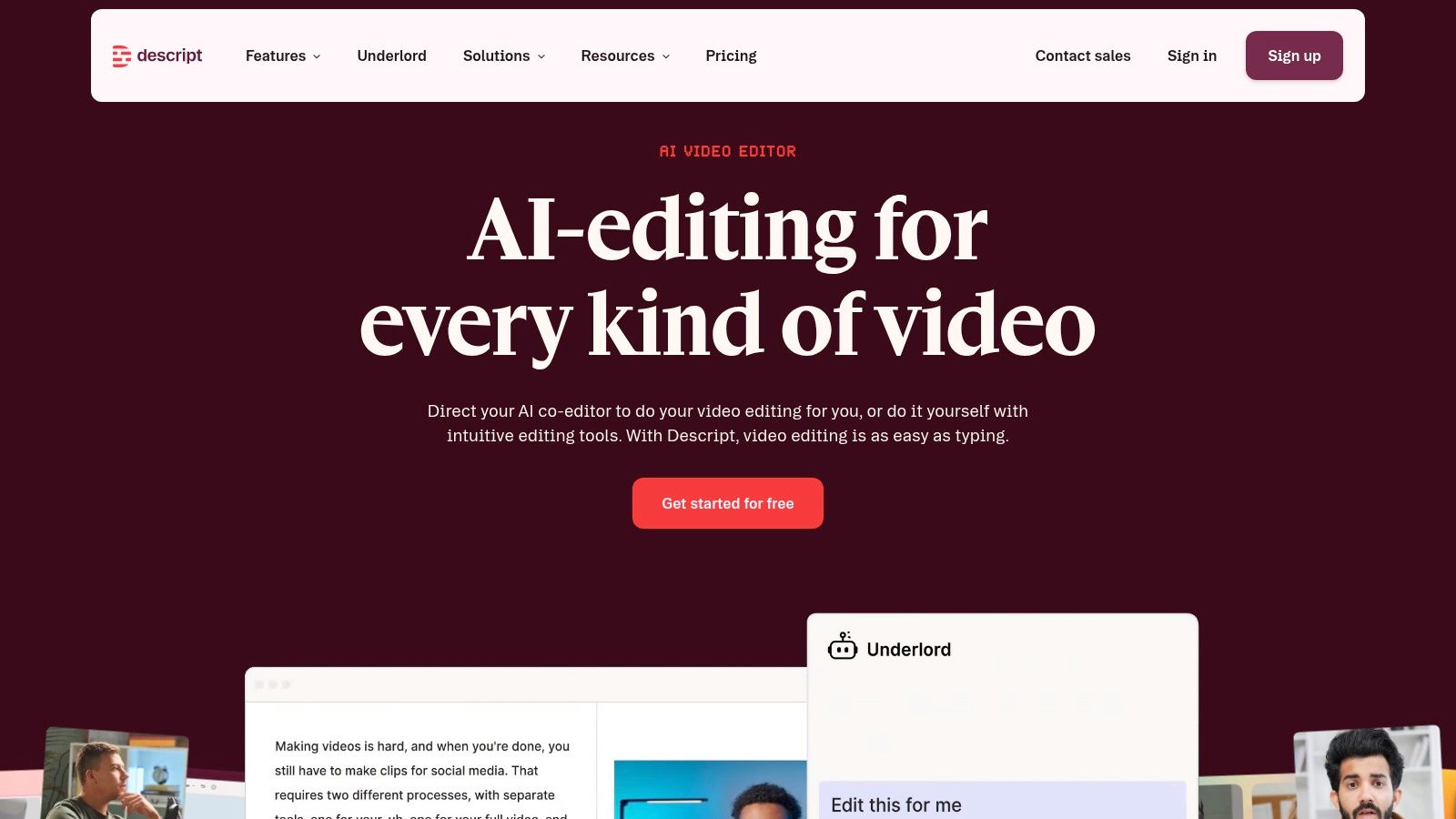
A stream’s best moment may depend on what someone says, not what happens on screen. Descript edits video through its transcript: remove a sentence, and the corresponding footage is cut from the timeline. Studio Sound, filler-word removal, clip creation, dynamic captions, and the Underlord co-editor support speech-led work such as Just Chatting, commentary, podcasts, and VTuber videos. For gameplay-first highlights, it is a finishing tool rather than a full-VOD moment finder.
Why transcription tools earn their price
Transcription makes dialogue easier to cut and caption, but it does not identify which gameplay moments are worth clipping. Goldcast’s November 2024 survey of more than 500 B2B marketers found that 88% use AI for video-related tasks, including transcription and captioning at 42%; more than 40% reported saving at least three hours on video editing or creation work.
Descript offers a free plan and paid tiers billed monthly or annually. Check the media-hour and AI-credit limits before processing long recordings, and review automated edits for missed context or awkward cuts. Its strongest fit is dialogue-led editing, not gameplay highlight detection.
Website: descript.com
7. VEED
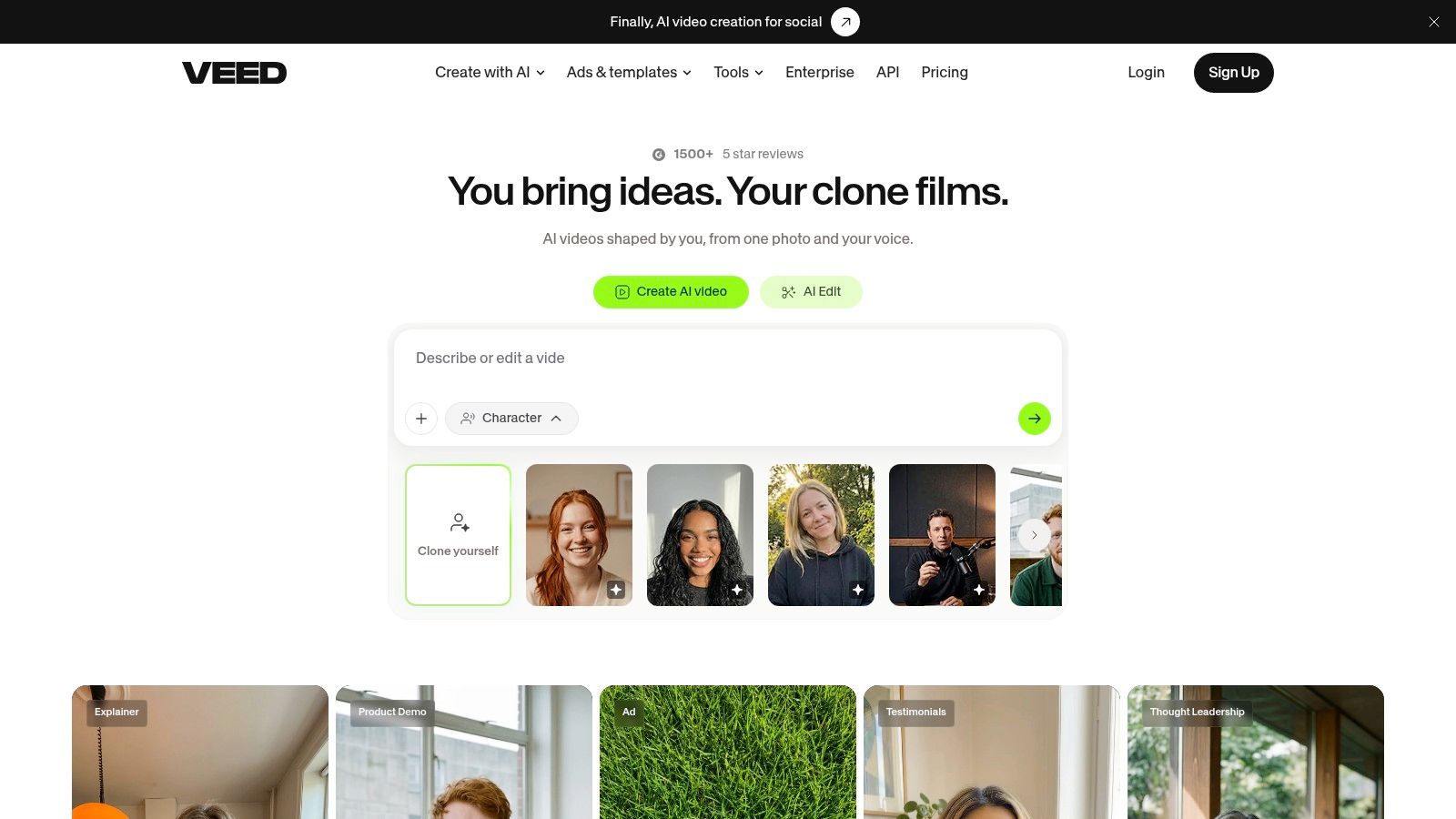
VEED is a browser editor that behaves like a captioning tool first and a cutting tool second. Automatic subtitles, transcript-based editing, audio noise reduction, B-roll generation, and one-click resizing all run without a desktop install, and manual adjustments stay available after the automatic pass.
Best use in a stream workflow
Treat it as the cleanup station. Someone hands you a rough clip, or you’ve already pulled one manually, and VEED gets captions burned in, audio cleaned, and the aspect ratio fixed quickly. Paid plans are listed at $9 per month billed yearly or $19 per month billed monthly on the editor page, and free exports carry a watermark.
Pros: no install, captions plus cleanup in one place, manual fixes after automation.
Cons: watermark on free exports, AI allowances tied to plan, and no full-VOD gaming highlight detection.
If the deliverable is a paid ad rather than a stream clip, a purpose-built AI video ad maker like ShortGenius is a different category with different constraints.
Website: veed.io
8. Wondershare Filmora
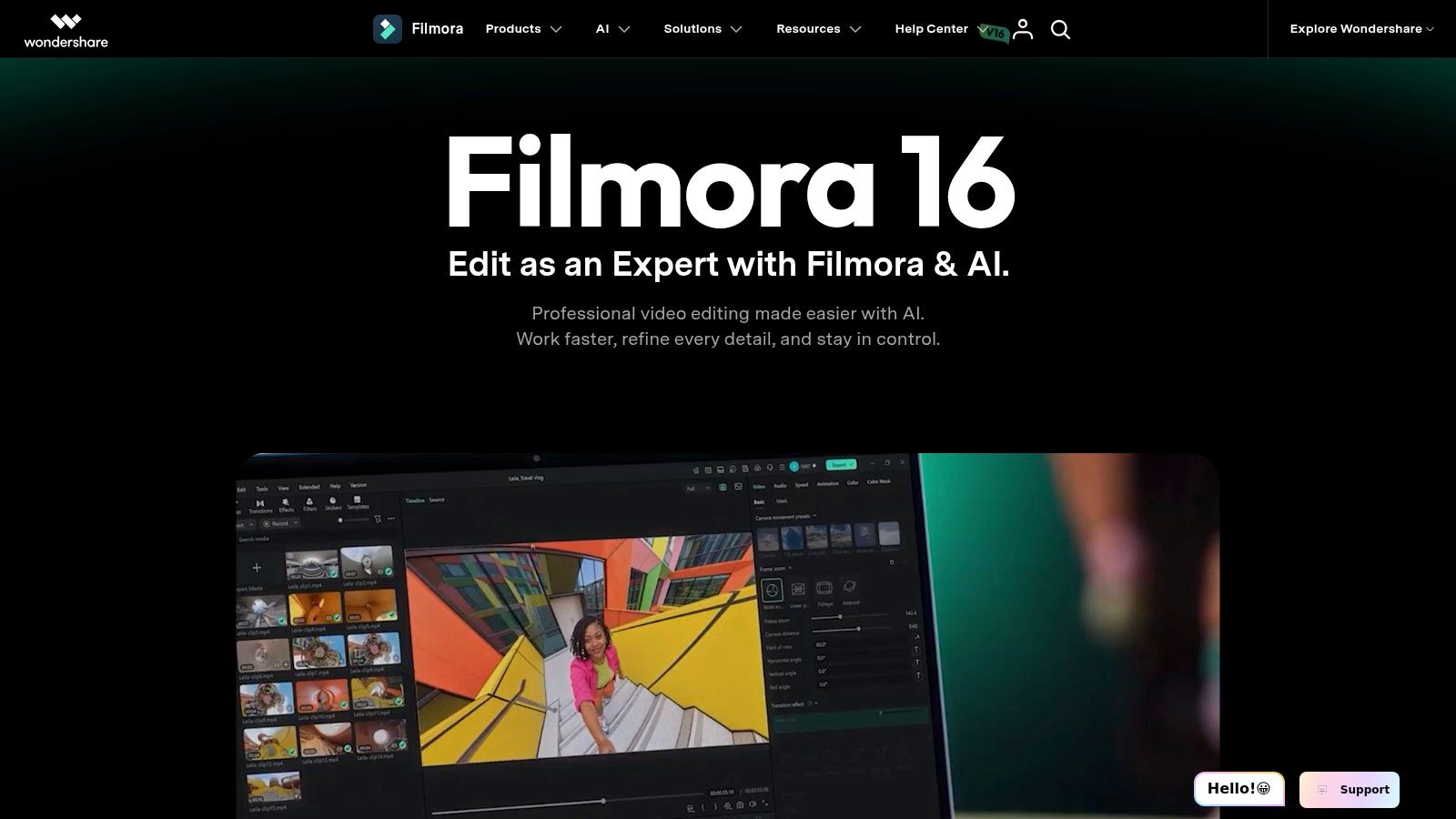
Filmora gives streamers a desktop timeline without requiring them to start in a professional NLE. It combines standard video and audio editing tools with AI features such as smart short clips, scene cuts, and text-based editing. Paid plans include 4K export.
Where the AI helps and where it doesn’t
Scene detection can divide a long stream into segments at hard cuts, while smart short clips can speed up the initial assembly. These tools help with structure, but they do not judge which moments are worth sharing. Review the output and make the editorial decisions yourself.
Filmora offers subscription plans and a perpetual option. The perpetual license is a one-time purchase tied to the version you buy, and it does not include future major releases. Check the current checkout price for your region and operating system.
The trade-off is a desktop setup and a learning curve compared with browser-based clippers. If you already use a professional editing timeline, Filmora may add little to your workflow.
Website: filmora.wondershare.com
9. Adobe Premiere
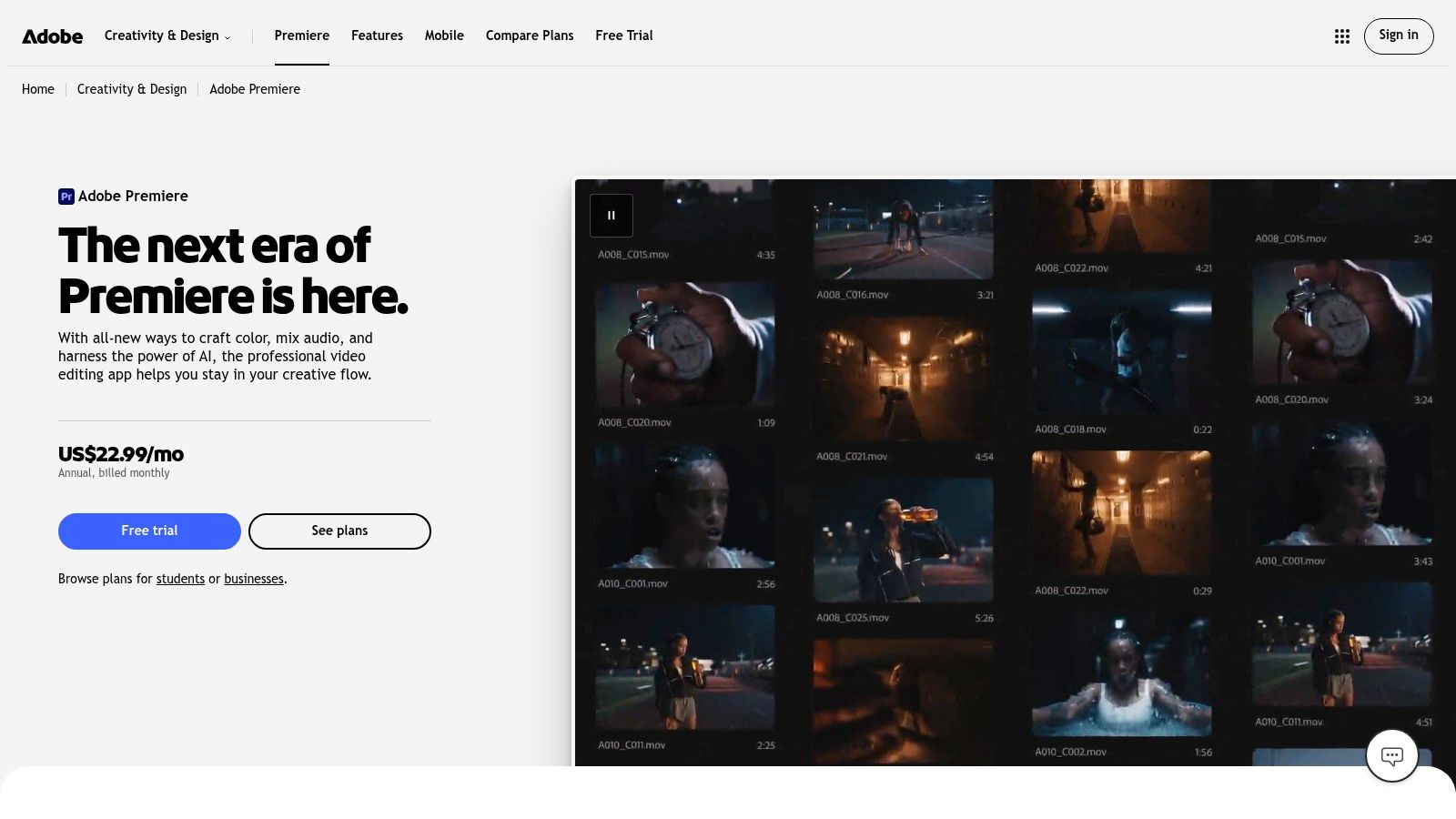
Premiere is the finishing stage, and it’s where a clip stops being content and starts being craft. Text-based editing, transcription, AI-powered media search that finds footage by describing it, and dialogue enhancement are all built in, alongside the color, effects, and timeline control that professional work expects. Adobe lists an annual plan billed monthly at $22.99 per month and offers a free trial.
Why the AI feels mature here
The features that make Premiere feel modern didn’t appear overnight. A 2025 review of AI video research trends reports that AI video research stayed a small niche until 2020, then publication volume rose exponentially from 2021 as diffusion models and Transformer-based architectures became central. Modern editors combine several of those research lines at once: multimodal visual analysis, speech processing, scene segmentation, and language-based instructions.
Reality check: Premiere will not find your highlight. It will make the clip you already found look like it came from a channel with a budget.
That’s the trade. Fine-grained control over a complex edit, at the cost of a steeper learning curve and a subscription that’s hard to justify if you only cut one clip a week.
Website: adobe.com/products/premiere.html
If your bottleneck is getting a clean cut out of a long broadcast before the NLE step, read about how a Twitch VOD editor fits into that handoff.
10. Canva
Canva is most useful for the visual package around a clip. Magic Video assembles uploaded clips or photos into a short edit, while AI Highlights cuts footage into snippets. Templates, text, transitions, licensed music, and Brand Kit settings help keep a channel’s posts visually consistent.
The right job for it
Use Canva for thumbnails, end cards, social-handle lower thirds, and reusable vertical layouts. Its design tools suit repeatable posts; frame-accurate edits and finding highlights across a full VOD call for a different workflow.
Pros: Design and video tools in one place, reusable templates, brand resizing, and a free plan.
Cons: AI video use is limited by plan allowance, template-led editing offers less precision for frame-level work, and Canva does not scan a VOD to find highlights.
Website: canva.com
AI Video Editors Compared
The right tool depends on where work piles up: finding moments in a full VOD, polishing clips for vertical feeds, or finishing edits on a timeline. A gaming-focused clipper, a general-purpose editor, and a professional NLE solve different stages, so compare them by workflow rather than treating them as substitutes.
| Primary workflow stage | Starting price | Free plan or trial | Best for |
|---|---|---|---|
| StreamGen: AI stream-highlight discovery, clip editing, and publishing | From €8/month for AI clipping, clip editing, and post scheduling; AI VOD Editor is available on the Ultimate plan only | Free tier with lower limits | Turning Twitch VODs into edited clips and scheduling them for social platforms |
| Eklipse: Gaming-stream highlight detection and clip editing | $24.99/month or $179.99/year | Free plan | Creating social clips from Twitch, Kick, and YouTube streams |
| StreamLadder: Editing and formatting existing stream clips | Paid price not listed | Free core editor; 7-day paid-feature trial | Formatting and captioning clips in a browser |
| OpusClip: Repurposing long-form video into short clips | Paid price not listed | Free plan | Making social clips from streams, podcasts, and other long videos |
| CapCut: General-purpose short-form video editing | $12.49/month per seat for Teams; Pro is $19.99/month | Free plan | Template-based edits and hands-on finishing across devices |
| Descript: Transcript-based video and audio editing | $16/month with annual Hobbyist billing | Free plan | Editing podcasts, interviews, and other speech-focused videos |
| VEED: Browser-based video editing, subtitles, and cleanup | $9/month billed yearly | Free plan; exports include a watermark | Preparing social clips with captions in a browser |
| Wondershare Filmora: Desktop timeline editing and finishing | $49.99/year | Trial details not listed | Hands-on editing with AI-assisted tools |
| Adobe Premiere: Professional desktop video editing | $22.99/month with annual billing | Free trial | Precise editing and finishing workflows |
| Canva: Template-led video editing and social design | Paid price not listed | Free plan | Designing social content with consistent branding |
StreamGen covers more than one stage: its Clip Finder surfaces likely highlights, the Clip Editor prepares vertical shorts, and Auto Posting schedules clips for TikTok, YouTube Shorts, and Instagram Reels. The AI VOD Editor is a separate beta tool that turns streams into pre-edited projects for DaVinci Resolve or Premiere Pro. It is available on the Ultimate plan only, while AI clipping, clip editing, and post scheduling start at €8/month.
That combination suits creators who want detection, polishing, and distribution in one workspace. Automated picks still need review: a high-energy moment may lack context, and captions or framing can need adjustment. For more involved finishing, use the exported project in an NLE rather than expecting a browser clip editor to replace a full timeline.
Building Your Stream-to-Shorts Workflow: What to Pick First
Audit before you buy. Write down four stages: detection, polishing, finishing, and distribution, and clearly mark which one you skip when you’re tired. That’s the gap to fill first, and it’s usually not the one that looks most exciting.
If detection is the hole, start with a tool that scans full VODs and ranks candidates. Nothing else in the pipeline matters if the source moment is wrong, and manual scrubbing is the task that stops channels from posting at all. If polishing is the hole, a browser editor that handles captions, reframing, and silence removal gets you from candidate to publishable in minutes. If finishing is the hole, your clips probably look fine and sound bad, which is an NLE problem, not a clipper problem.
The workflow that holds up for a streamer posting daily looks like this: automated detection on the full VOD, a browser editor for captions and vertical layout, direct scheduling to the three short-form platforms, and a project export to DaVinci Resolve or Premiere Pro for the two or three clips a month worth hand-finishing. That last step is what separates a channel that posts a lot from one that posts something people remember.
Two numbers to run as your own KPIs: editor-hours saved per published short, and false-positive rate on AI picks. The second one matters more than people expect. If you’re rejecting six of ten suggestions, the detector is miscalibrated for your content and you should tune it (or change tools) before adding volume.
StreamGen is built to turn Twitch streams into TikTok clips, with Auto Posting that schedules clips to TikTok, YouTube Shorts, and Instagram Reels, and AI clipping, clip editing, and post scheduling available from €8/month. Test it against one of your messiest VODs rather than your best one, because the hard case tells you more.
If you also repurpose long-form footage beyond streams, Taja AI’s content repurposing workflow is worth reading before you lock in a stack. Then pick one tool per stage, run it for two weeks, and judge it on published clips rather than features you haven’t touched.
StreamGen takes the three slowest steps in this list and puts them in one place: finding the moment in an eight-hour VOD, cutting it into a vertical clip with captions and smart layouts, and scheduling it to TikTok, YouTube Shorts, and Instagram Reels without downloading a file. If you’ve been sitting on a backlog of broadcasts, upload your latest VOD and let the AI Clip Finder rank the highlights while you review the ones worth posting. Start free at StreamGen and see how many shorts your last stream contained.
More blog posts