You end the stream tired, chat’s still posting clips they caught live, and you know at least a dozen moments deserve a second life. There’s the impossible clutch, the reaction that made chat lose it, the joke that landed perfectly. What you don’t have is another evening to scrub eight hours of VOD, guess at timestamps, reframe everything vertical, and type captions by hand.
That’s the job an AI highlight generator is supposed to do. It scans the long recording, ranks the moments most likely to hold attention, then helps you reframe, caption, and post them as TikToks, Shorts, and Reels. Done well, it turns one broadcast into a week of discovery content. Done badly, it gives you loud noises, missing punchlines, and captions cut off by the platform interface.
This roundup compares ten tools side by side, grouped by how they fit a workflow. Some are all-in-one pipelines, some are VOD-first clippers, some live on your desktop, and some repurpose any kind of video. You’ll get honest limits for each one, not just feature lists, plus a decision framework at the end. If you’re also rethinking your physical setup between streams, these ideas for a streaming workspace are worth a look. The commercial reason to bother is clear, since global spending on short-form digital video advertising reached approximately $111 billion in 2025, up nearly 12% from $99.43 billion in 2024, according to Vidico’s short-form video statistics roundup.
Table of Contents
- 1. StreamGen
- 2. Eklipse
- 3. StreamLadder ClipGPT
- 4. ClipBot
- 5. StreamClip.io
- 6. Clipzula
- 7. OpusClip
- 8. Powder
- 9. EchoClips
- 10. Medal
- AI Highlight Generator Tools at a Glance
- Choosing and Integrating Your Highlight Workflow
1. StreamGen
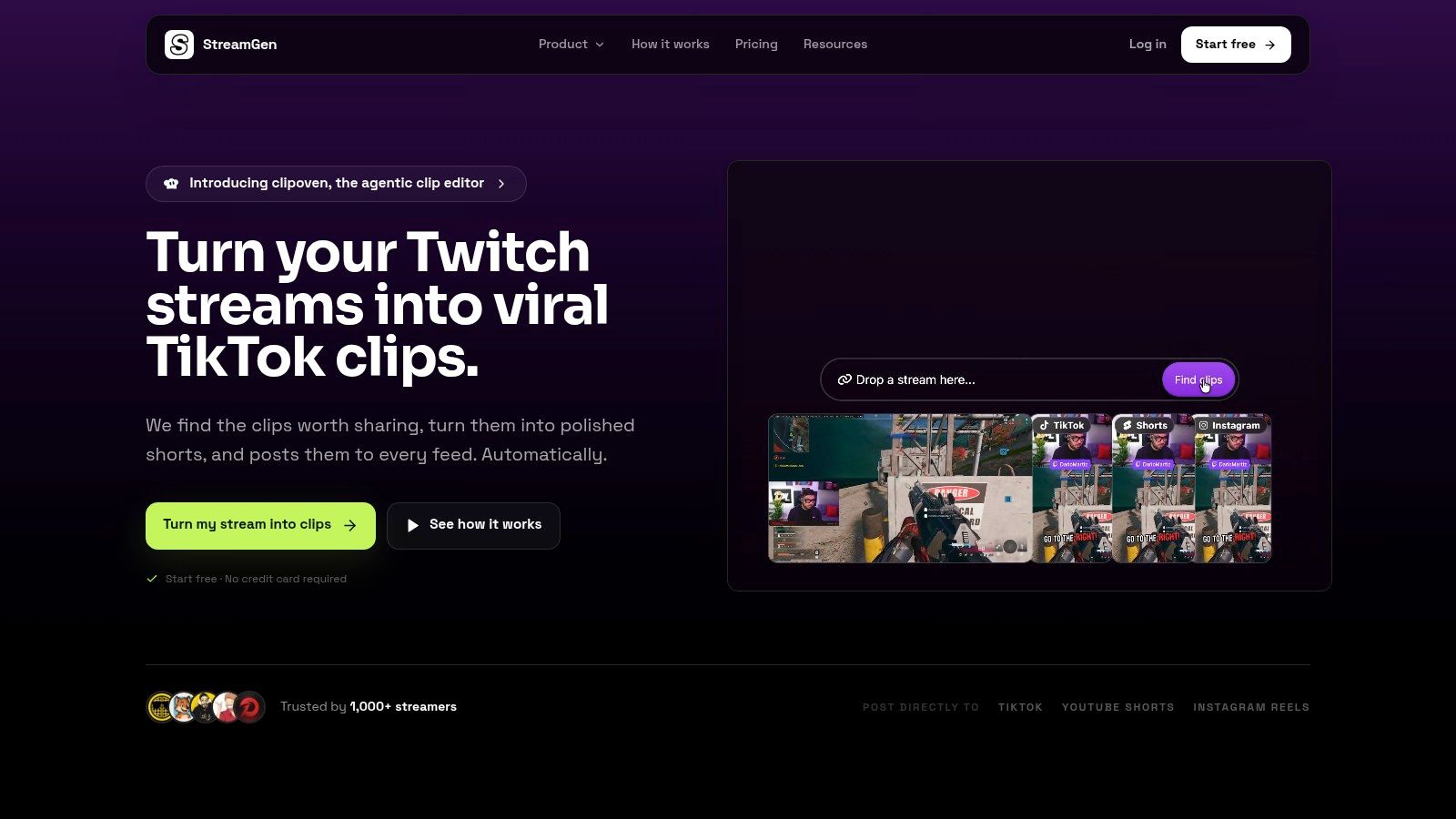
StreamGen is built as a stream-to-shorts pipeline, not just a clip finder. Its AI scans full Twitch VODs, including streams over eight hours, and ranks candidates using gameplay, reactions, chat, and audio cues. You review that ranked list in the same workspace where you edit and schedule, so you’re not downloading files and re-uploading them to three other apps.
What the editor actually handles
The clip editor keeps facecam and gameplay visible with smart vertical layouts, adds animated captions in 90+ languages, removes silence, generates title hooks, censors words in captions or audio, and saves reusable brand presets. A scheduler then publishes directly to TikTok, YouTube Shorts, and Instagram Reels, and optional Autopilot can run the find, edit, and post steps for you. If you want the step-by-step version of turning a VOD into a finished piece, this guide on how to make a highlight video from a stream walks through that workflow.
That focus on post-production matters in practice. In an Adobe Express survey of 384 U.S. video creators, 71% had used AI for video generation or editing, and 56% saved more than 30 minutes per video. The beta VOD Editor also strips dead air, loading screens, and menu navigation, then exports projects for DaVinci Resolve or Premiere Pro.
- Strength: Discovery, vertical editing, and scheduled posting live in one place, with creator-specific tuning on the Ultimate plan.
- Limits to check: AI picks still need a human pass for timing and context, the VOD Editor is labeled beta, and pricing is listed inconsistently, from €5.49/month in product details versus €8/month in the site FAQ. Confirm current pricing before you commit.
2. Eklipse
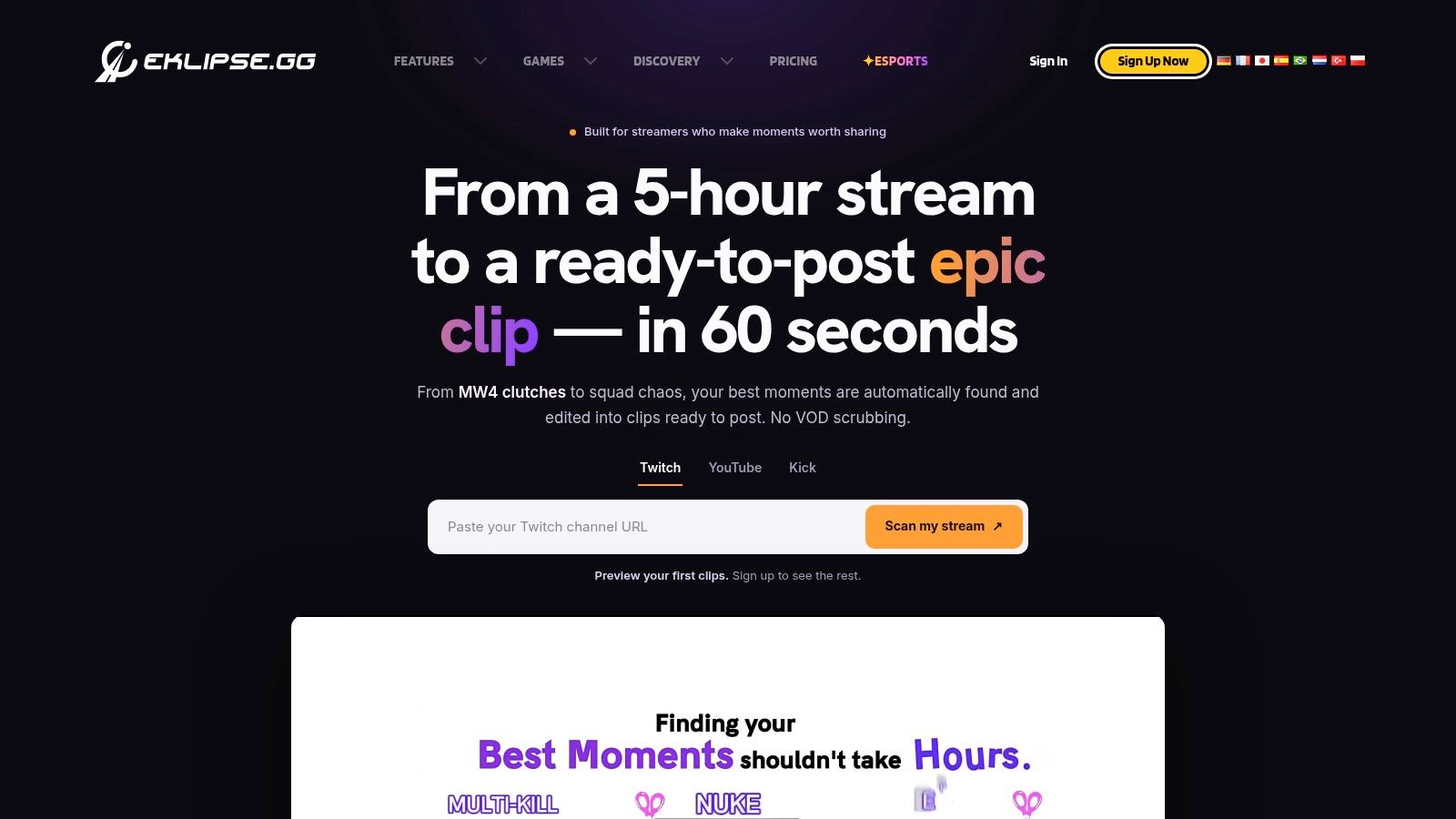
Eklipse is built for gaming streams, connecting to Twitch, Kick, and YouTube to scan gameplay events, audio, and chat activity for potential highlights. The vendor claims detection across a large library of games, making it a better fit for gameplay-heavy channels than tools focused mainly on talking-head video. It also supports Just Chatting and reaction streams.
Long archives create a review bottleneck. Twitch reported that viewers watched more than an hour of video per day on average in its record growth announcement. Automated detection can narrow the search, but clips still need a human check for context and timing.
Where it fits and where it pinches
Eklipse combines vertical conversion, captions, templates, editing, scheduling, voice commands, mobile editing, and console-stream support. Linking a streaming account can reduce manual VOD handling, though the usefulness of the picks will vary by game and stream format.
- Strength: Its workflow is designed for livestreams and gameplay, with public ratings available across Trustpilot, Google Play, and the App Store.
- Limits to check: AI clipping sits behind a paid plan. See Eklipse’s pricing page for current plan details, and check which features and export options each plan includes. Test the picks on your main game before committing to an annual subscription.
3. StreamLadder ClipGPT
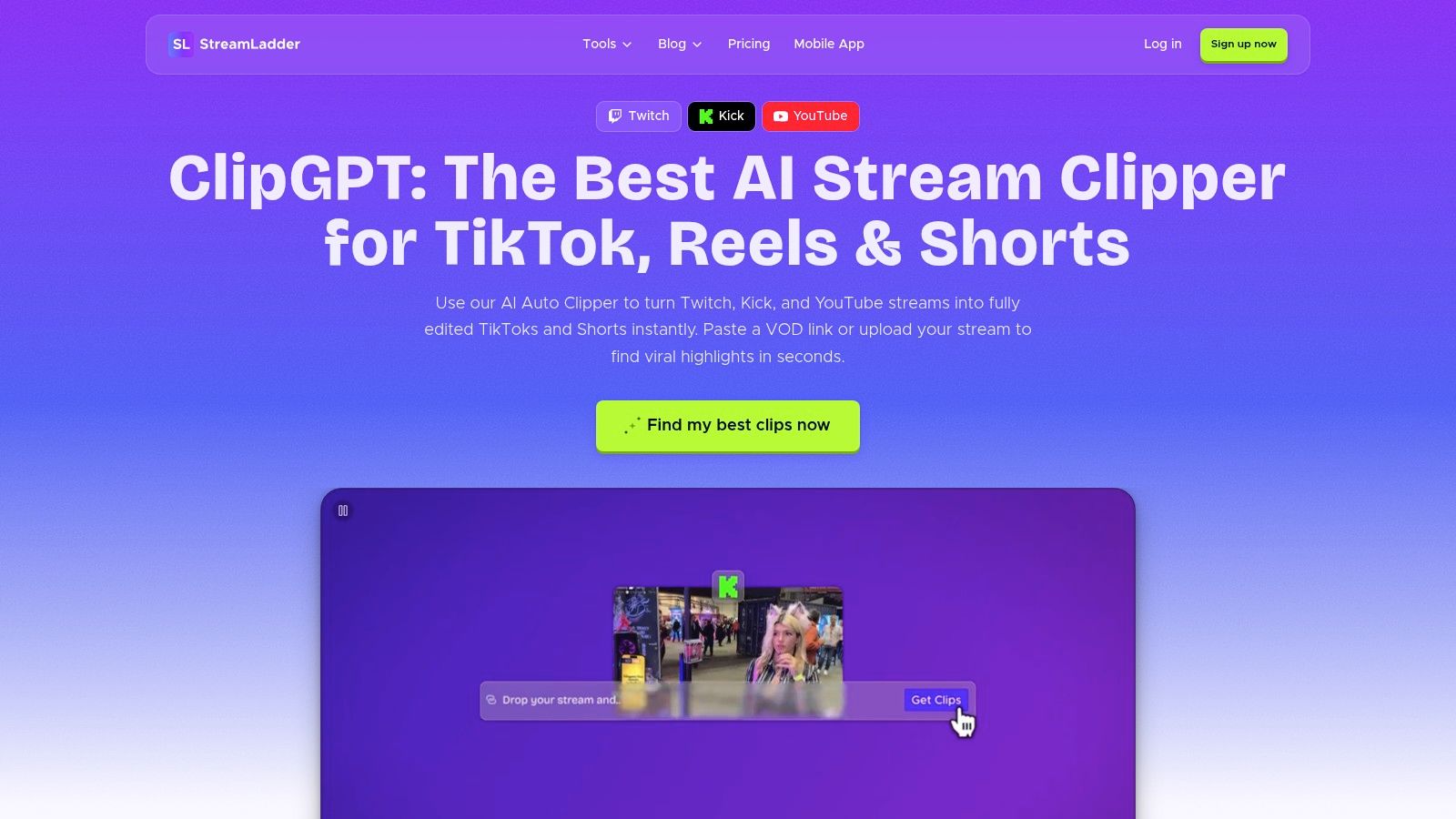
Say you like AI finding the moments but you don’t trust AI to finish them. StreamLadder ClipGPT is built for that middle ground. It scans Twitch, Kick, and YouTube VODs, flags reactions and chat interactions, and ranks candidates with virality scores before handing them to StreamLadder’s editor.
Treat that score as a sorting tool, not a promise. In data covering more than 5 million short-form videos from 582,000 accounts worldwide, Metricool reported 70% year-over-year growth in short-form posts, while YouTube Shorts interactions declined by nearly 50% even as publishing increased 61%, according to MarkStudios’ AI video editing statistics summary. Volume and a score don’t guarantee anyone watches past the first seconds.
Judge every virality score by your own retention, not the number on the card. If the first three seconds don’t explain themselves, re-cut the opening or drop the clip.
You still get automatic vertical cropping, facecam detection, captions, and publishing for TikTok, Shorts, and Reels. The catch is that ClipGPT is a paid feature, not part of the basic free editing tools, though a 7-day trial is advertised. If you only need simple manual reframing, this may be more than you need.
4. ClipBot
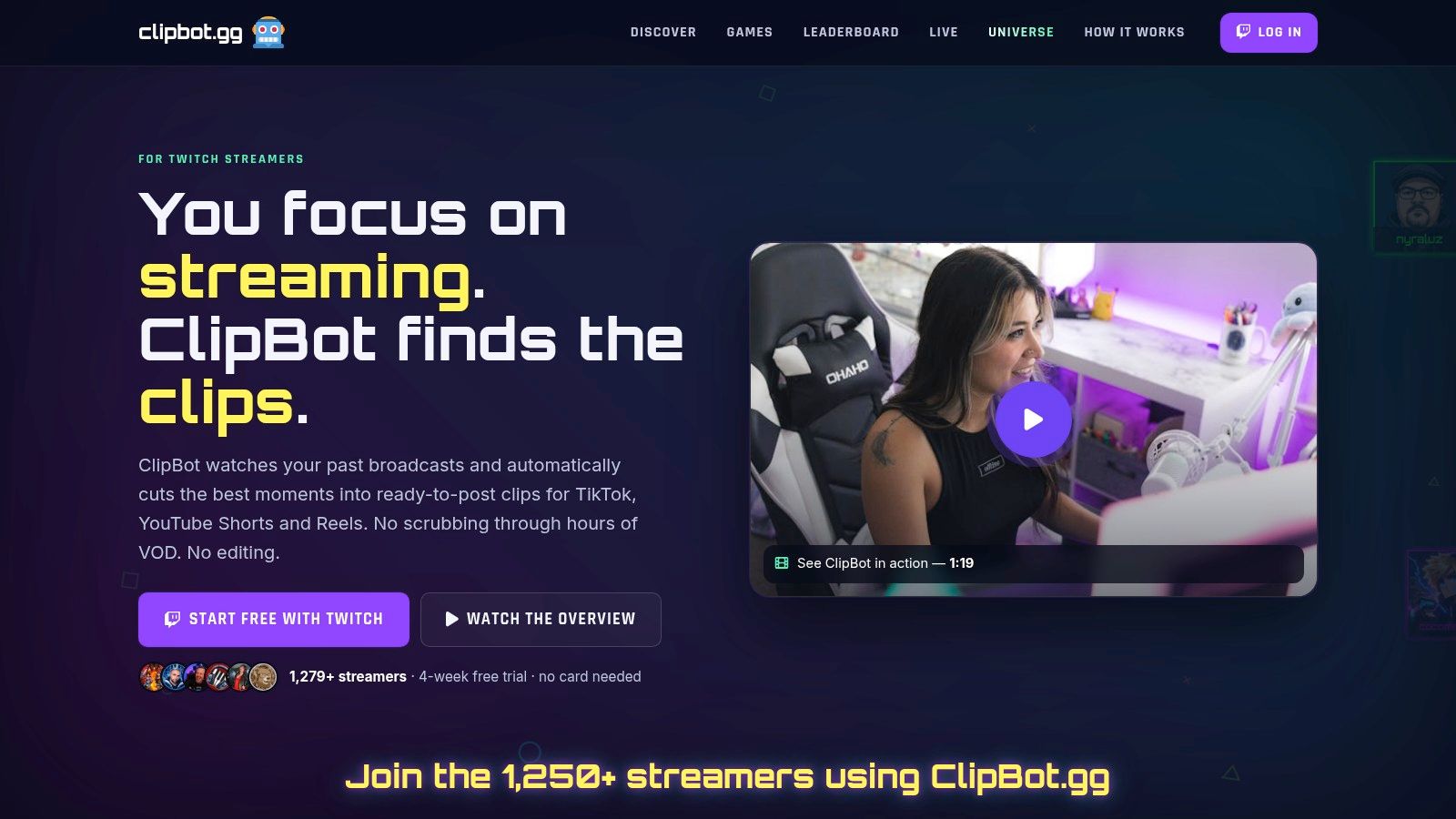
ClipBot focuses on Twitch broadcasts: it processes them after the stream ends and produces clips you can review, download, or share from a public clip page. That suits creators who want to find moments without remembering to mark them during a match.
The trade-off is a narrower workflow. ClipBot offers candidate clips and a Shorts editor with animated captions, while broader tools may add cross-platform scheduling and more editing options. For a comparison of Twitch-focused discovery workflows, see this guide to finding clips from Twitch streams.
A 2024 survey found that AI tools are already part of many creators’ workflows, but adoption alone does not tell you whether a particular clipper fits yours. Check how well its suggestions match the moments you would choose yourself.
- Strength: ClipBot offers a paid tier and a free trial. Check its current plan limits and terms on the official site before committing.
- Limits to check: ClipBot is Twitch-focused, so creators streaming on Kick or YouTube should confirm support before choosing it. Test its suggestions on a VOD with varied moments, then review the clips for context and usable openings.
5. StreamClip.io
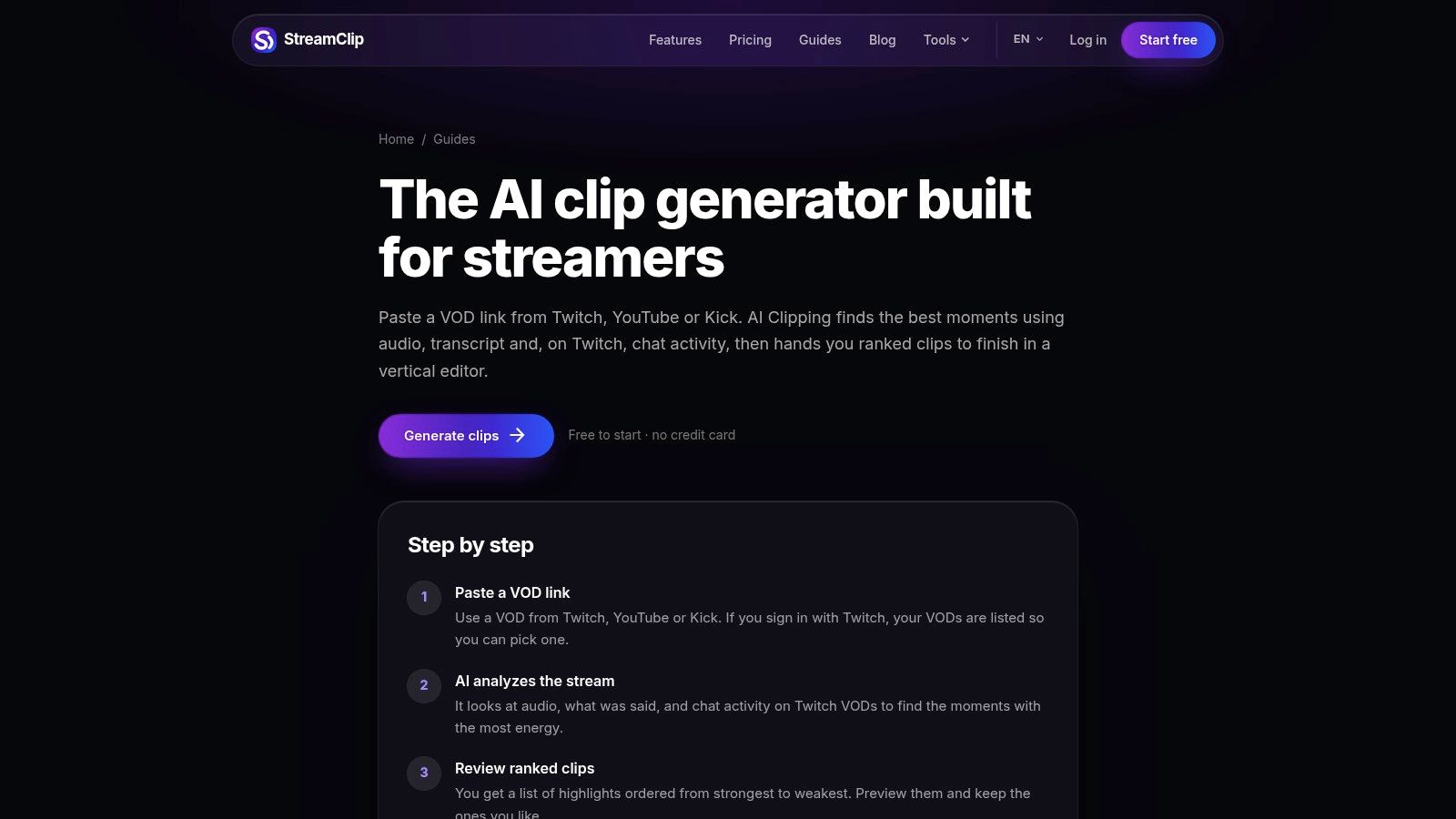
StreamClip.io takes a review-first approach. You feed it Twitch, YouTube, or Kick video, and it ranks potential clips using audio, transcript, and, for Twitch, chat activity. Nothing posts itself. You inspect the suggestions, then edit them in a 9:16 editor with facecam layouts, captions, and effects.
That suits creators who’ve been burned by hands-off tools posting a clip mid-sentence. It also suits editors who want ranked candidates rather than finished posts handed to a client. The polishing step is exactly where many creators already use AI, since in 2024, 62% of individual creators surveyed used generative AI to streamline cuts, transitions, and polishing, according to Storyblocks’ guide on authenticity in the age of generative AI.
Pricing and publishing limits
Pro is listed at $15/month or $150/year, including 50 hours of VOD analysis per month, with English and Spanish captioning advertised. Count your actual streamed hours before choosing, because daily long sessions eat an allowance fast.
- Strength: It’s designed for stream VODs, not just talking-head footage, and you approve every clip before it goes anywhere.
- Limits to check: AI clipping isn’t in the free plan, and publishing covers TikTok and YouTube Shorts rather than Instagram as well.
6. Clipzula
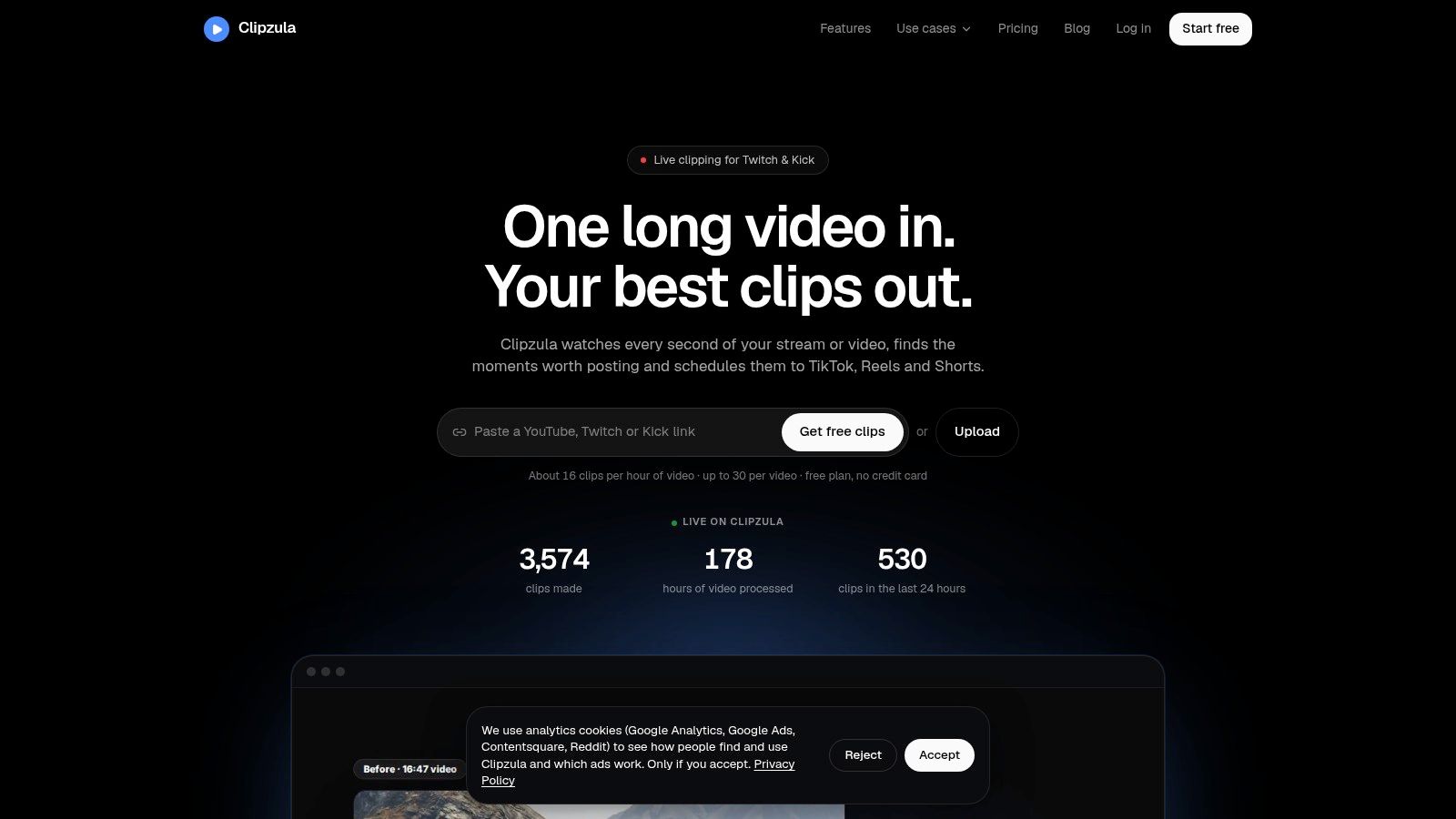
Clipzula covers Twitch, Kick, and YouTube VODs, and on paid plans it can also clip Twitch and Kick streams live. That live option matters if your community expects clips during the broadcast, not the next morning. Detection uses transcript, audio peaks, and scene changes, paired with facecam-aware vertical layouts, captions, hooks, and clip scoring.
Captions are where tools like this earn their keep, but they’re also where quality varies most. In 2024, 59% of businesses already using AI in video-production workflows used it to automatically generate captions or transcripts, according to Wistia data reported by MarTech Cube. Check proper names, game terms, and slang on your first batch, because viewers forgive a plain caption style faster than wrong words.
- Strength: A free monthly allowance lets you test on your own footage, and one-time options from $12 sit alongside subscriptions from $15. Scheduling covers TikTok, Instagram, and YouTube.
- Limits to check: Free clips are watermarked and capped at 60 minutes of video per month. Paid plans carry video-hour and account limits, and the service looks less established than the biggest rivals, so don’t build a client workflow on it without a fallback export routine.
7. OpusClip
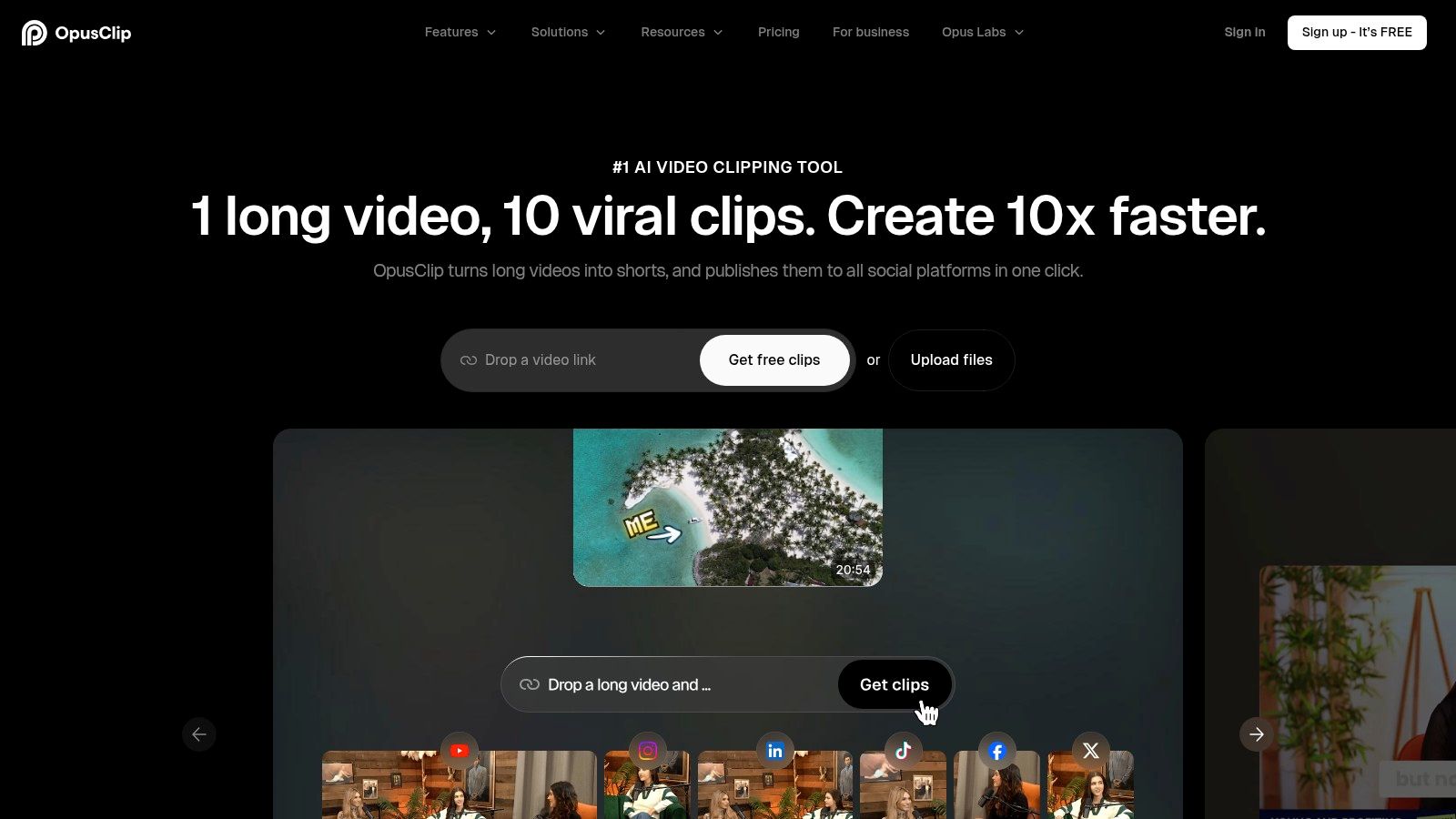
OpusClip is a general-purpose repurposing tool for creators working with podcasts, commentary, and streams. Its ClipAnything feature analyzes visual, audio, and sentiment cues, and a gameplay layout can keep facecam and game footage together in a vertical frame. For a comparison of streamer-focused priorities, see this guide to an AI video clipper built for streams.
Captions still need a human check. A 2025 review of 36 peer-reviewed studies found that only 72.7% of sampled videos applied captions consistently across audio sources, despite all including captions, according to a 2025 ACM review of captioning research. Overlapping voices, alerts, music, and game audio can all cause missed or inaccurate words.
Caption check: Watch one exported clip muted, then listen without watching the screen. If either version loses the joke or the play, revise the captions or clip.
OpusClip offers a free plan and paid tiers. Check its pricing page for current prices and plan limits before committing. Verify on the vendor’s site whether live clipping and your preferred import sources are supported on the plan you’re considering. For game-specific detection, compare its results against a gaming-focused tool using the same footage.
8. Powder
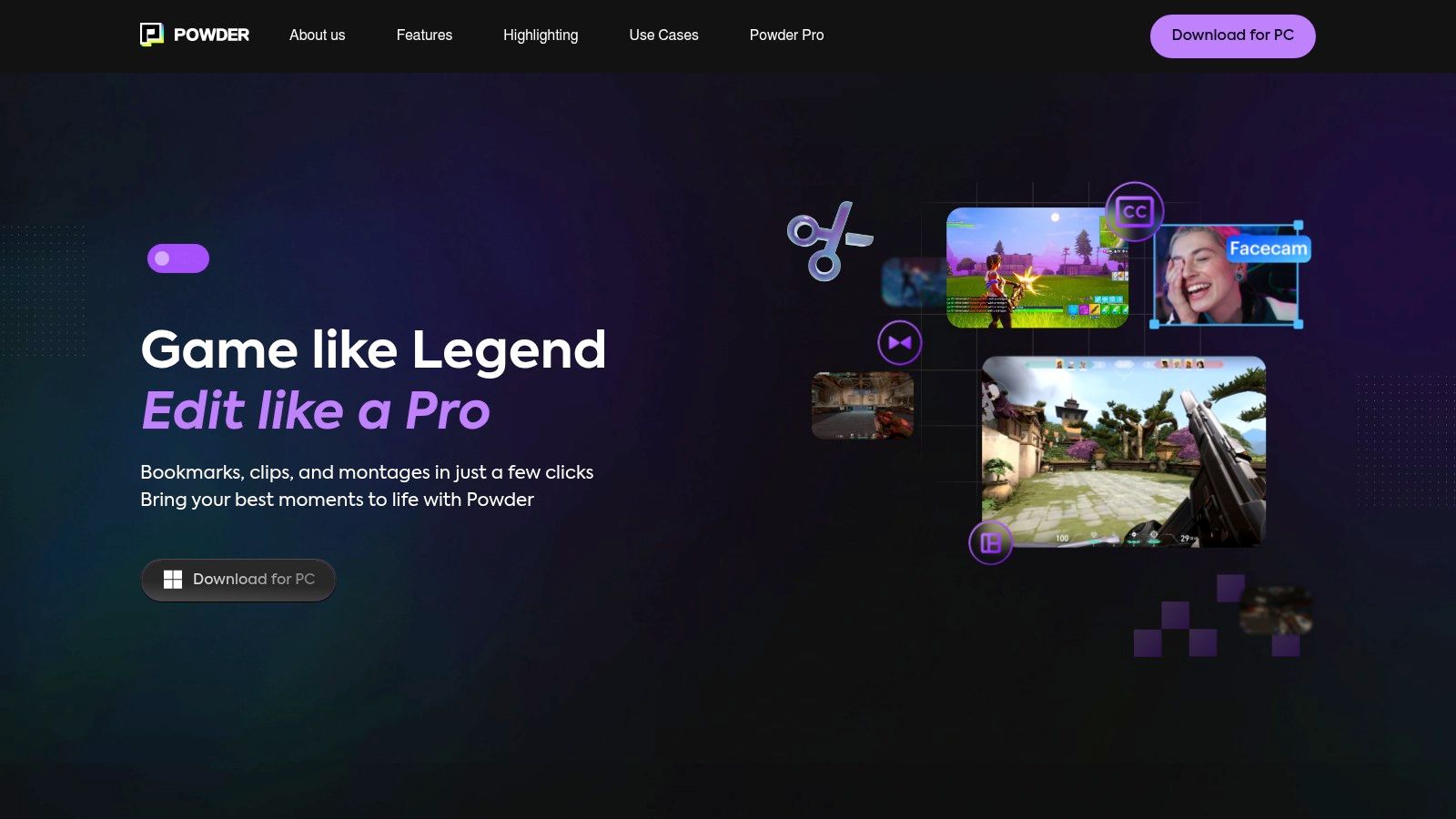
Powder is a Windows desktop app for creators who’d rather work from local recordings than a browser dashboard. It analyzes local files and VODs from Twitch, YouTube, and Kick, using game events, audio, chat spikes, transcription, and keyword search. That search function is useful when you remember what was said but not when it happened.
Who the desktop model suits
If your footage already lives on a capture drive and your editing happens on the same PC, Powder removes upload time from the workflow. Its Universal Game Support also helps with titles outside the main supported list, though event detection quality will vary by game.
- Strength: The free plan includes AI highlight and recording or analysis features, and Pro at $9.99/month adds higher-resolution export options. Multiple ways to find a moment means one weak signal doesn’t sink you.
- Limits to check: It’s Windows-only, with no Mac, Linux, or mobile app. It also isn’t a complete browser-based social scheduler, so posting still happens elsewhere. I recommend it for local-first editors, not for teams who need shared queues and approvals in the cloud.
9. EchoClips
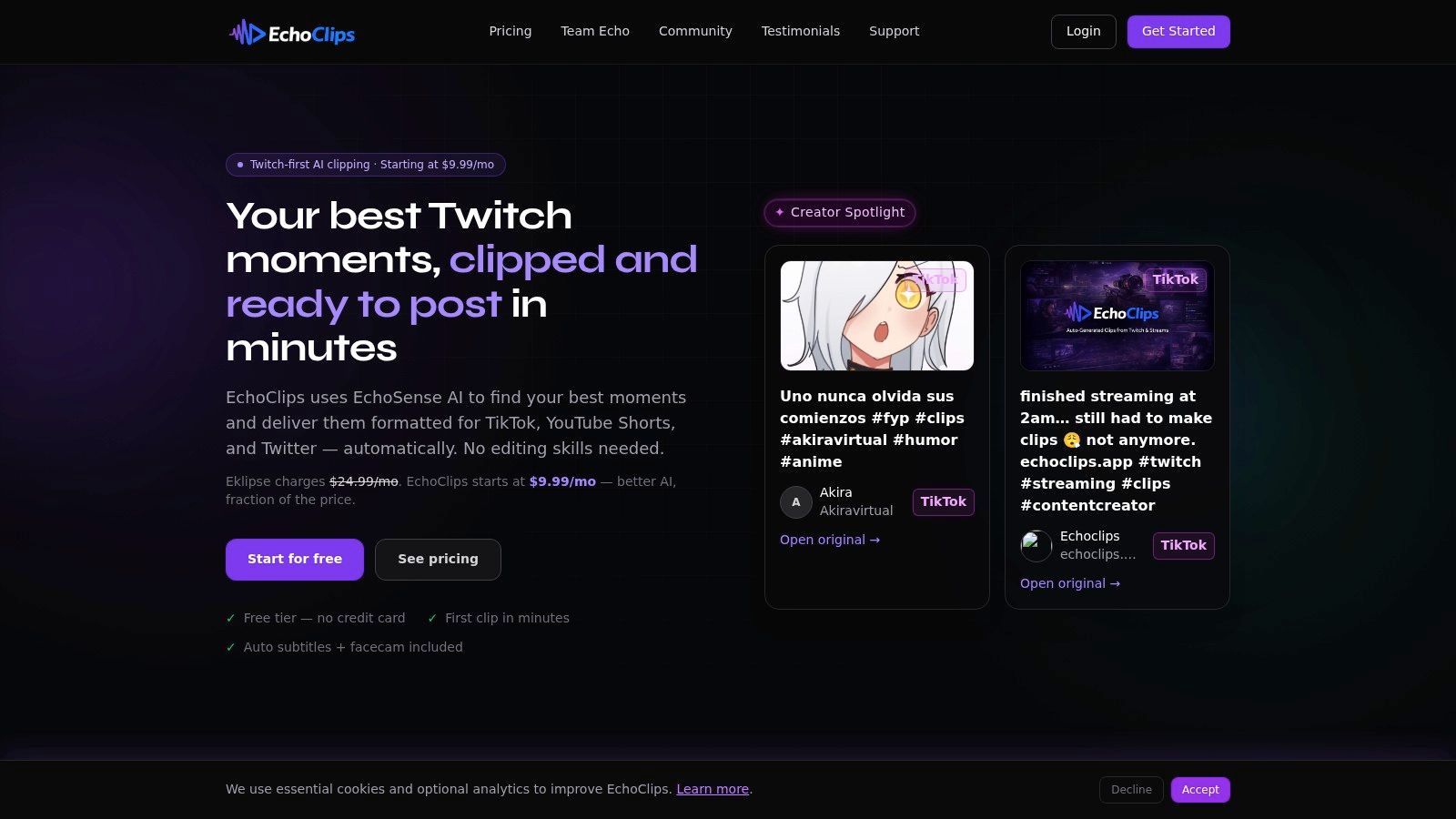
EchoClips scans full Twitch VODs, ranks candidate moments using audio, visual, and emotion signals, then gives you automatic subtitles and an Echo Editor to review before exporting short-form versions. Its pricing model is the interesting part for occasional streamers.
The free plan includes one VOD per month, and a one-time VOD credit is listed at $4.99. If you stream a big event once in a while and want highlights without another subscription, paying per VOD can make more sense than a monthly plan you forget to cancel.
That said, a once-a-month free allowance tells you very little about consistency. Run the same VOD you’d use to test any other tool, and look at whether the ranking surfaces your best moment in the top few picks or buries it under loud but empty reactions.
- Strength: You can test free every month and avoid a subscription entirely with one-time credits.
- Limits to check: The free plan includes a watermark and limited clip storage, and there’s less visible public feedback than established rivals. Confirm supported inputs and export destinations before making it your regular workflow.
10. Medal
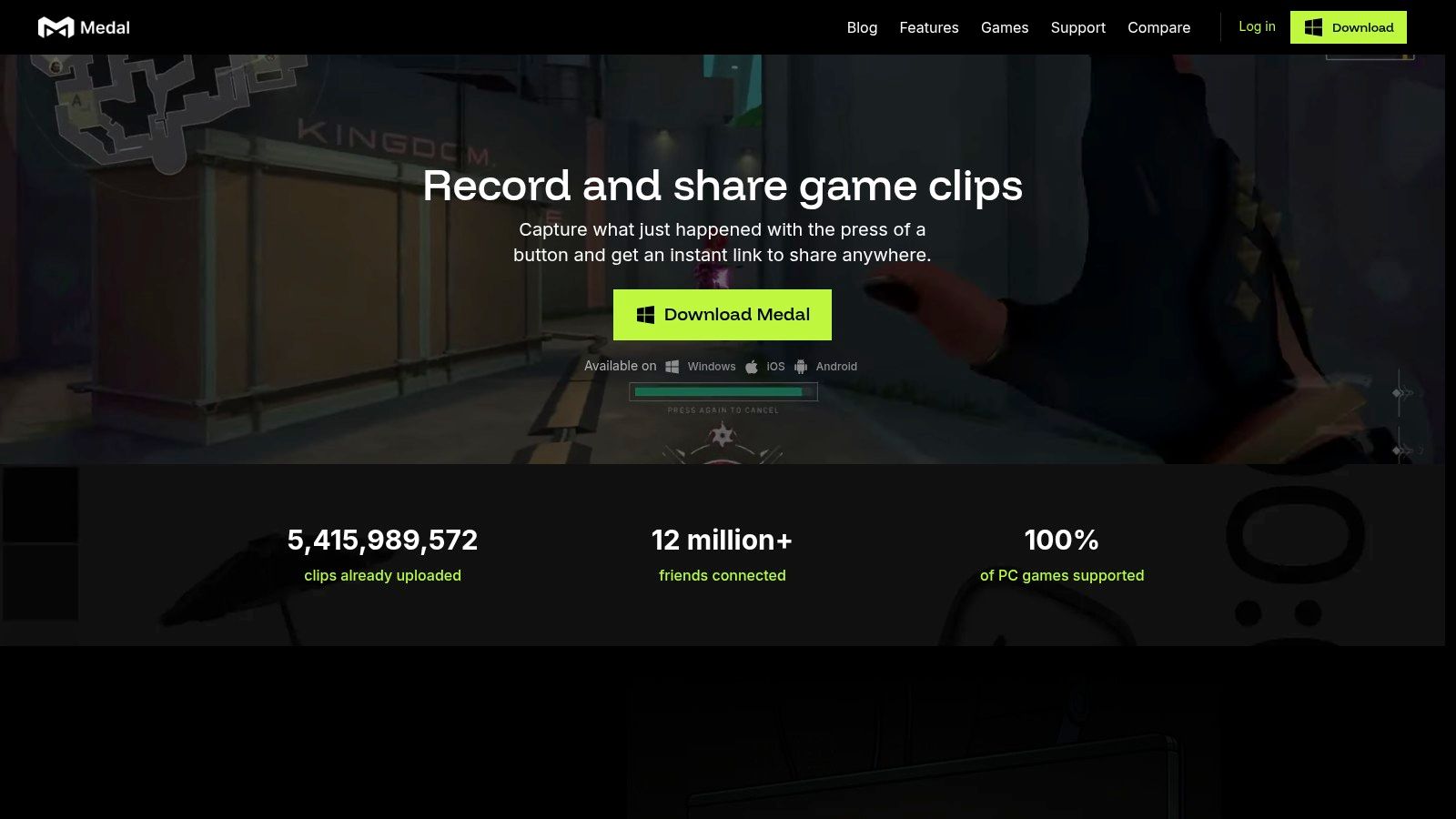
Medal isn’t really a VOD highlight generator, and including it clarifies the category. It’s a gameplay capture and sharing app whose Windows Auto Clipping detects events in supported games and saves the moment while you play, no hotkey needed. Clips sync to mobile for quick editing and sharing.
That makes Medal the right answer to a different problem. If you play off-stream and want the ace saved before you forget it, background capture beats uploading a three-hour recording later. If you stream for a living and need vertical, captioned, scheduled posts from a broadcast, it isn’t built for that.
- Strength: The core PC and mobile app is free, clip lengths are adjustable, and it can record games even when event detection isn’t available.
- Limits to check: Auto Clipping is Windows-only and limited to supported games, there’s no full VOD-to-social publishing workflow, and background detection uses additional system resources. Test it in your most demanding game and watch your frame rate before trusting it during ranked play or a sponsored stream.
AI Highlight Generator Tools at a Glance
The useful comparison is the handoff each tool covers: finding moments, editing clips, and getting them published. Prices below are starting prices where provided.
| Starting price | Streaming platforms | Free option | Publishing to short-form platforms | Best for |
|---|---|---|---|---|
| From €8/month | Twitch | Yes, free tier | Direct publishing to TikTok, YouTube Shorts, and Instagram Reels | StreamGen, for a Twitch clipping, editing, and publishing workflow |
| From $24.99/month | Twitch, Kick, YouTube | No ongoing free clipping tier | Scheduling and publishing tools for short-form platforms | Gaming streamers who want AI-found highlights |
| From $5.99/month | Twitch, Kick, YouTube | Free tools and a 7-day trial | TikTok, YouTube Shorts, and Instagram Reels | Creators who want AI clip discovery with editing control |
| $4.99/month | Twitch | Four-week free trial | Clip downloads and sharing | Twitch streamers seeking simple, low-cost clipping |
| $15/month or $150/year | Twitch, YouTube, Kick | Free plan, but no AI clipping | TikTok and YouTube Shorts | Streamers who want to review and edit ranked clip suggestions |
| From $15/month; one-time options from $12 | Twitch, Kick, YouTube | Yes, limited monthly allowance | TikTok, Instagram, and YouTube | Creators who want live clipping and flexible payment options |
| Free plan; paid plans from $15/month | Twitch and other video sources | Yes | TikTok, YouTube Shorts, and Instagram Reels | Creators repurposing livestreams and other video |
| Free plan; Pro from $9.99/month | Twitch, YouTube, Kick, and local recordings | Yes | No complete social scheduling workflow | Windows-based creators focused on gameplay highlights |
| Free plan; $4.99 per one-time VOD credit | Twitch | Yes, one VOD per month | Short-form exports | Twitch creators seeking a free way to test VOD highlights |
| Free core app; optional Premium | Supported games and local gameplay capture | Yes | Sharing features; no full short-form publishing workflow | PC gamers who want automatic in-game clip capture |
Treat the table as a workflow map, not a feature scorecard. A tool that finds candidates may still leave editing and publishing to you; direct publishing matters only if you want to avoid that handoff. For StreamGen, AI clipping, clip editing, and post scheduling are available from €8/month.
Choosing and Integrating Your Highlight Workflow
Start with the shape of your week, not the feature grid. If you want discovery, vertical editing, and scheduled posting to TikTok, Shorts, and Reels in one place, pick an all-in-one pipeline like StreamGen. Its AI Clip Finder ranks high-energy moments by shareability, the editor adds smart layouts, animated captions, title hooks, word censoring, and brand presets, and Auto Posting keeps a queue moving. On the Ultimate plan, you can also describe what makes your clips funny and engaging, which tunes picks toward your humor instead of generic loud moments.
If you’re Twitch-only and happy editing yourself, a budget clipper like ClipBot gives you raw candidates cheaply. If your workflow is local-first, Powder fits desktop recordings and Medal fits capturing moments as they happen. If you publish podcasts and commentary alongside streams, a general repurposer like OpusClip saves you maintaining two subscriptions. None of these choices is wrong, but mixing roles without a plan is how clips end up in four apps and posted from none.
Whatever you shortlist, test it on one real VOD before committing. Use a typical stream, not your best tournament run, and score the same things each time. How many of the top ten picks would you post? How long does caption cleanup take? Does the vertical layout keep your facecam, health bar, and subtitles readable on a phone? Those answers matter more than any demo reel. Keep a human review pass, too, because an AI that cuts two seconds early can remove the context that makes a clip fair, funny, or even accurate.
Rights and disclosure belong in that review pass. The U.S. Copyright Office January 2025 report announcement states that AI-assisted output can receive copyright protection when a human determines sufficient expressive elements, while prompts alone are not enough. Separate platform rules also apply when realistic content is altered or synthetically generated, so automated cutting and captioning aren’t the same risk as synthetic voice or face changes. Preserve source timestamps, know what the tool changed, and approve clips yourself before they publish.
Finally, fit the tool into the stack you already have. Browser clipping and timeline editing can coexist, since StreamGen’s VOD Editor exports pre-edited projects for DaVinci Resolve and Premiere Pro, letting an editor refine pacing, audio, and color after the AI removes dead air. Agencies should decide who approves captions and who owns the posting queue, and solo creators should set one weekly review session rather than approving clips in scattered minutes. The best AI highlight generator for you is the one whose output you trust after a fast check, not the one that promises you’ll never watch your own footage again. You should still watch it. You just shouldn’t have to watch all of it.
Ready to stop scrubbing eight-hour VODs by hand? StreamGen finds and ranks your best Twitch moments, turns them into captioned vertical clips, and schedules them to TikTok, YouTube Shorts, and Instagram Reels from one workspace. Start on the free tier, run one real stream through it, and see how many postable clips you get before your next broadcast.
More blog posts