You’ve got OBS open, a capture card in your cart, and your Switch sitting undocked on the couch where you play it. That’s the mismatch most Nintendo Switch streaming guides never mention. They hand you a parts list built for a desk, a dock, and a TV, then leave you to discover that your console, your room, and the way you hold the controller don’t fit that picture at all.
Table of Contents
- Why Your Streaming Plan Starts With How You Actually Play
- Docked, Handheld, or Switch Lite - Picking the Right Path
- Wiring the Docked Setup and Getting a Signal Into OBS
- Bitrate, Audio Routing, Facecam, and the Passthrough Rule
- Handheld Play and Switch Lite Without Giving Up the Stream
- Troubleshooting the Problems That Actually Break Switch Streams
- After the Stream Ends - Turning Switch Gameplay Into Clips
Why Your Streaming Plan Starts With How You Actually Play
A creator I helped last year bought the card everyone recommended, wired it correctly, and still couldn’t stream. She played almost entirely handheld in bed, her dock lived in another room, and sitting at a desk to play felt so unnatural that she quit after two sessions. The gear wasn’t broken. The plan was wrong for her.
That story repeats constantly because the Switch is three products wearing one name. Docked, it’s a home console with a video output your computer can capture. Handheld, it’s a self contained screen with no signal leaving the device. The Lite is handheld only, permanently.
The Decision Before the Shopping List
Your play style decides what signal exists to capture, and that signal decides everything downstream. It decides whether OBS sees a clean feed or a camera pointed at a screen. It also decides whether your recorded footage later holds up when you crop it vertical, add captions, and cut it into clips.
Buy for the way you already play, not the way a tutorial assumes you play. Forcing a new posture, room, and routine onto your stream is the fastest way to stop streaming.
Classify yourself before spending anything. If you’re docked most nights, your path is straightforward and the rest of this guide is mostly wiring and settings. If you’re handheld first, you’re solving a different problem, and some popular advice doesn’t apply to you. Knowing which camp you’re in turns a generic tutorial into a specific answer.
Docked, Handheld, or Switch Lite - Picking the Right Path
Three profiles cover nearly every Switch creator, and each one points to different hardware. Read the descriptions, pick yours, and stop researching the other two.
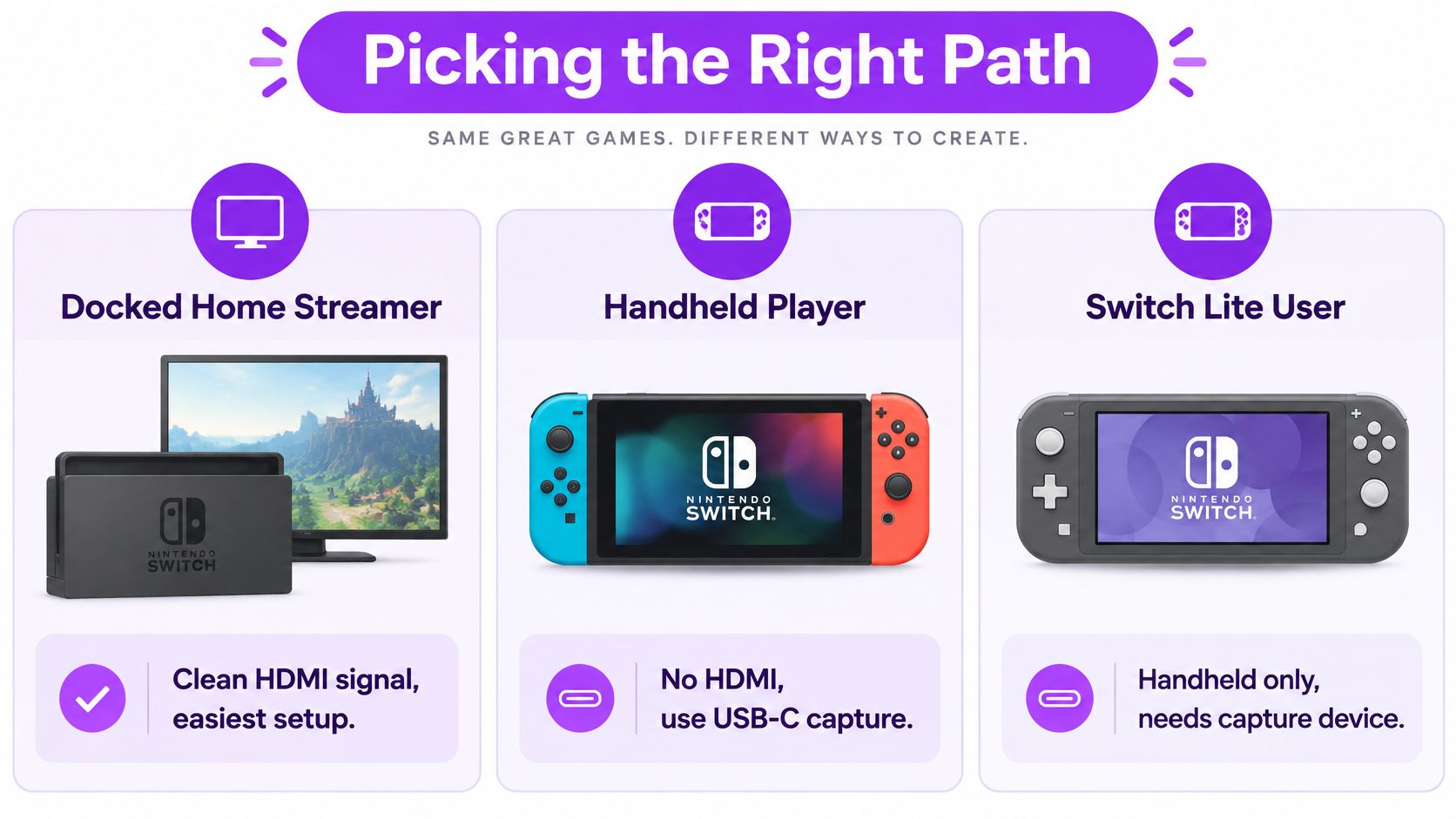
The docked home streamer has the only straightforward route. Your console sits in its dock, the dock outputs video over HDMI, and a capture card carries that signal into OBS. You get the sharpest image, the lowest fuss, and footage that’s easiest to reuse later.
The handheld creator owns a standard Switch but rarely docks it. Your problem isn’t software, it’s that handheld mode produces no external video signal. Your realistic options are a USB-C grabber style device that presents the screen as a webcam input, a phone or camera on a mount filming the display, or changing your habit and docking for stream nights only.
The Switch Lite owner faces a hard architectural wall. The Lite has no TV mode, so there’s no HDMI signal for any capture card to receive, regardless of price. Your options narrow to filming the screen, using a modified console, or streaming a different system and keeping the Lite for off camera play.
Switch Streaming Profiles at a Glance
| Profile | Capture Method | Hardware Tier | Best For |
|---|---|---|---|
| Docked home streamer | HDMI capture card into OBS | Card, dock, PC | Regular scheduled streams |
| Handheld creator | USB-C grabber or camera on screen | Grabber or phone mount | Couch and bed play sessions |
| Switch Lite owner | Camera filming the display | Mount and existing camera | Casual, low stakes broadcasts |
Notice what the table doesn’t promise. It doesn’t claim these paths produce equal footage, because they don’t. Docked capture gives you a native digital signal. Handheld workarounds give you a recording of a screen, with glare, softness, and framing compromises baked in. That gap matters later when you crop for vertical video.
Wiring the Docked Setup and Getting a Signal Into OBS
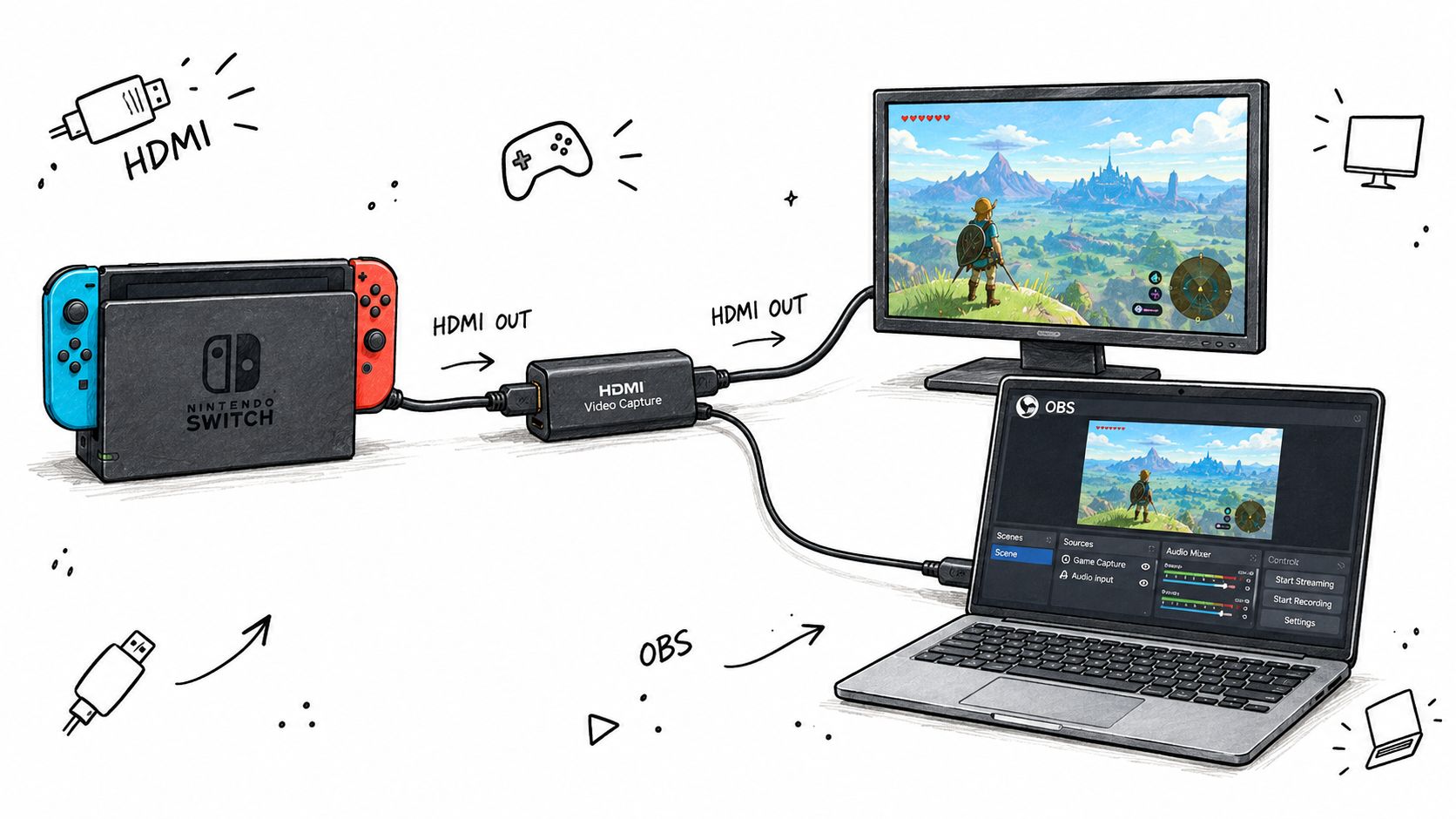
For docked play, the physical chain has exactly one correct order. The diagram below shows the layout before you touch any settings.
The Cable Chain
- Dock to card: Run HDMI from the dock’s HDMI OUT into the capture card’s HDMI IN.
- Card to monitor: Run a second HDMI from the card’s HDMI OUT to your TV or gaming monitor. This is your passthrough display, the screen you’ll play on.
- Card to PC: Connect the card to your streaming computer over USB, using a rear motherboard port rather than a front panel port or unpowered hub.
In OBS, add the card as a Video Capture Device source and name it something obvious like Switch Capture. Set the source to 1920×1080 at 60 fps when your card and USB connection support it, since the docked Switch output and standard capture workflow are commonly specified at up to 1080p/60. If OBS shows a black box at this stage, don’t change software settings yet. Check the physical layer first.
The walkthrough below shows the same connection sequence on a real desk, which helps if the port labels on your card are confusingly small.
Most no signal problems trace back to four causes. The dock loses power because its adapter got swapped for a phone charger. An HDMI cable lands in the wrong port, reversing the intended direction. A USB hub or shared bus starves the card of bandwidth. Or the content carries HDCP protection, which capture cards generally won’t pass, even though normal gameplay works fine.
Your Pre Stream Checklist
- Dock power light on: Confirm the original adapter is connected and the console charges while docked.
- Passthrough picture first: Get the game visible on your play monitor before opening OBS.
- OBS source live: Verify motion in the preview, not just a frozen frame.
- Audio meters moving: Make a menu sound and watch the capture source meter respond.
If you’re assembling this rig on a tight budget, a lean streaming setup built around gear you already own covers where to spend and where to wait. Run the checklist in order every session. It takes a minute and catches nearly everything that would otherwise eat your first ten minutes live.
Bitrate, Audio Routing, Facecam, and the Passthrough Rule
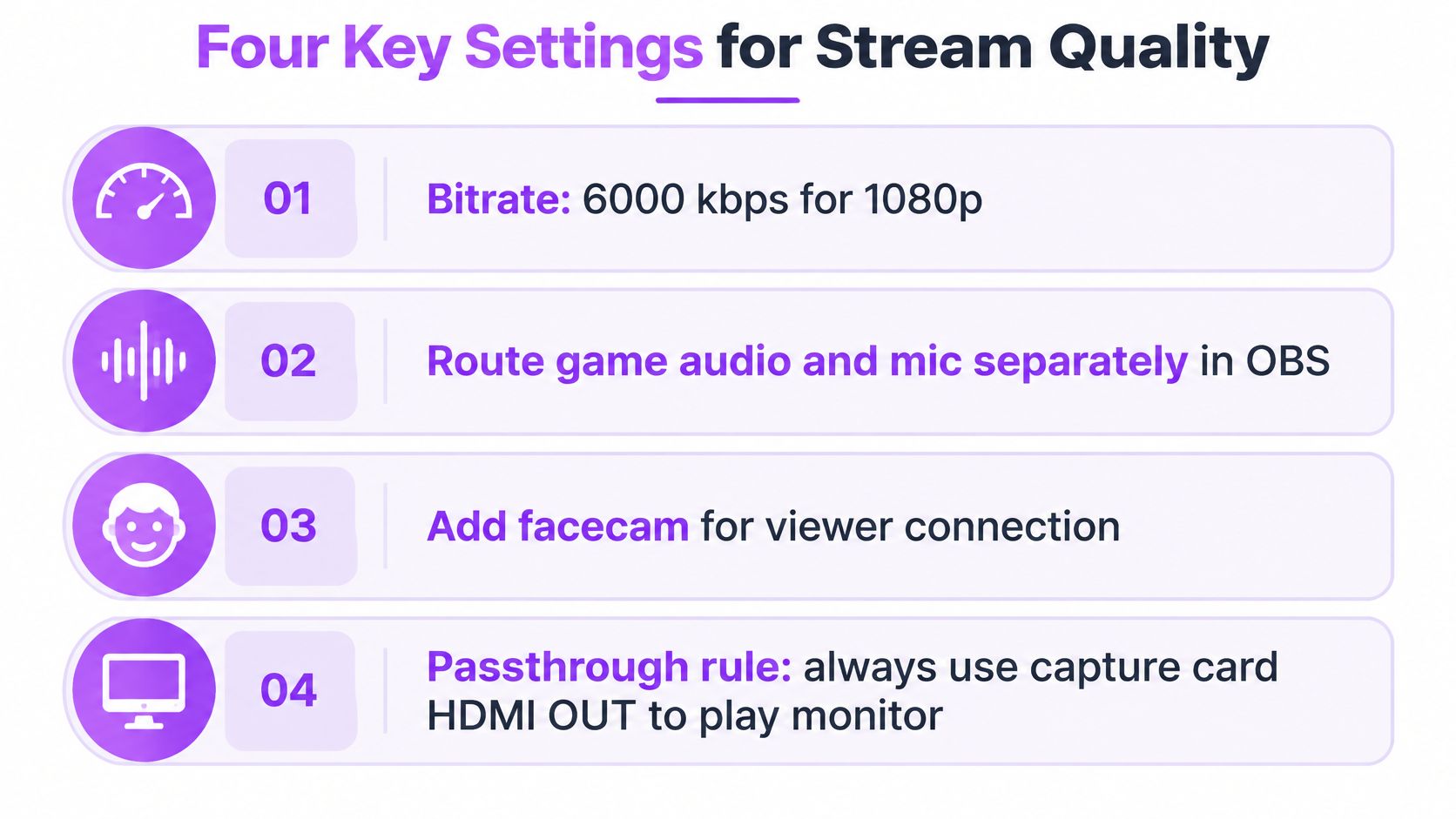
A visible signal in OBS only means the wiring works. Four configuration decisions determine whether viewers get a watchable stream and whether you can play well while producing it.
Bitrate Needs Headroom, Not Hope
For Twitch at 1080p, a practical target sits around 4,500 to 6,000 Kbps, with your upload capacity exceeding the chosen bitrate by roughly 30%, so a 6 Mbps stream needs about 8 Mbps of upload, per the capture workflow reference cited in the wiring section above. Treat that headroom as non negotiable. A connection that tests exactly at your bitrate will drop frames the moment anyone else in the house loads a video.
I’d rather watch a stable stream at the lower end of that range than a stuttering one at the top. Viewers forgive slight softness. They leave during buffering.
Keep Game Audio and Your Voice Separate
Route game sound through the capture source and your microphone through its own OBS input, on separate tracks. That separation lets you duck loud game effects under your voice, fix levels after the fact, and keep chat reactions audible during boss fights. If you’re splitting audio across headphones, speakers, and stream outputs on the same machine, these PC audio routing options walk through the splitter side of that puzzle. For microphone technique and level setting, this practical guide to audio for streamers covers the fundamentals worth getting right early.
Practical rule: If your voice and the game share one track, every level mistake you make live is permanent in the recording.
Facecam Placement and the Passthrough Rule
Place your facecam where it won’t cover health bars, maps, or dialogue boxes, and keep your face out of the extreme corners. That placement matters twice, once for the live 16:9 canvas and again when the footage gets reframed vertical, where corner elements are the first thing cropped away.
Finally, the rule new Switch streamers break most often. Play from the passthrough monitor, never from the OBS preview. The preview buffers frames through USB and software, adding perceptible delay between your button press and the on screen result. Passthrough is designed to preserve near zero latency gameplay. If your jumps feel late, you’re almost certainly watching the wrong screen.
Handheld Play and Switch Lite Without Giving Up the Stream
Most guides abandon handheld players at this point, which is strange given that portability is the console’s whole identity. The honest starting point is the constraint itself. The original Switch’s internal sharing feature is limited to short clips, and longer broadcasts require the docked HDMI signal to pass through external hardware, which is why Switch Lite owners without TV mode fall back to screen-capture workarounds.
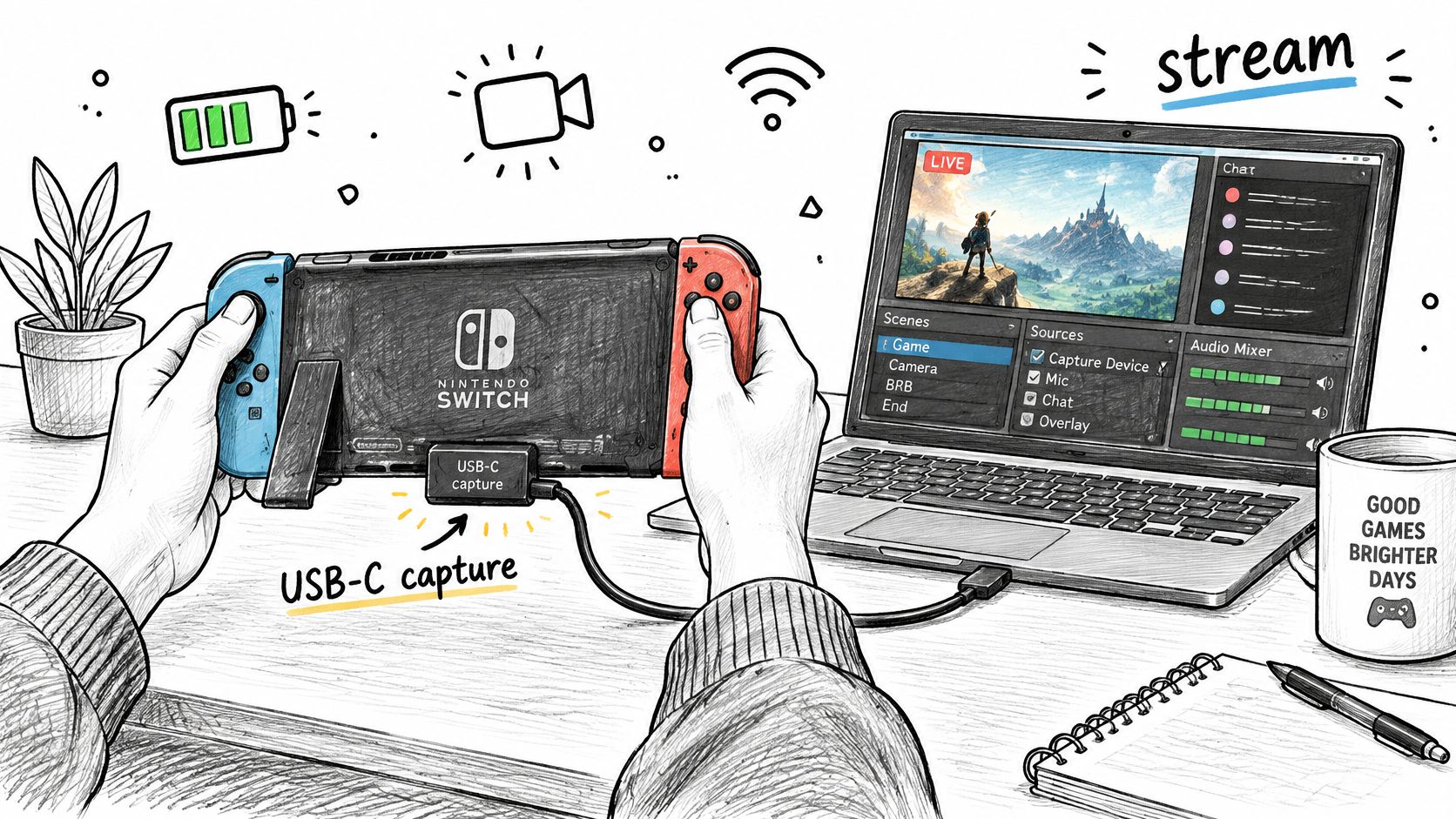
What Handheld Creators Can Realistically Do
A USB-C grabber device that presents the console as a UVC webcam input is the cleanest handheld option when it works with your setup. Setup is fast and the image avoids camera glare entirely. The trade offs are latency you wouldn’t accept in a competitive game and footage that can look softer than a true HDMI feed when cropped later.
A phone or camera on an overhead mount filming the screen costs almost nothing if you own a decent phone. You’ll fight reflections, moiré patterns, and your own hands drifting into frame. Dim the room, angle the mount slightly, and lock exposure so the screen brightness doesn’t pulse. It reads as charmingly scrappy for cozy games and rough for anything fast.
A dedicated dockless capture accessory sits between those extremes. You pay more than a phone mount for a purpose built signal path, but you’re still not getting the docked HDMI feed a card based rig enjoys.
The Switch Lite Reality
For Lite owners, no accessory creates a signal the hardware never produces. A camera on a mount is the standard answer, and accepting its limits upfront beats buying a capture card you’ll return. Modded consoles exist but carry cost, risk, and warranty consequences that make them a poor recommendation for most creators. If streaming becomes serious for you, a standard Switch for broadcast nights is the pragmatic upgrade, with the Lite staying your travel machine.
Set expectations accordingly. Handheld footage can absolutely carry a stream where personality leads. It just won’t survive aggressive vertical cropping and caption heavy clip editing as gracefully as docked capture does.
Troubleshooting the Problems That Actually Break Switch Streams
Diagnose by symptom, not by randomly reinstalling things. Nearly every broken Switch stream I’ve seen matched one of the patterns below, and nearly every fix took under five minutes once the cause was named.
Black Screen in OBS, Game Plays Fine
Check HDCP, HDMI direction, and dock power, in that order. Swap the cable at the card to confirm OUT from the dock feeds IN on the card. If the dock itself shows no output on a TV either, you’re past streaming troubleshooting, and CTF’s Switch dock repair advice covers the hardware failure checks worth running before replacing anything.
Stuttering Video or Dropped Frames
- USB bandwidth sharing: Move the card to its own rear port and unplug other high bandwidth devices from that bus.
- Encoder overload: Watch your PC’s encoder load during a busy scene, since a maxed out encoder drops frames no matter how good your connection is.
- Bitrate beyond your upload: Lower the bitrate until dropped frames stop, then treat that number as your real ceiling.
Audio Drifting Out of Sync
Mismatched sample rates between the capture source and OBS cause gradual drift, so confirm both use the same rate in your audio settings. Monitoring your microphone through a delayed output creates a different problem, where you hear yourself late and unconsciously slow down. Fix the monitoring path rather than nudging sync offsets blindly.
Laggy controls are almost never a settings problem. You’re playing off the OBS preview. Move your eyes to the passthrough monitor and the game feels right again.
Capture Card Not Detected at All
Try a different USB port before anything else, since front panel ports and hubs often underdeliver power. Then check for driver or firmware updates from the card maker. Rebuilding your OBS scene should be your last resort, not your first instinct, because the scene is rarely the culprit when the device itself won’t enumerate.
After the Stream Ends - Turning Switch Gameplay Into Clips
A correctly wired docked rig pays you back twice. It produces the live broadcast, and it leaves behind a clean recording at native frame rate with separate audio tracks, which is exactly the raw material highlight detection works best on.
That matters because Nintendo audiences concentrate around peaks rather than spreading evenly across a session. Twitch’s June 12, 2018 Nintendo focused E3 broadcast lasted 584 minutes, peaked at 216,544 viewers, and accumulated 3,570,525 viewer-hours. Your own VOD works the same way at smaller scale. A handful of reveals, comebacks, and reactions carry most of the value, surrounded by hours of quieter material nobody will scrub through manually.
Export Habits That Protect Your Footage
- Keep the native frame rate: Dropping the source to a lower rate to save bandwidth weakens motion heavy clips and makes frame accurate cuts harder.
- Preserve separate audio tracks: Clean voice and game tracks give editing tools, automated or manual, far more to work with.
- Don’t pre edit the VOD: Automated analysis needs the full timeline, including chat spikes and audio cues you’d trim away.
Docked HDMI footage survives vertical reframing because the detail is there. Screen filmed handheld footage loses sharpness at every crop, which is why your profile choice at the start echoes all the way into clip quality. If you’re new to the clipping side, this walkthrough on how clips work on Twitch and how to make them count is a sensible next read.
The live stream is the event. The recording is the asset. Build your Nintendo Switch streaming setup so the next morning’s footage is worth something, and every session keeps working for your channel after you go offline.
Your docked Switch VODs already contain the moments worth posting, and StreamGen finds them for you by analyzing gameplay, reactions, chat, and audio across the full recording, then reframing the best segments vertically with captions for TikTok, YouTube Shorts, and Instagram Reels. Connect your Twitch account, let the clip finder and editor build your queue, and schedule everything from one workspace while you focus on the next stream.
More blog posts