Publish Date
Twitch remains the king of live streaming. If you’ve been watching specific streamers and want to join the fun, here is exactly how to stream using Twitch.
1. Create a Twitch Account
Go to Twitch.tv and sign up. Enable Two-Factor Authentication (2FA) immediately—you cannot stream without it!
2. Download Streaming Software
You need software to broadcast your gameplay. The two most popular free options are:
- OBS Studio: Powerful, lightweight, open-source. The standard.
- Streamlabs Desktop: User-friendly, built-in alerts and chats, based on OBS.
3. Connect Software to Twitch
For OBS:
- Go to Settings > Stream.
- Service: Select “Twitch”.
- Click “Connect Account” (Recommended) to log in directly.
- Alternatively, find your Stream Key in your Twitch Dashboard (Settings > Stream) and paste it in. Never share this key!
4. Set Up Your Scene
- Sources: In your software, add a “Window Capture” or “Game Capture” to show your game.
- Mic: Ensure your microphone is selected in “Audio Mixer”.
- Camera: Add a “Video Capture Device” if you want to use a webcam.
5. Go Live!
- Hit “Start Streaming” in your software.
- Check your Twitch channel on another device to make sure you are live.
- Keep an eye on chat and have fun!
Next Steps
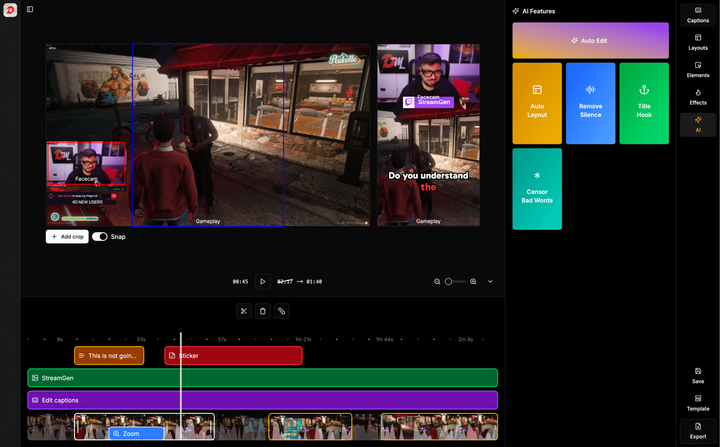
Once you start streaming, you’ll want to grow. That means creating content for other platforms. Use StreamGen to automatically find highlights from your streams and post them to TikTok and YouTube Shorts to bring new viewers to your channel.
More blog posts